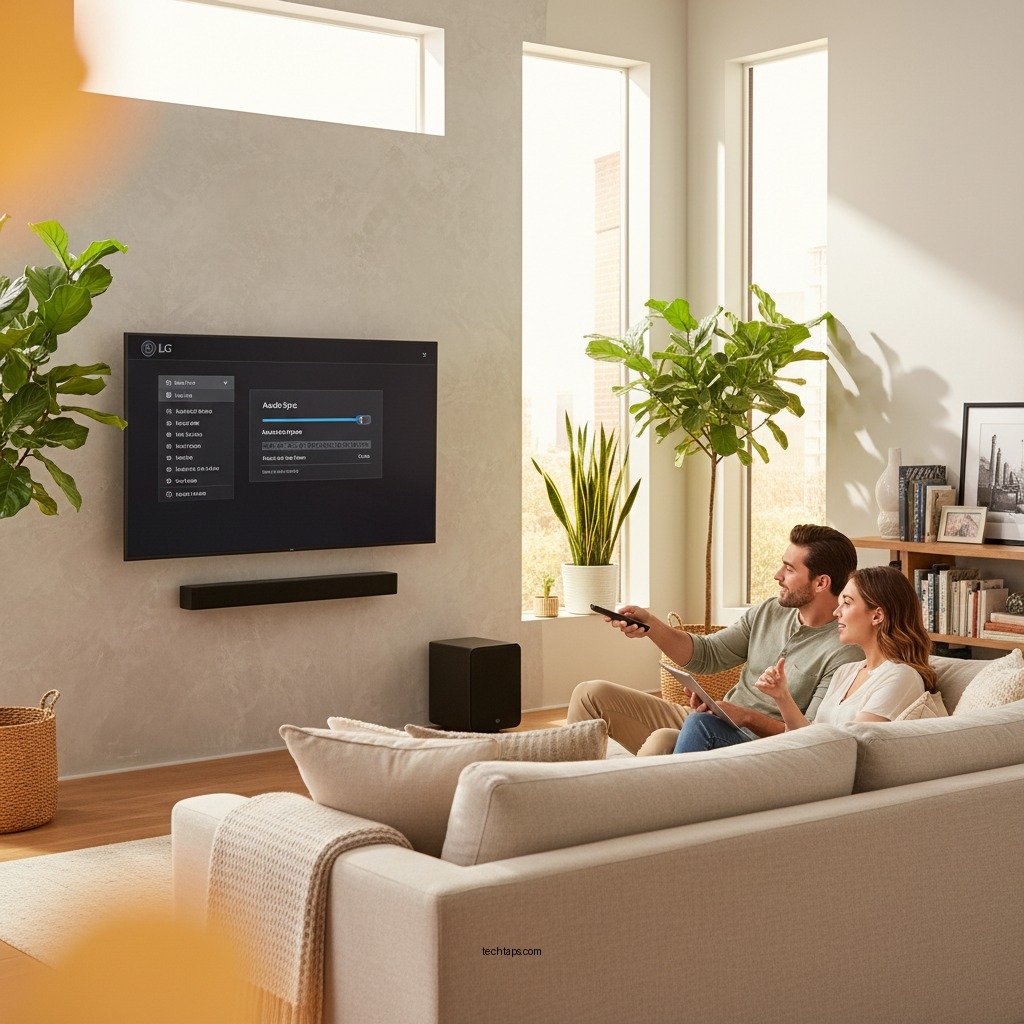
To fix audio delay on your LG home theater system, start by adjusting the audio sync settings in your TV or sound system. This simple adjustment can often resolve lag issues. Audio delays can detract from your viewing experience, making it crucial to address this problem promptly. In this article, we’ll explore various troubleshooting steps and settings adjustments to help you achieve perfect audio-visual synchronization for a seamless entertainment experience.




Understanding Audio Delay
Audio delay, also known as audio latency, refers to the lag between the video and audio signals in your home theater system. This can manifest as a noticeable dissonance where the audio appears to arrive before or after the corresponding video action, creating an unsettling viewing experience. Common causes of audio delay include processing time within devices, sound format adjustments, and the method of connection between devices.
Scenarios where audio delay frequently occurs include streaming from services like Netflix or Hulu, where various compression methods can introduce latency. Additionally, gaming consoles can also present audio delay, particularly in fast-paced games where timing is critical. Understanding these factors is essential in troubleshooting and rectifying audio sync issues effectively.
Adjusting Audio Sync Settings
To adjust the audio sync settings on your LG devices, follow these steps:
1. Access the Settings Menu: Use your LG remote to navigate to the settings menu. This is usually represented by a gear icon.
2. Select Sound Settings: Scroll down to the ‘Sound’ option and select it.
3. Locate Audio Sync: Within the sound settings, look for ‘Audio Sync’ or ‘Lip Sync’ adjustments. This option allows you to manually sync the audio and video.
4. Adjust the Delay: Use the slider or adjustment arrows to fine-tune the audio delay. Start with small increments, testing the audio sync after each adjustment.
5. Test with Different Media: After adjustments, play various types of content (like movies, shows, and games) to ensure the audio sync is consistent across all formats.
Fine-tuning the sync delay can be a trial-and-error process, but with small adjustments, you can achieve the perfect synchronization that enhances your viewing experience.
Checking Connection Types
The type of connection used between your devices can significantly impact audio delay. Common connection types include HDMI, optical, and RCA cables, each with its own characteristics.
– HDMI: This is the most recommended connection type as it supports high-definition audio and video without significant delay. Ensure you are using a high-speed HDMI cable for optimal performance.
– Optical: While optical cables offer good sound quality, they can sometimes introduce latency due to digital conversion processes. If using optical, make sure your settings are optimized for minimal delay.
– RCA: This older connection type is not recommended for high-definition audio and can often lead to more significant audio delay issues.
For the best performance, it is advisable to use HDMI connections whenever possible. This not only minimizes audio delay but also maintains the highest quality of sound and video.
Audio Connection Types and Their Impact on Delay
| # | Connection Type | Latency (ms) | Audio Quality | Best For |
|---|---|---|---|---|
| 1 | HDMI | < 10 | High | General Use |
| 2 | Optical | 10-30 | Medium | Home Theater |
| 3 | RCA | > 30 | Low | Older Systems |
| 4 | Bluetooth | 30-100 | Medium | Wireless Use |
| 5 | Wi-Fi | 50-150 | Medium | Streaming |
| 6 | Coaxial | 20-50 | Medium | Home Theater |
| 7 | Auxiliary | > 30 | Low | Older Systems |
Updating Firmware and Software
Keeping your LG home theater system and TV updated is crucial for maintaining optimal performance and addressing any audio delay issues. Manufacturer updates often include patches that enhance system stability and resolve bugs that could contribute to latency issues.
To check for updates on your LG device:
1. Access Settings: Go to the settings menu using your remote.
2. Select All Settings: Scroll down to find ‘All Settings.’
3. Choose About This TV: Look for ‘About This TV’ or ‘Software Update’ options.
4. Check for Updates: Select ‘Check for Updates’ and follow any prompts to install available updates.
Regularly updating your devices can lead to improved performance and a more enjoyable viewing experience, reducing the likelihood of audio delay.
Optimizing Your Home Theater Setup
The physical arrangement of your home theater setup plays a significant role in minimizing audio delay. Here are some suggestions:
– Speaker Placement: Position speakers evenly around your viewing area to create a balanced sound stage. Ensure that the distance from the speakers to the seating area is similar to maintain synchronization.
– Device Arrangement: Keep your audio and video devices close to each other to reduce signal travel time. Use a single HDMI cable between devices whenever possible to minimize potential lag.
– Quality Cables: Use high-quality cables that can support high-definition audio and video signals. Poor quality or damaged cables can introduce latency and other audio issues.
By optimizing your setup, you can significantly reduce latency and improve the overall audio experience.
Testing Audio Delay After Adjustments
After making adjustments to your audio setup, it’s essential to retest your system to ensure that the audio and video are in sync. Here’s how to effectively test your audio setup:
1. Select Test Content: Use test videos specifically designed to check audio sync, such as those found on YouTube. Look for videos that feature clear dialogues and sound effects.
2. Watch for Synchronization: Pay attention to the timing of the sound effects and dialogues in relation to the video. If the audio is still out of sync, return to the audio sync settings and make further adjustments.
3. Fine-Tune: Use the audio sync adjustment feature again, making small changes until you achieve perfect synchronization.
Testing with different types of content, including movies, shows, and live broadcasts, can help ensure a consistent experience across all media.
When to Seek Professional Help
If you continue to experience audio delay issues after attempting the adjustments outlined in this article, it may be time to seek professional help. Signs that indicate a more complex issue may include persistent audio lag across different content types, issues with specific devices, or if multiple devices in your setup are affected.
For assistance, consider contacting LG support for guidance or consulting a professional technician who specializes in home theater systems. They can perform a more in-depth analysis of your setup and recommend solutions tailored to your specific situation.
Summarizing the key points, fixing audio delay on your LG home theater system involves adjusting audio sync settings, checking connection types, keeping your devices updated, and ensuring optimal setup. If you continue to experience issues after these steps, don’t hesitate to reach out for professional assistance. For more tips and tricks, explore additional resources or contact LG support today!
Frequently Asked Questions
How can I identify if my LG home theater system has an audio delay issue?
You can identify an audio delay issue by observing the synchronization between the sound and the visuals on your TV. If the sound from your LG home theater system lags behind the action on screen, such as when characters speak, it indicates an audio delay. Additionally, you can run a simple test by playing a video with clear dialogue and checking if the audio matches the lip movements.
What are the common causes of audio delay on an LG home theater system?
Common causes of audio delay on an LG home theater system include the use of wireless connections, HDMI settings, and audio processing features. Wireless connections can introduce latency, while certain HDMI settings or audio formats may not be compatible, leading to synchronization issues. Additionally, if your system has sound enhancement features enabled, these can also contribute to delays.
How can I fix audio delay on my LG home theater system?
To fix audio delay on your LG home theater system, first, check the audio settings in both your TV and home theater system. Adjust the audio delay settings, which may be labeled as “lip sync” or “audio sync.” If you’re using HDMI, ensure that you are using a high-speed HDMI cable and that your audio output format is set correctly to match the video source.
Which audio settings should I adjust to reduce delay on my LG home theater system?
To reduce audio delay, you should adjust settings like the “Audio Sync” or “Lip Sync” feature in the audio settings menu of your LG home theater system. Additionally, consider turning off any audio enhancement features, such as virtual surround sound or equalizer settings, as these can introduce further lag. It’s also advisable to verify that your system is set to the correct audio output format.
Why is my LG home theater system still experiencing audio delay after troubleshooting?
If your LG home theater system continues to experience audio delay despite troubleshooting, it may be due to compatibility issues with the connected devices or outdated firmware. Ensure all devices are updated to the latest firmware and check that they support the same audio formats. If the problem persists, consider contacting LG customer support for further assistance, as it may be a hardware-related issue.
References
- Product Support: Help Library | LG USA Support
https://www.lg.com/us/support/help-library/how-to-fix-audio-delay-CT10000027-201500000000005 - Product Support: Support Home | LG USA Support
https://www.lg.com/us/support/home-theater-systems - Google Scholar Google Scholar
https://scholar.google.com/scholar?q=audio+delay+LG+Home+Theater+System - Google Scholar Google Scholar
https://scholar.google.com/scholar?q=fixing+audio+delay+in+home+theater - Google Scholar Google Scholar
https://scholar.google.com/scholar?q=audio+sync+issues+home+theater+systems - Google Scholar Google Scholar
https://scholar.google.com/scholar?q=How+to+Fix+Audio+Delay+on+an+LG+Home+Theater+System - How to Fix Audio Delay on an LG Home Theater System – Search results
https://en.wikipedia.org/wiki/Special:Search?search=How+to+Fix+Audio+Delay+on+an+LG+Home+Theater+System - https://www.ncbi.nlm.nih.gov/search/research-articles/?term=How+to+Fix+Audio+Delay+on+an+LG+Home+Theater+System
https://www.ncbi.nlm.nih.gov/search/research-articles/?term=How+to+Fix+Audio+Delay+on+an+LG+Home+Theater+System



