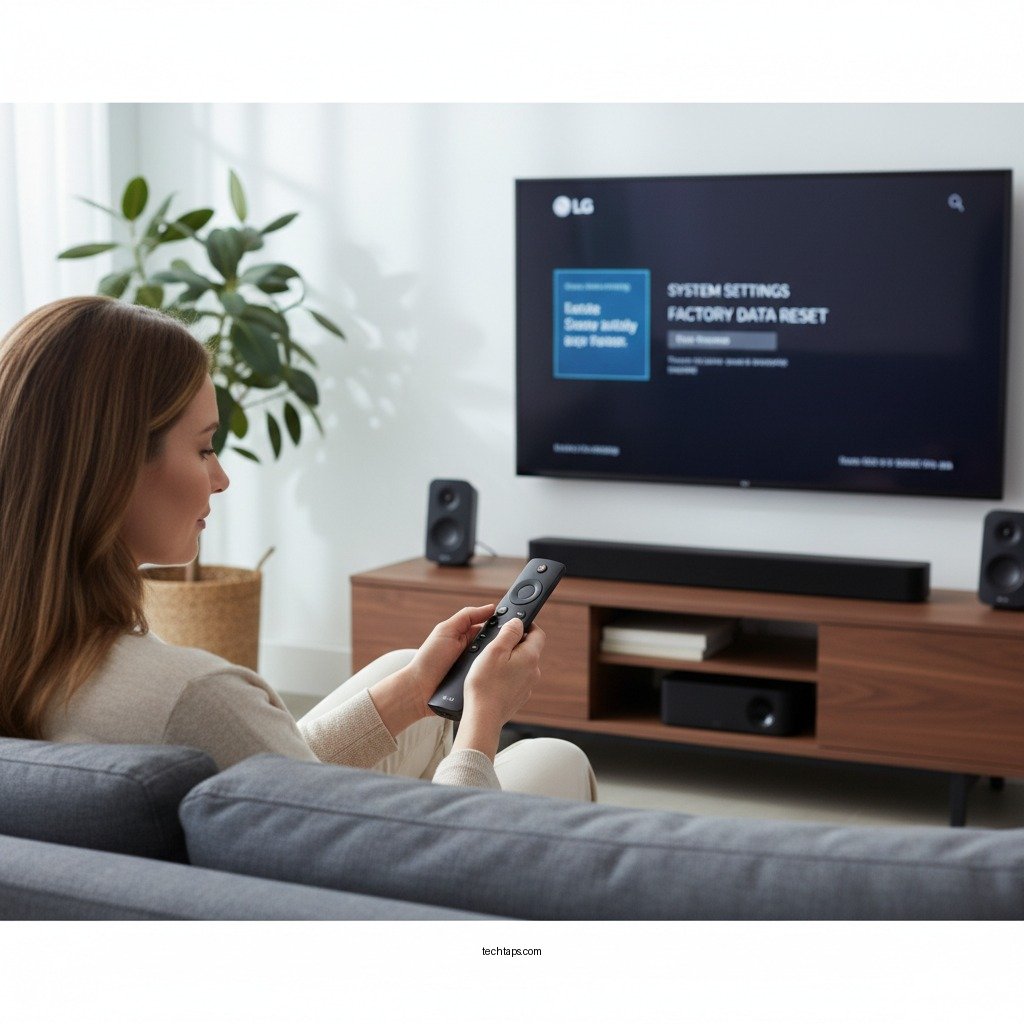

Resetting your LG sound system can significantly enhance its performance by clearing any settings or issues that may have arisen. In this guide, you’ll learn how to effectively reset your device to restore sound quality and functionality, ensuring a better audio experience. Whether you’re encountering connectivity issues, sound distortion, or simply believe your system could perform better, a reset is often the first step to troubleshooting.
Understanding the Need to Reset
Several common issues may prompt the need to reset your LG sound system. Connectivity problems, such as Bluetooth pairing failures or Wi-Fi drops, can hinder your listening experience. Sound distortion, characterized by irregular audio output, can detract from the clarity and richness of your favorite tracks. Additionally, software glitches—such as unresponsive controls or unexpected system behavior—can arise over time.
Regular resets can help maintain optimal performance over time, similar to rebooting a computer. Just as a device can become bogged down with unnecessary data, so too can your sound system accumulate settings and issues that may impair its functionality. A reset clears the slate, allowing the system to start afresh and potentially resolve lingering problems.
Preparing for the Reset
Before you initiate a reset, it’s essential to prepare your sound system adequately. Ensure that your sound system is powered on and connected to a reliable power source. This step is crucial, as an interrupted power supply during the reset process can lead to further complications or incomplete resets.
Having the user manual handy is also advisable. The manual provides model-specific instructions and troubleshooting tips that can guide you through the reset process effectively. If you’ve misplaced the physical copy, many manufacturers, including LG, offer digital versions of user manuals on their websites.
Step-by-Step Reset Instructions
Resetting your LG sound system generally involves a straightforward process, but it can vary slightly depending on the model. Here’s a general step-by-step guide:
1. Locate the Reset Button: Depending on your model, the reset function may be a dedicated button on the unit or a combination of keys on the remote control. Common locations include the back panel or near the power button.
2. Initiate the Reset: If it’s a physical button, press and hold it for a few seconds until you notice a response, such as a light blinking or a sound cue. For remote control combinations, refer to your manual for the specific key sequence.
3. Wait for Confirmation: After you release the button or key combination, wait for the system to confirm the reset. This may take a few moments; patience is key.
4. Check the Results: Once the reset is complete, your system should restart. Listen for any improvements in sound quality and responsiveness.
Top Common LG Sound System Issues and Resolutions
| # | Issue | Symptoms | Reset Type | Resolution |
|---|---|---|---|---|
| 1 | Bluetooth Connectivity | Unable to pair devices | Soft Reset | Reconnect Bluetooth |
| 2 | Sound Distortion | Unclear or muffled audio | Factory Reset | Adjust equalizer settings |
| 3 | Remote Control Issues | Unresponsive controls | Soft Reset | Check battery and reconnect |
| 4 | Software Glitches | Unexpected behavior | Factory Reset | Update software as needed |
| 5 | Audio Sync Issues | Lag between video and audio | Soft Reset | Re-sync audio settings |
| 6 | Network Connection Issues | Streaming problems | Soft Reset | Reconnect to Wi-Fi |
| 7 | Overheating | System shuts off | Factory Reset | Ensure ventilation |
Post-Reset Configuration
After successfully resetting your LG sound system, you will need to reconfigure your sound settings. This includes adjusting equalizer settings, setting up your preferred audio profiles, and reconnecting Bluetooth devices. Take the time to explore the various configurations available to tailor the audio experience to your preferences.
Additionally, testing the system with different audio sources—such as streaming services, CDs, or auxiliary inputs—can help verify that everything is functioning as it should. Listen for clarity, depth, and consistency across various sound formats to ensure that the reset truly improved performance.
Troubleshooting Common Issues
If the reset does not resolve the problem, there are additional steps you can take. First, check for software updates. Manufacturers like LG often release firmware updates that can enhance system performance and fix bugs. Keeping your system updated can prevent many issues from arising.
If problems persist, consider performing a factory reset if applicable. This is a more comprehensive reset that restores the system to its original factory settings. However, be aware that this action will erase all custom settings and configurations, so it should be a last resort.
Lastly, consult the user manual or LG’s support website for additional troubleshooting advice specific to your model. Their resources can provide valuable insights and steps tailored to your particular situation.
Maintenance Tips for Best Performance
To keep your LG sound system performing at its best, regular maintenance is key. Here are some actionable tips:
– Regularly Update Software: Make it a habit to check for and install software updates. This not only improves performance but also enhances security.
– Keep the System Clean: Dust and debris can accumulate in and around your sound system, leading to overheating and performance issues. Regularly wipe down surfaces and ensure the vents are free from obstructions.
– Ensure Proper Ventilation: Overheating can cause your system to shut off unexpectedly. Make sure your sound system is placed in a well-ventilated area to maintain optimal operating temperatures.
– Use Quality Cables: The quality of your audio cables can affect sound quality. Opt for high-quality connectors and cables to minimize signal loss and interference.
By integrating these maintenance practices into your routine, you can significantly prolong the life of your sound system and ensure consistent performance.
By following these steps to reset your LG sound system, you can enhance its performance and enjoy a superior audio experience. If you continue to encounter issues, consider reaching out to LG customer support for further assistance. Don’t forget to explore additional maintenance tips to keep your sound system in top shape!
Frequently Asked Questions
How do I perform a factory reset on my LG sound system?
To perform a factory reset on your LG sound system, locate the ‘Settings’ or ‘Menu’ button on your remote control. Navigate to the ‘Reset’ option, and select ‘Factory Reset’. Confirm your choice, and the system will revert to its original settings, optimizing performance and clearing any customized configurations.
Why should I reset my LG sound system for best performance?
Resetting your LG sound system can resolve various audio issues, such as distorted sound or connectivity problems. By returning the device to its factory settings, you eliminate any software glitches or incorrect settings that may hinder audio quality, ensuring a smoother listening experience.
What are the signs that my LG sound system needs a reset?
Common signs that your LG sound system may need a reset include persistent audio distortion, frequent disconnection from Bluetooth devices, or failure to recognize inputs. If you notice these issues, a reset can restore functionality and enhance overall sound performance.
Which settings should I check before resetting my LG sound system?
Before resetting your LG sound system, check the audio settings, including equalizer levels, sound effects, and connectivity options. Ensuring that all connections are secure and settings are properly configured can often resolve performance issues without needing a full reset.
What is the best way to maintain the performance of my LG sound system after a reset?
To maintain optimal performance after resetting your LG sound system, regularly update the firmware, clean the device to prevent dust buildup, and ensure proper placement away from obstructions. Additionally, routinely check audio settings and connections to keep the system functioning efficiently.
References
- Product Support: Help Library | LG USA Support
https://www.lg.com/us/support/help-library/resetting-your-lg-sound-bar-CT10000025-20150101494911 - Sound system
https://en.wikipedia.org/wiki/Audio_system - https://support.lg.com/us/support/product/lg-SK8Y.AUSALLK
https://support.lg.com/us/support/product/lg-SK8Y.AUSALLK - Product Support: Help Library | LG USA Support
https://www.lg.com/us/support/help-library/faq-CT10000021-20150101494911 - Product Support: Help Library | LG USA Support
https://www.lg.com/us/support/help-library/sound-bar-is-not-working-CT10000027-20150101494911 - Google Scholar Google Scholar
https://scholar.google.com/scholar?q=reset+LG+sound+system+best+performance - Google Scholar Google Scholar
https://scholar.google.com/scholar?q=LG+sound+system+performance+optimization - Google Scholar Google Scholar
https://scholar.google.com/scholar?q=audio+system+reset+guidelines - Product Support: Help Library | LG USA Support
https://www.lg.com/us/support/help-library/audio-and-video-CT10000050-20150101494911 - Product Support: Help Library | LG USA Support
https://www.lg.com/us/support/help-library/product-repair-CT10000008-20150101494911