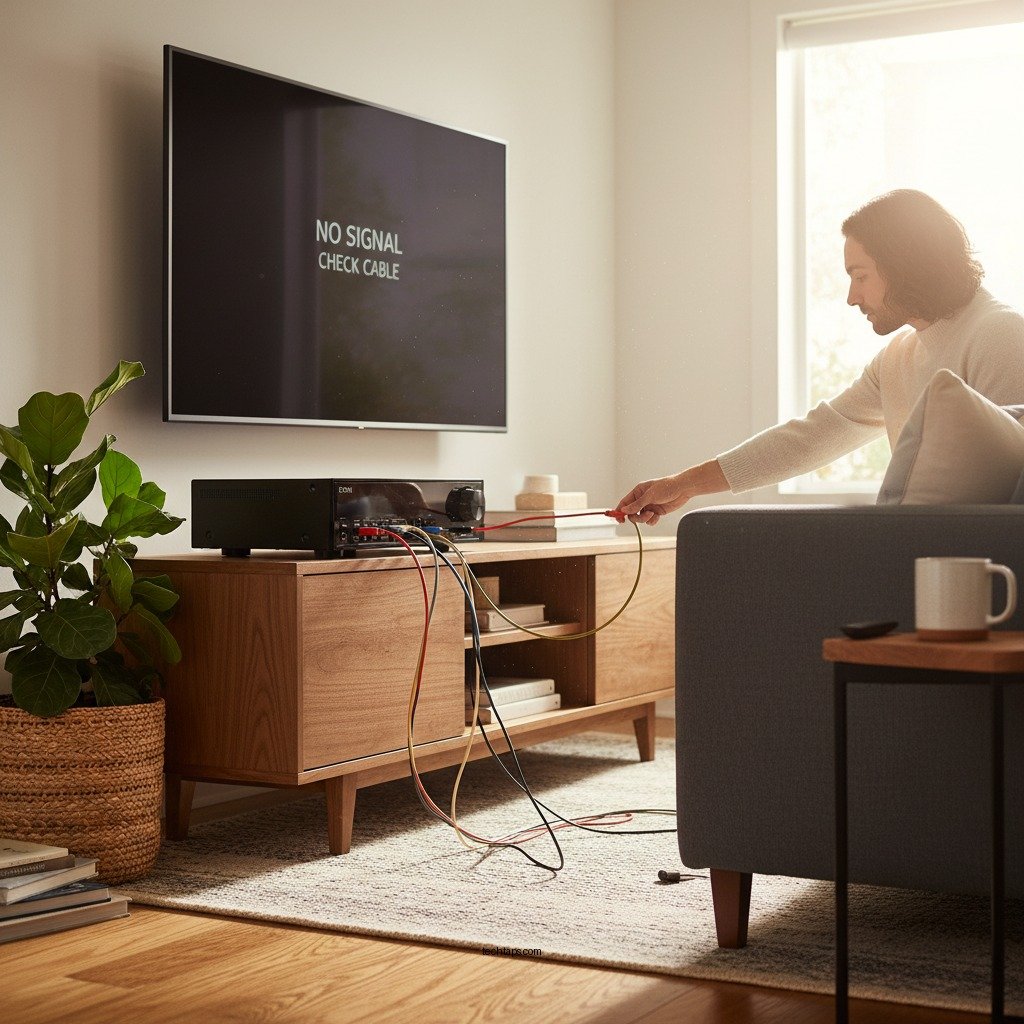

If your Denon home theater system’s HDMI connection isn’t working, don’t worry—there are several straightforward fixes you can try to resolve the issue. Whether it’s a simple cable check or a more complex setting adjustment, this guide will walk you through effective solutions to get your system back up and running. HDMI issues can stem from a variety of sources, including physical cable problems, incorrect device settings, or outdated firmware. By systematically addressing these potential causes, you can restore functionality to your home theater system without the need for professional assistance.
Check HDMI Cables and Connections
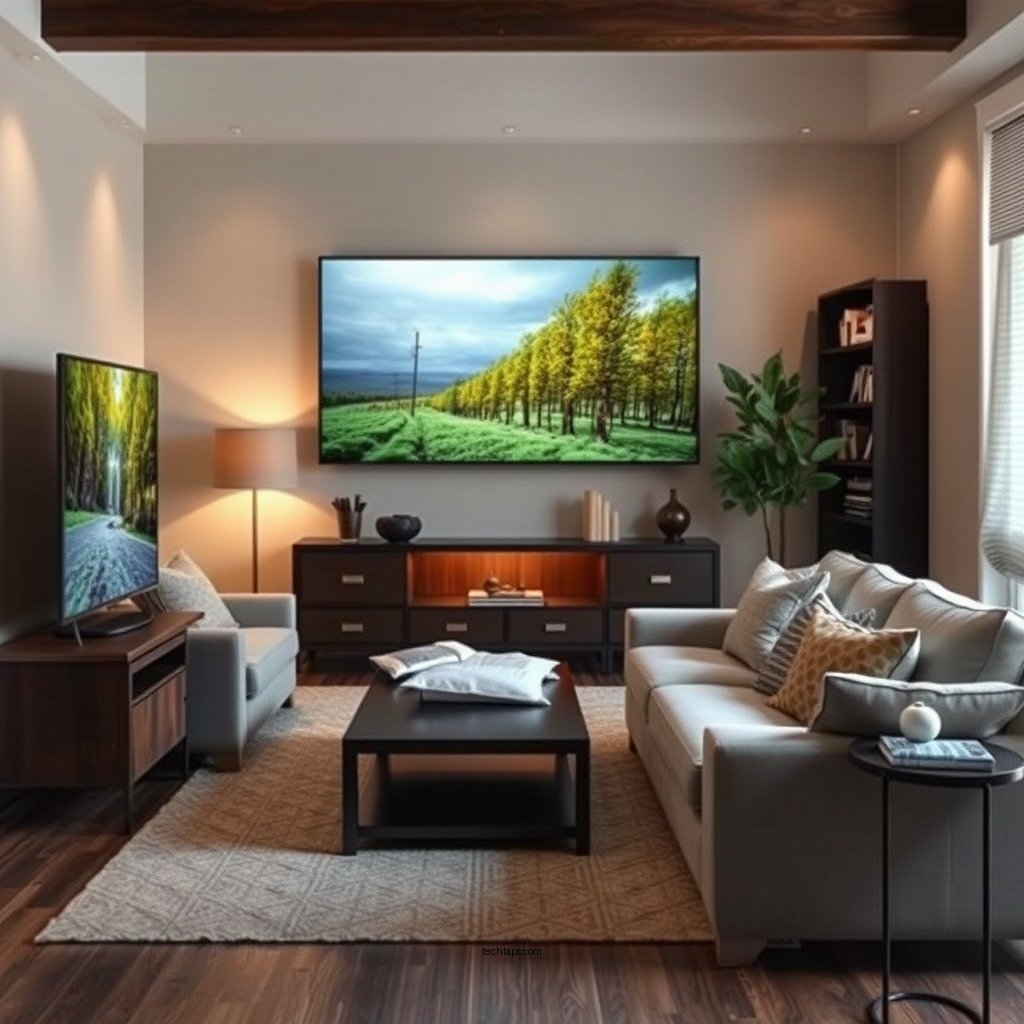
The first step in troubleshooting HDMI issues with your Denon home theater system is to carefully check the HDMI cables and connections. Begin by ensuring that all HDMI cables are securely connected to both the Denon receiver and the television or projector. Loose connections can lead to intermittent or complete signal loss, so it’s crucial to verify that each cable is firmly seated in its port.
Next, inspect the HDMI cables themselves for any visible damage or wear. Look for fraying, kinks, or bent connectors, all of which can compromise the integrity of the signal. If any abnormalities are detected, consider replacing the affected cables with high-quality HDMI cables that support the latest standards, such as HDMI 2.0 or HDMI 2.1, to ensure optimal performance.
Verify Input Settings
After checking the physical connections, the next step is to verify that the input settings on your television or projector are correctly configured. Many users overlook this aspect, mistakenly believing their devices are set to the right input. Confirm that your TV or projector is set to the correct HDMI input where the Denon receiver is connected. This can usually be accomplished using the remote control or the device’s on-screen menu.
Additionally, cycle through the input options on the Denon remote to ensure that the correct source is selected. This may involve using the “Input” button or navigating through the settings menu. If the receiver is set to the wrong input, it will not be able to communicate with your display device, leading to HDMI issues.
Update Firmware
Keeping your Denon receiver’s firmware up to date is an essential maintenance step that can prevent a host of issues, including HDMI connectivity problems. Outdated firmware may lack critical updates that improve compatibility with newer devices or correct existing bugs that affect performance.
To check for available firmware updates, visit the Denon support website, where you can find instructions specific to your model. Typically, firmware updates can be downloaded and installed via USB or directly through the receiver’s network connection. Ensure that you follow the provided instructions carefully to avoid any complications during the update process.
Common HDMI Issues and Solutions (2024)
| # | Issue | Cause | Solution | Impact |
|---|---|---|---|---|
| 1 | No Signal | Loose Cable | Reconnect HDMI | High |
| 2 | Black Screen | Incorrect Input | Change TV Input | High |
| 3 | Intermittent Audio | Cable Damage | Replace Cable | Medium |
| 4 | Color Issues | Compatibility | Update Firmware | High |
| 5 | No Audio | Settings Issue | Check Audio Settings | High |
| 6 | Delayed Audio | Lip Sync | Adjust Lip Sync | Medium |
| 7 | No 4K Output | Cable Limitations | Use 4K HDMI Cable | High |
Reset the Receiver
If the previous troubleshooting steps do not resolve the HDMI issue, performing a factory reset on your Denon receiver may be necessary. A factory reset can clear any glitches that may be affecting the HDMI functionality and restore the device to its original settings.
Before proceeding with a factory reset, it is essential to back up any personalized settings, as this process will erase all customized configurations. Check the user manual for specific instructions on how to perform the reset. Typically, this can be done through the settings menu, where you will find an option to reset to factory defaults. Once the reset is complete, you will need to reconfigure your settings and reconnect your devices.
Test with Different Devices
To isolate the problem, it is advisable to test your Denon receiver with different HDMI devices. For instance, connect an alternate device such as a Blu-ray player, gaming console, or streaming device to the Denon receiver. This will help determine whether the issue lies with the receiver or the original device.
If the alternate device works seamlessly, then the original device may require further troubleshooting. Check its settings, inspect the HDMI cable, and ensure that it is functioning correctly. Conversely, if the alternate device also fails to work with the Denon receiver, this indicates that the issue may reside within the receiver itself.
Check TV Settings
In addition to verifying the settings on the Denon receiver, it is also crucial to review the settings on your television or projector. Many modern devices come equipped with various HDMI-related options that could potentially cause compatibility issues. For example, settings like HDMI-CEC (Consumer Electronics Control) or Deep Color can affect how devices communicate with each other.
Consult the user manual for your TV to identify any HDMI settings that may need to be adjusted. Sometimes, toggling these settings on or off can resolve connectivity problems. Ensuring that your TV is configured correctly can enhance the overall performance of your home theater system.
Consult the User Manual
Finally, if all else fails, referring to the Denon receiver’s user manual can provide valuable insights into specific troubleshooting steps related to HDMI issues. The manual often contains information about error codes, settings specific to your model, and other details that may assist in resolving the problem.
If you have lost the physical manual, Denon provides digital copies on their official website. You can search by model number and access various resources, including troubleshooting tips, FAQs, and customer support information.
By following these troubleshooting steps, you can often resolve HDMI connectivity issues with your Denon home theater system. If these solutions don’t work, consider reaching out to Denon customer support for further assistance or exploring professional repair options. Remember that HDMI issues can often be resolved with a bit of patience and systematic troubleshooting.
Frequently Asked Questions
What could cause my Denon home theater HDMI connection to stop working?
Several factors can cause your Denon home theater HDMI connection to malfunction, including faulty cables, incorrect settings, or hardware issues. Ensure that all HDMI cables are securely connected and not damaged. Additionally, check the settings on your Denon receiver to make sure the correct input source is selected.
How can I troubleshoot HDMI issues with my Denon home theater system?
To troubleshoot HDMI issues with your Denon home theater, start by power cycling the receiver and the connected devices. Next, try using different HDMI cables and ports to see if the problem persists. You may also want to perform a factory reset on your Denon receiver, which can resolve any software glitches affecting HDMI functionality.
Why is my Denon home theater not detecting HDMI devices?
If your Denon home theater is not detecting HDMI devices, the issue could stem from compatibility problems or incorrect settings. Ensure that the connected devices support HDMI and are powered on. Additionally, check for software updates for your Denon receiver, as these can improve device compatibility and resolve detection issues.
What is the best way to ensure my HDMI connections work flawlessly with my Denon home theater?
To ensure flawless HDMI connections with your Denon home theater, use high-quality HDMI cables that support the latest standards, such as HDMI 2.0 or higher. Maintain a clean and organized setup to avoid interference, and regularly check for firmware updates on your Denon receiver and connected devices to enhance overall performance.
Which HDMI settings should I check on my Denon home theater for optimal performance?
For optimal performance of your Denon home theater, check the HDMI settings such as Audio Return Channel (ARC), HDMI Control (CEC), and the video resolution settings. Make sure that ARC is enabled if you are using it for TV sound, and verify that CEC is configured correctly for seamless device control. Additionally, set the video resolution to match your display capabilities for the best picture quality.
References
- HDMI
https://en.wikipedia.org/wiki/HDMI - https://www.sciencedirect.com/topics/engineering/high-definition-multimedia-interface
https://www.sciencedirect.com/topics/engineering/high-definition-multimedia-interface - https://www.nature.com/articles/s41598-020-70270-z
https://www.nature.com/articles/s41598-020-70270-z - https://pubmed.ncbi.nlm.nih.gov/29579980/
https://pubmed.ncbi.nlm.nih.gov/29579980/ - https://www.cdc.gov/nceh/lead/default.htm
https://www.cdc.gov/nceh/lead/default.htm - Google Scholar Google Scholar
https://scholar.google.com/scholar?q=Denon+Home+Theater+HDMI+Not+Working - Google Scholar Google Scholar
https://scholar.google.com/scholar?q=HDMI+troubleshooting+guide - Google Scholar Google Scholar
https://scholar.google.com/scholar?q=home+theater+setup+HDMI+issues - https://www.bbc.com/news/technology-46482331
https://www.bbc.com/news/technology-46482331 - https://www.theguardian.com/technology/2020/sep/15/hdmi-arc-explained
https://www.theguardian.com/technology/2020/sep/15/hdmi-arc-explained