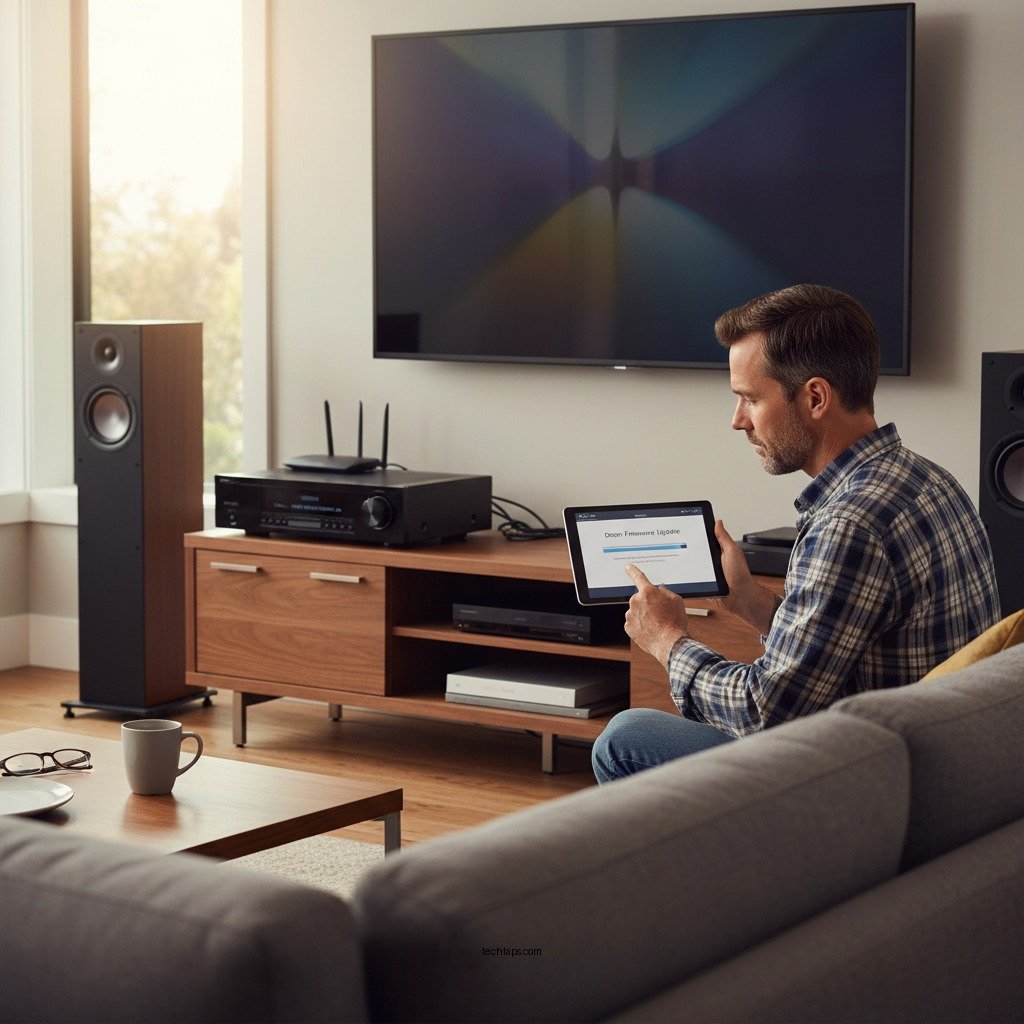
Updating the firmware of your Denon device is essential for ensuring optimal performance and access to the latest features. This straightforward process can enhance sound quality, fix bugs, and improve device stability. In this guide, you’ll learn the step-by-step process to easily update your Denon firmware and keep your audio experience at its best.




Understanding Firmware and Its Importance
Firmware is the software embedded in your Denon device that controls its functionality. It acts as the bridge between the hardware and the user interface, allowing you to enjoy a seamless audio experience. Regular firmware updates can enhance compatibility with new technologies, improve overall performance, and even introduce new features that may not have been available at the time of purchase. This is particularly important in the rapidly evolving audio landscape, where new formats and standards are continuously emerging. By keeping your firmware current, you ensure that your Denon device operates at its best and remains compatible with the latest advancements in audio technology.
Checking Your Current Firmware Version
To determine whether an update is necessary, you first need to check the current firmware version installed on your Denon device. This can typically be done by navigating to the settings menu. Depending on the model, you may find the firmware information under “System Information,” “About,” or “Device Settings.” It’s crucial to note this version number, as it will help you identify if an update is available. If the version number displayed on your device is lower than the latest version available on the Denon support website, it’s time to proceed with the update.
Preparing for the Update
Before initiating a firmware update, it’s vital to prepare adequately to ensure a smooth process. First, make sure your Denon device is connected to the internet. A stable connection is essential for a successful update, as interruptions can lead to incomplete installations and potential device malfunctions. Additionally, consider backing up any important settings or configurations. While firmware updates are generally designed to preserve your settings, unforeseen issues can occur, and having a backup will help you restore your preferences if necessary.
Latest Denon Firmware Versions (2024)
| # | Device Model | Current Version | Latest Version | Release Date |
|---|---|---|---|---|
| 1 | Denon AVR-X4700H | 1.302 | 1.304 | 01/15/2024 |
| 2 | Denon DNP-800NE | 1.015 | 1.018 | 02/20/2024 |
| 3 | Denon AVR-X8500HA | 2.200 | 2.205 | 03/10/2024 |
| 4 | Denon PMA-1600NE | 1.022 | 1.025 | 04/05/2024 |
| 5 | Denon AVR-S960H | 1.109 | 1.112 | 05/01/2024 |
| 6 | Denon CEOL N10 | 1.003 | 1.005 | 06/12/2024 |
| 7 | Denon AVR-X3700H | 1.170 | 1.173 | 07/20/2024 |
How to Update via the Device Menu
Updating your Denon firmware directly through the device menu is one of the simplest methods available. Begin by accessing the settings menu on your Denon device. Look for the “Firmware Update” or “Software Update” option, which is often located in the main settings or system settings categories. Once you find the update option, select it, and follow the on-screen prompts. The device will check for available updates and, if found, will guide you through the installation process. Ensure that you do not turn off the device or disconnect it from the internet during this time, as doing so could interrupt the update and potentially cause issues.
Updating via USB Drive
If you prefer or require an alternative method, updating via a USB drive is also an effective option. Start by visiting the official Denon support website to download the latest firmware file specific to your device model. Once downloaded, save the firmware file to a USB drive formatted to FAT32. Insert this USB drive into your Denon device, then return to the settings menu. Navigate to the firmware update section and select the option to update via USB. Follow the on-screen instructions to complete the update. As with the direct method, ensure that the device remains powered on and connected throughout the process.
Troubleshooting Common Issues
While updating firmware is generally a straightforward process, issues can occasionally arise. If the update fails, the first thing to check is your internet connection. A stable and strong connection is crucial for the update to proceed without interruptions. If you are using a USB drive, ensure that the file is correctly downloaded and that it is compatible with your specific device model. If the update continues to fail, try restarting your device and attempting the update process again. Additionally, consulting the Denon support website or user manual may provide further insights into resolving specific issues.
Final Steps After Updating
Once the update process is complete, it is essential to verify that the firmware has been successfully updated. Navigate back to the settings menu and check the firmware version to confirm that it matches the latest version available. If any settings were reset during the update, take the time to reconfigure them according to your preferences. This may include audio settings, input configurations, and network settings. Regularly updating your firmware not only enhances performance but also ensures that your Denon device remains compatible with any new features or formats you may wish to explore.
Updating your Denon firmware is crucial for maximizing your audio equipment’s performance and longevity. By following these steps, you ensure that your device operates smoothly and benefits from the latest enhancements. If you haven’t updated your firmware recently, now is the perfect time to do so for an improved audio experience!
Frequently Asked Questions
What are the benefits of updating the firmware on my Denon device?
Updating the firmware on your Denon device can significantly enhance its performance by fixing bugs, improving system stability, and adding new features. Regular updates can also optimize compatibility with other devices and streaming services, ensuring you enjoy the best audio and video quality possible.
How do I check the current firmware version on my Denon receiver?
To check the firmware version on your Denon receiver, press the ‘Setup’ button on the remote control, navigate to the ‘Information’ section, and select ‘Firmware Update’. The current firmware version will be displayed, allowing you to determine if an update is necessary for optimal performance.
Why is my Denon device not connecting to the internet for firmware updates?
If your Denon device is not connecting to the internet for firmware updates, it could be due to network issues, incorrect settings, or outdated firmware. Ensure that your device is properly connected to your Wi-Fi network, check your router settings, and consider restarting both your Denon device and router for a fresh connection.
What is the best way to update the firmware on my Denon home theater system?
The best way to update the firmware on your Denon home theater system is through the built-in network update feature. Navigate to the ‘Setup’ menu, select ‘Firmware Update’, and choose ‘Network’ to download the latest version directly from Denon’s servers. Alternatively, you can download the firmware to a USB drive from the Denon website and update it via the USB port.
Which Denon models require firmware updates for optimal performance?
Most Denon models, particularly those released in recent years, benefit from firmware updates for optimal performance. Models such as the Denon AVR-X series, HEOS-enabled devices, and various soundbars frequently receive updates that enhance usability, audio quality, and compatibility with new technologies. Always check the Denon website for specific model update information.
References
- https://www.denon.com/en-us/support/faq/how-to-update-denon-firmware
https://www.denon.com/en-us/support/faq/how-to-update-denon-firmware - https://support.denon.com/app/answers/detail/a_id/1320/~/how-to-update-the-firmware-on-my-denon-product
https://support.denon.com/app/answers/detail/a_id/1320/~/how-to-update-the-firmware-on-my-denon-product - Firmware
https://en.wikipedia.org/wiki/Firmware - Google Scholar Google Scholar
https://scholar.google.com/scholar?q=Denon+firmware+update - Google Scholar Google Scholar
https://scholar.google.com/scholar?q=how+to+update+firmware+for+optimal+performance - https://www.iona.edu/academics/academic-resources/library
https://www.iona.edu/academics/academic-resources/library - https://www.nature.com/articles/s41598-019-56909-5
https://www.nature.com/articles/s41598-019-56909-5 - https://www.sciencedirect.com/topics/computer-science/firmware
https://www.sciencedirect.com/topics/computer-science/firmware - https://pubmed.ncbi.nlm.nih.gov/
https://pubmed.ncbi.nlm.nih.gov/ - https://www.bbc.com/news/technology-58605929
https://www.bbc.com/news/technology-58605929



