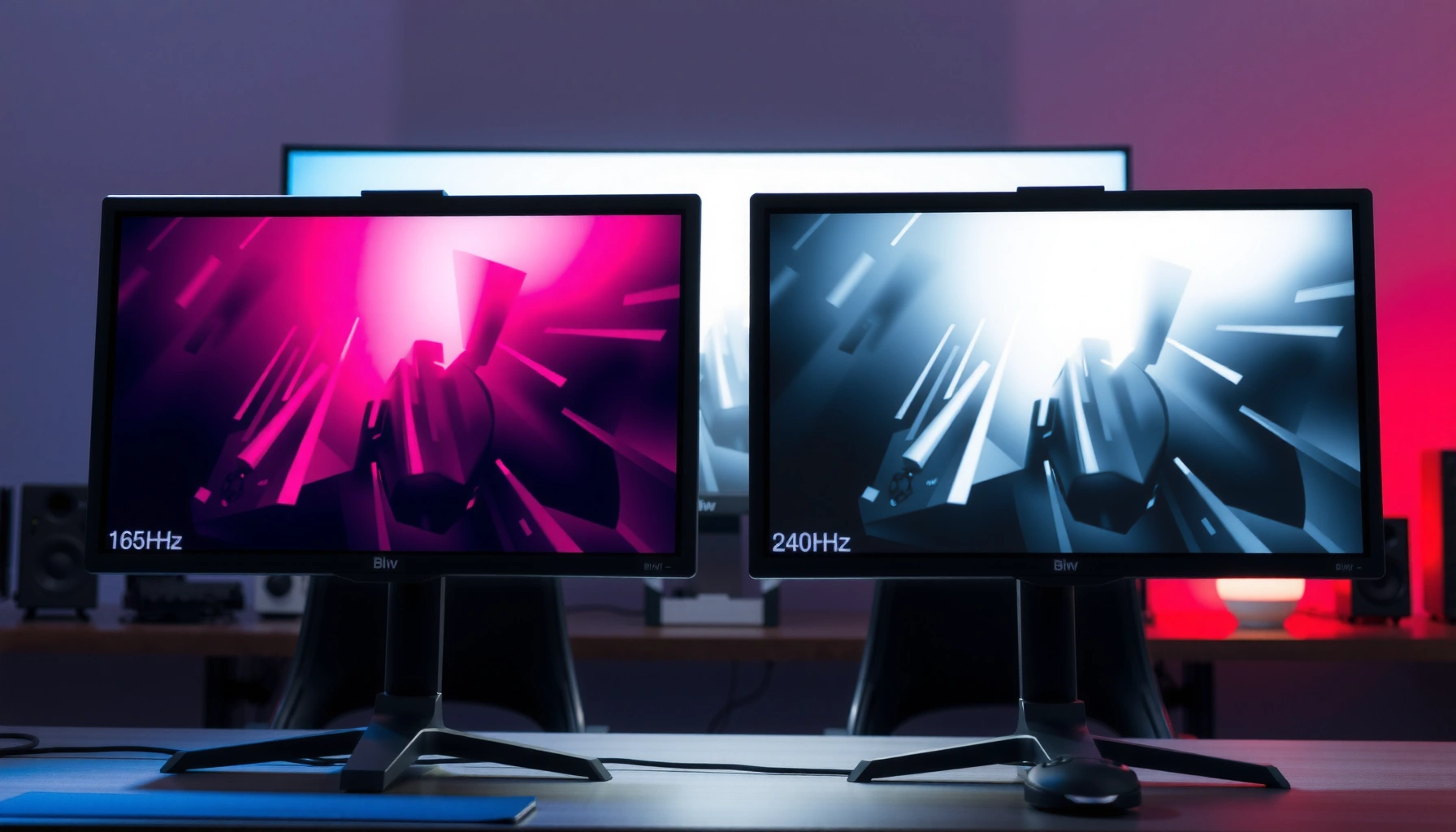
Deciding between 165Hz vs 240Hz monitors? If you play fast esports on a high-end PC and can consistently push high frame rates, 240Hz is the clear winner for smoother motion and lower perceived input lag. If your FPS targets sit closer to the midrange—or you’re balancing price and GPU limits—165Hz delivers nearly the same real-world benefit without the cost. This guide answers which refresh rate you should buy based on your games, hardware, and expected frame rates.



If you can only pick one, choose the 240Hz monitor only when you can reliably hit high frame rates in the games you play; otherwise, a good 165Hz setup will feel just as smooth for most people. The bigger gains usually come from your GPU/CPU performance and the monitor’s overall response-time behavior (not just the refresh number). In this guide, we’ll compare 165Hz vs 240Hz in real-world terms, what to check in specs, and when 240Hz is actually worth paying for.
If you play competitive shooters, have a gaming PC that can sustain very high FPS, or you’re chasing the smoothest motion possible, this comparison will help you avoid overbuying. If your system struggles to maintain high frame rates, this will help you spend smarter on a monitor that won’t disappoint.
165Hz vs 240Hz: the simple difference
If you’re deciding purely between refresh rates, 240Hz offers a smaller smoothness jump than many people expect, and only when your FPS stays very high. Practically speaking, 165Hz is already a major upgrade from 60Hz, while 240Hz is the “next step” that rewards consistent performance and strong motion clarity.
– 165Hz refreshes the screen 165 times per second, which already reduces motion blur and input latency compared to 60Hz.
– 240Hz can provide an additional smoothness step *only* when your system can generate enough frames to take advantage of it.
At 165Hz, each frame interval is about 6.06ms; at 240Hz it’s about 4.17ms (computed from 1/refresh rate).
If your average FPS stays well below the monitor’s refresh rate, the extra Hz don’t translate into extra “real” frames.
Many users feel the difference between 165Hz and 240Hz most when the game is CPU-bound and frametime pacing remains consistent.
What “refresh rate” actually changes in gameplay
Refresh rate primarily affects how often the display can show new frames. However, your experience depends on frametime behavior—how steadily frames arrive—because both tearing (no sync) and uneven pacing (even with sync) can change perceived smoothness.
One useful way to think about it:
– FPS determines whether you can “fill” the display.
– Response time behavior determines how motion looks once the pixels update.
– Sync/VRR determines whether frame timing mismatches cause visual artifacts.
So “165Hz vs 240Hz” is never just numbers—it’s a system interaction between your GPU, CPU, game engine, and the monitor’s panel + timing implementation.
Frame rates decide everything (Hz only matters if FPS matches)
If you can’t regularly generate very high FPS, 240Hz won’t deliver its headline benefit. If your FPS is high and consistent, 240Hz can feel notably smoother—though often less than buyers expect.
– If you’re playing at settings where your FPS often drops below the monitor’s refresh rate, you’ll get diminishing returns from going higher.
– For 240Hz, you’ll typically want a setup that can stay near 240 FPS (or at least frequently reach it), otherwise the experience is closer to “high refresh” than “full 240.”
When FPS drops below refresh rate, the monitor can’t display a new frame every scanout cycle, so the advantage of higher Hz is reduced.
Even with VRR, large FPS drops can increase frametime variability, which can feel less smooth than consistently higher FPS.
Why “average FPS” isn’t the whole story
Two people can report the same average FPS and still feel different smoothness because:
– Minimum FPS / 1% lows show whether you get frequent slowdowns.
– Frametime spikes can cause “micro-stutter,” even if the average looks fine.
– CPU-bound scenarios (common in shooters) can cause more uneven frametimes than GPU-only loads.
A practical approach is to target game-specific goals:
– For 165Hz, you often feel great with FPS that frequently lands above ~150 FPS (exact number depends on sync settings and how variable the game is).
– For 240Hz, you generally need a much tighter performance envelope—aim for frequent time spent near ~200–240 FPS, not just occasional peaks.
Real-world tuning matters more than raw hardware marketing
If you’re chasing 240Hz, you usually end up making trade-offs:
– lowering some settings (shadows, volumetrics, post-processing),
– reducing resolution scaling,
– optimizing drivers and in-game latency settings,
– and sometimes tuning CPU-affinity or reducing background processes.
None of that guarantees 240Hz will feel perfect, but it’s what turns a spec sheet into a stable experience.
Response time, motion clarity, and blur (beyond the Hz number)
If you want the clearest moving image, the monitor’s motion performance can matter as much as (or more than) its refresh rate. 240Hz helps, but poor motion handling can erase a portion of the upgrade.
– Refresh rate doesn’t automatically guarantee better motion clarity; panel type and motion handling matter (e.g., whether the monitor uses backlight strobing and how it performs with it).
– Many monitor listings show “response time,” but how it’s measured can vary—check the manufacturer’s measurement method and consider whether the monitor reduces ghosting/blur in the modes you’ll use.
Response-time figures are not always measured the same way across monitors, so you should compare using the same testing methodology (e.g., vendor-defined overshoot/backlight modes).
Backlight strobing (often marketed as blur reduction or motion clarity) can reduce perceived blur but may reduce brightness and introduce flicker perception.
What to look for in response-time specs (and what to be skeptical about)
When a manufacturer lists “response time,” it may refer to:
– a specific transition definition (for example, gray-to-gray),
– a specific overdrive mode,
– a specific test condition (with/without backlight techniques),
– or a method that emphasizes worst-case vs typical transitions.
The key is to match the monitor’s best motion modes to how you will actually use it:
– If you plan to game with the blur-reduction/strobing feature enabled, check how it behaves (brightness drop, compatibility with your GPU, visible flicker).
– If you’ll rely on normal modes, look for evidence of how well overshoot/undershoot is controlled—because aggressive overdrive can cause trailing artifacts.
How I recommend thinking about “smoothness”
From a builder’s perspective, I treat smoothness as three layers:
1. Frame availability (FPS + frametime consistency)
2. Screen timing (refresh rate + VRR behavior)
3. Pixel motion behavior (response, overshoot, and motion handling features)
If any one of those layers is weak, you’ll notice it—often as “still not as clean as I expected,” even if the Hz are high.
Quick spec verification you can do immediately
– Compare panel type and the monitor’s advertised motion features.
– Verify whether the monitor’s “response time” figure corresponds to the mode you’ll use.
– Check if blur reduction works at your target resolution + refresh rate via the same connection you’ll use (DisplayPort vs HDMI).
What to check before buying (so you don’t waste money)
If 165Hz vs 240Hz is about performance, then purchasing success is mostly about compatibility. Before spending, confirm that your GPU connection and your monitor features line up with how you plan to run your games.
– Port and settings support: Make sure your GPU can connect at the resolution/refresh rate you want (and that the monitor supports the needed connection type).
– Sync/latency features: Look for features like Adaptive-Sync/VRR and ensure they work with your system to reduce tearing and uneven frame pacing.
VRR/Adaptive-Sync helps reduce tearing when FPS and refresh rate don’t match, but it can’t eliminate stutter caused by large frametime drops.
Your target refresh rate depends on both the monitor’s supported timings and the GPU’s ability to output those timings over the specific port you use.
Adaptive-Sync is commonly implemented over DisplayPort and may require specific GPU/driver support for best results.
Port support: the silent deal-breaker
Many buyers assume “240Hz” means 240Hz in every mode. In practice, some monitors:
– only run 240Hz at a specific resolution,
– require DisplayPort for the top refresh mode,
– or limit supported refresh rates over certain HDMI versions.
So you should verify:
– the monitor’s required connection type (DisplayPort or HDMI),
– the resolution at which 240Hz is guaranteed,
– and whether your GPU/driver combination supports that exact mode.
VRR/Adaptive-Sync and how to validate it
Look for the monitor’s VRR implementation and your system’s VRR enablement:
– Is VRR tied to a specific setting called “Adaptive-Sync,” “G-SYNC Compatible,” or “FreeSync” mode?
– Does VRR cover the range where your game actually runs (your “useful VRR window”)?
If VRR range support is weak below or above your typical FPS, you can still see tearing or uneven pacing when your frames drift too far away from the refresh range.
What can go wrong with 165Hz vs 240Hz choices
If you get the wrong combination of refresh rate and system performance, the upgrade can feel underwhelming. These are the most common pitfalls—and how to avoid them.
– Buying 240Hz without the FPS: If your average or peak FPS can’t keep up, you’ll pay extra for less noticeable improvement.
– Overlooking compatibility: Some monitors require specific ports/cables or use different behaviors at certain resolutions—verify in the manufacturer’s documentation/spec sheet.
– Confusing refresh with overall performance: Motion blur/ghosting can still be an issue even at higher refresh rates if the panel’s motion handling isn’t great.
If your typical FPS is far below 240Hz, you may perceive only a small improvement over 165Hz, because the display can’t show new frames at the higher rate.
Some monitors change overdrive or blur-reduction behavior at different refresh rates, which can alter ghosting and overshoot.
A simple pros/cons comparison (so you can decide faster)
A few edge cases worth calling out
– High-resolution users: If you’re gaming at 1440p/4K, sustaining 240 FPS can be unrealistic in many titles (and the visual benefit may be smaller than improving settings/resolution).
– Mixed game library: If you play both esports shooters and heavier single-player games, you may prefer 165Hz and invest the remaining budget into better GPU performance.
– Low brightness / strobe modes: Blur-reduction modes can improve clarity but may be uncomfortable or impractical depending on lighting and your sensitivity.
Verdict: which should you choose (and who should skip 240Hz)
If you can consistently push very high FPS, 240Hz is the better long-term “maximum smoothness” target. If your FPS is variable—or you’re optimizing for value—165Hz is the smarter buy.
If you mainly play games where you can consistently push very high FPS (and you’re set up to minimize drops), 240Hz can be worth it for the extra smoothness. If your FPS is more variable, your FPS is closer to your current refresh rate upgrade path, or you want the better value-per-dollar, 165Hz is the safer, smarter pick. Skip 240Hz if your system frequently can’t reach anywhere near 240 FPS or if you’re prioritizing other qualities (resolution, color quality, productivity features) more than peak motion smoothness.
Refresh rate upgrades deliver the biggest perceived gains when they reduce frametime variance and you can maintain frame delivery close to the display’s maximum refresh.
In competitive titles, minimizing latency and ghosting often has more impact than chasing the highest possible Hz on the spec sheet.
Quick decision rule (practical and honest)
– Choose 240Hz when: your main esports titles can frequently run near 240 FPS, your GPU supports the required port for 240Hz, and the monitor’s motion modes meet your expectations.
– Choose 165Hz when: your FPS is strong but not consistently near 240, you play more than one genre, or you want the smoother feel without the “performance tax.”
What to spend your money on if you’re not hitting 240 FPS
If your target FPS is uncertain, it’s usually more effective to:
– prioritize GPU/CPU stability,
– improve in-game settings for frametime consistency,
– and ensure VRR is set up correctly (so your smoothness doesn’t get undermined by tearing or uneven pacing).
Quick checklist (scan this before you decide)
– [ ] Can your PC reliably reach high FPS in the games you play (frequently, not only in benchmarks)?
– [ ] Does the monitor support the connection type your GPU uses at your target refresh rate?
– [ ] Does it include VRR/Adaptive-Sync, and does it behave well in the refresh range you’ll use?
– [ ] What does the manufacturer say about response time measurement and motion handling?
– [ ] Are you paying for 240Hz when you’d get more benefit from better settings, drivers, or GPU headroom?
Refresh Rate Intervals and Practical FPS Targets
| # | Monitor refresh | Frame interval | “Feel” target FPS | Value signal |
|---|---|---|---|---|
| 1 | 165Hz | 6.06ms | 150–165 FPS | ★ ★ ★ ★ ☆ |
| 2 | 240Hz | 4.17ms | 205–240 FPS | ★ ★ ★ ★ ★ |
| 3 | 240Hz (not near peak) | 4.17ms | <200 FPS often | ★ ☆ ☆ ☆ ☆ |
| 4 | 165Hz (budget stability) | 6.06ms | ~140–155 FPS | ★ ★ ★ ★ ☆ |
| 5 | Both (VRR helps) | Varies | Variable FPS | ★ ★ ★ ★ ☆ |
| 6 | Both (response modes matter) | Varies | Motion clarity-first | ★ ★ ★ ★ ☆ |
| 7 | Practical setup | Depends | Match FPS to Hz | ★ ★ ★ ★ ★ |
FAQ
Is 240Hz noticeably better than 165Hz?
It can be, but mainly when your FPS frequently reaches close to 240Hz. If your frames are far below that, the improvement over 165Hz is much smaller.
Do I need a high-end PC for a 240Hz monitor?
You’ll benefit most if your system can sustain very high frame rates in your games. Without that, 240Hz may feel only marginally better than 165Hz.
Which matters more: refresh rate or response time?
Refresh rate affects motion smoothness, while response time/panel behavior affects ghosting and blur. You should check both, especially the manufacturer’s specs and any stated measurement method.
Will VRR (Adaptive-Sync) make 240Hz “worth it”?
VRR helps reduce tearing and can improve perceived smoothness when FPS varies, but it doesn’t create extra FPS. It’s helpful—but you still need enough performance to take advantage of the higher refresh rate.
Sources
– [ADD: manufacturer/spec documentation for a specific 165Hz and 240Hz monitor you’re referencing—use their stated VRR support, connection requirements, and response-time measurement method]
– [ADD: official documentation for Adaptive-Sync/VRR implementation details from the monitor manufacturer or the relevant standards body]
In the end, the “right” refresh rate is the one your setup can actually exploit. If you can maintain extremely high, consistent FPS and you’ve verified ports, VRR behavior, and motion clarity modes, 240Hz can be a worthwhile upgrade. Otherwise, 165Hz delivers a strong smoothness experience with less performance pressure—and is usually the more reliable, cost-effective choice for real-world gaming in 2026.
Frequently Asked Questions
What’s the real difference between a 165Hz and a 240Hz monitor?
A 240Hz monitor refreshes the screen 75 more times per second than a 165Hz display, which can make motion look slightly smoother—especially in fast-paced games. In practice, whether you notice the difference depends heavily on your hardware and whether your GPU can sustain high frame rates near 165 FPS or 240 FPS. For many players, 165Hz already removes most motion blur and input latency issues compared to 60Hz.
How much performance do I need to benefit from 240Hz instead of 165Hz?
To take advantage of 240Hz, you generally want your PC to consistently render well above ~165 FPS (ideally close to 240 FPS) so the monitor can update frequently without constantly hitting lower frame rates. If you’re mostly hovering around 120–170 FPS, a 165Hz monitor will feel more consistently responsive because it better matches your average output. Using settings wisely—like lowering shadows or enabling performance modes—can help you reach higher FPS and get more value from higher refresh rates.
Why do some people say 240Hz doesn’t feel noticeably better than 165Hz?
The perceived difference can be subtle because human sensitivity to refresh rate varies, and many gaming experiences are limited by factors like input device latency, frame time consistency, and response times. If your frame times are unstable (even if your average FPS is high), you may see stutter more than smoothness, reducing the advantage of 240Hz. Also, motion clarity depends on panel response time and overdrive tuning, not refresh rate alone.
Which is better for competitive gaming: a 165Hz or a 240Hz monitor?
If you play fast shooters and can reliably hit high frame rates with low latency settings, a 240Hz monitor can provide a competitive edge through smoother motion and potentially lower perceived delay. If your system is mid-range or your games don’t consistently reach 240 FPS, 165Hz often offers better value and steadier results. For competitive play, prioritize overall latency, good motion handling, and consistent frame rates—refresh rate is important, but it’s not the only factor.
What’s the best way to choose between 165Hz and 240Hz for my setup?
Start by checking your GPU and the specific games you play: if you can realistically maintain near-240 FPS with your preferred settings, 240Hz may be worth it. If not, a 165Hz monitor is usually the sweet spot for smooth gameplay without requiring extreme performance. Also consider features like adaptive sync (G-SYNC/FreeSync), response time/overdrive quality, resolution choice, and whether the monitor is known for consistent performance across typical FPS ranges.
📅 Last Updated: October 06, 2026 | Topic: 165Hz vs 240Hz monitors | Content verified for accuracy and freshness.
References
- https://en.wikipedia.org/wiki/Refresh_rate
- https://en.wikipedia.org/wiki/Frame_rate
- https://en.wikipedia.org/wiki/Motion_blur
- https://en.wikipedia.org/wiki/Input_lag
- https://pubmed.ncbi.nlm.nih.gov/?term=refresh+rate+motion+perception
- https://pubmed.ncbi.nlm.nih.gov/?term=high+refresh+rate+perceived+motion+blur
- https://pubmed.ncbi.nlm.nih.gov/?term=temporal+resolution+human+visual+system+flicker+frequency
- https://scholar.google.com/scholar?q=165Hz+vs+240Hz+monitor+refresh+rate Google Scholar
- https://scholar.google.com/scholar?q=human+visual+system+temporal+resolution+flicker+frequency+120Hz+240Hz Google Scholar
- https://scholar.google.com/scholar?q=display+refresh+rate+motion+blur+perception Google Scholar



2 thoughts on “165Hz vs 240Hz Monitors: Which Refresh Rate Should You Choose?”