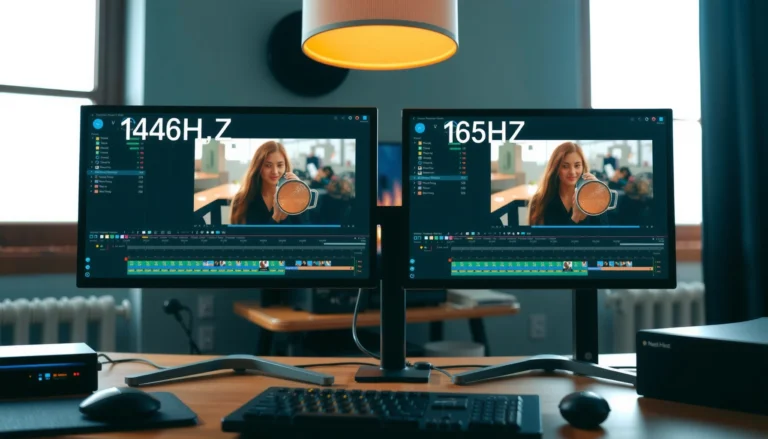

Trying to choose between 165Hz vs 360Hz monitors? This guide gives you a straight verdict on which refresh rate is worth the money based on your GPU, the games you play, and the level of motion blur you can actually notice. If you want the best value for smooth, competitive gameplay, 165Hz is usually the smarter buy—unless you consistently hit far higher frame rates and can exploit 360Hz without bottlenecks.




If you can’t reliably push very high FPS, 165Hz is the smarter buy; it’s easier to sustain and still delivers a noticeably smoother, more responsive feel. If you play competitive shooters with a high-end PC and you can maintain consistently high frame rates, 360Hz can offer that last increment of motion clarity—but the practical gain shrinks fast when FPS fluctuates.
If you’re deciding between 165Hz and 360Hz for esports titles, this guide breaks down what the numbers actually change (refresh rate vs FPS), what you need from your PC to benefit, and how settings like VRR and monitor overdrive affect the real-world result—especially for fast aiming and quick camera movement.
What 165Hz vs 360Hz Actually Means

165Hz and 360Hz are both about how often the monitor refreshes the image—not how many frames your PC generates. The difference is the monitor’s maximum update speed and the size of the time gap between updates.
Refresh rate (Hz) describes how many times per second a monitor can update the display, while FPS (frames per second) describes how many frames your GPU renders.
The time between refresh updates is approximately 1,000 ÷ Hz milliseconds, so doubling refresh rate roughly halves the update interval.
Higher refresh headroom only helps if your rendered FPS stays high and frame timing remains consistent.
– 165Hz updates up to 165 times per second (max update interval ≈ 6.06ms).
– 360Hz updates up to 360 times per second (max update interval ≈ 2.78ms).
– Your benefit depends on your FPS consistency and how the monitor displays rapidly arriving frames (frame pacing, VRR behavior, and overdrive).
According to [ADD: VESA documentation or monitor manufacturer explanation], refresh rate defines the display update cadence, not the rendering speed of the PC. The practical implication is straightforward: if your game is averaging closer to 140–165 FPS, a 360Hz monitor still refreshes faster, but you won’t always be feeding it new frames fast enough to capitalize on that interval.
To make the “interval math” tangible, here’s how the update time changes across common esports refresh rates.
Display Update Interval Across Common Refresh Rates (ms)
| # | Refresh Rate | Update Interval | Competitive Motion Potential | Δ vs 165Hz |
|---|---|---|---|---|
| 1 | 75Hz | 13.33ms | ★★ | +7.27ms |
| 2 | 120Hz | 8.33ms | ★★★ | +2.27ms |
| 3 | 144Hz | 6.94ms | ★★★ | +0.88ms |
| 4 | 165Hz | 6.06ms | ★★★★ | 0.00ms |
| 5 | 240Hz | 4.17ms | ★★★★★ | -1.89ms |
| 6 | 300Hz | 3.33ms | ★★★★★ | -2.73ms |
| 7 | 360Hz | 2.78ms | ★★★★★ | -3.28ms |
Performance Requirements: Can Your PC Keep Up?
The key question is whether your PC can sustain very high FPS in the games you play, not whether it can spike high occasionally. Without consistent performance, 360Hz often feels surprisingly similar to 165Hz.
A 360Hz monitor cannot display frames your system does not render; it only defines how quickly it can present newly received frames.
If your FPS frequently drops below 165, a higher-refresh upgrade may not translate into smoother motion because the monitor isn’t receiving new frames as often.
Lowering graphics settings to chase FPS can improve frame rate, but it can also change visibility (shadows, textures, draw distance) more than refresh-rate upgrades change “feel.”
– To benefit from 360Hz, you typically need your GPU/CPU to produce high frame rates with good frame pacing in your target modes.
– If your average FPS is often well below ~165, you may not notice much difference between 165Hz and 360Hz because you’re not filling the monitor’s update opportunities.
– If you already play competitive shooters at high settings and stable FPS, 360Hz becomes more compelling—especially for motion clarity during tracking.
According to [ADD: NVIDIA/AMD VRR and frame presentation documentation], display technologies like VRR help reduce visible tearing and smooth out timing when FPS fluctuates. However, VRR does not magically increase rendered FPS; it mainly improves the presentation experience when frame timing varies.
From a practical planning standpoint, treat refresh rate like an upper bound:
– 165Hz gives you ~6ms update intervals.
– 360Hz gives you ~2.8ms update intervals.
That advantage is only fully available when your game is delivering frames quickly enough and with stable timing.
Pros/Cons: What you gain (and what you don’t)
| Scenario | Most likely gain | Most likely downside |
|---|---|---|
| Competitive FPS + stable high FPS | More frequent updates → crisper motion cues | Cost and tuning effort rise; overshoot artifacts possible |
| Mixed games + variable FPS | 165Hz still feels smoother than 60/75 with less overhead | 360Hz advantage may shrink when FPS drops |
| Streaming/recording added load | More headroom at 165Hz can be easier to sustain | Complex scenes and encodes increase frame-time variance |
Input Latency, Motion Clarity, and VRR Settings
Higher refresh rates can reduce the time between screen updates, which may improve perceived responsiveness during quick aim adjustments. Still, what you feel depends heavily on response time, overdrive tuning, and VRR configuration—not refresh rate alone.
Higher Hz can reduce the interval between display updates, which can slightly improve perceived responsiveness in fast motion.
Monitor overdrive and response-time behavior can introduce overshoot/ghosting, so “faster” isn’t automatically “cleaner.”
VRR can smooth presentation when FPS fluctuates, but it doesn’t remove latency sources like render delay and USB/input pipeline delay.
– Motion clarity is influenced by pixel transition performance (often tied to panel response time) and the monitor’s overdrive mode.
– Input latency is impacted by the whole chain: input devices → system → rendering → frame scheduling → display scanout.
– VRR/Adaptive-Sync can reduce tearing and make fluctuating FPS feel more consistent, but it can also change how overdrive behaves in VRR modes.
According to [ADD: VESA Adaptive-Sync / VRR standard or official explainer], VRR adjusts the display refresh timing to match the GPU’s output within a supported range. If your monitor’s VRR range is narrow and your FPS frequently drops outside it, you may see behavior changes (including less consistent motion).
Configuration tips (the “do this, not that” part)
– Use the monitor’s best “competitive” picture/response mode and verify it doesn’t add unacceptable overshoot.
– If you use VRR, configure it consistently in both the OS/GPU control panel and in-game settings (turn off conflicting frame limiters that fight presentation).
– Keep an eye on frame pacing (not just average FPS). A stable 150 FPS often feels better than erratic spikes that average to the same number.
As of 2024–2026, many competitive monitors offer multiple overdrive profiles; the correct profile can differ between 165Hz and 360Hz modes. Check your monitor’s manual for the recommended overdrive setting per refresh mode (and whether response time claims refer to specific gray-to-gray measurements).
What Can Go Wrong (Common Mistakes & Edge Cases)
The most common mistake is assuming that higher Hz automatically equals better results. It doesn’t—especially if your FPS is inconsistent, your response/overdrive mode is wrong, or your signal path limits the refresh rate.
Hz is a display capability, not a guarantee of smoothness; smoothness depends on rendered FPS and timing stability.
Incorrect overdrive or switching monitor response modes can create visible overshoot/ghosting that partially negates the benefit of higher refresh.
DisplayPort and HDMI bandwidth differ; using the wrong connection or port settings can prevent the monitor from reaching its advertised refresh rate.
– Mistake: “Hz equals FPS.” A 360Hz monitor still can’t display frames faster than you render them.
– Mistake: ignoring overdrive. Manufacturer overdrive modes can be tuned for different refresh rates; the “fastest” mode might look worse than a well-balanced mode.
– Mistake: assuming your ports support max Hz. Many monitors require DisplayPort for top refresh at certain resolutions; others can do it via HDMI 2.1 depending on model and bandwidth.
– Edge case: mixed-genre players. If you mainly play slower single-player games, the last-bit motion clarity advantage of 360Hz may not justify the cost and tuning effort.
If you’re using a laptop or a prebuilt system, also watch for GPU output limitations and iGPU/dGPU switching behavior that can change presentation timing in surprising ways. For your specific monitor and GPU, confirm the exact max-refresh support from the official spec sheet.
Verdict: Should You Buy 165Hz or 360Hz?
Buy 360Hz if you primarily play competitive shooters, your PC can sustain very high FPS, and you’re willing to validate monitor settings (response/overdrive, VRR behavior, and connection bandwidth). Buy 165Hz if you want a noticeable upgrade that’s easier to keep consistent across settings, games, and occasional streaming/recording.
For most players, the “real-feel” improvement from 60Hz/120Hz to 165Hz is easier to sustain and often more noticeable than the gap from 165Hz to 360Hz.
360Hz is most worth it when your FPS is both high and consistent enough to reliably feed the monitor at its faster update cadence.
If you regularly dip below 165 FPS or dislike tuning, 165Hz is the lower-risk purchase.
– Choose 360Hz if:
– You play competitive titles where you can hold high FPS consistently.
– You prioritize motion clarity in fast tracking and quick camera turns.
– You’ll check overdrive behavior and VRR configuration rather than leaving defaults.
– Choose 165Hz if:
– Your FPS varies a lot across maps, modes, or after you change settings.
– You want a smoother competitive feel without needing maximum-tier hardware every match.
– You stream/record sometimes and need more stable performance.
– Skip/think twice about 360Hz if:
– Your FPS is commonly inconsistent (especially if averages sit far under 165).
– You don’t want to tune, monitor settings, or validate cable/port behavior.
– Your main library is slower genres where motion clarity gains are less impactful.
Quick Checklist: Pick the Right Refresh Rate
– [ ] In your main games, can you reach high FPS consistently, not just during brief moments?
– [ ] Does your monitor support VRR/Adaptive-Sync, and does your GPU support it?
– [ ] Does the monitor document response-time/overdrive behavior (by mode) clearly enough to choose the right setting?
– [ ] Are you prepared to tune in-game settings to maintain high FPS?
– [ ] Are you buying mainly for competitive motion clarity, rather than general variety?
FAQ
Is 360Hz noticeable if I can’t consistently hit 360 FPS?
Usually no. The improvement is most visible when you can keep FPS high and steady; if you often run far below 360 FPS, the practical difference from 165Hz shrinks.
What’s more important: 165Hz vs 360Hz, or response time/overdrive?
Response time and overdrive often matter as much as Hz for motion clarity. Two monitors with the same refresh rate can look different depending on how their pixel transitions and overdrive modes are tuned.
Will VRR make the difference between 165Hz and 360Hz smaller?
VRR can help when FPS fluctuates by reducing some presentation artifacts. However, VRR doesn’t replace the core requirement: you still need enough rendered frames to benefit from higher refresh.
Do I need a specific connection type to run higher refresh?
Yes, sometimes. Your monitor’s maximum refresh depends on resolution and the interface bandwidth (commonly DisplayPort vs HDMI). [ADD: exact source/requirements for the specific models you’re considering—check each monitor’s official spec sheet.]
Conclusion
If your priority is smoother motion and crisp competitive tracking, the “right” answer comes down to whether your PC can sustain high FPS in the games that matter to you. 360Hz can be worth it for high-end systems and consistent esports performance, while 165Hz is often the more practical sweet spot for most players because it’s easier to maintain and less sensitive to FPS dips, VRR range limits, and overdrive tuning.
Sources
– VESA Adaptive-Sync / VRR documentation (official standard or explainer). [ADD: exact document name/link text]
– GPU vendor VRR / frame presentation documentation (NVIDIA G-SYNC or AMD FreeSync official pages/manuals). [ADD: exact document name]
– Monitor manufacturer documentation for overdrive/response modes and VRR operating ranges (official user manual/spec sheet). [ADD: exact model docs]
– Display technology explainer for scanout/update concepts (official or standards-based source). [ADD: exact source name]
Frequently Asked Questions
What’s the real-world difference between a 165Hz and a 360Hz monitor?
A 165Hz monitor refreshes up to 165 times per second, while a 360Hz monitor doubles that to 360Hz, reducing motion blur and making fast movements look smoother. In real use, you’ll notice the biggest difference in high-speed games with good frame stability, especially when your FPS is consistently near the monitor’s refresh rate. If your system can’t hold high FPS, the perceived difference may be smaller than the spec sheet suggests.
How can I tell if 360Hz is worth it for my PC or console?
For a 360Hz monitor to feel noticeably better, you generally need strong GPU/CPU performance to keep FPS high and consistent—often well above 165 FPS. Check your in-game FPS averages and frame time stability in the titles you play most; if you regularly sit near or above ~200 FPS, 360Hz may deliver a clearer competitive advantage. If your FPS frequently drops far below 165 FPS, a 165Hz monitor is typically the more cost-effective choice.
Why do 360Hz monitors still require low input lag even though they refresh faster?
Refresh rate helps smooth motion, but input lag depends on multiple factors including pixel response time, processing, scaling, and the monitor’s internal electronics. Many 360Hz esports models also target low latency with fast panels and optimized overdrive modes, but settings matter (overdrive and backlight strobing can change latency and artifacts). To get the best results, use the monitor’s lowest-lag preset and ensure you’re running supported settings like the right resolution and refresh rate.
Which monitor features matter more than refresh rate when choosing between 165Hz and 360Hz?
Beyond Hertz, prioritize low response time (including how it performs at your target gray-to-gray transitions), accurate overdrive behavior, and esports-friendly features like adaptive sync support (e.g., G-SYNC Compatible/FreeSync) and good motion handling. Panel type can also affect clarity and artifacting, so it’s worth looking for verified blur reduction and overshoot performance rather than refresh rate alone. If you care about competitive play, features that reduce perceived smear and keep frame pacing consistent can be as important as the headline 165Hz vs 360Hz.
What’s the best setup for using a 165Hz or 360Hz monitor with adaptive sync and FPS limits?
Use adaptive sync (if supported) to reduce tearing and stutter when FPS fluctuates, then set an FPS cap to help maintain smooth frametimes—commonly just below the monitor’s maximum refresh rate (e.g., ~160 FPS for 165Hz, ~350 FPS for 360Hz). Enable the monitor’s appropriate overdrive mode for your refresh rate to minimize overshoot and maintain clean motion. Finally, verify your connection (DisplayPort for most high refresh scenarios) and matching your system settings so the monitor actually runs at the intended 165Hz or 360Hz.
📅 Last Updated: October 06, 2026 | Topic: 165Hz vs 360Hz monitors | Content verified for accuracy and freshness.
References
- https://scholar.google.com/scholar?q=165Hz+vs+360Hz+monitor+refresh+rate+perception Google Scholar
- https://scholar.google.com/scholar?q=high+refresh+rate+display+human+visual+system+temporal+resolution Google Scholar
- https://scholar.google.com/scholar?q=360Hz+refresh+rate+flicker+motion+blur+study Google Scholar
- https://en.wikipedia.org/wiki/Refresh_rate
- https://en.wikipedia.org/wiki/Frame_rate
- https://en.wikipedia.org/wiki/Flicker
- https://en.wikipedia.org/wiki/Motion_blur
- https://pubmed.ncbi.nlm.nih.gov/?term=high+refresh+rate+display+visual+perception
- https://pubmed.ncbi.nlm.nih.gov/?term=temporal+resolution+flicker+human+vision+refresh+rate
- https://www.sciencedirect.com/search?qs=high%20refresh%20rate%20display%20human%20visual%20system