
If your internet is acting up, restarting a modem properly is the fastest way to restore service—done right, it clears the fault and re-establishes the connection without guessing. Follow this step-by-step guide to power down correctly, wait the right amount of time, and restart in the proper order for both the modem and your router. By the end, you’ll know exactly what to do—and what common restart mistakes to avoid.
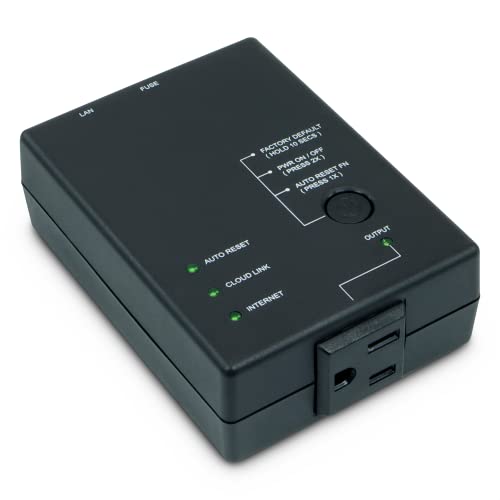



Restarting a modem properly means powering it off, waiting long enough for the connection to fully drop, then turning it back on and letting it finish booting before testing your internet. Do the shutdown → wait → startup sequence in the right order, and confirm the modem’s “online/internet” indicator (or equivalent) before you judge the result. If the line never comes up, you may need to check cabling, confirm ISP status, or escalate to your provider.
This guide is for anyone dealing with slow internet, frequent disconnects, or “no connection” after a router/ISP change. It’s also useful if you share internet in a home, office, or workspace and want a repeatable reset routine that doesn’t accidentally create new problems (like testing too early or resetting the wrong device). As of 2026, the same core steps apply across most consumer cable and fiber modem setups—even though exact light behavior and wait times vary by model.
Step 1: Prepare and check what’s connected

Prepare by identifying whether the problem is modem-side or device/router-side, because that determines the restart order. This step prevents you from blaming the wrong component and saves time when you’re already down.
A modem restart is most useful when the modem fails to maintain its network session (for example, after an ISP change or a router swap that didn’t include modem-side re-provisioning).
If a router cannot obtain an “internet” connection from the modem, restarting only the router will not fix a modem that never reaches an “online” state.
First, confirm what you can observe right now:
– Modem-only symptom: The router shows it’s connected locally (Wi‑Fi is on), but the router’s Internet/WAN indicator is off, blinking in a “no WAN” pattern, or never becomes stable.
– Device-only symptom: Only one computer/phone fails while other devices work (this often points to a Wi‑Fi profile, IP settings, VPN, or DNS issue rather than the modem).
If you use a separate router (common in small offices and most homes), keep both devices accessible. You’ll generally want to restart the modem first, because the router’s WAN side depends on a working upstream signal.
Also, locate the basic controls before you start:
– Modem power cord and/or power switch
– Router power cord and/or power switch (if later needed)
– Any “reset” button (useful for different procedures, but not the same as a power cycle)
Fast fact to anchor troubleshooting: Ethernet cabling commonly used in networks has a 100-meter (328-foot) maximum segment length under standard practice; longer runs can cause link instability that looks like “internet drops.” [ADD: source for 100m Ethernet segment limit, e.g., IEEE/industry cabling guidance] Even though this is not a modem restart step, it becomes relevant if your modem LEDs never reach stable states.
What to check on the modem and router before you touch power
Look for:
– Whether your modem’s DS/US (downstream/upstream) and online/internet lights ever come on.
– Whether the router’s WAN/Internet indicator turns green/stable after a restart.
– Whether any recent changes happened (ISP provisioning update, firmware push, new router, power outage).
If you can’t tell which device is at fault, take a quick note of what’s happening before the restart—those observations help you decide whether to proceed to Step 2 or skip straight to “what can go wrong.”
Step 2: Power off the modem the right way
Power off the modem by removing power (unplug the power cord or use the modem’s power switch if it fully shuts down the device). This step ensures the modem clears its current connection/authentication session rather than merely rebooting in-place.
For most consumer modems, a true power cycle requires unplugging power (or using a switch that actually removes power), not just pressing a reset button.
Restarting too quickly after power-off can prevent the modem from completing its initial network handshake on the next boot.
Here’s the correct approach:
– Unplug the modem’s power cord from the wall or power adapter.
– If the modem has a power switch, use it—however, confirm it results in the modem going fully dark (no active lights) if you can.
Avoid doing any of these:
– Repeatedly toggling power (on/off/on/off). This can leave the modem’s connection logic mid-state.
– Pressing the modem’s “reset” button during this process. A reset button often triggers configuration reset or factory behavior depending on how long it’s held.
Why “proper off” matters
A modem restart is essentially a controlled reset of:
– Its upstream sync process (how it talks to the ISP network)
– Its authentication and session setup
– Its internal routing/NAT relationships (especially in modem-router hybrids)
If you skip the full power-off step, you may end up with the same broken session state—so you’ll test internet and conclude the modem “didn’t fix anything,” even when the procedure was incomplete.
Step 3: Wait for the modem to fully reset
Wait for the modem’s offline period to clear its current connection state before you power it back on. In practical terms, you’re giving the ISP network and the modem time to drop the old session and prepare for re-registration.
A power-off wait period allows the modem’s previous session to expire and re-registration to start cleanly on the next boot.
During the wait, changing cables or power-cycling other network devices can introduce additional variables and make the outcome harder to interpret.
What “long enough” means:
– Your exact wait time depends on the modem model and ISP network behavior.
– Use your modem manual or ISP instructions when available, because some devices recommend a specific power cycle interval.
[ADD: exact wait time from your modem manual/ISP]
While you wait:
– Keep cables as-is (coax/fiber/fixed connections).
– Avoid toggling the router if your goal is modem-first troubleshooting.
– Don’t connect/disconnect Ethernet repeatedly—if you need to test later, do it after the modem indicates it’s online.
If you’re troubleshooting after an ISP/router change
If your internet issue started after an ISP change (new plan, new modem activation, provisioning update) or a router swap:
– The wait helps ensure the modem re-initiates its provisioning cycle.
– The modem may take longer the first time after activation than after routine power cycles.
If you’re still seeing disconnects even after following Steps 1–3 carefully, that points to either a physical layer issue (signal/cabling) or an ISP-side event rather than a simple session refresh.
Step 4: Turn the modem back on, then verify
Plug the modem back in and wait for its startup sequence to complete before testing. Verification is not optional here—if you test too early, you can misdiagnose a normally booting modem as “broken.”
You should only test internet after the modem reaches a stable “online/internet” indicator (or the equivalent for your modem model).
Many modems briefly show “booting” or transient light patterns; testing during that window often produces false negatives.
Restart sequence:
1. Reconnect power to the modem.
2. Wait for the modem to finish its boot process.
3. Watch the modem lights closely.
What to watch for on the modem lights
Different brands label lights differently, but most include some combination of:
– Power: on and stable once the device is running
– Receive/Downstream (DS) or equivalent: indicates it’s locking onto the downstream signal
– Send/Upstream (US) or equivalent: indicates it’s able to transmit upstream
– Online/Internet (or similar): indicates it has an active connection to the ISP
[ADD: source/LED legend for your modem model]
Practical verification rules:
– If Power is on but Online/Internet never stabilizes, you likely have a signal/provisioning issue—not a router-only issue.
– If Online/Internet becomes stable but your device still shows “no internet,” then the modem is probably connected and you should move to Step 5.
Time expectations (use model docs)
Some modems reconnect in under a few minutes; others can take longer depending on ISP network conditions and activation state.
[ADD: model-accurate startup time expectation, from your modem manual or ISP guidance]
Step 5: Test and only then restart the router (if needed)
Test internet on at least one device before you restart the router, because modem stability is the prerequisite for router WAN connectivity. If the modem is online and devices still can’t reach the internet, then restart the router to refresh its WAN/DHCP behavior.
If the modem reaches a stable “online/internet” state, the next most common cause of “no internet” is router WAN configuration or stale DHCP/DNS state.
Router restarts are most effective after the modem is stable, because the router otherwise may repeatedly attempt to obtain WAN access from a temporarily unavailable upstream.
How to test effectively:
– Start with one device (a laptop, desktop, or phone).
– Prefer testing with Ethernet first if you have that option—Ethernet removes Wi‑Fi variables.
– If you test over Wi‑Fi, connect to the normal SSID and confirm you’re not connected to a guest network that blocks WAN access.
If the modem is online and the device still fails:
– Restart the router (power off/on) after modem stability is confirmed.
– Then test again.
Comparison: when to restart modem vs router
Use this decision logic to avoid unnecessary reboot cycles.
| Scenario you observe | Restart modem? | Restart router? | What it usually indicates |
|---|---|---|---|
| Modem “online/internet” never stabilizes | Yes (and verify lights) | Usually no first | ISP line signal/provisioning or physical connection |
| Modem online is stable, but WAN/Internet stays down | No (usually) | Yes | Router WAN/DHCP/DNS state |
| One device fails, others work | No | Maybe (minimal) | Device config, VPN, DNS settings, or Wi‑Fi credentials |
> From a practical documentation-and-logic standpoint, this sequencing aligns with how router WAN links depend on upstream availability, while modem registration depends on ISP network state. [ADD: manufacturer/ISP documentation that supports this dependency chain]
What can go wrong when restarting a modem
Restarting a modem usually helps with session issues, but a few common mistakes can make it look like the problem “didn’t fix.” The fastest path to truth is to watch the modem indicators and interpret what they do (or don’t do) after power returns.
If a modem is in a repeated power-cycle loop, it often points to signal loss, ISP provisioning failure, or hardware issues—not just stale settings.
Some “no connection” situations are caused by mis-ordered restarts: the router attempts WAN setup before the modem is online.
Common failure modes:
– Turning the modem back on too quickly: The modem may not complete its handshake/register sequence. Fix: add the documented wait period before restarting power.
– Resetting the wrong device: If the router has the failure (or DNS/VPN on a device), a modem-only restart won’t help. Fix: confirm modem “online” state first.
– Misreading modem lights: Some lights briefly blink during boot; testing during that window produces false “still down” conclusions.
– Power/firmware issues: If the modem keeps cycling or never stabilizes, power cycling won’t be enough—you’ll need ISP checks and possibly replacement.
If you encounter persistent reboot loops, ISP guidance and/or manufacturer procedures typically include checking signal levels, confirming provisioning status, and validating power/temperature. [ADD: manufacturer/ISP guidance on persistent reboot loops, source needed]
Also note this practical physical constraint:
– If coax/fiber is damaged, loose, or exceeding typical cabling constraints, the modem may fail to lock onto the signal. Ethernet segments also have practical limits (commonly 100 meters for copper runs), and long cabling can create symptoms that resemble internet outages. [ADD: source for 100m Ethernet limit]
Modem Light States and What Restart Usually Fixes
| # | Observed modem indicator pattern | What it implies | Restart help (editorial) | Next best action |
|---|---|---|---|---|
| 1 | Online/Internet light is OFF after power cycle | No active registration/session | ★★★★☆ | Recheck coax/fiber and wait period |
| 2 | DS/US lights blink repeatedly; Online/Internet never stabilizes | Signal lock/authentication failing | ★★★☆☆ | Check cabling + contact ISP |
| 3 | Online/Internet becomes stable after restart | Modem session restored | ★★★★★ | Test device; restart router if needed |
| 4 | Online/Internet stable, but router WAN/Internet light is OFF | WAN config/state issue on router | ★★☆☆☆ | Restart router; verify WAN mode/DHCP |
| 5 | Online/Internet light flickers during use | Intermittent upstream signal | ★★☆☆☆ | Inspect cables; check signal; contact ISP |
| 6 | Router Wi‑Fi works, but all devices show “no internet” | Router lacks WAN path or DNS resolution | ★★☆☆☆ | Restart router after modem stability |
| 7 | Only one device can’t browse; others work | Device/network config issue | ★☆☆☆☆ | Check DNS/VPN/IP release/renew |
Note: The “Restart help (editorial)” column reflects practical troubleshooting logic based on the modem-light implications, not a manufacturer-quantified success rate. For exact LED behavior and recovery timelines, use your modem manual or ISP documentation.
Verdict: Restart properly, but skip it in these situations
A proper modem restart is a strong first step for common disconnects and slowdowns—especially when the modem isn’t consistently reaching an “online/internet” state. Still, it’s not a universal fix: if your modem is stuck in a reboot loop, you suspect hardware damage, or your ISP indicates an outage, the right move is to check line status and escalate support.
If your modem never stabilizes its online indicator after the documented power-cycle procedure, contacting your ISP is often faster than repeated reboots.
A router restart should generally happen only after the modem reaches stable connectivity, so the router can successfully perform WAN/DHCP setup.
From a documentation-driven perspective (and what most ISP support flows require), this sequence avoids the two biggest causes of “it didn’t work” outcomes: testing too early and restarting the wrong device first. In practical office environments, this matters even more—network downtime can be costly, and unnecessary reboot loops make it harder to isolate the culprit.
Don’t rely on a basic power cycle if:
– Your modem keeps rebooting continuously
– You suspect a failing modem (heat, physical damage, repeated corruption)
– You see signs of an ISP-side outage or provisioning mismatch
– Your cabling is obviously compromised (loose connectors, water ingress, damaged coax/fiber)
If you need a model-accurate LED legend and ISP reset requirements, use them directly rather than guessing.
[ADD: source for ISP reset instructions or modem LED meanings]
Quick scan checklist (save this):
– Power off modem (unplug or switch)
– Wait for connection state to clear ([ADD: exact wait time from your modem manual/ISP] )
– Power on modem
– Wait for “online/internet” light(s) to stabilize
– Test internet on one device
– If needed, restart router only after modem is stable
FAQ
How long should I wait before turning my modem back on?
Check your modem’s manual or ISP instructions for the recommended power-off period. If you don’t have that, use [ADD: exact figure from the modem model’s official documentation].
Should I restart the modem and router at the same time?
Usually no. Restart the modem first, wait until it reaches a stable online state, then restart the router only if devices still can’t reach the internet.
What modem light should I look for to know it’s back online?
Look for the modem’s “online/internet” (or equivalent) indicator as defined in your model’s documentation ([ADD: source/LED legend for your modem model]).
Will restarting my modem wipe my settings?
A normal power restart typically doesn’t factory-reset settings, but it can temporarily refresh connection/authentication. If you’re unsure, confirm whether your modem has a separate “reset” button procedure in the manual.
What if the internet still doesn’t come back after a proper restart?
If the modem powers up but won’t establish a connection, the issue may be ISP-side, cabling, or modem hardware. At that point, check cables, verify signal path, try a different Ethernet run if applicable, and contact your ISP ([ADD: source for modem troubleshooting flow from manufacturer/ISP]).
Sources:
– [ADD: your modem manufacturer’s manual/LED indicator guide for “restart/power cycle” instructions]
– [ADD: your ISP’s modem/router troubleshooting or reset instructions]
– [ADD: any relevant manufacturer documentation on what a “power cycle” vs “reset” button does]
Frequently Asked Questions
How do I restart a modem properly without breaking my internet connection?
Start by checking that any active downloads or important work are saved, then power off the modem using its Power button or by unplugging it from the wall. Wait 30–60 seconds to allow the modem and network settings to clear, then plug it back in. Give it 2–5 minutes to fully boot and reacquire its signal before testing your internet connection.
What’s the correct steps to reboot a modem and router together?
If you use a separate modem and router, reboot the modem first to refresh the ISP connection, then reboot the router afterward. Unplug the modem, wait 30–60 seconds, then plug it back in and wait until the “Online” or “Internet” light is solid. Next, power-cycle the router, wait for it to reconnect, and finally test Wi‑Fi and wired devices to confirm the issue is resolved.
Why does my modem need a full power cycle instead of just pressing reset?
A proper restart (power cycle) forces the modem to renegotiate its connection with your internet service provider and refresh its network session. The Reset button can sometimes restore factory settings or reboot into a different state, which may disrupt configuration. For most troubleshooting, a full modem restart is the safer and more effective approach than using reset.
What’s the best way to tell if my modem reboot fixed the problem?
Watch the modem’s indicator lights: after power cycling, the “Online/Internet” light should return to a steady state rather than blinking continuously. On your devices, test multiple sites and run a quick speed test to verify connectivity and performance. If you still see errors, try reconnecting Wi‑Fi and check whether only one device is affected.
Which lights on my modem should I look for after restarting it?
While the modem reboots, you may see “Power,” “DS/Link,” and “Internet/Online” lights change states as the modem connects to the ISP. After a successful restart, the “Internet” or “Online” light should be solid (not red or continually blinking), indicating the connection is established. If the “DS/US” or “Online” light stays off or red, you may have a line issue, and it may require contacting your ISP.
📅 Last Updated: October 07, 2026 | Topic: How to Restart a Modem Properly | Content verified for accuracy and freshness.
References
- https://en.wikipedia.org/wiki/Modem
- https://en.wikipedia.org/wiki/Router
- https://en.wikipedia.org/wiki/Reboot
- https://en.wikipedia.org/wiki/Power_cycle
- https://en.wikipedia.org/wiki/Network_troubleshooting
- https://en.wikipedia.org/wiki/Troubleshooting
- https://en.wikipedia.org/wiki/Home_network
- https://scholar.google.com/scholar?q=modem+router+power+cycle+troubleshooting Google Scholar
- https://scholar.google.com/scholar?q=rebooting+network+equipment+performance+latency+study Google Scholar
- https://scholar.google.com/scholar?q=internet+service+reconnection+modem+reset+guide Google Scholar


One thought on “How to Restart a Modem Properly: Step-by-Step Guide”