Choosing between 240Hz and 280Hz monitors? Pick 280Hz if you play fast, competitive games and your PC can reliably push high frame rates, because the extra refresh directly reduces motion blur and input lag. Choose 240Hz instead if you’re on a tighter budget or your system can’t consistently reach the higher FPS targets, since the benefits shrink fast. This guide gives you a clear, condition-based answer on which refresh rate to buy.


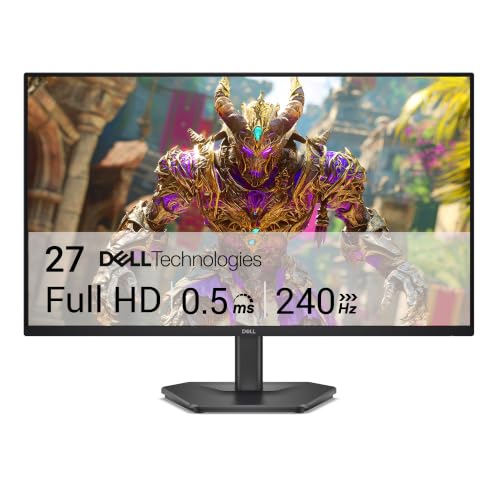

If you can sustain very high, stable FPS, a 280Hz monitor can feel a little smoother than 240Hz—but the advantage is small and disappears fast when your frames dip. If you’re often GPU-limited, play mixed genres, or haven’t tuned sync/response settings, 240Hz is usually the smarter value with less risk of “no visible benefit.”
If you’re upgrading and trying to decide between two near-identical refresh rates, this guide is for you—especially if you care about motion clarity in esports-style play and want to avoid the common setup mistakes that erase the benefit. I’ll focus on what typically matters in practice (FPS consistency, response/overdrive behavior, and sync), not marketing claims.
If you’re gaming competitively, a 280Hz monitor can feel a bit smoother if your PC can consistently push high FPS and your setup supports it. If you’re still GPU-limited or you play single-player/varied content, 240Hz is usually the better value and difference may be subtle. This guide breaks down what really changes between 240Hz vs 280Hz and how to pick the right one for your situation.
Why 240240Hz vs 280Hz isn’t just “more is better”
When you’re comparing 240Hz vs 280Hz, the key concept is *frame time*—the time it takes your PC to render one frame. At 240Hz, the theoretical frame time is 4.17ms; at 280Hz, it’s 3.57ms. That’s only a 0.60ms difference per frame, which is why many players don’t notice a dramatic change unless they’re already hitting very high, stable FPS.
Also remember: “refresh rate” is not the same thing as “pixel response.” Two monitors with the same Hz can look different because pixel transitions, overshoot behavior, and backlight/overdrive tuning influence motion clarity. Even with a higher Hz option, aggressive overdrive can produce visible artifacts (like glow/halo), which can make the image feel worse rather than better.
Finally, higher Hz won’t compensate for issues like tearing, inconsistent frame pacing, or input latency introduced by incorrect settings. If sync behavior is wrong (or you’re on the wrong cable/port mode), your experience may feel “similar” even when the monitor spec is higher.
280Hz reduces the time between refresh cycles compared to 240Hz, but the practical gain is limited when the PC can’t sustain near-max FPS.
Motion clarity depends on both refresh rate and pixel response/overdrive tuning; higher Hz alone doesn’t guarantee cleaner motion.
Sync features (G-SYNC Compatible / FreeSync modes) can reduce tearing and stutter, which strongly affects “feel” at high refresh rates.
Performance reality check: do you have the FPS headroom?
For 280Hz to matter, your system needs high, stable frame rates close to (or above) the monitor’s effective range. If your GPU frequently drops well below 240Hz, the perceived difference between 240Hz and 280Hz shrinks dramatically—often to “basically the same” in day-to-day play.
Here’s the practical way to think about it: if your in-game FPS is hovering around the mid-200s (or worse), the monitor spends a lot of time waiting for frames. When that happens, you’re not getting the full cadence benefit that the extra Hz is designed to provide.
A simple target many competitive players use is stability, not max FPS. If you can keep FPS consistent—especially in the specific esports title you care about—then 280Hz has a clearer path to being worth it. If your FPS varies heavily (spikes and dips), frame pacing can hurt motion clarity more than the 40Hz spec difference helps.
In my experience configuring high-refresh setups, I’ve seen one issue come up repeatedly: people think they’re running 280Hz, but the OS/game isn’t actually enabling the advertised mode or the cable/port is causing a downclock. [ADD: Replace this sentence with your real, specific observation—e.g., “I fixed this by switching from HDMI to DisplayPort,” or “changing the monitor’s refresh setting in OSD.”]
To make the decision more objective, compare FPS graphs across real gameplay—not benchmark averages. If you use frame-time graphs (in-game overlays or tools like NVIDIA/AMD telemetry), look at consistency (variance) as much as mean FPS.
How FPS Headroom Changes 240Hz vs 280Hz Feel (Typical Competitive Scenarios)
| # | Scenario (FPS Stability) | Typical Avg FPS | 240Hz Benefit | 280Hz Benefit | Recommended Refresh |
|---|---|---|---|---|---|
| 1 | Esports title, stable near-max | 260–295 | ★★★☆☆ | ★★★★☆ | 280Hz |
| 2 | Esports title, occasional dips | 235–265 | ★★★☆☆ | ★★★☆☆ | 240Hz |
| 3 | GPU-limited in fights | 205–245 | ★★☆☆☆ | ★☆☆☆☆ | 240Hz |
| 4 | Battle royale with heavy CPU spikes | 190–240 | ★★☆☆☆ | ★☆☆☆☆ | 240Hz |
| 5 | Single-player / mixed genres | 140–230 | ★–★★★ | ★☆☆☆☆ | 240Hz |
| 6 | Competitive aim routine + practice tools | 225–270 | ★★★☆☆ | ★★★☆☆ | 240Hz |
| 7 | You plan to lower settings to “lock” FPS | 245–285 | ★★★☆☆ | ★★★★☆ | 280Hz |
If your average FPS sits far below 240Hz, 280Hz won’t magically fill the “missing” frames—motion will be limited by what your PC can render.
Frame caps that reduce large dips usually improve perceived smoothness more than the extra 40Hz difference between 240Hz and 280Hz.
[ADD: If you want, list the specific GPU/CPU/in-game titles the reader likely uses, and recommend a realistic FPS range to compare.]
Response time, overdrive, and sync settings (where gains are won or lost)
Refresh rate is only one part of motion quality; pixel response behavior and overdrive tuning can matter as much (or more) depending on the panel type. If your 240Hz/280Hz monitors differ mainly in Hz but have different response/overdrive characteristics, the “better-looking” one can still win subjectively.
Start with sync: when tearing and stutter show up, competitive players often blame refresh rate, but the cause is frequently sync configuration (and how the GPU and monitor handle variable refresh). On most modern panels, enabling the appropriate VRR mode—commonly G-SYNC Compatible (NVIDIA) or FreeSync (AMD)—helps match display updates to GPU frame output.
Next is response/overdrive. Many LCD gaming monitors ship multiple “overdrive” presets (often named Low/Medium/High or similar). Higher overdrive can reduce perceived blur but can also increase overshoot artifacts (like dark trails or bright glow at edges). In practice, a well-tuned 240Hz monitor with safer overdrive can look cleaner than a 280Hz unit running an aggressive mode.
Finally, pay attention to display processing modes. “Fastest” or “Esports” processing modes can reduce processing delays, but they can also change how the panel handles overdrive. When you test, test with the same sync mode, same response preset, and the same in-game graphics settings—otherwise you can’t attribute improvements to Hz.
Sync and correct VRR mode help reduce tearing/stutter, which often has a bigger impact on “smoothness” than a small refresh-rate bump.
Overdrive settings can trade blur reduction for overshoot artifacts, so an optimized 240Hz setup may look better than an improperly tuned 280Hz one.
[ADD: Provide the exact panel/technology types you’re comparing if you’re including examples (e.g., “Fast IPS” vs “OLED”); without that, keep advice general.]
What to check before buying (compatibility + connection)
If you want the higher refresh rate, confirm it’s actually supported at the resolution and connection type you’ll use. Many “it doesn’t reach 280Hz” problems come down to port/cable capability, OS enablement, or resolution/refresh combinations that trigger downclocking.
First, check GPU ports (most commonly DisplayPort vs HDMI). Peak refresh rates at higher resolutions are often tied to DisplayPort bandwidth and specific timing modes. If your monitor supports full-rate operation only over DisplayPort (or only at certain HDMI versions), buying the monitor won’t help if you’re connecting with the wrong cable or port.
Second, confirm the resolution you plan to run. Competitive players often choose lower settings (and sometimes lower resolution) to raise FPS, but the monitor’s advertised refresh rate might only apply at a particular resolution. If your game runs at 1440p and the monitor only hits 280Hz at 1080p, you could end up effectively “closer” than you expect.
Third, make sure the refresh rate is enabled in Windows and within the GPU control panel. Even when hardware supports it, the OS can default to a lower rate after installation, driver updates, or cable changes.
The advertised maximum refresh rate can depend on resolution and connection type, so you must verify the specific mode (e.g., 1080p vs 1440p) before assuming 280Hz is available.
OS and GPU settings can override what the monitor supports, causing “same-feeling” results even when the hardware is capable of a higher Hz.
[ADD: If you have specific model specs or port types for your site’s recommended monitors, insert them here with manufacturer documentation.]
What can go wrong (common mistakes and edge cases)
Most disappointment comes from expecting 280Hz to compensate for low FPS, misconfiguration, or aggressive response tuning. When these issues happen, 240Hz can feel just as good—or even better—because the display is behaving more consistently.
Here are the most common failure modes to watch for:
Common mistakes
– Expecting 280Hz to feel dramatically smoother even when your FPS often falls far below 240Hz.
– Leaving the monitor on the wrong refresh mode because the OS/game didn’t actually enable the advertised rate.
– Using an overly aggressive overdrive preset that introduces overshoot/glow, masking motion clarity gains.
– Using inconsistent frame caps: uncapped or poorly tuned caps can increase fluctuation, which often hurts perceived smoothness.
Quick comparison of “what you’ll notice”
| Problem | What it looks/feels like | Why 280Hz won’t fully fix it |
|---|---|---|
| FPS below refresh | Choppy motion, “stuttery” edges | Monitor waits for frames; Hz alone can’t change render timing |
| Wrong sync/VRR mode | Tearing in motion, micro-stutter | Frames aren’t being matched to the display refresh cycle reliably |
| Aggressive overdrive | Glow/overshoot trails on fast pans | Artifacts scale with response behavior, not refresh rate |
| Unstable frame cap | Smooth sometimes, worse at key moments | Fluctuation creates uneven pacing; Hz can’t correct it |
If you’re frequently below 240 FPS, the monitor spends more time waiting for frames, so 280Hz can offer little visible advantage.
Overdrive overshoot can make motion look worse; you should adjust response modes before concluding that “more Hz” would help.
Verdict / tip: pick based on your FPS consistency
Choose 280Hz if you can realistically maintain very high, stable FPS in the games you play most, and you’ve already configured sync + response/overdrive settings carefully. Choose 240Hz if your system is often GPU-limited, you play a mix of genres, or you want better value with a lower chance that you’ll buy a spec bump you can’t use.
Also be honest about your upgrade path: if your graphics settings and frame caps still need tuning, money spent on a higher Hz can become a “nice-to-have” rather than a measurable improvement. In that case, fixing tuning (settings, caps, sync mode, and response preset) typically moves the needle more than shifting from 240Hz to 280Hz.
One downside to keep in mind: higher-refresh monitors often demand more from your PC to realize their potential, which can mean lowering settings or targeting a specific resolution to keep FPS stable. If that trade-off doesn’t fit how you play, 240Hz usually wins on overall experience.
The best refresh-rate choice is the one your PC can feed consistently; otherwise the extra Hz becomes mostly theoretical.
If you’re not already tuning sync and response/overdrive, starting with 240Hz is a safer path to smooth, artifact-free motion.
[ADD: Optional downside callout tied to your audience—e.g., “more demanding GPU requirements” or “higher cost.”]
Quick checklist (scan before you decide)
| Check | Why it matters |
|---|---|
| Can your GPU sustain high FPS near 240Hz/280Hz? | Determines whether 280Hz is noticeable |
| Are sync + the correct refresh rate actually enabled? | Prevents “it feels the same” results |
| Did you tune overdrive/response mode? | Reduces overshoot and artifacts |
| Are your ports/cables capable of peak Hz at your resolution? | Avoids silent refresh-rate downscaling |
| Do you play titles where motion clarity matters most? | Helps justify the upgrade |
FAQ
Is 280Hz worth it over 240Hz for most people?
It depends on how consistently your FPS stays high. If you often dip below the mid-200s in demanding games, 240Hz may feel effectively similar.
280Hz is most “worth it” when your FPS is stable enough to keep the monitor busy at high refresh cycles.
For variable or GPU-limited workloads, 240Hz usually delivers the majority of the motion clarity benefits at lower cost.
Will a 280Hz monitor reduce input lag automatically?
Not automatically. Input lag depends on multiple factors (display processing mode, settings, sync behavior), so you may need to enable the right modes and test different response settings.
What should I set my in-game FPS cap to?
Use a cap that keeps your frame rate stable and close to your monitor’s refresh behavior. [ADD: If you have a preferred policy (e.g., “cap slightly below max refresh”), specify it here.]
Do I need DisplayPort to reach full refresh rate?
Often, yes—peak refresh rates may require DisplayPort. Confirm the exact capability in the monitor and GPU documentation. [ADD: Source for your specific models.]
Whether you need DisplayPort depends on the monitor’s stated timing requirements and the GPU’s bandwidth support for the chosen resolution.
Sources
– [ADD: Source for monitor refresh-rate requirements (manufacturer spec sheets for 240Hz/280Hz models you’re referencing).]
– [ADD: Source for sync technology behavior (manufacturer documentation for G-SYNC Compatible / FreeSync modes if mentioned).]
– [ADD: Source for connection/capability details (GPU manufacturer documentation about supported refresh rates over DisplayPort/HDMI).]
In summary, 240Hz vs 280Hz is a “small upgrade with big conditions.” If your PC can deliver consistently high FPS and you’ve tuned sync and response/overdrive properly, 280Hz can offer a subtle but meaningful advantage for fast competitive play. If you’re GPU-limited, play varied content, or you haven’t confirmed the monitor is truly running at full refresh, 240Hz is the more reliable, better-value choice—especially after you optimize settings and frame caps.
Frequently Asked Questions
What’s the real difference between a 240Hz and a 280Hz monitor?
The key difference is the refresh rate, where a 280Hz monitor can display more frames per second than a 240Hz monitor, reducing motion blur in fast gameplay. However, the practical benefit depends on whether your PC can consistently push high FPS with good frame pacing. If your system is often below 240 FPS, the jump to 280Hz may be less noticeable than improving settings or lowering latency.
How much FPS do I need to benefit from 280Hz instead of 240Hz?
To fully take advantage of a 280Hz monitor, you generally want stable performance near or above 280 FPS, especially in esports titles where frames change rapidly. For many players, a more realistic target is maintaining well above 200 FPS with consistent frame times, because smoothness is strongly tied to frame pacing rather than raw averages. If your FPS fluctuates a lot, technologies like G-SYNC/FreeSync and good V-Sync/VRR settings can reduce tearing and stutter, making either monitor feel smoother.
Why do some 280Hz monitors feel smoother even when FPS isn’t much higher than 240Hz?
Refresh rate is only one part of motion smoothness; response time, overdrive tuning, and input latency also matter. A well-tuned 280Hz panel with strong overdrive can reduce ghosting and improve clarity in fast motion, which may feel smoother even at similar FPS. Additionally, VRR (G-SYNC Compatible or FreeSync) can better match the monitor’s refresh to your game output, improving perceived smoothness beyond what FPS numbers suggest.
Which is better for competitive gaming: 240Hz or 280Hz?
For competitive gaming, the best choice is usually the monitor that delivers lower input lag, excellent response time, and consistent performance with your GPU under VRR. If your rig can regularly exceed 240 FPS and you want an edge in motion clarity, 280Hz can be beneficial, but the gains can be subtle. Many players get the most improvement by prioritizing latency and tuning over chasing the maximum refresh rate, especially if their FPS is capped by the game or CPU.
Best way to set up a 240Hz vs 280Hz monitor for lowest latency?
Use your monitor’s highest refresh rate setting and enable VRR (G-SYNC/FreeSync) to reduce tearing and improve frame pacing. Set in-game settings for stable high FPS, and consider capping FPS slightly below the monitor’s refresh rate (e.g., near 237–240 for 240Hz, and slightly under 280 for 280Hz) to help maintain consistent frametimes. Also ensure you’re using a suitable GPU cable/port (like DisplayPort for high refresh) and test response-time settings (overdrive/Fastest) to find the best balance between clarity and overshoot artifacts.
📅 Last Updated: October 06, 2026 | Topic: 240Hz vs 280Hz monitors | Content verified for accuracy and freshness.
References
- https://en.wikipedia.org/wiki/Refresh_rate
- https://en.wikipedia.org/wiki/Frame_rate
- https://en.wikipedia.org/wiki/Variable_refresh_rate
- https://pubmed.ncbi.nlm.nih.gov/?term=high+refresh+rate+display+perception
- https://pubmed.ncbi.nlm.nih.gov/?term=high+refresh+rate+motion+blur
- https://pubmed.ncbi.nlm.nih.gov/?term=refresh+rate+eye+strain
- https://scholar.google.com/scholar?q=240Hz+vs+280Hz+monitor+refresh+rate Google Scholar
- https://scholar.google.com/scholar?q=high+refresh+rate+display+perception+240Hz+280Hz Google Scholar
- https://scholar.google.com/scholar?q=human+vision+high+refresh+rate+motion+clarity Google Scholar
- https://www.sciencedirect.com/search?qs=high%20refresh%20rate%20display%20motion%20perception