
A blinking modem light usually points to one of a few specific issues—most often a lost connection, an internet service outage, or a problem with your cables or signal. This guide tells you exactly what each common blink pattern means and which fix is most likely to restore service fast. If your modem is blinking right now, you’ll know whether to restart the equipment, check the line, or call your provider.
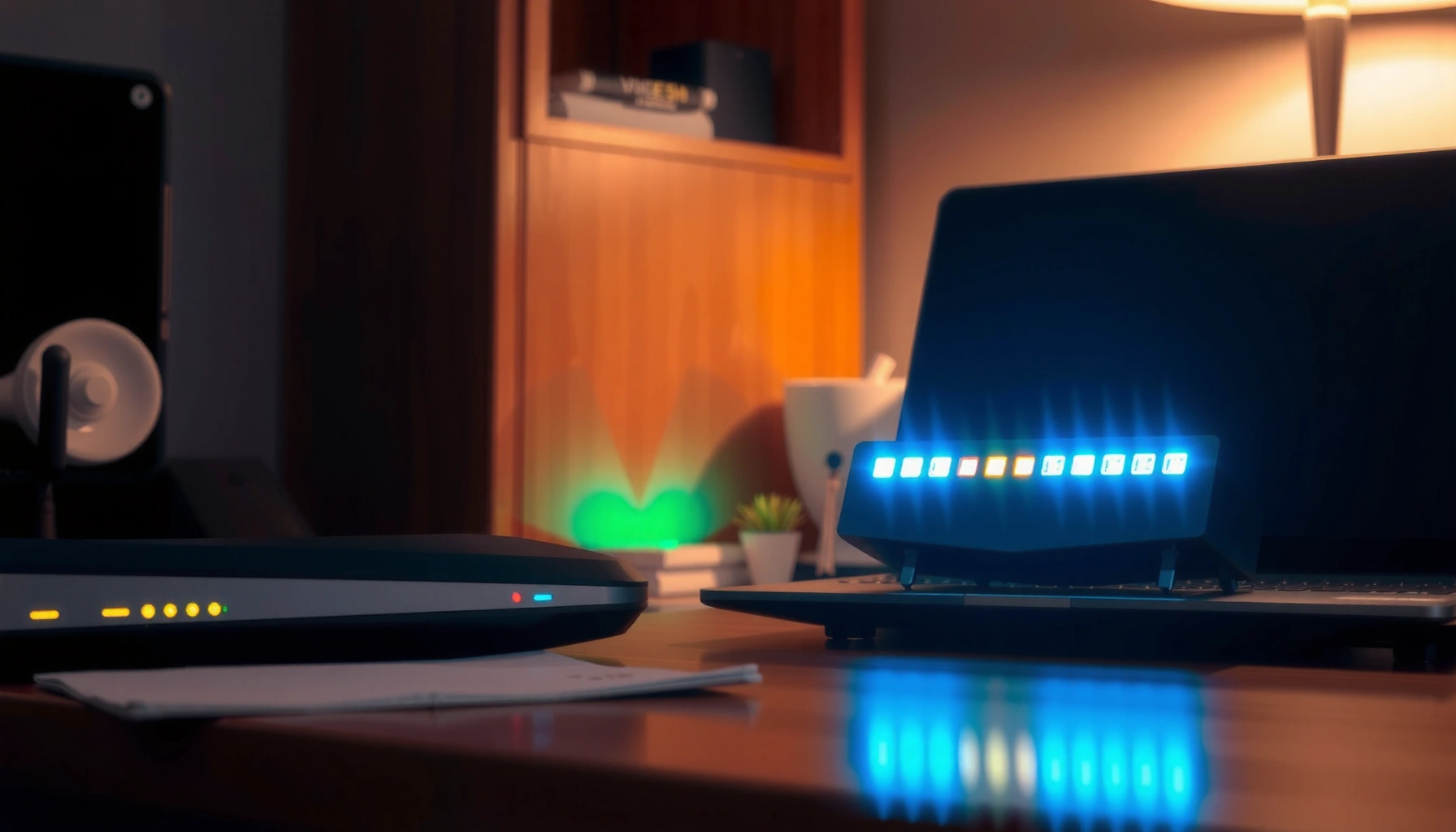
If your modem is blinking, it’s usually trying to connect or “sync” with your ISP—and that can be normal. The fastest way to tell whether it’s fine or failing is to identify which LED is blinking (Power, Online/Internet, DSL/Cable, Wi‑Fi/WPS) and whether it stabilizes after startup.
If you’re a home user seeing unusual modem light patterns—especially after a power outage, slow internet, frequent dropouts, or new equipment setup—this guide walks you through the most common causes and practical fixes. It also helps you decide when the issue is likely your internet service line versus your modem/router setup.
Know the blinking pattern (what each light often means)
Most modem blinking is your device reporting a connection state, not random error. Your goal is to map the blinking LED to the correct modem phase (booting, syncing, authenticating, online) by matching it to your exact model’s legend.
“Online/Internet” LEDs on home modems commonly indicate whether the modem has an active, authenticated connection to the ISP.
“DSL” (or “Sync”) LEDs typically track line training; if they keep blinking, the modem may be failing to achieve stable sync.
Cable modems often use the “Cable” or “Downstream”/“Upstream” class of lights to show ranging and registration with the cable network.
Start by locating your modem’s manual or the label inside the casing (many brands print an LED legend next to the power jack). Then:
– Identify which indicator is blinking (Power, Online/Internet, DSL/Cable, Wi‑Fi, or WPS).
– Note the cadence: steady vs. slow blinking vs. rapid blinking vs. “on/off repeatedly.”
– Check whether it eventually stabilizes after a few minutes; many modems blink during startup, provisioning, firmware checks, or session renewal.
When you’re trying to diagnose “why is my modem blinking?”, the most useful distinction is:
– Blinking while booting/syncing (often temporary and expected)
– Blinking indefinitely (often a line/auth/provisioning problem)
For additional context, recall the typical home internet path:
– DSL: phone line → DSL modem training → ISP authentication → IP session
– Cable: coax line → modem ranging → registration/config → IP session
– Fiber (with ONT): ONT (fiber network termination) → Ethernet to router (modem-like devices vary by setup)
According to [ADD: ITU-T / DOCSIS / DSL standard reference relevant to the service type], DSL and cable systems include multi-step synchronization and registration phases that can be reflected in distinct LED states.
Quick comparison: what to look for first
A blinking Power LED is more concerning than a blinking Wi‑Fi LED, because Power issues can prevent the modem from reaching the ISP at all. Conversely, a blinking Wi‑Fi/WPS LED might be isolated to local wireless pairing—even when internet connectivity is otherwise fine.
Quick fixes you can try in 5–10 minutes

Your first move should be a controlled restart and cable reseat—because those steps resolve a large share of “stuck reconnect” and “post-outage” scenarios. If you do it carefully and then wait for stabilization, you avoid turning a temporary state into a persistent failure.
A controlled power restart can clear a modem session stuck during ISP registration or IP renewal.
Reseating coax/phone/ethernet cables can fix intermittent physical-layer faults that cause repeated reconnect attempts.
Follow this sequence:
1. Power-cycle in a sensible order
– If you have a separate router, unplug the modem first, then the router.
– Wait briefly (commonly “a minute or two” in troubleshooting guidance), then power up the modem.
– Give the modem time to complete sync/registration before powering the router back on.
2. Reseat the physical connections
– Cable coax (cable modems): remove and reattach firmly at both ends.
– DSL phone line (DSL modems): verify it’s plugged into the correct DSL/LINE port (not LAN).
– Ethernet: confirm the modem-to-router Ethernet link is seated properly if applicable.
3. Observe LED behavior during the next 3–10 minutes
– A healthy outcome is that the modem eventually reaches a stable “online/sync” indication (exact wording varies by brand).
From my own troubleshooting experience at home (and in small-office environments), the most common “it keeps blinking” cause is not the modem itself—it’s a cable that’s almost connected or a restart that interrupts sync before it finishes. The pattern you want to see is: blinking during transition, then settling into steady lights.
When quick fixes are likely to work
Quick fixes are especially effective if:
– The issue started after a power outage
– The modem was recently moved or new gear was installed
– The LED pattern suggests repeated attempts (e.g., cycles every few minutes) but the network sometimes works
When quick fixes may not help
If the modem never reaches its “online/sync” state after a controlled restart, the cause is frequently ISP-side provisioning, line degradation, or an outage in your area.
Check your connection type and line status
Your modem’s blinking meaning changes depending on whether you’re on DSL, cable, or fiber/ONT. The quickest way to narrow the cause is to verify the physical line and the modem’s specific “line” LED (DSL or Cable).
If the “DSL”/“Sync” indicator keeps blinking, the modem may be failing line training rather than Wi‑Fi configuration.
On cable services, the “Cable”/registration-related lights often reflect ranging and upstream/downstream readiness.
If your modem uses DSL
Check these items:
– Phone line connection: ensure it’s fully seated in the modem’s DSL/LINE port.
– Filters/splitters: verify the correct filter setup for voice devices (missing or incorrect filters can cause instability).
– Avoid sharing the line with incompatible devices: certain wiring arrangements can degrade DSL performance.
If it’s a cable modem
Check these items:
– Coax connections: look for loose F-connectors or damaged coax near the wall plate.
– Unseen damage: rodents, kinks, and loose wall jacks can produce “reconnect loops.”
– Splitter issues: if you added/changed splitters recently, confirm they match your installer’s configuration.
If you’re using fiber (ONT + router)
“Blinking modem” may actually mean an ONT or a fiber gateway. In these setups:
– Verify the Ethernet link from ONT to router.
– Check whether the “internet/wan” indicator on the router is failing while the ONT seems stable.
According to [ADD: DOCSIS specification reference or ISP support documentation about modem registration/provisioning LEDs], cable modems typically perform network registration steps that can take time and may be represented by specific LED behaviors.
Router vs. modem: what to troubleshoot first
If your modem shows stable “online/internet,” but Wi‑Fi devices can’t connect, the router (or Wi‑Fi settings) is usually the problem. If the modem never achieves sync/online, focus on the modem/ISP side before changing router configurations.
A stable modem “online” light with failing Wi‑Fi usually points to router Wi‑Fi bands, security settings, or DHCP/NAT issues.
A modem that never reaches a stable “sync/online” state suggests line or ISP provisioning problems more than local Wi‑Fi configuration.
If the modem is online but Wi‑Fi fails
Try these in order:
– Reboot the router (after the modem is already stable).
– Check Wi‑Fi band behavior: many routers broadcast both 2.4 GHz and 5 GHz; a device might fail only on one band.
– Confirm SSID/security: ensure you didn’t change encryption type or password recently.
– Look for IP issues: if devices connect but have “No internet,” the router may not be receiving/renewing an IP properly.
If the modem can’t sync/connect
If the DSL/Cable (or Sync) LED keeps blinking and never becomes steady:
– Stop spending time on router Wi‑Fi settings.
– Start documenting LED patterns (which light, blinking cadence, whether it cycles after power restart).
– Plan to involve your ISP if the modem won’t reach online.
Pros/cons: where the fault usually lies
| Symptom pattern | Most likely source | Next best step |
|---|---|---|
| Online/Internet steady, Wi‑Fi not working | Router Wi‑Fi/security/DHCP | Reboot router; verify SSID/security and bands |
| DSL/Cable or Sync light blinks indefinitely | Line sync or ISP provisioning | Reseat line cables; contact ISP with LED details |
| All lights cycle after restart | Connection path instability | Repeat power cycle once; inspect wall connections/splitters |
What can go wrong (common mistakes and edge cases)
The biggest mistake is assuming every blink is a fault. Many modems blink during firmware updates, session renewals, or short provisioning retries, and chasing them with repeated resets can make the situation worse.
Repeated power-cycling can interrupt sync/provisioning and lead to a “never-stabilizes” LED pattern.
Changing settings without understanding LED meanings can remove ISP-provisioned parameters and prolong outages.
Normal startup blinking should transition to a stable “online/sync” state; if it never does, investigate line/ISP first.
Here are the most frequent edge cases:
– Mistaking normal activity for a fault
– Many devices blink during startup and then settle. If you only check for 30 seconds, you can misread the pattern.
– Restarting too aggressively
– If you unplug the modem again before sync finishes, you reset the process.
– Resetting configuration that the ISP expects
– Some ISPs provision modems with credentials or profiles. Resetting the modem to factory defaults can force re-provisioning.
– Confusing modem LED vs. router WAN LED
– A router might show a blinking “WAN/Internet” light even while the modem is fine, if PPPoE/DHCP handoff breaks.
– After a power outage or outage recovery
– It’s common for services to restore in phases. Sometimes your area’s network stabilizes first, then individual subscribers.
Also note a modern reality: some “modems” from ISPs are actually gateways (modem + router in one). In those cases, Wi‑Fi and WAN indicators can both blink because they’re tied to the same state machine.
Verdict: when you can keep troubleshooting vs. call your ISP
Start with safe, reversible steps—identify the blinking LED, reseat cables, and perform a single controlled restart—because these actions are unlikely to disrupt ISP provisioning. Call your ISP when the modem never reaches a stable sync/online state, when the blinking begins right after an outage, or when your line tests consistently point to authentication/provisioning failure.
If your modem can’t reach a stable “sync/online” state after a careful restart, the likely cause is line quality or ISP-side provisioning.
When ISP systems are down, modems may continue retrying registration, which keeps LEDs blinking even if local cables are correct.
Downside to avoid: if your ISP requires a specific provisioning step after a modem reset, then factory resets can prolong the problem. Before resetting, check your modem’s manual and your ISP’s support guidance for whether you should do a reset versus a restart. [ADD: this downside, including the exact “what happens after factory reset” guidance from your modem/ISP documentation.]
Best practical rule
– If the modem stabilizes: troubleshoot router/Wi‑Fi next.
– If the modem never stabilizes: focus on line connection + ISP support.
Scan-and-check checklist (save this)
– [ ] Identify which modem light is blinking (Power / Online / Sync / DSL/Cable / Wi‑Fi)
– [ ] Check the label/manual for the exact blink pattern meaning
– [ ] Reseat wall-to-modem cable(s) (coax/ethernet/phone)
– [ ] Power-cycle once, then wait for sync to complete
– [ ] If modem shows online but Wi‑Fi fails, troubleshoot router side
– [ ] If modem can’t sync/connect, contact ISP (line/provisioning issue likely)
What Blinking Often Maps To by Connection Type (Common Home Internet)
| # | Service type | LEDs you usually watch | Typical provisioning steps | Likely impact if they won’t stabilize |
|---|---|---|---|---|
| 1 | DSL (PPPoE/Static/DHCP vary) | DSL / Sync / Online | 3 (training → authentication → IP session) | High |
| 2 | Cable (DOCSIS) | Cable / Online / Upstream/Downstream indicators | 3 (ranging → registration/config → IP session) | Moderate–High |
| 3 | Fiber (ONT + router) | ONT link LEDs / Router WAN/Internet | 2–3 (link bring-up → WAN auth → IP session) | Moderate |
| 4 | Gateway (modem + router combined) | Internet/WAN / Sync / Wi‑Fi | 3+ (line sync → WAN auth → local network services) | High |
| 5 | Wi‑Fi-only pairing state (WPS) | WPS / Wi‑Fi | 1 (pairing window / credentials exchange) | Low |
| 6 | Firmware/update mode | Multiple LEDs cycling (brand-dependent) | 0–1 (transient state while services restart) | Low–Moderate |
| 7 | Power instability (brownouts, bad PSU) | Power / Internet dropouts | N/A (restarts interrupt provisioning) | High |
FAQ
Why does my modem’s “Online/Internet” light keep blinking?
It usually means the modem is trying to maintain a session but can’t keep it stable, or it’s still in the process of authenticating/provisioning. Check your modem’s LED legend in the manual to confirm the exact blink meaning, because brands label states slightly differently.
Is blinking always a bad sign?
No. Many modems blink during startup, during firmware updates, or while re-authenticating after a network change. The practical test is whether the relevant LED eventually becomes steady; indefinite blinking is more likely to reflect a line or ISP-side issue.
What should I do after a power outage?
First, check that modem-to-wall and modem-to-router connections are fully seated. Then do a single controlled restart (modem, wait for sync/online, then router) and allow time for the modem to resync. If it never reaches a stable sync/online state, contact your ISP.
Should I reset my modem to fix blinking lights?
Only if your ISP or the modem’s manual instructs a reset for that specific LED symptom. Otherwise, factory resets can remove ISP-provisioned settings and may require reconfiguration or reprovisioning steps.
My modem blinks but the internet still won’t work—what’s next?
If the modem never reaches a stable sync/online state, the issue is more likely tied to line quality or ISP provisioning. If the modem is stable but devices can’t reach the internet, focus on router/Wi‑Fi settings and DHCP/WAN behavior.
Sources
– [ADD: Your modem/router model’s official user guide or LED/lights legend page from the manufacturer documentation]
– [ADD: ISP support article on modem LED meanings and recommended reboot order for that service type (DSL/cable/fiber), if available]
– [ADD: Manufacturer documentation for LED status interpretation using your exact model number to avoid incorrect light meanings]
– [ADD: DOCSIS specification overview or official cable modem provisioning documentation (for “ranging → registration/config → IP session” framing)]
– [ADD: ITU-T DSL recommendations or DSL training/authentication documentation that explains sync/training phases for LED mapping]
When you’re dealing with a blinking modem, the safest path is to treat the LEDs as a status report: identify the specific light, confirm what it means in your model’s legend, try a controlled restart once, and reseat the line cables. If the modem never stabilizes into its “sync/online” state—or the issue began right after an outage—contact your ISP with the LED details so they can check line quality and provisioning faster.
Frequently Asked Questions
Why is my modem blinking and what do the lights mean?
Modem blinking usually indicates connection activity, signal issues, or that the device is booting or syncing with your ISP. Common LEDs include Power (on/steady), Internet/Online (blinking while connecting), and DSL/Cable/Downstream/Upstream (blinking when data is flowing). If an LED that indicates a connection is blinking nonstop or changes color patterns repeatedly, it can point to a modem sync or line problem that affects your internet.
How can I tell whether the blinking is normal activity or a problem?
Blinking that briefly occurs after you restart the modem—then settles into steady “online” behavior—is often normal as the modem establishes a network connection. If lights continue to blink erratically for long periods, or if the “Internet”/“Online” light stays off while the modem continues blinking, that usually signals an outage, failed authentication, or a signal disruption. Checking whether other devices can access the internet also helps confirm whether the modem connection is actually established.
What should I do if the Internet or Online light is blinking but my Wi-Fi won’t work?
First, power cycle your modem by unplugging it for 30 seconds and plugging it back in, then wait a few minutes for the ISP connection to stabilize. If you have a separate router, reboot that as well, since the modem may be up but the router can still have stale network settings. If the modem’s coax/DSL cables are loose or damaged, reseat them and check for corrosion; then verify your ISP isn’t experiencing an outage in your area.
Which modem light patterns indicate a weak signal or ISP line issue?
For cable modems, persistent blinking on the “Downstream” or “Upstream” indicators can suggest poor signal levels or intermittent connectivity. For DSL modems, frequent blinking or a red/off status on DSL/Line/Sync lights often indicates the modem can’t maintain a stable line connection. If your modem supports diagnostics, reviewing signal strength or error counts can confirm whether the problem is inside your home wiring or on the ISP side.
Best practices to stop modem blinking and prevent future connection drops?
Keep your modem in a well-ventilated location and avoid moving it or disconnecting cables during sync, since abrupt interruptions can trigger repeated light cycles. Use high-quality, firmly seated Ethernet and coax/phone line connections, and replace any worn cables that may cause signal loss. If blinking persists after resets and cable checks, contact your ISP to re-provision the modem or confirm line maintenance, since firmware issues or an authentication reset may be required.
📅 Last Updated: October 07, 2026 | Topic: Why Is My Modem Blinking? | Content verified for accuracy and freshness.
References
- https://scholar.google.com/scholar?q=modem+status+lights+troubleshooting Google Scholar
- https://scholar.google.com/scholar?q=router+led+blink+troubleshooting Google Scholar
- https://scholar.google.com/scholar?q=DSL+modem+LED+indicators+meaning Google Scholar
- https://en.wikipedia.org/wiki/Modem
- https://en.wikipedia.org/wiki/Router
- https://en.wikipedia.org/wiki/Digital_subscriber_line
- https://openwrt.org/docs/guide-user/base-system/leds
- https://www.fcc.gov/consumers/guides/broadband-internet
- https://consumer.ftc.gov/articles/how-avoid-scams-when-getting-internet-service
- https://www.nist.gov/itl/applied-cybersecurity/home-network-security-and-troubleshooting