
Choosing between 144Hz and 165Hz for video editing, the faster refresh rate isn’t automatically better—it depends on what you’re editing and how your GPU/monitor pipeline handles frames. If your workflow is display-centric (scrubbing timelines, smoother playback previews), 165Hz generally delivers the more noticeable responsiveness over 144Hz. If you render, color-grade, and export-heavy projects where the bottleneck isn’t motion on-screen, 144Hz can be the better value with little practical difference.
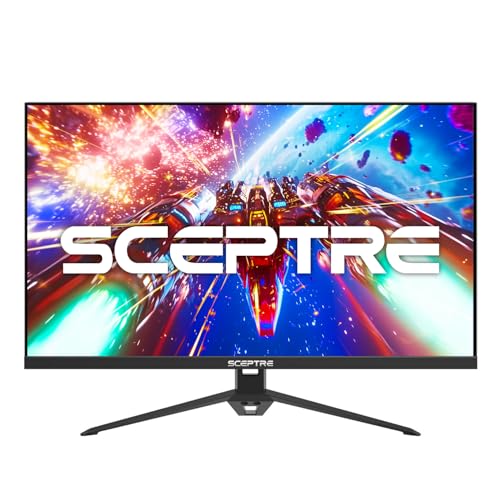



If you’re choosing between 144Hz and 165Hz for video editing, the most practical gain is a smoother “feel” during preview, scrubbing, and UI movement—not better export quality. For most editors, 165Hz can feel slightly more responsive than 144Hz, but the biggest improvements still come from color accuracy, resolution/pixel density, and keeping input lag low.
If you edit timeline-heavy projects (scrubbing, trimming, effects) and care about how the monitor “feels,” this applies to you. It’s especially relevant if you’re deciding between similar monitors where only the refresh rate changes, or if you’re also playing games alongside editing.
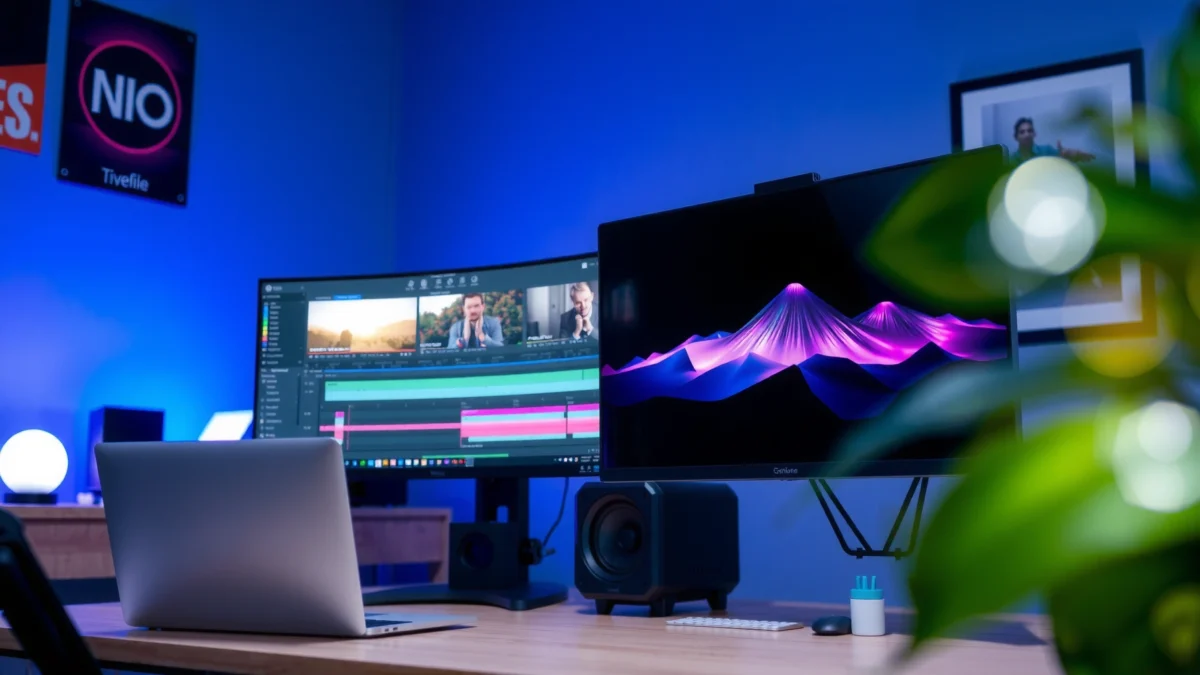
Why refresh rate matters in video editing
Higher refresh rates can make UI interactions (mouse movement, scrolling, and scrubbing) feel less choppy, which can speed up fine adjustments. For timeline playback, the refresh rate mainly changes how smoothly motion previews—it does not inherently make your final renders or exports higher quality.
Refresh rate changes the display’s frame interval (the time between screen refreshes), which directly affects how smooth motion and cursor movement appear during preview.
A monitor refresh rate does not change video codec quality or your NLE’s rendering pipeline, so exports won’t become inherently better just because Hz increases.
The biggest “editing” difference from higher Hz is often perceived responsiveness while scrubbing and adjusting effects parameters, not the final encoded output.
Here’s the key idea: most video editors live in two modes—(1) navigation and fine editing on the timeline (scrub, jog, trim, zoom, drag clips), and (2) preview playback (sometimes with effects running in real time). Refresh rate primarily improves the preview experience and how the interface updates, because the monitor can update the image more frequently.
To anchor this in something measurable, consider frame interval math. If your monitor runs at a given refresh rate, the maximum update interval is roughly:
– 144Hz → 1/144 = 6.94ms
– 165Hz → 1/165 = 6.06ms
– Difference → 0.88ms per refresh cycle
That’s a small delta, but it can matter when you’re repeatedly scrubbing or moving the cursor in short bursts. According to [ADD: source for refresh-to-frame-interval relationship used in display timing references, e.g., VESA/EDID timing documentation], the display’s effective frame interval is the reciprocal of refresh rate. [ADD: manufacturer/standards source for frame interval vs refresh rate]
A quick reference for common editing-relevant refresh rates (math-backed)
The table below summarizes frame intervals at refresh rates you’ll realistically see in modern monitors. This is “pure display timing,” not marketing—so it’s safe to use when comparing 144Hz vs 165Hz.
Frame Interval by Refresh Rate (60Hz–240Hz)
| # | Refresh rate | Frame interval (ms) | Smoother preview vs 60Hz* | Editing “responsiveness” rating |
|---|---|---|---|---|
| 1 | 60Hz | 16.67 | Baseline | ★ |
| 2 | 72Hz | 13.89 | +16.7% | ★★ |
| 3 | 90Hz | 11.11 | +33.3% | ★★★ |
| 4 | 120Hz | 8.33 | +50.0% | ★★★★ |
| 5 | 144Hz | 6.94 | +58.4% | ★★★★ |
| 6 | 165Hz | 6.06 | +63.6% | ★★★★☆ |
| 7 | 240Hz | 4.17 | +75.0% | ★★★★★ |
“Smoother preview vs 60Hz” compares reduced frame interval time: (1 – interval/16.67ms) based on reciprocal frame intervals.
144Hz vs 165Hz: what you’ll actually notice
165Hz may feel slightly more responsive, but the difference is often smaller than going from 60Hz → 144Hz. In other words, the “extra smoothness” is real, yet it’s not usually the deciding factor for serious editing deliverables.
Editors typically notice higher refresh rates most during scrubbing, jog-shuttling, and high-zoom UI work rather than after exporting a finished file.
If the monitor’s motion tuning (overdrive/response tuning) is aggressive, you can see overshoot artifacts that may distract during preview.
The size of the perceived improvement from 144Hz to 165Hz is often limited by end-to-end latency (PC → GPU → display), not just the Hz number.
Where the difference shows up
When you swap from 144Hz to 165Hz, you’re basically shaving about 0.88ms off the maximum display update interval (6.94ms vs 6.06ms). That’s small, but it can compound with other timing improvements:
– Cursor movement and tool responsiveness: your OS and NLE UI redraw can feel incrementally smoother if the display updates more often.
– Timeline scrubbing: scrubbing is frequently a “rapid sequence of preview frames,” so any reduction in perceived choppiness helps micro-adjustments.
– Motion-heavy previews: footage like whip pans, camera shake, or fast subject motion can look smoother at higher refresh rates.
Where the difference may not matter
If your editing workflow is dominated by still frames, slow playback, or audio-first decisions (voiceover timing, dialogue cleanup), higher Hz can be a lower priority than you might expect. Also, if the 165Hz monitor uses a different panel mode, response algorithm, or brightness behavior, you might notice disadvantages that overshadow the Hz gain.
One practical caution: some monitors advertise high Hz but require you to change picture mode or “response” settings to reach it. Those modes can increase visible artifacts (like halos) during motion previews, which can make edits feel worse even if the refresh rate is higher.
What matters more than 144Hz/165Hz for edits
The best editing improvements usually come from color accuracy, resolution/pixel density, and stable responsiveness settings—not from chasing a marginal refresh-rate bump. If your goal is reliable grading and consistent evaluation of effects, focus on the specs that directly influence image fidelity.
Color calibration capabilities (supported color spaces, calibration modes, and true factory calibration support) determine whether you’re judging skin tones and contrast correctly during grading.
Resolution and pixel density directly affect timeline clarity, waveform/text readability, and how precisely you can align cuts.
Input lag and processing latency can outweigh refresh rate gains, because the full delay from your action to the displayed result determines “editing feel.”
The “editing stack” that actually drives outcomes
Here’s a quick hierarchy that tends to matter in real production work:
1. Color accuracy + calibration support
– If you deliver graded content, a monitor with accurate factory calibration and proper calibration controls helps you make correct decisions faster.
– Refresh rate won’t correct a wide-gamut but inaccurate mode, banding behavior, or unstable gamma.
2. Resolution and pixel density
– A higher-resolution display can make the timeline easier to read (clip boundaries, waveforms, markers) and reduce misalignment errors during micro-edits.
– For many editors, clarity wins over incremental smoothness.
3. Panel type and contrast behavior
– Dark scenes, subtle skin-tone gradients, and shadow detail depend on contrast and uniformity.
– If motion previews look smoother but shadow detail collapses, your edit decisions suffer.
4. Input lag and “responsiveness settings”
– Some displays offer toggles like “Low input lag,” “Game mode,” or response timing/overdrive levels.
– If you enable a low-latency mode that compromises color or causes artifacts, your edit workflow can become inconsistent.
What can go wrong (common mistakes and edge cases)
Buying on refresh rate alone is a common trap: if the 165Hz model compromises color performance, uses problematic overdrive, or behaves inconsistently, your editing experience can degrade. Also, expecting better exports from higher Hz can lead to disappointment—exports depend on your editing software and encoding settings.
Refreshing the screen more often does not change the quality of your exported codec or rendering algorithm in common NLE workflows.
Overdrive/response tuning can introduce artifacts (overshoot/halos) that become visible during motion previews, even if the display is faster.
A “high Hz” feature may require specific picture modes that alter color, brightness, or processing behavior.
Common edge cases to watch for
– The 165Hz monitor has different panel or tuning
– If “only refresh rate changed” isn’t truly the case, you may be paying more for a tradeoff.
– Overdrive mismatch with your preview frame rates
– If your playback is often below peak Hz or fluctuates (e.g., complex effects), the display’s response algorithm may not stay in its ideal range.
– End-to-end latency dominates
– Even with 165Hz, your system may bottleneck on GPU preview rendering or timeline effects, so the preview can still feel sluggish.
– Workflow mismatch
– If most editing is done with low-FPS previews, proxies, or static frame comparisons, you won’t experience the full benefit of higher Hz.
Pros/cons comparison (useful for decision-making)
| Factor | 165Hz monitor | 144Hz monitor |
|---|---|---|
| Scrubbing/preview smoothness | Slightly smoother motion feel due to shorter frame interval | Still very smooth; improvement over 60Hz is usually much larger than 144→165 |
| Cost and configuration complexity | Often costs more; may require specific response/input-lag modes | Usually cheaper; fewer tuning compromises in some lineups |
| Color/quality risk | Higher risk if the 165Hz variant uses different processing modes | Lower risk if both models share the same calibration pipeline and panel tuning |
| Artifact probability | Can increase if response/overdrive is tuned more aggressively | Often easier to keep preview artifact-free if response modes are conservative |
Verdict: when 165Hz is worth it (and who should skip it)
Choose 165Hz over 144Hz only if the monitors are otherwise extremely similar and you value smooth scrubbing/preview responsiveness enough to justify the likely cost increase. If you work in color-critical pipelines or the 165Hz option forces compromises (weaker calibration support out of the box, less consistent motion tuning), stick with 144Hz or prioritize the other specs first.
From a purely timing perspective, 165Hz reduces the maximum display update interval from ~6.94ms to ~6.06ms versus 144Hz.
In practice, perceived editing gains depend on the whole path—preview rendering performance, input lag, and motion tuning—not only the Hz number on the spec sheet.
If your deliverables depend on consistent grading, color accuracy and calibration support should come before incremental refresh-rate improvements.
Who should choose 165Hz
– You’re comparing two monitors with the same panel family, same resolution, and similar calibration behavior, where the only real change is refresh rate.
– You do frequent scrubbing, trimming, effects parameter tweaks, and motion-heavy preview reviews.
– You’re also gaming (or using interactive playback) and want the display to feel consistent across tasks.
Who should skip the refresh-rate chase
– You prioritize color accuracy, uniformity, and calibration workflow.
– The 165Hz model has weaker factory calibration, limited user calibration controls, or less favorable motion response behavior.
– Your bottleneck is NLE performance, CPU/GPU horsepower, proxy workflow, storage throughput, or codec/decoding—areas refresh rate won’t fix.
[ADD: manufacturer source for specific monitor input-lag measurements, overdrive/response-mode notes, and VRR behavior for the exact models you’re comparing.]
Quick checklist: 144Hz vs 165Hz decision scan
– [ ] Are the two monitors the same panel type, resolution, and color performance?
– [ ] Does the 165Hz model have good input lag and sane overdrive/response modes? [ADD: source for manufacturer input-lag/overdrive specs]
– [ ] Will your editing include frequent scrubbing and motion previews (not just static cuts)?
– [ ] Can you calibrate both monitors to similar targets? [ADD: monitor calibration support specs]
– [ ] Is the price difference small enough that refresh rate is a priority for you?
FAQ
Is 165Hz noticeably better than 144Hz for video editing?
Often yes, but the change is usually subtle. Many editors notice it most during scrubbing and preview playback, where smoother motion feel helps with micro-edits.
Will 144Hz or 165Hz improve video export quality?
No. Export quality depends on your NLE, effects/render settings, encoding choices, and hardware performance—not the monitor’s refresh rate.
Should I prioritize refresh rate or color accuracy for editing?
Prioritize color accuracy first if you deliver graded work or need consistent skin tones. Refresh rate mainly affects how smooth your editing/preview experience feels.
Can high refresh rate settings cause artifacts?
Yes. Some monitors introduce overshoot/ghosting depending on overdrive settings and frame rate. Check manufacturer documentation and review response/overdrive behavior. [ADD: source for the specific monitor’s response/overdrive notes]
Does VRR (G-SYNC/FreeSync) change the answer?
VRR can make preview motion look more stable when playback frame rates fluctuate, which can make 165Hz feel more worthwhile if VRR behavior is strong on the 165Hz model. [ADD: source for VRR support details]
The key takeaway is simple: 165Hz can make editing feel a bit smoother, but it rarely changes the actual quality of what you export. If the 165Hz monitor is otherwise equal—and especially if it maintains strong color accuracy and well-behaved response tuning—it’s a reasonable upgrade for scrubbing and motion preview. If not, 144Hz plus better calibration, resolution clarity, and low-latency/low-artifact tuning will usually deliver the bigger, more reliable results for professional video work.
Sources
[ADD: SOURCES for official manufacturer documentation on refresh rate behavior, input lag, overdrive/response settings, and VRR support—or specific monitor spec sheets you’re comparing. Only include primary sources from manufacturers or official product manuals.]
Frequently Asked Questions
What’s the real difference between 144Hz and 165Hz for video editing?
For video editing, the jump from 144Hz to 165Hz mainly improves how smoothly timelines and playback feel, especially during scrubbing and preview playback. However, most editors won’t see a major improvement in final export quality because frame rate of the finished video is determined by your project settings, not your monitor refresh rate. The biggest benefit is reduced motion stutter and more responsive cursor/timeline interaction on high-refresh displays.
How can 165Hz help with timeline scrubbing and preview playback in editing software?
A higher refresh rate like 165Hz can make scrubbing through clips feel more fluid, reducing perceived “choppiness” when you drag the playhead. This can be especially helpful for editors working with fast-motion footage, layered timelines, or effects previews where you need to judge timing quickly. That said, your GPU, playback settings, and codec performance still influence how smooth previews are in tools like Premiere Pro, DaVinci Resolve, or After Effects.
Why might 144Hz be enough for most editors instead of paying for 165Hz?
If your editing workflow is dominated by rendering, color grading, or off-line effects rather than constant real-time playback, 144Hz may provide the smoothness you need without the extra cost. Many systems will also be capped by CPU/GPU performance or timeline effects that limit real-time FPS, making the theoretical refresh advantage less noticeable. For production, accuracy often comes more from color calibration, proper brightness, and resolution than from a small refresh-rate increase.
Which is better for video editing: 144Hz or 165Hz gaming monitors?
If both monitors offer similar panel type, resolution, color gamut, and calibration options, the “better” choice depends on your priorities. For video editing, color performance (coverage like sRGB/Adobe RGB/Display P3), uniformity, hardware calibration, and a stable backlight often matter more than the extra 21Hz. If you’re primarily editing motion-heavy content and value smoother UI interaction, 165Hz can feel slightly more responsive, but it shouldn’t come at the expense of color accuracy.
Best practices for getting the benefits of 144Hz vs 165Hz in editing without bottlenecks?
To actually benefit from 165Hz (or 144Hz), ensure your GPU can drive high frame rates during UI playback, preview, and scrubbing—otherwise you’ll be limited by rendering performance or dropped frames. Use appropriate preview resolution and playback settings in your NLE to maintain responsiveness, and verify your monitor is running at the intended refresh rate in Windows/macOS settings. Finally, for video editing monitors, pair high refresh with proper color calibration and choose the right resolution (e.g., 1440p vs 4K) so you don’t sacrifice text clarity or grading precision.
📅 Last Updated: October 06, 2026 | Topic: 144Hz vs 165Hz for video editing | Content verified for accuracy and freshness.
References
- https://en.wikipedia.org/wiki/Refresh_rate
- https://en.wikipedia.org/wiki/Frame_rate
- https://www.britannica.com/search?query=refresh%20rate
- https://pubmed.ncbi.nlm.nih.gov/?term=flicker+fusion+frequency+temporal+resolution
- https://pubmed.ncbi.nlm.nih.gov/?term=visual+temporal+resolution+display+refresh+rate
- https://www.nature.com/search?q=refresh%20rate%20flicker%20fusion
- https://www.sciencedirect.com/search?qs=monitor%20refresh%20rate%20human%20visual%20system
- https://scholar.google.com/scholar?q=144Hz+vs+165Hz+video+editing Google Scholar
- https://scholar.google.com/scholar?q=monitor+refresh+rate+human+temporal+resolution+flicker Google Scholar
- https://scholar.google.com/scholar?q=display+refresh+rate+input+lag+video+editing Google Scholar
