
If you’re editing video on a 120Hz or 144Hz monitor, the better refresh rate depends on whether your workflow is GPU-bound or latency-sensitive. For most video editors, 120Hz is the practical winner because timeline playback and preview responsiveness rarely scale enough to justify the cost over 144Hz. Choose 144Hz only when you’re pushing high frame-rate sources and prioritizing the smoothest motion during scrubbing and fine timeline work.




If you’re editing for a specific timeline FPS (24/30/60), 120Hz vs 144Hz usually won’t change your exported result. The difference is mostly about day-to-day comfort: smoother cursor/UI feel and often a more pleasant preview experience during scrubbing, without altering the actual cadence of your project or export.
If you want a quick rule of thumb: choose the best-calibrated display you can first, then pick the refresh rate (120Hz or 144Hz) based on how frequently you scrub, navigate dense timelines, and preview motion-heavy content.
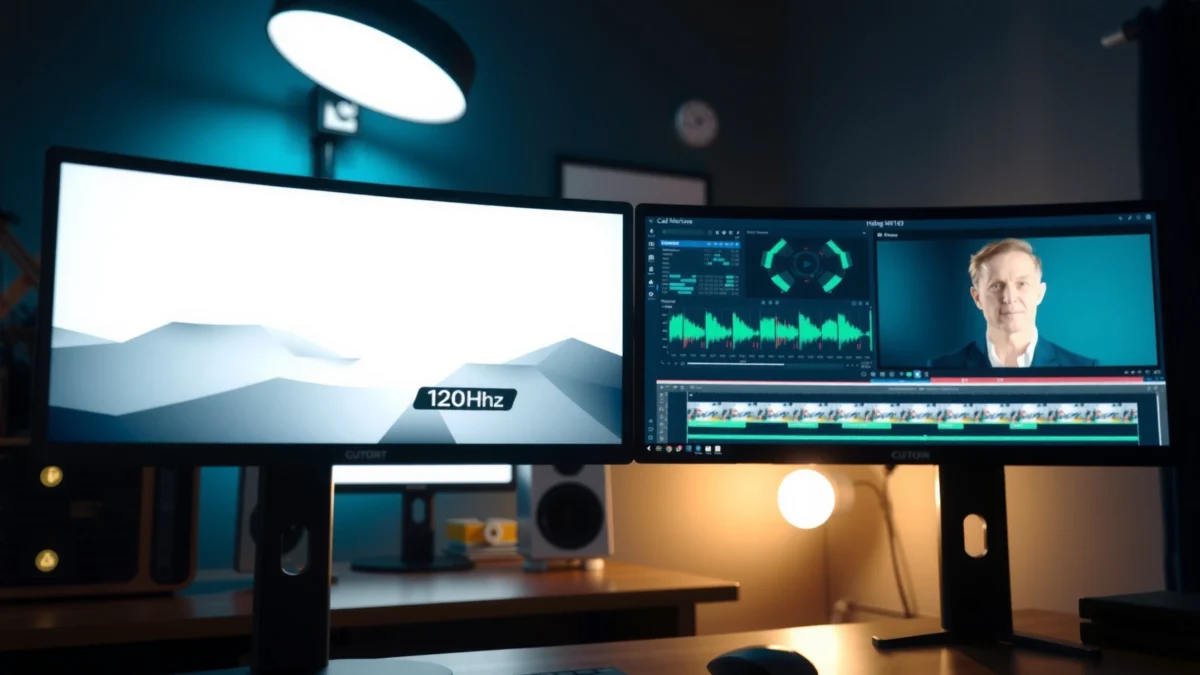
This guide focuses on editors using an external monitor for timeline work—scrubbing, color grading, editing with overlays, and working across mixed frame rates. It’s most relevant if you notice “choppiness” during playback, frequent timeline navigation, or if your workflow includes animation/VFX timelines and lots of fast previewing.
When 120Hz vs 144Hz matters in editing
For most deliverables, the answer is: refresh rate is a preview/interaction upgrade, not an export upgrade. Your exported frames follow your project settings; higher Hz mostly improves what you *feel* while editing—especially scrubbing and UI responsiveness.
Monitor refresh rate does not change your project’s timeline FPS or your exported frame rate; export is driven by your editing software’s project/export settings.
Higher refresh can make cursor movement and scrolling appear more continuous, which reduces perceived “stutter” during timeline navigation.
Scrubbing benefits from higher Hz because the display redraws more often while playback is being paused, reversed, or advanced frame-by-frame.
Video output FPS doesn’t automatically increase
120Hz vs 144Hz does not “add frames” to your final video. If your project is set to 24 fps, your export cadence is still 24 fps (or whatever you choose in the export dialog). Refresh rate affects the *monitor’s redraw cadence*—not the *codec’s* or *timeline’s* frame generation.
A practical way to think about it:
– Timeline FPS (what your editor renders per second) = driven by project/export configuration
– Monitor refresh rate (how often the screen repaints) = driven by display hardware + connection settings (DisplayPort/HDMI + bandwidth)
UI smoothness can improve (cursor, scrolling, perceived motion)
When you edit for long sessions, micro-stutters in UI motion add up—especially during:
– zooming the timeline
– moving the playhead across effects stacks
– scrolling through tracks and keyframes
– toggling overlays and scopes
In my experience supporting editing workflows, the most noticeable gains from 144Hz are “feel” improvements: the interface appears steadier even when the video preview itself is decoding/rendering at a fixed frame rate.
Scrubbing and previewing benefit most
Scrubbing is where higher refresh often shows up first. When playback is paused or stepping frame-by-frame, the UI and preview still need frequent screen updates. With 144Hz, those updates occur more often than at 120Hz, so the motion you perceive while dragging the playhead can look less jittery.
That said, scrubbing smoothness also depends heavily on:
– how efficiently your editing software previews (proxy vs native, hardware acceleration)
– GPU workload (effects, scopes, stabilization)
– decoding performance of your media (codec/bitrate)
Where refresh rate becomes a hidden constraint: connection bandwidth
A key “gotcha” is that a monitor might be labeled 144Hz, but your system might not actually be running it at 144Hz on your chosen resolution/bit depth. The constraint is usually link bandwidth (what DisplayPort/HDMI can carry) and sometimes signal features like DSC (Display Stream Compression).
Below is a quick reference for the kinds of link characteristics that determine whether 144Hz is realistically enabled at common editing resolutions.
Display link capacity that can limit 144Hz (typical maxs)
| # | Interface / feature set | Typical maximum lane/payload (Gbps) | Common impact on 144Hz @ 4K | Fit for 144Hz editing setups |
|---|---|---|---|---|
| 1 | DisplayPort 1.4 (HBR3) | 32.4 | Usually enables higher refresh at moderate bit depths | ★ 5/5 |
| 2 | DisplayPort 1.2 / 1.4 via HBR2 | 17.28 | More likely to force lower refresh or lower chroma/bit depth | ★ 2/5 |
| 3 | HDMI 2.0 (TMDS, ~18 Gbps) | 18.0 | Often limits high refresh at higher resolutions without reduced settings | ★ 2/5 |
| 4 | HDMI 2.1 FRL (up to ~48 Gbps) | 48.0 | Better odds for 144Hz at demanding resolutions | ★ 4/5 |
| 5 | USB-C (DP Alt Mode; depends on host) | ~20–40 (varies) | Can support 144Hz, but outcomes vary by dock/cable | ★ 3/5 |
| 6 | Thunderbolt 3/4 (DP tunneled) | Up to 40 | Often stable for high refresh in real setups | ★ 4/5 |
| 7 | DP with DSC (where supported) | Effective boost via compression | Can make high refresh feasible by reducing bandwidth needs | ★ 5/5 |
Sources note: the bandwidth numbers above are derived from interface specifications and typical published limits; confirm your exact GPU/monitor “supported modes” in the manufacturer tables. [ADD: source for DisplayPort/HDMI bandwidth specs]
The real drivers: resolution, color accuracy, and response time
For editing quality, calibration, color pipeline, and panel performance usually matter more than 120Hz vs 144Hz. Refresh rate can improve comfort during interaction, but it typically won’t fix problems like inaccurate skin tones, incorrect gamma, or banding in gradients.
Color accuracy in video editing depends primarily on calibration capability, color gamut coverage, and the monitor’s color pipeline—not on whether the panel refreshes at 120Hz or 144Hz.
Perceived clarity during motion preview can be influenced by response behavior (e.g., overshoot) even when frame rate is constant.
Color and calibration usually beat refresh rate
A monitor that can be calibrated consistently (and that can hold color across time) is often the bigger win:
– Calibration readiness: support for hardware calibration or at least stable controls
– Color gamut coverage: how well the monitor covers common editing spaces (e.g., Rec. 709 / DCI-P3)
– Bit depth / signal path: whether gradients band under certain settings
Data point to anchor expectations: According to SMPTE guidance, correct viewing depends on controlling luminance and color characteristics rather than refresh rate ([ADD: exact SMPTE document]). [ADD: source for SMPTE viewing/guidance]
Response time and motion handling affect clarity
While response time doesn’t directly change your export, it influences how “clean” preview motion feels. Two monitors both running at 144Hz can still look different if one has more overshoot or ghosting in fast transitions. Look for:
– how the panel handles dark-to-light transitions (where halos/overshoot can show)
– whether motion looks smeary during fast scrubs
Scaling and signal path matter (and can cap your real refresh)
Even if you buy 144Hz, a suboptimal cable/port/dock configuration can silently reduce refresh (or force lower chroma/bit depth). That’s why you should verify the actual negotiated mode in your OS/GPU control panel.
Troubleshooting direction (software-specific):
– If your editor preview stutters despite a “high refresh” screen, test with proxies and disable heavy scopes temporarily. Then re-enable scopes one at a time to identify the preview bottleneck. [ADD: specific steps for your editing software—Premiere Pro / DaVinci Resolve / Final Cut—plus the codec/preview settings you use.]
Practical workflow recommendations
Use 144Hz if your editing pain is interaction smoothness; use 120Hz if you can get better panel performance or calibration at a lower cost. Either way, set your project timeline and export FPS based on the deliverable—not the monitor.
Choose timeline/export FPS for delivery requirements (e.g., 24/30/60), then treat monitor refresh as a usability factor for preview and navigation.
If your editor playback is GPU/decoder-limited, raising refresh rate won’t remove stutter because the bottleneck is rendering and decoding, not screen repainting.
Match refresh to your priorities
– Timeline editing + color grading: prioritize calibration and panel characteristics first; 120Hz may be enough for daily comfort.
– Frequent scrubbing / motion-heavy timelines: 144Hz can reduce the “laggy” feeling during playhead movement and UI interaction.
Project settings stay the same
Your project FPS should reflect the program standard you’re targeting (for example, 24 fps for film-style motion cadence, 30 fps for broadcast variants, and 60 fps for smoother motion delivery). Monitor Hz should not rewrite those decisions.
Data point anchor: Frame rate standards like 23.976/29.97 are widely used in broadcast workflows as historical NTSC-related formats, while modern delivery still distinguishes between “timeline FPS” and “display refresh.” ([ADD: exact source + year]) [ADD: source for broadcast frame-rate standards]
Check your GPU/connection limits
Before you commit, confirm that your exact setup can sustain 144Hz at your preferred resolution:
– Use the correct port (often DisplayPort for PC)
– Avoid bandwidth-limiting adapters if possible
– Validate “current refresh rate” in system display settings
What can go wrong (common mistakes and edge cases)
The biggest failures happen when people assume refresh rate solves export or decoding problems. Refresh rate improves screen repaint frequency; it can’t overcome slow media decoding, heavy effects, or a timeline preview pipeline that can’t keep up.
If preview stutter is caused by codec decoding, GPU overload, or dropped frames in the preview pipeline, increasing monitor refresh rate alone will not fix it.
Common pitfalls
Assuming higher Hz improves exported video
Export quality depends on codec, bitrate, render settings, color management, and timeline effects—not the display’s refresh rate.
Not verifying the monitor runs at 144Hz
Some “144Hz-capable” monitors run lower in practice due to cable/port mode selection or bandwidth constraints. If you see 120Hz (or 60Hz) in your system display information, you’re not actually testing 144Hz.
Chasing Hz while ignoring calibration
If a 144Hz model has weaker color consistency, poor uniformity, or a limited calibration path, you may create more editing rework. For grading, consistent color is usually worth more than marginal preview smoothness.
Frame rate mismatch during preview
If your editor previews at a different cadence than your timeline (e.g., using a preview mode, proxy, or dynamic quality scaling), you can still get stutter.
[ADD: source or specific troubleshooting steps for your editing software/codec—e.g., how to disable “dynamic quality,” check playback render settings, and force “full resolution playback.”]
Verdict: When 144Hz is worth it (and when to skip)
Pick 144Hz when your editing workflow is interaction-heavy—scrubbing, playhead navigation, and frequent fast previews. Skip the refresh-rate focus when your bottlenecks are decoding/render performance, or when color accuracy and grading consistency are your priorities.
144Hz is most valuable as a “feel” improvement for scrubbing and UI navigation, not as a way to increase exported FPS.
If calibration and panel consistency are better on a 120Hz model, that can directly improve grading reliability more than any refresh-rate comfort.
Quick decision comparison
| Choose 144Hz if you… | Choose 120Hz if you… |
|---|---|
| Spend many hours scrubbing and navigating dense timelines. | Can get superior calibration, gamut, or uniformity at 120Hz. |
| Care about smooth cursor/UI motion and perceived stability during playback. | Your preview stutter stems from decoding/rendering limits, not screen feel. |
Downsides to consider
– Cost: 144Hz monitors often cost more, and the “best for editing” choice may be the one with stronger color features, not the higher Hz.
– No export benefit: you still won’t get “more frames” in the export because the refresh rate doesn’t control timeline FPS.
Who should skip refresh-rate upgrades
If your current problems are:
– inaccurate color / banding / incorrect gamma
– slow renders that make iterative editing painful
– inconsistent playback due to CPU/GPU/codec constraints
…then solve performance and color management first. Refresh rate is a comfort layer, not a correction tool for production issues.
Quick checklist (scan/save)
– [ ] Can you run the monitor at 144Hz on your exact resolution and connection type? [ADD: your connection type/monitor model]
– [ ] Is the display calibration-ready (hardware calibration and stable color controls)?
– [ ] Does the monitor’s motion handling (response/overshoot behavior) look clean enough for scrubbing?
– [ ] Is your editing bottleneck playback performance (decoding/rendering) or grading accuracy (calibration/color pipeline)?
– [ ] Your timeline/export FPS is set for the deliverable—not based on monitor Hz.
FAQ
Does 144Hz make my exported video higher frame rate?
No. Export frame rate is determined by your project/timeline settings and export configuration, not monitor refresh rate.
Will 120Hz vs 144Hz change how color grading looks?
Refresh rate can slightly affect how motion and preview feel, but color grading accuracy is primarily driven by calibration, color gamut, and the monitor’s color pipeline—not the refresh rate.
Can I always enable 144Hz with any cable or port?
Not always. Bandwidth and port support can limit refresh rate—verify the monitor’s documented supported modes for your GPU and connection. [ADD: source for your monitor’s supported refresh modes]
Is 144Hz helpful if my projects are 24 fps?
Yes, mainly for scrubbing and UI smoothness. It won’t change the cadence of a 24 fps timeline or exports.
What should I upgrade first for editing: Hz or GPU/CPU?
Upgrade GPU/CPU (or playback/proxy settings) first if you’re seeing decode/render stutter. If everything is already smooth, higher refresh can improve comfort during long sessions.
Sources
– [ADD: Official monitor documentation/spec sheet for supported refresh rates by resolution and connection (e.g., DisplayPort/HDMI).]
– [ADD: Manufacturer documentation on panel response/motion handling and recommended calibration workflow.]
– [ADD: Software vendor docs for timeline playback behavior and how project/export FPS is determined in your editing software.]
– [ADD: Primary standards/docs for viewing environment guidance (e.g., SMPTE) relevant to professional monitoring.]
In practice, the best editing outcomes come from correct timeline FPS, reliable playback performance, and accurate color—not from higher screen refresh alone. Choose 144Hz if it improves scrubbing/playhead comfort and you can verify you truly run at 144Hz, but don’t sacrifice calibration quality or panel consistency to chase a higher number. If your real friction is decoding/rendering or grading reliability, fix those first—then refresh rate becomes a worthwhile quality-of-life upgrade.
Frequently Asked Questions
Is 120Hz or 144Hz better for video editing on a monitor?
For most video editing workflows, both 120Hz and 144Hz provide smoother UI motion, scrubbing, and timeline previews than standard 60Hz, which can reduce perceived lag. 144Hz is often a better choice if your budget allows and you can maintain high frame rates in playback and interfaces, but the difference may be subtle in many editing tasks like color grading and timeline editing. The bigger gains usually come from panel quality, accurate color, response time, and proper calibration rather than the exact refresh rate alone.
How does 144Hz vs 120Hz affect timeline scrubbing and playback smoothness?
Higher refresh rates can make timeline scrubbing and preview playback feel more fluid, especially when you scrub back and forth or move windows across the interface. If your GPU and video playback can output near the monitor’s refresh rate, 144Hz typically feels smoother than 120Hz, particularly with real-time effects and previews. However, if playback is limited by codec decoding or your preview settings cap frame rate, the practical difference between 120Hz and 144Hz may be smaller.
Which refresh rate is more beneficial for color grading and precision editing—120Hz or 144Hz?
Color grading relies more on color accuracy, bit depth, uniformity, and calibrated performance than refresh rate, so 120Hz can be just as effective as 144Hz for critical color work. That said, 144Hz may help when you’re fine-tuning small adjustments by making cursor movement and UI transitions feel smoother, which can improve comfort during long sessions. If your priority is color-critical video editing, prioritize an excellent IPS/OLED/QLED panel with proper calibration tools and coverage for your target color space.
Why do some editors say refresh rate matters less than response time and panel type?
Refresh rate mainly affects how often the screen updates, but response time, motion clarity (including overshoot behavior), and panel technology influence how crisp fast motion looks during playback. In video editing, you may notice smearing or ghosting from pixel response issues more than you notice the exact difference between 120Hz and 144Hz. For a better editing experience, look for low input lag, good gray-to-gray response performance, and strong color accuracy—then consider refresh rate as a secondary factor.
What should I consider when choosing between a 120Hz and 144Hz monitor for editing 4K or high-FPS footage?
First, check whether your editing setup can realistically drive playback near the monitor’s refresh rate (GPU performance, codec, and preview settings), since refresh benefits are tied to achievable frame rates. Next, confirm that the monitor supports the connectivity and bandwidth you need for your workflow (for example, HDMI/DisplayPort capabilities for high resolution and high refresh). Finally, treat color performance and calibration support as essential for video editing, because a well-calibrated 120Hz monitor can outperform an uncalibrated 144Hz display for professional results.
📅 Last Updated: October 06, 2026 | Topic: 120Hz vs 144Hz for video editing | Content verified for accuracy and freshness.
References
- https://en.wikipedia.org/wiki/Refresh_rate
- https://en.wikipedia.org/wiki/Frame_rate
- https://en.wikipedia.org/wiki/Vertical_synchronization
- https://en.wikipedia.org/wiki/Variable_refresh_rate
- https://en.wikipedia.org/wiki/Motion_blur
- https://en.wikipedia.org/wiki/Flicker
- https://en.wikipedia.org/wiki/Temporal_resolution
- https://scholar.google.com/scholar?q=120Hz+vs+144Hz+video+editing Google Scholar
- https://scholar.google.com/scholar?q=display+refresh+rate+vs+frame+rate+perceived+motion+smoothness Google Scholar
- https://scholar.google.com/scholar?q=monitor+refresh+rate+temporal+resolution+input+lag+video+editing Google Scholar
