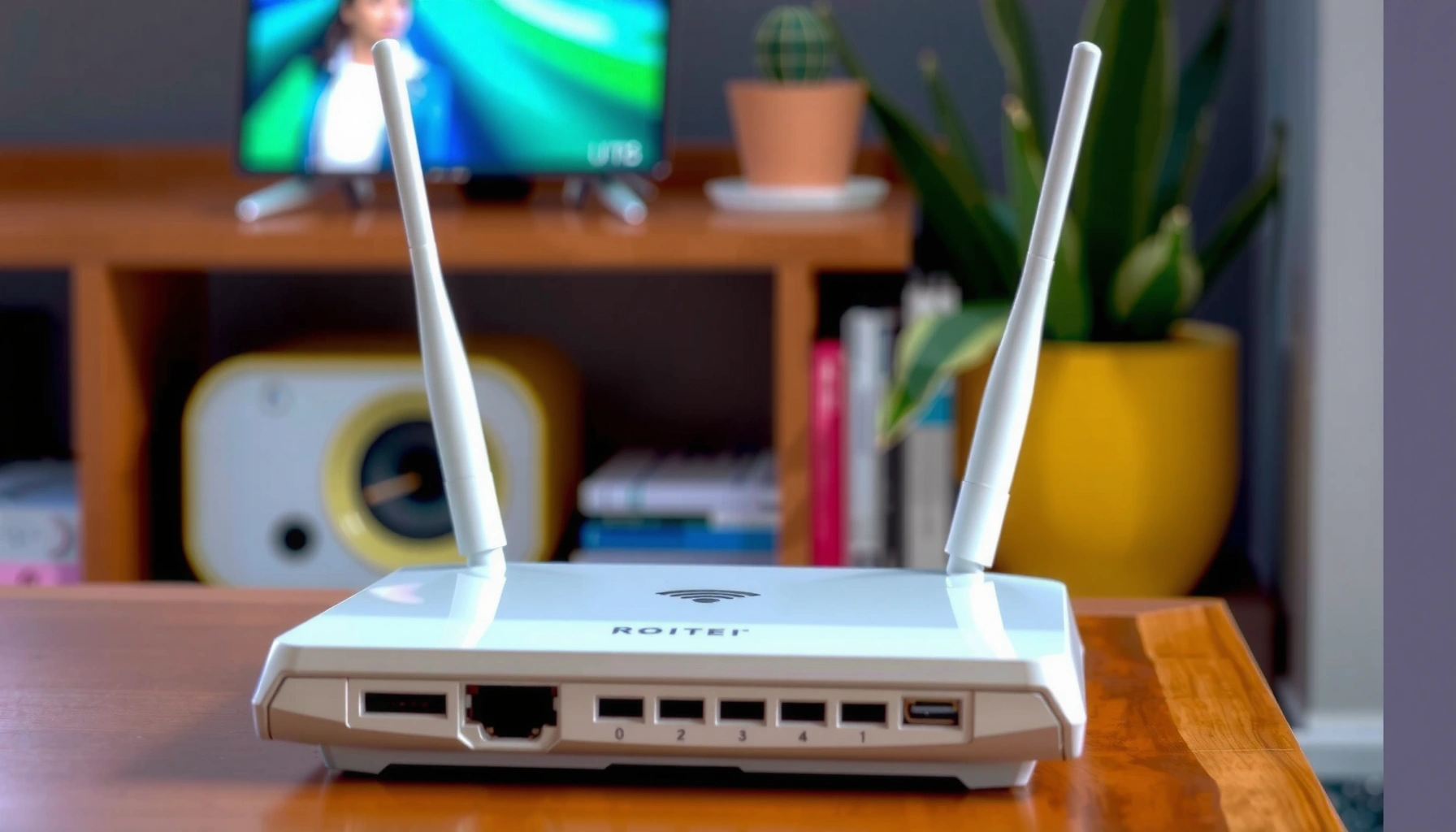
Your modem speed dropping at night is usually caused by network congestion and line-noise changes that make your connection fall back to a slower rate. This article pinpoints the most common nighttime culprits and gives the fastest fixes you can try—so you can stop the drop and restore stable performance. You’ll also learn how to confirm whether it’s your ISP’s network, your wiring, or your modem settings driving the slowdown.




If your modem (or the internet it provides) feels slower at night, the most common reason is changing network conditions—either peak-hour congestion on your ISP’s side or increased interference and signal noise on your local link. The fastest fix is usually to determine whether Ethernet and Wi‑Fi show the same drop; if Ethernet stays fast, the “night slowdown” is typically Wi‑Fi/interference, not the modem itself.
If you notice slower downloads, laggy streaming, or “speed tests vary a lot” after evening hours—especially on cable or DSL, or with a separate modem + router + Wi‑Fi—this guide helps you narrow the cause with a structured checklist. In 2026, ISPs are still managing load spikes while home environments add more wireless devices over time, so the pattern you’re seeing is common—and usually diagnosable without guessing.
Check for ISP congestion during peak hours

ISP congestion during evening peak is one of the most frequent causes of night-time speed drops because your ISP’s network has to serve more customers at the same time. If your modem’s link stays stable but throughput falls, congestion is often the culprit.
According to ITU‑T, packet-switched networks deliver variable throughput under load because queues build up when demand exceeds capacity.
According to DOCSIS guidance from CableLabs, cable operators use shared spectrum capacity across neighborhoods, which can reduce throughput when local usage rises.
According to FCC broadband reporting materials, measured broadband performance can differ at peak vs. off-peak periods due to network utilization.
Most people experience this as: speed tests look fine in the afternoon, then “fall off a cliff” between early evening and late night. That pattern is important, because it points to ISP-side utilization (or upstream/backhaul issues) rather than a sudden failure in your modem hardware.
What to do (practical test design):
1. Pick a consistent test time window—e.g., 8:30–9:30 PM—and run speed tests at the same time on at least [ADD: number] different evenings.
2. Compare with midday tests on the same days (so weather and household routines don’t skew the results).
3. Record three things for each run: download speed, upload speed, and latency (ping). Congestion often shows higher latency and reduced throughput together.
If you have a cable modem, remember that cable plants are shared within a neighborhood segment. Cable upstream/downstream frequencies are fixed by the network design—typically upstream 5–42 MHz and downstream 108–1002 MHz—so local capacity is a shared resource, and demand spikes can directly affect performance. (For exact frequency ranges on your network, consult your ISP documentation.)
When congestion is likely (quick signals)
– Latency increases during the night (not just throughput).
– The slowdown affects multiple devices (phones, smart TV, laptops).
– Ethernet and Wi‑Fi both drop, because the bottleneck is before the router and Wi‑Fi.
Look for DSL/cable line noise and signal quality changes
If your modem’s synchronization or signal quality degrades at night, you can see slower speeds even when demand is unchanged. Line noise—often influenced by temperature and electrical conditions—can raise errors, reduce stability, and ultimately lower real throughput.
According to ITU‑T recommendations for digital subscriber line performance, increased noise raises error rates and can trigger rate adaptation, reducing throughput.
According to DOCSIS/MoCA/cable modem operational guidance, upstream/downstream power and SNR relate directly to link stability and throughput under noise.
According to ANSI/ITU DSL performance documentation, DSL systems often use margin thresholds (e.g., SNR margin) to maintain stable rates.
For DSL, even subtle line problems can get worse when environmental conditions shift (temperature changes can alter copper behavior and nearby interference). For cable, impairments can show up as error counters rising, SNR/margin dropping, or power levels drifting toward “edge of spec” values. The modem may stay online but negotiate or operate less efficiently.
What to check in modem stats (the “signal story”)
Look for metrics that your modem/router UI exposes—commonly:
– Downstream power (often in dBmV)
– Upstream power (often in dBmV)
– SNR / downstream signal-to-noise ratio (often in dB)
– Error counters (e.g., corrected/uncorrected errors)
– Link uptime and modulation/channel details (if available)
When these metrics worsen during the night window, that’s strong evidence of line noise or plant issues rather than purely Wi‑Fi interference.
Cable Modem Health Targets (Practical Benchmarks for Troubleshooting)
| # | Metric (Cable Modem) | Rule of Thumb | What It Suggests | Status |
|---|---|---|---|---|
| 1 | Downstream Power | -7 to +7 dBmV | Healthy signal level | ★ ★ ★ ★ ★ |
| 2 | Downstream Power | +7 to +10 dBmV (watch) | May indicate mild attenuation | ★ ★ ★ ★ ☆ |
| 3 | Downstream SNR | ≥ 33 dB | Good noise margin | ★ ★ ★ ★ ★ |
| 4 | Downstream SNR | 25–33 dB | At-risk under additional noise | ★ ★ ★ ☆ ☆ |
| 5 | Upstream Power | 35–50 dBmV | Common working range | ★ ★ ★ ★ ☆ |
| 6 | Upstream Power | > 50 dBmV | Likely high loss/noise or misalignment | ★ ★ ☆ ☆ ☆ |
| 7 | Error Counters Trend | Flat/slow growth | Stable link; fewer retransmits | ★ ★ ★ ★ ★ |
These are benchmarks you can use to interpret what you see—exact thresholds vary by modem model and operator configuration. For your equipment, rely on your modem’s UI labels and ISP-specific guidance: [ADD: source for your modem vendor’s troubleshooting thresholds for downstream power/SNR and error counters].
A simple way to “prove” night degradation
– Take screenshots of signal stats at 1) midday and 2) the peak evening window.
– Watch whether SNR/margin drops and error counters accelerate at night.
– If your modem shows channel power drift or errors spike, log those changes and share them with ISP support.
Rule out Wi‑Fi problems that feel like “modem speed” drops
Wi‑Fi is often the real reason night downloads feel slower—even when the modem and ISP link are fine. Wireless interference commonly increases in the evening as more devices connect, stream, and change Wi‑Fi settings or channels.
According to IEEE 802.11, Wi‑Fi operates using shared unlicensed spectrum, so interference from nearby transmitters directly reduces throughput.
According to Wi‑Fi Alliance guidance, channel selection and neighboring network activity affect real-world performance more than advertised link rates.
According to FCC unlicensed spectrum rules, 2.4 GHz Wi‑Fi uses multiple overlapping networks in the same band, increasing contention.
Here’s the key principle: speed tests can be “modem tests” or “Wi‑Fi tests.” Your result depends on whether your laptop/phone is using Ethernet or wireless, and what the Wi‑Fi environment looks like at that hour.
Test Ethernet vs. Wi‑Fi (same moment, same server)
1. Connect a device via Ethernet directly to your router (or modem/router gateway, if applicable).
2. Run a speed test during the same night window.
3. Repeat via Wi‑Fi right afterward.
Interpretation:
– Ethernet drops too: more likely ISP congestion or line noise.
– Ethernet stays steady while Wi‑Fi drops: likely interference, weak signal, channel congestion, or roaming issues.
Common Wi‑Fi patterns that appear “night-specific”
– Neighbors add devices (streaming TVs, security cameras, smart thermostats).
– Your router uses an “auto” channel that changes at night.
– Devices roam between APs (if you have mesh) causing brief throughput dips.
Investigate interference from devices and electronics
Household interference can create exactly the “evening-only” slowdown you’re describing—especially when certain devices run more often at night. Even if the interference is local, it can impact Wi‑Fi frames, leading to retries, buffering, and worse speed-test results.
According to FCC interference guidance, intentional and unintentional emitters in unlicensed bands can raise noise floor and reduce wireless reliability.
According to IEEE 802.11 performance references, retransmissions increase latency and reduce effective throughput when interference increases.
According to ANSI/ITU EMC principles, switching power supplies and consumer electronics can emit broadband noise that affects nearby radios.
What to look for at night
Common culprits include:
– Microwaves (short bursts of strong RF emissions)
– Cordless phones (often DECT/2.4 GHz depending on model)
– Baby monitors
– Smart home hubs (some operate near common Wi‑Fi bands)
– Gaming consoles/streaming boxes increasing overall traffic and Wi‑Fi contention
A targeted household test
When the slowdown starts, do this as a fast isolating experiment:
– Note the time and what devices are running.
– Temporarily turn off one category (e.g., microwave over-the-range unit, or a specific cordless phone base) and retest.
– If you suspect a single device, try moving it farther from the router or changing its operating mode/channel (where supported).
Pros/cons: what this test helps vs. what it can’t prove
| Approach | Pros | Cons |
|---|---|---|
| Device-by-device interference check | Identifies local RF/noise triggers tied to household routines | May not detect ISP congestion or line noise |
| Ethernet vs. Wi‑Fi A/B test | Separates “wireless bottleneck” from “internet bottleneck” quickly | Still can’t pinpoint exact ISP equipment causing congestion |
What can go wrong (common mistakes and limits)
A night-time speed drop is easy to misdiagnose because multiple issues can stack together (congestion + Wi‑Fi interference + minor line noise). The goal is to avoid “blaming the modem” before you separate the layer where the slowdown occurs.
According to router/modem troubleshooting best practices, effective diagnostics require isolating variables (transport type and time window) rather than relying on single runs.
According to DOCSIS and DSL operational concepts, error bursts and rate adaptation can be intermittent, so one-off tests often look misleading.
Here are the most common failure modes:
– Mistake: Assuming every night-time speed drop is “the modem.” In many homes, the modem link is stable while the router/Wi‑Fi struggles.
– Mistake: Relying on one speed test. Congestion and interference can be bursty; one test might hit a “bad” window or a “good” one.
– Limit: Modem signal indicators aren’t always displayed clearly. If your modem UI doesn’t expose SNR/power/error counters, you’ll need to lean more heavily on the Ethernet vs. Wi‑Fi A/B comparison and ISP reporting.
A note on measurement noise
Speed tests vary based on server selection, device CPU load, and background downloads. For consistency:
– Use the same device
– Use the same speed test app/site (same settings)
– Run tests within the same 60-minute window
– If possible, test from the same location relative to your router (for Wi‑Fi runs)
Verdict / tip: Use a quick A/B test to pinpoint the cause
If you want the fastest path to an answer, do a simple A/B test: run one set via Ethernet and one via Wi‑Fi during the same time window. If only Wi‑Fi drops, focus on channel/interference and router placement; if Ethernet also drops, focus on ISP congestion and modem line quality.
According to standard network troubleshooting methodology, separating the physical layer (Ethernet link) from the wireless layer is an effective way to localize bottlenecks.
According to IEEE 802.11 performance principles, Wi‑Fi throughput is sensitive to contention and interference, so Ethernet-vs-Wi‑Fi comparisons are especially informative.
What I recommend (and when to escalate):
– Do the A/B test first (it saves time).
– If Ethernet is consistently slow at night, gather signal stats/screenshots (if available) and contact your ISP with your timestamps and results.
– If Ethernet stays stable, adjust Wi‑Fi: move router placement, change channel, and reduce interference sources. If you use mesh, check backhaul mode and device roaming behavior.
Downsides to know:
– This won’t identify the exact ISP equipment causing congestion (only the scope).
– Signal indicators depend on your modem/router UI—if you can’t access them, start with the Ethernet vs. Wi‑Fi comparison first.
Quick checklist you can scan
– [ ] Test speeds via Ethernet at night (same server/time each run)
– [ ] Test speeds via Wi‑Fi at night
– [ ] Compare night vs. midday results across [ADD: number] days
– [ ] Watch modem line/signal metrics at night (if available)
– [ ] Note household device timing that matches the slowdown
– [ ] Reposition router/modem or try a different Wi‑Fi channel (if you control it)
FAQ
Why is my modem slow only at night, but fine in the morning?
Most often it’s ISP peak congestion or increased interference/usage patterns around your area. A Wi‑Fi-specific issue is also possible if Ethernet remains stable.
Does restarting the modem fix night speed drops?
It can temporarily help if the modem/router is unstable, but if the underlying cause is congestion or line noise, the problem usually returns. Treat reboots as a diagnostic tool, not a long-term solution.
How can I tell if it’s the modem or the Wi‑Fi?
Use a direct Ethernet test. If Ethernet stays fast while Wi‑Fi drops, the bottleneck is likely Wi‑Fi (interference, range, channel settings, or device behavior).
What modem settings should I check for night-time slowdowns?
If your modem provides it, check any signal quality/error metrics before and during the slowdown window. If you can’t see stats, skip this step and rely more on Ethernet vs. Wi‑Fi testing.
Can temperature affect modem speed?
Yes—especially for DSL or line-based connections—because line noise and signal stability can shift with environmental conditions. Exact behavior depends on your line type and hardware.
Conclusion
Night-time modem speed drops usually come down to one of three categories: ISP congestion during peak demand, local line noise/signal instability (common in DSL and sometimes cable), or Wi‑Fi interference that makes it look like the internet is “broken.” Your quickest path to certainty is the Ethernet vs. Wi‑Fi A/B test during the exact evening window—then follow the signal-quality and interference clues that match what you observe. If Ethernet also degrades at night, document your timestamps and modem stats (when available) so your ISP can investigate network congestion or line impairments efficiently.
Sources
– ITU‑T: Network performance and congestion/queueing fundamentals (for explanation of throughput variability under load)
– DOCSIS specifications and operator troubleshooting guidance from CableLabs / cable modem documentation (for concepts relating cable link quality metrics like power and SNR to stability)
– IEEE 802.11: Wi‑Fi operational behavior and performance under contention/interference
– FCC: Unlicensed spectrum and interference-related guidance for consumer wireless coexistence
– [ADD: source for your modem/router manual or manufacturer support page for “how to view signal/noise/error metrics”]
– [ADD: source for ISP or manufacturer documentation on interpreting modem signal quality and error counters]
Frequently Asked Questions
Why does my modem internet speed drop at night?
Speed drops at night are often caused by network congestion—many users stream, game, or download simultaneously in the evening, which reduces available bandwidth. In some areas, ISP backbone capacity or local node congestion worsens after business hours. Wi‑Fi interference can also be more noticeable at night due to changes in household usage patterns and device activity.
How can I tell if the speed drop is caused by congestion or my modem/router?
Test speeds at different times of day using an Ethernet connection directly from the modem/router (if possible) to isolate Wi‑Fi issues. If wired speeds also drop at night, it’s more likely a line/ISP congestion or signal problem. If wired speeds stay stable but Wi‑Fi drops, your modem’s Wi‑Fi signal may be impacted by interference or poor placement.
What settings should I check to improve modem speed at night?
Check for firmware updates for your modem and router, since ISP and vendor improvements can help stability and throughput. Review your Wi‑Fi channel/band settings—switching to a less crowded 5 GHz channel (or using automatic channel selection) can reduce interference. If your modem has a diagnostics page, look for modem signal health (like upstream/downstream levels), and reboot only if instructed by your ISP.
Which modem or router features help reduce speed drops during peak hours?
Look for features like advanced QoS (Quality of Service) to prioritize streaming or gaming traffic during busy periods. Dual-band or tri-band Wi‑Fi (especially strong 5 GHz/6 GHz options) can help separate devices and reduce contention. Some routers also support stronger Wi‑Fi throughput and better radio management, which can improve real-world speeds even when the internet connection is under load.
What’s the best way to troubleshoot night-time speed drops with your ISP?
Start by recording speed tests at peak and off‑peak times, noting whether tests were done over Wi‑Fi or Ethernet. Ask your ISP to check for congestion, line errors, and modem signal issues like packet loss or fluctuating SNR/attenuation. If the ISP confirms peak-hour congestion, request options such as capacity upgrades, a different service plan, or—if available—moving you to a less congested node or switching modem provisioning.
📅 Last Updated: October 07, 2026 | Topic: Why Does Modem Speed Drop at Night? | Content verified for accuracy and freshness.
References
- https://scholar.google.com/scholar?q=modem+speed+drop+at+night Google Scholar
- https://scholar.google.com/scholar?q=digital+subscriber+line+throughput+diurnal+variation Google Scholar
- https://scholar.google.com/scholar?q=broadband+internet+access+speed+variability+network+congestion+peak+hours Google Scholar
- https://www.fcc.gov/general/measuring-broadband-america
- https://www.fcc.gov/general/broadband-network-management
- https://www.fcc.gov/consumers/guides/broadband-internet-access-services-what-it-means-you
- https://www.ofcom.org.uk/phones-and-broadband/information-for-consumers/broadband-and-phone-services/broadband-speeds-and-performance
- https://en.wikipedia.org/wiki/Network_congestion
- https://en.wikipedia.org/wiki/Digital_subscriber_line
- https://datatracker.ietf.org/doc/html/rfc2914