Fixing a “no signal” modem is fastest when you follow a strict signal-path checklist: confirm power, check the cable/line connection, verify modem status lights, then resync or restart the modem if the link isn’t establishing. This modem signal troubleshooting guide gets you from blank screens and dead bars to a confirmed connection without guesswork. You’ll know exactly what to test next for the most common failure points—so your Internet comes back quickly.




If your modem shows weak signal or “no signal,” the fastest fix is to check the physical line (cable/port seating and any splitters) and then power-cycle the modem in the correct order (unplug → wait → reconnect). After that, verify modem signal metrics in the admin page (or your ISP dashboard) and contact your ISP if levels are out of range or don’t recover after a reset—this sequence avoids guesswork and usually isolates whether the problem is inside your home or on the provider side.
If you’re dealing with frequent disconnects, slow speeds, or the modem staying stuck on initialization, this applies whether you’re using cable, fiber ONT, or DSL equipment. It’s also helpful when the issue started after moving the modem, adding a splitter, or changes to your wiring.
Start with the basics: cables, ports, and splitters

The quickest path to restoring “no signal” is to eliminate loose connections and avoid inline signal loss before you change anything else. In most homes, that means reseating the line connection correctly and temporarily removing splitters to rule out attenuation.
When a modem reports “no signal,” the first failure domain to check is the physical media (coax/DSL pair/fiber handoff) and the exact input port used.
Bypassing coax splitters temporarily is a reliable way to determine whether signal loss from splitting is preventing modem upstream/downstream sync.
A modem’s Ethernet or power lights may stay on while upstream sync still fails—so cable/port correctness matters even if Wi‑Fi appears active.
Reseat every cable end: use the correct input port
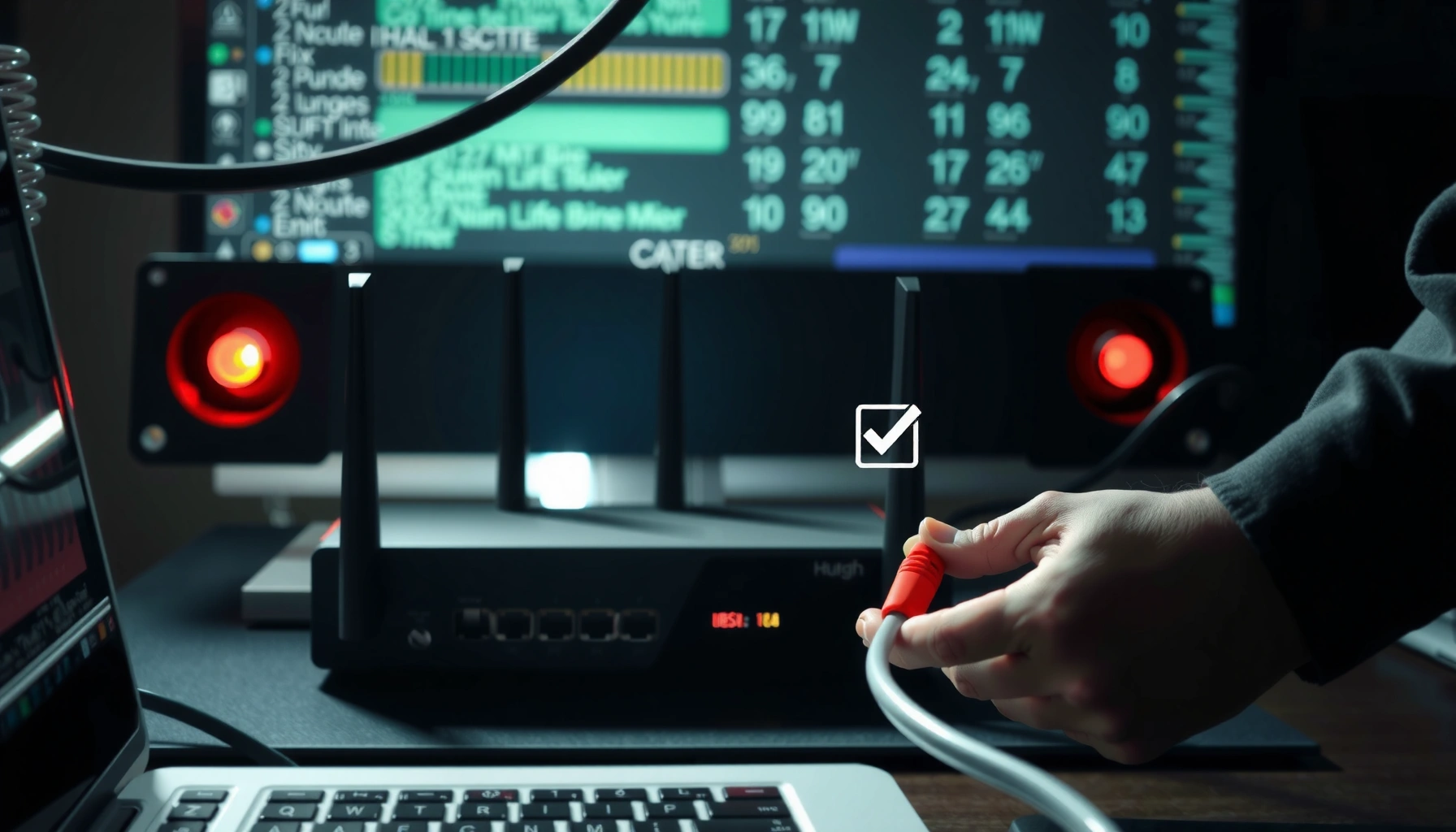
Reseat every cable end methodically. Unplug the modem power, disconnect the incoming line, then firmly reconnect to the correct “LINE/INTERNET/DSL/CABLE” port (not Ethernet and not a power port). This sounds basic, but “almost seated” coax connectors (or DSL jacks plugged into the wrong phone outlet) commonly create intermittent sync behavior that looks like random outages.
Remove or simplify splitters temporarily
If you have a coax splitter or any in-line adapters, bypass them temporarily. For example, if your setup is “wall coax → splitter → modem + TV,” reroute so “wall coax → modem” directly for a few minutes. If signal returns immediately, you’ve found the attenuation culprit (splitters reduce signal strength, and multiple splitters compound the loss).
Inspect the cable and connectors
Look for bent connectors, frayed coax, cracked insulation, or damaged Ethernet runs (Ethernet can still affect connectivity between modem and router, but it typically won’t prevent ISP upstream sync on its own). Small physical damage is enough to cause “works sometimes” symptoms—especially when connectors are slightly corroded or a cable has been tugged during moves.
Fast sanity check (what I look for): if you can wiggle the connector with light pressure, it’s not seated securely. Loose hardware often correlates with initialization loops and fluctuating “signal” values.
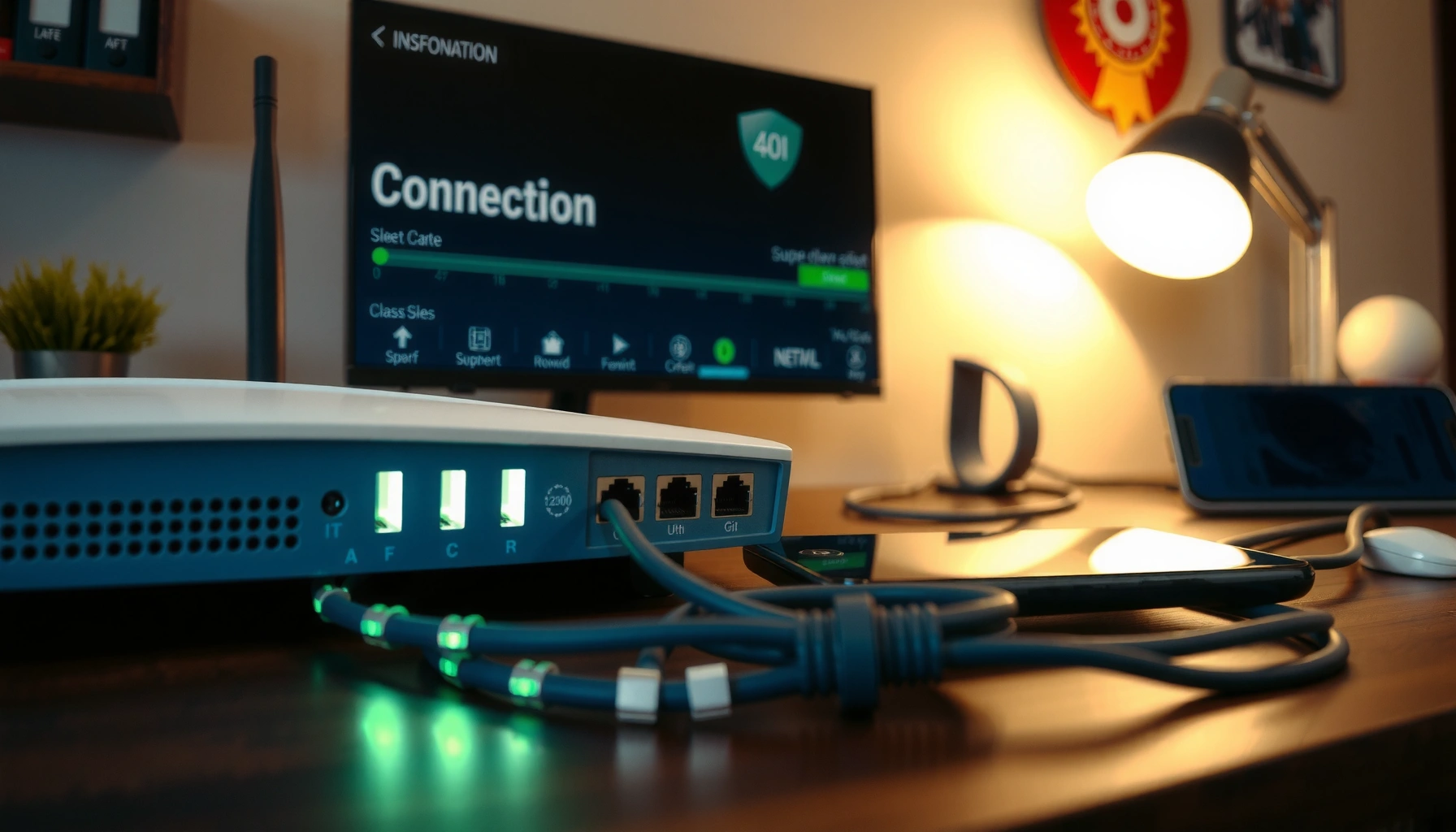
Confirm power and modem status LEDs
The fastest way to distinguish “power/boot problem” from “provider line problem” is to map which LEDs are stable versus which LEDs fail to progress to sync. Once you know whether local power is fine but WAN/DS/US is not syncing, your next step becomes obvious.
If the modem power LED is stable but the WAN/Internet (or DS/US) indicator never transitions, the issue is usually upstream line sync rather than local Wi‑Fi.
Persistent initialization without DS/US lock typically points to incorrect cabling, splitters/attenuation, or an ISP-side provisioning/signal issue.
Verify the modem is getting power consistently
Confirm the power light is stable (no flicker) and the modem isn’t overheating. Overheating can slow boot and cause repeated retries. Also confirm you’re using the manufacturer-supplied power adapter when possible—an underpowered adapter can keep lights on but fail under higher load.
Use LED meanings to narrow the fault
Because every vendor labels LEDs differently, treat the LED behavior as a logic tree:
– If DS/US (or equivalent) isn’t syncing, focus on the provider line path (coax/DSL pair/fiber handoff) and any splitters.
– If Internet/WAN is off but local lights are on, the modem may be failing authentication/provisioning, or it may not have achieved upstream lock.
Note what changes after a reboot
If lights never progress past the same stage after power cycling, wiring and line quality issues are more likely. If the modem progresses further each time briefly, that can indicate marginal signal levels that improve temporarily as temperature/connectors change.
Power-cycle correctly (and avoid the common sequence mistakes)
A correct power-cycle is often the difference between “no signal that won’t recover” and “sync returns in minutes.” Do it in the right order and with a real wait time so the modem clears prior sessions and the network stack can re-establish WAN communication.
A full modem restart (unplug → wait → reconnect) forces the device to renegotiate upstream/downstream parameters with the ISP network.
When using a separate gateway/router, restarting modem first helps the router reacquire WAN settings after the modem reaches sync.
Do a full restart with an exact wait time
Unplug modem power, wait 45 seconds, then plug back in. That 45-second pause matters because it allows the modem’s internal subsystems and prior network sessions to fully reset.
If you have a gateway/router: restart in this order
If you use a separate router/gateway:
1. Restart the modem first.
2. Wait for modem sync to complete (WAN/Internet light should indicate it’s online or at least progressing).
3. Then restart the router.
This prevents the router from caching stale WAN session data when the modem isn’t ready.
Re-check signal after the device comes online
As soon as the modem is stable, return to the modem admin/status page (or your ISP dashboard) and verify whether the reported “signal” metrics updated. A modem can “look online” but still run on weak signal; the metric check catches that.
Check signal metrics in the modem interface
If you want a definitive answer (instead of hoping the reset fixed it), you need to read modem-reported signal metrics after sync. Signal metrics tell you whether your modem is actually in the operational range for upstream and downstream communication.
DOCSIS cable modems typically expose downstream level and upstream transmit power, which are key indicators of whether the line attenuation is too high or the ISP signal is unstable.
DSL and fiber/ONT systems also provide sync/connection health metrics; “no signal” often corresponds to failing synchronization or authentication.
Recording signal readings before changes creates a reliable timeline you can share with ISP support if recovery doesn’t happen.
Look for the exact “signal” screens your modem uses
Depending on modem type, you may see labels such as:
– Signal Levels / Cable Modem Status (cable)
– DSL Sync Stats (DSL)
– GPON/ONT status (fiber), sometimes on the ONT or ISP gateway
Compare values against model/ISP guidance
If your modem brand provides thresholds in the interface or manual, use those. Otherwise, apply ISP guidance for “in range” versus “bad,” because metrics that are acceptable on one network design may be poor on another.
Here are common cable-metric anchors you’ll see in many operational guides:
– Downstream receive levels are often targeted around -7 dBmV to +7 dBmV depending on system design; values outside recommended ranges can cause instability.
[ADD: source for typical DOCSIS downstream level target range used by your ISP/vendor]– Upstream transmit power is frequently most stable in the ~35–50 dBmV neighborhood; higher values can indicate the modem needs too much power to reach the CMTS.
[ADD: source for typical DOCSIS upstream power guidance]– SNR/MER quality is commonly evaluated (for example, downstream SNR in the low 30s dB and above is often considered healthier), but exact interpretation varies by modulation profile.
[ADD: source for SNR/MER interpretation used in cable modem guidance]Document results before changing anything else
Before you move to the next step, jot down the values and the time you saw them. If you contact your ISP, the phrase “I took readings at 7:42 PM before and after a full modem restart” will dramatically speed troubleshooting.
Cable Modem Signal Clues to Diagnose “No Signal” (Common Ranges)
| # | Metric pattern (what you see) | Typical meaning | First action | Confidence |
|---|---|---|---|---|
| 1 | Downstream levels around -7 to +7 dBmV; upstream transmit ~35–50 dBmV | Signal likely within working range | Check provisioning/authentication (Internet/WAN) first | ★★★★☆ |
| 2 | Downstream receive very low (below -10 dBmV) with rising error indicators | Possible attenuation (splitters/loose coax) | Bypass splitters; reseat connectors; inspect coax | ★★★☆☆ |
| 3 | Downstream receive unusually high (above +10 dBmV) | Potential mis-termination or amplifier/splitter imbalance | Check in-line amps and split ratios; bypass extras | ★★☆☆☆ |
| 4 | Upstream transmit consistently high (above 50 dBmV) | Modem is working too hard to reach ISP (weak upstream path) | Inspect/replace coax; reduce splitters; request line check | ★★★★☆ |
| 5 | Upstream transmit frequently fluctuates by 10+ dB between reads | Intermittent line quality issues or connection instability | Reseat hardware; look for corrosion; check grounding/strand breaks | ★★★☆☆ |
| 6 | No successful DS/US lock; transmit values never stabilize | Severe sync failure (wiring, wrong port, provisioning, or outage) | Verify correct LINE port; bypass splitters; then escalate if unchanged | ★★★★☆ |
| 7 | SNR/MER drops noticeably while levels appear “okay” | Noise/interference or upstream impairment | Inspect connectors; avoid unshielded adapters; request noise investigation | ★★★☆☆ |
What can go wrong (and where troubleshooting can stall)
Even with a strong process, modem “no signal” can stall because multiple causes overlap—signal issues, provisioning, and hardware changes can look similar. The key is knowing what not to do, and when to stop home changes and escalate.
Router-only restarts don’t fix upstream sync failures because the modem must re-establish its own DS/US lock with the ISP network.
Changing several variables at once (splitter removal, cable swaps, multiple reboots) prevents you from determining which change actually restored signal.
You only reset the router, not the modem
If the modem never reacquires upstream sync, rebooting the router won’t help. The WAN path may stay down regardless of how healthy your local Wi‑Fi looks.
You changed too many variables at once
If you bypassed splitters, swapped line cables, and moved ports all in one go, you’ll lose the “before/after” clarity you need. Troubleshooting works best when each change is singular and reversible.
Intermittent faults hide behind “works sometimes”
Loose connectors, vibration, and marginal line quality can create intermittent behavior that looks like a Wi‑Fi problem. If signal values fluctuate between reads, treat it as a physical-layer issue first.
Provider-side outages and provisioning delays
If modem signal metrics don’t improve after physical checks and modem power cycles, the issue may be outside your home. Provider outages, regional congestion, or a provisioning mismatch can prevent stable sync even with perfect cabling.
Comparison: when to troubleshoot vs. when to escalate
- Troubleshoot locally first
- When the modem shows inconsistent sync, obvious physical changes happened (move/splitter), or signal metrics are “near” target ranges but unstable.
- Escalate to ISP quickly
- When DS/US never locks after correct cabling and splitter bypass, or when signal metrics remain severely out of range across multiple modem restarts.
Verdict / tip: follow this in order, but know when to stop
This modem signal troubleshooting guide works because it mirrors the actual dependency chain: physical line → modem power/boot → ISP sync → authentication/session. The biggest advantage is speed: you remove the most common causes (loose fittings and splitter loss) before you waste time on deeper tweaks.
Still, there are real downsides. You may need multiple controlled reboots to confirm recovery, and ISP escalation may remain necessary if your readings stay out of range or don’t recover after a restart. Skip this step-by-step sequence if you can’t access the modem admin/status page, you don’t understand the signal metric screens for your exact modem model, or the issue began during a documented ISP outage window.
Quick scan checklist (save this)
– [ ] Reseat the line cable into the correct modem port
– [ ] Remove/simplify splitters temporarily (bypass if possible)
– [ ] Inspect coax/line hardware for damage or loose connectors
– [ ] Power-cycle modem fully (unplug → wait → reconnect)
– [ ] Restart modem before router
– [ ] Check modem signal metrics after it syncs
– [ ] If values stay out of range, contact ISP with your recorded readings
FAQ
Why does my modem say “no signal” but my Wi‑Fi still lights up?
Wi‑Fi can indicate the modem/gateway is powering local radio features, while upstream sync to the ISP network may still be failing. Signal problems typically affect the WAN/Internet side first, especially when DS/US lock never completes.
Does replacing Ethernet cables fix modem signal issues?
Ethernet affects connectivity between the modem, router, and devices, but it generally won’t correct upstream sync failure caused by weak/incorrect line signal. If your modem can’t sync to the ISP, focus on coax/DSL/fiber handoff and port seating before swapping Ethernet.
How many times should I reboot before calling my ISP?
A practical approach is one physical check pass, then one controlled modem power-cycle (with the same wait time), then confirm whether signal metrics move toward normal ranges. If you still can’t achieve stable sync, escalate—continuing reboots usually won’t resolve an external line issue.
What if my modem syncs, but speeds are still slow?
That can happen with marginal signal stability (even if sync exists), congestion, or router/Wi‑Fi settings. Re-check whether signal readings drift over time, and test wired speeds to separate Wi‑Fi problems from upstream issues.
Are signal thresholds the same for all modems?
No. Thresholds vary by technology (cable vs DSL vs fiber/ONT) and by modem/ISP configuration. Use your modem’s documentation and your ISP’s guidance for the correct interpretation of “in range” values.
Sources
– Manufacturer documentation for your specific modem model (admin/status page labeling and signal metric definitions): [ADD: exact modem model + link to official manual page]
– ISP guidance for modem reboot/sync behavior (often described in setup or support articles): [ADD: exact ISP name and official support page title]
– Cable/DSL signal concepts and modem status terminology are defined in modem manufacturer/operator materials: [ADD: source for the exact metric definitions you plan to reference]
– DOCSIS operational guidance used for typical downstream/upstream level and quality interpretation (for the ranges referenced above): [ADD: official DOCSIS/ISP guidance source]
If you follow the sequence—physical line checks, correct modem power-cycle order, then signal-metric verification—you’ll usually restore sync quickly or confidently identify that the issue needs ISP involvement. Start simple, record the metrics after each controlled change, and stop changing variables once the data shows whether the line path in your home can plausibly be the cause.
Frequently Asked Questions
What should I check first when my modem has no signal or internet access?
First, confirm the modem is powered on and that the lights for Power, Internet/WAN, and Online are stable (not blinking or off). Then check all cable connections—especially the coax/DSL line and the Ethernet/Wi‑Fi backhaul to your router if you use one. Restart the modem and wait a few minutes for it to fully sync, and test whether the issue is with Wi‑Fi devices or the internet connection itself.
How can I troubleshoot modem signal issues using the modem LED indicators?
Most modem signal troubleshooting starts with LED status: a blinking or red WAN/Internet light often indicates weak signal or line sync problems. Look for patterns—such as frequent reboots (power light blinking) or a continuously searching/failed connection (Internet light not going solid). If your modem provides signal metrics (SNR/Receive Level/Transmit), compare them against typical ranges in the modem’s manual and ISP guidance.
Why does my modem keep losing signal or dropping the internet connection?
Frequent drops are commonly caused by unstable ISP line conditions, loose or damaged cables, or overheating in the modem. Weather, signal congestion, and local infrastructure issues can also affect modem signal strength and cause intermittent connectivity. If possible, move the modem to a ventilated location, replace any worn coax/Ethernet cables, and test the connection by temporarily connecting a single device directly via Ethernet.
Which modem signal strength readings are considered acceptable for reliable service?
Many ISPs track downstream signal levels and SNR (Signal-to-Noise Ratio) to evaluate modem signal troubleshooting. In general, downstream power that is too low or too high can indicate line attenuation or signal issues, and low SNR can lead to errors and frequent disconnects. Check your modem’s signal page and compare the values to your ISP’s recommendations or the acceptable ranges listed in your modem model documentation.
What is the best step-by-step way to fix slow speeds or weak Wi‑Fi after modem signal problems?
Start by confirming the modem has a proper WAN/Internet connection and stable sync, since weak modem signal can throttle throughput even if Wi‑Fi looks connected. Then reboot in the right order: power-cycle the modem first, wait for it to come online, and then restart your router (if separate). Finally, verify Ethernet speed to rule out Wi‑Fi interference, update router firmware, and if the problem persists, contact your ISP with the modem signal strength readings for targeted line troubleshooting.
📅 Last Updated: October 07, 2026 | Topic: Modem Signal Troubleshooting Guide | Content verified for accuracy and freshness.
References
- https://scholar.google.com/scholar?q=modem+signal+troubleshooting+guide Google Scholar
- https://scholar.google.com/scholar?q=cable+modem+signal+levels+troubleshooting+SNR+power+MER Google Scholar
- https://scholar.google.com/scholar?q=DSL+modem+sync+troubleshooting+SNR+attenuation+interleaving Google Scholar
- https://en.wikipedia.org/wiki/Modem
- https://en.wikipedia.org/wiki/Cable_modem
- https://en.wikipedia.org/wiki/Digital_subscriber_line
- https://en.wikipedia.org/wiki/Signal-to-noise_ratio
- https://en.wikipedia.org/wiki/Bit_error_rate
- https://en.wikipedia.org/wiki/Modulation
- https://en.wikipedia.org/wiki/Phase-locked_loop