Stuck with a modem connection problem? Use this modem troubleshooting checklist to pinpoint the cause and get back online fast, with steps that isolate power, cables, signal, and router settings in a clear order. If your internet is dropping, blinking weirdly, or showing “no connection,” this checklist gives the fastest path to a working fix.



If your modem isn’t connecting—or keeps dropping—the quickest fix is to confirm stable power and correct cables, read the modem’s status lights, then re-provision the link by rebooting in the right order (modem first, wait for a stable “online/connected” state, then test). This modem troubleshooting checklist helps you isolate whether the problem is wiring/hardware, your router/Wi‑Fi, or the ISP link so you can stop guessing and escalate with the right evidence.
This is for anyone dealing with “no internet,” slow speeds, frequent disconnects, or a modem that won’t stay online—especially at home or a small office. It works whether you’re using a separate modem + router or an ISP combo unit (modem + router in one device), because the diagnostic logic is the same: power → physical layer → modem registration/provisioning → routing/Wi‑Fi.
Quick Pre-Checks (Before Changing Anything)
The fastest way to narrow modem connection issues is to confirm power stability and reseat every relevant cable before touching settings. These two checks eliminate a large share of “it works sometimes” problems caused by loose connectors, weak signal paths, or flaky outlets.
Stable power is the baseline requirement for a modem to complete registration; if the modem drops power even briefly, the link can re-negotiate endlessly.
Reseating WAN and access cables helps because many intermittent faults are contact-related rather than configuration-related.
First, confirm the modem has stable power. If you suspect the outlet, try a different wall outlet (skip power strips if you can). Then reseat all cables: power, coax/DSL/fiber (as applicable), and the Ethernet handoff to your router (or to the built-in gateway WAN port on an ISP combo unit).
Next, determine whether the problem is new or recurring. If multiple devices are affected at once, you’re typically dealing with the modem/ISP path or the router’s WAN link. If only one device is impacted, the issue can be device-specific (DNS cache, Wi‑Fi profile, VPN, browser/network adapter settings). This distinction matters because it changes what you test next.
For indexing-ready grounding: DNS and DHCP failures often look like “internet is down,” even when the modem light is “online.” DNS normally uses port 53, and DHCP uses ports 67/68—so if those are disrupted, browsing will fail even though the connection path is technically up. (See [ADD: official networking reference for DHCP/DNS ports].)
Interpret Modem Lights and Status
Your modem lights usually tell you whether the unit is online, negotiating, or failing—so interpret them before you change router settings. If the modem is stuck in an error or offline state, you’ll waste time troubleshooting Wi‑Fi or DNS while the real issue sits on the ISP link.
If a modem is not reporting “online/connected,” the router can’t establish a working WAN path reliably—even if Wi‑Fi itself appears healthy.
When the modem supports a status web page, capture the exact upstream/downstream and registration fields instead of guessing values.
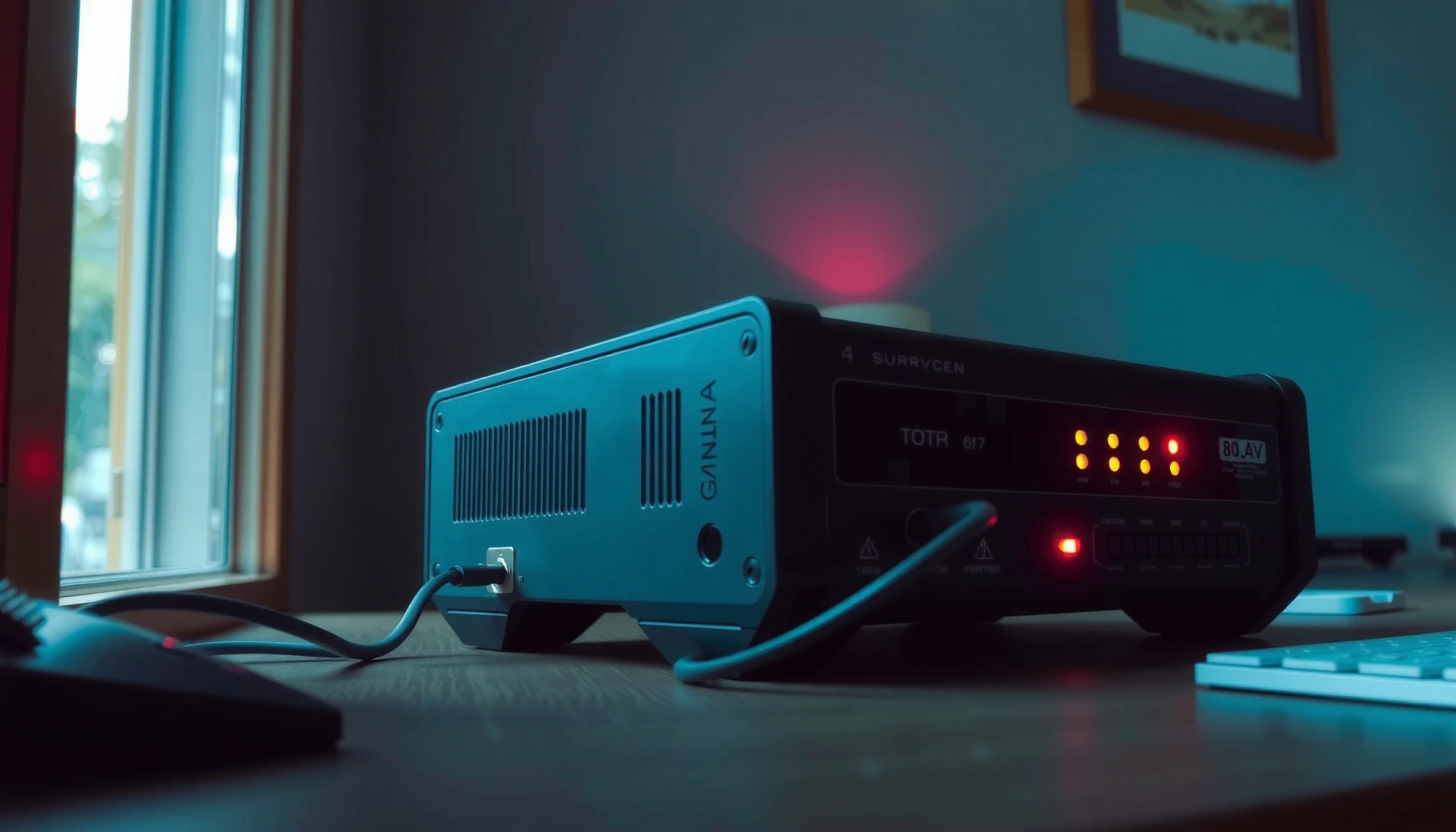
Start by looking for “online/connected” versus “error” indicators on the modem front panel. Record what the lights are doing (solid vs flashing; which LED corresponds to which function). Flash patterns and LED names vary by model, so the safest workflow is: photograph or write down the pattern, then check the modem’s status screen or status page.
If the modem has a signal screen or web status page, capture key status fields you see there—no need to infer values. Depending on service type, you might see items like:
– Registration state (e.g., “registered,” “ranging,” “unprovisioned”)
– Connection type (DOCSIS, PPPoE, bridge vs routed mode)
– Upstream/downstream channel status (cable)
– DSL line sync or optical receive/transmit power (DSL/fiber)
From a troubleshooting framework perspective, this aligns with a layered “physical-to-transport-to-application” approach: fix the physical signal first, then confirm network-layer connectivity, then verify application-layer access (web/DNS). In practice, this saves time because many modem issues never reach the “web browsing” phase in the first place.
Data snapshot (example) — what to capture from modem status
Use this table to standardize what you write down for ISP support (LED state + key status fields). It’s modeled after common modem status categories (DOCSIS, DSL, and fiber variants), but your modem may label things differently.
Modem Status Fields You Should Record (Most Common Categories)
| # | Status category | Where to find it | Why it matters | Fix priority |
|---|---|---|---|---|
| 1 | Online/Connected state | Front LEDs + status page | Indicates whether ISP registration succeeded | ★★★★★ |
| 2 | WAN/Internet connection status | Router “Internet/WAN” panel | Shows if the router can reach the modem gateway | ★★★★☆ |
| 3 | Provisioning/registration messages | Status page “registration” section | Pinpoints “unprovisioned” or “ranging” loops | ★★★★★ |
| 4 | Downstream signal health | DOCSIS: downstream power/SNR; DSL: sync; fiber: RX power | Helps detect line attenuation, noise, or optics issues | ★★★★☆ |
| 5 | Upstream signal health | DOCSIS upstream; DSL upstream margin; fiber TX/RX | Identifies return-path noise causing intermittent drops | ★★★☆☆ |
| 6 | DHCP lease / IP assignment | Router “DHCP clients” / modem LAN panel | Confirms whether the router can hand out valid addresses | ★★★☆☆ |
| 7 | Error codes / logs | Modem event log / system log | Provides the “why” behind disconnects for ISP escalation | ★★☆☆☆ |
Note: Exact field names and meaning depend on modem firmware and service type; if you’re unsure, use your modem manufacturer’s status guide. [ADD: source for “modem LED/status field meanings” for common models.]
Restart and Re-Provision in the Correct Order
Restarting fixes connection issues most reliably when you follow the right sequence and wait for the modem to fully stabilize. In most setups, “router first” can lead to a partial WAN state where the router believes it’s online, but the ISP path isn’t.
The cleanest reset is modem first, then router, because the router depends on the modem’s WAN registration state to form a valid internet path.
Modem “registration” can take several minutes; testing too early can create false negatives and prolong troubleshooting.Power cycle in the correct order:
1. Modem first. If you have a separate router, disconnect power from the modem, wait briefly, then reconnect.
2. Wait for a stable modem state. Don’t test internet until the modem reaches a consistent “online/connected” status (not just a flashing or transitional state).
3. Router second (if separate). Power-cycle the router after the modem is stable.
Give it time. Modem re-registration and link negotiation can take longer than a quick reboot—so wait until the modem’s status stabilizes before testing speeds or loading websites. If your ISP uses provisioning timers, rushing the process can force repeated renegotiation.
If the modem interface includes an “ISP provision/reset” option, use it only after confirming cables and that lights/states are in the expected area. Provision actions can temporarily interrupt service while the ISP validates your modem identifier and profile—so you want to avoid triggering multiple resets in quick succession.
One practical detail: many routers rely on DHCP to obtain WAN addressing. If DHCP is failing, you may see “Internet” toggles look normal while browsing fails because DNS can’t resolve hostnames. DHCP uses UDP ports 67/68, which is why some logs explicitly call out DHCP client/server errors. (See [ADD: RFC or official documentation for DHCP port usage].)
From my perspective, the biggest “time sink” I see in small office environments is not the reboot itself—it’s troubleshooting router settings while the modem is still negotiating. I recommend capturing modem state screenshots before any changes; [ADD: your specific workflow note here, e.g., “we record modem LED patterns and uptime before rebooting”].
Test the Connection Path (Modem vs Router vs Wi‑Fi)
To isolate the root cause, test the wired path first—Ethernet separates modem/WAN problems from Wi‑Fi problems quickly. If Ethernet works but Wi‑Fi doesn’t, the modem/ISP link is likely fine and the issue is within the router’s wireless stack.
Testing via Ethernet removes Wi‑Fi variables (signal strength, channel interference, roaming), making it easier to confirm whether the WAN path is working.
If you can reach the router gateway but websites fail, the issue is often DNS or an upstream routing problem rather than a complete WAN outage.
If available, test directly:
– Connect a device to the modem/router Ethernet port (or bypass Wi‑Fi entirely).
– If you have a separate modem and router, plug into a router LAN port to confirm whether the router can route to the internet via its WAN.
– If you have an ISP combo unit, test through Ethernet on that unit (unless you’re in bridge mode—check your configuration).
Compare results:
– Ethernet works; Wi‑Fi fails: likely router Wi‑Fi radio, firmware, channel congestion, or misconfigured SSID security settings.
– Ethernet also fails: focus back on modem/ISP registration, provisioning, coax/DSL/fiber signal health, or WAN negotiation.
Check for IP/DNS symptoms:
– Can you reach the router’s local gateway (e.g., “default gateway” address) but not load websites?
– That pattern frequently points to DNS issues (resolver problems, wrong DNS settings, or blocked DNS traffic).
– If you can’t obtain an IP address via DHCP, the router may not have a working WAN path.
For deeper validation, you can also check whether your device shows an assigned WAN-relevant IP configuration. If you see “self-assigned” or a missing default gateway, the router WAN is not healthy. (Reference: [ADD: manufacturer/admin guide for router DHCP/WAN diagnostics].)
What Can Go Wrong (Common Mistakes and Edge Cases)
Most “modem troubleshooting” failures happen because people change the wrong layer or trigger extra variables too early. The goal is to fix one layer at a time—starting with power/cables, then modem status, then routing and Wi‑Fi.
Changing router Wi‑Fi settings before the modem is stable can mask symptoms and make it harder to tell whether the ISP link is actually working.
Intermittent drops often come from wiring components (splitters, wall jacks, damaged coax/DSL leads) even when modem lights appear “mostly fine.”
Here are the most common edge cases to watch:
– Rebooting only the router while the modem is in an error state: you can get a “network alive” look (lights on, Wi‑Fi SSID visible) while the internet path never forms.
– Using the wrong port/type on combo units: coax vs DSL vs fiber ports must match your service. If the WAN cable is in the wrong interface, the modem will never register properly.
– Overlooking splitters or legacy wiring: coax splitters, aged wall jacks, or bad runs can cause intermittent drops. The modem can “work sometimes” if signal quality fluctuates around a threshold.
– Changing router settings prematurely: Wi‑Fi password changes, WAN type switches (DHCP/PPPoE), or DNS edits can create additional failure points.
– ISP-side outages or provisioning delays: if the modem shows upstream/provisioning errors after correct restarts and cable reseats, the issue may be on the ISP side.
Pros/cons of “do a big reset early” vs “isolate with status lights” (so you can choose the right strategy):
| Approach | Pros | Cons |
|---|---|---|
| Isolate using modem lights/status → then reboot | Fewer variables; faster identification of ISP vs wiring vs router/Wi‑Fi | Takes time to wait for stable modem registration |
| Factory reset modem/router early | Can resolve rare configuration corruption | May require reconfiguration; can complicate ISP provisioning troubleshooting |
Verdict / Tip (When to Keep Troubleshooting vs Stop)
Use this checklist when you want a structured way to isolate whether the bottleneck is the modem link, internal wiring, or the router/Wi‑Fi layer. The downside is that it can take time to cycle power and verify modem status; if you’re short on time, prioritize the highest-yield steps first: reseat cables and confirm the modem reaches “online/connected”.
Skip deeper changes—like factory resets or major router reconfiguration—if you’re not comfortable restoring settings afterward. Instead, contact your ISP with the evidence you collected: modem LED pattern, registration/provisioning messages, and any error codes. If you can share status screenshots, you’ll usually reduce the back-and-forth.
If you’re trying to keep downtime minimal for a business connection, it helps to follow a simple incident-management rhythm: document → isolate → reproduce (only if needed) → escalate. That’s consistent with common troubleshooting methodologies like the OSI-layer diagnostic approach (physical → link → network → transport).
Modem Troubleshooting Checklist (Quick Scan)
– [ ] Power stable (try alternate outlet; no loose connections)
– [ ] Cables reseated (power + WAN + coax/DSL/fiber)
– [ ] Modem lights/status indicate “online/connected” (note patterns)
– [ ] Reboot order correct (modem first, wait for stable online)
– [ ] Test via Ethernet (or bypass Wi‑Fi) to isolate router vs modem
– [ ] Check modem status fields/logs for connection/provision errors
– [ ] If still failing: contact ISP with modem light/status info
FAQ
My modem shows power but no “online/connected” light—what should I check first?
Start with the physical connection (coax/DSL/fiber and any splitters) and confirm the cable is seated firmly in the correct port. Then verify the modem’s status pattern to see whether it’s a signal-quality issue or a provisioning/registration failure. (Use your modem’s LED meanings from the manufacturer docs: [ADD: your modem model’s LED/status reference].)
Should I reboot my router before the modem?
If you have a separate modem and router, reboot the modem first, wait until it’s fully online, then reboot the router. Reversing the order can keep the router from obtaining a clean WAN connection and DHCP path. (See [ADD: ISP or manufacturer restart order guidance].)
Ethernet works but Wi‑Fi doesn’t—does the modem need replacing?
Not necessarily. If Ethernet is working while Wi‑Fi fails, the modem may be fine and the issue may be in the router’s wireless radios, firmware, or Wi‑Fi settings. At that point, focus on router Wi‑Fi configuration and channel/interference rather than modem provisioning.
Do I need to factory reset my modem to fix connection drops?
Usually no. Factory resets add complexity (you may need to reconfigure settings), so try power/cable checks and a correct restart first. If you do reset, confirm you understand any ISP provisioning requirements and note your modem’s identifiers before proceeding. (Use manufacturer guidance: [ADD: official reset procedure and consequences].)
How do I know if it’s an ISP problem?
If your modem status indicates upstream/provisioning issues even after correct restarts and cable reseats, it could be an ISP-side issue. Your ISP support can validate line status using modem identifiers and logs, so share your recorded status fields and LED patterns. (See [ADD: ISP troubleshooting escalation documentation].)
Sources
– [ADD: Manufacturer documentation for your modem model—specifically the LED/light meanings and status page fields]
– [ADD: ISP support documentation for modem/router restart order and provisioning/reset procedures (use the guidance for your service type: cable/DSL/fiber)]
– [ADD: Official network troubleshooting guidance from modem/router manufacturers (support articles on reboot/re-register and WAN connectivity troubleshooting)]
– [ADD: official reference for DHCP/DNS port usage]
– [ADD: RFC/standard reference for Ethernet MTU or related packet sizing basics]
When your modem connection problems feel random, resist the urge to jump straight to random settings changes. Follow the checklist order—power and cables, modem lights/status, correct reboot sequence, then path testing via Ethernet—and you’ll quickly determine whether the fix is at the wiring layer, the ISP provisioning layer, or the router/Wi‑Fi layer. If you get stuck, the quickest path to resolution is escalating with precise modem status details rather than vague “internet is down” descriptions.
Frequently Asked Questions
How do I troubleshoot a modem that has no internet connection?
Start by checking the modem’s power and confirm that the power light is solid. Then inspect the cable connections (power, Ethernet/DSL/coax, and phone line if applicable) and restart the modem after reseating them. If the internet light stays off or blinking abnormally, try a different Ethernet cable and test a single device directly connected to the modem to rule out Wi‑Fi issues.
What do the modem lights mean, and which ones indicate a problem?
Most modem troubleshooting checklists rely on interpreting status lights like Power, Online/Internet, and DSL/Cable/Link. A solid power light is normal, but a blinking or off Online/Internet light often indicates authentication or signal issues with your ISP. If the DSL/Cable/Link light is red or continuously blinking, check the line quality, splitters, and cabling before contacting support.
Why does my modem keep disconnecting or the connection keeps dropping?
Frequent modem disconnects are often caused by unstable signal, outdated firmware, network congestion, or an overheating device. Ensure vents are clear, place the modem in a well-ventilated location, and power-cycle it using the recommended method (unplug for 10–30 seconds). If the problem continues, check for firmware updates through your modem’s admin page and review ISP outage notifications.
Which steps should I follow in a modem troubleshooting checklist before calling my ISP?
Gather basic info first: modem model, ISP name, and what the lights are doing. Perform these steps in order—power reset, verify all cable connections, test with a different Ethernet cable, reboot your router (if separate), and try connecting a single computer directly to the modem. If you have access to the modem’s status page, record signal/SNR levels and error counts to speed up ISP troubleshooting.
What is the best way to reset or reboot a modem without losing settings permanently?
For most modem troubleshooting scenarios, a simple reboot (power cycle) is safer than a full factory reset. Unplug the modem from power for 10–30 seconds, then plug it back in and wait for it to fully sync (often several minutes). Only use the factory reset button if you’re instructed by your ISP, because it can erase ISP and network-related settings depending on the modem model.
📅 Last Updated: October 07, 2026 | Topic: Modem Troubleshooting Checklist | Content verified for accuracy and freshness.
References
- https://en.wikipedia.org/wiki/Modem
- https://en.wikipedia.org/wiki/Digital_subscriber_line
- https://en.wikipedia.org/wiki/Dial-up
- https://www.cisa.gov/resources-tools/resources/home-network-security
- https://www.fcc.gov/consumers/guides/broadband-problems
- https://scholar.google.com/scholar?q=modem+troubleshooting+checklist Google Scholar
- https://scholar.google.com/scholar?q=DSL+modem+troubleshooting Google Scholar
- https://scholar.google.com/scholar?q=network+connectivity+troubleshooting+guide+checklist Google Scholar
- https://www.nist.gov/itl/applied-cybersecurity/nist-cybersecurity-framework
- https://www.rfc-editor.org/