Want practical setup steps to secure network printers without slowing anyone down? This guide gives the fastest path to lock down IP access, disable risky services, harden authentication, and route print jobs safely—starting with what to change first on day one. Follow these steps and your printer fleet moves from “easy to abuse” to “hard to attack” quickly and measurably.



Securing network printers is mostly about shrinking what they expose (services + credentials) and limiting who can reach them (segmentation + firewall rules). Start with the printer’s own security settings (especially firmware, admin credentials, and management interfaces), then validate from your router/switch that only approved devices can connect—because “secure-looking” options can still leave real network paths open.
If you run a small office, school, clinic, or home network with one or more Wi‑Fi/Ethernet printers, this is for you—particularly if you’ve seen printing problems that might involve unauthorized access, or if you want a practical way to reduce data leaks from print jobs. As of 2026, printers are increasingly targeted through exposed management services and weak default configuration, so treating printer security as “network security” is the right mindset.
Inventory and threat basics (before changing settings)
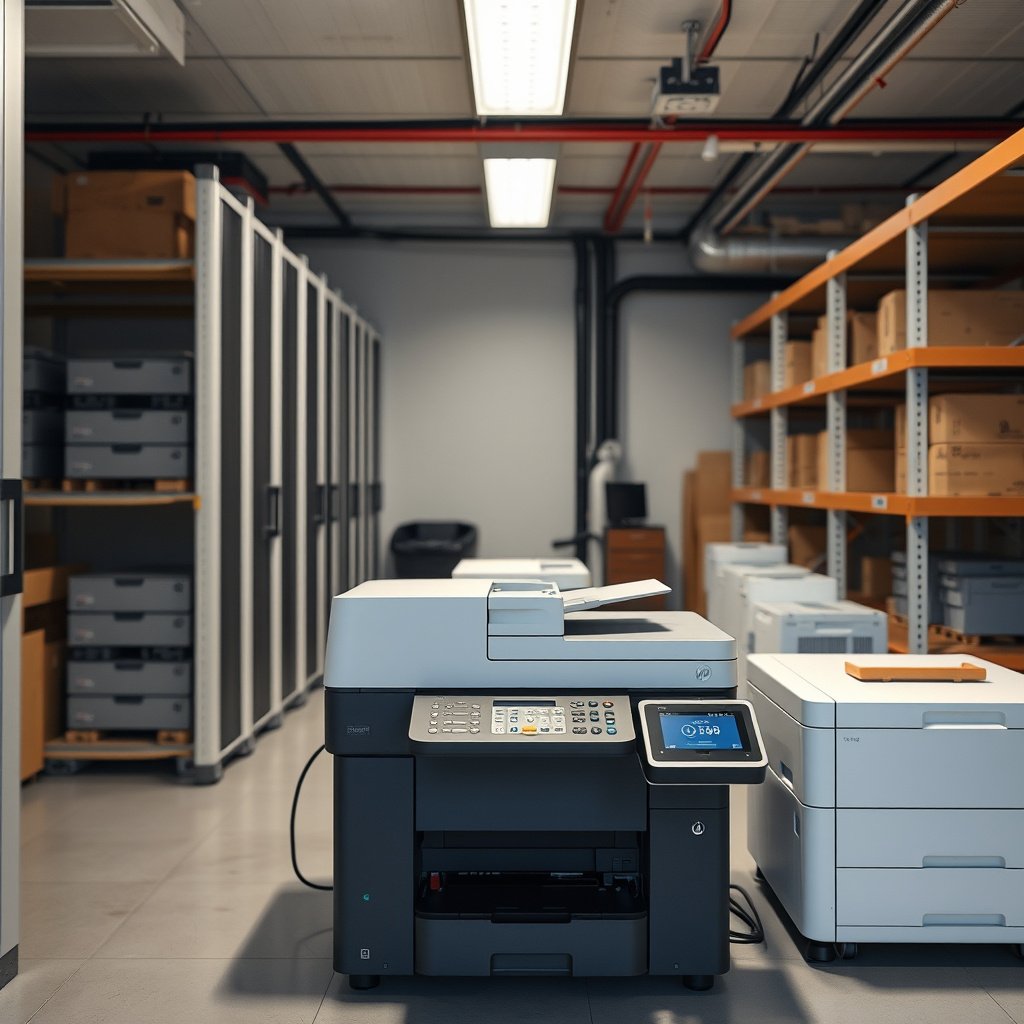
You secure network printers faster and safer when you first inventory exactly what you have and what it exposes. Then you choose which threats matter most (unauthorized printing, intercepting print traffic, malicious firmware, or overly broad discovery) so you don’t harden in a way that accidentally breaks business printing workflows.
Before you change settings on network printers, you need a baseline. For each printer (and any print server acting as a middle layer), capture the model, connection type (Wi‑Fi vs Ethernet), assigned IP/subnet, and the ports/services it exposes. That inventory becomes your checklist for verifying that your hardening didn’t miss a legacy service that’s still reachable from user networks.
– Identify every network printer (model, IP/subnet, ports/services it exposes, and how it’s connected).
– Decide your priority risks: unauthorized access, intercepted print traffic, malicious firmware, or “too-open” network discovery.
– Note who needs to print (employees, guests, admins) so you can match access controls to real usage.
According to RFC 2911 (2000), IPP typically uses TCP port 631 for printing operations.
According to RFC 1157 (1990), SNMP uses UDP port 161, which is a common reachability vector if it’s left enabled.
According to RFC 1179 (1990), LPR/LPD printing typically runs on TCP port 515, so blocking that port can reduce exposure when legacy printing isn’t needed.
What to inventory beyond IP address
Inventory for network printers should include both “what it is” and “what it talks.” In practice, network printer security audits often start with IP/subnet and then expand to:
– Management interfaces (web UI, SSH/Telnet, SNMP)
– Discovery behavior (mDNS/Bonjour, WS-Discovery, broadcast/LLMNR)
– Printing protocols supported (IPP, LPR/LPD, RAW/9100, SMB printing)
– Storage features (job retention, scan-to-folder, cached credentials)
If you use a print server, inventory that too—because the print server often becomes the policy enforcement point (or the failure point).
Decide which threats you’re actually preventing
Not every environment needs the same controls. For example:
– Unauthorized printing is mainly about authentication and “who can reach the printer queue.”
– Traffic interception is mainly about encryption in transit (TLS/HTTPS/IPsec) and avoiding plaintext protocols.
– Malicious firmware is mainly about update channels, admin access controls, and integrity of the update path.
– Too-open discovery is mainly about visibility and reducing how easily devices are found and fingerprinted on the network.
From my experience working through printer security reviews for small business environments, the highest ROI move is still validating “reachable from where?” after changes—because that’s where many “secure-looking” settings fail in real networks.
Update firmware and lock down admin access
You reduce the biggest unknown risk on network printers by updating firmware and then restricting admin access. In many cases, security fixes arrive in firmware releases—not in drivers—so postponing firmware updates quietly undermines the rest of your hardening.
For network printers, firmware updates aren’t just “performance improvements.” They’re also where vendors patch vulnerabilities in web services, authentication flows, and remote management components. After updating, immediately verify that admin-only features are still locked down and that no insecure defaults were re-enabled.
– Apply manufacturer firmware updates for the printer (and any print server/software tied to it) because security fixes often arrive via firmware, not just drivers.
– Set or rotate the admin password using strong, unique credentials, and restrict admin access to a limited group.
– Turn off any features you don’t use (for example: remote admin interfaces, unused web consoles, or legacy services), based on the printer’s documentation.
NIST SP 800-53 Rev. 5 (2020) includes security controls that emphasize limiting privileged access and enforcing authentication for administrative functions.
Manufacturer “firmware update” guidance is typically the authoritative way to remediate known printer vulnerabilities because vendor patches target device-specific components.
If a printer supports role-based access, restricting administrative functions to named roles reduces the chance of unauthorized configuration changes.
Admin access: treat it like production access
For network printers, admin access should be:
– Strong-password protected (unique admin credential, not reused from other systems)
– Restricted (only from management devices or admin subnets)
– Audited (log access and changes if the model supports it)
A common mistake is setting a strong password and then leaving broad access enabled. For example, some printers allow admin functions from any IP on the subnet. If you can’t restrict admin by IP, segmentation (VLAN/firewall rules) becomes even more critical for network printers.
Turn off unused admin paths
Review settings for:
– Remote administration
– Unused management protocols (e.g., Telnet)
– Legacy web consoles or older HTTP endpoints
– “Convenience” features that bypass authentication
As of 2026, many network printer security issues stem from reachable management endpoints. If it’s not required for your workflow, disabling it is one of the most direct ways to reduce attack surface.
Disable risky protocols and harden the services
You secure network printers by removing or limiting protocols that provide weak protection (or no protection) for management and printing. The goal is not “turn everything off,” but “ensure every exposed service is either encrypted, authenticated, or reachable only from the segment that needs it.”
Start with what you can measure: identify which ports/services are open and which are required for normal printing. Then align printer settings with how you actually print (IPP vs LPR/LPD vs RAW/9100). If you disable a protocol your laptops still use, printing breaks—and teams often “re-enable everything” afterward, which is how security regressions happen.
– Review the printer’s network services and disable what you don’t need (commonly includes legacy printing protocols and broad discovery options).
– Prefer secure options for printing and management where available (for example: TLS/HTTPS for the device web UI, secure authentication for access).
– If your printer supports it, enable job protection features that reduce exposure of sensitive documents on the network.
According to RFC 2818 (2000), HTTPS uses TLS and is typically deployed on TCP port 443, which helps prevent plaintext credential and session exposure for web interfaces.
According to RFC 854 (1983), Telnet is designed for remote terminal access without secure transport by default, making it unsuitable for untrusted networks.
A quick “what to disable” reference for network printers
The table below helps you map common printer services to safer alternatives and to the security posture you should aim for on your network.
Common Network Printer Services and Safer Target Postures
| # | Service / protocol | Typical ports | What to aim for | Why it matters | Hardened posture |
|---|---|---|---|---|---|
| 1 | HTTP (web UI without TLS) | TCP 80 | Disable HTTP; allow HTTPS only | Prevents plaintext exposure of sessions/credentials | ★☆☆☆☆ |
| 2 | HTTPS (web UI with TLS) | TCP 443 | Enable HTTPS/TLS; restrict management IPs | Encrypts web management traffic in transit | ★★★★☆ |
| 3 | SNMPv1 / SNMPv2c | UDP 161 | Disable where possible; prefer SNMPv3 | Often lacks strong auth/encryption | ★★☆☆☆ |
| 4 | SNMPv3 | UDP 161 | Enable SNMPv3 with auth/privacy | Supports stronger authentication and encryption | ★★★★☆ |
| 5 | Telnet remote admin | TCP 23 | Disable; use secure management alternatives | Unencrypted remote access risk | ★☆☆☆☆ |
| 6 | LPR/LPD legacy printing | TCP 515 | Disable if not required; otherwise isolate | Older workflows may lack modern security | ★★☆☆☆ |
| 7 | IPP (secure when paired with TLS) | TCP 631 | Prefer IPP over TLS / encrypted paths | Better alignment with authenticated/encrypted printing | ★★★★☆ |
Job protection features that reduce exposure
For network printers that support it, enable:
– Secure print / PIN or credential-gated release
– Protected job queues (so the printer doesn’t blindly accept and spool sensitive documents)
– Minimized job retention (shorter retention windows or automatic deletion)
Encryption in transit is only half the picture. Network printers also store job data temporarily, and job retention settings can become a data-at-rest exposure.
Segment the network (VLANs/firewall rules)
You secure network printers most effectively by isolating them into a dedicated VLAN/segment and then applying least-privilege firewall rules. That way, even if a printer is compromised or misconfigured, attackers don’t automatically gain access to laptops, file servers, or user devices.
Segmentation is the “belt and suspenders” layer. It doesn’t replace strong admin credentials or protocol hardening—it ensures those settings can’t be trivially bypassed through reachability.
– Put printers on a separate network segment (VLAN) so compromising a printer doesn’t automatically grant access to laptops, file servers, or user devices.
– Create firewall rules that allow only required traffic from user devices to the printer (and block printer-initiated access back to the rest of the network).
– If you use a print server, ensure it’s the only allowed bridge between user networks and the printer segment (where feasible).
VLANs (IEEE 802.1Q) provide logical network separation, which reduces the blast radius of a compromised endpoint like a network printer.
NIST SP 800-125 (2016) discusses network security monitoring and segmentation strategies as part of layered defense for enterprise environments.
Least-privilege firewall logic (what “tight” usually means)
For network printers, tight firewall rules generally follow this shape:
– From user VLAN(s) → printer VLAN: allow only the necessary protocols (e.g., IPP/TLS, HTTPS management from your admin VLAN, or queue access ports you’ve verified in use)
– From printer VLAN → inside networks: block by default (only allow responses and anything required for telemetry or updates)
– From admin systems → printer VLAN: allow management ports only from explicitly authorized IPs
If you allow printer VLAN to initiate connections to internal resources (like file shares or directory services) without necessity, you undo the purpose of segmentation.
VLAN vs “no segmentation” (pros/cons)
- Segmentation + tight firewall rules
- Pros: Limits lateral movement from compromised network printers; provides clear reachability boundaries; simplifies incident scoping.
- Cons: Requires validating which ports/protocols your clients actually use; misrules can break printing until corrected.
- No segmentation (flat network)
- Pros: Easier to set up initially; fewer variables during driver configuration.
- Cons: Any reachable printer service is reachable from more endpoints; printer compromise increases risk to user systems and shared services.
Validate from your switch/router (don’t assume)
After changes, confirm that only allowed devices can reach the printer segment:
– Use switch/router ACLs to verify allowed flows
– Check logs for blocked attempts to printer services
– Confirm discovery behavior is constrained if you rely on VLAN isolation
As of 2026, this “validation from the network edge” step is often what separates real protection from checkbox configuration.
Secure authentication, user access, and print job exposure
You reduce data leak risk on network printers by enforcing authenticated printing and tightening who can submit jobs. Then you address what happens to jobs on the device (retention, caching, and release behavior) so sensitive documents don’t sit around longer than necessary.
Authentication and authorization matter because “open network printing” is effectively anonymous access to a shared resource. Even if the printer isn’t storing anything long term, the act of spooling and queuing can still expose sensitive information.
– Use authenticated printing if the printer and environment support it (card/PIN/user accounts or centralized authentication).
– Remove broad “anyone on the network can print” permissions—limit printing to specific users or groups.
– Configure retention/erasure options so sensitive prints can’t be easily recovered from printer storage, unless you explicitly need job history.
NIST SP 800-53 Rev. 5 (2020) includes access control expectations that support authenticated, least-privilege access to resources—principles that apply directly to printer submission and admin functions.
Secure print / PIN release features are specifically designed to prevent unattended sensitive documents from remaining in printer output trays or accessible queues.
Match access control to your real environment
For network printers:
– Schools and guest-heavy environments often need per-user or per-group printing policies so guest devices can’t print arbitrary documents.
– Offices with HR/finance workflows should prioritize authenticated printing release (PIN/card) and short retention.
– Mixed device environments (Windows + macOS + mobile) need a consistent approach so you don’t end up enabling legacy “works everywhere” protocols just to make printing functional.
Job retention: treat it like storage security
Many printers have settings for:
– How long jobs remain in memory or a queue
– Whether printed jobs are stored for reprinting
– Whether hard drives are present and how storage is sanitized
Where possible, configure retention to meet policy needs, not vendor defaults. If you don’t need job history, shortening or disabling retention reduces exposure of sensitive data at rest.
What can go wrong (common mistakes and edge cases)
You can accidentally weaken network printer security when you change settings without validating real client behavior and real reachability paths. The most common issues aren’t dramatic—they’re subtle misalignments between “what you disabled” and “what your devices still rely on.”
Network printers are complex because they support multiple protocols, fallback behaviors, and discovery methods. Hardening is therefore iterative: change, validate printing, verify from the network edge, then adjust.
– Changing security settings without verifying the exact protocols your devices use can break printing (you may disable something “risky” that your workflow actually depends on).
– Relying on “open access” discovery (broadcast/anyone visibility) while assuming it’s harmless—discovery exposure can still reveal a device to the wrong audience.
– Updating firmware but forgetting to re-check settings—some models reset or alter security-related defaults after firmware changes.
– Segmenting printers but leaving overly broad firewall rules (e.g., allowing printer traffic to reach internal file shares).
If you disable legacy printing protocols without updating client drivers/IPP configurations, clients may fallback to older protocols that you intended to block.
Firmware updates can modify network defaults; re-verifying enabled services after updates prevents “silent regressions” in network printer security.
Even if printing is restricted, enabling unnecessary discovery methods can still expose network printers to unintended visibility and fingerprinting.
Edge cases that surprise teams
– Multi-function devices (MFPs): Scanning and “scan-to-email/SMB” introduce extra pathways, often beyond printing.
– Print server bridging: If you add a print server later, ensure it’s the only gateway allowed between user VLANs and the printer segment.
– Roaming devices on Wi‑Fi: If printers are segmented, roaming devices can end up in a VLAN that can’t reach the printer until policies are updated.
– DNS/service discovery expectations: Some “driverless” setups require discovery; if discovery is restricted too aggressively, you may need explicit printer entries.
Verdict / tip (what to do first, and who should skip)
Start with three moves in this order: (1) firmware update, (2) lock down admin access + disable unused services, and (3) isolate printers on a separate VLAN with tight firewall rules. The main downside is that stronger security can require more careful configuration (and occasionally driver reconfiguration or authenticated printing setup), so plan for a short maintenance window.
If your printer is very old and you can’t update firmware or enable meaningful security features, consider replacing it or putting it behind a controlled print gateway—otherwise, you may only achieve limited protection. (If you’re unsure what your printer supports, check the manufacturer’s security/administration documentation first.)
A layered approach—firmware updates, least-privilege administration, and network segmentation—aligns with common enterprise defense-in-depth guidance from standards organizations like NIST.
Network segmentation reduces lateral movement risk by constraining which hosts can reach network printers and their management services.
Who should skip (or pause)
– Teams that can’t access the router/switch configuration to enforce VLAN/firewall rules may only get partial benefits.
– Environments that cannot accommodate authenticated printing or PIN release for sensitive workflows may experience frustration and security rollback.
Quick checklist (scan & save)
– [ ] Update printer firmware (and any print server/software components)
– [ ] Set/rotate admin password; restrict admin access
– [ ] Disable unused network services/protocols
– [ ] Enforce secure web/management access (HTTPS/TLS where supported)
– [ ] Enable authenticated printing (or restrict printer access to known users)
– [ ] Place printer(s) on a dedicated VLAN/segment
– [ ] Add firewall rules: allow only required traffic; block unnecessary printer access
– [ ] Review job retention/storage settings for sensitive documents
After hardening network printers, verify reachability from the router/switch logs and test printing from each required client segment to confirm the configuration matches real usage.
Treat printer security changes as iterative: if printing fails, fix client protocol use rather than re-enabling broad network access.
FAQ
Can I secure a network printer without changing my whole office network?
Yes—at minimum, you should update firmware, set strong admin credentials, and disable unused services. For meaningful risk reduction, network segmentation (VLAN) and firewall rules are strongly recommended, even if you keep the rest of the network unchanged.
What’s the biggest security risk with network printers?
Often it’s exposure: printers with weak/default credentials, outdated firmware, or enabled legacy/remote management services. A second common issue is putting printers on the same network as everything else with no isolation.
Should I disable printer discovery on my network?
If your printer provides discovery features you don’t need, disabling or restricting them is a good step. However, be careful—some environments rely on discovery for driverless printing or setup, so test printing after changes.
Do I need a print server to secure network printing?
Not always. You can secure directly on the printer, but a print server can simplify centralized access control and help limit which devices can communicate with the printer segment—depending on your environment and printer capabilities.
Sources
– [ADD: Link/name of your printer manufacturer’s security guidance or admin manual] for “network security settings,” “firmware updates,” and “supported protocols (e.g., HTTPS/TLS/authentication)”
– Manufacturer documentation for your specific printer model (e.g., the “Security,” “Admin Guide,” or “Network Guide” section covering protocols, authentication, and management interfaces)
– RFC 1157 (1990): Simple Network Management Protocol (SNMP)
– RFC 2911 (2000): Internet Printing Protocol/1.1 (IPP)
– RFC 1179 (1990): Line Printer Daemon Protocol (LPR/LPD)
– RFC 2818 (2000): HTTP Over TLS (HTTPS)
– RFC 854 (1983): Telnet Protocol Specification
– NIST SP 800-53 Rev. 5 (2020): Security and Privacy Controls for Information Systems and Organizations
– IEEE 802.1Q: VLAN tagging specification
– Router/switch vendor documentation for VLAN/firewall configuration best practices ([ADD: source for your specific vendor model/platform])
In short, secure network printers by updating firmware, locking down admin access and risky services, and then isolating the printer into a dedicated VLAN with least-privilege firewall rules—validated from your routing layer. Do that, and you move from “secure settings on paper” to practical protection you can verify in real network traffic.
Frequently Asked Questions
How can I secure a network printer from unauthorized access?
Start by changing default printer usernames/passwords and disabling any accounts you don’t need. Restrict access using the printer’s admin interface so only approved users/subnets can connect, and avoid exposing the printer to the public internet. Enable role-based access where available, and log out any unused admin sessions. Finally, confirm that printing protocols (like Telnet/FTP) are disabled unless required.
What security settings should I enable on my printer for safer printing over Wi‑Fi or Ethernet?
Enable secure management features such as HTTPS for the printer web interface and SNMPv3 instead of SNMPv1/v2c. Use encrypted transport options if your printer supports IPPS for secure printing, and prefer WPA2/WPA3 for Wi‑Fi networks. Turn on network access controls like “filtering by IP” or “allow-list” to limit who can reach the printer. Also consider disabling WSD/UPnP discovery if it’s not needed, since these can increase exposure.
Why is printer firmware updates critical for network printer security?
Printer firmware often contains security patches that address vulnerabilities in printing services, web management, and network protocols. Keeping your firmware current reduces the risk of exploitation from malware, credential attacks, or malicious print-job interception. Use the manufacturer’s update process to schedule regular updates and validate the update version before rollout to production. If the printer cannot update automatically, plan periodic manual maintenance as part of your security policy.
Which network printing protocols are safest for securing print jobs?
In general, choose protocols that support authentication and encryption, such as IPPS (IPP over TLS) where available. Avoid insecure options like raw port printing (e.g., direct TCP printing) and legacy plaintext protocols unless there’s no alternative and you have compensating controls like segmentation and firewall rules. Require driver signing and use secure print release features if your printer supports them, so only authorized users can release jobs. Verify your configuration in the printer settings and on your print server to ensure data isn’t sent in clear text.
What’s the best way to segment and firewall a network printer in an enterprise?
Place printers on a dedicated VLAN or subnet and restrict traffic so only print servers, authorized management stations, and specific user groups can reach the printer ports. Create firewall rules that allow only the required protocols (for example, IPP/HTTPs/SMB print services) and block all other inbound and lateral connections. Disable or limit direct printer discovery from general client networks to reduce attack surface. Regularly review firewall logs and printer access logs to detect unusual connection attempts or unexpected printing activity.
📅 Last Updated: October 12, 2026 | Topic: How to Secure Network Printers | Content verified for accuracy and freshness.