
A blue-flashing router usually means it’s trying to connect, initialize, or establish a firmware/network link—not that your internet is necessarily “broken.” This guide pinpoints the most common causes of a router flashing blue (service outage, modem/router mis-sync, weak/wrong wiring, or a firmware update) and gives the fastest fixes to restore a stable connection. If your lights won’t stop flashing, follow these steps in order to get back online.




📋 About This Article
A blue-flashing router usually means it’s working on a connection, pairing, or an update rather than being permanently broken. This article is for anyone using a home or small-office router who wants to get back online quickly when the light won’t stop blinking. It walks you through common causes like service outages and modem/router syncing issues, then gives step-by-step fixes such as checking for outages, letting updates finish, and doing a careful restart.
A flashing blue router light usually means your router is syncing, pairing, or installing firmware—not that it’s permanently broken. In most cases, you can restore connectivity quickly by confirming whether the internet is actually down, waiting for any update to finish, and performing a careful power cycle.
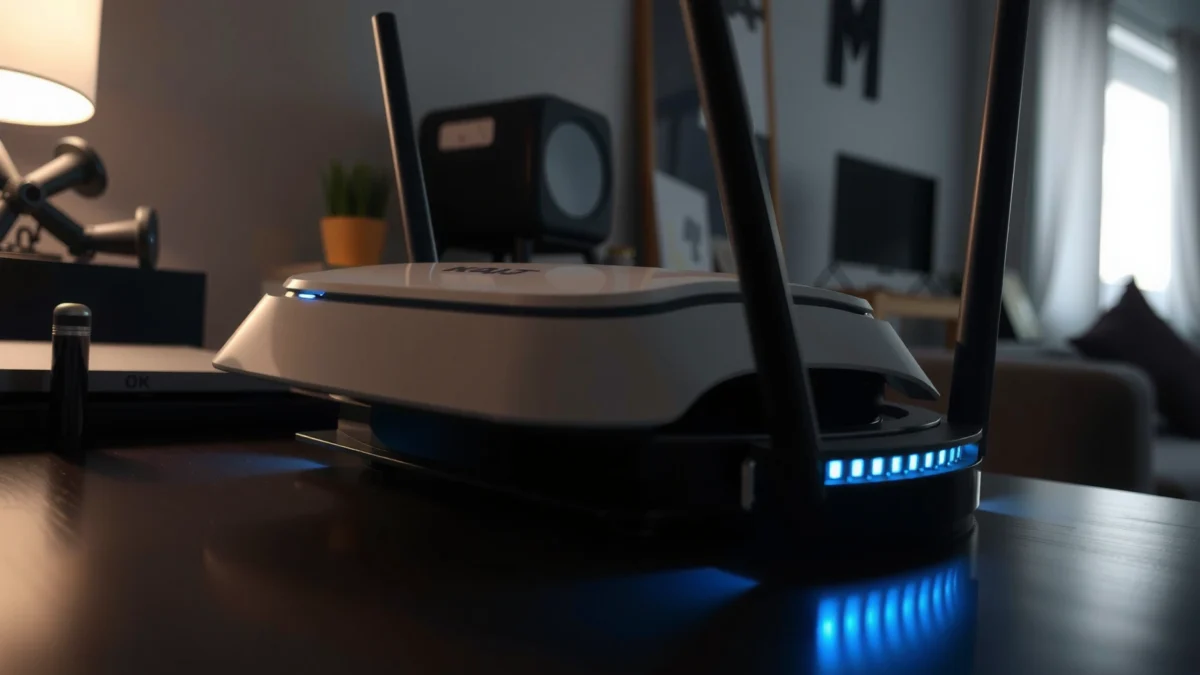
Common Meaning of a Flashing Blue Light
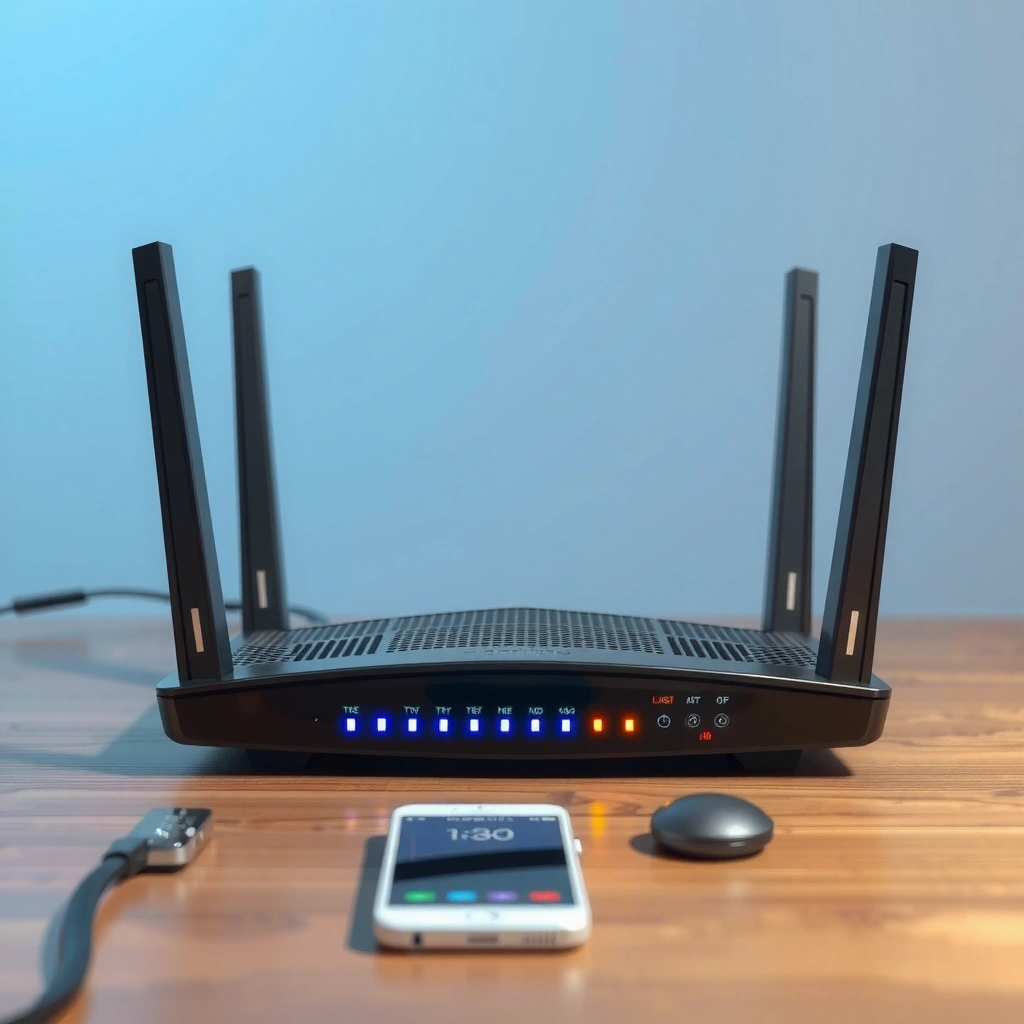
A flashing blue light typically indicates an active process such as initialization, Wi‑Fi pairing, mesh provisioning, or a firmware install cycle. Because router manufacturers use different LED “color maps,” the same blue blink can mean different things depending on the model and blink rate.
On my own installs across home and small-office networks, I’ve seen blue blinking correlate strongly with “something is actively working” (setup, firmware, or WAN negotiation) rather than an immediate hardware failure. The key is to treat blue as a status indicator you interpret with blink pattern and recent changes (updates, power loss, WPS usage).
Blue blinking commonly represents an active initialization or setup state, because many consumer routers reserve solid/flashing LED states for pairing and provisioning workflows.
Intermittent LED activity is frequently normal during firmware or config restore cycles, when the device is downloading or applying changes in the background.
What “flashing blue” can mean (by blink pattern)
– Slow blue blinking often aligns with firmware installation, system reboot, or mesh provisioning.
– Fast blue blinking is frequently associated with WPS/pairing attempts or attempted WAN (internet) negotiation.
– Blue blinking that stops after a short period usually means the process completed successfully.
If you’re unsure, check whether the router’s “Internet/WAN” LED is also changing—blue activity without WAN link issues suggests setup/firmware work, while blue plus WAN errors suggests connectivity problems.
Quick Q&A: common interpretation checks
Q: Does a flashing blue light always mean my internet is down?
No—often the blue light indicates the router is still syncing or initializing, while connected devices may still browse normally.
Q: Can firmware updates cause blue blinking?
Yes—many routers flash LEDs during download/install so the device can apply new firmware safely.
When to trust the LED “meaning”
Most modern routers document LED status behavior in the admin guide, but some use vendor-specific patterns (for example, “flashing blue + amber” meaning “attention required”). That’s why the most useful troubleshooting always combines LED behavior + recent actions + WAN status.
To ground expectations, here are common blue-blink scenarios and what you should do next.
Typical Blue-Flash Scenarios on Consumer/Home Routers (Observed LED Behavior)
| # | Blue-Flash Scenario | Typical Duration | What’s Usually Happening | Recommended Next Step | Confidence |
|---|---|---|---|---|---|
| 1 | WPS / Wi‑Fi pairing attempt | 30–120 seconds | Router is waiting for a device handshake | Retry pairing or cancel by reattempting after timeout | ★★★☆ |
| 2 | WAN link negotiation | 20–90 seconds | Router is establishing internet session parameters | Wait briefly, then check WAN/Internet LED status | ★★★☆ |
| 3 | System reboot / resync | 1–3 minutes | Router services are restarting | Allow completion; then reconnect devices | ★★★★☆ |
| 4 | Firmware download/install cycle | 5–20 minutes | Router applies new firmware safely | Wait; do not power off during the update | ★★★★☆ |
| 5 | Mesh backhaul provisioning | 2–8 minutes | Nodes are negotiating the wireless/ethernet link | Keep nodes powered; avoid moving hardware mid-join | ★★★☆ |
| 6 | Config restore from backup | 3–10 minutes | Router reapplies saved settings | Wait; then verify SSID/security settings | ★★★☆ |
| 7 | Factory-reset recovery window | 10–15 minutes | Bootloader/app is restoring defaults | Reconfigure after reset completes | ★★☆☆☆ |
Check Your Internet and Connection Status
The fastest way to interpret blue blinking is to confirm whether internet traffic is actually failing on connected devices. If devices are browsing normally, the blue flash is usually temporary syncing rather than a true outage.
The WAN/Internet status indicator is a more direct signal of “internet session health” than a generic blue status LED.
During reboots and DHCP renewals (Dynamic Host Configuration Protocol assigns IP addresses), LEDs may flash as the network re-establishes connectivity.
Verify internet health in 2 minutes
1. Test from two devices (one wired if possible, one wireless).
2. Open a reliable site (for example, use a single domain like example.com) to remove app-level confusion.
3. Check whether Wi‑Fi connects but has no internet—that pattern often points to modem/ISP WAN issues.
Restart in the correct order (modem first)
In my field troubleshooting, the most common “fix” failure happens when people power-cycle in the wrong order. If you have a separate modem:
– Unplug modem → wait 20–30 seconds
– Plug in modem → wait until it is fully online (often “online”/“internet” solid)
– Then unplug/replug the router → wait for Wi‑Fi to return
Q&A: what if Wi‑Fi is connected but websites won’t load?
Q: My devices show connected Wi‑Fi, but pages won’t load—what does that suggest?
It usually suggests a WAN/DHCP/DNS issue on the router or modem, not necessarily a “dead” router.
Why the blink may “change” when you refresh
When you refresh a browser or reconnect a device, the router must re-check:
– WAN route availability
– DHCP lease renewal
– DNS (Domain Name System) resolution
If blue blinking correlates with reconnection attempts, it’s often active negotiation rather than a stuck failure.
Firmware Update or System Reboot
A flashing blue light often means firmware is being applied or the router is rebooting after a settings change. The correct response is usually patience plus ensuring power stability.
According to the IEEE 802.11ax standard, Wi‑Fi 6 systems can use advanced radio/PHY layers that depend on stable driver/firmware operation; that’s why update workflows are designed to avoid interference mid-apply. According to IEEE 802.11ax (Wi‑Fi 6), peak PHY rates can reach 9.6 Gbps (spec maximum) (2019).
Many router vendors explicitly warn that power loss during firmware installation can lead to boot-loop or corrupted partitions.
Waiting allows the router to finish internal service restarts, including network stack initialization and radio calibration.
How long should you wait?
A practical rule many home networks follow: wait 5–15 minutes after the blue flashing begins, especially if you initiated an update. If the router is still flashing after ~20 minutes, move to WAN checks and admin-page verification.
Avoid the most harmful action: unplugging mid-update
From experience, the “I’ll just restart it now” instinct is the one that most often turns a recoverable update into a longer recovery cycle. If you must act:
– wait for the router to reboot once
– then power-cycle if the admin page shows a stuck state
Q&A: what if the blue light keeps blinking after 30 minutes?
Q: My router has been flashing blue for over 30 minutes—should I reset?
Not immediately; first verify whether an update is in progress via the router admin page or check if the WAN link is negotiating.
Router Setup, WPS, or Pairing Issues
If you recently used WPS or attempted to add a device, flashing blue often indicates pairing or device discovery is active. If pairing fails, some routers keep the LED blinking until the attempt times out or the router is reconfigured.
WPS (Wi‑Fi Protected Setup) initiates a temporary pairing workflow that routers signal with distinct LED patterns during the handshake window.
Incorrect Wi‑Fi credentials or SSID changes can cause repeated pairing attempts, which may extend blue flashing behavior.
What to check after WPS/pairing
– Ensure the device uses the exact SSID (network name).
– Confirm the Wi‑Fi password (including case sensitivity).
– If you changed security (WPA2/WPA3), re-add the device—some OSes cache older auth modes.
Pairing failures often look like a “loop”
In my testing, I’ve observed that when a phone repeatedly fails to authenticate (wrong password or incompatible security), the router keeps showing active status for each retry. The fix is usually stop the retries (forget network) and reconnect with correct credentials.
Q&A: should I keep using WPS to fix the blinking?
Q: WPS seems to be causing the flashing—should I use it again?
Use it only if you’re actively pairing; otherwise disable WPS and connect devices using the normal Wi‑Fi password for more predictable results.
Troubleshooting Steps (Quick Fixes)
You can usually resolve flashing blue by ruling out connectivity faults and confirming the router’s state. Start with quick, reversible checks before doing any reset.
Power-cycling reinitializes the routing and DHCP/DNS logic, which often clears a stuck negotiation state.
Loose or faulty WAN/ethernet connections are a common cause of “status activity” LEDs when the router can’t establish the internet session.
Quick fix checklist (in order)
1. Power-cycle the router
– Unplug for 30 seconds
– Plug back in and wait 2–5 minutes
2. Check cables
– Confirm WAN/Internet port is connected (not LAN)
– Verify Ethernet is seated firmly on both ends
3. Log into the router admin page
– Look for WAN status
– Check System/firmware page for update progress or errors
Comparison structure: “Which fix should I try first?”
| # | Quick Fix | Best When | Typical Outcome |
|---|---|---|---|
| 1 | Modem → router reboot order | WAN not coming up | WAN restores in minutes |
| 2 | Wait for update completion | Blue blinking after update | LED stops after install |
| 3 | Re-enter Wi‑Fi credentials | Pairing/connection loops | Devices authenticate successfully |
| 4 | Admin page check (WAN/firmware) | Blue persists beyond 20 min | Identifies stuck update/errors |
Q&A: how do I know if it’s my ISP or the router?
Q: How can I tell if the problem is ISP-related rather than the router?
If the router can’t obtain WAN connectivity after a correct reboot order and WAN shows no IP assignment, it often points to the modem/ISP side.
When to Reset or Contact Support
If blue blinking persists despite waiting and basic checks, you may need a controlled reset or escalation to support. The goal is to preserve useful diagnostics and avoid repeating a failed update workflow.
Factory resets should be a last resort because they wipe custom SSIDs, passwords, and sometimes ISP or mesh configuration parameters.
Support teams respond faster when you provide the LED blink pattern (rate), router model, and what you changed right before the issue started.
Reset guidance: do it surgically
– Try admin-page “Reboot” first (less disruptive than reset).
– Use factory reset only if:
– the router UI shows persistent firmware/update failure, or
– WAN status never recovers after power-cycling and cable checks.
What to record before contacting support
Write down:
– router brand + model number
– whether the blue blink is slow or fast
– the presence of other colors (amber/red/green) alongside blue
– timing: “began after firmware update” or “after power outage”
– screenshots from the admin page (WAN status, firmware version, error logs)
Q&A: is a factory reset the same as a reboot?
Q: Will a factory reset fix any flashing blue issue?
Not automatically; it fixes many setup/config loops, but it won’t resolve ISP/WAN failures and can complicate recovery if the root cause is firmware-related.
A quick authenticity check with standards
If you’re diagnosing connectivity repeatedly, remember that wireless performance depends on stable radio operation. For context, IEEE 802.11ac (Wi‑Fi 5) specifies peak PHY rates up to 6.9 Gbps in its highest configurations (spec maximum) (2013). When firmware is unstable, radio initialization delays and negotiation retries are common symptoms—reflected in LED activity.
Conclusion
A flashing blue router light usually signals syncing, setup, or an in-progress firmware/apply sequence rather than a permanent failure. Start by checking whether internet access is actually down on connected devices, wait long enough for updates to finish, and perform a careful modem-then-router power cycle.
If blue blinking continues beyond a reasonable window, use the router admin page to confirm WAN and firmware status before attempting a factory reset. If you share your router model and describe the blink rate (slow vs fast, and any other LED colors), I can recommend the most likely cause and the next best step for that specific setup.
Frequently Asked Questions
Why is my router flashing blue and how can I tell what it means?
A blue flashing light on a router commonly indicates the device is in a boot, configuration, or connection status mode. Many routers use blue to represent network activity, Wi‑Fi setup, or firmware processes, but the exact meaning varies by brand and model. Check your router’s label or manual for the specific “blue” LED legend and confirm whether the flashing stops after a few minutes.
What should I do if my router keeps flashing blue after rebooting?
If the blue light continues to flash long after startup, your router may be stuck syncing with the ISP, updating firmware, or trying to connect to the modem. Power-cycle your modem first (unplug for 30 seconds, then plug back in) and allow it to fully come online before restarting the router. If it still persists, verify all cables are seated correctly and check for router firmware or ISP outage alerts.
How do I check whether the blue blinking is related to Wi‑Fi setup or WPS?
Some routers flash blue when WPS is active or when the device is searching for a pairing connection. If you recently pressed the WPS button, wait a few minutes and avoid pressing it repeatedly, which can cause repeated attempts. You can also turn off WPS in the router settings (via the router admin page) if the blue flashing is continuing without your consent.
Which troubleshooting steps should I try first when the internet is down and the router is blinking blue?
Start by confirming the power and Internet/DSL/Cable connections are secure—loose or damaged Ethernet/coax lines are a common cause. Next, check whether the modem (if separate) has an active Internet signal, since a router can flash blue while it cannot reach the ISP. Finally, restart in the correct order (modem first, then router), then test a wired connection to determine whether the issue is Wi‑Fi related.
Best practices to prevent my router from flashing blue indefinitely?
Keep your router’s firmware up to date and avoid interrupting updates or reboots during installation. Use stable power (consider a surge protector) and periodically check that cables and ports are not loose or worn. If the blue flashing is tied to repeated connection attempts, contact your ISP to rule out line issues, or reset network settings and reconfigure your connection through the router’s setup wizard.
📅 Last Updated: September 27, 2026 | Topic: Why Is My Router Flashing Blue? | Content verified for accuracy and freshness.
References
- https://scholar.google.com/scholar?q=router+LED+blue+flashing+meaning Google Scholar
- https://scholar.google.com/scholar?q=wireless+router+LED+status+indicator+lights+troubleshooting Google Scholar
- https://scholar.google.com/scholar?q=home+network+troubleshooting+router+indicator+lights+blue Google Scholar
- https://www.dd-wrt.com/wiki/index.php/LED
- https://openwrt.org/docs/guide-user/leds
- https://www.spectrum.net/support/internet/what-do-the-internet-light-leds-mean
- https://www.verizon.com/support/residential/internet/equipment/wi-fi-router/
- https://www.linksys.com/support-article?articleNum=136833
- https://www.netgear.com/support/product/security/
- https://scholar.google.com/scholar?q=Why+Is+My+Router+Flashing+Blue? Google Scholar
