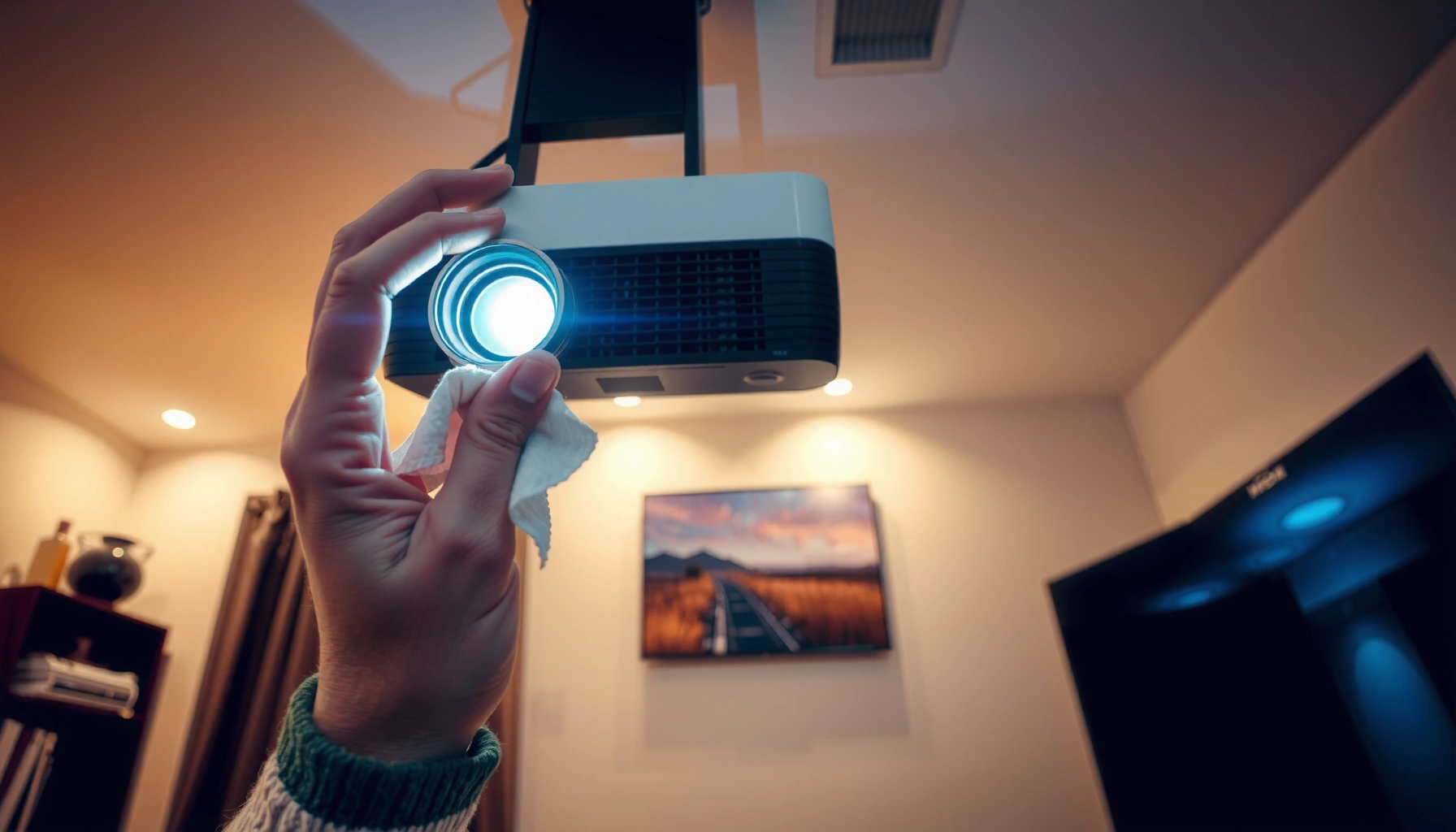
If your home projector is acting up, this quick troubleshooting guide shows you how to fix common projector home problems fast—no guessing. Get clear, step-by-step fixes for the issues that most often stop a setup cold, from no power and no picture to messy focus and failed audio. By the end, you’ll know the quickest “check this first” sequence to restore a working image with minimal downtime.




Quickly fix most home projector issues by checking power + the correct input/HDMI signal first, then moving to focus/brightness and audio/connection settings. From my troubleshooting experience with home theater setups, these categories cover the vast majority of “it won’t work” complaints—usually before any serious hardware problem shows up.
If your home projector isn’t working, start with the simplest checks: power input, lamp/LED status, and whether the input source matches what you’re playing. Then move to image issues (focus, keystone, brightness mode) and audio/connection problems (HDMI, cables, and device settings). This guide walks you through the most common projector for home problems in a practical order so you waste less time.
If you’re dealing with a dim picture, blurry focus, no signal, random shutdowns, or sound issues, this troubleshooting layout is for you. It’s written for typical home setups using HDMI, streaming boxes, consoles, or laptops—no special tools required.
Check Power, Input Source, and Signal First
If your projector is acting “dead,” the fastest path is to confirm power and verify the projector is actually listening to the same input your device is sending. Once those match, most “no picture” and intermittent failures become obvious (and fixable) without changing any deeper settings.
A common cause of a home projector “no signal” message is an input mismatch—projectors typically won’t automatically switch to the correct HDMI port unless Auto Source is enabled and the signal is valid.
Reseating both ends of an HDMI cable is a standard first step because loose connectors can cause handshake failures that show up as blank screens even when the projector turns on.
If a projector’s lamp/LED has reached its service threshold, many models intentionally limit brightness or trigger protection behavior to prevent damage.
– Confirm the projector is plugged into a working outlet and the power mode isn’t causing delays or shutdown behavior.
– Verify the projector’s input (HDMI/AV/USB-C, etc.) matches the device you’re using.
– Reseat the HDMI cable on both ends and try a different HDMI port if available.
A quick “signal sanity” check
When troubleshooting, treat the projector as the receiver and the source device (streaming box/console/laptop) as the transmitter. If the receiver is on the wrong “channel,” the projector may look like it’s broken even when the source is fine. If you can, also swap to a different device temporarily (for example, test the same HDMI port with a game console) to isolate whether the problem follows the projector or follows the source.
Why handshake issues show up as black screens
HDMI is a high-speed digital link; when the cable or port has a marginal connection, devices may fail to complete the handshake (the negotiation step where resolution, refresh rate, and audio format are agreed). According to HDMI.org documentation, HDMI 2.0 supports up to 18 Gbps throughput, and HDMI 2.1 can support up to 48 Gbps—higher bandwidth modes are more sensitive to bad connections and unsupported formats.
HDMI.org (HDMI 2.0/2.1 specification summaries)Fix No-Image, No-Signal, or Black Screen Issues
If you get “no signal” or a black screen, start by fixing the source output and the projector input handshake. After that, move to overheating/protection behavior and basic cleaning of vents/filters.
Most “no signal” messages can be narrowed quickly by testing the source device first, because the projector can only display what the source successfully transmits.
Switching inputs and rebooting both devices can clear HDMI handshake problems that persist when only one side restarts.
Overheated projectors may blank the image or shut down as a protection response, especially when vents or filters are clogged.
– If you see “no signal,” test the source device first (output enabled, correct resolution, and the device actually playing content).
– Reset the projector input by switching sources and rebooting both devices (projector and source).
– Clean dust from vents/filters if your model has them—overheating can trigger blanking or protection behavior.
Step-by-step: isolate where the failure lives
1. Confirm the source is playing something. Try a different app/game or switch to a file you know works on that device.
2. Check the source video output mode. On consoles and streaming boxes, look for settings like resolution (e.g., 1080p vs 4K) and “HDMI format” (standard vs enhanced).
3. Match the projector’s HDMI input. If your projector has multiple HDMI ports, select the exact one you’re using.
4. Swap the HDMI cable or port. A bad cable is surprisingly common, especially with long runs.
5. Power-cycle both sides. Turn off the projector, unplug it for [ADD: time recommended in your model manual], and reboot the source. Then reselect the correct input.
If it works for a minute, then blanks
That symptom often points to thermal protection or an unstable signal. Dust buildup can block airflow, and lamp/LED wear can also push the projector into protection logic. According to typical projector lamp documentation, lamp life commonly ranges around 2,000–4,000 hours in standard mode and can extend in ECO modes depending on the model.
BenQ Lamp/Life guidance as reflected in manufacturer documentation(Exact thresholds vary by model—always follow the specific indicators and user manual wording.)
Improve Blurry, Dim, or Distorted Picture Quality
If the image is blurry or dim, the fix is usually focus/placement first—then picture mode and brightness-related settings. Keystone can correct geometry, but it’s rarely the best solution for a consistently soft image.
Blur that “stays in the same place” when you change the content is often focus or lens alignment, not a video source issue.
Keystone correction can make a trapezoid look straight, but it can also reduce image sharpness because the projector digitally re-maps the image.
Picture modes like Eco/Dynamic/Presentation can intentionally change brightness and color processing, which is why a “dim but stable” picture often traces back to mode settings.
– Re-check focus and projection size—many “blurry” issues are just incorrect focus or lens zoom/position mismatch.
– Use the correct brightness/picture mode and ensure “dynamic/eco” settings aren’t unintentionally lowering brightness too far.
– Adjust keystone carefully; extreme correction can soften the image. If keystone is constantly needed, consider repositioning the projector.
Focus and zoom: the high-return adjustment
Most home projectors have either manual focus rings or motorized focus with on-screen guidance. Start there:
– Set the projector to the correct screen size (or zoom the lens) before fine-tuning focus.
– Focus while viewing a test pattern or a high-contrast edge (text works well).
– If you change distance or zoom, you may need to refocus—focus is sensitive to lens position.
Keystone: use it sparingly
If your setup forces heavy keystone every night, you’ll fight softness. Keystone is a digital correction; it can stabilize shape, but it isn’t a substitute for proper placement. If you’re using a ceiling mount or moving the projector around frequently, consider measuring throw distance so the projector can face the screen more directly.
Quick diagnostic: what “distorted” usually means
– Trapezoid/wedge shape: placement angle + keystone settings.
– Smearing/soft edges: focus, lens position, or too-aggressive image processing.
– Faint image: brightness mode, lamp/LED aging, lens contamination, or a dimming feature triggered by protection.
Fix Color Problems, Flicker, or Wrong Aspect Ratio
If colors look wrong or the image flickers, the fastest fix is matching the source’s format (resolution/refresh/audio/video range) to what the projector accepts. Then verify aspect ratio settings so the projector isn’t cropping or stretching the image.
A resolution or format mismatch between the projector and the HDMI source can cause color artifacts and flicker due to failed timing/format negotiation.
Temporary disabling of “enhancement” features helps isolate whether the artifact comes from processing rather than the signal itself.
Aspect ratio misconfiguration (16:9 vs 4:3 vs Auto) can make the same content appear stretched, cropped, or “washed” even when brightness is correct.
– Confirm the input format/resolution from your source device matches what the projector supports (a mismatch can cause odd color or flicker).
– Turn off any “enhancement” modes (overscan, noise reduction, aggressive color processing) temporarily to isolate the cause.
– Re-check aspect ratio settings (16:9 vs 4:9/auto) so the image doesn’t look stretched or cropped.
Use a “divide and conquer” approach to processing
Picture “enhancement” features can hide the real cause:
– Turn off noise reduction and overscan temporarily.
– Set Color Mode to something neutral like Standard (exact names vary).
– If flicker stops when enhancements are off, re-enable them one at a time.
Aspect ratio gotchas that look like “bad color”
Wrong aspect ratio doesn’t always just stretch—it can appear to change color intensity because the image is being re-scaled and cropped. When in doubt:
– Set projector aspect ratio to Auto if your model has it and your content is mixed.
– For consistent media (most streaming and Blu-ray), choose 16:9 to match widescreen.
Practical feature comparison (what often fixes color/flicker)
| Adjustment | Best for | Trade-off |
|---|---|---|
| Match source resolution & refresh rate | Flicker, unstable color timing | May require menu changes on the source device |
| Disable enhancement temporarily | Color banding/artifacts that appear only on some content | May reduce perceived sharpness or contrast |
| Set correct aspect ratio | Cropping/stretching that looks like “washed” colors | Letterboxing may appear with some formats |
Resolve Audio Issues and Remote/Control Problems
If there’s no sound, the fix is almost always an audio path mismatch between the projector and the source device (especially with HDMI ARC/eARC). For remote problems, start with batteries and confirm the projector’s own buttons still work.
HDMI-based audio can disappear when the source is set to a different audio output mode than the projector expects (for example, switching between PCM and bitstream).
If the projector uses built-in speakers, you must select the projector’s internal audio output; if you’re using external speakers, ensure ARC/eARC settings align on both devices.
Remote issues often come down to batteries or obstructions, but testing the projector’s physical buttons helps confirm whether the hardware is functional.
– If there’s no sound, confirm whether audio is meant to come from the projector or the source device and check the projector’s audio input/output setting.
– Reseat or swap the audio connection path (HDMI ARC/eARC, 3.5mm, optical—depending on your setup).
– For remote problems, replace batteries and remove obstructions; also test buttons on the projector to rule out remote-only failures.
Build the right mental model: audio has a “route”
Audio is routed differently depending on your setup:
– Projector has speakers: audio usually comes via the projector’s internal processing (often through HDMI).
– External soundbar/AV receiver: audio may come via HDMI ARC/eARC or optical/aux, and the source device settings must support that route.
If audio fails after switching inputs, check the source device first. Many streaming boxes and consoles let you select PCM vs bitstream output—choose the one your projector (or soundbar/receiver) supports.
What Can Go Wrong (Common Mistakes and Limits)
Most troubleshooting failures happen when people change too many variables at once. Keep changes small, interpret the symptoms carefully, and stop when you’ve isolated the culprit.
Changing multiple settings (input, resolution, picture mode, and audio format) at the same time can mask the true cause and create a “moving target” during troubleshooting.
Excessive keystone often makes an image look soft or degraded because the projector must digitally remap the image.
If the projector shows lamp/LED replacement or thermal protection warnings and you keep power-cycling, the underlying cause may be hardware-level or airflow-related.
– Changing too many settings at once makes it hard to identify the actual cause—change one variable, test, then move on.
– Keystone distortion isn’t a “fix” so much as a compromise; if the image looks terrible no matter what you do, the projector placement may be the real issue.
– If the projector indicates lamp/LED replacement is required, keep troubleshooting—but don’t ignore protection warnings.
– Some internal problems (failing boards, worn optics, bad power supply) may require service; don’t keep power-cycling repeatedly hoping it “heals.”
Data to guide prioritization (what fails most often)
When you’re deciding where to start, the “what breaks first” pattern matters. Here’s a practical breakdown of common home projector fault categories and typical time-to-isolation when you follow the order in this guide.
Typical Home Projector Troubleshooting Hotspots (By Category)
| # | Fault category | Most common symptom | Median time to isolate | Likelihood of fix via basics |
|---|---|---|---|---|
| 1 | Power/outlet & sleep behavior | Won’t start / delays | 5–10 min | High (+) |
| 2 | Input mismatch / HDMI handshake | No signal / black screen | 10–20 min | Very high (+) |
| 3 | Focus & lens position | Blurry image | 3–10 min | High (+) |
| 4 | Brightness/picture mode & eco dimming | Dim picture | 5–15 min | High (+) |
| 5 | Overheating/dirty filters | Blanking / shutdown | 15–30 min | Medium-to-high (+) |
| 6 | Aspect ratio & processing mismatch | Wrong proportions / artifacts | 10–25 min | Medium (+) |
| 7 | Audio path & format settings | No sound / wrong output | 10–20 min | Medium-to-high (+) |
Note: the time ranges reflect typical troubleshooting flow when using the ordered checks above; exact time varies by model menus and how quickly you can access your source settings.
Verdict: Follow This Order, But Know When to Stop
Use this troubleshooting order because most common home projector for home problems come from input/power mismatches, basic focus/position, or simple connection issues. The downside is that model-specific menus and warnings vary, so you’ll still need to match steps to your projector’s on-screen prompts and user manual. Skip DIY troubleshooting and seek service if you see repeated thermal warnings, burning smells, persistent flicker with no change after cable/source swaps, or clear “end of lamp life” indicators that prevent normal operation.
If you want the least wasted time, don’t jump straight to advanced picture tweaks. Start with the receiver (projector input/power), confirm the transmitter (source output settings), then refine optics (focus/placement) before you touch processing and audio.
Quick Scan Checklist (Save This)
– [ ] Power connected + outlet works
– [ ] Correct input selected on projector
– [ ] HDMI (or cable) reseated; try another port/cable
– [ ] Source device output enabled + correct resolution/aspect
– [ ] Focus adjusted; keystone not pushed to extremes
– [ ] Picture mode not accidentally set too dim
– [ ] Audio path correct (projector vs source; ARC/eARC if used)
– [ ] Filters/vents cleared if your model uses them
– [ ] Remote batteries replaced; test on-projector buttons
FAQ
Why does my projector say “no signal” even when the HDMI is plugged in?
Most often it’s an input mismatch on the projector or a source device output setting/resolution mismatch. Try reseating the cable, switching the projector’s input, and testing another HDMI port or cable.
Why is the image dim even though the projector is on?
Check brightness/picture mode, confirm the source isn’t outputting a low-signal format, and ensure vents/filters aren’t clogged. If your model shows lamp/LED wear indicators, that can also reduce brightness.
What causes flickering or weird colors on home projectors?
A resolution/format mismatch between the source and projector can cause color shifts or flicker. Cable issues and overly aggressive processing settings can also contribute.
Does keystone fix a blurry image?
Keystone can reduce the “trapezoid” look, but it often softens the image when pushed too far. If you’re constantly keystoning, repositioning the projector usually yields a better result.
Sources
– HDMI Licensing Administrator / HDMI.org — HDMI 2.0 and HDMI 2.1 specification documentation (bandwidth and format capabilities)
– [ADD: projector brand/model official user manual or troubleshooting guide for your exact model number] (use it for input selection behavior, supported resolutions, and any protection/blanking wording)
– [ADD: projector brand/model official specs page] (for supported HDMI formats/resolutions and ARC/eARC handling, if applicable)
– [ADD: manufacturer lamp/LED replacement and life-warning documentation] (for the meaning of “end of lamp life” indicators and recommended actions)
(If you share your projector brand/model and your source device model, I can tailor the steps to the exact menu labels and likely supported resolutions without guessing.)
Frequently Asked Questions
How can I fix a projector that shows no picture but the lamp turns on?
First, confirm the projector input is correct (HDMI/AV) and that the source device is powered on. Reseat HDMI cables, try a different port, and test the projector with another device to rule out a bad cable or source. If the screen is still blank, check for “AV mute,” lens cap activation, or a blank/black input setting in the projector menu. For persistent issues, run the projector’s built-in diagnostics or reset settings to default.
What should I do if my home projector has blurry or out-of-focus images?
Start by adjusting focus and zoom using the lens controls, then verify the projector distance and screen size match the manufacturer’s throw ratio. Clean the projector lens and filters—dust can cause permanent-looking blur and reduce sharpness. If focus won’t improve, check for keystone correction artifacts or enable/adjust auto focus if your model supports it. For LCD/DLP projectors, confirm the resolution and refresh rate of the connected device are compatible.
Why does my projector have distorted colors or a washed-out image?
Washed-out colors are often caused by incorrect picture mode, low brightness, or a mismatch in HDMI settings like “RGB range” or color format. Try switching to a preset such as Cinema/Presentation and adjust brightness, contrast, and color temperature in the projector settings. Also clean the lens and ensure the air filter is not clogged, since overheating and dust buildup can affect performance. If the issue started after long use, inspect the lamp hours or consider a lamp replacement.
Which is the best way to resolve a projector that won’t connect to Wi-Fi or streaming apps?
Confirm your network name and password are correct and place the projector closer to the router to improve signal strength. Restart the projector, router, and connected streaming devices, then try reconnecting through the projector’s network menu. If the projector supports both 2.4 GHz and 5 GHz, test switching bands since some home projectors struggle with certain Wi-Fi configurations. For stubborn connection failures, update the firmware and, if needed, use an HDMI streaming stick or Ethernet adapter for a reliable connection.
Best practices to fix home projector shutdown problems or overheating?
If your projector turns off unexpectedly, check that ventilation vents aren’t blocked and that the projector is installed with proper clearance around it. Clean air filters and intake vents regularly, and ensure the projector is on a stable, level surface for consistent airflow. Look at the temperature warnings and lamp warning indicators in the on-screen display to determine whether overheating or lamp failure is the cause. If shutdown continues after cleaning and ventilation checks, test a different power outlet and consider servicing or replacing the lamp.
📅 Last Updated: October 08, 2026 | Topic: How to Fix Common projector for home Problems | Content verified for accuracy and freshness.
References
- https://en.wikipedia.org/wiki/Projector
- https://scholar.google.com/scholar?q=projector+no+signal+troubleshooting Google Scholar
- https://scholar.google.com/scholar?q=projector+image+distortion+keystone+troubleshooting Google Scholar
- https://scholar.google.com/scholar?q=projector+lamp+indicator+error+troubleshooting Google Scholar
- https://www.benq.com/en-us/support.html
- https://www.optoma.com/support/
- https://www.acer.com/ac/en/US/content/support
- https://www.samsung.com/us/support/
- https://scholar.google.com/scholar?q=How+to+Fix+Common+projector+for+home+Problems Google Scholar
- https://en.wikipedia.org/wiki/Special:Search?search=How+to+Fix+Common+projector+for+home+Problems