
If your LG wireless subwoofer isn’t connecting, the issue could stem from several common factors such as interference, power supply, or pairing issues. In this article, you’ll learn how to troubleshoot and resolve these connectivity problems effectively. Understanding the potential causes and solutions can help you restore your audio experience quickly and enjoy the rich sound quality that LG products are known for.



Check Power and Connectivity
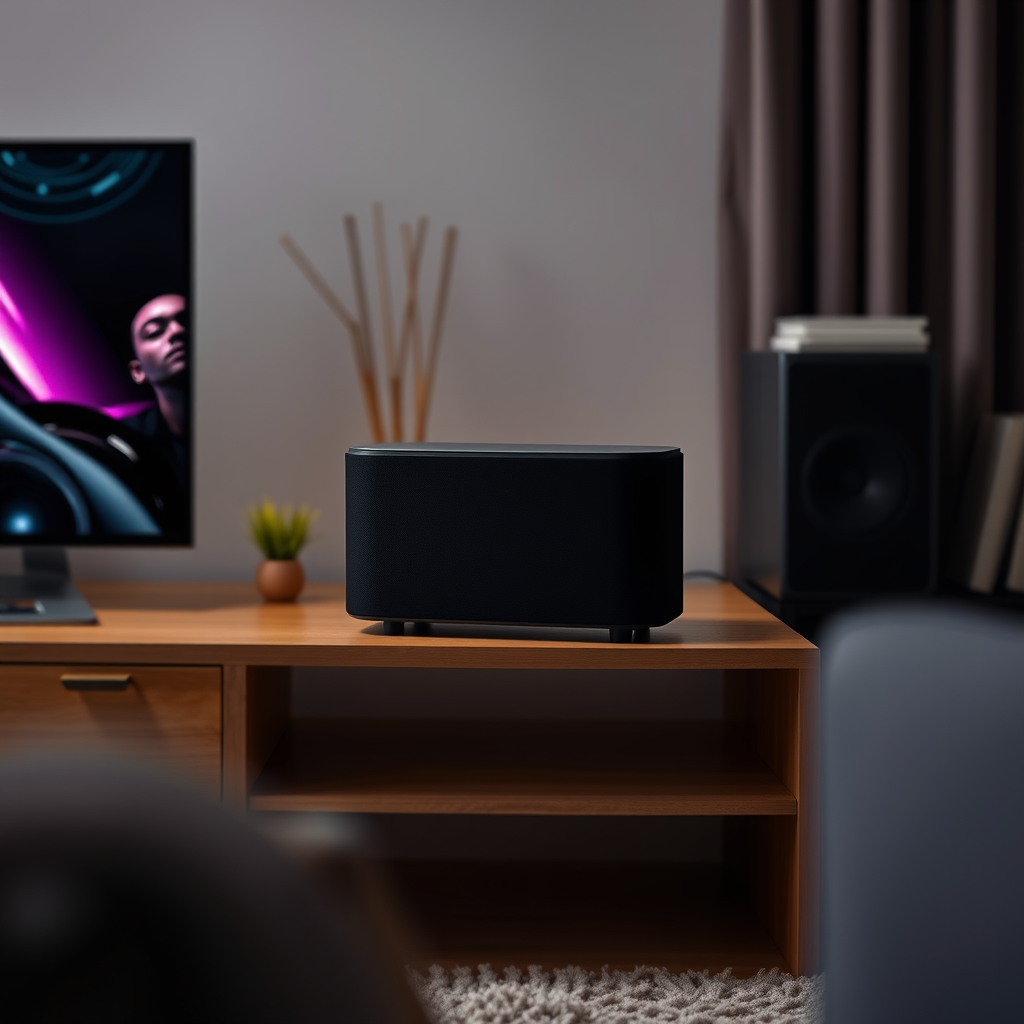
The first step in troubleshooting a wireless subwoofer connection is to ensure that both the subwoofer and the main audio device, such as a soundbar or TV, have power. Check that the subwoofer is plugged into a functional power outlet and that the power indicator light is illuminated. If the light is off, try using a different outlet or checking the power cable for any signs of damage.
Next, verify that the receiver or soundbar is also powered on and within the appropriate range of the subwoofer. Wireless connections can be sensitive to distance, so it’s crucial to keep the devices within the manufacturer’s recommended range, typically around 30 feet. If the devices are too far apart, consider bringing them closer together to establish a connection.
Verify Bluetooth Settings
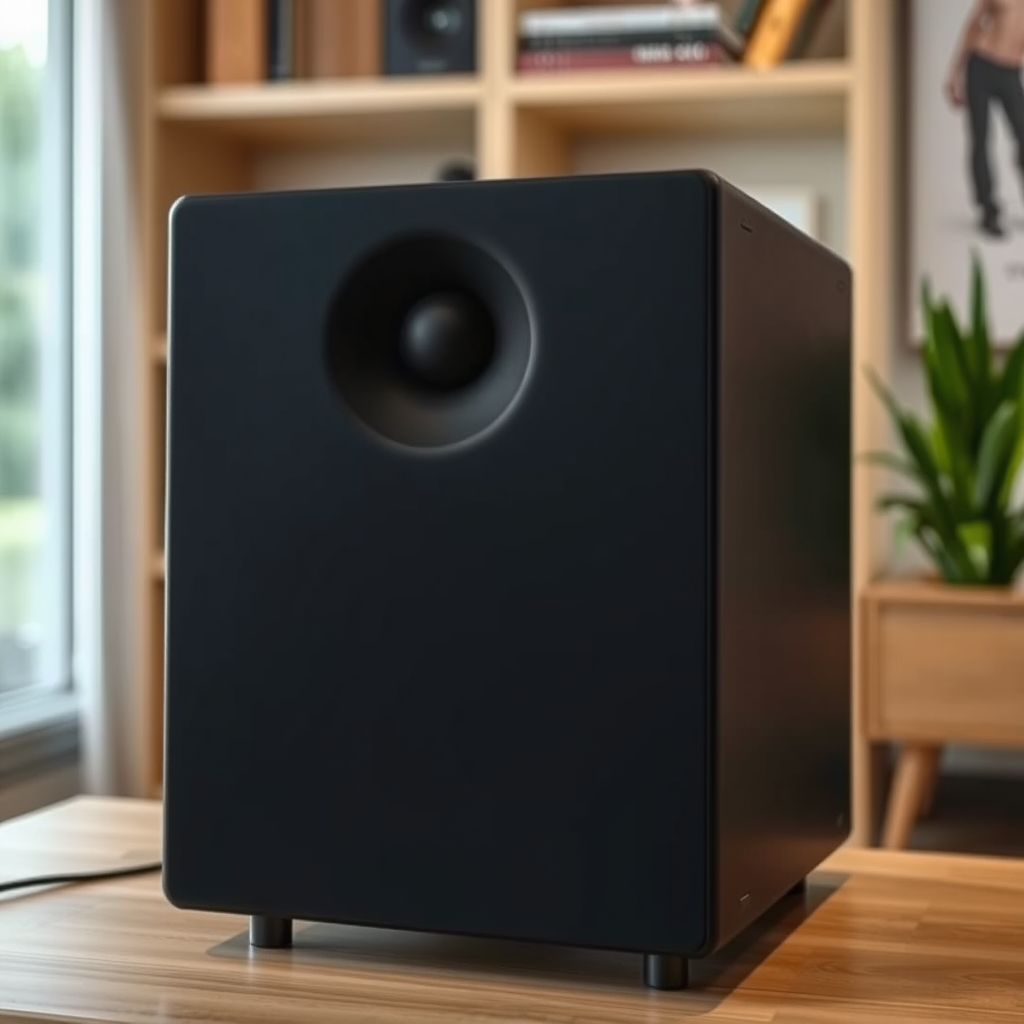
After confirming power and connectivity, the next step is to check the Bluetooth settings on your soundbar or TV. Make sure that the Bluetooth function is enabled, as this is essential for pairing with the subwoofer. You can usually find this setting in the audio or network settings menu of your device.
Additionally, ensure that the subwoofer is in pairing mode. This often involves pressing a dedicated pairing button on the subwoofer itself. Refer to your user manual for specific instructions, as the method can vary between different models. Once both devices are ready, attempt to reconnect them through the Bluetooth settings.
Eliminate Interference
Wireless signals can be disrupted by various forms of interference, which can hinder the connection between your LG subwoofer and the main audio system. Common sources of interference include:
– Wi-Fi Routers: These devices operate on similar frequencies as Bluetooth and can create conflicts. If possible, move the router further away from your audio equipment.
– Microwaves: These kitchen appliances also emit signals that can interfere with wireless connections. Avoid placing the subwoofer near a microwave or other electronic devices that may cause interference.
– Physical Barriers: Walls, metal objects, and large furniture can obstruct signals. Ensure that there is a clear line of sight between your subwoofer and the audio device for optimal connectivity.
Implementing these changes can significantly improve the wireless connection and sound performance of your subwoofer.
Common Causes of Subwoofer Connectivity Issues
| # | Issue | Description | Impact |
|---|---|---|---|
| 1 | Power Supply | Subwoofer not plugged in or power outlet issue | High |
| 2 | Bluetooth Settings | Bluetooth not enabled or pairing mode not activated | Medium |
| 3 | Interference | Other electronic devices causing signal disruption | High |
| 4 | Distance | Subwoofer too far from audio device | High |
| 5 | Firmware Issues | Outdated software impacting performance | Medium |
| 6 | Obstacles | Furniture or walls blocking the signal | High |
| 7 | Device Compatibility | Incompatibility with other audio devices | Medium |
Update Firmware
Keeping your LG subwoofer and audio system up-to-date with the latest firmware is crucial for optimal performance and connectivity. Manufacturers frequently release firmware updates to fix bugs, enhance functionality, and improve compatibility with other devices. To check for updates, refer to the user manual or the manufacturer’s website for detailed instructions.
Typically, updates can be made via USB or through the device’s settings menu. Ensure that your devices are connected to the internet and follow the prompts to download and install any available updates. Regularly updating firmware can not only resolve connectivity issues but also enhance the overall audio experience.
Reset the Subwoofer
If all else fails, performing a factory reset on the subwoofer may be necessary. This action will erase all existing settings and restore the device to its original state, potentially resolving persistent connectivity problems. The reset process varies by model; therefore, it is essential to consult your user manual for specific instructions.
To reset the subwoofer, locate the reset button, typically found on the back or bottom of the unit. Press and hold the button for the indicated duration, usually a few seconds, until the power indicator blinks or changes color. After resetting, attempt to re-pair the subwoofer with your audio device following the earlier pairing instructions.
Test with Other Devices
To further diagnose the issue, consider testing the subwoofer with other devices. Connect it to a different LG sound system or any compatible Bluetooth-enabled device. This step can help determine whether the problem lies within the subwoofer itself or the original audio device.
If the subwoofer connects successfully to another device, the issue may be related to the compatibility or settings of the original audio equipment. Conversely, if it fails to connect to any device, this could indicate a hardware issue with the subwoofer that may require professional repair.
Seek Professional Assistance
If you have attempted all the above troubleshooting steps and are still experiencing connectivity issues, it may be time to seek professional assistance. Contact LG customer support for guidance tailored to your specific situation. They can provide troubleshooting advice or further instructions.
If your subwoofer is still under warranty and shows no signs of connectivity, consider taking it to an authorized repair center. Professional technicians can diagnose and fix underlying hardware issues that may not be visible to the average user.
In summary, addressing connectivity issues with your LG wireless subwoofer can often be resolved through systematic troubleshooting. By checking power and connectivity, verifying settings, eliminating interference, updating firmware, resetting the device, testing with other equipment, and seeking professional help when necessary, you can restore functionality and enjoy the superior sound quality of your LG audio system. If problems persist, do not hesitate to reach out to LG support for personalized assistance.
Frequently Asked Questions
Why is my LG wireless subwoofer not connecting to my TV?
If your LG wireless subwoofer is not connecting to your TV, it could be due to several reasons, including incorrect settings or interference. First, ensure that both your TV and subwoofer are on the same Wi-Fi network. Additionally, check the audio output settings on your TV to confirm that they are set to the appropriate mode for wireless audio devices.
How can I troubleshoot my LG wireless subwoofer connection issues?
To troubleshoot your LG wireless subwoofer connection issues, start by power cycling both the subwoofer and the connected audio device. Unplug them, wait for about a minute, and then plug them back in. Also, consider resetting the subwoofer to factory settings and re-establishing the connection using the pairing button on the device.
What should I do if my LG wireless subwoofer keeps disconnecting?
If your LG wireless subwoofer keeps disconnecting, it may be due to weak Wi-Fi signal or interference from other devices. Try repositioning the subwoofer closer to your router or remove any potential obstructions. Additionally, ensure that your firmware is up to date, as software updates can resolve connectivity issues.
Which devices are compatible with LG wireless subwoofers?
LG wireless subwoofers are generally compatible with LG soundbars, home theater systems, and select LG TVs that support wireless audio. To confirm compatibility, check the product specifications and look for mentions of wireless connectivity features like Bluetooth or Wi-Fi. Always refer to the user manual for detailed compatibility information.
Why does my LG wireless subwoofer not produce any sound even when connected?
If your LG wireless subwoofer is connected but not producing any sound, first check the volume settings on both the subwoofer and the paired audio device. Make sure the subwoofer’s power indicator light is on, and check if the audio output settings on your device are correctly configured to send audio to the wireless subwoofer. If the issue persists, consider resetting the subwoofer or checking for any audio format compatibility issues.
References
- Product Support: Help Library | LG USA Support
https://www.lg.com/us/support/help-library/wireless-subwoofer-not-connecting-CT10000018-20150116233914 - https://support.lg.com/us/support/support-product
https://support.lg.com/us/support/support-product - Google Scholar Google Scholar
https://scholar.google.com/scholar?q=LG+Wireless+Subwoofer+Not+Connecting - Google Scholar Google Scholar
https://scholar.google.com/scholar?q=wireless+subwoofer+troubleshooting - Google Scholar Google Scholar
https://scholar.google.com/scholar?q=wireless+audio+connection+issues - Not Found
https://www.hdtvtest.co.uk/news/soundbar-subwoofer-connection-20220313.htm - Google Scholar Google Scholar
https://scholar.google.com/scholar?q=Why+Is+My+LG+Wireless+Subwoofer+Not+Connecting? - Why Is My LG Wireless Subwoofer Not Connecting? – Search results
https://en.wikipedia.org/wiki/Special:Search?search=Why+Is+My+LG+Wireless+Subwoofer+Not+Connecting? - https://www.ncbi.nlm.nih.gov/search/research-articles/?term=Why+Is+My+LG+Wireless+Subwoofer+Not+Connecting?
https://www.ncbi.nlm.nih.gov/search/research-articles/?term=Why+Is+My+LG+Wireless+Subwoofer+Not+Connecting?
