
If your LG TV is not detecting your sound system, the issue could be related to connection settings, compatibility, or hardware problems. This guide will help you troubleshoot the issue effectively, ensuring you can enjoy your audio experience without interruption. Sound systems enhance your viewing experience, and resolving connectivity issues is crucial for optimal performance.




When faced with audio problems, the first step is to assess your connections. A secure and correctly configured setup is foundational. Secondly, verifying audio settings and compatibility can often resolve detection issues. If problems persist, testing with different devices and performing a factory reset may provide a solution. Lastly, keeping your firmware updated and consulting user manuals can offer insights into specific troubleshooting steps. This guide walks you through each of these critical steps to restore your sound system functionality.
Check Your Connections
The first step in troubleshooting your LG TV’s inability to detect your sound system is to check all physical connections. Ensure that all cables are securely connected to both the TV and the sound system. This includes HDMI cables, optical cables, or RCA connections, depending on your setup. Loose connections can often lead to detection issues.
Additionally, verify that the correct input source is selected on your sound system. Many sound systems have multiple input options, such as Bluetooth, HDMI, and optical. If the wrong input is selected, your TV will not be able to send audio signals to the sound system. A quick review of your connections and input selections can often solve the problem.
Verify Audio Settings
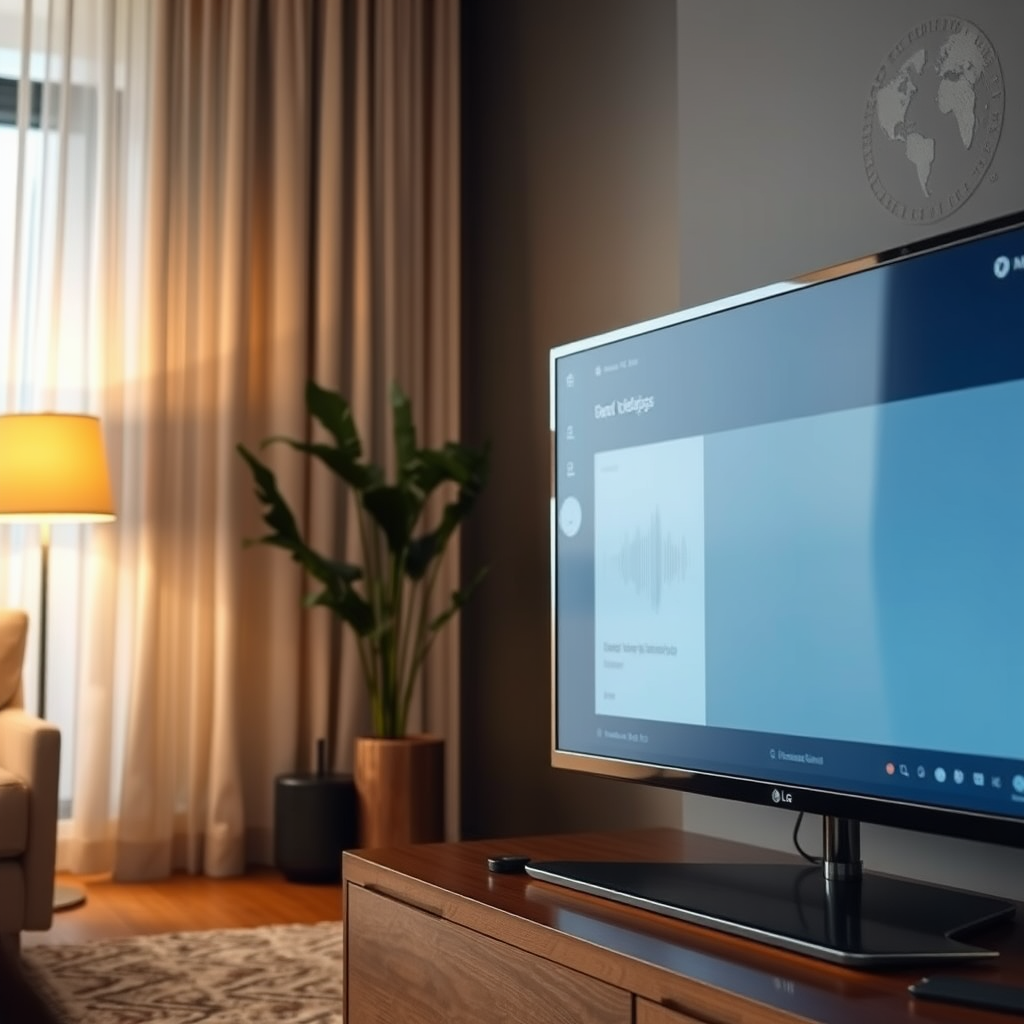
Once your connections are confirmed, the next step is to access your TV’s audio settings menu. This is crucial for ensuring that the sound output is set to the correct device. Navigate to the settings menu on your LG TV, typically found under the “Sound” or “Audio” section. Look for options like “Audio Output” or “Sound Out” and ensure that your sound system is selected.
Additionally, check for any audio enhancements, such as Dolby Atmos or surround sound settings. While these features can enhance audio quality, they can sometimes cause compatibility issues with certain sound systems. Temporarily turning off these enhancements may help you determine if they are the cause of the detection issue.
Test with Different Devices
If your sound system is still not detected, try connecting a different audio device to the TV. This could be a Bluetooth speaker, another sound system, or even headphones. If the TV recognizes the new device, the issue may lie with the original sound system rather than the TV itself.
Furthermore, consider using another HDMI cable or optical cable to rule out any cable-related issues. Cables can wear out over time, leading to connectivity problems. Testing with different cables will help ensure that the issue isn’t due to faulty wiring.
Common Sound System Types and Their Compatibility (2023)
| # | Sound System Type | Compatible LG TV Models | Connection Type | Audio Quality |
|---|---|---|---|---|
| 1 | Soundbar | LG OLED, LG UHD | HDMI, Optical | High |
| 2 | Home Theater System | LG OLED, LG NanoCell | HDMI, RCA | Very High |
| 3 | Bluetooth Speaker | LG Smart TVs | Bluetooth | Medium |
| 4 | AV Receiver | LG OLED, LG UHD | HDMI, Optical | High |
| 5 | Portable Speaker | LG Smart TVs | Bluetooth, AUX | Low |
| 6 | Sound Base | LG OLED, LG UHD | HDMI, Optical | High |
| 7 | Wireless Subwoofer | LG OLED, LG Smart TVs | Bluetooth | Medium |
Perform a Factory Reset
If none of the above steps resolve the issue, consider performing a factory reset on your LG TV. This should be a last resort, as it will erase all your custom settings and preferences. Before proceeding, back up any important data or settings. To perform a factory reset, navigate to the settings menu, usually found under “General” or “Support,” and select “Reset to Initial Settings.”
It’s essential to note that a factory reset can sometimes resolve issues caused by corrupted settings or software glitches. After the reset, you will need to reconfigure your TV settings and reconnect your sound system.
Update Firmware
Keeping your LG TV firmware updated is crucial for ensuring compatibility with various devices, including sound systems. Outdated firmware can lead to connectivity issues, so regularly check for available updates. To do this, go to the settings menu and select “About This TV” or “Software Update.” Follow the manufacturer’s instructions to update your device safely.
Updating firmware not only resolves compatibility issues but can also introduce new features and enhancements to your TV, improving your overall viewing experience.
Consult the User Manual
If you’re still having trouble, it’s wise to refer to the user manuals for both your LG TV and sound system. These manuals often contain specific troubleshooting steps tailored to your equipment. Look for troubleshooting sections that may provide additional insights specific to your model.
Additionally, online resources and forums can be valuable, as they often include user experiences and solutions to similar problems encountered by other users.
Seek Professional Help
If you’ve tried all the above steps and the issue remains unresolved, it may be time to seek professional help. Contact LG customer support or a qualified technician for assistance. They can provide deeper insights into potential hardware issues or compatibility concerns.
Moreover, discussing the problem with your sound system’s manufacturer may yield useful information regarding known issues or updates that could enhance compatibility with LG TVs.
In conclusion, troubleshooting an LG TV that is not detecting a sound system involves systematically checking connections, verifying settings, testing with different devices, and considering firmware updates or professional assistance. By following these steps, you should be able to identify and resolve the issue effectively, returning to an optimal audio experience in no time. Take action now to restore your sound setup!
Frequently Asked Questions
Why is my LG TV not detecting my sound system?
If your LG TV is not detecting your sound system, it could be due to several reasons such as incorrect cable connections, settings misconfiguration, or compatibility issues. Ensure that all cables are securely connected, and check the audio settings on your TV to confirm that the correct output is selected. Additionally, verify that your sound system is powered on and set to the appropriate input source.
How can I troubleshoot sound issues on my LG TV?
To troubleshoot sound issues on your LG TV, start by performing a basic check of your audio settings and make sure that the volume is not muted. You can also try resetting the TV’s audio settings to default or disconnecting and reconnecting any external sound systems. If the problem persists, consider updating your TV’s firmware or using a different audio output method.
What connections should I use to link my LG TV to an external sound system?
The best connections to link your LG TV to an external sound system include HDMI ARC, optical audio, or RCA cables. HDMI ARC is preferred for its ability to carry high-quality audio and allow for easier control with a single remote, while optical audio provides a reliable digital connection. Ensure that you select the correct audio output on your TV corresponding to the connection type used.
Which settings should I check if my LG TV is not recognizing my soundbar?
If your LG TV is not recognizing your soundbar, check the audio output settings in the TV menu to ensure that the soundbar is selected as the output device. Additionally, verify that the soundbar is set to the correct mode, such as HDMI ARC or Bluetooth, depending on how you’ve connected it. Restarting both devices can also help refresh the connection.
What can I do if my LG TV detects the sound system but there’s still no sound?
If your LG TV detects the sound system but there is still no sound, first check the volume levels on both the TV and the sound system to ensure they are turned up. Next, inspect the audio format settings; some sound systems may not support certain audio formats. If issues continue, try disconnecting and reconnecting the sound system or performing a factory reset on the audio device.
References
- Product Support: Help Library | LG USA Support
https://www.lg.com/us/support/help-library/how-to-fix-lg-tv-sound-issues-CT10000018-201500079563 - https://www.lifewire.com/lg-tv-not-detecting-sound-bar-5072485
https://www.lifewire.com/lg-tv-not-detecting-sound-bar-5072485 - Google Scholar Google Scholar
https://scholar.google.com/scholar?q=LG+TV+not+detecting+sound+system+troubleshooting - Google Scholar Google Scholar
https://scholar.google.com/scholar?q=LG+TV+sound+issues+troubleshooting - Google Scholar Google Scholar
https://scholar.google.com/scholar?q=TV+audio+problems+fixes - Reddit – The heart of the internet
https://www.reddit.com/r/television/comments/9r6k7v/lg_tv_not_detecting_sound_system_troubleshooting/ - Google Scholar Google Scholar
https://scholar.google.com/scholar?q=LG+TV+Not+Detecting+Sound+System?+Troubleshooting+Guide - LG TV Not Detecting Sound System? Troubleshooting Guide – Search results
https://en.wikipedia.org/wiki/Special:Search?search=LG+TV+Not+Detecting+Sound+System?+Troubleshooting+Guide - https://www.ncbi.nlm.nih.gov/search/research-articles/?term=LG+TV+Not+Detecting+Sound+System?+Troubleshooting+Guide
https://www.ncbi.nlm.nih.gov/search/research-articles/?term=LG+TV+Not+Detecting+Sound+System?+Troubleshooting+Guide
