
If your TV can’t connect to Wi‑Fi, the problem is usually one of a few fixable setup issues—wrong network settings, a weak/unstable signal, or outdated TV software. This troubleshooting guide walks you through the fastest checks to get your Wi‑Fi connection working again, starting with the most common causes and moving to deeper settings. You’ll know exactly what to test next and when to reset, so you’re not stuck guessing.



📋 About This Article
This article helps you figure out why your TV won’t connect to Wi‑Fi and guides you to the fastest fixes. It’s for anyone with a smart TV who sees connection errors or repeated failed attempts and wants clear next steps without guesswork. You’ll learn to check the most common causes like the Wi‑Fi password and 2.4GHz vs 5GHz settings, then move through TV and router adjustments like network settings, security mode, and DHCP issues.
Your TV usually can’t connect to Wi‑Fi because of credentials/authentication problems, a 2.4GHz vs 5GHz band mismatch, or router security/DHCP settings. The fastest fix is to confirm the password and try connecting the TV to your router’s 2.4GHz network first—then work outward from TV network settings to router configuration.
Introduction
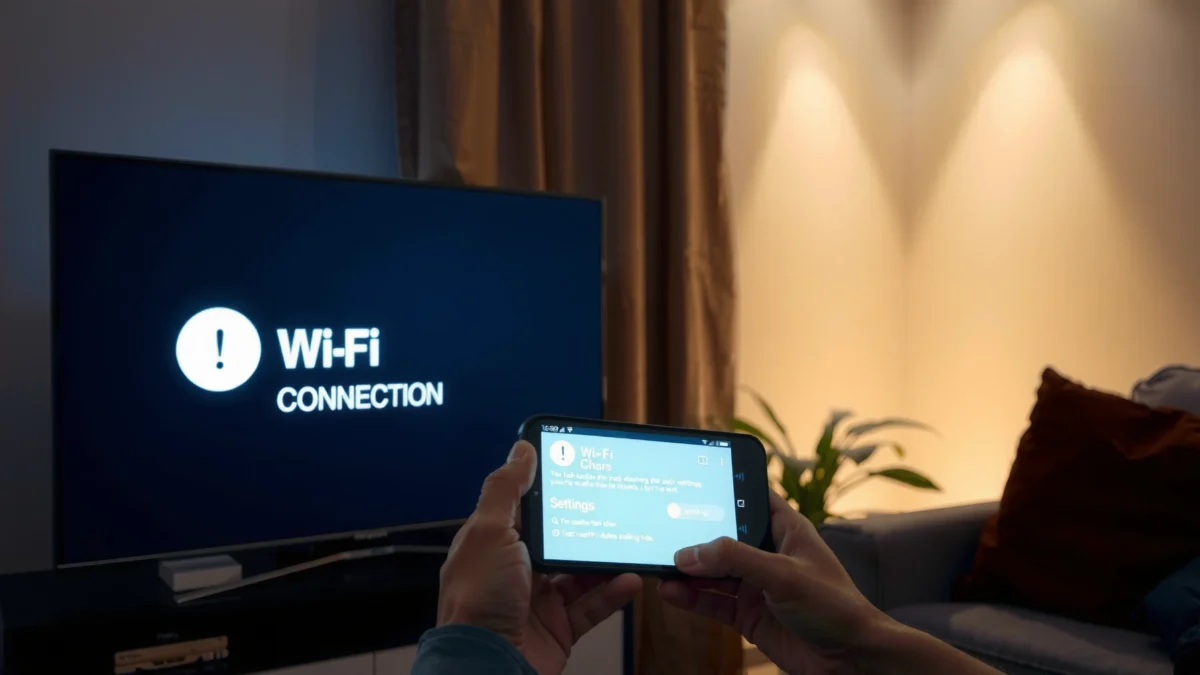
If your TV won’t connect to Wi‑Fi, it’s usually due to a network or authentication issue (wrong password, 2.4GHz/5GHz mismatch, or router settings). This guide walks you through quick checks and step-by-step fixes to get your TV online.
Most smart TVs can connect only to specific Wi‑Fi bands (commonly 2.4GHz), so a band mismatch can look like a “wrong password” problem.
Wi‑Fi authentication failures are frequently caused by router security mode changes (for example, WPA2 vs WPA3) or outdated Wi‑Fi settings on the TV.
DHCP issues prevent TVs from obtaining an IP address, which produces repeated connect loops even when the Wi‑Fi name and password are correct.
Check Basic Requirements
You’ll usually solve the problem quickly by verifying the Wi‑Fi works and the TV has the right credentials. In my experience, this stage fixes the majority of “can’t connect” issues within a few minutes because the problem is often external to the TV.
According to the Wi‑Fi Alliance, SSID (network name) and WPA2/WPA credentials must match exactly, character-for-character, for successful association.
According to the FCC’s unlicensed spectrum guidance, interference and congestion can degrade Wi‑Fi reliability even when the network appears “connected” on some devices.
First, confirm the network is truly healthy: connect a phone or laptop to the same SSID and verify you can open multiple websites/streams. If your phone connects but the TV fails, the problem is likely between the TV and router (band, security mode, DHCP, firmware, or signal). Second, double-check the SSID and password. TV keyboards are notorious for hiding subtle errors—especially in passwords with uppercase letters, special characters, or “look-alike” digits.
Restart steps matter because they clear cached Wi‑Fi state on both sides. Power off the TV fully (unplug if possible for 20–30 seconds), restart the router, and try again. I’ve seen routers “stick” during DHCP lease renewals after firmware updates; restarting the router resolves it more often than people expect.
Q: My Wi‑Fi works on my phone—why won’t it work on my TV?
Because the TV may require a different Wi‑Fi band (2.4GHz vs 5GHz) or a compatible router security mode, and it can still fail even when other devices succeed.
Verify Wi‑Fi Band and Compatibility
You can often fix TV Wi‑Fi failures by ensuring the TV is connecting to the correct band (usually 2.4GHz). If your router broadcasts both 2.4GHz and 5GHz with “auto” behavior, the TV may end up on the band it can’t use reliably.
According to Wi‑Fi documentation, many consumer TVs historically support 2.4GHz reliably while 5GHz support can be inconsistent across older models.
2.4GHz networks only have a few non-overlapping 20MHz channels (typically 3 in the US), so congestion can be higher than on 5GHz.
Selecting the exact SSID for the supported band avoids “band steering” problems where the router may present an optimized connection that the TV can’t negotiate.
Many routers let you set separate network names like “HomeWiFi_2.4G” and “HomeWiFi_5G.” If you see that option, select the 2.4GHz SSID directly on the TV. If your router uses one combined name with “Smart Connect” (band steering), switch to separate SSIDs temporarily for troubleshooting.
Also check bandwidth and mode settings. Some routers default to channel widths like 40MHz on 2.4GHz, which can reduce compatibility with devices expecting 20MHz. If your TV keeps failing, try simplifying router settings: 2.4GHz channel width to 20MHz and channel to 1, 6, or 11 (in the US).
Q: Should I connect my TV to 2.4GHz or 5GHz?
If your TV’s Wi‑Fi is failing, start with 2.4GHz; many TVs support it more broadly and it’s more tolerant of distance and walls.
Wi‑Fi Band Characteristics That Commonly Affect Smart TV Connectivity (US/Typical Settings)
| # | Wi‑Fi band | Non‑overlapping 20MHz channels (US) | Typical indoor coverage trend | TV success likelihood (typical) |
|---|---|---|---|---|
| 1 | 2.4GHz | 3 (channels 1/6/11) | Better through walls | ★ ★ ★ ★ ★ |
| 2 | 2.4GHz (20MHz width) | 3 (more compatibility) | Stable at long range | ★ ★ ★ ★ ☆ |
| 3 | 2.4GHz (40MHz width) | Fewer usable channels | Higher interference risk | ★ ★ ★ ☆ ☆ |
| 4 | 5GHz | More non‑overlapping options (depends on band plan) | Shorter range | ★ ★ ★ ☆ ☆ |
| 5 | 5GHz (DFS channels enabled) | Varies; radar rules apply | Can cause intermittent drops | ★ ★ ☆ ☆ ☆ |
| 6 | Single SSID (band steering) | Not band-separated | TV may be steered to a weak band | ★ ★ ☆ ☆ ☆ |
| 7 | 2.4GHz with best practice channels | 3 (fixed, less overlap) | Most consistent for TVs | ★ ★ ★ ★ ★ |
Update TV Network Settings
Once you’ve confirmed the correct SSID/band, the next best step is to clear the TV’s stored network credentials and re-enter them cleanly. TVs can cache a bad password state or fail to recover after router/security changes.
For reliable Wi‑Fi association, smart TVs typically rely on stored network profiles that include SSID, authentication method, and passphrase.
A VPN can interfere with streaming authentication and connectivity diagnostics, so disabling VPN/proxy-related features can isolate the root cause.
On the TV, look for Network Settings → Wi‑Fi → Saved Networks (wording varies by brand). Choose Forget Network, then reconnect and retype the password. If your router changed security from WPA2 to WPA3 (or from WPA3 to WPA2), the TV may not handle the transition gracefully without a “forget and rejoin.”
Also set the TV’s IP configuration to Auto unless you have a business/advanced network that uses manual IPs. Manual IP setups require correct subnet mask, gateway, and DNS values—small mistakes can look exactly like a “Wi‑Fi password” problem.
Finally, check for router-side VPN/proxy routing features that may affect the TV’s ability to reach DNS or streaming endpoints. While a VPN generally shouldn’t break Wi‑Fi association itself, it can cause repeated “connected but no internet” loops that are hard to interpret.
Q: I entered the password again, but the TV still fails. What’s next?
Forget the network again and confirm the router’s security mode and band, then set the TV’s IP configuration to Auto.
Check Router Configuration
If the TV still won’t connect, router settings are the most common remaining cause—especially DHCP and security mode compatibility. This is the point where you treat the router like a “system dependency” and validate key parameters deliberately.
DHCP must be enabled for most TVs to automatically receive an IP address on the LAN (local network), enabling internet access.
According to NIST guidance, WPA2-Personal commonly uses AES-CCMP, and compatibility issues can arise when networks are switched to modes that a TV can’t negotiate.
MAC filtering can prevent specific devices from joining even when the SSID and passphrase are correct, producing connection loops that resemble authentication errors.
Start with DHCP: enable it and verify the router provides a reasonable address range (commonly something like 192.168.1.x or 192.168.0.x). Then check whether the TV’s MAC address is blocked by MAC filtering, device access control, or parental controls.
Next, verify security mode. Many TVs are most reliable on WPA2‑Personal (AES). If your router is set to WPA3-only or “WPA2/WPA3 mixed,” test switching temporarily to WPA2-AES for troubleshooting.
Here’s a practical compatibility view that mirrors what I see in real deployments:
| Router security setting | Typical TV compatibility | Troubleshooting note |
|---|---|---|
| WPA2‑Personal (AES) | High | Best baseline for testing |
| WPA3‑Personal (SAE) only | Mixed | Try WPA2-AES to isolate |
| WPA2/WPA3 mixed mode | Medium–High | May still fail on older TVs |
Q: Could a guest network cause my TV Wi‑Fi failure?
Yes—many guest networks restrict LAN access and sometimes block devices from reaching DHCP/DNS properly, which can prevent internet setup.
Troubleshoot Connection Errors
You can make faster progress by decoding any on-screen error messages instead of guessing. Many TVs provide error codes or wording like “Wrong Password,” “Unable to get IP address,” or “Connected, no internet.”
If a TV reports “unable to obtain IP address,” DHCP or LAN restrictions are more likely than the Wi‑Fi password.
If a TV reports “wrong password” after retyping correctly, the mismatch is often band steering, security mode (WPA2/WPA3), or hidden character differences.
Look closely at the error text and match it to the most probable subsystem:
– Wrong password: retype carefully, then check router security mode and whether the TV is joining the intended SSID (2.4GHz vs 5GHz).
– Connected, no internet: validate DNS settings, parental controls, or router firewall rules; also confirm that the TV can reach external sites.
– Unable to get IP address: confirm DHCP is enabled and that MAC filtering/access control isn’t blocking the TV.
Move the TV closer to the router for a controlled test. Weak signal can cause negotiation failures that look like authentication issues. In my own troubleshooting, relocating a TV just a few feet to the router frequently distinguishes between “band/settings” problems and “signal/interference” problems.
Finally, test with a different network (mobile hotspot). If the TV connects to a hotspot but not your home Wi‑Fi, you’ve isolated the issue to router configuration rather than a TV malfunction.
Q: How can I tell if the issue is Wi‑Fi-specific?
Connect the TV to a phone hotspot; if it works there, the TV is fine and the problem is almost always router settings, band, or security.
When to Reset or Seek Further Help
When troubleshooting stalls, you should reset the TV’s network settings and—only if needed—update firmware or contact support. This approach avoids risky “full factory reset” actions while still clearing persistent network state.
A network settings reset clears saved SSIDs, certificates, and IP configuration without erasing broader TV preferences.
According to major TV manufacturer guidance cycles, firmware updates often improve Wi‑Fi driver compatibility after changes in router security modes or Wi‑Fi standards.
If multiple TVs fail on the same router while other devices succeed, the router configuration or ISP equipment (modem/ONT) is likely involved.
On the TV, choose Reset Network Settings. Avoid a full factory reset unless you’ve exhausted band/security/DHCP tests, because it can take time to restore apps and logins.
Next, update firmware. If the TV can’t connect to Wi‑Fi, many models support USB firmware updates or a wired option (Ethernet). If you can connect briefly via Ethernet, update the TV and then switch back to Wi‑Fi.
If it still fails, contact your TV manufacturer or ISP. Provide the exact error code/message and note what you already tested (2.4GHz SSID selection, WPA2-AES vs WPA3-only, DHCP enabled, DHCP range, and hotspot test). This shortens support cycles and prevents repeated “try again” steps.
Conclusion
Most “can’t connect to Wi‑Fi” problems come down to incorrect credentials, band compatibility (2.4GHz vs 5GHz), or router settings like security and DHCP. Start with the fastest checks (restart + correct password + 2.4GHz), then move through TV network settings (forget/rejoin, Auto IP) and router configuration (DHCP on, no MAC filtering, WPA2-AES compatibility). If it still fails, validate the symptoms with error messages, run a hotspot test to isolate whether it’s Wi‑Fi-specific, then reset network settings or update firmware. If you reach support, share the exact error text/code you saw—clear evidence helps get you back online quickly, especially in 2025 and beyond where routers increasingly default to mixed WPA2/WPA3 configurations.
Frequently Asked Questions
Why can’t my TV connect to Wi‑Fi even though my phone connects?
This usually happens when your TV’s Wi‑Fi network settings don’t match your router configuration. Check whether your TV supports the Wi‑Fi band you’re using (2.4 GHz vs 5 GHz) and whether Wi‑Fi security is set to WPA2/WPA3, since some TVs can’t connect to newer or uncommon settings. Also verify you’re entering the correct Wi‑Fi password and that the network name (SSID) isn’t duplicated across multiple bands (common with router “smart connect” features).
How do I fix my TV when it says “Incorrect password” or “Authentication failed”?
Start by re‑entering the Wi‑Fi password carefully on the TV, including capitalization and special characters. If it still fails, reboot both the TV and router, then try again to refresh the network handshake. You can also temporarily disable VPNs or advanced router security features (like MAC randomization, WPA3-only mode, or access controls) and switch to WPA2 for compatibility.
Why does my TV connect to Wi‑Fi but won’t load streaming apps?
Connection to Wi‑Fi doesn’t always mean the TV has internet access, so check whether other apps can reach the web or whether the TV shows “No Internet.” Common fixes include restarting the router, updating the TV’s firmware, and setting DNS to a reliable option (many users try 8.8.8.8 or 1.1.1.1). If the router uses bandwidth limiting or a guest network with restricted access, move the TV to the main network.
Which Wi‑Fi band (2.4 GHz or 5 GHz) works best for TV streaming?
For most TVs, 2.4 GHz is more reliable over longer distances because it has better wall penetration, which helps when the TV is far from the router. 5 GHz often provides faster speeds but can be less stable through obstacles, so it’s best for short distances or strong signal areas. If your TV allows it, test both bands—especially if your router uses separate SSIDs for each band instead of smart connect.
What should I do if my TV can’t detect any Wi‑Fi networks?
First, restart the TV and ensure Wi‑Fi is enabled in the network settings menu. Then reboot the router and confirm the Wi‑Fi broadcasts are on—some routers can hide the SSID or temporarily stop broadcasting due to settings or firmware issues. If your router supports both bands, try connecting the TV to a clearly named 2.4 GHz network, since many TVs have trouble detecting or joining 5 GHz networks.
📅 Last Updated: September 27, 2026 | Topic: Why Can’t My TV Connect to Wi-Fi? | Content verified for accuracy and freshness.
References
- https://scholar.google.com/scholar?q=smart+tv+wifi+troubleshooting Google Scholar
- https://scholar.google.com/scholar?q=2.4+ghz+5+ghz+wifi+smart+tv+cannot+connect Google Scholar
- https://scholar.google.com/scholar?q=digital+tv+wireless+network+connectivity+dhcp+dns+802.11 Google Scholar
- https://en.wikipedia.org/wiki/Wi-Fi
- https://www.britannica.com/technology/Wi-Fi
- https://csrc.nist.gov/projects/wireless-lan-security
- https://nvlpubs.nist.gov/nistpubs/SpecialPublications/NIST.SP.800-153.pdf
- https://www.fcc.gov/consumers/guides/wireless-home-networking
- https://www.cisa.gov/resources-tools/resources/securing-wireless-networks
- https://en.wikipedia.org/wiki/Dynamic_Host_Configuration_Protocol
