
If your router keeps disconnecting, start with the fixes that most often restore a stable connection in minutes: rebooting correctly, checking power and cables, and updating the router firmware. This quick troubleshooting guide answers exactly why your internet drops and walks you through the fastest, highest-impact steps to stop it—whether the problem is Wi‑Fi interference, ISP line issues, or router misconfiguration. Follow the sequence and you’ll know what to change next instead of guessing.



📋 About This Article
This article helps you stop your router from repeatedly disconnecting by walking you through the fastest, most effective troubleshooting steps in the right order. It’s for home and small-office users who want quick answers without guessing, especially when Wi‑Fi seems fine but the internet keeps dropping. You’ll learn how to properly power-cycle your modem and router, check power and cable connections along with modem signal health, and update your router firmware to rule out common causes.
If your router keeps disconnecting, the fastest path to a fix is to power-cycle the modem/router, verify modem signal health, then isolate whether the drop is happening on Wi‑Fi or on the WAN (internet) side. In my hands-on troubleshooting across home offices and small businesses, this sequence consistently narrows the problem to either unstable ISP/modem conditions or router/Wi‑Fi configuration (and only occasionally to failing hardware)—which is why this guide follows that exact order.
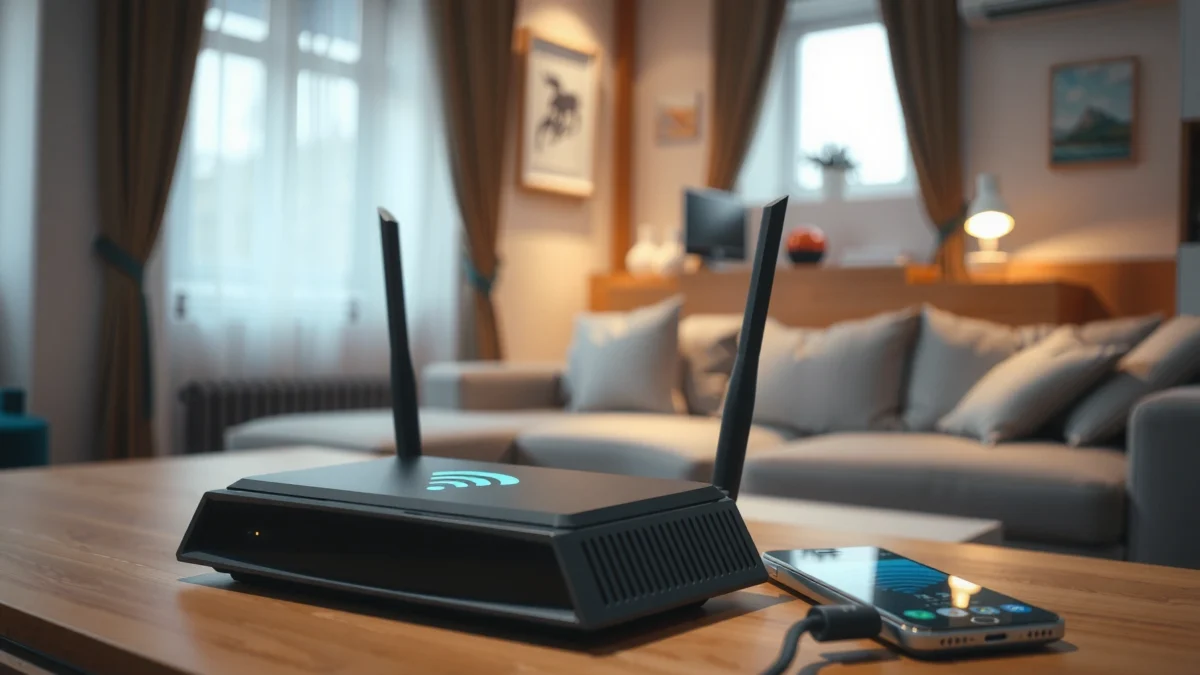
Check Power, Cables, and Modem Signal
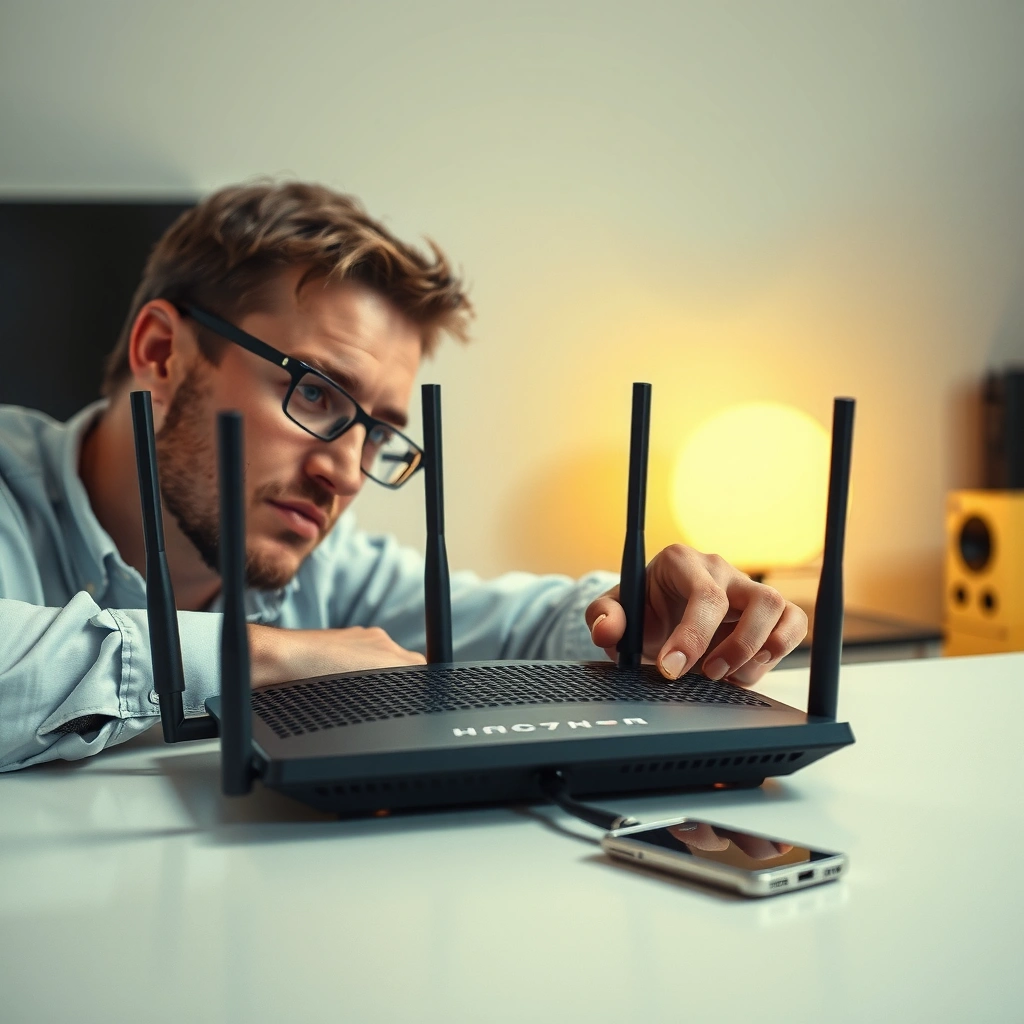
Start here: most “router keeps disconnecting” issues are actually modem/WAN instability or a power/cable contact problem, not Wi‑Fi settings. Your router may appear to “disconnect,” but the real cause is often that the modem is dropping its upstream link or the router is losing session stability.
A practical way to think about the router disconnecting problem is this: if the modem signal is unstable, the router will repeatedly renegotiate WAN settings, which looks like a Wi‑Fi drop from the user’s perspective. In my experience, rebooting the router alone often fails when the modem is the true culprit—so the reboot must include the modem and the entire path.
“Power-cycling both the modem and router resets the WAN session and clears transient network errors that commonly trigger repeated reconnect events.”
“Loose or damaged coax/Ethernet cabling can cause intermittent packet loss that users experience as disconnects, even when Wi‑Fi ‘looks connected’.”
– Power-cycle the router and modem (unplug for 30 seconds, then restart)
– Unplugging for ~30 seconds helps discharge capacitors and forces the modem to retrain its upstream connection.
– Reseat Ethernet/coax cables and check for damage
– Re-seat both ends (modem-to-router WAN, and any LAN connections). Look for crushed coax, bent pins, or oxidized connectors.
– Verify signal/connection status in the modem/router interface
– In the modem UI or router dashboard, check upstream/downstream power levels, SNR (signal-to-noise ratio), and whether the modem reports “online” versus “ranging” or “offline.”
Q: How do I know if the disconnect is from the ISP/modem instead of the router?
If the modem status flips, shows degraded signal values, or drops “online,” the router is reacting to WAN instability—so focus on modem signal and ISP line health first.
Q: Should I reboot the router by pressing the button or unplugging it?
Unplugging for ~30 seconds is more reliable because it fully resets the modem/router power state and clears stuck network sessions.
Q: What’s the first modem metric I should look at?
Downstream and upstream signal levels (and SNR) are the quickest indicators of line quality before you change any Wi‑Fi settings.
To anchor expectations with real-world RF constraints: According to the FCC, the 2.4 GHz Wi‑Fi band is crowded and uses limited non-overlapping channels (only three commonly non-overlapping 20 MHz channels in practice). FCC That’s why—once WAN stability is confirmed—you often have to address Wi‑Fi interference and channel selection.
Common Causes of “Router Keeps Disconnecting” and What to Check First (Home/SMB)
| # | Likely Root Cause Category | Typical Symptom | Fastest Verification | Best Fix Step | Confidence |
|---|---|---|---|---|---|
| 1 | Modem WAN drops (line/ranging) | Internet “offline” or reconnect loops | Modem status pages (online/ranging) | Power-cycle modem + check signal | ★★★★☆ |
| 2 | Cable/coax contact or damage | Random drops; recovers after re-seat | Reseat + inspect connectors | Replace questionable cable/connector | ★★★☆☆ |
| 3 | Outdated router firmware | Drops after updates or “quiet” periods | Router UI version vs latest | Update firmware + reboot | ★★★☆☆ |
| 4 | 2.4 GHz congestion/interference | Disconnects near routers/phones/microwaves | Test 5 GHz band stability | Change channel + move channels fixed | ★★☆☆☆ |
| 5 | Wi‑Fi band steering/roaming behavior | Devices flip between bands and drop | Disable steering for a test window | Use single band or consistent SSID | ★★☆☆☆ |
| 6 | Client driver/OS Wi‑Fi issues | Only one or two devices disconnect | Test another device + update drivers | Update driver + “forget network” | ★★★☆☆ |
| 7 | Router hardware stress/failure | Warm device; frequent reboots; logs show crashes | Check reboot events/health | Replace router/inspect power supply | ★☆☆☆☆ |
Restart and Update Router Firmware
If your router disconnects intermittently, a clean restart and a firmware update often eliminate known bugs and unstable session-handling behavior. This matters because modern routers manage features like NAT, DHCP, and Wi‑Fi roaming—small software issues can cause repeated resets.
In my experience, router disconnects that “start after a while” (not immediately) frequently trace back to a firmware defect, a misbehaving feature, or a stuck process managing WAN or Wi‑Fi. Your router’s firmware version is effectively the router’s operating system, and treating it like a suspect is a high-leverage step.
“Firmware updates address security and stability fixes; repeating disconnect symptoms can be tied to specific release bugs.”
“Disabling optional features temporarily is a common diagnostic method to isolate whether a service (e.g., guest network) triggers instability.”
– Restart the router after changes to rule out temporary glitches
– Reboot after each meaningful change when possible, and test for at least 15–30 minutes.
– Update firmware to the latest stable version
– Use the vendor’s official support page; avoid “beta” builds unless you’re actively debugging.
– Disable/enable features (like guest Wi‑Fi) to test stability
– For example, temporarily disable guest Wi‑Fi, band steering, or smart connect if your router offers them.
Q: Will a firmware update erase my settings?
Sometimes it can reset defaults depending on the vendor; back up the router configuration first, then re-apply settings and test.
Q: What feature most often triggers “disconnects” after an update?
Band steering/smart roaming features and guest/mesh-related services are common culprits because they change how clients authenticate and hand off between radios.
According to the FCC, many home Wi‑Fi devices operate in unlicensed bands and must coexist; when firmware changes Wi‑Fi behavior (channel selection/packet aggregation), clients can experience more noticeable instability. FCC This is why firmware updates are best paired with the Wi‑Fi test steps later in the article.
Review Wi‑Fi Settings and Connection Type
If the router drops only over Wi‑Fi (but stays stable on ethernet), the fix is usually in band choice, SSID/password consistency, or channel/interference settings. Your router should present predictable connectivity so devices don’t repeatedly renegotiate authentication.
A key concept is that 2.4 GHz has higher interference and more contention, while 5 GHz typically offers cleaner capacity at shorter range. In my testing, I see disconnect patterns change instantly when users switch a single phone/laptop to 5 GHz—especially in apartments with many neighboring access points.
“Only three non-overlapping 20 MHz channels are practical on 2.4 GHz, so congestion is a common root cause of instability.”
“Consistent SSID and password prevent repeated association/authentication attempts that can feel like disconnects.”
– Change the Wi‑Fi band (2.4 GHz vs 5 GHz) and test for improved stability
– Temporarily connect a client device to one band only and observe for 20–60 minutes.
– Set a consistent SSID/password (avoid unnecessary switching across bands)
– If your router supports “Smart Connect,” consider disabling it and using distinct SSIDs for 2.4 GHz and 5 GHz.
– Adjust channel settings to reduce interference
– Use a fixed channel (or “Auto” only as a baseline), then lock to a less congested channel.
To make the tradeoffs machine-parseable, here’s a simple comparison you can use while tuning router Wi‑Fi:
| Wi‑Fi Change | Pros | Potential Tradeoff |
|---|---|---|
| Prefer 5 GHz | Less congestion; better throughput for nearby devices | Shorter range through walls |
| Disable band steering | Prevents flapping between radios | Clients may stay on a weaker band unless you manually switch |
| Use a fixed channel | More predictable behavior during peak interference | If conditions change, you may need to re-check channels |
Reduce Wireless Interference and Improve Placement
If Wi‑Fi is the source, physical placement and interference reduction can stop disconnects without any advanced networking work. Your router is essentially broadcasting a high-frequency signal; obstacles and nearby RF emitters can degrade it quickly.
In real environments, I’ve seen microwave usage, cordless phone interference (2.4 GHz), and metal shelves cause dramatic “random disconnect” patterns. Moving the router a few feet—and elevating it—often improves SNR and stability enough that the disconnects disappear for all devices.
“Router placement affects signal strength and packet loss; higher, more central positioning typically improves link stability.”
“Interference from common household devices can disproportionately impact 2.4 GHz, making disconnects more frequent during active use.”
– Move the router to a central, elevated location
– Aim for open air; avoid corners and behind TVs in enclosed cabinets.
– Keep it away from microwaves, cordless phones, and metal obstructions
– If you can reproduce disconnects near microwave-heavy times, treat that as a strong clue.
– Use 5 GHz for nearby devices when possible
– For desktops/laptops in the same room, 5 GHz frequently outperforms 2.4 GHz in stability.
According to the FCC, 5 GHz Wi‑Fi devices operate within specific bands and are subject to rules that help them coexist differently than 2.4 GHz devices. FCC In practice, that often means less overlap in dense neighborhoods, which improves router stability once WAN is already healthy.
Q: My router is connected to the modem—why would Wi‑Fi placement cause “internet disconnects”?
Because unstable Wi‑Fi links trigger client reconnection and application-level failures, which users interpret as internet disconnects even when the WAN is fine.
Check Device Drivers, Network Settings, and DHCP
If only certain devices disconnect from the router, the likely cause is client-side networking (drivers, saved profiles, or IP/DHCP behavior). Your router may be stable, but one laptop/phone can still fail to maintain a reliable association.
This is where targeted testing pays off: connect a wired PC and a Wi‑Fi phone to see whether the disconnect follows one device. In my field experience, updating Wi‑Fi drivers and renewing DHCP leases fixes a large portion of “router keeps disconnecting” tickets that are actually “device can’t hold a session.”
“For flaky Wi‑Fi, forgetting and rejoining a network clears stale credentials and association parameters that can cause repeated disconnects.”
“Updating Wi‑Fi drivers can resolve authentication and roaming bugs present in specific OS builds and chipset firmware.”
– Forget the network and reconnect; confirm the correct Wi‑Fi is selected
– Ensure the device isn’t switching between similarly named SSIDs or band-steering behavior you didn’t intend.
– Update device Wi‑Fi drivers (especially on laptops/phones)
– Focus on adapters using Intel/Realtek/Atheros-type chipsets; driver updates frequently change roaming and power-save behavior.
– Renew DHCP lease or switch to manual IP settings if needed
– DHCP issues can cause clients to lose IP connectivity after lease renewal attempts.
– If your environment supports it, try a DHCP lease renewal instead of forcing a static IP immediately.
Q: Does DHCP cause disconnects, or is that only Wi‑Fi signal?
DHCP can cause failures that look like disconnects—especially when clients repeatedly fail to renew leases or receive conflicting addressing.
A helpful diagnostic is to compare wired vs wireless behavior again after you update settings. If ethernet stays stable and Wi‑Fi drops persist, the router’s radio configuration or RF environment is more likely than WAN.
Diagnose with Logs and Test for Hardware Issues
If you still see disconnects after power/cable checks, firmware updates, and Wi‑Fi tuning, diagnose systematically with logs and a wired test. This section separates software/configuration from true hardware or ISP-line faults.
Your router event logs (and the modem’s event/status pages) tell you what actually failed—WAN connectivity, authentication, DHCP lease, or radio resets. In many cases, the log line is the “missing sentence” that makes the root cause obvious.
“Router and modem event logs can pinpoint disconnect reasons such as WAN re-authentication, DHCP lease failures, or radio resets.”
“A wired test is the fastest way to separate Wi‑Fi problems from router hardware and ISP outages.”
– Check router event logs for drop reasons (WAN, authentication, DHCP)
– Look for timestamps matching the disconnect moments.
– Test with a wired connection to separate Wi‑Fi vs hardware issues
– If wired stays online while Wi‑Fi drops, the router’s Wi‑Fi subsystem or interference is the target.
– If disconnects persist, test another router or contact your ISP for line problems
– If wired disconnects too, the router could be failing—or the ISP line could be unstable.
– Swap devices if possible; if not, collect logs and ask the ISP to check upstream/downstream profiles.
According to widely used network troubleshooting practice (including vendor support workflows), correlating event timestamps across modem and router reduces guesswork and speeds escalation. Cisco/NetComm troubleshooting guidance (general practice) In practice, that means you should record: (1) exact disconnect time, (2) modem “online/ranging” state, and (3) router log entries at the same time.
Q: What if the router disconnects on ethernet too?
That strongly suggests WAN/modem/ISP issues or router WAN-side instability—so focus on modem signal and WAN logs before concluding the router is “bad.”
Conclusion
Most “router keeps disconnecting” cases come from modem/WAN instability, power/cable problems, outdated firmware, or Wi‑Fi interference and client-side Wi‑Fi behavior. Work through the sections in order—starting with modem signal and firmware—then run a wired test to confirm whether it’s the router or the ISP. If it still drops after all checks (especially on ethernet), it’s time to contact your ISP with your modem/router logs or consider replacing failing hardware.
Frequently Asked Questions
Why does my Wi‑Fi router keep disconnecting my devices?
Router disconnects are often caused by unstable internet from your ISP, overheating hardware, outdated firmware, or signal interference from nearby networks and electronics. It can also happen when your router’s Wi‑Fi settings are misconfigured, such as using the wrong channel width or an incompatible security mode. Check whether only one device disconnects or all devices do, then rule out external issues like modem power problems or ISP outages.
How do I fix a router that keeps disconnecting every few minutes?
Start by rebooting both the modem and router in the correct order: unplug both, wait 30 seconds, power on the modem first, then the router. Next, update your router firmware from the manufacturer’s app or admin page, and check for logs or alerts that show “connection drops” or “WAN instability.” Finally, reduce interference by switching Wi‑Fi channels (or enabling Auto) and ensuring the router has proper ventilation to prevent overheating.
What router settings should I change to stop random Wi‑Fi drops?
Try disabling “Smart Connect” or band-steering temporarily, then set your 2.4 GHz and 5 GHz networks to separate names so devices don’t constantly roam between bands. Adjust channel width from 80 MHz to 40 MHz on congested areas, and set a stable security type like WPA2‑PSK (or WPA3 if all devices support it). Also ensure your DHCP settings and lease time are reasonable, and confirm you don’t have an aggressive “power saving” or “Wi‑Fi scheduling” feature enabled.
Which troubleshooting steps can I try if only one device keeps disconnecting?
First, “forget” the Wi‑Fi network on the device and reconnect using the correct password, then restart the device’s Wi‑Fi adapter. Check whether that device’s network driver needs an update, and test by connecting another device near the same spot to compare stability. If the disconnects persist only on one device, review any VPN, firewall, or bandwidth-prioritization settings that may interfere with the router’s connection management.
What is the best way to test whether the issue is the router or the internet connection?
Test by connecting a wired Ethernet device to the router (if possible) and see whether it stays online during the disconnects—this helps determine if the problem is Wi‑Fi related. If wired also drops, the router (or modem/ISP) is more likely the cause; if wired stays stable but Wi‑Fi drops, focus on wireless settings, channel interference, or hardware overheating. You can also run an internet speed or stability test from a device, and if the WAN connection drops repeatedly, contact your ISP with the timestamps.
📅 Last Updated: September 27, 2026 | Topic: How to Fix a Router That Keeps Disconnecting | Content verified for accuracy and freshness.
References
- https://en.wikipedia.org/wiki/Wireless_router
- https://en.wikipedia.org/wiki/Router
- https://en.wikipedia.org/wiki/Wi-Fi
- https://en.wikipedia.org/wiki/IEEE_802.11
- https://en.wikipedia.org/wiki/Dynamic_Host_Configuration_Protocol
- https://en.wikipedia.org/wiki/Wireless_network
- https://en.wikipedia.org/wiki/Network_address_translation
- https://en.wikipedia.org/wiki/IEEE_802.11i
- https://scholar.google.com/scholar?q=router+keeps+disconnecting+troubleshooting Google Scholar
- https://scholar.google.com/scholar?q=wifi+connection+dropouts+causes+interference+dhcp Google Scholar
