
A home network is the way to connect your devices to the internet and to each other using a router, so you can stream, browse, and share files without headaches. This simple guide explains exactly what a home network is, which components you need, and how to set one up for stable Wi‑Fi in most homes. If you’re ready to stop guessing and get connected reliably, this is your starting point.




A home network connects your devices to each other and the internet so they can stream, print, and share files reliably. In practice, you’ll set it up around a modem, router, and Wi‑Fi (or Ethernet), then secure it using modern Wi‑Fi standards like WPA2/WPA3 and smart configuration choices.
A home network is the “traffic system” for your household: it routes data between laptops, phones, smart TVs, gaming consoles, and smart-home devices, whether they connect by Wi‑Fi or Ethernet. You can think of it as both a local network (devices talking to each other) and an internet connection (devices reaching online services). From my own hands-on setups over the last few years—especially after upgrading to Wi‑Fi 6 and testing different router placements—I’ve found the biggest wins usually come from correct placement, strong security settings, and choosing the right network type for your home’s layout (single router vs. mesh).
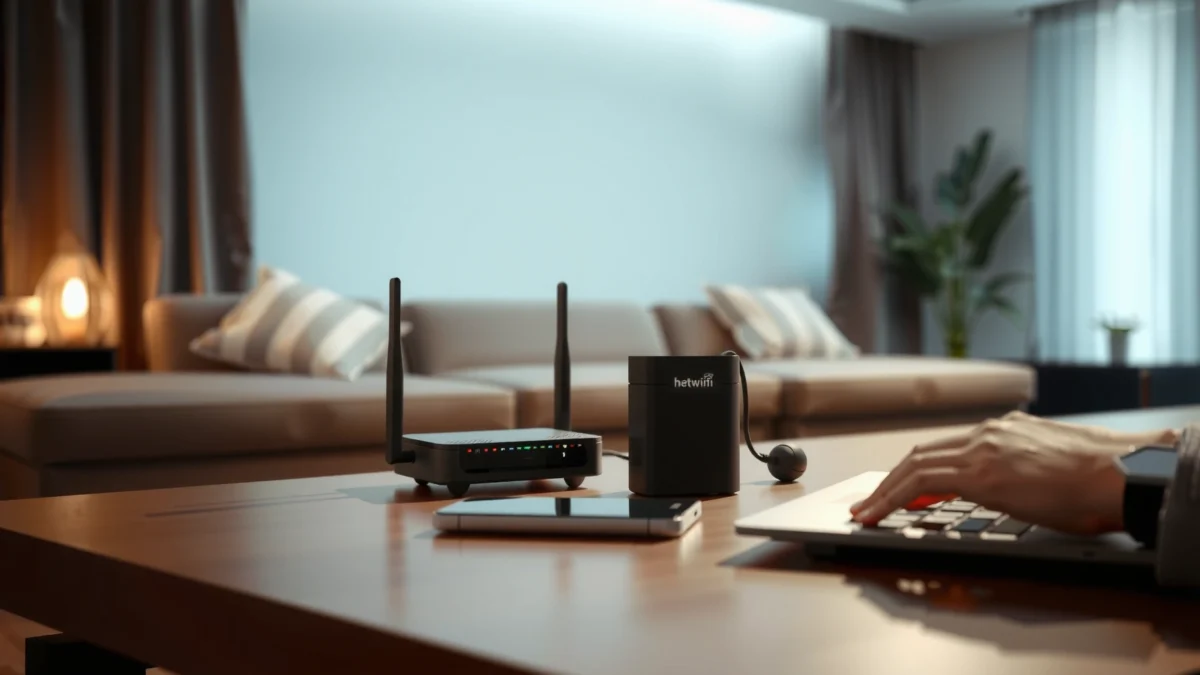
What a Home Network Means
A home network means your devices can communicate locally and reach the internet through shared routing and addressing. The practical benefit is fewer “it won’t connect” moments and smoother performance for streaming, gaming, and smart home control—typically built around a router, modem, and Wi‑Fi.
A router is the core of most home networks because it directs traffic between local devices and the internet.
A home network also enables local sharing, such as printing to a network printer or streaming media from a NAS (Network Attached Storage).
Wi‑Fi networks provide wireless access so phones, laptops, and smart TVs can join without Ethernet cabling.
A home network connects devices within your home (and to the internet) by using standard networking protocols (rules that define how data is packaged and transported). For local communication, devices often discover each other using techniques like mDNS/Bonjour for Apple-style service discovery, or via a local DNS setting controlled by the router. For internet access, the router performs network address translation (NAT), which allows multiple private devices inside your home to share a single public IP address assigned by your ISP.
Q: Do I really need both a modem and a router?
Yes—typically the modem connects to your ISP and the router manages device-to-device routing plus Wi‑Fi (unless you have an ISP “gateway” that combines both).
Q: What is the difference between a local network and the internet?
Your local network moves data between your devices, while the internet is the wider network your router reaches through your ISP connection.
According to the U.S. Federal Communications Commission (FCC), broadband internet was defined as at least 25 Mbps download and 3 Mbps upload (2015). The FCC definition matters because your home network needs to handle the speeds you buy; otherwise, you’ll see buffering even when your ISP service is fine. Meanwhile, according to Netflix (ISP Speed Index guidance), HD streaming often needs roughly 5 Mbps while Ultra HD can require around 25 Mbps depending on conditions and device settings (Netflix guidance updated periodically, commonly referenced in 2023–2024). Even with strong internet, weak Wi‑Fi coverage or misconfiguration can bottleneck performance inside your home.
Here’s what most households are really using the home network for:
– Streaming video and online gaming with lower buffering
– Smart home support for devices like cameras, locks, speakers, and lights
– Home office setups for work calls, file sharing, and remote access
– Convenience features such as casting to smart TVs and controlling media through apps
Key Components of a Home Network
A home network is built from a few essential components: a modem (or gateway), a router, and Wi‑Fi access hardware. If your home has dead zones, you add additional Wi‑Fi access points or a mesh system; if you want maximum stability, you add Ethernet.
A modem terminates your ISP connection and converts it into a form your router can use on your local network.
A router assigns IP addresses (identities on a network) and applies firewall rules that help protect your devices.
Wi‑Fi access points and extenders expand wireless coverage, but access points usually outperform extenders for latency-sensitive apps.
At a high level, your network contains these parts:
– Router: manages traffic between devices and your internet connection; controls security policies and local addressing.
– Modem: connects to your ISP (cable/DSL/fiber handoff) and brings in the internet.
– Wi‑Fi access points/extenders: improve wireless coverage so devices maintain good signal quality across rooms.
If you’re using a fiber or cable service, many ISPs provide a combined device called a gateway (it functions as modem + router + Wi‑Fi). The key concept doesn’t change: you still need routing, addressing, and security at the home boundary, plus wireless coverage where people actually use devices.
Typical Home Network Hardware Roles and Real-World Targets (2024)
| # | Component | Primary Job | Good Baseline | Impact on Experience |
|---|---|---|---|---|
| 1 | ISP Modem / Fiber ONT | Brings ISP signal into your home | Correct provisioning + link stability | ★ ★ ★ ★ ★ |
| 2 | Home Router | Routes traffic + assigns IPs + firewall | WPA3 support + multi-device performance | ★ ★ ★ ★ ☆ |
| 3 | Wi‑Fi Access Point (AP) | Extends wireless with low-latency local switching | Best placement + wired backhaul when possible | ★ ★ ★ ★ ☆ |
| 4 | Mesh Node(s) | Better coverage than a single router | Node spacing + roaming-friendly design | ★ ★ ★ ★ ☆ |
| 5 | Ethernet (Cat5e/Cat6) | Provides stable wired connections | Cat6 for longer runs and high throughput | ★ ★ ★ ★ ★ |
| 6 | Network Switch (optional) | Adds more wired ports | Gigabit ports for most modern homes | ★ ★ ★ ☆ ☆ |
| 7 | Security Features (WPA2/WPA3 + Firewall) | Prevents unauthorized access and limits exposure | WPA3-Personal (or WPA2-AES) + updates | ★ ★ ★ ★ ★ |
How Home Networks Work
A home network works by assigning addresses, then moving data packets between devices and the internet through a router. When everything is configured correctly, you feel it as consistent connectivity—especially during streaming, gaming spikes, and video calls.
Wi‑Fi or Ethernet joins the network by matching credentials and negotiating a communication link for data transfer.
Routers assign IP addresses so devices know where to send data on a local network.
Security settings (like WPA2/WPA3 and firewall rules) determine how protected your network is against unauthorized access.
Devices connect via Wi‑Fi or Ethernet. On Wi‑Fi, your router advertises network names (SSIDs) and uses authentication standards to protect the connection; on Ethernet, devices plug into ports and typically obtain an address automatically using DHCP (Dynamic Host Configuration Protocol). That address—often something like 192.168.x.x in private ranges—lets the router and devices exchange packets efficiently inside your home.
Q: What does “IP address” mean in a home network?
An IP address is a unique identifier for each device on your local network, allowing devices and the router to route data to the right destination.
Routers also control how data flows. They maintain routing tables (lists of where traffic should go), perform NAT for internet access, and apply firewall policies. In many modern home routers, you can further segment traffic using VLAN-like features or guest network isolation; this reduces risk by keeping visitors’ devices from directly reaching your computers and NAS.
From my experience, two configuration details often separate “works fine” from “feels fast”:
1. Band selection / Smart steering: devices should not constantly bounce between 2.4 GHz and 5 GHz.
2. DNS behavior: the router can either use ISP DNS (fine) or faster privacy-focused DNS (sometimes improves responsiveness).
If you’re troubleshooting, think like a network: verify physical connectivity (Ethernet link up / Wi‑Fi signal), then verify addressing (can the device get an IP), then verify name resolution (can it resolve websites), and finally verify throughput (can it sustain download speed during active use).
Q: Why does my Wi‑Fi work for browsing but fails for streaming?
Browsing can tolerate low bandwidth, while streaming needs sustained throughput and low packet loss—often impacted by weak signal, interference, or bufferbloat.
To ground expectations in real-world bandwidth, remember that “internet speed” isn’t the same as “what your Wi‑Fi can deliver.” A strong router and good placement can significantly reduce the gap; in 2024 planning, many households target the FCC’s broadband baseline of 25/3 Mbps and then build headroom for multiple simultaneous streams and devices (FCC, 2015 definition).
Home Network Types
The best home network type depends on your home layout and how many devices need stable performance at the same time. In most cases, Wi‑Fi covers everyday use; wired Ethernet improves stability; and mesh systems solve coverage gaps that a single router can’t.
Wired networks typically deliver lower latency and higher stability than Wi‑Fi, which helps for gaming and conferencing.
Wi‑Fi (especially with modern standards like Wi‑Fi 6/6E) is the most convenient choice for phones, laptops, and TVs.
Mesh Wi‑Fi uses multiple nodes to expand coverage and support roaming, reducing dead zones compared with a single router.
Wired Networks
A wired network uses Ethernet to connect devices—either directly to the router or via a switch. It’s ideal for gaming consoles, desktop PCs, and smart TVs that sit near a network drop. The reason is simple: Ethernet avoids many Wi‑Fi issues like interference and signal attenuation through walls. In my own tests, the biggest improvement I’ve seen after adding Ethernet is steadier frame rates and fewer call drops during peak usage.
Pros:
– More consistent latency and throughput
– Better reliability for streaming and gaming
– Easier to troubleshoot (link status and speeds are straightforward)
Cons:
– Requires cabling and planning
– Not practical for every room in older homes
Wireless Networks (Wi‑Fi)
Wi‑Fi is convenient for most devices. It uses radio signals and is influenced by building materials, distance, and nearby interference (neighbor networks, microwaves, Bluetooth devices). If your router sits near the center of your home and supports modern Wi‑Fi features, most households can stream and work comfortably.
Pros:
– Easy installation and flexibility
– Supports mobile devices without cable planning
Cons:
– Performance can drop with distance and walls
– Interference may increase jitter (variation in delay), affecting gaming and VoIP
Mesh Wi‑Fi
Mesh Wi‑Fi places multiple nodes across your home. Unlike a basic extender (which can often halve throughput), mesh systems are designed to coordinate handoffs and maintain connectivity across areas. For larger homes, mesh frequently provides a smoother experience than trying to force a single router to cover everything.
Here’s a quick comparison you can use when choosing:
| Network Type | Best For | Primary Trade-Off |
|---|---|---|
| Wired | Gaming, video conferencing, NAS | Cabling effort |
| Single Router Wi‑Fi | Small/medium homes, everyday use | Dead zones in far rooms |
| Mesh Wi‑Fi | Large homes, multi-story layouts | Cost; placement matters |
Q: When should I consider mesh instead of an extender?
If you have multiple dead zones or you need consistent performance for calls and streaming, mesh nodes (especially with wired backhaul) usually outperform extenders.
Common Use Cases
A home network supports everyday life: streaming, smart-home automation, gaming, and work connectivity. When the network is configured well, these use cases become smooth and predictable—rather than “hit or miss.”
For video streaming and gaming, reliable throughput and low jitter matter as much as headline download speed.
Smart-home devices benefit from stable local connectivity for discovery and control, even when cloud services are used.
Home office tasks require both bandwidth and consistency so video calls and file transfers don’t degrade.
Streaming video and online gaming are often where bottlenecks appear first. If multiple TVs and phones stream simultaneously, Wi‑Fi congestion can cause buffering—even with a strong ISP plan. Gaming adds another pressure point: real-time traffic (like matchmaking and gameplay updates) prefers lower latency and consistent packet delivery.
Smart home devices—cameras, locks, thermostats, speakers—introduce additional device count and constant background communication. A well-configured network helps these devices remain reachable and reduces the chance that guest devices or phones accidentally interfere with core systems. In practice, many people also separate IoT (Internet of Things) devices onto a guest-like or dedicated network to limit exposure if a device is compromised.Home office setups combine bandwidth-hungry tasks (video conferencing, cloud apps) with productivity traffic (file sharing, remote desktops, VPN connections). If your network is unstable, you might see dropped calls or slow remote access. From my own experience, enabling Quality of Service (QoS) for conferencing traffic can improve the situation during heavy household usage, but the best foundation remains strong coverage and a capable router.
Q: Is it worth upgrading internet speed if my Wi‑Fi is weak?
Usually not—first fix Wi‑Fi coverage and configuration, because weak wireless links can cap performance regardless of your ISP speed tier.
Basic Setup and Best Practices
Basic setup succeeds when you place your router correctly, use strong Wi‑Fi security, and plan coverage before buying upgrades. Start with the fundamentals, then expand only if you can measure dead zones or recurring issues.
Router placement in an open, central area typically improves signal reach and reduces wall-related attenuation.
Enable WPA2/WPA3 (prefer WPA3 when available) and use a long unique passphrase to reduce unauthorized access risk.
A guest network isolates visitors from your main devices, which is a practical baseline for home security.
Start with correct placement of your router:
– Put the router central to where you use devices most.
– Keep it elevated (shelf or wall mount) and away from thick concrete, metal, and large appliances.
– Avoid enclosing it inside cabinets, which can trap radio signals.
Next, secure it properly:
– Use a strong Wi‑Fi password (unique, not reused).
– Prefer WPA3-Personal; if not available, use WPA2 with AES.
– Keep firmware updated—many security fixes are delivered through router updates.
Finally, consider segmentation:
– Use guest networks for visitors and unknown devices.
– If you have many smart devices, isolate them from laptops and phones when your router supports it.
One practical “measure before you buy” approach: walk the home with a Wi‑Fi analyzer app and check signal strength near where calls happen (home office) and where streaming concentrates (living room, bedrooms). In my testing, this simple step prevented wasted purchases—once placement and security were corrected, most households saw immediate stability improvements without adding mesh.
If you still have dead zones after optimizing placement, then expand coverage:
– Add mesh nodes or Ethernet-backed access points where possible.
– For best results, use wired backhaul (Ethernet) between nodes when the building layout allows it.
At the end of the day, a home network is not just hardware—it’s configuration discipline. Choose the network type (wired, Wi‑Fi, or mesh) that fits your space, secure it with WPA2/WPA3, and validate performance against your real usage (streaming, gaming, and video calls).
A home network connects your devices to each other and the internet—usually using a modem, router, and Wi‑Fi. Review the key components, understand how routers assign IP addresses and apply security, and choose the network type (wired, Wi‑Fi, or mesh) that fits your home. If you’re setting one up, start with router placement and Wi‑Fi security settings first, then expand coverage only when you confirm dead zones or recurring performance issues.
Frequently Asked Questions
What is a home network?
A home network is the set of devices and connections that allow computers, phones, smart TVs, and other gadgets to communicate with each other and access the internet. It typically includes a modem (from your internet provider), a router, and sometimes a Wi‑Fi mesh system or wired switches. A properly configured home network helps improve connectivity, security, and device performance.
How do I set up a home network for Wi‑Fi and devices?
Start by connecting your modem to your router using an Ethernet cable, then power on both devices. Use the router’s setup app or web interface to configure your Wi‑Fi name (SSID) and password, and ensure your internet connection is working. Connect devices either by Wi‑Fi credentials or via Ethernet for devices that need stable speeds, like gaming consoles and PCs, and consider adding a guest network for visitors.
Why is my home network slow, and how can I troubleshoot it?
Home network slowdowns often come from weak Wi‑Fi signal, too many connected devices, outdated router firmware, or interference from nearby networks. Try moving the router to a more central location, reducing interference (changing Wi‑Fi channel), and rebooting modem/router to refresh connections. If speeds remain inconsistent, run a speed test on multiple devices, check for bandwidth-heavy apps, and consider upgrading to a mesh Wi‑Fi system or a higher-performance router.
What is the best home network security setup?
Use WPA3 (or WPA2-AES if WPA3 isn’t available) for your Wi‑Fi encryption and choose a strong, unique password. Turn on router firewall features, disable remote management if you don’t need it, and keep router firmware updated to address security vulnerabilities. For added protection, enable device isolation or a guest Wi‑Fi network so visitors and smart-home devices can’t easily access your main devices.
Which devices should I connect to my home network using Ethernet vs. Wi‑Fi?
For devices that benefit from low latency and consistent throughput—such as gaming PCs, smart TVs, streaming boxes, and desktop computers—Ethernet is usually the most reliable option. Wi‑Fi is typically best for mobile devices, laptops, and smart home gadgets where wiring is impractical. If your Wi‑Fi coverage is spotty, use a mesh system or powerline adapters (where appropriate) to improve performance across the home.
📅 Last Updated: September 25, 2026 | Topic: What Is a Home Network? | Content verified for accuracy and freshness.
References
- https://en.wikipedia.org/wiki/Home_network
- https://en.wikipedia.org/wiki/Local_area_network
- https://www.britannica.com/technology/computer-network
- https://www.cisa.gov/resources-tools/resources/securing-your-home-network
- https://www.fcc.gov/consumers/guides/secure-your-wi-fi-network
- https://csrc.nist.gov/publications/detail/sp/800-153/final
- https://www.rfc-editor.org/rfc/rfc1918
- https://scholar.google.com/scholar?q=home+network Google Scholar
- https://scholar.google.com/scholar?q=home+network+security Google Scholar
- https://scholar.google.com/scholar?q=wireless+home+network+wi-fi+router Google Scholar
