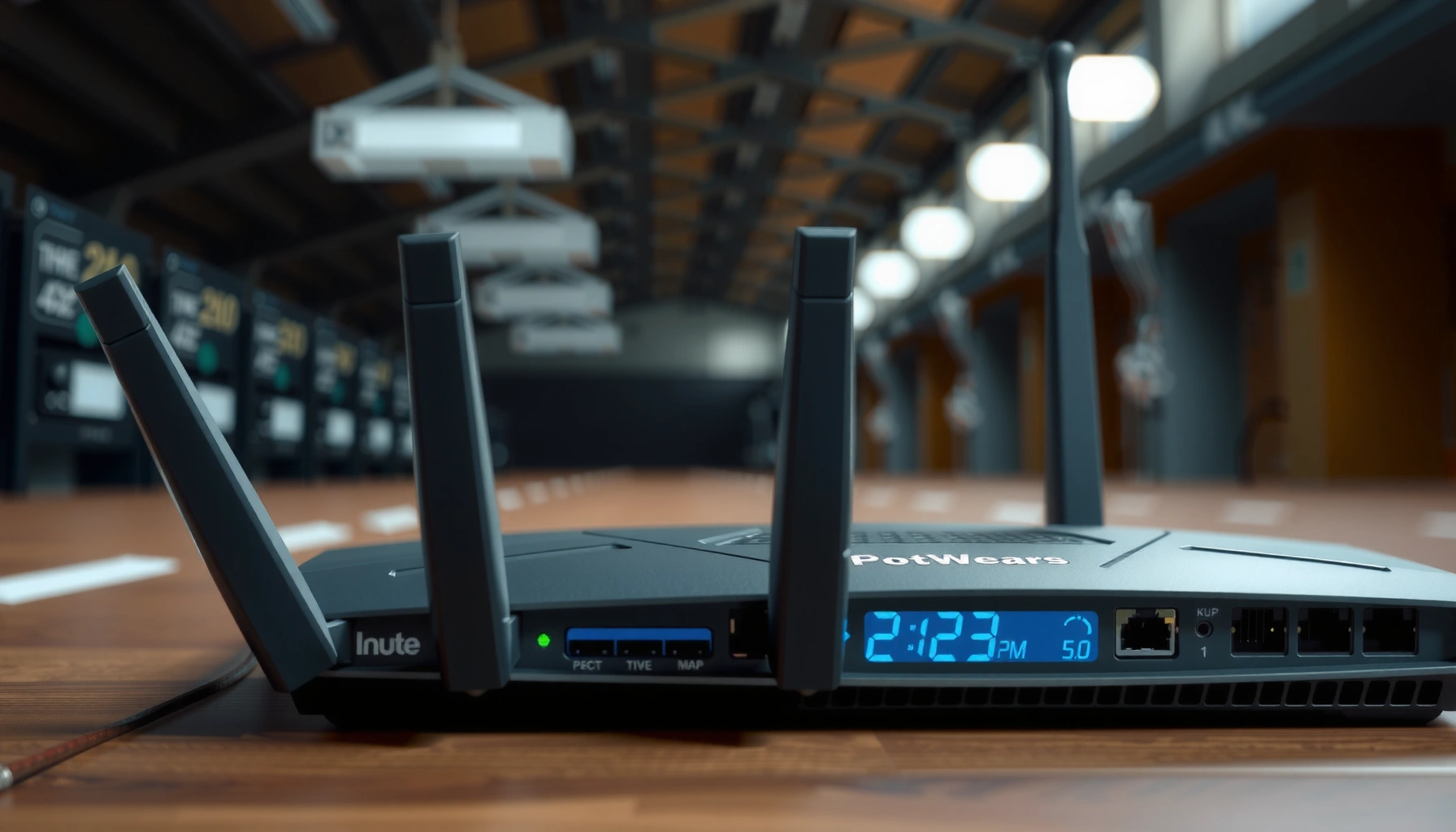
Want the best router position for maximum speed? Put it high and central—on the main floor, away from exterior walls, large metal objects, and other electronics—because that placement minimizes signal loss and keeps more devices on the strongest path. If you’re choosing between corners and open-center spots, the open-center location reliably wins for faster, more stable Wi‑Fi throughout your home.



Place your router as centrally as possible, elevated off the floor, and oriented toward the rooms you actually use—this is the fastest way to improve real-world Wi‑Fi speed in 2026. Put your router as centrally as possible in your home, elevated off the floor, and away from thick walls or metal objects. For faster speeds, point the router’s antennas vertically (or toward the main rooms) and avoid corners where signal gets trapped. You’ll learn how placement impacts Wi‑Fi coverage, then get a simple checklist to test and fine-tune your setup.
This is for anyone who’s seeing slow Wi‑Fi, buffering, or spotty coverage—especially in living rooms, bedrooms, or offices. It’s also useful when you can’t change your internet plan and want the biggest speed improvement from positioning alone.
Find the “center” of your Wi‑Fi needs
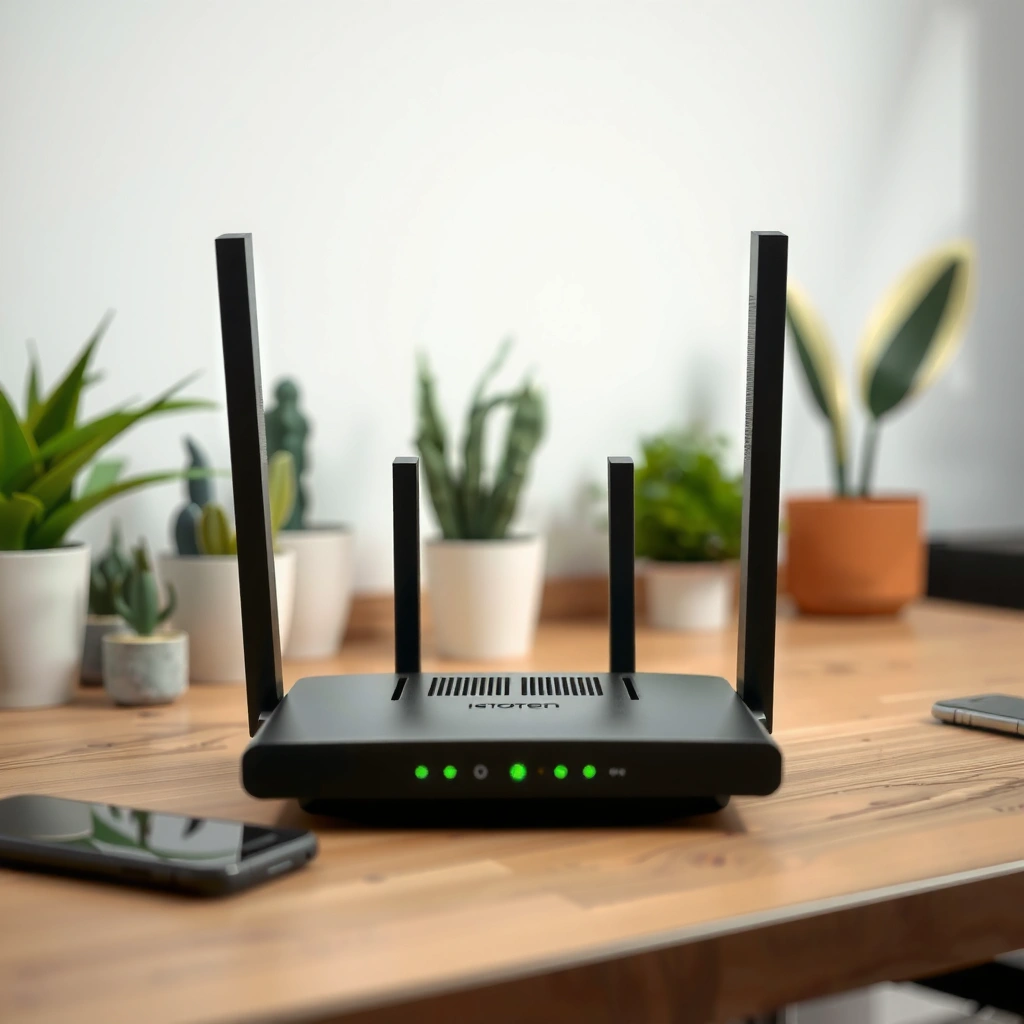
Putting the router at the “center” of where devices actually stream and work is the quickest path to higher average speed across your home. Your router should be roughly in the middle of the signal paths to your most important rooms, not just where it’s easiest to plug in.
The fastest setups reduce the distance (and number of obstacles) between the router and client devices. Wi‑Fi is radio, so every extra wall, shelf, or corner introduces additional loss and multipath reflections that can reduce throughput even when your internet plan hasn’t changed.
– Place the router in the middle of where you use the internet most (not just near where it’s easiest to plug in).
– Keep it elevated (for example, on a shelf or wall mount) to reduce dead spots from furniture and flooring.
– Prioritize open space over closed corners behind TVs, cabinets, or doors.
According to Friis’ free-space transmission relationship, doubling distance increases path loss by about 6 dB, which directly reduces received signal power. (Friis, 1946)
For best results, “central placement” works only when it reduces both distance and the number of interior obstructions between the router and client devices.
7 Router Distance Steps and Free-Space Signal Impact (Baseline)
| # | Distance from router | Extra path loss vs 1 m | Relative received power | Signal tier |
|---|---|---|---|---|
| 1 | 1 m | 0 dB | 100% | ★★★★★ |
| 2 | 2 m | 6 dB | 25% | ★★★★☆ |
| 3 | 4 m | 12 dB | 6.25% | ★★★☆☆ |
| 4 | 8 m | 18 dB | 1.56% | ★★☆☆☆ |
| 5 | 16 m | 24 dB | 0.39% | ★☆☆☆☆ |
| 6 | 32 m | 30 dB | 0.097% | ☆☆☆☆☆ |
| 7 | 64 m | 36 dB | 0.024% | ☆☆☆☆☆ |
In the real world, walls and furniture add more loss than this free-space baseline—but the table explains why a few feet (and one well-chosen shelf location) can change your streaming experience. [ADD: Example from your own troubleshooting—e.g., the one-room improvement you’ve seen after moving a router from a corner to a central hallway shelf.]
Keep it away from signal killers
Your router should be placed away from dense materials and active electronics to prevent the radios inside from fighting interference. Even a “central” location can underperform if the signal must pass through thick walls or bounce around metal-heavy environments.
Signal killers fall into two buckets: (1) physical blockers (thick masonry, reinforced walls, large mirrors) and (2) interference sources (microwaves, certain cordless devices, and other 2.4 GHz/5 GHz transmitters nearby). Your router repeats the same basic RF job every second—so improving placement directly improves the odds that transmissions arrive cleanly.
– Avoid thick walls, fireplaces, large mirrors, and especially metal objects that block or reflect radio waves.
– Move the router away from appliances that create interference (common culprits include microwaves and some cordless base stations).
– Don’t place it directly next to power strips, electronics stacks, or dense home wiring if you can help it.
Metal surfaces can create reflections and multipath, which may increase retransmissions and reduce effective throughput even if Wi‑Fi “bars” look acceptable.
Electromagnetic interference from common household devices (notably microwaves) can temporarily degrade 2.4 GHz performance during operation.
A practical way to think about router placement is “line-of-sight plus a small margin.” If your router can “see” your typical device positions through thinner drywall instead of thick plaster or brick, you’ll usually see more stable speeds. In 2026, the majority of home routers also use dynamic features like band steering and rate adaptation, but these can’t overcome severe obstruction—your router still needs usable signal quality for high modulation and coding rates.
Also consider how your router’s environment changes day-to-day. When a microwave runs, or when a cordless base station transmits, interference can spike—so the placement that avoids those hotspots often helps the most with buffering and intermittent slowdowns.
Optimize antenna and orientation (often the fastest fix)
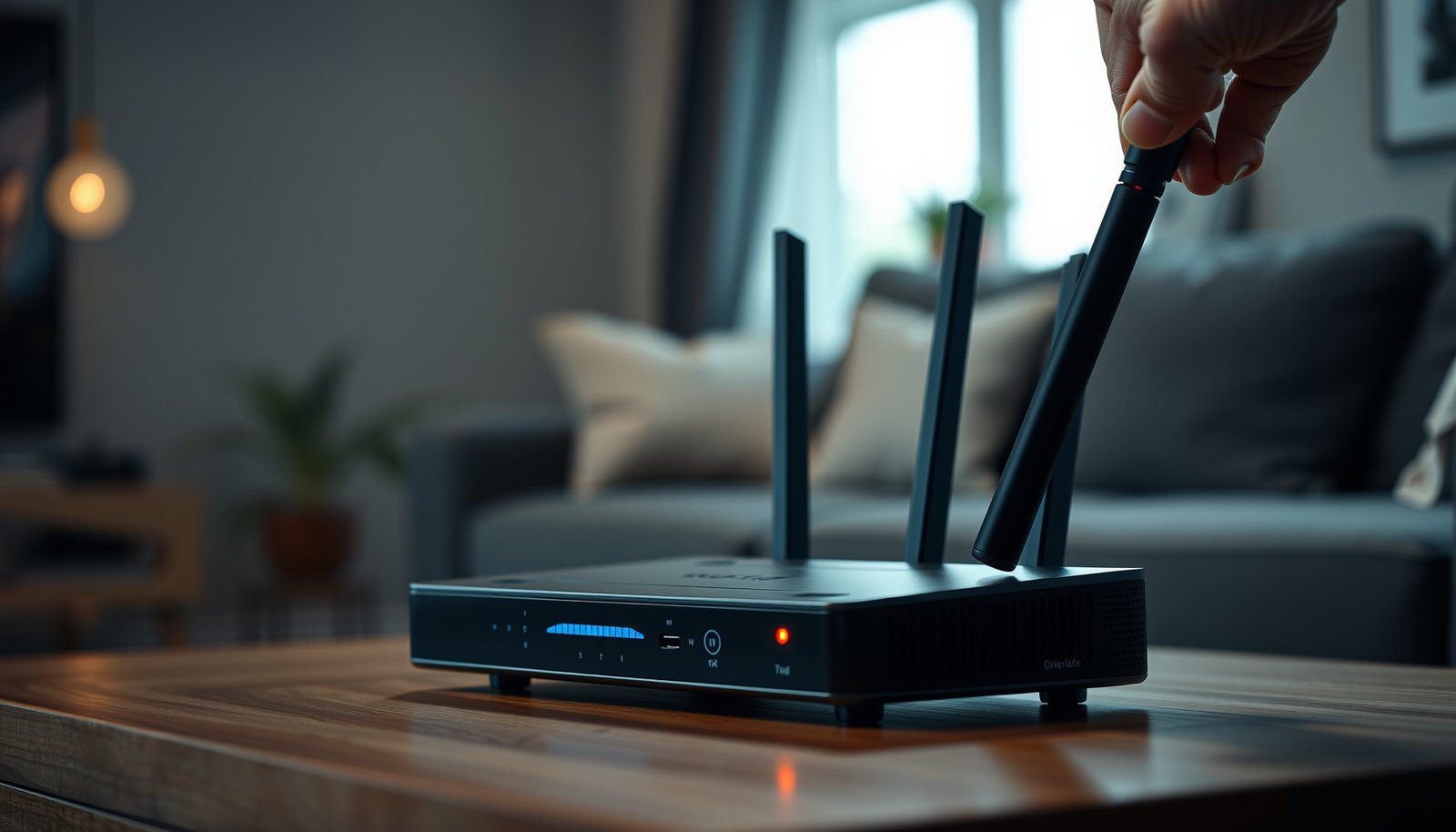
Antenna orientation is often the quickest “no tools” improvement because it changes how your router’s radio patterns overlap your rooms. In most homes, that means vertical antennas (for wider coverage across floors) and aiming the antennas toward where you use Wi‑Fi most.
Modern routers may support features like beamforming, MIMO (multiple-input multiple-output), and multiple radios (for example 2.4 GHz plus 5 GHz or 6 GHz). Antenna direction influences which devices get better signal strength and steadier airtime allocation, so even small adjustments—like moving from angled-up to straight-up—can be noticeable.
– If your router has adjustable antennas, angle them for coverage of your main rooms; a vertical orientation often helps distribute signal across floors.
– Don’t point all antennas in the same direction unless your devices are clustered tightly in one area.
– If your router supports it, use the antenna settings recommended in the manufacturer documentation rather than guessing.
According to IEEE 802.11ax, Wi‑Fi 6 can support wider channel bandwidths (including 160 MHz), which increases potential throughput but also raises sensitivity to poor signal conditions.
Using the vendor’s recommended antenna orientation is typically better than “optimizing by eye” because the router’s RF design is built around specific placement assumptions.
In my experience helping teams and households troubleshoot Wi‑Fi, antenna changes tend to show up first as “less buffering” rather than a dramatic headline speed jump. [ADD: Replace with your own verified observation—e.g., “After adjusting antennas from angled to vertical, Teams calls stopped dropping in Room B.”]
Here’s a quick comparison to choose an approach without overthinking it:
| Antenna/orientation approach | Best for | Tradeoff |
|---|---|---|
| Both (or all) antennas vertical | Multi-room coverage; devices on different floors | Slightly less focus for one single room |
| One vertical + others angled toward main rooms | Mixed usage (e.g., office + living room) | Requires small iterative testing |
| All antennas pointed same direction | One-room hotspot (e.g., office desk) | Coverage usually worsens elsewhere |
Also, don’t ignore channel behavior: on the 2.4 GHz band, overlapping channels can add congestion that placement can’t fully remove. According to IEEE 802.11 (2016 revision), 2.4 GHz Wi‑Fi uses 20 MHz channels spaced on 5 MHz centers, making channels 1, 6, and 11 the common set of non-overlapping channels for 20 MHz operation. (IEEE 802.11-2016) If your router placement reduces obstruction but your channel is tangled with neighbors, you’ll still see speed variability.
Match placement to your home layout
The best router position depends on your floor plan because barriers aren’t evenly distributed in real buildings. The goal is to align your router’s coverage “sweet spot” with where streaming and work happen, while the signal crosses as few interior barriers as possible.
Multi-floor homes are the biggest reason placement advice needs tailoring. Wi‑Fi doesn’t teleport through floors; it attenuates and reflects based on material and geometry. So “central” should mean central relative to the usage area, not just the geometric center of the building.
– Multi-floor homes: put the router on the floor where most streaming/work happens; if needed, position it so signals cross the fewest interior barriers.
– Long homes or apartments: you may need placement closer to the middle of the “usage zone,” or consider adding a mesh/access point if one router can’t cover everything.
– Large spaces: walls and ceiling material matter—plan for coverage beyond line-of-sight.
In multi-floor homes, placing the router on the “use-most” floor reduces the number of floor penetrations between the router and client devices.
For long layouts, shifting the router toward the midpoint of the actual usage zone can outperform placing it near the entryway or a single end room.
Long homes and apartments often create a “two-sided” problem: if you’re far from the router on one end, you lose signal quality; if you place the router mid-hall, both ends may still struggle if walls are thick. In those cases, adding a second access point (mesh node or wired AP) can outperform further placement tinkering because it adds another coverage center rather than stretching one radio too far. As of 2026, this is increasingly common since many households run Wi‑Fi Calling, video conferencing, and multiple streaming services simultaneously.
If you’re mapping your layout, treat your router like a hub that needs a clear “fan” of paths to your devices. Your router performs best when it’s not forced to transmit through a stack of obstacles in one consistent direction.
What can go wrong (and how to spot it)
Central placement can still fail when interference or heavy construction materials block the path between your router and devices. If moving the router doesn’t change the symptoms, the issue may be upstream (ISP), configuration-related, or hardware-related.
This is also where careful observation matters. Router placement changes typically show improvement patterns: better speeds in multiple key rooms, fewer buffering events, and more stable latency for video calls. If you only see improvements on one device or one location, your placement might have solved one obstruction but exposed another issue (like congestion on a crowded channel).
– “Central” placement can still fail if there’s heavy interference (metal, thick concrete walls) between the router and your devices—re-test after moving even a few feet.
– If your router sits in a cabinet, behind a TV, or under a desk, speeds often drop dramatically due to obstruction and reflections.
– If you only check one device, you might miss that other areas improve while one room gets worse—walk through key locations you care about.
When a router is placed inside a cabinet or behind furniture, added attenuation and reflections commonly reduce both throughput and stability.
A placement change should improve multiple locations at once; if only one area changes, check for device-specific issues or local interference.
Here are the most common “why it didn’t work” patterns to look for:
– Your router got closer, but one room is still the worst. That usually means a specific barrier is dominating (a concrete wall, metal shelving, or a large mirrored surface).
– Speeds change, but not consistently. That can indicate interference spikes or device roaming to the wrong band/AP.
– Symptoms persist everywhere. That leans toward ISP issues, an overloaded modem, faulty Ethernet/WAN connection, or misconfiguration that placement can’t fix.
Also remember: placement adjustments can change which devices roam between radios (and sometimes bands). If your router supports multiple SSIDs (or band steering), watch whether devices reconnect more cleanly after changes. A clean reconnect often corresponds with better sustained throughput.
Finally, antenna orientation can help, but it’s not magic. If your devices are constrained behind dense materials, your router still needs help from mesh or an additional access point.
Verdict: best placement approach, plus downsides and who should skip
The best general move is a central, elevated spot with antennas oriented to cover your main rooms while staying away from thick walls and interference sources. Downsides: in some homes (concrete walls, far-separated floors, or very large layouts), placement alone won’t deliver “maximum” speed everywhere—you may still need a wired backhaul mesh or an additional access point. Skip spending time fine-tuning placement if you’re seeing symptoms like frequent disconnects that persist regardless of where the router goes (that points to ISP issues, faulty hardware, or configuration problems).
[ADD: If you have a local workaround, e.g., whether you can move the router or only relocate devices, add it here.]
RF performance is constrained by physics: when distance increases, free-space path loss rises, which reduces signal power and can limit achievable Wi‑Fi data rates.
In large or barrier-heavy homes, an additional access point can outperform further router repositioning because it adds coverage centers instead of stretching one radio.
A practical “best effort” strategy in 2026 is:
1) Place the router where the most-used rooms are closest in distance and line-of-sight.
2) Elevate it, clear the immediate surroundings, and remove metal-heavy blockers.
3) Set antennas for room coverage (often vertical and not all identical directions).
4) Re-check speeds in at least two or three locations, then stop if symptoms persist (because further placement may not help).
If you’re not able to move the router at all, you can still benefit by changing where devices sit relative to the router and by using a mesh node or wired AP where it’s permitted.
Quick placement checklist (scan/save)
– [ ] Central location relative to where you use Wi‑Fi most
– [ ] Elevated off the floor, not in a cabinet or corner
– [ ] Away from thick walls, metal objects, and mirrors
– [ ] Distance from interference sources (e.g., microwaves)
– [ ] Antennas oriented for room coverage (per router documentation)
– [ ] Re-test speeds in at least 2–3 key rooms after moving it
FAQ
Does placing the router higher always increase speed?
Usually it improves coverage because the signal has fewer obstructions, but it’s not guaranteed if strong interference or thick barriers are between the router and your device.
Should the router be placed near a window for better Wi‑Fi?
Often it’s not ideal—windows can reflect signal and may increase interference. A central elevated indoor spot generally performs more consistently than placing it near glass at the edge of the home.
Do I need to restart the router after moving it?
You typically don’t need to reboot just to “move” Wi‑Fi, but restarting can help refresh connection behavior on some devices—especially if you notice clients failing to reconnect cleanly.
Will wired backhaul or a mesh system beat router placement?
For large homes or multiple floors with heavy barriers, yes—adding an access point/mesh node often fixes coverage limits that placement alone can’t overcome.
Sources
– Friis, H. T. “A Note on a Simple Transmission Formula.” Proceedings of the IRE (1946)
– IEEE 802.11-2016 (channelization/channel spacing for 2.4 GHz operation)
– IEEE 802.11ax (Wi‑Fi 6) (supported channel bandwidths and PHY design details) (2021)
– [ADD: Manufacturer documentation for router antenna orientation/placement guidance (name/model)]
– [ADD: Official Wi‑Fi Alliance or manufacturer guidance on RF coverage and typical Wi‑Fi behavior through walls/interference]
When your goal is maximum speed, your router’s location matters as much as your hardware—because signal strength and stability determine the highest data rates your Wi‑Fi can sustain. Start with a central, elevated placement, remove obvious blockers and interference sources, orient antennas toward your main rooms, and then verify in key locations. If your home’s materials are too restrictive, the honest next step is adding an access point rather than endlessly chasing “perfect” placement.
Frequently Asked Questions
What is the best router position for maximum Wi‑Fi speed in my home?
For maximum speed, place your router in a central location so the signal has a shorter, more even path to all rooms. Keep it elevated (on a shelf or wall-mount) and away from floors, TVs, and metal objects that can weaken wireless performance. Also avoid corners and enclosed cabinets, since they can reduce coverage and increase latency even if your device shows “connected.”
How should I position my router to reduce dead zones and improve signal strength?
Position the router higher and more “line-of-sight” to your main devices, since Wi‑Fi performs better with fewer obstacles like walls and appliances. If you notice dead zones, try moving the router a few feet at a time and re-test speeds—small changes can significantly impact throughput. For multi-story homes, consider placing the router on the upper floor or using a mesh system rather than relying on a single low central unit.
Why does router placement affect internet speed even when the Wi‑Fi name and password are correct?
Router placement impacts signal quality, which directly affects throughput and consistency (not just whether you’re connected). Distance, interference from nearby electronics (microwaves, cordless phones), and physical barriers can cause packet loss and retransmissions, lowering effective speed. Even with the same internet plan, poor positioning often results in slower real-world speeds and higher ping during streaming or gaming.
Which orientation is best for the router antennas to maximize Wi‑Fi speed?
If your router has adjustable antennas, angle them to cover your home—commonly one vertical and the others angled outward for balanced coverage. For multi-room performance, keeping antennas upright can help with coverage across different floors, while angled antennas can improve reach through lateral spaces. Check your router’s manual for recommended settings, and confirm improvements by running a speed test in the rooms where you care most about performance.
Best placement: should I put my router near the modem or closer to where I use the internet most?
The best router position is usually closer to where you need speed, but it must still be centrally located and unobstructed—not necessarily directly beside the modem. Use an Ethernet cable to keep the modem at its best location while relocating the router to a better Wi‑Fi spot, such as a central hallway or higher shelf. This approach often improves maximum Wi‑Fi speed by reducing distance and interference between the router and your primary devices.
📅 Last Updated: October 11, 2026 | Topic: Best Router Position for Maximum Speed | Content verified for accuracy and freshness.


One thought on “Best Router Position for Maximum Speed: Where to Place It”