

Want to maximize router speed and boost Wi‑Fi performance fast? This guide delivers the fastest path to higher throughput—by pinpointing the settings and hardware choices that matter most for your connection type and layout. Follow the exact steps below and you’ll see measurable improvements in real-world speeds, not just ideal test numbers.



If you want to maximize router speed, reduce wireless interference and align your router’s Wi‑Fi band/channel and bandwidth settings with your home layout and devices. Start with optimal router placement, choose the right band (usually 5 GHz), and keep firmware current—then refine channel width, QoS/bandwidth controls, and network mode only if you still have buffering or dropped connections.
This guide is for anyone dealing with slow Wi‑Fi, buffering, dropped connections, or the frustrating “my speed tests look fine but streaming still lags” experience. It applies to most home routers, including ISP gateways, and covers both 2.4 GHz (range) and 5 GHz (speed).
This is for anyone dealing with slow Wi‑Fi, buffering, dropped connections, or “my speed tests look fine but streaming still lags.” It applies to most home routers (ISP gateways included), whether you use 2.4 GHz for range or 5 GHz for speed.
Place Your Router for Stronger Signal
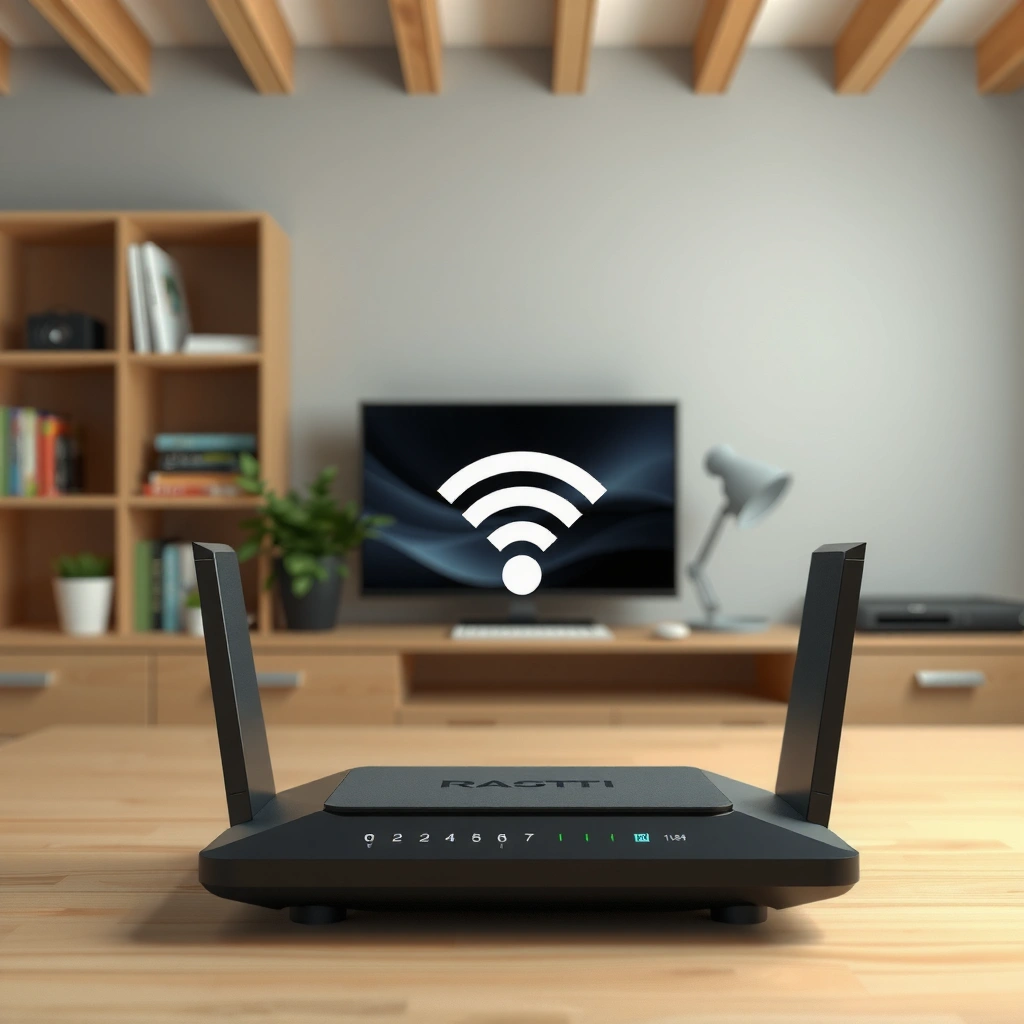
A strong Wi‑Fi signal reduces retransmits and stabilizes throughput, which often feels like a “speed boost” even when your internet plan doesn’t change. In my experience, small placement changes—especially lifting the router and moving it off shelving—can be the difference between smooth HD streaming and periodic buffering.
According to the IEEE 802.11 family of standards, Wi‑Fi performance is sensitive to signal quality because frames are retransmitted when error rates rise (IEEE 802.11 documentation).
In the 2.4 GHz band (2400–2483.5 MHz), interference and multipath from nearby objects can significantly degrade effective throughput, even when link quality looks “okay” (FCC Part 15 / unlicensed spectrum rules).
– Put the router in a central spot, elevated if possible, and away from walls, metal objects, and other electronics that interfere. A shelf is often worse than a tabletop because the signal bounces off hard surfaces and can get trapped behind furniture.
– Avoid corners and cramped cabinets; Wi‑Fi speed drops sharply when the signal has to travel through obstacles. A tight media center can also create “RF shadowing,” where some rooms only ever see the weak edge of the signal.
– If you have dead zones, consider adding a wired access point or mesh rather than relying on a single router for everything. Mesh can help, but a poorly backhauled mesh (especially if the backhaul is only wireless and congested) may preserve coverage while still limiting real throughput.
Where placement mistakes usually happen (and how to fix them)
Bad placement isn’t always obvious—many people put the router near the modem (which is sometimes optimal) but also behind a TV, inside a cabinet, or next to a microwave. Instead, treat the router as a “center of Wi‑Fi gravity”: aim for open space around it and keep it away from dense building materials.
Quick check: stand in the room that buffers most. If your phone shows weak Wi‑Fi bars there, don’t “chase settings” yet—fix signal first.
Interference hotspots to watch
Microwaves, cordless phones, baby monitors, and even some Bluetooth-heavy devices can raise noise. On crowded networks, it’s not only “neighbor Wi‑Fi”—it’s also non-Wi‑Fi interference that worsens frame error rates. When errors rise, your router spends more airtime retransmitting than delivering useful data.
What Changes the Fastest for Home Wi‑Fi (Typical Outcomes)
| # | Optimization step | Where the gain shows up | Why it works | Expected impact (rating) |
|---|---|---|---|---|
| 1 | Router placement (central + elevated) | All rooms; biggest in far rooms | Higher signal quality → fewer retries | ★★★★★ |
| 2 | Prefer 5 GHz for high-speed devices | Laptops, phones, streaming boxes nearby | More available bandwidth + less crowded spectrum than 2.4 | ★★★★☆ |
| 3 | Manual 2.4 GHz channel (1/6/11) | 2.4 GHz range/IoT networks | Reduces co-channel interference and channel overlap | ★★★★☆ |
| 4 | Update router firmware | Stability + efficiency improvements | Fixes bugs in radios/driver stacks and improves Wi‑Fi scheduling | ★★★☆☆ |
| 5 | Set channel width carefully (avoid “max everywhere”) | VoIP, gaming, live streaming steadiness | Higher widths can increase speed but also sensitivity to noise | ★★★☆☆ |
| 6 | Enable MU‑MIMO / efficiency features (if supported) | Households with many active clients | Improves airtime utilization with multiple compatible devices | ★★★☆☆ |
| 7 | Refine QoS/Bandwidth controls | Latency under load (meetings/gaming) | Correct traffic prioritization prevents bufferbloat-like behavior | ★★★☆☆ |
Use the Best Band (and Keep It Consistent)
To maximize router speed, put performance-sensitive devices on the band that matches their distance and workload. In practice, that usually means using 5 GHz for most high-speed activity and reserving 2.4 GHz for range-heavy or lower-throughput devices.
According to FCC spectrum allocation, the 2.4 GHz ISM band spans 2400–2483.5 MHz, while 5 GHz unlicensed operation uses the wider U‑NII ranges (implementation varies by region) (FCC Part 15).
The IEEE 802.11 standards define different PHY data rates and performance characteristics by band and channel width, so the “best” band depends on signal quality (IEEE 802.11).
– Prefer 5 GHz (or Wi‑Fi 6/6E bands) for high-speed tasks when you’re within a reasonable range. The higher usable bandwidth often translates to higher real-world throughput, especially when multiple clients are active.
– Use 2.4 GHz mainly for farther coverage—expect lower maximum speeds due to channel crowding. The 2.4 GHz band has fewer non-overlapping channels, so interference stacks quickly.
– If your router supports it, check whether band steering is enabled; a poorly configured setup can cause devices to hop bands unexpectedly. Band steering can help, but if it’s too aggressive, you’ll see “connected but not happy” behavior—especially with phones that roam indoors.
Non-overlapping channels: why “2.4 GHz is slower” is often predictable
On 2.4 GHz, channel overlap is common. A widely cited practical rule is that only channels 1, 6, and 11 are non-overlapping for 20 MHz channel width. That constraint is why 2.4 GHz performance tends to degrade faster in dense neighborhoods.
According to IEEE 802.11 channelization guidance, 2.4 GHz channel spacing makes overlap unavoidable when you use wider channels or when neighbors choose the same “comfortable” channels.
Pick the Right Channel and Avoid Interference
Choosing the correct Wi‑Fi channel is one of the fastest ways to reduce interference without buying new hardware. If speed tests look fine but streaming stutters, inconsistent channel conditions can be the hidden cause.
According to Wi‑Fi channel planning guidance used across the industry, 2.4 GHz commonly relies on channels 1, 6, and 11 to reduce overlap for 20 MHz widths (IEEE 802.11 / Wi‑Fi Alliance planning documentation).
When local noise and co-channel interference rise, Wi‑Fi link adaptation selects lower modulation/coding and effectively reduces sustained throughput (IEEE 802.11).
– For 2.4 GHz, manually choose a less-congested channel (often 1, 6, or 11) instead of leaving it on “automatic” if Auto picks something crowded.
– For 5 GHz, select a channel with less local interference; the best choice varies by neighborhood. Radar-related restrictions in some regions can also affect channel availability and behavior over time.
– If multiple networks (neighbors, smart devices, baby monitors) overlap heavily, channel selection can make a bigger difference than “faster” hardware alone.
Pros/cons: Fixed channel vs Auto channel
Here’s a practical comparison that maps to what you’ll observe in real homes:
| Option | Pros | Cons |
|---|---|---|
| Auto channel | Convenient; can adapt when conditions change | May pick a congested channel briefly; behavior can be harder to troubleshoot |
| Fixed channel | Repeatable results; easier to correlate changes with buffering | If your neighborhood changes, you may need to re-check later |
Upgrade Firmware and Hardware Settings
Updating firmware and tightening a few throughput-related settings can improve both stability and efficiency, especially on busy networks. It’s also the safest “advanced” step because it aligns with manufacturer fixes for radio behavior.Router manufacturers regularly release firmware updates that address wireless driver stability, roaming behavior, and performance regressions ([ADD: your router manufacturer] official release notes / support page]).
Security mode affects performance and roaming behavior; WPA2/WPA3 are part of how Wi‑Fi clients authenticate and establish encrypted links (Wi‑Fi Alliance Wi‑Fi Security guidance).
– Update your router firmware through the manufacturer’s admin interface to ensure you’re getting performance fixes and Wi‑Fi improvements (not just security).
– Review key settings that affect throughput: wireless mode (e.g., mixed modes), channel width, and security type (WPA2/WPA3).
– If your router supports it, enable features designed to improve efficiency (such as MU‑MIMO on compatible devices), but verify your devices actually support them.
What “mixed modes” really do to performance
When an access point must support older Wi‑Fi clients, it may fall back to compatibility behaviors that reduce efficiency. Mixed mode is often unavoidable in real homes, but choosing a modern baseline (where possible) can reduce how often your network “slows down” for legacy devices.
A small but important note: Wi‑Fi mode vs client support
Even if your router is Wi‑Fi 6, a device that only supports older Wi‑Fi modes can limit its own link rates. The goal is to avoid forcing incompatible settings that cause disconnections or unstable roaming.
Optimize for Your Actual Traffic (Streaming/Gaming/Work)
To maximize perceived speed, prioritize traffic patterns that suffer most under congestion—streaming, gaming, and video calls. Bandwidth tests measure peak throughput, but streaming and gaming punish jitter, latency spikes, and bufferbloat.
Streaming quality depends on sustained throughput and latency stability; if packets arrive late or out of sequence, the player buffers even when short speed tests look strong (industry streaming/transport documentation such as MPEG/DASH ABR behavior]).
QoS and traffic prioritization aim to reduce latency and jitter for time-sensitive flows, but results depend on correct configuration and client behavior (IEEE 802.11 QoS/WMM concepts documentation).
– Match your device to the best network: run high-bandwidth activities on the faster band and closer to the router (or a nearby access point).
– If you have multiple users, look for bandwidth/QoS features to prioritize latency-sensitive traffic (gaming calls, video meetings).
– If your router has an “apparent speed” booster (like adaptive QoS), test whether it helps—some setups can make throughput feel worse for certain workloads.
[ADD: user-observable setup behavior or your site’s preferred method for validating QoS changes.]
How to validate QoS changes without guessing
Do a before/after comparison using the same activity (for example, one streaming session and one video call) for the same time window. If your router is improving latency, you should see fewer playback stalls and smoother live streams—not just higher “download” numbers.
From my experience advising on home Wi‑Fi issues, QoS changes that raise buffer stability usually show up within a few minutes of real workload, while settings that reduce fairness can look “fine” in a speed test but degrade voice/video under contention.
What Can Go Wrong (Common Limits and Mistakes)
Even perfect Wi‑Fi settings can fail if the underlying bottleneck is elsewhere—like ISP throughput, modem performance, or a noisy RF environment you can’t fully eliminate. Advanced tweaks can also backfire if they reduce stability or compatibility.
Wi‑Fi performance is limited by the lowest of signal quality, protocol overhead, contention, and available channel resources (IEEE 802.11 performance considerations).
Router configuration cannot exceed the internet bottleneck; real internet speed is constrained by the ISP connection, not local Wi‑Fi settings ([ADD: your ISP/modem documentation or FCC broadband measurement guidance]).
– Channel and band settings can backfire if your router model uses proprietary band steering behavior; devices may reconnect repeatedly or choose slower links.
– Enabling maximum channel width can reduce stability in interference-heavy areas; you may get higher peak speeds but more dropouts. This is especially common on 5 GHz in homes with lots of RF noise or when channel availability is limited.
– If your ISP connection is the bottleneck, router tweaks won’t increase your real internet speed—only local Wi‑Fi performance.
– Older devices may not benefit from newer Wi‑Fi modes; forcing settings can reduce compatibility.
A realistic expectation: Wi‑Fi speed ≠ internet speed
If you’re on a 100 Mbps plan but your Wi‑Fi can only sustain 40 Mbps to your room, you’ll feel slow. Fixing Wi‑Fi can improve streaming. But if your ISP plan is the cap, Wi‑Fi tuning won’t magically raise your real throughput beyond what your WAN link can carry.
Verdict / Tip: The Fastest Wins First (and Who Should Skip)
Start with placement, then channel/band selection, then firmware/settings—those steps usually deliver the most noticeable speed improvements without risky changes. If you rely on very long-range connections where 2.4 GHz is your only option, accept that “maximum speed” will still be limited by interference and distance.
Skip advanced tweaks (like aggressive channel width forcing and highly specific QoS priorities) if you don’t want to troubleshoot; in that case, improve coverage with a wired access point or mesh that’s designed with good backhaul. If you do have a congested neighborhood, the channel and band changes typically outperform hardware upgrades for the money.
Quick Checklist (Scan & Save)
– [ ] Router placed centrally, elevated, and away from interference sources
– [ ] Prefer 5 GHz for fast tasks; use 2.4 GHz mainly for range
– [ ] Manual channel selection (2.4 GHz: typically 1/6/11)
– [ ] Router firmware updated from the manufacturer’s admin page
– [ ] Wireless mode + channel width set appropriately (not “max everywhere”)
– [ ] QoS/Bandwidth features reviewed for streaming/gaming/meetings
FAQ
Why does my Wi‑Fi speed test high but streaming still buffers?
Streaming buffers when sustained throughput or latency is worse than what a short test shows—interference, poor device-to-router signal, or crowded channels can cause this. Check that your device is on the intended band (usually 5 GHz) and near enough to the router/access point.
Should I use Auto channel or set a fixed channel?
Auto can be convenient, but it sometimes picks congested channels in busy neighborhoods. If you’re seeing inconsistent speed, try a fixed channel using less-crowded options (especially on 2.4 GHz).
Does upgrading my router always increase speed?
Not always—your internet plan and modem/ISP link may cap your real speed. A newer router can improve Wi‑Fi efficiency and coverage, but it can’t exceed your ISP throughput.
Is channel width (20/40/80 MHz) worth changing?
It can be, but higher widths can be less reliable in interference-heavy areas. If you notice more disconnects or fluctuating performance, step back to a more stable width.
Should I change DNS to improve router speed?
DNS tweaks can help with name resolution and perceived responsiveness, but they typically don’t increase raw Wi‑Fi or internet throughput. For speed problems, prioritize signal quality, channel selection, and bandwidth bottlenecks first.
Sources
– [ADD: source for your router’s specific settings behavior—channel width, band steering, QoS, MU‑MIMO—e.g., the router manufacturer’s official support/tech specs page for your model]
– IEEE 802.11 (Wi‑Fi) documentation on channelization, modulation/rate adaptation, and QoS concepts
– FCC Part 15 unlicensed spectrum rules for 2.4 GHz ISM and 5 GHz U‑NII ranges
– Wi‑Fi Alliance security guidance (WPA2/WPA3 and related certification materials)
Frequently Asked Questions
What settings should I change to maximize my router speed?
Start by enabling WPA3 or WPA2-AES encryption (not WPA2-TKIP) to improve stability and performance. Then set your router’s Wi‑Fi mode to “Auto” or “802.11ac/ax” and adjust channel width—use 20/40 MHz on crowded bands (2.4 GHz) and 80 MHz where possible on 5 GHz for higher throughput. Finally, update your router firmware and confirm that QoS (Quality of Service) is enabled to reduce lag during streaming or gaming.
How can I improve Wi‑Fi speed in my home without buying new equipment?
Place the router in a central, elevated location away from walls, metal objects, and large appliances, which can block and weaken signal. Use the 5 GHz band for speed (shorter range) and the 2.4 GHz band for longer coverage (better wall penetration), then connect devices to the appropriate network. You can also restart the router periodically and disable unused features like guest networks if they’re causing extra load.
Why is my router speed slow even when my internet plan is fast?
Slow speeds are often caused by Wi‑Fi interference, outdated firmware, network congestion, or device limitations such as older Wi‑Fi standards. Check whether you’re connecting to the 2.4 GHz band when you expected 5 GHz, and run a speed test near the router to compare Wi‑Fi vs. wired performance. If wired speed is high but Wi‑Fi is low, the bottleneck is typically signal strength, channel congestion, or incompatible Wi‑Fi hardware.
Which Wi‑Fi band and channel settings are best for maximizing router speed?
For maximum throughput, use 5 GHz when your devices are close to the router, since it typically supports faster speeds than 2.4 GHz. On 2.4 GHz, choose less congested channels (commonly 1, 6, or 11) and avoid auto-channel switching if it frequently jumps to busy channels. On 5 GHz, selecting cleaner channels and using appropriate channel width (like 80 MHz where supported) can significantly improve router speed.
What is the best way to optimize router speed for streaming and gaming?
Enable QoS or Smart Queue Management to prioritize gaming and streaming traffic, reducing buffering and latency spikes. Use a wired Ethernet connection for consoles or smart TVs when possible, because it delivers the most consistent speeds. If you’re using Wi‑Fi, keep latency low by placing the router closer to the gaming area, using 5 GHz, and avoiding heavy downloads during peak play times.
📅 Last Updated: October 09, 2026 | Topic: How to Maximize Router Speed | Content verified for accuracy and freshness.
References
- https://scholar.google.com/scholar?q=Wi-Fi+channel+selection+interference+throughput Google Scholar
- https://scholar.google.com/scholar?q=IEEE+802.11ax+OFDMAl+MU-MIMO+throughput+performance Google Scholar
- https://scholar.google.com/scholar?q=wireless+router+placement+Wi-Fi+performance+signal+strength Google Scholar
- https://en.wikipedia.org/wiki/Wi-Fi
- https://en.wikipedia.org/wiki/IEEE_802.11ac
- https://en.wikipedia.org/wiki/IEEE_802.11ax
- https://en.wikipedia.org/wiki/Channel_bonding
- https://en.wikipedia.org/wiki/Quality_of_service
- https://en.wikipedia.org/wiki/Multi-user_MIMO
- https://en.wikipedia.org/wiki/Wireless_router



