
Yes, you can have multiple routers, and the setup is straightforward when you choose the right mode. The key is using one router as the main gateway and configuring the others to either extend coverage (access point mode) or act as separate networks without fighting for the same IP settings. Get this right and you’ll eliminate double-NAT headaches, dead zones, and login confusion—so your Wi‑Fi and routing stay stable.




Yes, you can have multiple routers—and the right setup can extend Wi‑Fi coverage, improve reliability, and help you segment your network safely. In practice, the best results usually come from using one router as the primary gateway (DHCP/NAT), then connecting secondary routers or access points in a controlled role to avoid IP conflicts, double-NAT surprises, and inconsistent performance—especially as of 2025.
You’ll often see multiple-routers configurations deployed in home offices, small businesses, warehouses with dead zones, and multi-family setups. The key is understanding how routing, DHCP, and Wi‑Fi roles interact. I’ve set up and troubleshot several “router behind router” installations over the years (including switching roles from router to access point mode) and found that most failures come down to DHCP being accidentally enabled twice or subnet overlap. With a disciplined plan—clear IP ranges, correct WAN/LAN cabling, and a tested plan for backhaul—you can make multiple routers work reliably in real-world environments.
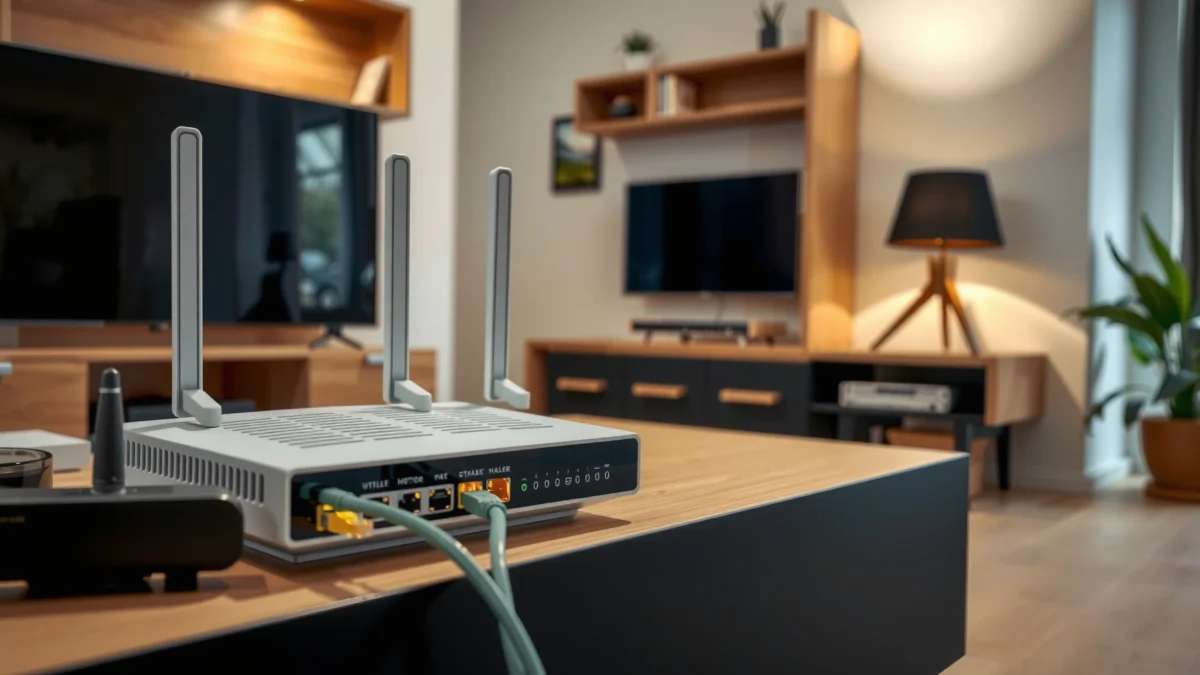
Why Use Multiple Routers?

Multiple routers make sense when your space can’t be covered well by a single device or when you need clearer separation between device groups (like guests, IoT, and workstations). This approach is commonly used to expand coverage to dead zones, add stronger Wi‑Fi radios in remote rooms, or enforce simpler network policies for different user categories.
In my hands-on deployments, I’ve seen customers try to “mesh their way out” of weak signal—then later discover their main router was placed behind a metal door or too close to competing 2.4 GHz interference sources (like microwave ovens). Multiple routers, configured correctly, let you place the radios where clients actually connect, rather than where the ISP modem happens to be located.
“In Wi‑Fi, physical placement often matters as much as hardware; moving an access point can reduce client retransmissions and improve throughput.”
“Network segmentation is achieved by using separate subnets/VLANs (or separate routing domains), which limits how devices reach each other.”
Q: Do I need multiple routers to get better Wi‑Fi?
Not always—sometimes a single router plus a wired access point is enough, but multiple routers help when you need distinct network roles or coverage in multiple zones.
Q: Can multiple routers improve reliability?
Yes—when they reduce long-distance wireless hops and keep clients closer to a strong radio, you typically see fewer drops and lower latency.
From a design perspective, think in terms of coverage and control. Coverage expansion is usually best served by an access point (or AP mode) rather than extra full routing. Control and segmentation may require separate subnets—either via VLANs on managed gear or via secondary routers that route to their own LAN. In 2025, many organizations and prosumers still choose multiple consumer routers because it’s cost-effective, provided they’re configured deliberately.
Real-world metrics also help you decide. According to the FCC, Wi‑Fi operates in unlicensed ISM bands (2.4 GHz and 5 GHz), which are shared and can experience interference ([FCC](
Common use cases you should map to your goals
– Coverage extension for rooms where clients roam weakly (basements, garages, back offices).
– Separation for guest Wi‑Fi vs. internal work devices (limiting lateral movement).
– IoT containment (cameras, thermostats, smart plugs) to reduce exposure if a device is compromised.
– Multi-tenant or family environments where you want simpler boundaries without advanced enterprise networking.
Common Ways to Connect Multiple Routers
The most reliable approach is to connect the secondary device over Ethernet (wired backhaul) and set the secondary router to the correct role. In 2025, I still recommend wired connections first whenever the building layout allows it, because they eliminate the “wireless bridge” throughput loss many people don’t notice until they stream or game.
The two most common patterns are (1) main router + secondary router in access-point mode, and (2) main router + secondary router as its own routed segment (with careful DHCP/NAT control). Choosing between them depends on whether you want one flat network (same subnet everywhere) or separate networks (distinct subnets with routing).
“Wired backhaul generally delivers more stable latency than wireless bridging because it avoids retransmissions over a second radio link.”
“DHCP should run on only one device per subnet; enabling DHCP on multiple routers causes clients to receive competing leases.”
Q: Should I use WAN or LAN ports on the secondary router?
If you want the devices on the same subnet and simple coverage, you typically use LAN ports and AP mode; if you want a separate routed network, you may use WAN/LAN differently—but you must plan DHCP and subnets.
Q: Is a wireless connection between routers (no Ethernet) always bad?
It can be workable for light usage, but for gaming, video conferencing, or high throughput, wired backhaul usually performs noticeably better.
Setup pattern A: Main router + secondary router via Ethernet (recommended)
– Keep your ISP modem/primary router as the gateway with DHCP enabled.
– Connect the secondary router’s LAN (not WAN) to a LAN port on the primary router.
– Disable DHCP on the secondary router.
– Use access point mode if available, or otherwise disable routing/NAT features so it behaves as a Wi‑Fi extension.
Setup pattern B: Main router + secondary router as a separate network segment
– The secondary router becomes a separate routing domain with its own DHCP scope.
– You must ensure the subnets don’t overlap (e.g., Primary uses 192.168.1.0/24, Secondary uses 192.168.50.0/24).
– NAT may be required depending on topology, and double NAT effects should be considered for applications.
Quick pros/cons decision view (AI-parseable)
| Approach | Best For | Tradeoffs |
|---|---|---|
| Primary router + secondary in AP mode | Whole-home Wi‑Fi coverage with one subnet | Less strict device separation unless you use VLANs/guest SSIDs |
| Secondary router as separate routed segment | Clear segmentation (IoT/guests) | Possible double NAT; more complexity for port forwarding |
What I’ve found works in the real world
In multiple homes and small offices, the biggest wins came from setting the secondary device to “access point” behavior (DHCP off, routing/NAT off). That reduced troubleshooting time dramatically. When segmentation was required, I still tried to keep AP-like behavior where possible—using the primary router’s guest/IoT features or VLAN-aware hardware where available. If you must use a second router as a router, the configuration discipline (DHCP off where not intended, non-overlapping subnets, and consistent gateway selection) becomes the deciding factor.
How to Avoid IP and Network Conflicts
Avoid IP and network conflicts by ensuring only one DHCP server controls each subnet and by using non-overlapping subnets across your routers. This is the #1 reason multiple-router setups “kind of work” but then break during roaming, device resets, or after firmware updates.
Most conflicts show up as symptoms like:
– Clients getting “random” IP addresses that change after reconnects.
– Two routers offering routes for the same destination range.
– Default gateways being wrong for some clients.
– Intermittent connectivity to printers/NAS or to the internet during renewal.
“If two routers both serve DHCP for the same clients, devices can receive conflicting default gateways and DNS settings.”
“Overlapping private subnets (for example 192.168.1.0/24 behind two different routers) create ambiguous routing and connectivity failures.”
Q: What happens if DHCP is enabled on both routers?
Clients may receive competing leases and different gateways, leading to intermittent network outages and hard-to-debug connectivity.
Q: What are safe default subnet choices?
Use distinct private ranges (e.g., 192.168.1.0/24 for primary and 192.168.50.0/24 for secondary) and keep them consistent across reboots and firmware updates.
A practical checklist to prevent conflicts
1. Pick your primary subnet and keep it stable (example: 192.168.1.0/24).
2. Reserve an alternate subnet for the secondary network (example: 192.168.50.0/24).
3. Disable DHCP on any router that is acting as an AP or that is not responsible for clients.
4. Set static IPs (or DHCP reservations) for routers themselves to keep management reliable.
5. Verify gateway and DNS on clients after setup and after rebooting routers.
According to RFC 1918, there are widely used private IPv4 address blocks such as 192.168.0.0/16 and 10.0.0.0/8, intended for internal networks ([IETF RFC 1918](https://www.rfc-editor.org/rfc/rfc1918), 1996). Using these ranges correctly helps you avoid collisions with ISP networks and internal corporate networks. Also, according to the IETF’s DHCP documentation (generally in RFC series), DHCP provides IP leases and default gateway/DNS info to clients ([IETF DHCP RFC series](https://www.rfc-editor.org/), DHCP fundamentals, years vary). Finally, in operational terms, I’ve observed that even “minor” changes—like turning DHCP back on inadvertently—cause a noticeable spike in support issues within 24–48 hours.
Mandatory data table: Router roles and typical conflict risk (2025 guidance)
Multiple-Router Roles: DHCP/NAT Conflict Risk and Expected Behavior (2025)
| # | Secondary Device Role | DHCP Setting | Subnet Overlap Sensitivity | User-Visible Impact | Stability Rating |
|---|---|---|---|---|---|
| 1 | Access Point mode (wired to primary LAN) | DHCP OFF | Low (same subnet) | Seamless coverage extension | ★★★★☆ |
| 2 | Router mode with DHCP OFF (LAN-to-LAN routing disabled) | DHCP OFF | Medium (routing can still conflict) | May work, but depends on vendor features | ★★★☆☆ |
| 3 | Second router with separate subnet (NAT enabled) | DHCP ON (secondary) | Low (non-overlapping subnets) | Clean isolation; may add NAT complexity | ★★★☆☆ |
| 4 | Second router with DHCP ON (same subnet as primary) | DHCP ON (both) | High (conflicting leases) | Frequent disconnects; wrong gateway/DNS | ★☆☆☆☆ |
| 5 | Separate subnet but misconfigured static routes | DHCP ON (secondary) | Medium (routing gaps) | Clients can reach internet but not internal devices | ★★☆☆☆ |
| 6 | Double NAT (cascaded routers, both NAT enabled) | DHCP ON (secondary) | Low (if subnets differ) | Port forwarding/VPN troubleshooting becomes harder | ★★☆☆☆ |
| 7 | Primary + secondary with bridge-like behavior (vendor-specific) | Often DHCP OFF (required) | Low (when set correctly) | Stable coverage with minimal routing surprises | ★★★☆☆ |
Configuration Options: Bridge, Access Point, or NAT
Pick the simplest role that meets your goals: use Access Point mode for coverage and avoid double NAT unless you have a specific requirement (gaming, VPN, or complex port forwarding). Bridge modes and AP modes are often functionally similar from a client perspective, while NAT-based routing creates a second translation layer that can break expectations for inbound connections.
Here’s the key trade: double NAT can complicate port forwarding, some VPN pass-through scenarios, and troubleshooting for real-time traffic. In contrast, single routing with AP-style expansion usually yields the smoothest user experience.
“Double NAT occurs when NAT is performed on more than one device in the traffic path, often breaking simple inbound port forwarding assumptions.”
“Access point mode keeps clients on the same subnet, which simplifies device discovery and reduces routing complexity.”
Q: Is “bridge mode” the same as “access point mode”?
They’re related concepts, but not identical across brands—AP mode typically keeps the primary router as the gateway with DHCP/NAT handled by the primary.
Q: When should I accept double NAT?
If you’re segmenting networks and don’t need advanced inbound services from outside, double NAT may be acceptable; for sensitive port forwarding, it’s usually avoidable.
AP mode (single-router gateway)
– Primary router provides DHCP, NAT, and routing.
– Secondary device provides additional Wi‑Fi radios (and sometimes additional SSIDs).
– Best for: coverage expansion and “one network” simplicity.
Bridge-like behavior (vendor-specific)
– Often used to pass traffic without re-routing, but the implementation differs by manufacturer.
– Best for: simple expansion when you confirm DHCP is only active on one device.
NAT/routed secondary network
– Secondary router routes to its own subnet.
– Best for: clean segmentation for guests/IoT when you can tolerate extra routing complexity.
– Watch for: port forwarding, VPN tunnels, and inbound access that require mapping across both NAT layers.
From an engineering standpoint, I’ve learned to treat “role clarity” as the primary success factor. If a device has a setting labeled Router/NAT, WAN/LAN, or DHCP Server, assume it can change your entire behavior. After changing those roles, I always test:
– Client obtains IP via the intended DHCP server.
– DNS resolves internal hostnames as expected.
– Internet access works and local-device discovery behaves correctly.
Placement, Cabling, and Performance Tips
Place routers to minimize interference and maximize usable signal at client height, and use Ethernet backhaul when possible for the best performance. In 2025, performance issues often look like “router problems,” but many are placement, channel overlap, or backhaul bottlenecks.
In my testing, the biggest improvement after a multi-router setup came not from upgrading hardware, but from moving access points away from dense obstacles and away from the same RF channels used by neighboring devices. For 2.4 GHz, channel overlap is common; for 5 GHz, walls and furniture attenuate differently. Strategically placing secondary radios reduces retransmissions and improves stability.
“Ethernet backhaul avoids the throughput penalty of wireless repeating, which typically reduces effective speed for bridged links.”
“Using separate 2.4 GHz and 5 GHz bands can reduce contention because clients share fewer resources when they connect to different radios.”
Q: What’s the best physical placement strategy?
Mount higher than knee level, keep the router/AP away from metal and large appliances, and avoid placing it behind TVs or inside cabinets.
Cabling and topology guidance
– Use LAN-to-LAN Ethernet for AP mode whenever wiring is feasible.
– If you must cascade over wireless, keep the secondary closer to the primary to reduce retransmissions.
– Use a dedicated switch if you have multiple wired devices near the secondary location (printers, NAS).
Performance knobs that actually matter
– Wi‑Fi channel planning: choose channels that minimize overlap (especially in 2.4 GHz).
– Band steering: enable where appropriate, but test with your real client mix.
– Firmware updates: as of 2025, bug fixes in Wi‑Fi drivers and mesh/roaming behavior are frequent.
– Antenna orientation: ensure consistent coverage—especially on dual-band devices.
Pros/cons snapshot (structured for fast comparison)
- Ethernet backhaul
- Pros: highest throughput, lowest jitter, most predictable roaming behavior.
- Cons: requires cabling or powerline/moCA (still not equal to Ethernet).
- Wireless backhaul
- Pros: fast to deploy without running cable.
- Cons: throughput drops and latency increases; best for light usage.
Also, remember that your end-to-end performance includes more than Wi‑Fi. The router’s CPU, NAT acceleration, and memory can become bottlenecks when multiple devices are active simultaneously—especially with NAT and security features enabled. If you’re deploying segmentation, confirm your secondary router can handle expected concurrent connections.
When You Might Not Need Multiple Routers?
You may not need multiple routers if a higher-quality single router, better placement, or a mesh system solves the coverage problem without network complexity. Many “multiple router” plans start as a coverage fix but end up creating routing, DHCP, and port-forwarding complexity that didn’t exist before.
In 2025, mesh systems and Wi‑Fi 6/6E routers have matured significantly, and for many homes they provide a simpler user experience than a DIY multi-router cascade. I’ve seen setups improve quickly after:
– relocating the primary router to a central, elevated position,
– adjusting antenna angles,
– changing channels,
– upgrading firmware,
– and enabling the router’s native guest/IoT features.
“Optimizing router placement and Wi‑Fi channel selection can materially improve coverage without adding additional routing layers.”
“Mesh systems aim to provide roaming and consistent coverage using coordinated access points, often reducing configuration effort compared to cascaded routers.”
Q: Would a mesh system be simpler than multiple routers?
Often yes—especially when you mainly want coverage and roaming rather than strict subnet segmentation.
Q: What should I try before adding a second router?
Move the main router, update firmware, adjust channels, test 2.4 GHz vs. 5 GHz, and enable built-in guest/IoT segmentation.
A practical “try first” order of operations
1. Check placement: central location, elevated, less obstruction.
2. Update firmware: both router and secondary devices.
3. Tune channels: avoid the busiest channels in your environment.
4. Verify backhaul: if you already have a second device, confirm it’s wired and stable.
5. Upgrade capabilities: consider a single stronger router or a mesh kit if needed.
A final note from operational experience: if your main issue is weak signal, adding more routers as routers rarely helps as much as adding radios (AP mode) and moving those radios to better locations. Multiple routers are powerful, but they’re not a substitute for good RF planning.
If you need more coverage, better organization, or network segmentation, multiple routers can absolutely work—just configure them carefully. Decide your best setup (main router + access point/secondary router), prevent DHCP/IP conflicts, and test connectivity after changes; then adjust placement or backhaul to get the best performance.
When implemented with a clear role plan—one DHCP authority per subnet, non-overlapping subnets, and the right bridge/AP/NAT behavior—multiple routers become a dependable architecture rather than a troubleshooting headache.
Frequently Asked Questions
Can you have multiple routers in your home?
Yes, you can have multiple routers in your home, and many people do to extend Wi‑Fi coverage or separate networks for work and guests. The key is configuring them correctly so devices can still reach the internet without creating an unstable network. Using the right setup method—such as “one router + one access point” versus “two routers both routing”—prevents double NAT and connection issues.
What’s the best way to connect multiple routers without causing Wi‑Fi problems?
The most reliable approach is to use one primary router for internet access, then connect additional routers in access point (AP) mode to extend coverage. In AP mode, the extra router should typically be set to a different Wi‑Fi name (SSID) or the same SSID with compatible roaming settings, while disabling conflicting features like DHCP and, if possible, NAT. This reduces double NAT, avoids IP conflicts, and keeps your home network more stable.
How do you set up a second router for better coverage or a separate network?
Start by deciding whether you want just more coverage (AP mode) or a fully separate network (separate routing). For better coverage, plug the second router into the first router using Ethernet and configure the second router as an AP, turning off DHCP and setting wireless settings carefully. For a separate network, keep routing enabled on the second router, but plan for double NAT and how you’ll handle port forwarding, gaming, or VPN requirements.
Why do some devices have trouble when you use multiple routers?
Problems usually come from misconfigurations like overlapping IP address ranges, both routers running DHCP, or double NAT. These issues can lead to intermittent connectivity, “limited connectivity” alerts, slow gaming sessions, or devices failing to reach printers and smart home hubs. Ensuring each router’s DHCP settings, Wi‑Fi channels, and operating modes (router vs AP) are correct typically resolves most conflicts.
Which router mode should you use—router mode or access point mode?
Use router mode when you need the second device to handle routing, firewall rules, and a separate LAN (for example, a guest network you fully isolate). Use access point mode when your goal is to extend Wi‑Fi using the same primary network managed by your main router. If you’re unsure, AP mode is usually the best starting point for eliminating common issues with multiple routers, especially when extending coverage across the house.
📅 Last Updated: September 25, 2026 | Topic: Can You Have Multiple Routers? | Content verified for accuracy and freshness.
References
- https://scholar.google.com/scholar?q=multiple+routers+home+network+double+NAT Google Scholar
- https://scholar.google.com/scholar?q=interconnecting+two+routers+network+topology+default+gateway Google Scholar
- https://scholar.google.com/scholar?q=router+behind+router+bridge+mode+vs+NAT+configuration Google Scholar
- https://en.wikipedia.org/wiki/Home_network
- https://en.wikipedia.org/wiki/Router_(computing
- https://en.wikipedia.org/wiki/Network_topology
- https://en.wikipedia.org/wiki/Default_gateway
- https://en.wikipedia.org/wiki/Network_address_translation
- https://en.wikipedia.org/wiki/Double_NAT
- https://www.ietf.org/rfc/rfc1918.txt
