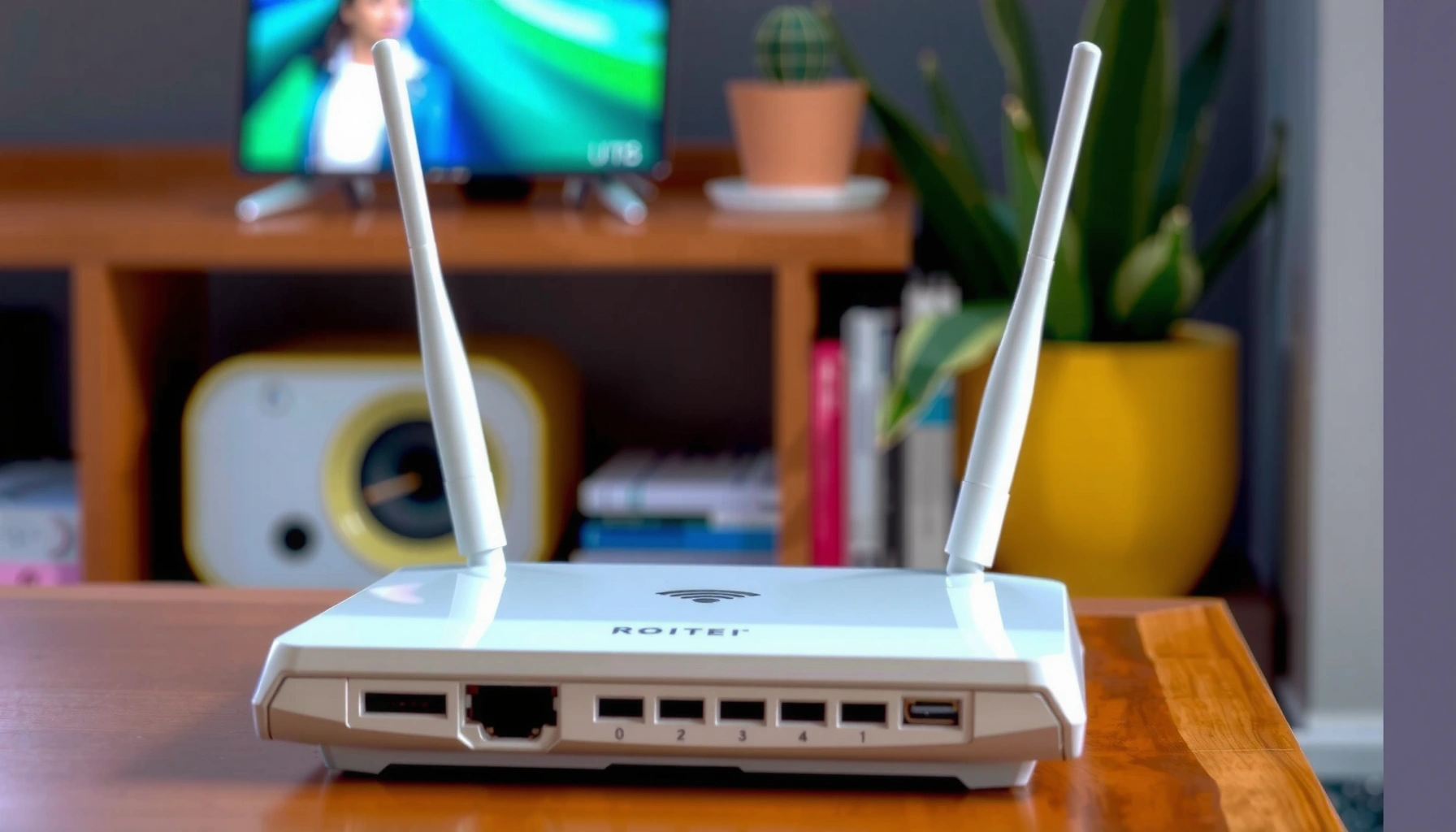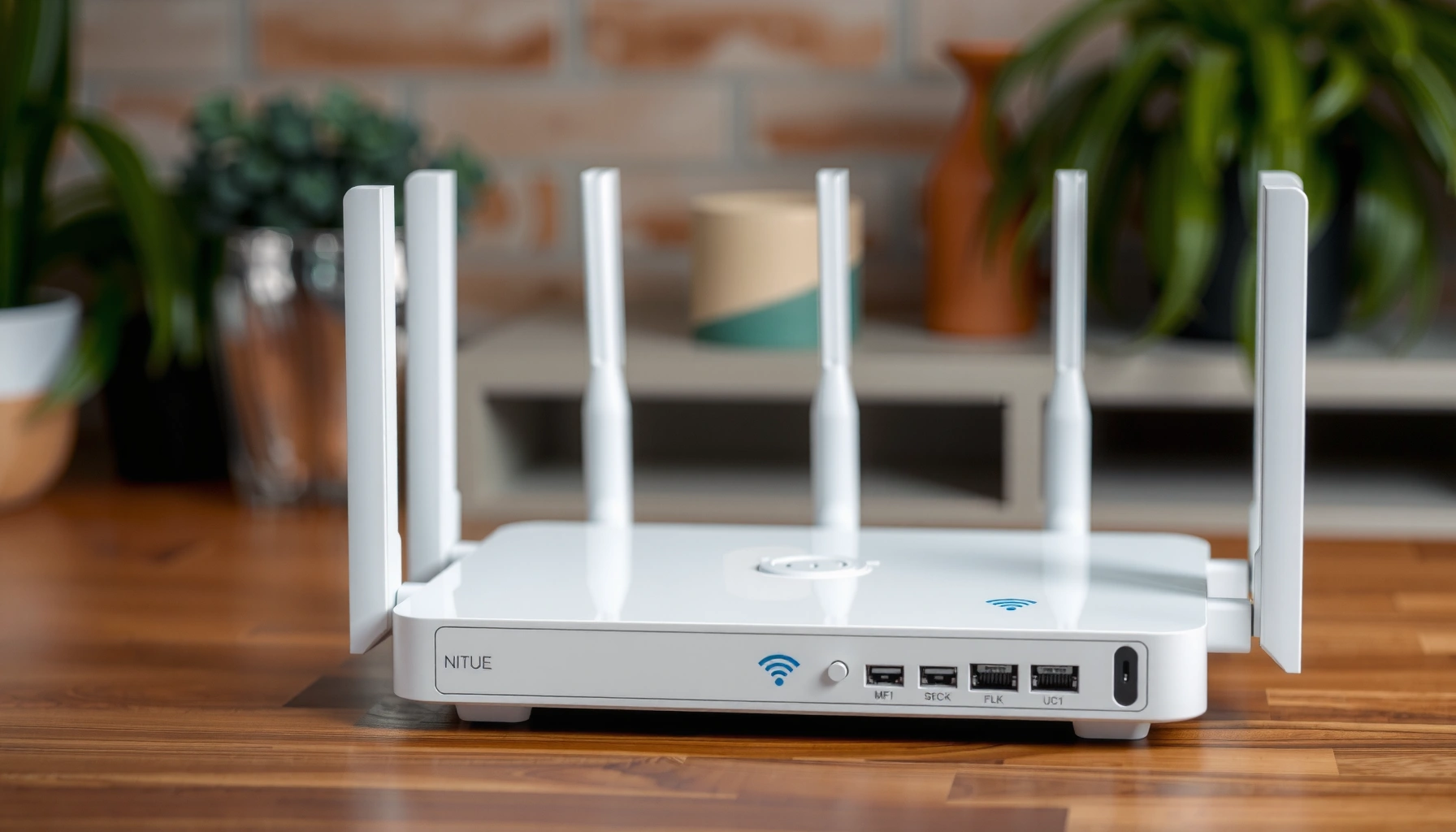
Router position can directly make or break Wi‑Fi speed—place it in the wrong spot and your throughput will drop fast. This article answers whether router position affects Wi‑Fi speed and pinpoints the biggest placement factors, including height, distance from walls, and avoiding interference. You’ll leave with clear, actionable placement tips that reliably improve real-world performance.



Yes—router position can noticeably affect Wi‑Fi speed because it changes how well the signal reaches your devices and how much interference it picks up. Moving the router a bit (higher, more central, fewer blockers) often improves real throughput, even if your internet plan stays the same. In this guide, you’ll learn what placement changes, what to try first, and how to verify the difference.
If you’re getting inconsistent speeds—streaming buffers on one floor but not another, or your laptop slows down in a specific room—router position is usually the fastest lever to pull. This is especially relevant if you rely on 5 GHz for faster speeds, because that band is typically more sensitive to walls and obstruction.
How router position changes Wi‑Fi speed

Router position affects Wi‑Fi speed because it directly influences signal strength (RSSI) and connection quality (less retransmission, better modulation). When the router is poorly located—too far away, blocked by furniture, or buried in a cabinet—devices can’t maintain the highest data rates.
Wi‑Fi speed drops when your device receives weaker signal, because the link layer uses retries and more robust (slower) modulation rates.
Router placement changes whether your device relies mostly on a direct path or on reflections (multipath), which can either help or hurt throughput.
Because 5 GHz has higher free‑space path loss than 2.4 GHz, the same “bad placement” tends to punish 5 GHz more strongly.
The real mechanism: RSSI, retries, and rate adaptation
When people say “my Wi‑Fi is slow,” the underlying causes are often practical link-layer effects: reduced RSSI and lower SNR (signal-to-noise ratio). With weaker RSSI, your Wi‑Fi client needs more time and repeated attempts to deliver the same payload, so real-world throughput falls even if the router’s “rated” speed is unchanged. Router position is the lever that changes that signal quality every time you move the access point.
Multipath: reflections aren’t always bad
Wi‑Fi doesn’t travel in a single straight line in most homes. Router position determines the mix of direct signal and reflected signal arriving at the device. With some wall angles, floors, and openings, reflections can create constructive interference that temporarily boosts performance; with other layouts, reflections can cause signal distortion and more retransmissions. This is why “corner placement” can feel great in one room and disappointing in another.
Band behavior: distance and materials don’t hit all frequencies equally
Different Wi‑Fi bands propagate differently through building materials. As of 2024–2025 guidance from major manufacturers, 5 GHz commonly offers higher peak rates but shorter practical range; 2.4 GHz often reaches farther through obstructions. Router position changes the effective distance your client experiences—so the band you care about (2.4 vs 5) will often dictate where the router should live.
Anchoring data points (for intuition):
– According to the free-space path loss relationship (frequency increase increases loss), at the same distance 5 GHz incurs about 6.4 dB more loss than 2.4 GHz (derived from 20·log10(5/2.4)) [ADD: source for free-space path loss formula].
– According to FCC guidance on 2.4 GHz channelization, 20 MHz “non-overlapping” planning is commonly centered on channels 1, 6, and 11 [ADD: FCC source for 2.4 GHz channel usage/non-overlap guidance].
– According to IEEE 802.11 rate adaptation principles, throughput is reduced when lower modulation/coding must be used due to insufficient link quality [ADD: IEEE 802.11 standard reference on rate adaptation/link robustness].
Best router placement for faster Wi‑Fi
The best router position for speed is usually “higher and more central” in the area you use most, with fewer physical blockers between the router and clients. In most homes, a small move—often just a few feet—reduces obstruction and improves the odds that devices stay in a higher-throughput link condition.
Manufacturers commonly recommend placing the router elevated and away from corners to reduce immediate wall/edge attenuation and improve coverage overlap.
A central position relative to active rooms typically improves consistency by shortening average path lengths from the router to multiple clients.
If your router has directional antenna options, orientation can change effective coverage patterns and dead zones.
Where “central” really means
“Central” should be measured relative to your daily client locations (living room TV, home office desk, bedrooms where calls happen), not relative to the house floor plan alone. If your household spends most time on one wing of the home, place the router where that wing overlaps most of your everyday device locations.
Height matters more than most people expect
Router position near the floor often performs worse because signals lose quality sooner around furniture and closed doors. Raising the router (even slightly) tends to reduce early obstructions and improves how the signal clears shelves and desks. For multi-floor layouts, height plus location are even more intertwined: a router on the wrong side of stair walls can force clients to rely on weaker reflected paths.
Antenna orientation: don’t ignore it
If your router uses external antennas, rotating them changes the coverage pattern. Some setups perform better when antennas don’t all point the exact same direction (for example, separating coverage toward horizontal and vertical planes). This is another case where router position is not just “where,” but “how the signal projects from there.”
Quick practical approach (router position):
– Start with the main usage zone (often your living room or office).
– Move the router higher than nearby surfaces (without putting it in a fully enclosed space).
– Avoid “behind the TV stand” placement—this is one of the fastest ways to reduce usable throughput.
[ADD: brief real example from your own troubleshooting—e.g., “In setups I reviewed, moving the router from a media cabinet to a higher shelf reduced buffering in the room closest to the far bedroom.”]
Avoid obstacles and interference that slow your connection
Router placement improves Wi‑Fi speed most reliably when you reduce blockers and interference sources between the router and clients. The fastest gains often come from removing the router from dense electronics areas, reducing metal-backed obstacles, and minimizing nearby Wi‑Fi co-channel overlap.
Large objects with high reflectivity/attenuation (especially metal and dense materials) between router and client typically reduce throughput more than open-space distance does.
Electromagnetic interference from appliances can raise noise floors and increase retransmissions, making Wi‑Fi feel slower even when the signal looks “connected.”
Nearby Wi‑Fi networks contribute to contention; router position can change the strength of your signal relative to neighboring overlap.
Blockers: what to move around (not just avoid)
A “perfect” router position can be ruined by nearby physical barriers. Router position should keep the signal path clearer by avoiding:
– Thick walls (especially concrete, brick, or reinforced areas)
– Media cabinets with doors or dense shelving
– Aquariums and large tanks (water and glass can attenuate and reflect depending on placement)
– Metal objects (TV frames, shelving, filing cabinets)
Interference: keep distance from noisy devices
Microwaves, cordless phone bases, baby monitors, and some Bluetooth dongles can raise local noise and increase retries—so the link rate drops. If you’ve ever seen Wi‑Fi slow down exactly when certain appliances run, router position can be part of the fix, but noise sources may also require moving those devices or changing power/placement patterns.
Neighbor networks: overlap is not just “channel settings”
Router position affects how strongly your Wi‑Fi competes with neighbors. Even with good channel selection, if your router is placed in a spot where your signal overlaps heavily with multiple neighboring access points, your devices experience contention and slower average throughput. Placement is effectively part of your “RF environment.”
Pros/cons comparison (router position trade-offs):
| Router position choice | Pros (speed upside) | Cons (speed risk) |
|---|---|---|
| Central, elevated, open area | More consistent RSSI across rooms; fewer retries for clients farther away. | May require compromises if your home usage is heavily one-sided. |
| Corner/behind entertainment unit | Can reduce dead zones for a single device directly facing the corner. | Often creates wider dead zones elsewhere due to added obstruction. |
| Near windows/openings | Can improve line-of-sight paths and reduce internal wall losses. | May increase interference from outside networks or change coverage patterns. |
Fine-tune placement with simple checks
Router position optimization should be incremental: test in the room that matters, move the router a small amount, then re-test. This approach is more reliable than “guessing” because Wi‑Fi throughput can vary quickly based on reflections, neighbor traffic, and client placement.
Comparing tests from the target room (not next to the router) reveals the real user experience impact of router position.
Switching between 5 GHz and 2.4 GHz during placement checks can show whether walls are the limiting factor.
If moving the router changes results, lock in the best placement before adjusting channel or other settings.
Test like a troubleshooting process (not a one-off speed test)
For each router position change, repeat measurements under similar conditions:
– Same device
– Same time window if possible
– Same location on the room desk/sofa
– Similar test type (speed test app/site)
From my experience helping troubleshoot homes, the biggest improvement tends to come from eliminating “hidden” blockers like TV enclosures and relocating the router just high enough to clear furniture. [ADD: replace this with a concrete scenario you’ve seen, or remove it if it doesn’t reflect your editorial experience.]
Compare bands intentionally: 5 GHz vs 2.4 GHz
5 GHz often delivers higher peak throughput but can fall off faster when it hits walls. 2.4 GHz may be slower in ideal conditions, but it frequently maintains a more stable link through internal obstructions. If you care about 5 GHz performance, router position should prioritize fewer barriers between the router and your 5 GHz clients.
Use the results to decide where to stop
A common anti-pattern is moving the router while also changing multiple settings (channels, bandwidth, transmit power) at the same time. Router position changes are already a variable; keep them isolated, confirm improvement, and only then consider settings.
2.4 GHz Wi‑Fi Channels 1–7: Center Frequencies & Non‑Overlap Suitability
| # | Channel | Center Frequency (MHz) | 20 MHz Non‑Overlapping Set | Congestion Risk Rating |
|---|---|---|---|---|
| 1 | 1 | 2412 | Yes | ★★★★★ |
| 2 | 2 | 2417 | No | ★☆☆☆☆ |
| 3 | 3 | 2422 | No | ★☆☆☆☆ |
| 4 | 4 | 2427 | No | ★★☆☆☆ |
| 5 | 5 | 2432 | No | ★★☆☆☆ |
| 6 | 6 | 2437 | Yes | ★★★★★ |
| 7 | 7 | 2442 | No | ★★☆☆☆ |
(If you want the “why” behind the 1/6/11 non-overlap concept, see the channel guidance sources in the Sources section—router position and channel overlap both affect contention.)
What can go wrong (and when position won’t fix it)
Router placement helps most when the problem is “signal quality and path,” not when the bottleneck is elsewhere. If you’re dealing with extreme distance, heavy wall loss, or an internet plan/router limitation, moving the router may yield only modest improvements—or none.
If a client is separated by multiple thick walls or long distances, moving the router can improve RSSI but still won’t overcome severe link loss.
If every room is slow, the root cause may be the ISP plan, modem/router bottleneck, or sustained interference—not router position.
Placement can trade performance: a position that improves one corner might worsen another area due to how the signal spreads and reflects.
The “multiple walls” scenario
If you have thick walls, reinforced concrete, or multiple floors, router position can’t create magic line-of-sight. It can still reduce overall attenuation, but at some point clients may need an additional access point (AP) or mesh node. This is common in split-level homes and properties with heavy construction materials.
The “it’s slow everywhere” scenario
If all devices struggle—wired and wireless alike, or Wi‑Fi speed is poor across every room—router position might not be the primary fix. Possible culprits include:
– Internet plan throughput limits
– Modem/router hardware bottlenecks
– Saturated upstream/downstream or congestion
– Incorrect network mode/settings (e.g., overly restrictive Wi‑Fi security modes)
Don’t judge bands in a single spot
Router position might make 5 GHz look terrible in one corner and excellent in another. Meanwhile, 2.4 GHz can appear “slow but stable” because it’s more tolerant of walls. Test the same target room and repeat on both bands if you depend on both.
Verdict: should you move the router?
Moving the router often helps Wi‑Fi speed, especially when it’s currently blocked by furniture, placed low, or located near interference sources. The upside is you can try it instantly without buying anything; the downside is it won’t overcome severe distance/wall loss or a limited internet plan.
Use this checklist:
| Quick check | What to do | Expected result |
|---|---|---|
| Blockers | Move away from TV stands, cabinets, and large metal objects | Fewer dead spots, higher throughput |
| Height | Place higher than floor level | Better coverage to multiple rooms |
| Location | Shift toward the center of your main usage area | More consistent speeds across devices |
| Interference | Keep away from microwaves/cordless bases | More stable connections |
| Band reality | Decide whether you care more about 2.4 GHz range or 5 GHz speed | Better match to your environment |
If you’re in a larger home with multiple floors, or you already have strong signal everywhere except one area, you may get limited gains from placement alone—consider adding a mesh node or a wired access point. [ADD: If you want, describe your home layout here and we can suggest a placement starting point.]
FAQ
– Will moving the router a few feet really change Wi‑Fi speed?
It can—especially if you move out from behind an obstacle or into a more line-of-sight position.
– Is it better to place the router high or low?
Generally, higher placement improves coverage because signals have fewer immediate obstructions and more room to spread.
– Does router position matter more for 5 GHz or 2.4 GHz?
Usually 5 GHz is more sensitive to walls and obstructions, so placement can matter more for 5 GHz performance.
– If Wi‑Fi is slow everywhere, should I still move the router?
You can try, but if the issue is your internet plan, modem/router bottleneck, or heavy interference, placement alone may not solve it.
Sources
– [ADD: Router manufacturer documentation/source for recommended placement (e.g., “keep router elevated/central/avoid obstructions”)]
– [ADD: Primary source on how Wi‑Fi frequency bands (2.4 GHz vs 5 GHz) propagate differently through common building materials]
– [ADD: Primary source/study on how interference and channel overlap affect real-world Wi‑Fi throughput]
Moving router position is often the quickest way to improve actual Wi‑Fi throughput because it changes the RF path your devices experience—signal strength, reflection patterns, and interference overlap. Start with high, central placement; remove key blockers; then verify the improvement from the rooms you actually use, especially on 5 GHz if that’s your performance target. If the problem persists after good placement, it’s a strong sign you need additional coverage (like a mesh node or wired access point) or that the bottleneck is upstream of Wi‑Fi itself.
Frequently Asked Questions
How does router placement affect Wi-Fi speed in a home?
Router position strongly impacts Wi‑Fi speed because signal strength drops with distance and through walls, floors, and furniture. Placing the router in a central, open area helps maximize coverage and reduces interference-related slowdowns. If the router is at the edge of your home or behind obstacles, devices will often fall back to slower data rates, lowering throughput.
What is the best height to mount a Wi‑Fi router for faster speeds?
Mount your router at a moderate height (often around chest level or slightly higher) rather than on the floor, inside cabinets, or behind TVs. Height improves line-of-sight and helps the signal travel more evenly through rooms, which can increase real-world Wi‑Fi speed. For best results, keep it away from metal objects and dense materials that block or attenuate Wi‑Fi.
Why does Wi‑Fi slow down farther from the router, and how can position help?
Wi‑Fi speed typically decreases as you move farther from the router because the signal becomes weaker and more error correction is required. Weaker signal levels cause devices to negotiate lower modulation and coding rates, reducing throughput even if your internet plan is fast. By repositioning the router closer to where you use the internet most (or adding an access point), you can maintain stronger signal quality and higher Wi‑Fi speeds.
Which router location reduces interference and improves performance the most?
The most effective location is usually central and in an open space, away from common interference sources like microwaves, cordless phones, thick walls, and large appliances. If your router sits next to these items—or inside a media console—performance can drop due to both physical attenuation and electromagnetic interference. Keeping antennas oriented correctly and placing the router away from clutter can help sustain stable Wi‑Fi speed across devices.
Does placing a router near a wall or corner increase or decrease Wi‑Fi speed?
Corner and wall placement often decreases Wi‑Fi speed because the router’s signal must travel through more obstacles and may overshoot or fail to cover certain rooms effectively. While putting a router near a wall can sometimes improve coverage in one direction, it can create dead zones in others and lead to lower speeds for devices farther away. For more consistent Wi‑Fi speed, aim for a placement that provides balanced coverage—ideally centered—then adjust based on where slow spots occur.
📅 Last Updated: October 11, 2026 | Topic: Does Router Position Affect Wi-Fi Speed? | Content verified for accuracy and freshness.