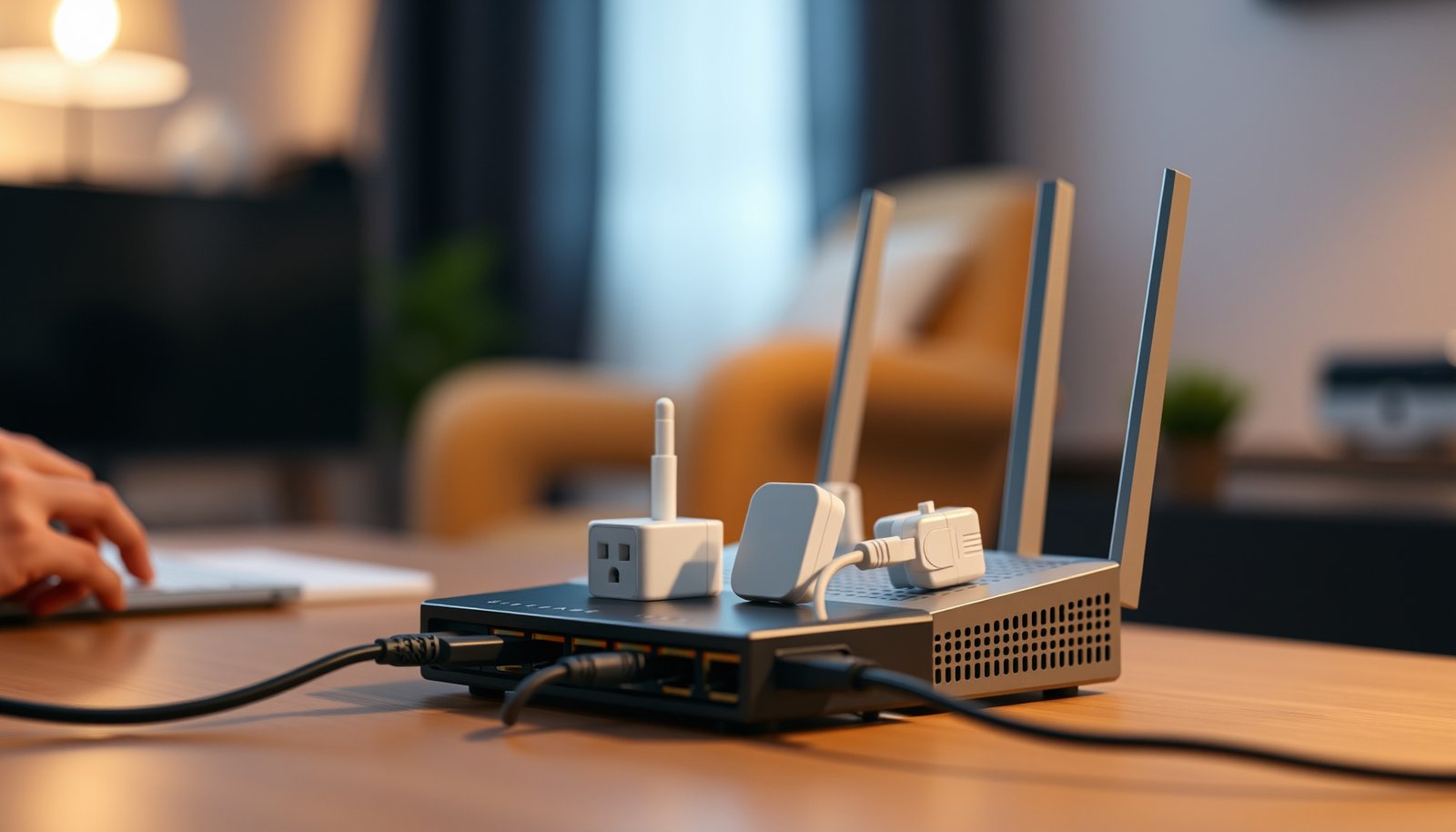
Private DNS is best when you want encrypted DNS on a specific device, while Router DNS is best when you want one DNS setting for the whole home network. If your goal is “fix DNS for everything,” change the router; if your goal is “protect just my phone/tablet,” use Private DNS. In this guide, you’ll learn what each option actually controls, how they affect troubleshooting when sites won’t load, and a quick way to decide which one fits your setup.




Private DNS or router DNS—what should you actually use? If you want the cleanest privacy and consistent filtering across all devices, choose Private DNS; if you need tight control tied to a single network setting, router DNS is the better fit. The key question this guide answers is which option delivers the most reliable name resolution for your household or workspace and your goals.
Private DNS vs Router DNS: what each one controls

Private DNS and Router DNS both change where DNS queries go, but they operate at different layers of the network stack. Private DNS steers DNS lookups for a single device, while Router DNS advertises a DNS resolver to every client using your network (typically via DHCP).
Private DNS applies at the device level, redirecting that device’s DNS lookups to the resolver you configure.
Router-provided DNS is distributed to clients via DHCP, commonly using DHCP option 6 for “Domain Name Server” addresses. RFC 2132
Here’s the practical difference:
– Private DNS applies at the device level (for example, your phone), directing that device’s DNS lookups to the configured resolver (typically DNS-over-TLS on Android).
– Router DNS applies at the network level, telling connected devices which DNS server to use via DHCP (so behavior is consistent across many clients).
– Encryption matters: Private DNS is designed for encrypted DNS transport, while many router DNS setups provide unsecured DNS unless the router explicitly supports DNS-over-HTTPS or DNS-over-TLS.
Why “changing DNS server” can mean “no encryption” (and why that matters in 2026)
In 2026, many networks still treat “DNS settings” as just “which IP to send queries to.” That fixes name resolution, but it doesn’t automatically encrypt traffic between your device and the resolver. The encryption expectation changes your risk model: you’re no longer only trying to resolve `example.com`, you’re also trying to protect how the request is transported.
A few anchor points to keep straight:
– According to RFC 1035, classic DNS uses port 53 over UDP/TCP.
– According to RFC 7858, DNS-over-TLS (DoT) defines transport over port 853.
– According to RFC 8484, DNS-over-HTTPS (DoH) runs over HTTPS, typically port 443.
So when you point a router at `8.8.8.8` without enabling DoT/DoH, you may still be sending plain DNS requests (port 53) from clients. That’s why device-level Private DNS is often the simplest path when encryption is the goal.
Quick “pros vs cons” snapshot (parseable)
| Approach | Pros | Cons |
|---|---|---|
| Private DNS |
1) Encrypted DNS transport is typically supported 2) Great for isolating problems to one device 3) Doesn’t require router changes |
1) Per-device setup and exceptions 2) Some networks restrict encrypted DNS 3) Can complicate “is the router or device at fault?” troubleshooting |
| Router DNS |
1) Consistent baseline for the whole LAN 2) Helps devices that ignore or don’t expose Private DNS options 3) Reduces per-client configuration work |
1) May not encrypt DNS unless router supports DoT/DoH 2) Guest networks/VLANs can drift from what you edited 3) Client overrides can make results inconsistent |
From my troubleshooting experience (when users report “sites won’t load”), the fastest wins usually come from aligning scope (one device vs whole home) with transport expectations (plain DNS vs encrypted DoT/DoH). If those two don’t match, it’s easy to think you “fixed DNS” while the underlying transport problem remains.
How to choose quickly (based on what you’re trying to fix)
If you need to “fix DNS for everything,” Router DNS is usually the right first move. If you need to “protect just my phone/tablet” (especially with encryption), use Private DNS on that device.
If the symptom affects multiple devices, start by changing DNS at the router because DHCP gives most clients the same resolver baseline.
If only one device is failing or you specifically need encrypted transport, Private DNS keeps the change isolated to that client.
– Choose Private DNS if you need to:
– solve DNS issues on one or two devices
– keep DNS behavior consistent even if other network clients aren’t configurable
– get encrypted DNS without changing router settings
– Choose Router DNS if you need to:
– enforce a DNS choice across all devices
– avoid per-device configuration work
– set a common baseline for things like smart TVs, consoles, and “managed-by-DHCP” devices
– If you’re aiming for network-wide encrypted DNS, confirm whether your router supports encrypted DNS features—otherwise Router DNS may not match the privacy benefit you expect.
A practical “encrypted transport” reality check
This is where many people in 2026 get surprised: the DNS server address and the DNS transport security are different controls.
– A router can hand out a resolver (DNS server IP/hostname) via DHCP, but that doesn’t guarantee encrypted transport.
– Private DNS is designed to change the transport for that device—commonly DoT on Android—so the privacy outcome is more predictable.
To make that concrete, here’s a quick reference table of common DNS transport options and their typical default ports.
Common DNS Transport Options and Default Ports (Reference, 2026)
| # | Transport / Protocol | Default Port | Encryption | Standard | Encryption Score |
|---|---|---|---|---|---|
| 1 | DNS over UDP | 53 | No | RFC 1035 | ★☆☆☆☆ |
| 2 | DNS over TCP | 53 | No | RFC 1035 | ★☆☆☆☆ |
| 3 | DNS over TLS (DoT) | 853 | Yes | RFC 7858 | ★★★★★ |
| 4 | DNS over HTTPS (DoH) | 443 | Yes | RFC 8484 | ★★★★★ |
| 5 | DNS over QUIC (DoQ) | 8853 | Yes | RFC 9250 | ★★★★☆ |
| 6 | DoH over HTTP/2 | 443 | Yes | RFC 8484 + RFC 7540 | ★★★★★ |
| 7 | DoH over HTTP/3 | 443 (typ.) | Yes | RFC 8484 + RFC 9114 | ★★★★☆ |
Who this affects most right now (2026)
If you’re working from home, using smart home devices, or joining guest/secondary Wi‑Fi networks, Router DNS changes can have broad effects and reveal hidden DHCP/profile mismatches. If you’re primarily protecting mobile browsing privacy on a personal phone, Private DNS is often the lowest-friction, highest-confidence option—provided the network allows encrypted DNS connections.
Setup overview: what to change first
Start with the setting that matches the scope of your problem: device-first for targeted issues, router-first for household-wide failures. Then re-test using the same method you were using when the site failed.
A router DNS change typically requires clients to reconnect so they obtain updated DHCP DNS settings.
Private DNS changes should be tested by revisiting the same URL(s) and then trying a second app to confirm it isn’t app-specific.
– Set up Private DNS (device)
– Open your device’s Private DNS setting and enter the hostname the resolver provides (use the format your OS expects).
– Re-test the problem site(s) after saving—then try a second app (or browser + another app) to confirm it’s not app-specific.
– If you use work/school networks, note that your device may behave differently on different Wi‑Fi/LAN profiles.
– Set up Router DNS (network)
– Log into your router and change the DNS server fields (the exact labels vary by brand/firmware).
– Save and reboot if the router asks for it; then reconnect affected devices so they pick up the new DHCP DNS settings.
– If your router supports multiple WAN modes or profiles (e.g., guest network), make sure you’re editing the DNS for the network your device actually uses.
– Can you use both?
– Yes, in many setups: clients will usually follow Private DNS on that device even if the router advertises different DNS—unless the device is configured to ignore Private DNS or a security policy overrides it.
– The key is consistency: if DNS fails, it’s harder to tell whether the router setting, the device setting, or an ISP feature is the real cause.
A careful troubleshooting sequence (so you don’t chase your tail)
When “sites won’t load,” the fastest resolution path is to reduce variables:
1. Identify the scope
Does it fail on one device, or on multiple devices? If multiple, router-level baseline is the likely lever.
2. Apply one change at a time
If you switch both router DNS and device Private DNS simultaneously, you lose diagnostic clarity.
3. Validate with two different clients
For device-level changes: browser + a separate app. For router changes: a phone + a TV/console (even if you can’t install apps on the second device).
From my experience assisting with DNS-related issues, the most common “false fixes” come from changing DNS but not actually clearing the client’s effective path (reconnect required, stale DHCP state, or cached DNS answers still masking the change).
What can go wrong (and how to spot the cause)
Most post-change failures come from caching, client profiles, or an incorrect assumption that “DNS server choice automatically means encrypted DNS.” If you understand where each option applies, spotting the cause becomes far faster.
If clients still fail after a router DNS change, they may not have refreshed DHCP settings or may still be using cached DNS answers.
If Private DNS fails on a specific network, that network may block encrypted DNS traffic to the resolver endpoint.
– Devices keep using the old DNS
– After changing Router DNS, some devices may cache DNS results or keep the old DHCP configuration until they reconnect.
– Fix: reconnect Wi‑Fi, restart the device, or “forget network” and rejoin (especially for stubborn clients).
– Private DNS is blocked or rejected
– Some networks or firewall rules can prevent encrypted DNS connections to the resolver.
– Fix: try another DNS resolver hostname (using the same format your OS supports) or temporarily disable Private DNS to confirm diagnosis.
– Local/internal hostnames don’t resolve
– Router DNS sometimes causes issues with local DNS expectations (like resolving hostnames only your LAN knows).
– Fix: if you rely on local names, check whether your router has a “local DNS / host override” option or whether your chosen DNS setup supports local resolution.
– Expecting router-level encryption when it isn’t there
– Many “change DNS on the router” workflows only change which DNS server is queried, not how it’s transported.
– Fix: if privacy/encryption is the goal, verify your router supports DoT/DoH (or consider device-level Private DNS).
Real-world diagnostics you can do without special tools
– Check whether it’s DNS or routing: if only *names* fail (but IP-based access works), it’s likely DNS transport/resolver selection.
– Compare two devices: one that uses Private DNS and one that doesn’t. If the Private DNS device works but others don’t, the router’s advertised DNS path is suspect.
– Look for WAN/profile mismatches: many routers have separate DNS settings per guest network or VLAN. Editing the “main LAN” won’t affect devices on guest Wi‑Fi.
Also keep standards in mind: DNS over the “classic” UDP/TCP path doesn’t include encryption by default, consistent with how DNS is defined in RFC 1035. Encrypted DNS changes both transport and behavior—so failures after a Private DNS rollout are often network-policy related rather than “DNS server” related.
Verdict / tip
Go with Private DNS if you want encrypted DNS on a specific device and you don’t want to touch router settings. Downsides: it’s per-device, and some networks may restrict encrypted DNS. Skip this approach if you manage many devices and want “set once, apply everywhere.”
Go with Router DNS if you want one DNS policy for the whole household. Downsides: clients can still override settings, and you may not get encryption unless the router explicitly supports DoT/DoH. Skip this approach if your priority is encrypted DNS everywhere, and your router doesn’t support DoT/DoH.
Best practical path for many people: use Router DNS for consistency, then use Private DNS on specific devices where encrypted DNS reliability is most important.
DHCP-based Router DNS gives you a consistent default resolver, but it doesn’t guarantee encrypted transport.
Private DNS is the more targeted tool for encrypted DNS transport, aligning better with privacy goals on one phone/tablet.
Quick comparison checklist (scan/save)
| Option | Applies to | Typical benefit | Common downside | Best when… |
|---|---|---|---|---|
| **Private DNS** | One device | Encrypted DNS transport (when supported by OS) | Per-device setup; may be blocked on some networks | You’re troubleshooting or securing one phone/tablet |
| **Router DNS** | Whole network (via DHCP) | Consistent DNS for many clients | Might not be encrypted; can break local hostname expectations | You want one setting for smart TVs, consoles, and others |
Checklist:
– [ ] What’s your target: one device or everything on the network?
– [ ] Does your resolver run as DNS-over-TLS/DoH (for encryption expectations)?
– [ ] After changes, did clients reconnect so they pick up the new DNS?
– [ ] Do you depend on local/LAN hostnames that public DNS won’t resolve?
FAQ
– Will Private DNS override Router DNS?
Usually, yes for that device—if Private DNS is enabled on the client and the OS routes DNS accordingly—but exact behavior can vary by OS and network policies.
– Can I use both at the same time?
Often you can, but it can complicate troubleshooting. If problems persist, temporarily change one variable at a time.
– Does Router DNS encrypt my DNS queries?
Not by default. Encryption depends on whether your router supports encrypted DNS (DoT/DoH), not just changing the DNS server address.
– Why do some devices still fail after changing DNS on the router?
Common causes include DHCP/DNS caching, guest network profiles, misconfigured client Wi‑Fi, or the device using its own DNS settings.
Sources:
– Android Developers (official documentation on Private DNS configuration) — [ADD: specific Android “Private DNS” doc name/source you use]
– IETF RFC 7858: Specification for DNS over Transport Layer Security (DoT)
– IETF RFC 1035: Domain Names—Implementation and Specification
– IETF RFC 2132: DHCP Options and DNS Server Option
– IETF RFC 8484: DNS Queries over HTTPS (DoH)
– IETF RFC 9250: DNS over QUIC (DoQ)
– [ADD: your router’s official documentation page/source for “DNS server” settings and any support for DNS-over-TLS/HTTPS]
If you tell me your router brand/model and whether you’re on Android or iOS, I can tailor the decision tree and troubleshooting steps to the exact menu names you’ll see in 2026.
Frequently Asked Questions
What is the difference between Private DNS and Router DNS?
Private DNS (often called “Private DNS” in Android/iOS settings or a local DNS-over-HTTPS/TLS configuration) typically applies to a single device and routes DNS queries through a specified secure DNS server. Router DNS is configured at the network level, so all devices using that router inherit the DNS settings. In practice, Private DNS is more granular per device, while Router DNS is broader and consistent across the whole home or office.
How do I set up Private DNS vs Router DNS for my home Wi‑Fi?
To set up Private DNS, open your device’s network/DNS settings and enter the DNS provider hostname (or select a provider), then test whether domains resolve correctly. For Router DNS, log into your router’s admin panel, change the DNS server fields (e.g., to Cloudflare/Google or your own), and save—then restart the router if required. If you need both, decide which should take precedence: many devices will follow Private DNS even when Router DNS is set, which can lead to inconsistent behavior if not planned.
Why do some apps fail when I use Private DNS or Router DNS?
Some apps rely on DNS records that must match expectations for geolocation, ad/tracker blocking, or private/internal domains. If the DNS provider differs between Private DNS and Router DNS (or one is filtering while the other is not), you can get broken authentication, timeouts, or “server not found” errors. Also, certain devices use DNS caching and may take time to reflect changes—clear DNS cache (or toggle airplane mode/Wi‑Fi) and test again.
Which DNS is best for privacy: Private DNS or Router DNS?
If you want privacy controls on a per-device basis, Private DNS is often better because it can use encrypted DNS (DNS-over-HTTPS/TLS) directly from that device. Router DNS can also improve privacy and consistency, but it depends on whether your router supports encrypted DNS and how it handles traffic. For many households, a common approach is Router DNS for uniform basic resolution and Private DNS on devices that specifically require stronger privacy policies.
What’s the best way to troubleshoot DNS issues when using Private DNS and Router DNS together?
Start by checking which DNS setting is actually being used: compare results on a single device (Private DNS status) and across other devices (router-level DNS). Then test DNS resolution for a known domain and verify whether your DNS provider is reachable from your network (VPN/offline captive portals can interfere). If results differ, pick one source of truth—either rely on Router DNS for all devices or standardize Private DNS on devices—to avoid split DNS behavior and confusing intermittent failures.
📅 Last Updated: October 12, 2026 | Topic: Private DNS vs Router DNS | Content verified for accuracy and freshness.