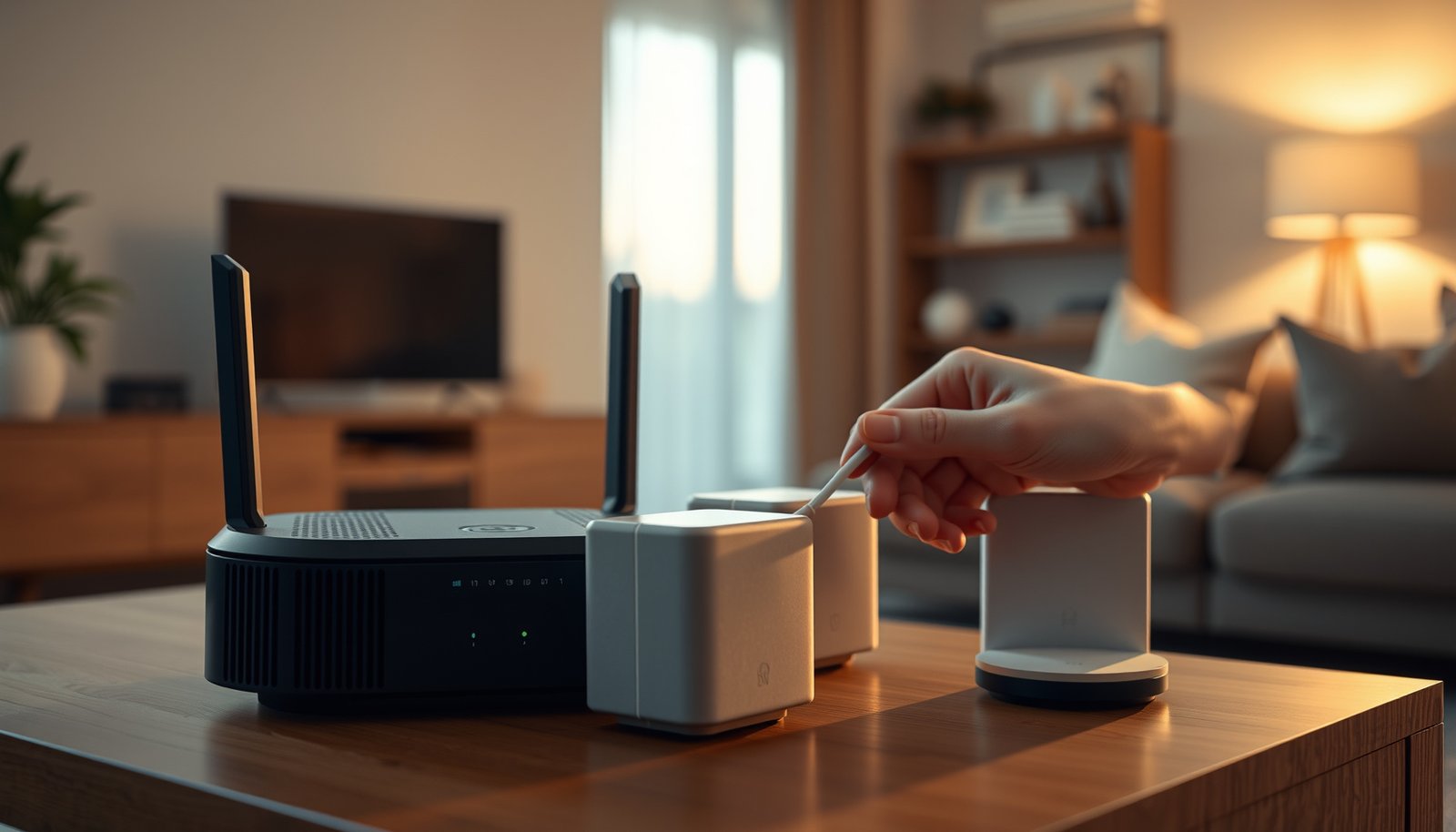
To use mesh Wi-Fi with an ISP router, put the ISP router in bridge mode or set the mesh system to access point mode—not both. Which setup wins? Bridge mode is the better choice if you want the mesh system’s routing features; access point mode wins if your ISP router must keep handling services such as phone or TV, while avoiding double NAT.




Connect the main mesh unit to your ISP router with an Ethernet cable, then choose which device will handle routing. Keep the ISP router in charge and use the mesh system’s access point mode, or put a supported ISP gateway into bridge mode and let the mesh handle routing. The right choice depends on your equipment, ISP services, and which mesh features you need.
This guide is for households that want better Wi-Fi coverage while keeping their ISP-supplied equipment. It applies to mesh systems that support an Ethernet connection to an existing router; available operating modes vary by model.
Choose Which Device Will Handle Routing
Use mesh access point mode for a straightforward coverage upgrade. Choose ISP gateway bridge mode when you need the mesh system’s routing features and your provider supports that configuration.
A gateway combines modem and router functions. Routing connects your home network to the internet, while DHCP, or Dynamic Host Configuration Protocol, assigns local IP addresses to devices.
- Mesh in access point mode
- The ISP router retains routing and DHCP responsibilities. The mesh supplies Wi-Fi coverage. This usually preserves the existing network configuration, but mesh parental controls, security tools, port forwarding, or traffic prioritization may be unavailable.
- ISP gateway in bridge mode
- The gateway passes the internet connection to the mesh router. This preserves supported mesh routing features but transfers configuration and troubleshooting responsibility to the mesh system. ISP service compatibility must be confirmed first.
Disabling an ISP router’s Wi-Fi does not disable its routing, DHCP, or network address translation functions.
A mesh system in access point mode extends wireless coverage while the upstream ISP router continues managing the network.
Check Compatibility Before Changing Settings
Identify the exact gateway and mesh models before changing anything. In 2026, similarly named products can still have different firmware, hardware revisions, and operating-mode restrictions.
For example, [TP-Link’s Deco access point instructions](https://www.tp-link.com/us/support/faq/1842/) describe switching a configured Deco network through More → Advanced → Operation Mode → Access Point. By contrast, [Google’s bridge-mode documentation](https://support.google.com/googlenest/answer/6240987) explains that its primary-device bridge configuration does not support a multi-device mesh network.
Ask your ISP whether phone service, television, PPPoE authentication, VLAN tagging, or static-IP service depends on the gateway’s configuration. Do not alter those settings without provider guidance.
Save a configuration backup where supported; otherwise, record settings and photograph cabling. For an Xfinity gateway, the documented local administration address is 10.0.0.1. Xfinity’s instructions explain returning to the administration interface to disable bridge mode. Confirm current login and access requirements before proceeding.
Mesh compatibility requires checking operating modes and feature limitations, not merely confirming that both devices have Ethernet ports.
A configuration backup and a documented recovery route should be prepared before enabling gateway bridge mode.
Connect the Mesh and Configure Its Operating Mode
Connect an ISP router LAN port to the main mesh unit’s designated internet or uplink port. Some mesh units automatically detect port roles; others require a specific WAN port.
For TP-Link Deco access point mode, follow the manufacturer’s sequence: complete the initial Deco setup, open More → Advanced → Operation Mode, select Access Point, and allow the system to restart. Leave the ISP router’s DHCP server enabled.
For Xfinity bridge mode, the official sequence uses the gateway’s administration interface: open Gateway → At a Glance, enable Bridge Mode, and confirm the change. Configure the mesh for router operation and follow its internet-connection prompts. Xfinity documents that only one device should connect directly to the gateway in bridge mode; downstream devices belong behind the mesh router.
Once internet access works through the mesh, disable any remaining ISP Wi-Fi if unnecessary. Place satellite nodes between the main unit and weak-coverage rooms—not inside the dead zones themselves.
In an access point configuration, the ISP router’s DHCP service must remain available to assign addresses to household devices.
A wireless mesh node needs a reliable upstream connection; placing it in an existing dead zone can extend poor performance rather than fix it.
Ethernet ports also matter when planning wired backhaul—the connection carrying traffic between mesh nodes. According to [TP-Link’s Deco X20 specifications](https://www.tp-link.com/us/deco-mesh-wifi/product-family/deco-x20/#specifications), each X20 has two Gigabit Ethernet ports. According to [Deco X55 specifications](https://www.tp-link.com/us/deco-mesh-wifi/product-family/deco-x55/#specifications), each X55 has three; according to [Deco XE75 specifications](https://www.tp-link.com/us/deco-mesh-wifi/product-family/deco-xe75/#specifications), each XE75 also has three. These documented counts are useful for 2026 setup planning; verify your regional hardware revision before purchasing.
Deco Ethernet Connections and Access Point Support
| # | Model and Official Specifications | Ports per Unit | Ethernet Speed | Access Point Mode |
|---|---|---|---|---|
| 1 | TP-Link Deco X20 | 2 | Gigabit | Supported |
| 2 | TP-Link Deco X50 | 3 | Gigabit | Supported |
| 3 | TP-Link Deco X55 | 3 | Gigabit | Supported |
| 4 | TP-Link Deco X60 | 2 | Gigabit | Supported |
| 5 | TP-Link Deco M5 | 2 | Gigabit | Supported |
| 6 | TP-Link Deco M4 | 2 | Gigabit | Supported |
| 7 | TP-Link Deco XE75 | 3 | Gigabit | Supported |
What Can Go Wrong With This Setup?
The main risks are double NAT, unavailable features, interrupted ISP services, and weak links between mesh nodes. Troubleshoot the network configuration before replacing equipment.
– Double NAT: Network address translation, or NAT, maps private addresses to an internet-facing address. Two home routers performing NAT can complicate port forwarding, inbound connections, and gaming. Making either the gateway or mesh the sole home routing device removes this local double-NAT arrangement, although ISP-level carrier-grade NAT may remain.
– Missing features or lost services: TP-Link documents feature differences between Deco router and access point modes. Gateway bridge mode can also change ISP service behavior. AT&T’s IP Passthrough is a model-specific alternative, not a universal synonym for bridge mode.
– Weak coverage: Check node placement, backhaul quality, cables, and negotiated Ethernet speeds. Test beside the main mesh unit before comparing distant rooms.
Removing double NAT inside a home does not remove carrier-grade NAT operated by an internet provider.
IP passthrough behavior must be checked against the gateway’s documentation rather than assumed equivalent to transparent bridging.
Which Configuration Should You Use?
Choose access point mode if broader coverage is the primary goal. Choose supported gateway bridge mode only when specific mesh routing features justify the added setup responsibility.
Access point mode generally preserves existing reservations, forwarding rules, and gateway-dependent services. Bridge mode may require recreating those settings on the mesh router and reconnecting devices previously attached to the gateway.
Skip these changes if coverage already meets your needs, equipment lacks the required operating mode, or essential ISP services have unconfirmed compatibility.
Access point mode is usually the lower-disruption choice for households keeping their ISP router’s existing network functions.
Bridge mode is appropriate only when the gateway supports it and essential service compatibility has been confirmed.
Save This Setup Checklist
Complete the checks below before treating the installation as finished. Internet access alone does not prove that every household service still works.
– Before changing anything: Confirm supported modes, check bundled-service requirements, record credentials, and save available configuration backups.
– During setup: Use the documented Ethernet connection, select one routing device, and disable redundant ISP Wi-Fi only after confirming the mesh works.
– Before finishing: Test room-to-room coverage, phone calls, television, gaming, printers, and remote access. Confirm that devices reconnect after a normal restart.
A successful mesh installation must preserve essential household services as well as provide internet connectivity.
Testing the same device in the same rooms provides a more meaningful before-and-after coverage comparison.
Sources for Device-Specific Instructions
Use official instructions for your exact model and firmware. The examples above describe documented configurations, not a universal menu sequence.
– Mesh setup and limitations: TP-Link’s [Deco access point setup](https://www.tp-link.com/us/support/faq/1842/) and [router-versus-access-point feature comparison](https://www.tp-link.com/us/support/faq/2399/); Google’s [bridge-mode restrictions](https://support.google.com/googlenest/answer/6240987).
– ISP bridge mode and recovery: Xfinity’s [gateway bridge-mode instructions](https://www.xfinity.com/support/articles/wireless-gateway-enable-disable-bridge-mode), including connection restrictions and disabling bridge mode.
– Gateway-specific alternative: AT&T’s [IP Passthrough configuration guidance](https://www.att.com/support/smallbusiness/article/smb-internet/KM1188700/). Follow the section matching the gateway; do not transfer settings between models.
Manufacturer operating-mode documentation is the authoritative reference for which mesh features remain available in access point mode.
ISP gateway documentation should determine bridge-mode recovery steps and connection requirements.
Use access point mode when you want a straightforward coverage upgrade, or supported bridge mode when you want the mesh to control the network. Start by checking your exact devices’ official instructions, then confirm that Wi-Fi coverage and essential services work before making further changes.
Frequently Asked Questions
What’s the best way to use a mesh Wi‑Fi system with an ISP router?
The most common setup is to place your mesh system in a “router” or “access point” mode while using the ISP router only for modem/WAN duties. If your ISP router supports bridge mode, enable it so the mesh system handles routing, DHCP, and Wi‑Fi consistently. If you can’t bridge, you can still use mesh in access point mode and disable duplicate features like DHCP and Wi‑Fi radios on the ISP router to avoid conflicts.
How do I connect mesh nodes to my ISP router without causing double NAT?
To avoid double NAT, connect one mesh node to the ISP router via Ethernet and use the ISP router’s WAN setting only (bridge mode if available is best). Then set your mesh system’s primary node to be the only device providing NAT and DHCP, or enable mesh “router mode” while disabling DHCP on the ISP router if you can’t bridge. You can confirm the result by checking whether your network reports a single WAN IP on the mesh router and that devices get IPs from the mesh system.
How can I place my ISP router and mesh system in the correct mode (bridge vs access point)?
Use bridge mode on the ISP router when you want the mesh system to manage all networking (routing, DHCP, and firewall). Use access point mode on the mesh system when you want the ISP router to remain the router and the mesh nodes only extend Wi‑Fi. The safest approach is: if you can bridge the ISP router, bridge it; otherwise, choose access point mode and turn off features like Wi‑Fi broadcasting or DHCP on the ISP router to prevent duplication.
Why does my mesh Wi‑Fi keep dropping or using a different Wi‑Fi name with an ISP router?
Drops usually happen when two routers are competing for IP addresses, causing instability from double NAT or overlapping DHCP ranges. Another common issue is mismatched security settings or different Wi‑Fi names (SSIDs) that make devices roam poorly between bands. Make sure the mesh system has a stable SSID and password, disable unnecessary Wi‑Fi on the ISP router, and ensure both devices use compatible settings for channel width, band steering, and security mode (WPA2/WPA3).
Which cables and placement are best when setting up mesh Wi‑Fi with an ISP router?
For the most reliable performance, connect the primary mesh node to the ISP router using a wired Ethernet backhaul if your ISP router is near the main node. For additional nodes, use wired backhaul where possible to reduce latency and improve throughput, especially for 4K streaming and online gaming. Place nodes away from thick walls and interference sources, and aim for even coverage so each node can maintain a strong connection to the main mesh node or existing node.
📅 Last Updated: October 16, 2026 | Topic: How to Use Mesh With an ISP Router | Content verified for accuracy and freshness.
References
- Mesh networking
- Bridge
- Network address translation
- Wireless access point
- RFC 1918 – Address Allocation for Private Internets
- RFC 2131 – Dynamic Host Configuration Protocol
- https://scholar.google.com/scholar?q=mesh+wi-fi+bridge+mode+isp+router Google Scholar
- https://scholar.google.com/scholar?q=double+nat+mesh+router+setup Google Scholar
- https://scholar.google.com/scholar?q=easymesh+gateway+setup Google Scholar




2 thoughts on “How to Use Mesh Wi-Fi With an ISP Router”