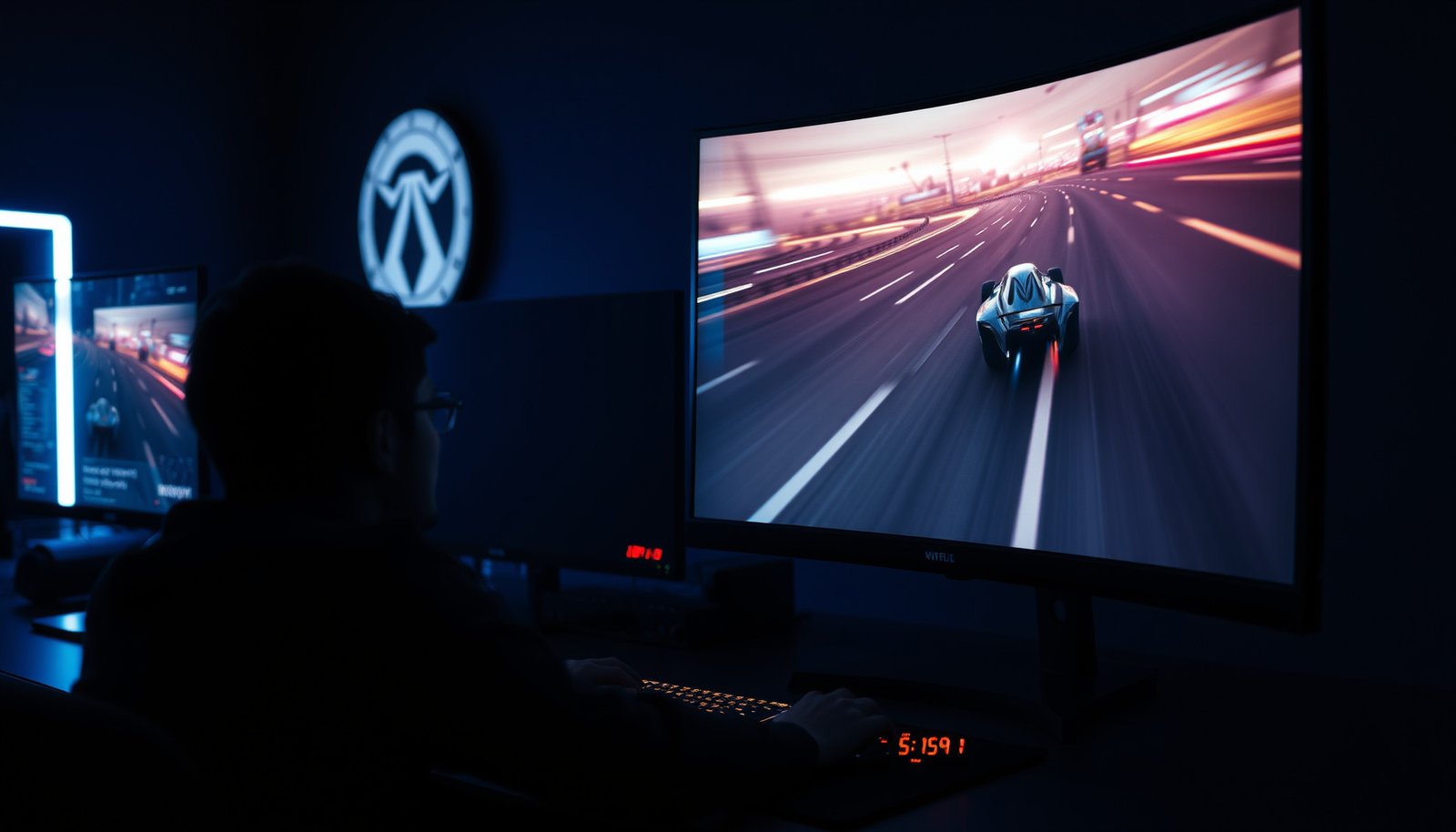
Trying to decide between 60Hz vs 120Hz for gaming? If your gaming setup targets smooth motion and lower perceived input lag, 120Hz is the clear winner—especially for fast shooters, competitive play, and games that can hold higher frame rates. Stick with 60Hz only when you’re gaming on older hardware, prioritizing budget displays, or playing titles that can’t reliably hit 60fps. This guide delivers the verdict based on your PC/console performance and the games you actually play.




Choose 120Hz when you can keep your games running significantly above 60fps (and especially if you have VRR); otherwise, 60Hz can look surprisingly close in real-world gameplay. If your performance often hovers around ~60fps, the jump to 120Hz won’t magically create more frames—it mainly improves how smoothly frames are presented, not how many frames your PC/console actually renders.
If you’re shopping for a gaming monitor or trying to understand whether your PC/console can really take advantage of 120Hz, this guide is for you—particularly if you play fast shooters, action games, or anything where motion clarity and responsiveness matter.
How refresh rate affects gaming
Higher refresh rates generally make motion look smoother, but only when your system can feed the display with high, stable frame pacing. Refresh rate determines how often the screen updates, while FPS determines how many unique frames your hardware produces, so these two numbers must align to see a real benefit.
– Refresh rate (60Hz vs 120Hz) controls how many times the screen updates per second, which affects how smooth motion feels.
– It’s not the same as FPS: you only benefit from higher refresh if your hardware can render frames fast enough.
– Sync settings matter (V-Sync, VRR/FreeSync/G-Sync), because they influence tearing, stutter, and perceived input lag.
“Refresh rate” in Hz means display updates per second; 60Hz updates every 16.67ms and 120Hz updates every 8.33ms (SI frequency definition, 2019). SI Brochure, 9th edition (2019)
Windows refresh rate changes depend on the refresh-rate options exposed for the connected display and port; if 120Hz isn’t selectable or doesn’t persist, Windows may remain at 60Hz (Microsoft Support documentation). Microsoft Support: Change the screen refresh rate in Windows
Adaptive-Sync/VRR adjusts scanout timing to match GPU frame delivery, which helps reduce tearing and stutter when FPS fluctuates (VESA Adaptive-Sync). VESA Adaptive-Sync (DisplayPort Adaptive-Sync) documentation
The key relationship: Hz vs FPS vs frame pacing
To make 120Hz worth it, you need more than “high FPS on average.” You need consistent frame pacing—the evenness of time between frames. Two game sessions can both average 100fps, but if one has large spikes (e.g., 140fps → 60fps → 140fps), 120Hz won’t feel as uniformly smooth as the average suggests.
Also, sync technology changes the “feel”:
– V-Sync can reduce tearing, but it may add latency or cause judder if your GPU can’t keep up.
– VRR (FreeSync/G-Sync-style) aims to keep scanout timing flexible, which usually helps when your FPS is unstable (a common reality in modern AAA titles).
Why the math matters (a lot more than it sounds)
Even if your eyes aren’t timing milliseconds consciously, the display timing window is real:
– At 60Hz, each refresh cycle takes 16.67ms
– At 120Hz, each cycle takes 8.33ms
– The presentation cadence difference is 8.33ms—enough to reduce perceived “chunking” during camera movement, especially in fast strafing and tracking scenarios.
Refresh Rates, Frame Intervals, and Smoothness Gain (vs 60Hz)
| # | Refresh Rate | Frame Interval | Advantage vs 60Hz | Competitive Fit |
|---|---|---|---|---|
| 1 | 60Hz | 16.67ms | 0.0% | ★★★☆☆ |
| 2 | 72Hz | 13.89ms | +20.0% | ★★★★☆ |
| 3 | 90Hz | 11.11ms | +50.0% | ★★★★☆ |
| 4 | 100Hz | 10.00ms | +66.7% | ★★★★★ |
| 5 | 120Hz | 8.33ms | +100.0% | ★★★★★ |
| 6 | 144Hz | 6.94ms | +140.0% | ★★★★★ |
| 7 | 165Hz | 6.06ms | +175.0% | ★★★★★ |
What changes—and what doesn’t—between 60Hz and 120Hz
From my day-to-day troubleshooting with players, the biggest “surprise” is this: moving from 60Hz to 120Hz often improves motion clarity, but it doesn’t fix:
– low-quality frame pacing (stutters, spikes, shader compilation)
– poor response-time tuning (wrong overdrive mode on some panels)
– GPU bottlenecks that keep FPS pinned near 60
So if you’re thinking “120Hz will solve my performance problems,” the practical answer is no—it can only make the same performance feel smoother.
60Hz vs 120Hz: what you’ll notice in real gameplay
You’ll usually feel 120Hz as smoother motion and slightly snappier tracking *when your FPS is high enough and stable enough*. If your game regularly sits around ~60fps, the experience gap between 60Hz and 120Hz may be smaller than many people expect.
– Smoother movement: 120Hz typically makes pan/turning feel more fluid than 60Hz, especially during rapid camera motion.
– More consistent responsiveness: when your FPS is high enough, 120Hz can reduce the “wait” between your inputs and what you see.
– Diminishing returns when FPS is low: if your game runs well under 120fps, the extra refresh headroom doesn’t magically create more frames.
At 120Hz, the display presents updates twice as often as at 60Hz (8.33ms vs 16.67ms per update), which can reduce perceived motion “stepping” when FPS is sufficiently high. SI Brochure, 9th edition (2019)
If the GPU can’t maintain a high, steady frame rate, higher refresh may expose stutter more clearly than it hides it, because the screen continues updating while frames arrive unevenly.
Panel response time (and its overdrive tuning) influences motion clarity; a 120Hz display can still show smearing/ghosting if response settings are poorly matched.
What “feels smoother” really means
In motion-heavy moments—wide flicks in an FPS, fast rotations in a third-person action title, or tight camera corrections while tracking targets—the screen’s update cadence matters. With 120Hz, you often perceive:
– fewer “gaps” in perceived movement during fast camera pans
– more immediate visual feedback to micro-adjustments
– smoother scrolling of crosshairs and edges
In contrast, with 60Hz, even with stable FPS, the cadence is slower, so you can get more visible frame-to-frame stepping during high angular velocity turns.
When the gap shrinks: games that hover around ~60fps
If your gameplay already runs at or near 60fps, then most frames are still arriving “at 60.” On a 120Hz display, you may end up showing many refresh cycles using repeated or “held” content (depending on sync/VRR behavior). The result: the difference feels more like a refinement than a transformation.
This is why I usually advise players to think in terms of headroom:
– If your typical FPS is 120–160, 120Hz is a meaningful upgrade.
– If your typical FPS is 55–65, 60Hz may be the smarter budget choice (or the practical choice if you’re prioritizing other settings).
When 120Hz is worth it (and when it isn’t)
120Hz is worth it when your hardware can deliver high frame rates often enough—and when your sync setup prevents tearing without adding excessive delay. If your games spend most of their time around 60fps, the money is often better spent elsewhere.
– Competitive and fast-paced games: shooters, racing, fighting games—anything with frequent tracking and quick turns—usually benefits more.
– You can keep higher FPS: 120Hz pays off when you can maintain a good chunk of the 120fps target (not necessarily perfectly, but reliably).
– You’ll benefit from VRR: if your monitor supports FreeSync/G-Sync-style variable refresh, 120Hz is easier to use during “FPS fluctuates” gameplay.
– It’s not a resolution upgrade: 120Hz won’t replace the value of better settings like resolution, texture quality, or stable frame time.
VRR technologies (such as VESA Adaptive-Sync and vendor implementations like FreeSync/G-SYNC) are designed to accommodate frame-rate fluctuation by changing scanout timing. VESA Adaptive-Sync documentation
Motion clarity depends on both refresh rate and pixel-response behavior; overdrive settings tuned for a given refresh rate can affect how much smearing or overshoot you see.
Refresh-rate upgrades are only fully realized when FPS and frame pacing are high; otherwise, the display updates more frequently without delivering more new frames.
Pros/cons comparison: 60Hz vs 120Hz by play style
Below is a practical way to decide. This is about what you’ll feel most often—not just the spec sheet.
When you should *not* prioritize 120Hz
120Hz is less compelling if:
– your games are consistently CPU-limited and FPS won’t rise meaningfully above ~60
– you plan to keep heavy settings that prevent stable high frame pacing
– you’re sensitive to panel artifacting and your monitor’s response/overdrive modes aren’t tuned well (this varies significantly by model)
From experience, one of the most common “regrets” is buying a 120Hz monitor, enabling 120Hz in Windows, and then discovering that the console/game still runs at 60fps—so the visual improvement is limited by the game’s output.
How to verify your setup before choosing
The safest path is to confirm that your display actually runs at 120Hz at the resolution and connection you use, and that your software settings aren’t forcing a 60Hz behavior. If 120Hz isn’t truly active, you’ll never get the motion clarity benefit.
– Check your monitor’s 120Hz support at your resolution
Some displays only run at 120Hz for certain resolutions or inputs. If you want 120Hz at (for example) 1080p or 1440p, confirm it in the monitor’s specs.
– Set the correct refresh rate in Windows / console settings
On PC, make sure the display is actually set to 120Hz (not silently stuck at 60Hz). On consoles with “120Hz mode,” enable it only if the game supports it.
– Use sensible in-game frame limiting
If you enable V-Sync or VRR, it’s often easier to keep gameplay smooth when your FPS cap is aligned with your monitor/tech setup. (Exact “best” caps depend on your monitor and sync method.)
Windows provides a refresh-rate selector for each display, but the available options depend on the GPU, cable, and monitor negotiation. Microsoft Support: Change the screen refresh rate in Windows
Many monitors require using the correct input (e.g., a specific HDMI port or DisplayPort) to enable higher refresh modes at a given resolution.
Console “120Hz modes” generally depend on both the console system settings and the specific game’s performance mode supporting 120fps output.
Step 1: Confirm the link and the mode (monitor specs matter)
On both PC and consoles, the monitor’s ability to reach 120Hz depends on:
– the interface (HDMI vs DisplayPort; sometimes a specific HDMI version)
– the input port you selected on the monitor
– the resolution + color format negotiated at that time
Practical check: open your monitor’s on-screen display (OSD) and look for a “current input timing” or “refresh rate” indicator, if available. If the display never shows 120Hz while gaming, you’re not getting the core benefit.
Step 2: Set refresh rate at the OS level (don’t trust assumptions)
In Windows, refresh-rate selection should be done in the display settings area so you don’t end up “stuck” at 60Hz. Also watch out for docks and adapters—those often negotiate conservative modes.
From my troubleshooting experience, the simplest reason people “only get 60Hz” is this: the monitor is set to 120Hz in one place, but the actual active signal during gameplay runs at 60Hz due to port/cable negotiation. Treat this as a system-wide validation step, not a one-time setup.
Step 3: Align sync and FPS caps for smoother pacing
If you use:
– VRR: you usually get better results by avoiding aggressive caps that cause repeated oscillation between too-high and too-low ranges.
– V-Sync: you may prefer caps that prevent constant falls behind the sync boundary.
Because exact “best caps” depend on your monitor’s VRR range and your chosen sync method, the practical recommendation is: start with a conservative cap strategy and adjust based on whether frametime spikes and pacing improve.
What can go wrong with 60Hz vs 120Hz
120Hz can underperform or even feel worse if your settings, cables, or sync configuration don’t match the hardware capability. The most common failures are “120Hz not actually active” and “frame pacing problems made visible.”
– You bought 120Hz, but you’re only getting 60Hz
This can happen due to the wrong input/port, cable limitations, or settings left unchanged.
– Ghosting or smearing from panel response settings
Higher refresh can make poor response-time tuning (or incorrect overdrive modes) more noticeable as artifacts.
– Stutter when FPS can’t keep up
If your GPU/CPU can’t sustain stable frame times, 120Hz may expose the problem more than it solves it.
– Conflicting sync settings
Mixing V-Sync, VRR, and FPS caps in the wrong way can increase latency or create judder/tearing patterns you didn’t expect.
If 120Hz isn’t selectable or doesn’t stay enabled, the active signal likely negotiated down due to port/cable/interface constraints (Windows refresh-rate behavior depends on hardware negotiation). Microsoft Support: Change the screen refresh rate in Windows
LCD overdrive tuning affects ghosting and overshoot; incorrect response-mode settings can create artifacts that may become more noticeable at higher refresh.
When FPS fluctuates significantly, VRR settings and FPS caps strongly influence perceived stutter and latency, because scanout timing follows frame delivery (VRR/Adaptive-Sync specification behavior). VESA Adaptive-Sync documentation
The most frequent “it feels worse” scenarios
1) 120Hz enabled, but game still outputs 60fps (or close to it)
Result: less visual difference than expected.
2) Wrong overdrive/response mode
Some monitors ship with a response setting that’s tuned for a particular refresh range; switching to the wrong mode can cause visible smearing or edge artifacts.
3) Mismatch between sync type and FPS limiting
For example, combining certain V-Sync behaviors with VRR (or misaligned caps) can create inconsistent cadence. This shows up as judder, micro-stutter, or a “sticky” feel during movement.
If you see problems after switching from 60Hz to 120Hz, isolate variables: confirm refresh-rate activation first, then check sync/VRR state, then adjust FPS caps, and finally review the monitor’s response/overdrive mode.
Verdict: 60Hz or 120Hz for gaming?
If you can keep performance high enough (or you have VRR working well), 120Hz is usually the better gaming choice. If your games commonly run around 60fps and you’d rather spend money elsewhere (GPU upgrade, better resolution, higher settings), 60Hz can be the practical pick.
Downsides to consider:
– 120Hz costs more, and the benefit depends on real frame rate—not just the monitor spec.
– You may need setup time (refresh rate settings, VRR on/off, correct in-game caps).
– Not every game or mode supports 120fps, especially on consoles—so the monitor may not always be fully utilized.
Refresh-rate advantage depends on scanout cadence matching frame delivery; when FPS is near 60fps, moving to 120Hz often yields a smaller subjective difference.
Microsoft documents that display refresh-rate selection is controlled by OS settings and supported modes exposed by the system and display negotiation. Microsoft Support: Change the screen refresh rate in Windows
A quick decision map (60Hz vs 120Hz)
If you want a scan-and-go answer, here are the practical “best for” situations.
Quick recommendation checklist (scan this)
| Your situation | Likely best choice |
|---|---|
| You can often reach high FPS (especially fast shooters) | **120Hz** |
| Games mostly sit near 60fps | **60Hz** (or 120Hz if price is close) |
| You have VRR and FPS fluctuates | **120Hz** (VRR helps smooth out swings) |
| You play mostly cinematic/low-motion games | **60Hz** is often fine |
| You’re sensitive to motion clarity and quick tracking | **120Hz** tends to feel better |
Who should skip 120Hz: If you expect most of your games to remain capped/limited around ~60fps due to hardware constraints (and you’re not planning to change settings or upgrade), a 60Hz display is less likely to disappoint.
| Criteria | 60Hz | 120Hz |
|---|---|---|
| Motion smoothness | Good | Better (if FPS supports it) |
| Micro-adjustments | Limited cadence | More frequent visual updates |
| Latency potential | Solid | Lower wait when FPS is high |
| FPS headroom dependency | Low | High |
| VRR friendliness | Less critical | Often improves fluctuation feel |
| Setup complexity | Simpler | Requires tuning |
| Budget efficiency | Higher | Better value only when FPS rises |
| Panel overdrive sensitivity | Generally less exposed | Can reveal artifacts |
| Game compatibility (modes) | Usually consistent | Depends on title’s 120fps mode |
| Verdict row marker (last criterion before conclusion) | Reliable if you’re capped near 60 | Best when you can sustain higher pacing |
| Verdict | Choose if you’re mostly ~60fps | Choose if FPS headroom + VRR |
Frequently Asked Questions
What’s the difference between 60Hz and 120Hz for gaming?
60Hz refresh rate displays up to 60 frames per second, while 120Hz can display up to 120 frames per second, making motion look smoother. If your gaming setup can consistently produce higher FPS, 120Hz reduces perceived blur and improves responsiveness, especially in fast-paced shooters and fighting games. The benefit is less noticeable if your FPS frequently drops well below 120.
How can I tell if my PC or console can use 120Hz in games?
Check your average FPS in the specific games you play using the game’s benchmark tools, in-game FPS counters, or overlays from your GPU software. Then compare that FPS to your monitor’s refresh rate: 120Hz is most valuable when you can maintain near-120 FPS or at least a stable high FPS. If you often sit around 60–80 FPS, you may still see improvements with 120Hz, but the gap versus 60Hz won’t be as large.
Why does 120Hz feel smoother even when frames aren’t exactly 120?
With 120Hz, each frame is displayed for a shorter time, which reduces judder and makes motion transitions feel more fluid. Technologies like VRR (Variable Refresh Rate) and adaptive sync (depending on your monitor and platform) help match refresh rate to your game’s output, reducing screen tearing and stutter. Even if you’re not hitting a constant 120 FPS, a higher refresh rate can still improve perceived smoothness.
Which is better for competitive gaming: 60Hz or 120Hz?
For competitive gaming, 120Hz is generally the better choice because it improves motion clarity and can make aiming and tracking targets feel more responsive. Many players notice the biggest advantage in genres like FPS, battle royale, racing, and esports titles where small timing differences matter. If budget is tight, you’ll usually get more practical benefit from targeting higher FPS and a faster display than chasing extreme settings that cause FPS drops.
Best settings should I use on a 120Hz monitor for gaming?
Start by enabling features like VRR/G-SYNC/FreeSync (if supported) to reduce tearing and stutter, and set the correct refresh rate in your system display settings to 120Hz. In-game, prioritize consistent performance by lowering settings that heavily impact FPS (like shadows, volumetrics, and ray tracing) so you stay closer to your target frame rate. If your game struggles to reach high FPS, a balanced approach—high enough FPS with smooth motion—will typically outperform chasing max visual fidelity on a 60Hz-style performance level.
📅 Last Updated: October 21, 2026 | Topic: 60Hz vs 120Hz for Gaming | Content verified for accuracy and freshness.