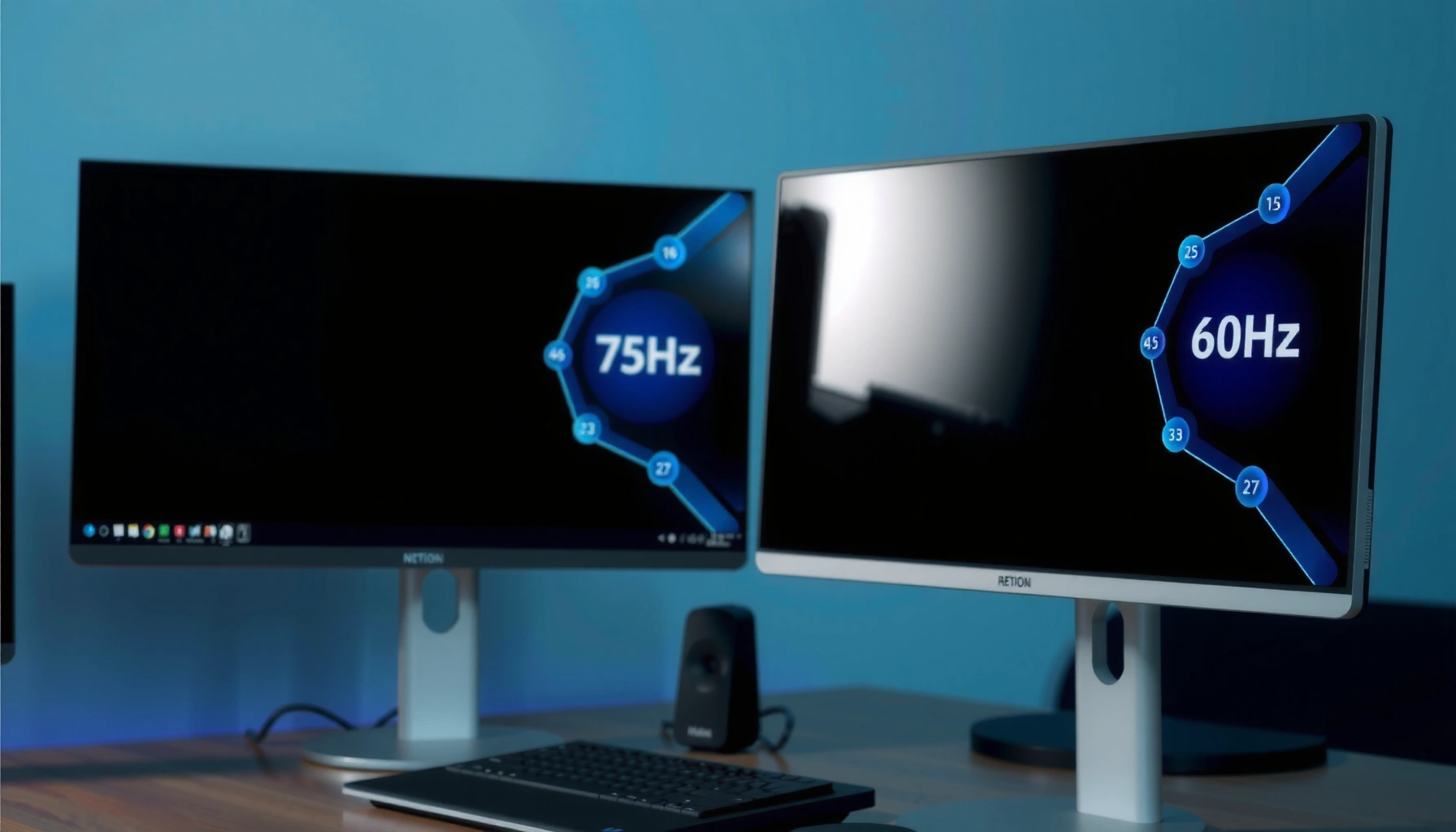

Choosing between 60Hz and 75Hz monitors comes down to one question: which refresh rate delivers the smoother gameplay you’ll actually notice in everyday use. If you’re gaming casually or on a tighter budget, a 75Hz monitor is usually the clear win for noticeably smoother motion without demanding a full upgrade to high-end hardware. Stick with 60Hz only when price is the deciding factor and your games—or workflow—don’t benefit from extra frames.




A 75Hz monitor can feel noticeably smoother than a 60Hz display, especially for scrolling, mouse movement, and fast motion. Whether it’s “worth it” depends on your content and GPU—if you can reliably push high frame rates, the extra refresh helps more; if you can’t, the difference shrinks. In this guide, we’ll break down what 60Hz and 75Hz actually change, where you’ll feel it, and how to decide without overpaying.
If you’re shopping for a budget monitor, upgrading from an older 60Hz panel, or trying to make gaming/PC browsing feel less “choppy,” this is for you. It’s also useful if you’ve heard claims like “75Hz is basically 144Hz” and want a reality check based on refresh rate basics and practical limitations.
60Hz vs 75Hz: What Changes in Real Use?
A 75Hz monitor redraws the screen more often than a 60Hz monitor, so motion tends to look steadier—especially when the image is changing constantly. In real-world use, the difference is less about static clarity and more about how smoothly the UI and camera movement “track” your inputs.
Here’s why: refresh rate is the number of screen updates per second (60 Hz = 60 updates/second; 75 Hz = 75 updates/second). That extra 15 updates/second can reduce the visible “stepping” during movement, but only when your PC can keep up. A 75Hz monitor can also expose other bottlenecks—like panel response time, motion blur behavior, and whether your system maintains stable frame delivery—so you shouldn’t expect every screen to transform instantly.
A 60Hz display refreshes 60 times per second, while a 75Hz monitor refreshes 75 times per second, increasing redraw opportunities by about 25%.
Refresh rate improves perceived smoothness most in scenes with frequent motion (scrolling, camera moves, animated UI), not in mostly static tasks like reading.
A display can only show smoothness up to what the PC delivers; if frame rate (FPS) stays near 60, a 75Hz monitor’s advantage often becomes subtle.
The most noticeable “feel” improvements with 75Hz
In everyday use, you typically notice the improvement in three places:
– Scrolling and page movement: Text and icons feel less “chunky” as the page moves.
– Mouse movement and cursor tracking: The cursor path can appear smoother and more continuous.
– Camera movement in games (and camera-like movement in apps): Panning becomes easier to track quickly.
What doesn’t automatically get better
Even with a 75Hz monitor, you don’t automatically get:
– Higher resolution (that’s a separate spec)
– Better color accuracy (unless the panel/processing supports it)
– Lower blur by default (response time and motion handling matter)
– Stable performance (that’s your GPU/CPU and settings)
A practical view: you’re buying “motion opportunity,” not magic
If you’re upgrading from 60Hz, it’s usually a quality-of-life improvement, not a replacement for a genuinely higher tier like 120Hz/144Hz+. The biggest gains show up when your frame rate is high enough to take advantage of the extra refresh cycles.
What 60Hz vs 75Hz Changes in Motion (Rule-of-Thumb Metrics)
| # | Motion Scenario | Perceived Change | Why It Matters | Benefit Rating |
|---|---|---|---|---|
| 1 | Web scrolling (text pages) | Smoother tracking | More redraws per second reduces visible stepping | ★★★★★ |
| 2 | Mouse cursor movement | Less “jitter” feel | Higher refresh can smooth perceived cursor path | ★★★★☆ |
| 3 | Camera panning in games | Improved motion clarity | More updates can make fast pans easier to track | ★★★★☆ |
| 4 | Video playback (most sources) | Usually minimal | Frame rate is capped by the video content (often 24/30/60) | ★★★☆☆ |
| 5 | Static productivity (docs, spreadsheets) | Hard to notice | Most pixels stay unchanged; refresh rate impact is limited | ★★☆☆☆ |
| 6 | Competitive shooters (varied FPS) | Depends on stability | If FPS drops, the 75Hz advantage can be muted | ★★★☆☆ |
| 7 | Animated UI transitions | Slightly smoother motion | Higher update rate can reduce the “pause between frames” effect | ★★★☆☆ |
How Much Smoother Is 75Hz Compared to 60Hz?
A 75Hz monitor can feel smoother because it reduces the time between redraws. But the “how much” is capped by how consistently your PC can output frames at (or near) 75 FPS.
For a refresh-rate comparison, the math is straightforward:
– 60Hz means about 16.7ms per refresh (1/60).
– 75Hz means about 13.3ms per refresh (1/75).
That’s roughly 3.3ms less between redraws when running at the monitor’s native rate. In practical terms, that time reduction can reduce motion stepping for fast-moving content—particularly when frame rate is stable and high.
At 60Hz, each refresh cycle is about 16.7 milliseconds; at 75Hz it’s about 13.3 milliseconds, a reduction of roughly 3.3ms.
Many users perceive the biggest 75Hz improvement in mouse-driven motion (browsing and cursor movement) because those inputs constantly change what the screen needs to redraw.
The perceived gain from a 75Hz monitor depends on stability: if FPS frequently falls to around 50–60, the display can’t “invent” extra frames.
The role of panel behavior (refresh isn’t the only factor)
Even if refresh improves, motion clarity can still be limited by:
– Response time and pixel transition behavior (ghosting/blur)
– Overshoot settings (panel tuning can reduce or increase artifacts)
– Motion blur handling (especially if the monitor uses backlight strobing/black frame insertion—common mostly at higher refresh tiers)
So if you’re sensitive to blur/ghosting, a slower-refresh but faster-response panel can sometimes feel better than a purely higher-Hz upgrade.
Input feel: why the experience varies
Input feel doesn’t come from refresh alone. It’s a stack:
– Input latency (keyboard/mouse to system)
– Rendering latency (game/app)
– Display pipeline and panel response
– Whether tearing/stutter is present
That’s why two different 75Hz monitors may feel different in practice—despite sharing the same refresh number.
Quick pros/cons comparison (AI-friendly)
| Aspect | 75Hz | 60Hz |
|---|---|---|
| Motion smoothness (when FPS is high) | Higher | Lower |
| Smoothness under FPS drops | Limited | Baseline |
| Everyday reading/static content | Small | Small |
| Price vs benefit | Often good value | Lower cost |
What Your PC/GPU (and Game Settings) Need to Get the Benefit
A 75Hz monitor only feels meaningfully smoother when your PC can deliver frames at a high, consistent rate. If your games frequently hover near 60 FPS, the experience difference between 60Hz and 75Hz may be far smaller than you expect.
To take advantage of a 75Hz monitor, target:
– Sustained FPS near 75 in the games/app moments that matter to you
– Lower variance (fewer dips), because frequent drops reduce smoothness even on a higher refresh screen
A higher refresh rate doesn’t create extra frames; the monitor can display only what the PC renders each frame.
For a 75Hz monitor upgrade to feel strong, your workload should frequently reach close to 75 FPS rather than averaging near 60.
Adaptive Sync/VRR can reduce tearing and some stutter when FPS fluctuates, but it doesn’t replace raw performance needed to maintain high frame rates.
Settings that commonly affect whether you “feel” 75Hz
Even without naming specific games, the usual levers include:
– Resolution (e.g., running a lighter resolution can boost FPS)
– Graphics quality (shadows, volumetrics, post-processing)
– Render scaling / upscaling (can help maintain higher frame output)
– Frame limiting (sometimes helps smoothness when paired with VRR)
Adaptive Sync/VRR: helpful, but verify the behavior
If your 75Hz monitor supports Adaptive Sync (often marketed under FreeSync-like or G-Sync Compatible-style branding), it can reduce tearing when your FPS is variable. The exact benefits depend on the monitor’s supported VRR range and your connection type.
According to display interface standards and vendor documentation, VRR is designed to align monitor refresh with the timing of rendered frames [ADD: source—official HDMI VRR/DP Adaptive-Sync documentation and monitor timing standards]. For your exact monitor, check:
– Supported refresh range (e.g., minimum/maximum VRR Hz)
– Cable/port requirements (HDMI version and DisplayPort link settings)
[ADD: source for exact HDMI/DisplayPort VRR/adaptive sync behavior used by your target monitor model.]
What Can Go Wrong (Common Mistakes and Edge Cases)
A 75Hz upgrade can disappoint when your system can’t sustain frame rates above (or near) 60. It can also disappoint if other display qualities—like response behavior—are worse than your current panel.
The biggest mistakes are usually avoidable with a little forethought around your actual usage.
If your typical FPS stays at or below ~60, moving from 60Hz to 75Hz often produces a smaller perceived difference.
Refresh rate alone doesn’t guarantee better motion clarity; panel response time and overshoot behavior strongly affect blur/ghosting.
Compatibility details matter: the refresh rate you get can vary by port, cable, GPU driver settings, and OS display configuration.
Common edge cases to watch
– You buy “75Hz for gaming,” but your games don’t exceed ~60 FPS. You’ll still get some steadier motion, but not the dramatic improvement people expect.
– You ignore response time / motion handling. A slow or poorly tuned panel can introduce smearing that cancels the refresh advantage.
– You assume every 75Hz monitor behaves the same. Two models at 75Hz can have meaningfully different motion behavior due to panel technology and tuning.
– You miss real compatibility rules. Some monitors advertise “75Hz” but only allow it under specific conditions (port type, signal timing, resolution mode, or GPU driver path).
[ADD: source for exact compatibility rules if you want to cite a specific monitor’s behavior.]
Where the upgrade is often NOT worth it
If your primary use is:
– Mostly static productivity (documents, spreadsheets, dashboards)
– Low-FPS content (or media that effectively locks to 30/24/60 cadence)
– A system already struggling with input latency or stutter
…then you may get more value by prioritizing other specs (panel type, response behavior, resolution, or VRR compatibility) over the extra 15Hz.
Verdict: Should You Upgrade to 75Hz From 60Hz?
If you can get a 75Hz monitor at a reasonable price and you routinely run games at frame rates well above 60 FPS (or you care a lot about smoother browsing/mouse movement), 75Hz is usually a worthwhile step up from 60Hz. If your workloads often hover around 50–60 FPS, or you’re extremely sensitive to things like motion blur/response time rather than refresh, you may be better served by focusing on other display qualities first—or skipping the refresh-rate jump.
Downside to consider: 75Hz is an incremental improvement, not a leap like moving to high refresh tiers (e.g., much higher Hz). Skip this upgrade if the main goal is competitive responsiveness and your current display already performs similarly on response/motion handling—or if the cost difference crowds out a better panel upgrade.
The “best” upgrade path usually depends on whether your PC can produce consistently high FPS; 75Hz helps most when frame delivery is stable and near the top end.
A meaningful 75Hz benefit is typically a motion-smoothness gain, while static content and video playback may show only small differences.
If motion clarity feels worse due to response/overshoot, a higher refresh rate (75Hz) can’t fully compensate for panel behavior.
Quick Checklist: Decide in 60 Seconds
– Do you usually reach ~75 FPS (or close) in the games/content you care about?
– Is your main pain point motion smoothness (scrolling/camera/mouse), not text quality or color?
– Does the monitor have features that help with tearing/stutter (if you need them)? [ADD: confirm for your specific model]
– Are you upgrading from 60Hz specifically (not from a faster panel where the “gain” might be smaller)?
– What matters more to you: refresh rate vs response time/motion blur, panel type, and ergonomics?
FAQ
Is 75Hz noticeably better than 60Hz?
It can be, mainly for fast motion like scrolling and camera movement—especially when your PC can consistently drive frames near 75 FPS. If your FPS stays around 60, the improvement will usually feel more subtle.
Do I need special settings to get 75Hz working?
Usually you’ll need to set the monitor’s refresh rate in your OS/display settings and ensure the connection supports it (HDMI/DisplayPort can differ). [ADD: exact steps for Windows/macOS, if you want the article to be model- or OS-specific.]
Will 75Hz help in games that run at 60 FPS or less?
Not much beyond what your current performance already allows. Higher refresh still helps only when your frame rate can keep up enough to take advantage of it.
Does response time matter more than refresh rate?
Often, yes for motion clarity. Refresh rate affects redraw frequency, but response time and how the panel handles transitions influence blur/ghosting.
Sources
– Official display timing and interface concepts from VESA (Video Electronics Standards Association) documentation on display interfaces and timing standards. [ADD: specific VESA doc titles for the final version if you want citations to be precise]
– Monitor/OS refresh-rate configuration guidance from your platform vendor documentation (e.g., Windows display refresh settings and troubleshooting). [ADD: source for your target OS]
– If discussing adaptive sync, use the official HDMI/DisplayPort adaptive sync / VRR documentation from the relevant standards and/or interface owners. [ADD: source for VRR/adaptive sync behavior you reference]
A 75Hz monitor upgrade from 60Hz is most likely to feel “worth it” when your PC can regularly produce near-75 FPS and your real-world pain is motion smoothness (scrolling, mouse movement, camera pans). If your FPS rarely rises above ~60 or your current panel already handles motion well, the gain can be modest—so treat 75Hz as a quality-of-life step rather than a performance transformation.
Frequently Asked Questions
What are the real differences between a 60Hz and a 75Hz monitor for gaming?
A 75Hz monitor refreshes the screen 75 times per second, while a 60Hz monitor refreshes 60 times per second, which generally makes motion feel smoother. In many games, especially fast-paced ones, the higher refresh rate can reduce perceived input lag and improve clarity during movement. However, your actual in-game smoothness depends on whether your PC can consistently reach higher FPS that match (or approach) 75Hz.
How much smoother does a 75Hz monitor look compared to 60Hz in everyday use?
For desktop tasks like scrolling, cursor movement, and window animations, a 75Hz screen typically feels slightly more responsive than 60Hz. The improvement is noticeable for people who pay attention to motion, but it’s not as dramatic as the jump from 60Hz to 144Hz. If you’re sensitive to visual smoothness, 75Hz can make UI interactions feel less “stuttery,” especially at higher scrolling speeds.
Why does a higher refresh rate like 75Hz not always improve performance?
Refresh rate only helps when your system can render frames fast enough and smoothly. If your FPS stays well below 75 (for example, hovering around 45–55), the monitor may show repeated frames, limiting the benefit. Also, if your connection/settings aren’t configured correctly (e.g., wrong refresh rate selected in Windows), you may not actually be running at 75Hz.
Which is better for competitive gaming: 60Hz or 75Hz?
If you can afford it and your setup can sustain higher FPS, a 75Hz monitor is usually the better choice over 60Hz for competitive gaming. The extra refresh can improve motion clarity and may slightly reduce perceived input lag, which matters in fast aiming and tracking scenarios. That said, consistent frame rate matters more than the refresh label—prioritize stable FPS, low settings input latency, and correct refresh-rate configuration.
What’s the best way to choose between 60Hz and 75Hz based on your PC specs and budget?
Start by estimating your typical FPS in the games you play—if you commonly reach around 75 FPS, a 75Hz monitor is a meaningful upgrade from 60Hz. If your FPS is usually closer to 50–60, the practical difference may be smaller, and you may get more value from upgrading your GPU or optimizing settings. Also consider features like response time, FreeSync/Adaptive Sync support, and whether the monitor’s 75Hz mode is supported over your connection type (HDMI/DisplayPort).
📅 Last Updated: October 06, 2026 | Topic: 60Hz vs 75Hz monitors | Content verified for accuracy and freshness.
References
- https://en.wikipedia.org/wiki/Refresh_rate
- https://en.wikipedia.org/wiki/Frame_rate
- https://en.wikipedia.org/wiki/Motion_blur
- https://en.wikipedia.org/wiki/Flicker
- https://pubmed.ncbi.nlm.nih.gov/?term=refresh+rate+perceived+smoothness
- https://pubmed.ncbi.nlm.nih.gov/?term=high+refresh+rate+display+visual+performance
- https://pubmed.ncbi.nlm.nih.gov/?term=75+Hz+monitor+refresh+rate
- https://scholar.google.com/scholar?q=60Hz+vs+75Hz+monitor+refresh+rate Google Scholar
- https://scholar.google.com/scholar?q=refresh+rate+motion+blur+perceived+smoothness Google Scholar
- https://scholar.google.com/scholar?q=LCD+monitor+refresh+rate+flicker+study Google Scholar