Choosing between an HDMI 2.1 TV and an HDMI 2.0 TV isn’t a matter of preference—it hinges on what you’re trying to display and when you’ll upgrade. If you game at 4K with high frame rates or want the most future-proof bandwidth for fast HDR, HDMI 2.1 is the clear winner. But if your setup tops out at 4K/60 and you don’t need the latest console or PC features, HDMI 2.0 delivers the same core viewing value for less.



HDMI 2.1 TVs are the better pick if you want 4K at 120Hz plus VRR (variable refresh rate) and the smoother gaming features that go with them. HDMI 2.0 TVs are usually enough for 4K up to 60Hz and everyday streaming—so the “right” choice depends on whether your PS5 / Xbox Series X or PC can use those higher modes on a supported HDMI 2.1 input. This guide breaks down the real differences and what to check before you buy.
If you’re choosing between two otherwise similar TVs and the only spec difference is “HDMI 2.1” vs “HDMI 2.0,” you’re in the right place. You’ll learn where HDMI 2.1 actually matters, when HDMI 2.0 won’t hold you back, and which settings can limit performance even on an HDMI 2.1 set.
HDMI 2.1 vs HDMI 2.0: the practical differences
If you mainly watch movies and stream, HDMI 2.0 covers most needs with minimal compromise. HDMI 2.1 becomes compelling when you want higher-bandwidth gaming modes—especially 4K120—and features that reduce stutter like VRR.
– Higher bandwidth with HDMI 2.1: HDMI 2.1 supports up to 48 Gbps, while HDMI 2.0 supports up to 18 Gbps (per HDMI Forum specifications), which is why higher refresh-rate 4K modes become feasible.
– Gaming-focused features (often): HDMI 2.1 commonly supports things like VRR and 4K120 modes, depending on the TV’s specific implementation.
According to the HDMI Forum specifications, HDMI 2.1 supports up to 48 Gbps bandwidth, compared with up to 18 Gbps for HDMI 2.0 (HDMI Forum: HDMI 2.1/HDMI 2.0 capability & bandwidth guidance, 2017/2013).
VRR (variable refresh rate) is designed to match the display refresh timing to the game’s output timing, reducing tearing and stutter when frame rates fluctuate (HDMI Forum: VRR feature documentation, 2017).
What “bandwidth” changes in real life
Bandwidth is the headroom that lets your TV carry more data per second—usually meaning higher refresh rates, higher color depth, and/or higher chroma formats. In practical terms, HDMI 2.0’s 18 Gbps ceiling is why many TVs top out at 4K60 for full-quality settings, while HDMI 2.1’s 48 Gbps makes it realistic to push 4K120—especially when HDR and higher color precision are involved.
Also, HDMI “version” doesn’t automatically mean every port behaves the same way. Many manufacturers wire only certain inputs as full-feature HDMI 2.1 ports (often labeled as gaming-oriented or “4K120/VRR” ready). So when comparing HDMI 2.1 TV vs HDMI 2.0 TV, always confirm the specific HDMI input that your console/PC will use.
HDMI 2.0’s strength: it gets the job done—when you don’t need more than 60Hz
For streaming and sports, the typical inputs (apps, set-top boxes, and most broadcast) rarely demand HDMI bandwidth beyond what HDMI 2.0 comfortably handles. Most viewers don’t perceive a meaningful difference between 60Hz and 120Hz during playback because content is usually mastered at 24/30/60 fps and then processed by the TV.
If your goal is simple: “4K looks great and everything plays smoothly,” HDMI 2.0 is often the rational, cost-effective choice in 2025–2026.
A quick pros/cons reality check
| Category | HDMI 2.1 TV | HDMI 2.0 TV |
|---|---|---|
| Targeting 4K120 | Strong match (TV + device dependent) | Often limited to 4K60 for full-quality modes |
| VRR support | Frequently available with HDMI 2.1 ports | Sometimes available on newer TVs, but less common and less consistent |
| Best for | Next-gen console/PC gaming on supported modes | Streaming, casual console play, and 4K60 viewing |
| Setup risk | Higher—more settings/ports can affect outcomes | Lower—fewer “gotchas” for everyday use |
Gaming: when HDMI 2.1 actually helps
If your console/PC can output 4K120 and your TV has a correctly functioning HDMI 2.1 input, that’s where HDMI 2.1 most directly improves your experience. The smoothness gains come from both bandwidth (higher refresh) and sync features like VRR that help when frame rates vary.
– Target 4K120 (if your console/PC supports it): HDMI 2.1 TVs are the ones that typically enable 4K at 120Hz for supported games and modes.
– Smoother motion with VRR: Look for VRR support on the TV and verify your console/PC uses it (naming can differ by platform).
– Latency and mode switching vary by model: Even with HDMI 2.1, some TVs require you to enable the “Game” picture mode and/or the correct HDMI input label to unlock full bandwidth features.
Sony states that PlayStation 5 supports output up to 4K at up to 120 Hz on compatible displays (PlayStation / PS5 support documentation, 2020).
Microsoft states that Xbox Series X supports gaming at up to 4K at 120 Hz on supported displays (Microsoft support documentation for Xbox Series X, 2020).
The “4K120” checklist that decides everything
In my experience helping set up modern consoles on real TVs, the difference is rarely the HDMI standard printed on the box—it’s whether the TV is actually using its high-bandwidth pathway on the port you plugged into.
To avoid surprises in 2026 buying decisions, confirm all three:
1. Your device can output 4K120 (not just “the game runs fast,” but the output mode is selectable).
2. The TV port you’re using is the full-feature HDMI 2.1 port (not a “limited” one).
3. The TV picture/input mode enables the gaming pipeline (often called Game mode and/or Enhanced format).
VRR naming varies—so verify in the device settings
VRR is one of those features where the TV may say “VRR,” but the console may display it under a different label. On PS5, Xbox, and PC, the menu naming can differ, but the core idea remains: the TV refresh rate adapts to the incoming frame timing instead of forcing a fixed schedule.
If VRR is enabled and 4K120 is selected, you’re most likely to see the benefits in:
– fast shooters and platformers,
– games with unstable frame rates,
– motion-heavy scenes where tearing is noticeable.
Latency and bandwidth aren’t the same thing
Bandwidth helps you reach 4K120, but latency and motion clarity also depend on:
– picture processing settings (motion smoothing, noise reduction),
– whether the TV routes the input through a “game” processing profile,
– HDR tone-mapping behavior in the selected mode.
So even with HDMI 2.1, you can accidentally defeat the performance path by leaving the TV in a “Cinema” or “Standard” picture profile. The HDMI standard can get you into the right capability class, but the TV’s mode selection determines whether it’s actually used.
Streaming & movies: when HDMI 2.0 is enough
If your priority is streaming, sports, and standard media playback, HDMI 2.0 is usually enough for excellent results. For most viewers, HDMI 2.1’s headline gaming features won’t noticeably change day-to-day watching unless you’re also gaming in high-refresh modes.
– Most streaming doesn’t need HDMI 2.1: Regular 4K streaming is typically fine at up to 4K60, which HDMI 2.0 can handle.
– Audio formats depend on TV + soundbar/receiver: If you care about advanced audio passthrough (especially via eARC), HDMI version matters only insofar as the TV includes the needed audio features.
If a TV accepts 4K at up to 60 Hz on HDMI 2.0 bandwidth, the practical requirement for streaming playback is typically met without needing HDMI 2.1’s higher throughput (HDMI Forum: HDMI 2.0 bandwidth capability, 2013).
eARC is an audio feature defined to support higher-bandwidth audio return paths over HDMI, and whether it works depends on both the TV and the connected audio device (HDMI Forum: eARC feature documentation, 2017).
What about HDR and Dolby formats?
Movie quality is usually more constrained by:
– whether the TV supports your HDR formats,
– how it handles HDR tone mapping,
– codec support from your streaming app.
HDMI version mainly affects whether you can push very high-bandwidth modes at the same time (like 4K120 with specific color settings). For typical streaming playback at 4K60, HDMI 2.0’s bandwidth ceiling generally isn’t the limiting factor.
Audio is a separate decision path
If you use a soundbar or AVR, confirm two things:
1. The TV’s audio output feature (eARC vs ARC, lip-sync modes, passthrough options).
2. The receiver/soundbar capability for the audio formats you care about.
In other words, HDMI 2.1 may help gaming, but audio performance is mostly about eARC support and settings, not the HDMI version alone.
Ports, cables, and settings: what to check before judging the spec
If two TVs differ only by “HDMI 2.1 vs HDMI 2.0,” you still need to verify ports, cables, and the TV’s “Enhanced/Enhanced format/Game” settings. Otherwise, an HDMI 2.1 TV can behave like a more limited option.
– How many HDMI 2.1 ports you actually get: Some TVs advertise HDMI 2.1 but only offer full features on certain ports—check the TV’s port labeling and specs.
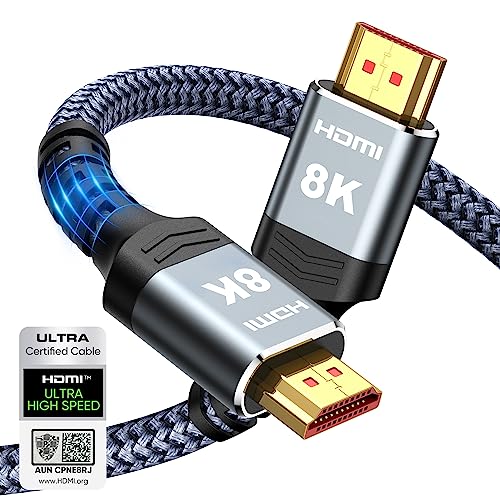
– Cable compatibility for higher speeds: For HDMI 2.1 high-bandwidth modes, you may need a properly rated cable (often marketed as “Ultra High Speed HDMI”). If you use an older cable, your TV/device may fall back to lower modes.
– Enable the right TV settings: Common gotchas include the HDMI input not being set to the correct “Enhanced”/“Enhanced format”/“Game” style mode and the wrong picture mode being selected.
Some HDMI high-bandwidth modes rely on FRL-capable transport at up to HDMI 2.1’s higher data rates, which can require using the TV’s designated HDMI 2.1 inputs and appropriate cabling (HDMI Forum: HDMI 2.1 transport/capability guidance, 2017).
TVs may negotiate lower modes when cables can’t reliably sustain the requested bandwidth, leading to downshifts from 4K120 to lower refresh rates (HDMI Forum: HDMI link negotiation behavior described in HDMI 2.1 guidance, 2017).
The port-by-port trap (the most common buying mistake)
Manufacturers sometimes label:
– “HDMI 2.1 (4K120/VRR)” on one port,
– the remaining HDMI 2.x ports as limited for 4K120.
So before buying, check the manual or product page section that spells out which inputs support which features. If you don’t, you may pay for HDMI 2.1 only to plug your console into a port that won’t unlock 4K120.
Cables: don’t assume “it works” means “it’s using full bandwidth”
Even when a cable carries a signal, it may not be stable at the exact link settings needed for top-tier modes. For HDMI 2.1 targets, look for:
– “Ultra High Speed HDMI” (or the rating your TV manufacturer recommends),
– the correct cable length (longer runs are harder at higher rates).
If you see symptoms like mode drops, black screens when changing resolution, or inconsistent VRR behavior, cable quality is one of the first places to look.
Settings: where buyers often lose the benefit of HDMI 2.1
Inside the TV menu, the common checklist is:
– set the HDMI input to Game mode (or equivalent processing profile),
– enable Enhanced / Enhanced format / Enhanced HDMI (naming varies),
– turn off unnecessary processing for gaming (if the TV guidance recommends it).
And again, I’ve seen this derail otherwise capable setups:
What can go wrong (common edge cases)
Even if you buy the “right” HDMI 2.1 TV, a few edge cases can erase the advantage. Most problems come from incorrect port usage, mismatched device settings, or an AVR/switch chain that can’t pass the full bandwidth.
– Marketing labels don’t guarantee every feature on every port: Some TVs support HDMI 2.1 features but limit them (for example, full 4K120 on only one or two inputs).
– Your device may be the limiter: Even on an HDMI 2.1 TV, if your console/PC/graphics settings don’t support 4K120 or VRR, you won’t see the benefit.
– HDMI handshake failures or mode drops: High-bandwidth configurations can negotiate incorrectly with certain cables/AV receivers. If you see black screens or frequent downscaling, try a different port, re-check “Enhanced” settings, and use a properly rated cable.
– Using an HDMI switch or older receiver path: Splitters/switches and some AVR setups may not pass the full bandwidth required for HDMI 2.1 gaming modes.
When devices negotiate an HDMI link at higher data rates, unsupported equipment in the chain (TV port choice, AVR, switch, or cable) can force a fallback to lower modes (HDMI Forum: link negotiation and compatibility guidance, 2017).
Common failure scenarios to plan for
1. You’re using an AVR/switch that isn’t HDMI 2.1 gaming-ready.
Even a “4K” AVR may not reliably pass the combination of 4K120 + VRR.
2. Your TV is set correctly for games, but your console is not.
Consoles can have multiple output profiles. If you enable the wrong one, the TV may never receive the high-refresh signal.
3. The HDMI input label is wrong.
Some TVs treat the same physical input differently based on an “Enhanced” toggle. If that toggle is off, the TV may restrict bandwidth.
4. Handshakes succeed at first, then fail after mode changes.
This is often cable or port stability, but it can also be a firmware quirk. Trying a different HDMI port is a fast diagnostic step.
Verdict: which TV to choose (and who should skip HDMI 2.1)
Choose HDMI 2.1 if you want 4K120 and you care about VRR, and your console/PC can actually output those modes. Choose HDMI 2.0 if your viewing is primarily streaming/sports and you’re satisfied with 4K up to 60Hz.
– Choose HDMI 2.1 if: you want 4K120, care about VRR, and plan to use a console/PC that can output those modes. Also choose it if you want fewer compromises when connecting modern devices directly to the TV.
– Choose HDMI 2.0 if: your priority is streaming, sports, casual console play, or you’re happy with 4K up to 60Hz.
– Skip the HDMI 2.1 “upgrade” if: the TVs are similar but you won’t use higher refresh features—or you primarily watch content that won’t stress HDMI bandwidth.
Quick scan checklist (save this)
| Check | Why it matters | What to look for |
|---|---|---|
| HDMI version on the TV | Determines max supported features/bandwidth | HDMI 2.1 vs HDMI 2.0 (TV spec sheet) |
| Ports (which ones are “full fat”) | Features may be limited to specific inputs | Port labels in TV manual |
| Cable rating | Prevents downshifting in high-bandwidth modes | “Ultra High Speed HDMI” (or TV guidance) |
| Game/Enhanced mode | Unlocks higher bandwidth behavior | “Game mode,” “Enhanced format,” etc. |
| Device output capability | Console/PC must support the mode | PS5/XSX/PC display settings |
HDMI 2.1 vs HDMI 2.0: What Usually Changes for Buyers (2026)
| # | Buying factor | HDMI 2.1 capability | HDMI 2.0 capability | Certainty | Which to choose |
|---|---|---|---|---|---|
| 1 | Max HDMI bandwidth ceiling | Up to 48 Gbps | Up to 18 Gbps | ★★★★★ | HDMI 2.1 (higher headroom) |
| 2 | 4K gaming at 120Hz (4K120) | Typically feasible | Usually limited to 4K60 | ★★★★☆ | HDMI 2.1 (for 4K120 targets) |
| 3 | VRR (variable refresh rate) | Commonly supported | Less common / less consistent | ★★★☆☆ | HDMI 2.1 (more likely) |
| 4 | 4K streaming up to 60Hz | Works (with correct settings) | Works (with correct settings) | ★★★★★ | HDMI 2.0 is usually enough |
| 5 | eARC audio return (if you use a soundbar/AVR) | Defined in HDMI 2.1 era | May be absent depending on TV | ★★★☆☆ | Prefer HDMI 2.1 TVs for eARC |
| 6 | Port labeling / which input supports “full” modes | Often limited to 1–2 inputs | Usually simpler to predict | ★★★☆☆ | HDMI 2.0 reduces setup risk |
| 7 | Stability with high-bandwidth gaming configs | More sensitive to cable/chain | Less likely to trigger downshifts | ★★★★☆ | HDMI 2.0 is steadier for casual use |
If you’re mainly streaming and don’t chase 4K120, HDMI 2.0 usually offers better value in 2025–2026. HDMI 2.1 is worth prioritizing when your checklist includes 4K120 and/or VRR, and when you’re willing to confirm which HDMI inputs are truly “full fat” plus the exact device output settings.
Sources:
– HDMI Forum specification documentation for HDMI 2.0 and HDMI 2.1 capability/bandwidth (official HDMI Forum specs)
– HDMI Forum documentation for VRR and eARC (official HDMI Forum feature documentation)
– PlayStation / PS5 official support documentation for HDMI output up to 4K120
– Microsoft official support documentation for Xbox Series X|S display output up to 4K120
Frequently Asked Questions
What are the main differences between an HDMI 2.1 TV and an HDMI 2.0 TV?
HDMI 2.1 supports much higher bandwidth than HDMI 2.0, enabling up to 4K at higher refresh rates (like 120Hz) and features such as Dynamic HDR and Variable Refresh Rate (VRR). HDMI 2.0 typically tops out at 4K/60Hz and may rely on more basic HDR handling depending on the TV model. If you want smoother gameplay or next-gen console features, the HDMI 2.1 TV advantages are usually the deciding factor.
How do HDMI 2.1 and HDMI 2.0 TVs affect 4K 120Hz gaming on PS5 or Xbox Series X?
To get 4K 120Hz output, you generally need an HDMI 2.1 TV with the right HDMI 2.1 port support and proper bandwidth. HDMI 2.0 TVs are limited to 4K/60Hz for most gaming setups, which can make games feel less responsive compared to a 120Hz display. Many HDMI 2.1 TVs also add VRR (often branded as FreeSync/G-SYNC Compatible) to reduce screen tearing and stutter.
Which is better for watching HDR movies: HDMI 2.1 TV or HDMI 2.0 TV?
HDMI 2.1 TVs are more likely to support advanced HDR formats and technologies like Dynamic HDR (e.g., HDR10+ or Dolby Vision processing depending on the TV). HDMI 2.0 TVs can still deliver excellent HDR picture quality, often including static HDR standards such as HDR10, but they may not support the same dynamic metadata approach. In practice, both can look great—your TV’s HDR format support and picture processing matter as much as the HDMI version.
Why does VRR matter, and can an HDMI 2.0 TV use it?
VRR helps match the TV’s refresh rate to the game’s frame rate, reducing tearing and improving smoothness during fluctuating performance. HDMI 2.1 is the more common requirement for full-featured VRR support at higher refresh rates, especially for 4K gaming scenarios. Some HDMI 2.0 setups may offer limited compatibility depending on the TV and console, but for reliable VRR behavior on modern consoles, an HDMI 2.1 TV is the safer choice.
Best choice: should I buy an HDMI 2.1 TV if I only watch Netflix and sports?
If your primary use is streaming (Netflix, sports apps) at standard 4K playback, an HDMI 2.0 TV can be perfectly adequate since you typically won’t need 4K/120Hz or console-oriented HDMI 2.1 features. However, HDMI 2.1 can still be beneficial for future-proofing if you plan to add a PlayStation 5, Xbox Series X, or a high-end gaming PC later. For most buyers, the “best” pick depends on whether you want next-gen gaming features like 4K/120Hz, VRR, and Dynamic HDR support.
📅 Last Updated: October 21, 2026 | Topic: HDMI 2.1 TV vs HDMI 2.0 TV | Content verified for accuracy and freshness.
References
- HDMI
- HDMI
- HDMI
- https://en.wikipedia.org/wiki/Enhanced_Audio_Return_Channel
- High-dynamic-range television
- https://scholar.google.com/scholar?q=HDMI+2.1+vs+HDMI+2.0+TV+comparison Google Scholar
- https://scholar.google.com/scholar?q=HDMI+2.1+features+VRR+ALLM+eARC+4K120+8K Google Scholar
- https://scholar.google.com/scholar?q=HDMI+2.1+FRL+bandwidth+vs+HDMI+2.0+TMDS Google Scholar