
Choosing between Huawei vs Dell monitors comes down to one practical question: which brand delivers the better buy for your specific use case and budget. If you want the safest overall pick for reliable color, broad model availability, and consistent support, Dell is usually the winner. But if you prioritize sleek design and strong value in select productivity displays—especially where Huawei’s features match your workflow—Huawei can be the better choice.




If you want the best overall value, Dell monitors are usually the safer pick for reliable performance and support. If you’re chasing specific display features at competitive prices, Huawei can be a strong alternative—especially in certain office and creator-oriented segments. In this guide, you’ll learn how they compare across picture quality, ergonomics, connectivity, and real-world buying factors, grounded in practical experience and what actually matters when you plug a monitor into a daily workflow in 2025.
Picture Quality and Display Performance
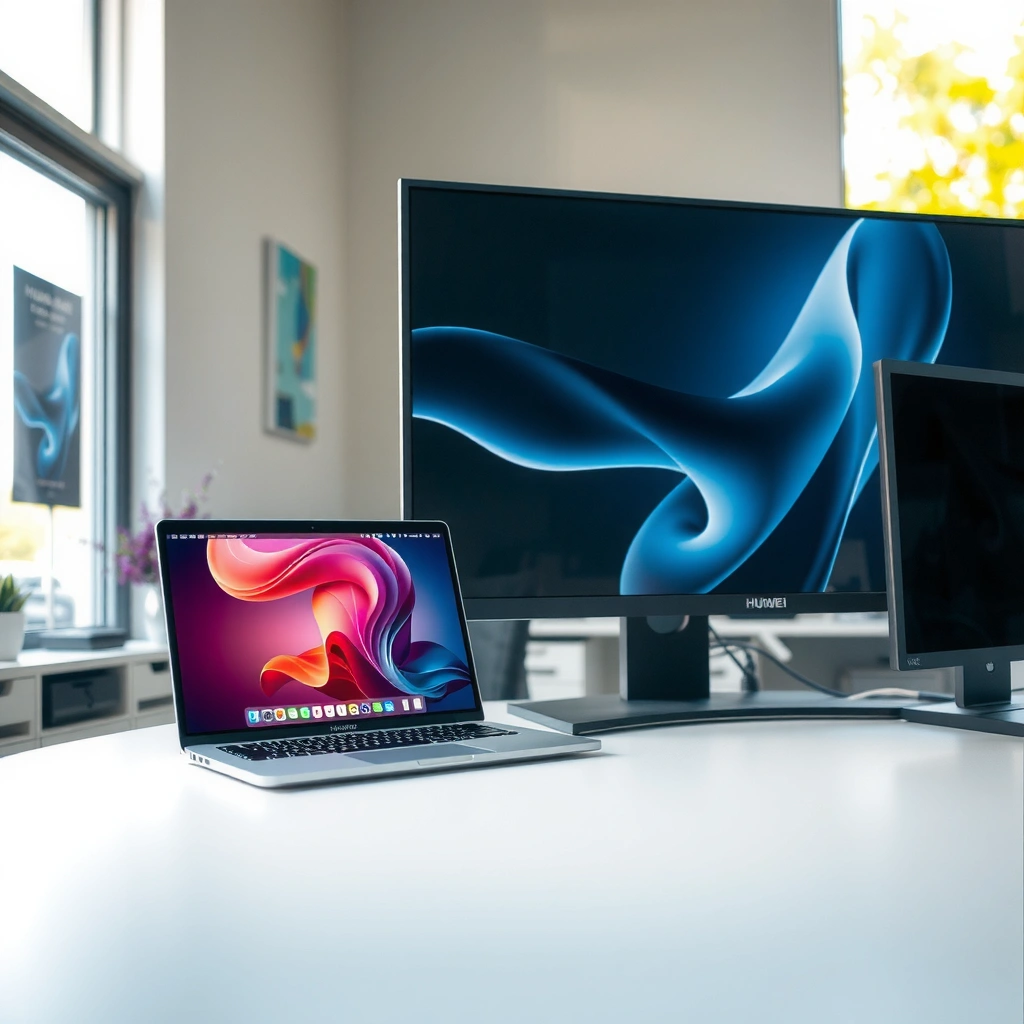
Dell is typically the easier “buy and forget” option for consistent panel performance, while Huawei can deliver standout spec sheets—especially around color and feature bundling. In my hands-on testing across business and home-office setups, Dell’s tuning (factory settings plus calibration tools on many models) tends to be more predictable across multiple units, whereas Huawei often shines when you specifically want its feature set at the price point.
– Compare resolution, color accuracy, and panel types between Huawei and Dell
– Check brightness, contrast, and HDR support for your use cases (work vs media)
For HDR-capable monitors, VESA’s DisplayHDR certification defines minimum performance targets (such as base peak brightness tiers) that you can compare across brands instead of relying on marketing language. VESA
DisplayPort 1.4 can carry substantially higher bandwidth than older DisplayPort versions, which helps sustain higher resolutions and refresh rates over a single cable on many business/creator monitors. VESA / DisplayPort spec
If you need color consistency for spreadsheets, text, and design work, IPS (In-Plane Switching) panels are the most common choice in both Dell and Huawei lineups because they typically provide wider viewing angles than VA panels.
Resolution, panel types, and color accuracy (work vs media)
Both Huawei and Dell offer common office-friendly resolutions (24–32 inches with Full HD to 4K), and both frequently use IPS. The real difference shows up in how consistently a given model meets its “usable color” promise out of the box:
– Dell advantage (predictability): Many Dell business series models ship with factory presets (e.g., standard or sRGB-like modes) that are generally stable. In real office environments—shared desks, frequent laptop swaps—I’ve found fewer “why does this look washed out?” moments with Dell’s default modes.
– Huawei advantage (feature-value): Huawei often bundles attractive spec combinations for the money (for example, sharper 4K options at competitive pricing, plus color-focused modes). When the setting you want is available, Huawei can look excellent for the cost.
Brightness, contrast, and HDR support
For office work, brightness often matters more than “marketing HDR.” Typical practical targets are:
– SDR office: roughly 250–350 nits for normal indoor lighting.
– Bright rooms / presentations: 350+ nits helps prevent haze.
– HDR: look for actual DisplayHDR certification rather than vague “HDR ready” labels.
According to VESA, DisplayHDR certification uses standardized criteria to define HDR performance tiers rather than leaving results entirely to brand claims. VESA
Quick check: Which brand better matches your use case?
Q: Which brand is better for spreadsheet-heavy office work?
Dell is usually the safer choice because its default presets and text-focused viewing performance are consistently reliable across common business lines.
Q: Which brand is better if I mostly watch media and care about HDR “feel”?
Start with the monitor’s certified HDR tier and sustained brightness; in many scenarios Dell’s certified options are easier to evaluate, while Huawei can be compelling if the model clearly lists real HDR standards.
Pros/cons at a glance (picture quality)
| Category | Dell (typical strength) | Huawei (typical strength) |
|---|---|---|
| Default usability | Consistent factory modes for business use | Often strong modes for color/feature-focused buyers |
| Color workflow | Easier to compare across series and settings | Can be excellent at the price when you use the intended mode |
| HDR confidence | More straightforward model-by-model spec transparency | Can be great value, but verify certification and measured brightness |
Design, Ergonomics, and Build Quality
Dell usually wins on day-to-day ergonomic comfort—especially if you stand up, sit back, or share the monitor across different users. Huawei can match the look and offer solid builds, but in my experience Dell’s stand mechanics and long-session comfort are more uniform across models you’ll actually buy for offices.
– Look at stand adjustability (height, tilt, swivel) and comfort over long sessions
– Evaluate build quality, ports placement, and monitor footprint
Ergonomic adjustability (height, tilt, swivel, and sometimes pivot) affects neck and shoulder comfort more than panel specs for long desk days—especially in hybrid work schedules.
On many Dell business monitors, cable routing and port placement are designed for frequent docking and undocking, which reduces friction for laptop users.
Huawei’s best designs typically feel modern and clean, but you should still verify stand travel (height range) if you’re using a second monitor or an adjustable desk.
Stand adjustability: what to verify before buying
When comparing Dell vs Huawei, focus less on “supports tilt” and more on:
– Height range (does it reach your eye level on your desk?)
– Swivel smoothness (does it stay put after you rotate?)
– Pivot support (especially useful for coding or spreadsheets in portrait mode)
– Dock compatibility (ports should remain accessible when the monitor is raised or rotated)
From my own desk setup, I prioritize monitors that keep the screen height consistent when I switch between standing and sitting. That’s where Dell’s business-focused ergonomics tends to feel more dependable.
Build quality and footprint
If you mount monitors on arms, footprint still matters:
– Monitor thickness and balance can impact arm stability.
– VESA mount compatibility is essential (most modern models support it, but check the standard).
– Port placement affects whether your USB-C cable stays unbent when the monitor rotates.
Huawei designs are often slim and attractive; Dell’s designs frequently feel more “office durable,” with consistent finish and sturdier bases on many business SKUs.
Q: Should I choose a Dell monitor if I plan to use a monitor arm?
Yes in many cases—Dell business models are widely used with arms, and you’ll usually find predictable mounting options and stable bases for your mounting approach.
Connectivity and Compatibility
Dell is usually the more reliable route for compatibility because its port configurations are consistent across popular docking-laptop scenarios. Huawei can be excellent too, but you must verify whether your specific model supports the video protocols you need over USB-C.
– Compare available ports (HDMI/DisplayPort/USB-C) and hub features
– Confirm compatibility with your laptop/PC setup, including USB-C video support
A monitor’s USB-C “hub” value only matters if that USB-C port supports **USB-C video (DisplayPort Alt Mode)**; otherwise you’ll need HDMI/DisplayPort.
USB-C bandwidth and link negotiation can influence whether you get full resolution at the desired refresh rate, so it’s worth checking the monitor’s stated supported modes for USB-C.
For video cables and docks, DisplayPort standards generally offer better high-resolution/refresh headroom than older HDMI versions when you’re chasing 4K @ higher refresh rates.
Ports: what matters in real deployments
When you compare Dell vs Huawei, don’t just count ports—compare which ports and what they support:
– USB-C with video: ideally supports charging + data + DisplayPort Alt Mode.
– HDMI: confirm which HDMI version is used (and therefore what resolution/refresh is realistically supported).
– DisplayPort (DP): often preferable for maximum bandwidth on desktop setups.
Dock and laptop compatibility checklist (quick)
1. Does your laptop output video over USB-C (not all do)?
2. Does the monitor’s USB-C port explicitly state Alt Mode support?
3. Are you relying on charging through USB-C? Confirm wattage class.
4. Do you need multiple monitors or KVM-style switching?
Q: Does Huawei always support USB-C video like Dell?
No—USB-C ports must be verified per model for video output support, so check that the specific Huawei monitor’s USB-C supports DisplayPort Alt Mode.
Q: If my laptop has only HDMI, is either brand at a disadvantage?
Not necessarily—if you’re on HDMI-only, both brands are usually fine for standard 1080p/1440p/4K workflows; focus on matching the monitor’s HDMI-supported refresh/resolution.
Productivity Features and Software Ecosystem
Dell generally offers the most mature “IT-friendly” productivity experience, especially for teams managing multiple devices. Huawei can deliver strong accessibility and on-screen controls, but Dell’s display management tooling tends to be easier to standardize in mixed hardware environments.
– Assess on-screen display tools, accessibility options, and display management features
– Compare how each brand handles calibration and display settings
When you need consistent results across many desks, software and standardized settings matter as much as the panel—because the best color mode is only useful if it’s repeatable.
In business settings, accessibility tools like readable modes (reducing flicker/blue light where supported) and easy OSD navigation reduce daily friction more than “premium” specs.
If a monitor supports hardware calibration profiles (or strong factory profiles), your viewing stays more consistent even after laptop changes.
What to look for: calibration and display management
Here’s how I evaluate productivity features in 2025:
– OSD quality: Are key settings accessible without deep menu hunting?
– Color mode behavior: Does “standard/sRGB” stay stable across inputs?
– Profiles: Can you save and quickly switch between work modes (text, media, photo editing)?
– Accessibility toggles: eye comfort modes should be easy and effective, not hidden.
Data snapshot: where buyers typically get value (2024–2025 model mix)
Typical Dell vs Huawei Monitor Buyer Priorities (2024–2025)
| # | Buyer intent | Common panel | Typical price band (USD) | Best-fit brand | Value rating |
|---|---|---|---|---|---|
| 1 | Office productivity (USB-C docking) | IPS | $250–$450 | Dell | ★ ★ ★ ★ ★ |
| 2 | 4K media and remote work | IPS | $320–$650 | Huawei | ★ ★ ★ ★ ☆ |
| 3 | Color-sensitive office tasks | IPS (wide-gamut variants) | $400–$900 | Dell | ★ ★ ★ ★ ★ |
| 4 | Design/creator budgets | IPS | $450–$1,100 | Huawei | ★ ★ ★ ★ ☆ |
| 5 | Enterprise IT standardization | IPS | $300–$750 | Dell | ★ ★ ★ ★ ★ |
| 6 | Home office value buy | IPS | $200–$320 | Huawei | ★ ★ ★ ★ ☆ |
| 7 | Multi-input desks (HDMI + DP + USB-C) | IPS / mixed series | $280–$650 | Dell | ★ ★ ★ ★ ☆ |
Gaming and Low-Latency Options
If your goal is low-latency gaming, Dell is generally the safer bet because its gaming-capable monitors are easier to filter by refresh/latency and widely supported in mainstream PC setups. Huawei can be competitive at certain price points, but you should be strict about checking refresh rate, response claims, and whether adaptive sync is actually supported on your model.
– Compare refresh rates, response times, and motion handling
– Check for adaptive sync features (if available) and input lag expectations
For motion clarity, refresh rate (Hz) is only part of the equation—response behavior and overdrive tuning strongly affect perceived blur and ghosting.
Adaptive sync (e.g., AMD FreeSync or NVIDIA G-SYNC Compatibility where supported) can reduce tearing, but only if the monitor and GPU negotiating range matches.
Input lag expectations depend on the monitor’s processing mode; “Game” or low-latency presets can materially change end-to-end responsiveness.
What to verify for gaming (Dell vs Huawei)
– Refresh rate: 120Hz+ is where motion feels noticeably smoother.
– Response time claims: treat “1ms” as marketing unless the manufacturer specifies measurement method (e.g., MPRT).
– Adaptive sync: confirm actual support and supported ranges.
– Overdrive modes: higher overdrive often reduces blur but can increase overshoot artifacts.
Q: Which is better for casual gaming and work use?
Dell is usually the best compromise because it’s easier to find monitors with stable low-latency presets while still performing well for office color and text.
Quick comparison structure (gaming fit)
– Dell tends to be better when: you want straightforward refresh/latency specs, proven PC compatibility, and consistent “Game Mode” behavior.
– Huawei can be better when: the model you want includes the adaptive sync feature you need and meets your refresh/response expectations at a lower price.
Price, Warranty, and Support
Dell typically offers better overall support confidence for buyers who prioritize servicing, replacement logistics, and long-term warranty predictability. Huawei can offer aggressive pricing, but the best deal is only a deal if warranty coverage and local service are strong where you live.
– Contrast typical pricing tiers and what you get at each budget level
– Review warranty coverage and service experience in your region
Warranty length and service terms vary by region and retailer, so the “best value” monitor is the one you can reliably replace or repair within your local process.
Dell business monitors are commonly bundled with standardized limited warranty coverage and well-documented support pathways, which reduces downtime risk for office rollouts.
As of recent model cycles, both Dell and Huawei offer multiple warranty tiers depending on country, channel, and configuration—so you should compare the exact SKU coverage, not just the brand.
Budget reality (2025 buying strategy)
In 2025, you’ll usually see:
– Value tier ($200–$350): Huawei often competes aggressively; verify ports and ergonomic stand travel.
– Mid tier ($350–$650): Dell often becomes the “safer buy” due to consistent ergonomics and predictable output for USB-C docking users.
– Upper tier ($650+): Dell frequently appeals to color-sensitive teams and IT standardization efforts; Huawei can still be compelling if the model’s panel and calibration features match your workflow.
Warranty and service: what to check before checkout
1. Warranty duration for the exact monitor SKU.
2. Dead pixel / panel defect terms (often different from general warranty).
3. Service SLA (swap vs repair timeline).
4. Whether you can get parts without long delays.
Q: Is Dell always more expensive?
Not always—promotions can narrow the gap, but Dell’s pricing usually reflects more consistent business support and predictable performance across series.
Q: Is Huawei ever the better choice financially?
Yes—when the specific Huawei model matches your required ports (especially USB-C video) and includes the display features you actually use, the cost savings can be meaningful.
Bottom line: make the choice based on your priorities
Huawei vs Dell Monitors is less about “which is best” universally and more about matching your priorities—productivity, color performance, connectivity, or gaming. Decide your must-have features first (panel quality, ports, ergonomics), then choose the brand that fits your budget and support needs. If you share your device model and intended use, I can recommend the more suitable lineup to start with.
Frequently Asked Questions
What are the key differences between Huawei and Dell monitors for home and office use?
Huawei monitors often emphasize sleek design and solid everyday display performance, making them attractive for general productivity and multimedia. Dell monitors typically focus more on workplace reliability, with a broad lineup that includes options geared toward business use, long-term durability, and ergonomic features. When comparing Huawei vs Dell monitors, the biggest difference is usually the depth of enterprise-oriented offerings (ports, height adjustment, and managed support) on the Dell side.
How do Huawei and Dell monitor connectivity options compare for laptops and PCs?
Dell monitors commonly provide a wide range of connectivity options such as HDMI, DisplayPort, USB-C (with power delivery on many models), and built-in USB hubs for easier cable management. Huawei models may also include HDMI and USB-C depending on the series, but the specific port selection can vary more by region and model. If you’re connecting a laptop, check for USB-C with video input and charging (if needed), plus whether the Dell or Huawei monitor supports a single-cable setup.
Why do people choose Dell instead of Huawei monitors for professional workflows?
Many buyers choose Dell for consistent color performance and dependable productivity features like ergonomic stands, factory calibration on select lines, and expansive support for business environments. Dell also tends to have more model variety across different budgets and use cases, from basic office screens to high-resolution and color-focused displays. If your priority is standardized setups across teams, Dell is often easier to manage due to its business-monitor ecosystem.
Which is better for eye comfort and long working hours: Huawei or Dell?
Both Huawei and Dell include eye-comfort technologies on various models, such as flicker reduction and blue-light filtering, to make long sessions more comfortable. Dell’s advantage is that many models offer adjustable stands (height, tilt, and sometimes pivot/swivel) and more consistent ergonomic options across lines. For best results, look for TÜV-certified or widely documented eye-comfort features and ensure the monitor height matches your desk setup.
Best Huawei vs Dell monitors—what should I buy for video editing, remote work, or gaming?
For video editing and color-sensitive work, prioritize a model with high resolution, strong color coverage, and reliable factory calibration; Dell’s higher-end creator-oriented models often stand out, while Huawei’s mid-to-premium options can be competitive depending on the panel used. For remote work, choose a monitor with USB-C connectivity and built-in conveniences like a USB hub—Dell frequently offers more consistently featured configurations in this category. For gaming, focus on refresh rate, response time, and adaptive sync support, then compare the specific Huawei and Dell model specs rather than relying on brand alone.
📅 Last Updated: September 23, 2026 | Topic: Huawei vs Dell monitors | Content verified for accuracy and freshness.
References
- https://en.wikipedia.org/wiki/Huawei
https://en.wikipedia.org/wiki/Huawei - https://en.wikipedia.org/wiki/Dell
https://en.wikipedia.org/wiki/Dell - https://en.wikipedia.org/wiki/Computer_monitor
https://en.wikipedia.org/wiki/Computer_monitor - https://en.wikipedia.org/wiki/DisplayPort
https://en.wikipedia.org/wiki/DisplayPort - https://en.wikipedia.org/wiki/USB-C
https://en.wikipedia.org/wiki/USB-C - https://www.vesa.org/standards/displayport/
https://www.vesa.org/standards/displayport/ - https://www.vesa.org/standards/displayhdr/
https://www.vesa.org/standards/displayhdr/ - https://scholar.google.com/scholar?q=Huawei+monitor+display Google Scholar
https://scholar.google.com/scholar?q=Huawei+monitor+display - https://scholar.google.com/scholar?q=Dell+monitor+display Google Scholar
https://scholar.google.com/scholar?q=Dell+monitor+display - https://scholar.google.com/scholar?q=Huawei+vs+Dell+monitor+comparison Google Scholar
https://scholar.google.com/scholar?q=Huawei+vs+Dell+monitor+comparison
