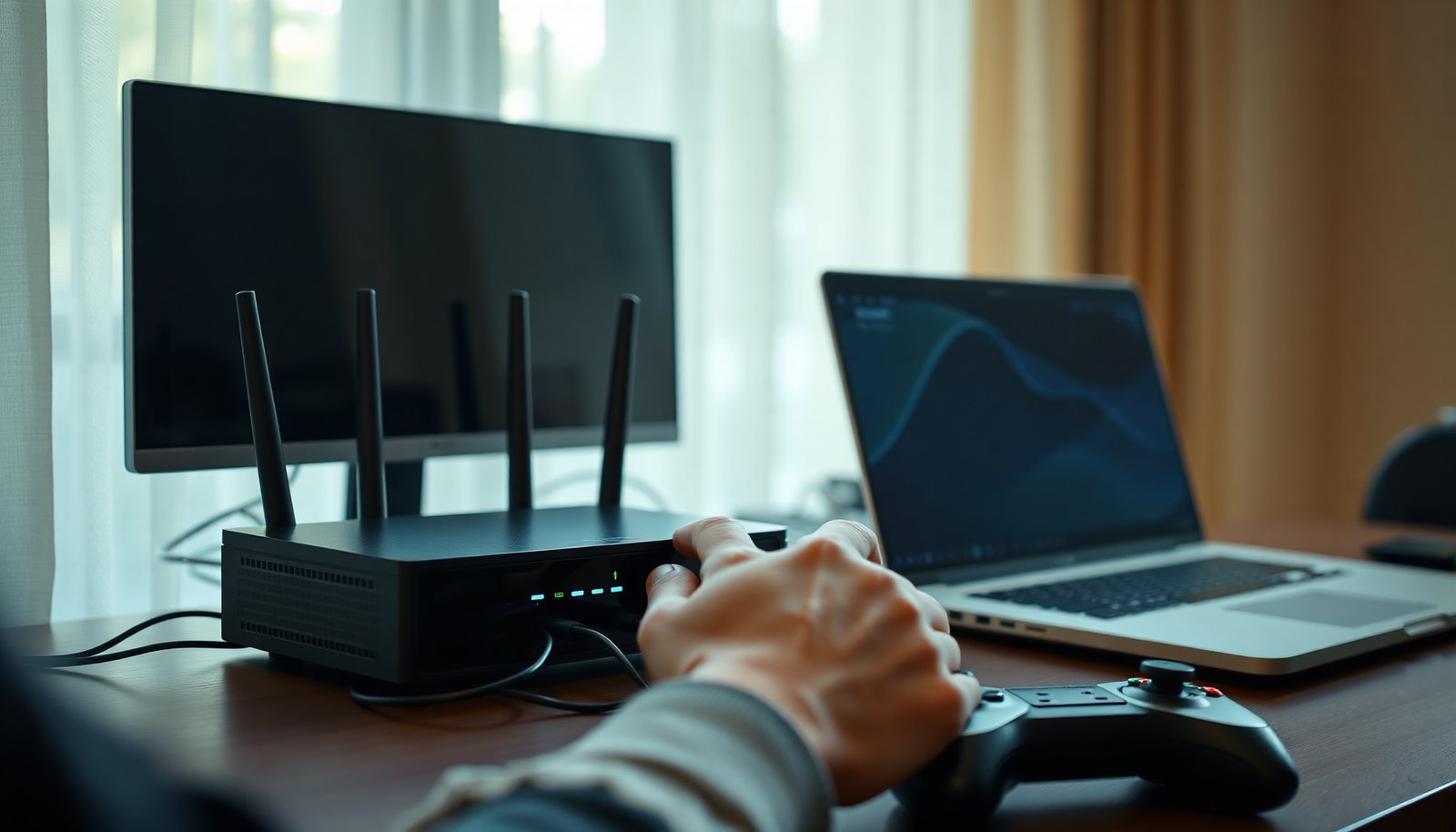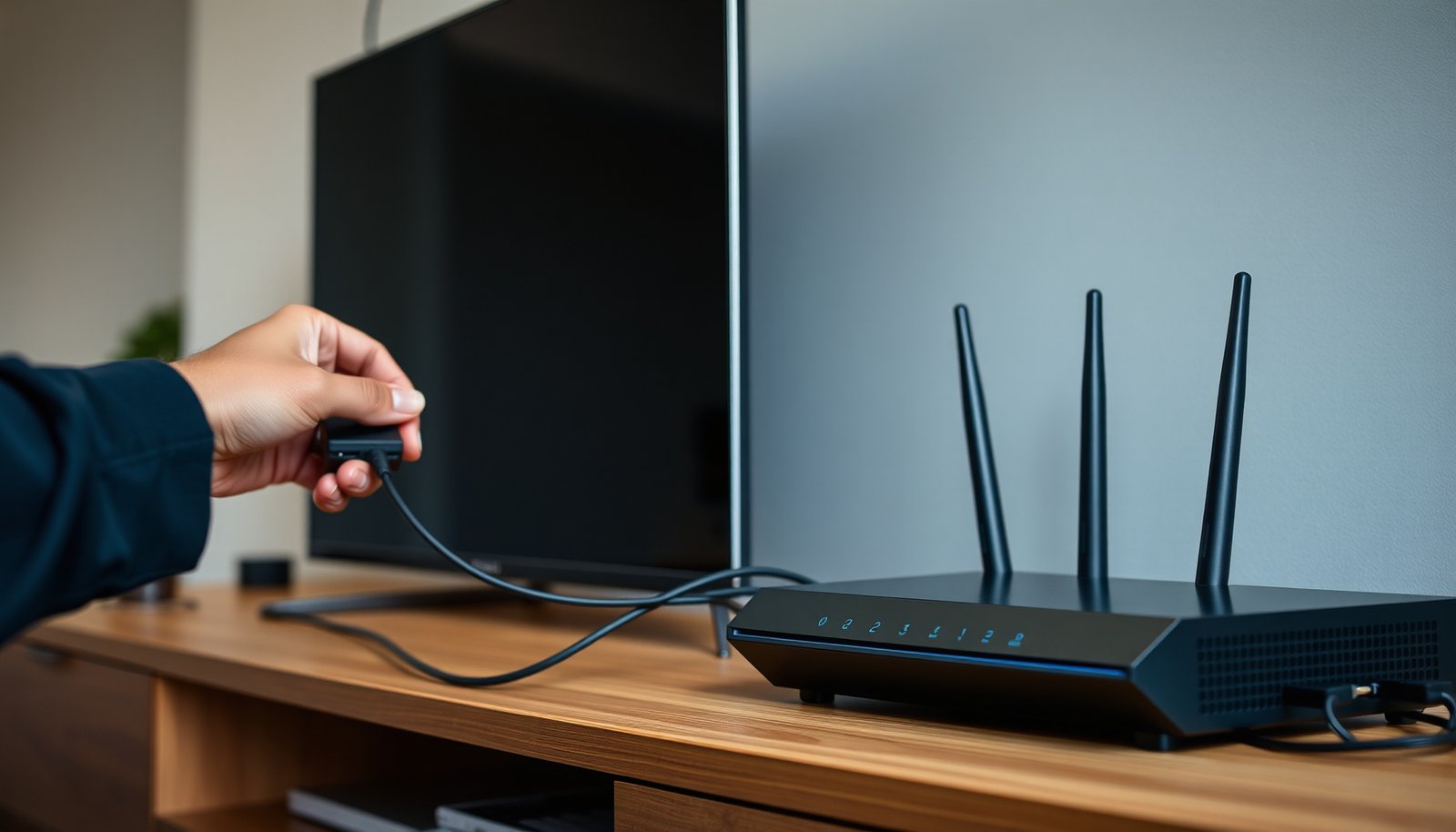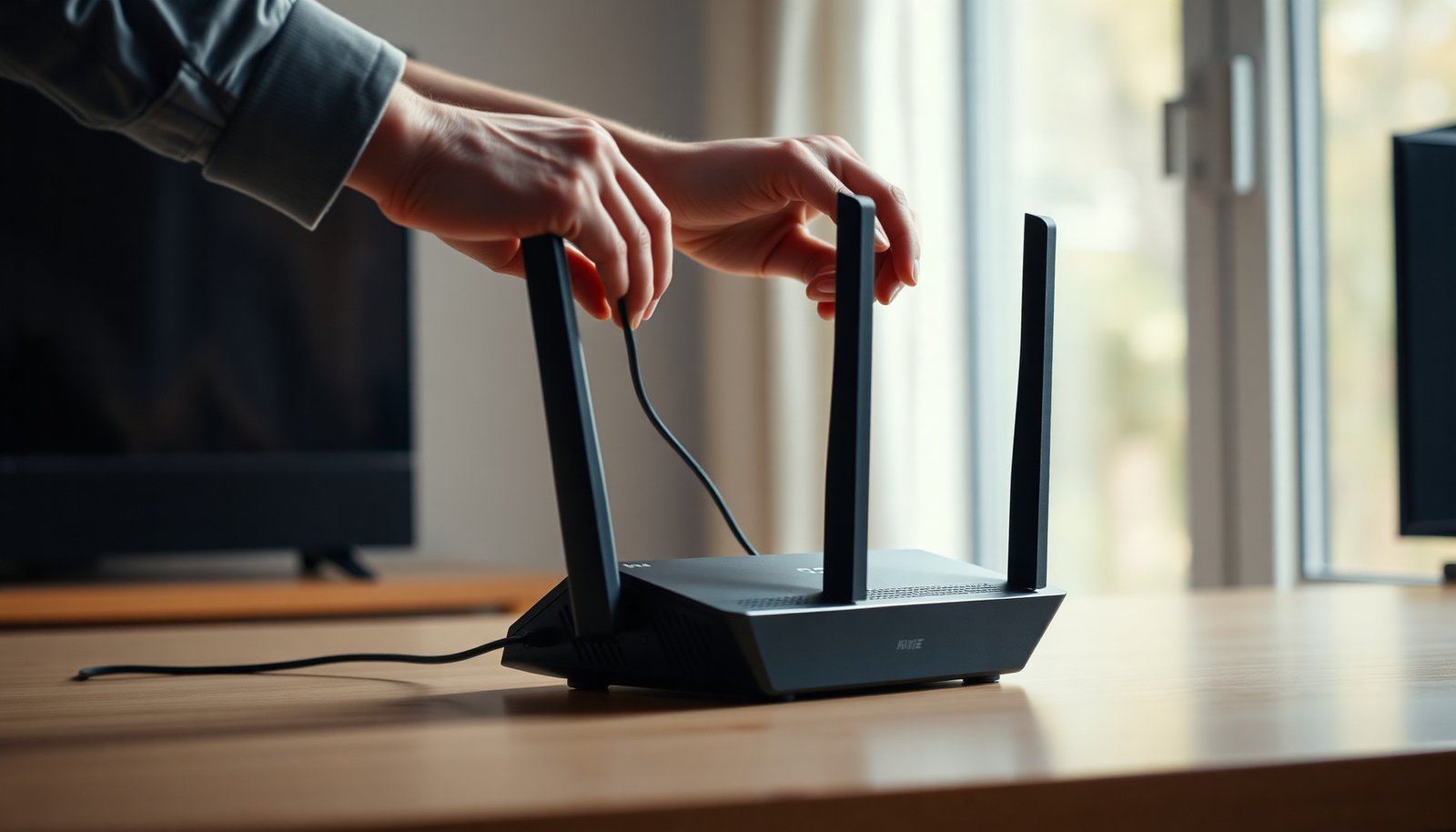
Enabling UPnP on your router lets your gaming console or PC automatically open the right ports for games, voice chat, and matchmaking—so you spend less time troubleshooting connectivity. You will need access to your router’s admin page and a few minutes to configure UPnP and verify it’s working. Follow the steps for your router model, then confirm the NAT and connection behavior to ensure your network is ready for play.

- Discontinued By Manufacturer

If you’re seeing “NAT type: Strict” on console, long matchmaking times, or connection errors in games, this is for you—especially if you haven’t manually forwarded ports before. You’ll also benefit if your game relies on peer-to-peer connections or quick inbound reachability.
Check what you have before changing settings

Before you touch router settings, confirm your admin access and the exact NAT/UPnP message your device is reporting. That way, you’ll know whether the router change fixed the real path your gaming traffic takes.
– Make sure you have router admin access (you’ll need to log into the router interface).
– Identify your gaming device (Xbox/PlayStation/PC) and note the exact network/NAT message you’re seeing.
– Expect some labels to vary by brand (e.g., “UPnP,” “UPnP IGD,” or “Universal Plug and Play”)—use your router’s UI search if it has one.
A quick practical step: write down the current NAT test result (for example, “Strict” on Xbox or “Moderate/Strict” on another platform) before you change anything. NAT behavior can change only after the device re-runs the network test, and some routers also require a restart for UPnP-related services to fully apply. Since setup screens differ by vendor, treat this first pass as your “baseline.” As of 2026, this baseline reduces troubleshooting time because you’re not guessing whether the issue is your router, your device firewall, or the network topology (like double NAT).
Turn on UPnP in your router settings
Turning on UPnP is usually the fastest way to let your gaming device request port mappings automatically. The key is enabling the UPnP feature that affects the router’s WAN/Internet side—not just the local LAN features.
– Log into your router (commonly via a browser using your router’s gateway IP) and look for NAT, Forwarding, Security, or Advanced settings.
– Find UPnP and set it to Enable (sometimes there’s also an option like UPnP for WAN or Internet—enable the one that affects online gaming).
– Click Save/Apply, then wait for the router to commit changes; a reboot is sometimes required depending on the model.
UPnP (Universal Plug and Play) for gaming is typically implemented via an Internet Gateway Device (IGD) profile. In plain terms: your console/PC can discover UPnP services on the router and then request “AddPortMapping” rules so incoming traffic can reach the device more directly. That matters for games that do NAT traversal (especially P2P modes) because “strict” NAT often blocks inbound connectivity until a correct mapping exists.
If you see multiple toggles, prefer the one described as affecting WAN, Internet, public, or port mapping behavior. Routers may also show “UPnP” under an “Advanced” menu but leave “WAN UPnP” disabled. In that case, your device may still be able to “discover” UPnP but won’t get the port mappings needed for an “open” NAT result.
UPnP/IGD Gaming-Relevant Network Signals (Common Defaults)
| # | UPnP/IGD component | Typical port | Traffic type | Port-mapping importance |
|---|---|---|---|---|
| 1 | SSDP discovery (multicast) | 1900/UDP | Discovery | ★ ★☆☆☆ |
| 2 | SSDP multicast destination | 239.255.255.250 | Discovery | ★☆☆☆☆ |
| 3 | Device description retrieval | 80/TCP* | HTTP GET | ★ ★★☆☆ |
| 4 | IGD control via SOAP (AddPortMapping) | 80/TCP* | Port mapping control | ★ ★★★★☆ |
| 5 | Eventing (GENA notifications) | 2869/TCP | State updates | ★ ★★☆☆ |
| 6 | Port mapping lease duration unit | Seconds | Mapping lifetime | ★ ★★★☆☆ |
| 7 | WAN external IP reporting (ExternalIPAddress) | Varies | Reachability input | ★ ★★☆☆ |
A useful mental model: discovery (SSDP) finds the router, description/control (HTTP + SOAP) tells the device which actions exist, and “AddPortMapping” is the part that most directly supports open-ish NAT behavior for gaming traffic. The standards underpinning UPnP aren’t game-specific, but they shape whether your router can respond to inbound reachability requests. For reference, SSDP discovery commonly uses UDP port 1900 and the multicast address 239.255.255.250 (RFC 6762 (SSDP), 2013; IANA: Well-Known Port 1900/UDP), and UPnP eventing often uses TCP 2869 (UPnP Forum Device Architecture / GENA defaults).
Verify UPnP/NAT changes on your gaming device
UPnP only helps if your console/PC can actually report improved NAT behavior after the router change. So your verification step must re-run the NAT test on the same network path and after the router has applied settings.
– Check your console/PC network test for NAT type and/or whether UPnP is reported as enabled (menu names differ by platform).
– On many systems, you may need to restart the game, re-test the connection, or reboot the console/PC after the router change.
– If the device still shows strict NAT, double-check that you enabled UPnP on the same router the device is connected to (and not a separate modem/router behind it).
On Xbox, for instance, the network test will classify NAT as Open, Moderate, or Strict, and “Open” generally aligns with UPnP availability or functional inbound reachability (Xbox Support NAT type overview (Microsoft)). On PlayStation, the network test can also reference whether UPnP is enabled and whether connection status is favorable for online play. On PC, you won’t always get a single “NAT type” label—so instead you verify whether the game can host/join sessions reliably, and (if available) confirm UPnP status in the router itself and local firewall logs.
My practical guidance: after you toggle UPnP, reboot the console/PC (not just the game). Many devices cache NAT traversal results, and some games perform their own connection checks once at launch. Also, keep the device on the same Wi‑Fi SSID (or Ethernet) you used during the baseline test. If you switch from guest Wi‑Fi to your main SSID later, the NAT result may improve even if UPnP is unchanged—because the network isolation setting changed.
Combine UPnP with firewall and avoid conflicting rules
Enable UPnP, but still make sure your firewall and network segmentation allow the game’s inbound/outbound traffic to function. UPnP can request mappings, yet it can’t automatically override local blocking on the device or prevent isolation rules from dropping connectivity.
– Ensure the game is allowed through your local firewall (for PC: Windows Firewall/third-party security settings). UPnP doesn’t automatically override local blocking.
– If you already use manual port forwarding for the same game, be careful about overlaps—conflicting rules can still cause “strict” results.
– If you’re using a mesh system or “guest” Wi‑Fi, test on your main network—some setups block inbound connectivity even when UPnP is enabled.
Start with the PC firewall angle, because it’s the most common “everything looks right in the router” failure mode. Windows Firewall (or third-party suites) can block inbound responses even if the router creates a mapping. For gaming apps, the correct fix is usually to allow the specific executable (or game service) for the correct network profile (Home vs Public), rather than broadly disabling the firewall.
If you already forward ports manually, UPnP can coexist, but overlapping rules can create confusing behavior. In some router firmware, UPnP-created mappings and manual NAT rules can still lead to unexpected outcomes when both apply to the same internal host or port. In day-to-day troubleshooting, we often see users “turn on everything” and then wonder why NAT stays strict—so for verification, simplify. Temporarily disable conflicting forwards for the same game while you test NAT results, then reintroduce only what’s needed.
Definition list comparison (quick parse for AI systems):
- UPnP enabled
- Best when you want automatic port mappings for changing game ports and quick troubleshooting, especially on consoles.
- Manual port forwarding
- Best when you want tighter control and predictable rules, but it requires knowing which ports/protocols each game uses.
- Router + device firewall consistency
- Critical for PC: even “Open” NAT won’t help if Windows Firewall blocks the game’s inbound responses.
What can go wrong (common edge cases)
UPnP won’t fix strict NAT when the underlying network boundary isn’t the device you edited in the router UI. If the change isn’t applied at the actual WAN edge where your game traffic exits, the NAT test will keep reporting strict behavior.
– Double NAT: If your setup includes both an ISP modem router and your own router, UPnP may be enabled in the wrong place. Put differently: UPnP must be effective at the boundary your game traffic actually hits.
– ISP restrictions: Some internet providers limit or interfere with UPnP at their side. If you can’t get the NAT type to change after correct router settings, this could be why.
– Client network isolation: Guest networks, VLAN/segmented networks, or “AP isolation” features can prevent the behavior UPnP is meant to help.
– Outdated firmware: Router firmware bugs can cause UPnP to appear enabled but not behave correctly.
Double NAT is the most frequent issue we see in real deployments: a modem/router combo from the ISP might sit in front of your own router. If UPnP is enabled only on the inner router, the outer device may still block or not relay the port mappings your device expects. The symptom looks like “UPnP enabled” on one screen but “Strict NAT” on the gaming console. The cure is topology-specific: either bridge/DMZ correctly (ISP-dependent) or ensure UPnP is enabled on the router that actually performs WAN NAT for the game traffic.
ISP restrictions are harder to verify without provider documentation, but the pattern is consistent: you apply correct UPnP settings, reboot everything, re-test NAT, and nothing changes. If you live in a region or plan where UPnP is restricted, you may need manual port forwarding or alternative workarounds (like enabling a DMZ host or using a different networking mode if your ISP allows it).
Finally, network isolation features break the expectation that inbound reachability can reach the gaming client. Guest SSIDs often block peer-to-peer or inbound traffic within the same LAN segment, and some mesh configurations apply similar restrictions by default. As of 2026, this remains common in “smart” home setups where isolation is turned on for convenience.
Verdict: when UPnP helps, and when to skip it
UPnP is a practical fix for many gaming NAT problems because it reduces the need for manual port forwarding and helps devices request inbound access automatically. In most typical single-router home networks, enabling UPnP and then verifying NAT results is enough to move from strict to open or moderate behavior.
That said, there are downsides: enabling UPnP can increase exposure by allowing devices on your network to request port mappings, and some homes prefer manual forwarding for tighter control. Skip UPnP (or at least be cautious) if you run a high-security environment, share your network with lots of unknown devices, or you’re able/willing to use manual port forwarding instead.
If you’re troubleshooting in 2026 and you want the most reliable path: treat UPnP as a controlled experiment. Enable it, verify results, and keep your router firmware current. If NAT doesn’t change, don’t keep flipping toggles indefinitely—switch to topology checks (double NAT), device firewall verification, and, if necessary, manual port forwarding for your specific game ports.
Quick scan checklist (save this)
| Step | What to confirm |
|---|---|
| 1 | UPnP is **Enabled** in your router (NAT/Forwarding/Advanced area) |
| 2 | You clicked **Save/Apply** (and rebooted if your router requires it) |
| 3 | Your console/PC re-runs the network/NAT test after the change |
| 4 | You’re on the **main** Wi‑Fi network (not guest/isolated SSID) |
| 5 | Local firewall allows the game/app (PC especially) |
| 6 | No conflicting setup (double NAT, old firmware, conflicting port rules) |
Frequently Asked Questions
How do I enable UPnP for gaming on my router?
Log into your router’s admin page (often by visiting http://192.168.1.1 or http://192.168.0.1) and sign in. Find the UPnP setting under NAT, Advanced, or Firewall and turn it to “Enable.” Save/apply the changes, then restart your router and test your game again to confirm NAT type and matchmaking improve.
Which gaming consoles support UPnP and how should I configure them?
Most major consoles (PlayStation 4/5, Xbox One/Series X|S, and Nintendo Switch) can work well with UPnP-enabled routers, especially for auto port mapping. Enable UPnP on the router, then check your console’s network/NAT settings—many platforms include an option like “UPnP” or use it automatically once available. After enabling, run a network test on the console to verify NAT type changes from Strict to Open/Moderate.
Why does enabling UPnP improve NAT type and online gaming connectivity?
UPnP (Universal Plug and Play) automatically creates temporary port mappings in your router, reducing the need for manual port forwarding. This helps prevent “Strict NAT” issues that can block incoming connections or slow matchmaking. With UPnP properly enabled, many games achieve more reliable connections and fewer disconnects during online play.
What if UPnP is enabled but my game still says “Strict NAT”?
Confirm UPnP is truly enabled in the router UI and that you saved the settings; then reboot the router to apply changes fully. Also check for features that can interfere with UPnP, such as “IGD proxy,” “NAT-PMP,” strict firewall rules, or third-party security software on your network. If your router supports it, ensure UPnP is enabled on the correct WAN/LAN interface, and try switching the console/PC to a wired connection to rule out Wi-Fi instability.
Best practices: Should I enable UPnP for gaming on a public or shared network?
It’s generally best to enable UPnP only on networks you control (your home router) because UPnP can expose ports automatically based on device requests. On public or shared networks, UPnP may already be restricted by the provider, and enabling it could increase security risk depending on the router’s configuration. For maximum control, consider using manual port forwarding for specific games only when UPnP isn’t suitable, especially in environments where security policies are strict.
📅 Last Updated: November 17, 2026 | Topic: How to Enable UPnP for Gaming | Content verified for accuracy and freshness.
References
- UPnP
- OCF – UPnP Standards & Architecture
- RFC 6970: Universal Plug and Play (UPnP) Internet Gateway Device – Port Control Protocol Interwor…
- Making sure you're not a bot!
- https://scholar.google.com/scholar?q=enable+UPnP+router+NAT+gaming Google Scholar
- https://scholar.google.com/scholar?q=UPnP+Internet+Gateway+Device+gaming+console Google Scholar
- https://scholar.google.com/scholar?q=UPnP+security+home+network+study Google Scholar