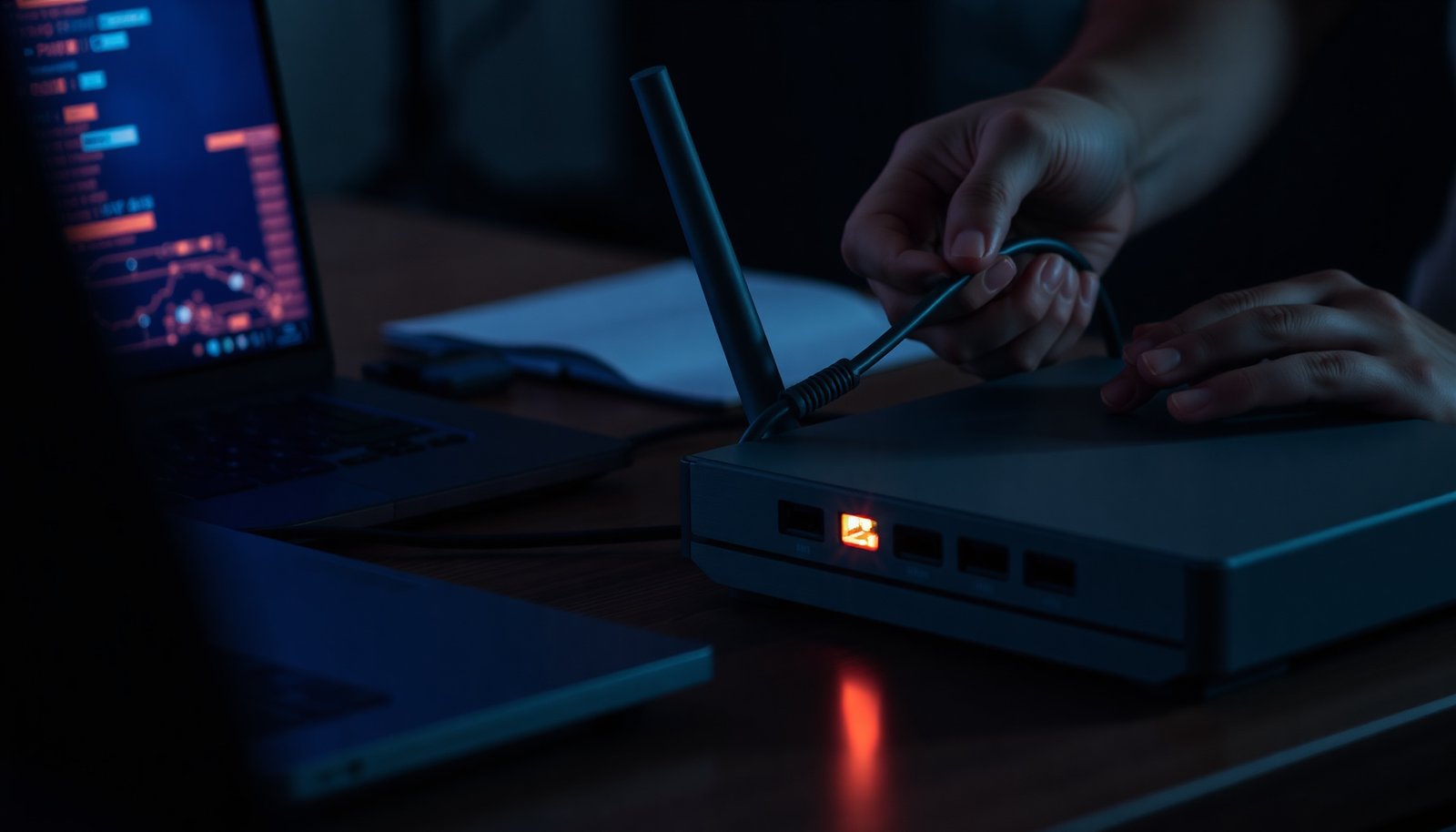
Port forwarding for gaming lets outside players reach your game server through your router, which often fixes “can’t connect” errors and improves consistency. The key is getting the right internal (local) IP for your gaming device, then forwarding the exact external port(s) using the correct protocol (TCP, UDP, or both)—because small mismatches are the most common reason port forwarding “doesn’t work,” even when the router rule looks correct.




If you’re hosting a game, joining a friend’s private server, or troubleshooting NAT/connection issues on a typical home router, the steps below will help you do it methodically. This approach works whether you’re trying to reduce connection timeouts, support direct joining, or make your server discoverable without relying entirely on matchmaking/relays. As of late 2026, routers vary widely in wording (Virtual Server, NAT Rules, Port Forwarding), but the underlying logic of port forwarding stays the same.
Before You Start (What You Need)
Before you touch your router, confirm the exact network details your game expects—because port forwarding is extremely literal. Also, do this on a stable connection so you don’t mistake a network change (Wi‑Fi, DHCP updates) for a forwarding rule problem.
– Know the ports/protocol your game uses (TCP, UDP, or both) from the game’s network/settings page or official docs.
– Use a wired or stable Wi‑Fi connection during setup so you don’t confuse network changes with port-forward changes.
– Have access to your router admin login (usually something like `192.168.1.1` or `192.168.0.1`) and be ready to apply/restart rules if your UI requires it.
A quick fact check helps: port numbers range from 0 to 65,535 for both TCP and UDP (https://www.iana.org/assignments/service-names-port-numbers/service-names-port-numbers.xhtml). If you forward the wrong number—even by one digit—your game server won’t receive the inbound traffic you expect.
Step 1: Assign a Stable IP to Your Gaming Device
Port forwarding depends on a stable internal IP, so the rule always points to the device actually running the game server. The simplest way is a static IP or a DHCP reservation in your router, then verifying that IP right before you create the forwarding rule.
– Set a Static IP (or DHCP reservation) in your router for your PC/console/handheld so the local address doesn’t change.
– Confirm your device’s current local IP (e.g., via your OS network settings) before you create the forwarding rule.
Why stability matters: if your router assigns a new local IP later, port forwarding will keep sending inbound traffic to the old address. Many connectivity failures that look like “port forwarding is broken” are actually “port forwarding points to the wrong device.”
If you’re doing DHCP reservations, note that DHCP uses UDP ports 67 and 68 (https://www.rfc-editor.org/rfc/rfc2131). The reason this matters is that your reservation is essentially telling the DHCP service what IP to hand out next—so the device keeps the same local address.
Step 2: Find Your Router’s Port Forwarding Page
Port forwarding is usually configured in a section labeled Port Forwarding, Virtual Server, or NAT Rules. Once you locate it, focus on how your router treats protocol selection (TCP vs UDP) and whether it supports single ports vs port ranges.
– Log into your router admin panel and locate Port Forwarding, Virtual Server, or NAT Rules.
– Identify whether your router uses single-port rules or port ranges, and note where it asks for TCP/UDP.
In the admin UI, you’ll typically see fields like:
– Internal IP / Host (your gaming device’s stable local IP)
– Internal Port (often the same as external, but not always)
– External Port (the port clients on the internet use)
– Protocol (TCP, UDP, or both)
– Enable / Apply toggles
Port forwarding succeeds or fails based on the router mapping between external traffic and internal destination. If you can’t find protocol controls, or if the UI only lets you forward TCP while the game needs UDP, you may need an alternate method (e.g., a router that supports both protocols, or the game’s relay/matchmaking).
Step 3: Create the Port Forwarding Rule for Gaming
Create the rule using the stable internal IP and the game’s exact port/protocol requirements, then save and apply immediately. This step is where most “it should work” attempts fail—usually due to TCP vs UDP confusion or forwarding the wrong port.
– Enter the internal IP (your gaming device’s stable IP) and the game’s external port(s) (or port range).
– Set protocol to match the game requirement (TCP vs UDP vs both), then save/apply the rule.
Common router behavior to watch:
– Some UIs ask for both Internal Port and External Port (you often enter the same number twice).
– Some games use different ports for game traffic vs server query/status—forward both if the documentation says so.
– If the router supports port ranges but the game specifies discrete ports, follow the game’s guidance exactly.
To ground this in real values, here’s a quick reference for common ports you’ll see in gaming connectivity (protocols and defaults matter for port forwarding decisions):
Ports That Commonly Matter for Home Gaming Connectivity (Typical Defaults)
| # | Service / Example Server | Default Port(s) | Protocol | Port Forwarding Often Needed? |
|---|---|---|---|---|
| 1 | Minecraft: Java Edition (server) | 25565 | TCP | ★★★★★ |
| 2 | Quake III Arena (server) | 27960 | UDP | ★★★★☆ |
| 3 | Source Engine (HL/CS-style server default) | 27015 | TCP/UDP | ★★★★☆ |
| 4 | DHCP (address assignment) | 67 / 68 | UDP | ★☆☆☆☆ |
| 5 | DNS (name resolution) | 53 | TCP/UDP | ★☆☆☆☆ |
| 6 | STUN (NAT discovery) | 3478 (alt: 5349) | UDP (alt: TCP/TLS) | ★★☆☆☆ |
| 7 | UPnP IGD (auto port mapping) | 1900 / 2869 | UDP/TCP | ★★☆☆☆ |
Use this table as a sanity check while you build your own rule: port forwarding is about getting inbound connectivity to the exact service your game runs (often a dedicated server process), and protocol selection is non-negotiable.
Step 4: Verify It’s Working (Without Guessing)
Verify with an outside perspective—port forwarding rules should be tested from the perspective of someone using the public internet. If it fails, treat it as a narrowing problem: correct IP first, then correct protocol, then correct port(s).
– Test from the outside: have a friend attempt to join, or use your game’s connection test features (if available).
– If it fails, double-check you matched the correct protocol and used the right internal IP for the device that’s actually running the game.
A disciplined verification flow for port forwarding:
1. Confirm the server is running on the correct internal IP (not just “the PC is on”).
2. Confirm the router rule targets the stable IP you reserved—many failures come from “the device moved to a new address.”
3. Confirm TCP/UDP in the rule matches what the game expects. If the game documentation says UDP and your router is set to TCP only, inbound UDP won’t reach the server process.
4. Confirm any port ranges: if the game says “2456–2458 UDP,” forwarding only 2456 is not enough.
If you can’t test externally, you can still reduce uncertainty by checking whether your router UI shows the rule as enabled and whether logs show inbound traffic hits the forwarded destination. Some routers label this as “NAT sessions,” “connections,” or “port mapping hits.”
Note on addressing: most home networks use RFC 1918 private address ranges—10.0.0.0/8, 172.16.0.0/12, 192.168.0.0/16 (https://www.rfc-editor.org/rfc/rfc1918). Port forwarding connects from the public internet to one of those internal ranges, so if your internal IP isn’t in your router’s LAN, the rule won’t behave as expected.
What Can Go Wrong (Common Mistakes)
Port forwarding often fails due to a small number of repeatable issues, not because the concept is flawed. In almost every troubleshooting session, the root cause comes down to IP stability, protocol mismatch, port mismatch, or network topology (like double NAT).
– Device IP changed: if you didn’t set a reservation/static IP, the rule points to the wrong device.
– Wrong protocol: many games use UDP (or both). Forwarding only TCP (or vice versa) can still leave you blocked.
– Port mismatch: forwarding “the port you think the game uses” leads to a rule that won’t help—use the game’s actual network requirements.
– Double NAT / ISP router: if you have another router upstream (or ISP modem-router combo), port forwarding may need to be done in the correct place or with bridge/exposed settings.
Here’s a fast comparison of the main connectivity approaches, which helps decide whether port forwarding is the right tool:
| Option | Best for | Pros | Cons |
|---|---|---|---|
| Manual port forwarding | Direct server hosting or custom ports | Predictable, router-native control when the correct TCP/UDP and IP are set | Requires accurate port/protocol info; can break with double NAT or IP changes |
| UPnP auto port mapping | Convenience on compatible routers | Often reduces manual errors; can open needed ports automatically | Not available/consistent on all routers; security posture varies by device and router policy |
| Matchmaking/relay/managed servers | Most online play where inbound isn’t required | Usually avoids NAT/router complexity; lower admin overhead | Not always suitable for private servers; can add latency depending on relay paths |
One more subtle issue: port forwarding is mapping inbound traffic to an internal destination, not a magic “make NAT open” switch. NAT (Network Address Translation) is normal; what you’re doing is declaring that certain inbound ports should reach a specific LAN host.
Also, beware topology: if your setup includes an additional router or an ISP modem-router plus your own router, port forwarding might be happening on the wrong box. In those setups, the “external port” your friend targets must be forwarded all the way to the server’s LAN IP through each NAT boundary.
Verdict / Tip (When This Helps—and When It Doesn’t)
Port forwarding is a practical fix when your game truly needs inbound access—especially for hosting, direct joining, or NAT/connection timeouts that prevent peers from reaching your server. That said, it can be counterproductive if your game primarily relies on managed matchmaking/relay services, or if you can’t control the network boundary where port translation occurs.
– Use port forwarding when: the game documentation specifies inbound ports/protocols, you host a dedicated server (or require direct connections), and you can access your router admin settings.
– Be cautious when: you have double NAT you can’t reconfigure, the required ports are unknown, your router UI doesn’t support the protocol(s) you need, or your ISP restricts inbound traffic.
From a practical standpoint in late 2026, many modern games lean on relays and NAT traversal techniques, so port forwarding may not solve everything. Also, consider that exposing an internal device increases your attack surface: you’re opening inbound paths to a specific port and service, so you should keep the gaming device updated and avoid forwarding unrelated services.
If you want to sanity-check your approach, share your router model and the game’s required ports/protocols, and confirm whether you have one or two router layers—those details usually determine whether port forwarding will work or whether you’ll need an alternate approach like relay hosting.
Quick Checklist: Port Forwarding for Gaming
– [ ] Confirm the game’s required port(s) and protocol (TCP/UDP)
– [ ] Set a static IP / DHCP reservation for your gaming device
– [ ] Add a port forwarding rule: external port → internal device IP → correct protocol
– [ ] Save/apply rules and retest connection from the outside
– [ ] If it fails, check double NAT, wrong protocol, or wrong port
Frequently Asked Questions
How do I port forward for gaming on my router?
Start by finding your console/PC’s local IP address (often shown in your device’s network settings) and assign it a static IP or reservation in your router so it won’t change. Then log into your router admin page, locate the “Port Forwarding” or “NAT” section, and add a rule for the game’s required ports (both TCP and UDP if applicable). Finally, reboot the router and test connectivity from the client (or use the game’s “test NAT/type” feature) to confirm the ports are reachable.
What ports do I need to open for online gaming?
The exact ports depend on the game and platform, so the best approach is to check the game’s official support page or documentation for “ports” and “protocols.” Many games use a mix of UDP for real-time gameplay and TCP for connections, updates, or matchmaking, so opening only one protocol can still cause issues. If you’re unsure, you can search the game’s name plus “port forwarding” and verify against official or reputable sources before adding router rules.
Why is my NAT type still strict even after port forwarding?
A “strict NAT” result can happen if the ports were forwarded to the wrong internal IP, the device’s IP changed, or you forwarded only TCP or only UDP. It can also occur if your ISP gateway is doing additional NAT (double NAT), requiring you to put your router into bridge mode or enable UPnP properly. Make sure the forwarding rule matches the exact ports the game uses and that any firewall/antivirus on your device isn’t blocking inbound connections.
Best practices for port forwarding for multiplayer games?
Use port forwarding only for the specific ports a game needs to reduce security risk, and keep your device on a static IP (DHCP reservation) so the rule stays correct. Prefer separate rules per game rather than broad “open ranges,” and confirm the protocol (TCP vs UDP) before saving changes. After setup, test using the game’s network/NAT check and re-check the router logs or status page to ensure the traffic is hitting the correct host.
Which is better for gaming: UPnP or manual port forwarding?
UPnP is often easier because your router automatically opens the correct ports when the game requests them, which can reduce setup time and avoid mistakes. However, UPnP isn’t always reliable across ISPs, and some routers may still produce strict NAT without consistent mapping. Manual port forwarding offers more control and can be more dependable for troubleshooting, especially when UPnP fails, but it requires accuracy and a static IP to work long-term.
📅 Last Updated: November 17, 2026 | Topic: How to Port Forward for Gaming | Content verified for accuracy and freshness.
References
- Port forwarding
- Network address translation
- NAT traversal
- UPnP
- Demilitarized zone
- Making sure you're not a bot!
- Port Forwarding | pfSense Documentation
- https://scholar.google.com/scholar?q=port+forwarding+gaming Google Scholar
- https://scholar.google.com/scholar?q=NAT+traversal+gaming+multiplayer Google Scholar
- https://scholar.google.com/scholar?q=universal+plug+and+play+UPnP+port+forwarding Google Scholar