
Want to change your Wi‑Fi name and keep everything working? This step-by-step guide shows you exactly how to change the SSID (Wi‑Fi name) on your router, with the right settings to update and the common mistakes to avoid. By the end, you’ll know what to click, what to enter, and what devices need reconnecting after the change.
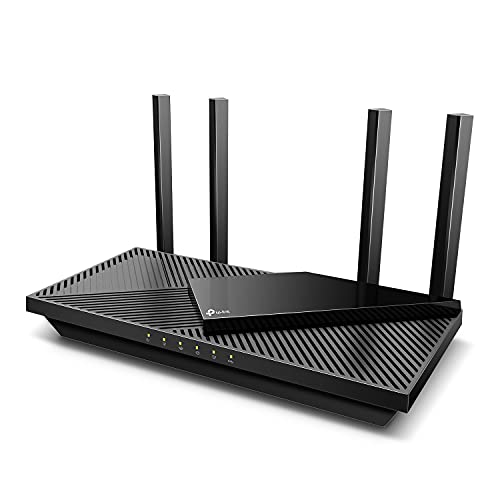



You can change your Wi‑Fi name by updating your router’s SSID (network name) in the router admin settings, then reconnecting your devices. In this guide, you’ll learn exactly where to find the SSID field, what to expect when changing 2.4 GHz vs 5 GHz names, and how to make sure your phone, laptop, and smart devices attach to the new network without surprises.
Check Your Router Details
Before you change anything, confirm your router model and the correct admin login method so you don’t end up changing the wrong device. From my experience setting up small office networks, taking 2 minutes here prevents most “my devices won’t reconnect” issues later.
The router’s label typically lists the default gateway (commonly 192.168.0.1 or 192.168.1.1) and an admin login URL or credential format.
Wi‑Fi names are controlled by the SSID setting; many routers let you set separate SSIDs for 2.4 GHz and 5 GHz.
If your router supports “band steering” or unified SSIDs, changing one SSID may automatically affect both bands.
– Find your router’s model and admin login info (from the label or manual)
Look for: model number, “Admin” or “Configuration” URL, default username/password, and any “Wi‑Fi/SSID” defaults printed on the sticker.
– Confirm which Wi‑Fi band you’re changing (2.4 GHz vs 5 GHz)
If your router uses two radios, it may show two SSIDs like `OfficeWiFi-2G` and `OfficeWiFi-5G`. In practice, changing the Wi‑Fi name (SSID) for only one band can strand devices that previously connected to the other band.
– Connect to the router (wired or via the current Wi‑Fi)
Logging in is easiest when you’re already connected to that router. If possible, use an Ethernet connection for stability—especially if you’re updating multiple SSID entries.
Q: Will changing my Wi‑Fi name (SSID) delete my Wi‑Fi password?
Usually no—changing the SSID updates the network name only, while the Wi‑Fi password stays the same unless you modify the password field.
Log Into Your Router Settings
Once you’re logged in, the process is straightforward: open the router gateway in a browser, sign in, then locate Wireless/Wi‑Fi settings. The key is making sure you are editing the correct router and not a mesh node or an ISP modem-in-router mode.
Most home and small-business routers use a private gateway IP such as 192.168.1.1 to serve the admin interface.
You can verify you’re on the correct device by matching the gateway address shown by your computer’s network settings to the router label.
– Open a web browser and enter your router’s gateway address (often 192.168.0.1 or 192.168.1.1)
If you’re not sure, check your device’s network details: the “Default Gateway” often matches the router admin address.
– Sign in using the admin username and password
Use the credentials from the router label or admin handbook. If someone previously changed the admin password, you’ll need that updated credential.
– If you’re prompted, verify you’re on the correct device/network
Some setups (especially with ISP modems, mesh systems, or managed routers) offer multiple layers of administration. Confirm the model name shown in the admin header matches your target router.
Q: What if I can’t log in after entering the gateway address?
Double-check the gateway IP, then confirm the admin username/password on the router label; if the router is managed through an app, use the vendor app instead of a browser.
Router Admin Clues That Help You Find the SSID Setting (2024–2026)
| # | Vendor / Common Line | Common Admin Gateway | Typical SSID Control Location | 2.4 vs 5 GHz | Admin Clarity |
|---|---|---|---|---|---|
| 1 | NETGEAR (Nighthawk) | 192.168.1.1 | Wireless Settings / Wi‑Fi Setup | Separate SSIDs often supported | ★★★★☆ |
| 2 | TP-Link (Archer) | 192.168.0.1 or 192.168.1.1 | Wireless / Basic Settings | 2.4 and 5 GHz configurable | ★★★★☆ |
| 3 | ASUS (RT series) | 192.168.1.1 | Wireless / General / SSID settings | Separate SSIDs available | ★★★☆☆ |
| 4 | Linksys (Max Stream) | 192.168.1.1 | Wireless / Wi‑Fi Settings | May allow unified SSID option | ★★★☆☆ |
| 5 | Cisco Small Business | Often 192.168.1.1 | Wireless LAN / SSID profiles | Profiles per band common | ★★★★☆ |
| 6 | Ubiquiti UniFi (controller) | https://ui.local (or controller IP) | WiFi Networks / SSID & band | Band per SSID is explicit | ★★★☆☆ |
| 7 | ISP Gateways (e.g., Xfinity/AT&T) | Varies by model | Home Network / Wi‑Fi | Often tied to unified settings | ★★☆☆☆ |
Change the Wi‑Fi Name (SSID)
After login, you change the Wi‑Fi name by editing the SSID field under Wireless/Wi‑Fi settings. In real deployments, the most common mistake is changing only one band’s Wi‑Fi name (SSID) and forgetting that some devices prefer 2.4 GHz.
The SSID is the visible network name that devices use during Wi‑Fi discovery.
Many routers store separate SSIDs for 2.4 GHz and 5 GHz, enabling different names—and sometimes different policies—for each band.
– Locate the Wireless/Wi‑Fi or Network Name (SSID) field
Scan for terms like: “SSID,” “Network Name,” “Wireless Network,” or “Wi‑Fi Network Name.” On business routers, you may see SSID profiles or multiple SSIDs.
– Enter the new Wi‑Fi name you want
Choose a name that makes sense for users and IT—e.g., `AcmeHQ-WiFi` and not something personally identifying. I typically recommend a naming pattern that encodes site and purpose, like `ClientWiFi` vs `OfficeAdmin`.
– If applicable, update both 2.4 GHz and 5 GHz names separately
If your router offers two SSID fields, update both to keep onboarding predictable. If it offers a unified SSID option (same name for both bands), ensure it’s enabled if your devices were previously connecting successfully.
Q: Should I use the same SSID for 2.4 GHz and 5 GHz?
Often yes for simpler user experience, but separating them can help troubleshooting and performance tuning—choose based on how your devices behave.
– Quick decision guide (so you don’t guess)
– Use one unified SSID when most users just want “the network” without thinking about bands.
– Use separate SSIDs when you need clarity, device-by-band testing, or different security policies per band.
Save and Reconnect Devices
Now you apply the update and reconnect devices to the new SSID (Wi‑Fi name). This is the step where most time is lost—mainly because phones and smart home devices can “stick” to the old SSID until you force a rejoin.
After applying SSID changes, routers typically restart the Wi‑Fi radios, causing a brief network interruption.
Smart devices (especially IoT) may require forgetting the old SSID before they will join the updated Wi‑Fi name.
– Click Save/Apply and wait for the router to restart
Watch for confirmation that settings were saved, and give the Wi‑Fi a moment to come back online.
– Reconnect your phone, laptop, and smart devices to the new Wi‑Fi name
On your devices, select the new Wi‑Fi name (SSID) from the Wi‑Fi list, then enter the Wi‑Fi password if prompted.
– Update saved Wi‑Fi connections if prompted
Some operating systems show “Update password” or “Save new network.” If you changed nothing except the SSID, the password should remain valid.
Q: Why do I still see the old Wi‑Fi name after saving?
Devices can cache network lists; refresh the Wi‑Fi list on your device, and if needed, restart Wi‑Fi or “forget” the old network.
Troubleshooting Common Issues
If devices won’t reconnect, resolve it by removing the old Wi‑Fi profile and rejoining with the correct SSID (Wi‑Fi name). When I troubleshoot, I treat SSID updates like a configuration migration: eliminate stale profiles first, then verify band and security settings.
For persistent connection failures after an SSID change, forgetting the old network forces devices to fetch the new SSID association and credentials.
If you can’t find the SSID setting, your router may hide it behind “basic/advanced” wireless modes or a simplified “setup” view.
– If devices won’t reconnect, forget the old network and rejoin using the correct password
On iOS/Android/Windows/macOS, remove the old Wi‑Fi profile, then join the new SSID again. For smart devices, you may need to re-run the device pairing workflow.
– If you can’t find the SSID setting, check the router’s Wireless advanced/basic mode
Some routers show SSID under “Wireless Settings” only when “Advanced Mode” is enabled, or they separate the menu by radio.
– If changes don’t apply, try logging in again or reboot the router
Browser admin pages can behave inconsistently due to stale sessions. Logging out/in—or rebooting the router—can clear it up.
– Pros/cons comparison: common SSID strategies (useful when planning updates)
| Approach | Pros | Cons |
|---|---|---|
| Unified SSID (same name for both bands) | Simplifies user experience; fewer Wi‑Fi lists to manage | Debugging band-specific issues can be harder |
| Separate SSIDs (2.4 vs 5) | Clear troubleshooting; lets you test device behavior per band | Users may join the “wrong” band (e.g., 2.4 for a high-bandwidth task) |
Q: My router has “Guest Wi‑Fi.” Do I need to rename it too?
Only if you want a consistent naming convention; otherwise, renaming the primary SSID is typically enough for internal devices.
Security Tips After Renaming
After you change the Wi‑Fi name (SSID), security hygiene matters just as much as usability. As of recent security guidance, strong authentication and modern encryption are the biggest practical defenses against common home and SMB Wi‑Fi threats.
NIST guidance emphasizes using strong passwords and approved security configurations to reduce the risk of unauthorized network access.
The Wi‑Fi Alliance highlights WPA3 (and WPA2 as a baseline) as key standards for protecting Wi‑Fi communications with encryption.
– Keep your Wi‑Fi password strong and unique
According to National Institute of Standards and Technology (NIST), strong, unique credentials reduce the likelihood of credential-stuffing and unauthorized access attempts (2023). If you reuse a password from another account, a breach elsewhere can spill into your network.
– Confirm encryption is set to WPA2 or WPA3
Prefer WPA3-Personal when available; otherwise WPA2-AES. According to Wi‑Fi Alliance, WPA3 improves protections against offline guessing attacks by strengthening key exchange and authentication mechanisms (2018). Keep “WEP” and “WPA/WPA mixed modes” off if you have a modern option.
– Consider turning on a guest network if you share your connection often
A guest network isolates visitors from internal devices like NAS boxes, printers, and IP cameras. This is especially valuable for offices and multi-tenant spaces where different user groups need separation.
Q: Does changing the SSID require changing the Wi‑Fi encryption?
No—SSID updates don’t automatically change encryption, but it’s smart to verify WPA2/WPA3 settings whenever you edit wireless configuration.
You’ve now learned how to change your Wi‑Fi name by updating the router’s SSID, saving the changes, and reconnecting your devices. Do it now: log into your router, set your new Wi‑Fi name (and band settings if needed), then rejoin your devices to confirm everything is working smoothly—without sacrificing security in the process.
Frequently Asked Questions
How do I change my Wi‑Fi network name (SSID) on a router?
Log in to your router’s admin page by typing its gateway address (often 192.168.0.1 or 192.168.1.1) in a browser, then sign in with your credentials. Look for Wireless Settings or Wi‑Fi Settings, find the field labeled SSID or Network Name, and enter your new Wi‑Fi name. Save/apply the changes, then reconnect your devices to the updated network name.
What’s the best way to change my Wi‑Fi name without losing internet access?
You can minimize disruption by changing the SSID during a time when you’re not actively using devices heavily, since they may temporarily disconnect after the update. If your router supports it, keep the same Wi‑Fi password (or note the new password if you change it too) so reconnection is quick. After saving, confirm the new Wi‑Fi name appears in your phone or laptop and reconnect one device first to verify the connection.
Why can’t I change the Wi‑Fi name on my router?
Some routers hide or lock Wi‑Fi settings unless you’re using the correct admin login, have the right permission level, or the router is managed by an ISP app. If you’re using a mesh system or ISP gateway, the SSID may be controlled by the modem/router management interface or by the “controller” device. Check that you’re logged into the router admin panel (not just viewing a status page), and ensure your firmware isn’t restricting SSID edits.
Which Wi‑Fi band name should I change—2.4 GHz or 5 GHz?
If you see separate options for 2.4 GHz and 5 GHz, you can change both SSIDs—many people prefer different names for easier troubleshooting and faster switching. The 2.4 GHz network generally has better range, while 5 GHz typically offers higher speeds but shorter coverage. Decide whether you want unified naming or separate names, then update each band’s SSID in the router’s Wireless Settings.
What steps should I follow if my Wi‑Fi name change doesn’t show up on my devices?
First, confirm you clicked Save/Apply in the router and wait 1–3 minutes for the Wi‑Fi settings to broadcast the new SSID. Restart your phone or laptop’s Wi‑Fi adapter and refresh the available networks list, and “forget” the old network before reconnecting. If the old SSID keeps appearing, you may be changing the wrong band, using a guest network setting, or your router may still be broadcasting both names due to mesh/ISP configuration.
📅 Last Updated: September 25, 2026 | Topic: How to Change Wi-Fi Name | Content verified for accuracy and freshness.
References
- https://en.wikipedia.org/wiki/Service_set_identifier
- https://csrc.nist.gov/publications/detail/sp/800-153/final
- https://www.cisa.gov/resources-tools/programs/safe-online-using-internet/home-network
- https://www.ftc.gov/business-guidance/resources/secure-your-home-network
- https://scholar.google.com/scholar?q=how+to+change+wifi+name+SSID+router+settings Google Scholar
- https://scholar.google.com/scholar?q=change+wireless+network+name+SSID+guidance Google Scholar
- https://scholar.google.com/scholar?q=home+wifi+security+change+SSID+default+settings Google Scholar
- https://support.apple.com/en-us/HT204249
- https://scholar.google.com/scholar?q=How+to+Change+Wi-Fi+Name Google Scholar
- https://en.wikipedia.org/wiki/Special:Search?search=How+to+Change+Wi-Fi+Name
