The best audio settings for FPS games like Call of Duty can dramatically enhance your gameplay experience by improving spatial awareness and communication. Optimizing your audio allows you to hear vital sounds—like enemy footsteps and gunfire—more clearly, giving you that much-needed competitive edge. In this article, we will explore essential audio settings you should adjust to maximize your performance and immerse yourself in the game.



Understanding In-Game Audio Settings
Sound plays a pivotal role in FPS games, where every little noise can mean the difference between victory and defeat. Understanding your audio settings is crucial for effective gameplay, as they help you detect enemy movements and gauge the environment around you. In Call of Duty, players encounter various audio options, such as overall volume, sound effects, and music levels. It’s common to find settings that allow you to prioritize specific sounds, such as environmental noises or voice chat, over background music, which can be distracting. By delving into these settings, you can create an audio environment that enhances your gameplay experience.
Headphone vs. Speaker Settings
When it comes to sound localization, headphones offer a substantial advantage over speakers. With headphones, you can pinpoint the direction of incoming sounds more accurately, which is essential in a fast-paced game like Call of Duty. The immersive experience of wearing headphones allows you to hear subtle audio cues that might be lost in room acoustics if you’re using speakers.
For optimal audio performance, consider configuring your settings based on your hardware. If you’re using headphones, make sure to enable stereo sound and adjust the balance to focus on directional audio. For speaker setups, utilizing surround sound can also provide a more immersive experience; however, it’s essential to ensure your room is optimized for sound, with minimal echo and interference.
Equalizer Settings for FPS Games
An equalizer can be a game-changer in FPS games, allowing you to enhance specific sound frequencies that are crucial for gameplay. For first-person shooters like Call of Duty, boosting mid to high frequencies can help you hear footsteps and other important sounds more clearly. A recommended equalizer preset might include increasing frequencies around 1-2 kHz and slightly boosting the 4-6 kHz range, where many critical sounds occur.
However, personal preference plays a significant role in how you configure your equalizer. Don’t hesitate to experiment with different settings until you find what works best for you. Some players prefer a more bass-heavy sound, while others may lean towards a balanced mix. Take the time to adjust and save your favorite presets for different gaming sessions.
Surround Sound Options
Surround sound technology can elevate your gaming experience to new heights, offering a 360-degree audio environment that makes you feel like you’re truly in the game. In FPS titles like Call of Duty, surround sound can be particularly beneficial, allowing you to hear sounds coming from all directions, which is crucial for situational awareness.
To enable and configure surround sound settings in Call of Duty, navigate to the audio options in the game menu. Select the surround sound option that corresponds to your audio setup, whether it’s Dolby Atmos, Windows Sonic, or a similar technology. Make sure to test the settings in a game environment to ensure that you can accurately detect the direction of sounds, giving you an advantage over your opponents.
Voice Chat Settings
In multiplayer FPS matches, clear communication with teammates is vital for success. Adjusting your voice chat settings ensures that you can hear your team without the audio being drowned out by the game’s sound effects. Start by setting the voice chat volume higher than the game sounds, but not so high that it becomes distracting.
You may also want to experiment with voice chat quality settings, which can affect clarity. Use push-to-talk features to avoid background noise and ensure that your team can hear you clearly when you need to call out enemy positions or strategize. Additionally, consider using a quality microphone to further enhance clarity and reduce ambient noise.
Troubleshooting Common Audio Issues
Even with the best settings, audio issues can still arise. Common problems include sound cutting in and out, low volume, or echoing. One solution for sound cutting out is to check your audio drivers and ensure they are up to date. Additionally, if you are experiencing low volume, ensure that the game’s audio settings are adequately adjusted and that your system volume is set to a reasonable level.
If echoing occurs, it may be due to using speakers instead of headphones. Switching to headphones can eliminate this problem, but if you prefer speakers, try adjusting the distance between them and your position or using sound dampening materials in your gaming space. These troubleshooting tips can help ensure a consistent audio experience during intense gameplay.
Best Audio Equipment for FPS Gaming
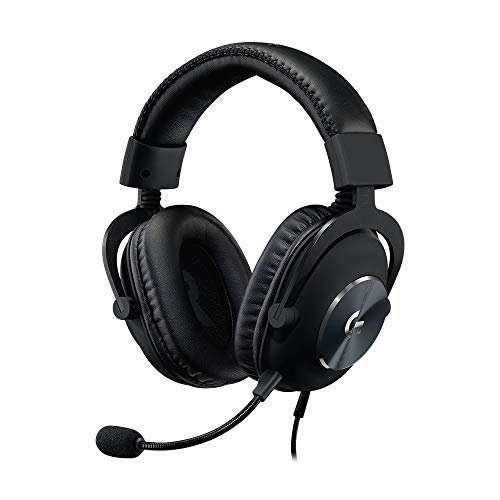
When selecting audio equipment for FPS gaming, clarity and comfort are paramount. High-quality headphones, such as the HyperX Cloud II or the SteelSeries Arctis 7, are popular choices among gamers for their sound quality and comfort during extended gaming sessions. These headphones often feature noise-canceling capabilities, helping you focus on the game without distractions.
For those who prefer speakers, consider investing in a sound system that supports surround sound, such as the Logitech Z906. This system offers powerful sound output and precise audio localization, enhancing your gaming experience. Look for equipment with features like a customizable equalizer and comfortable ear cups to ensure you get the best performance during your sessions.
Summarizing the importance of the right audio settings, optimizing your audio can drastically improve your gameplay in FPS games like Call of Duty. By adjusting in-game settings, utilizing the right hardware, and ensuring effective communication, you can elevate your performance. Start experimenting with these tips today and see how they enhance your gaming experience!
Frequently Asked Questions
What are the best audio settings for FPS games like Call of Duty?
The best audio settings for FPS games like Call of Duty typically include enabling surround sound, adjusting the master volume to a comfortable level, and fine-tuning the effect and dialogue volumes. Surround sound settings, such as Dolby Atmos or Windows Sonic, can significantly enhance your spatial awareness, allowing you to pinpoint enemy locations more effectively. Additionally, consider lowering music volume to focus on in-game sounds, which can be crucial for competitive play.
How do I optimize my audio settings for better sound localization in FPS games?
To optimize your audio settings for better sound localization in FPS games, start by setting your audio output to stereo or surround sound, depending on your headphone or speaker setup. Enable any spatial audio features available in your game or operating system settings, like Dolby Atmos, which enhances directional sound cues. Finally, adjust the equalizer settings to boost frequencies that highlight footsteps and gunfire, improving your ability to detect enemies.
Why is sound important in FPS games like Call of Duty?
Sound is critical in FPS games like Call of Duty because it provides players with essential cues about their environment and enemy movements. Audio signals, such as footsteps, gunfire, and ambient noises, can alert you to nearby threats or strategic opportunities. Therefore, having the right audio settings not only enhances immersion but can also give you a competitive edge by improving your reaction time and situational awareness.
Which headphones are best for FPS gaming regarding audio settings?
The best headphones for FPS gaming typically feature high-quality audio drivers, a comfortable fit, and excellent sound isolation. Brands like HyperX, SteelSeries, and Razer offer options that provide clear sound profiles with enhanced bass and treble, essential for distinguishing between different in-game sounds. Additionally, look for headphones that support virtual surround sound for improved spatial awareness, which is crucial in fast-paced FPS games like Call of Duty.
What are common audio settings mistakes to avoid in FPS games?
Common audio settings mistakes to avoid in FPS games include using overly loud music settings, which can drown out critical audio cues, and neglecting to enable surround sound features that enhance spatial awareness. Additionally, failing to customize the equalizer settings can result in a lack of clarity in important sound frequencies, such as footsteps. Always test your settings in-game to ensure you’re getting the best possible audio experience tailored to your gameplay style.
References
- https://en.wikipedia.org/wiki/Audio_setting
- https://www.pcgamer.com/how-to-set-up-your-audio-settings-in-call-of-duty-warzone/
- https://www.techradar.com/how-to/best-audio-settings-for-call-of-duty-warzone
- https://www.digitaltrends.com/gaming/best-audio-settings-call-of-duty-warzone/
- https://www.researchgate.net/publication/330717659_The_Impact_of_Audio_on_Gaming_Experience
- https://www.ign.com/articles/how-to-set-up-audio-in-call-of-duty-warzone
- https://www.polygon.com/2020/10/30/21542845/call-of-duty-warzone-audio-settings-guide
- https://www.gamespot.com/articles/call-of-duty-warzone-audio-settings-guide/1100-6483001/
- https://www.windowscentral.com/call-duty-warzone-best-audio-settings




9 thoughts on “Best Audio Settings for FPS Games Like Call of Duty”