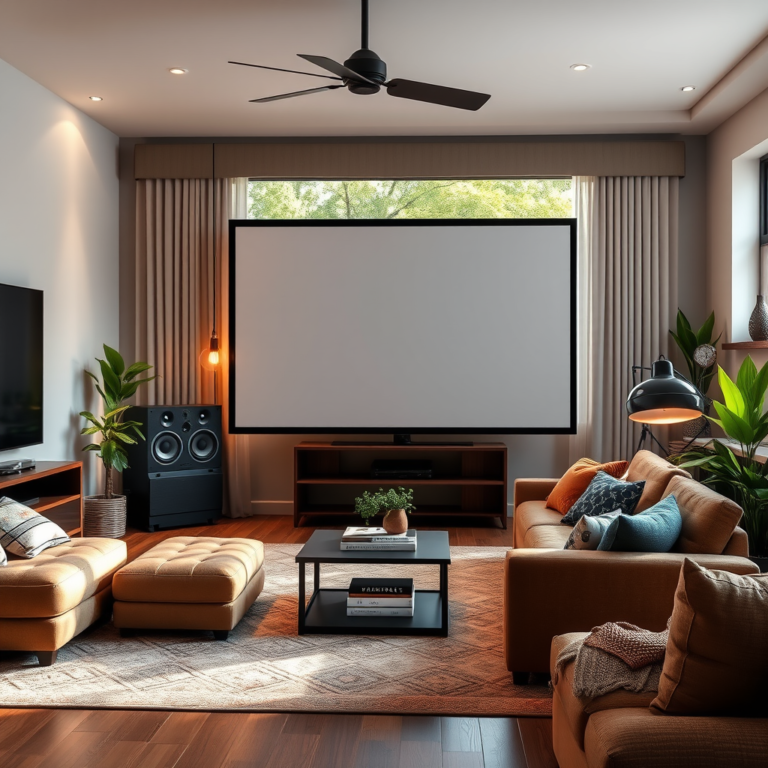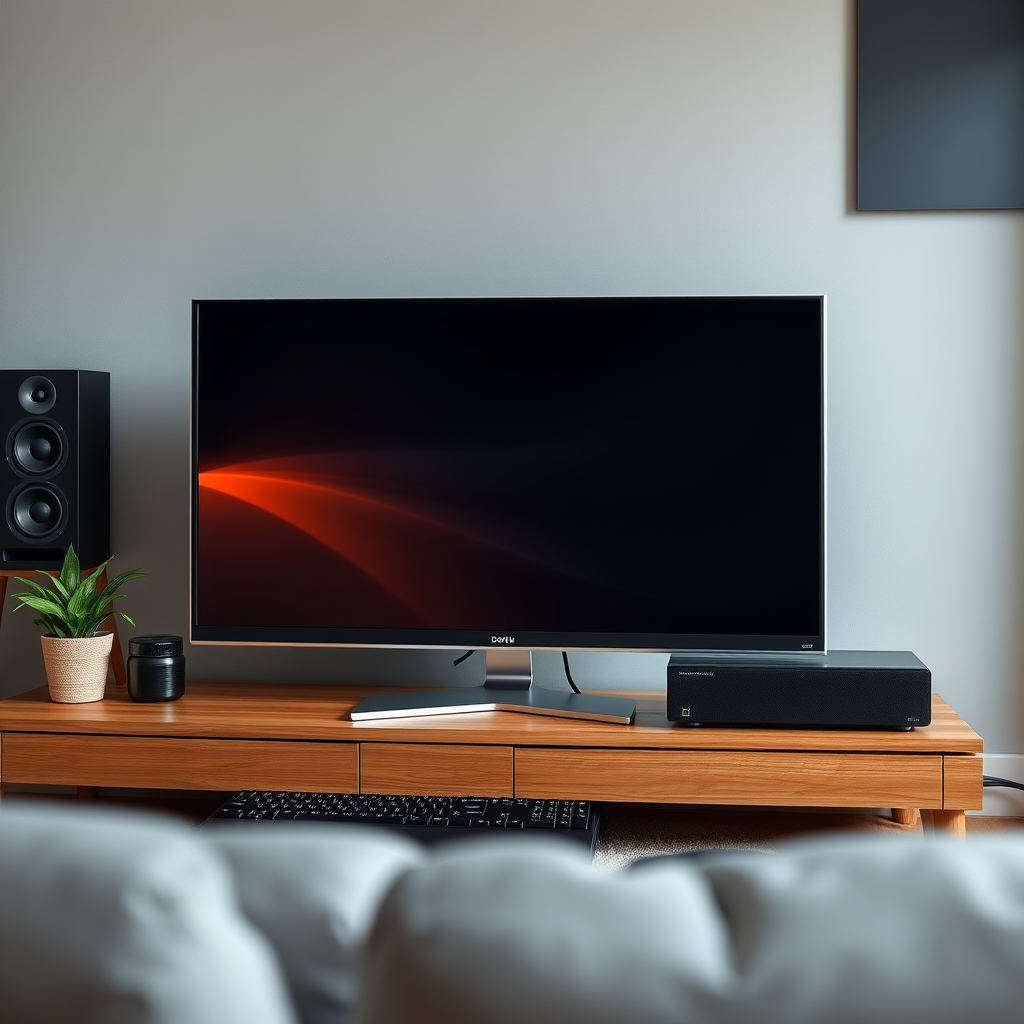

To connect your PC to a 5.1 or 7.1 surround sound system, you’ll typically need to use either HDMI, optical audio, or a dedicated sound card with multiple outputs. This guide will walk you through the steps, ensuring you achieve immersive sound for gaming, movies, or music. With the right setup, you can elevate your audio experience, enjoying rich soundscapes that enhance your overall multimedia engagement.
Understanding Surround Sound Formats
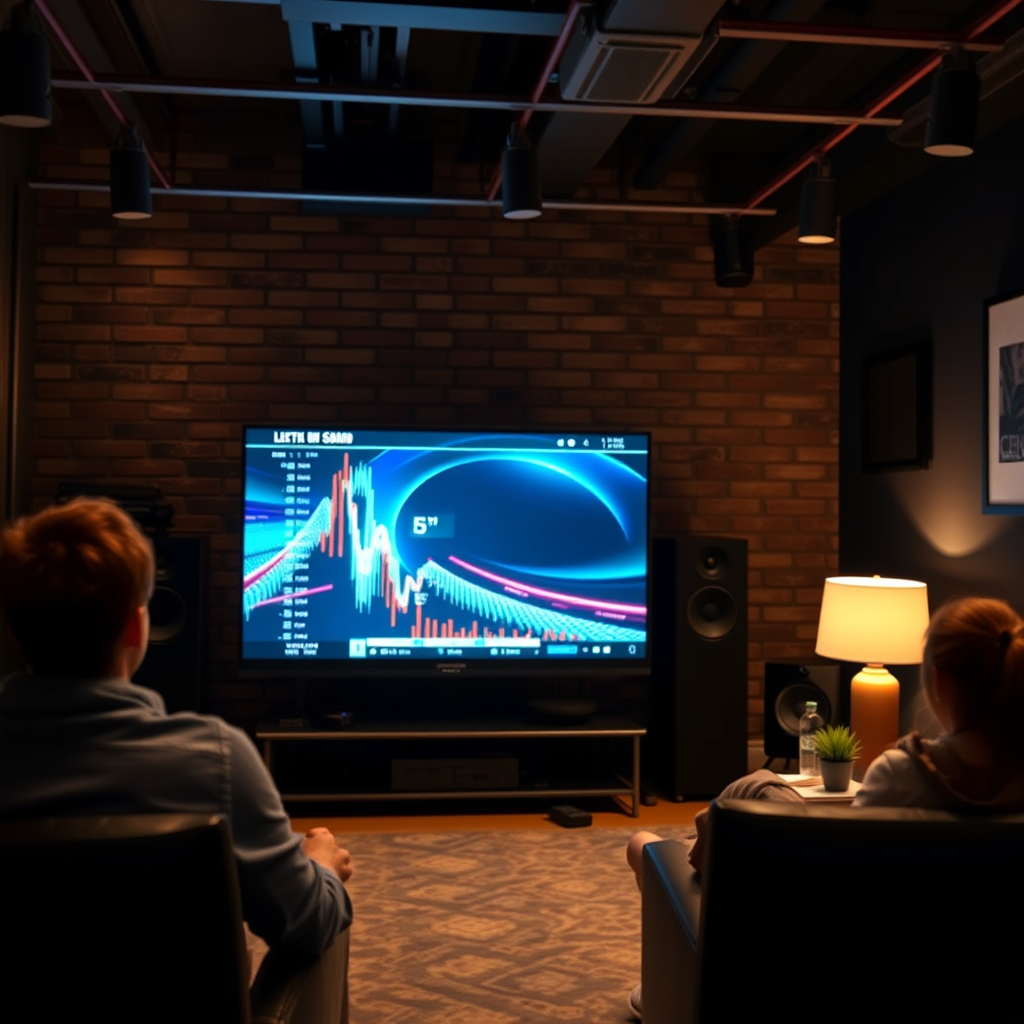
When considering a surround sound system, it’s essential to understand the differences between 5.1 and 7.1 audio formats. A 5.1 surround sound system consists of six audio channels: one subwoofer, front left, front right, rear left, and rear right speakers. This configuration provides a solid surround experience, making it suitable for most home theater setups.
In contrast, a 7.1 surround sound system includes two additional audio channels, typically rear left and rear right speakers, which provide a more immersive audio experience. The extra channels allow for finer sound placement, enhancing the depth and realism of sound effects, particularly in movies and video games. The importance of audio channels cannot be understated; they create a three-dimensional sound environment that significantly enhances the overall listening experience.
Required Equipment and Connections
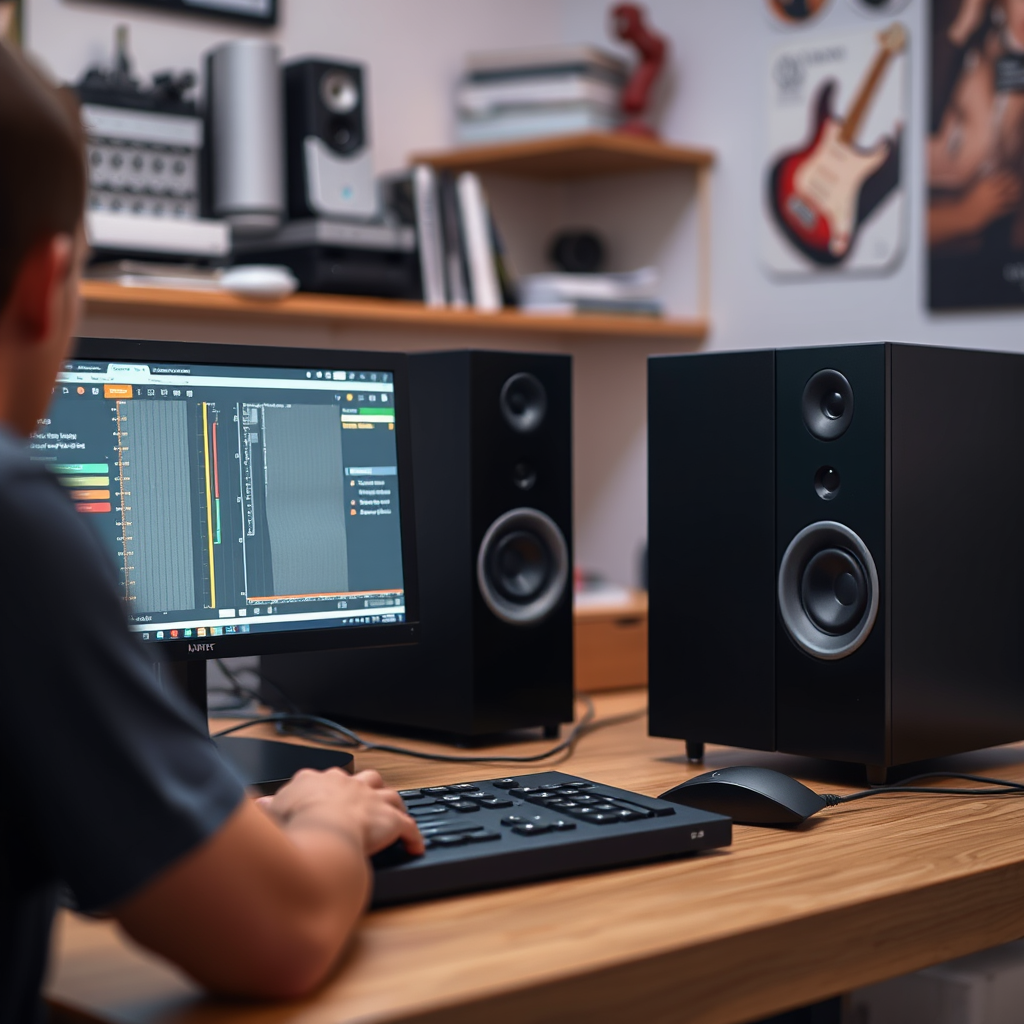
To connect your PC to a surround sound system, you will need specific cables and connectors. Here’s a list of the most common types:
– HDMI Cable: This is the most straightforward connection method, as it carries both video and audio signals.
– Optical Audio Cable (Toslink): Ideal for digital audio transmission, providing high-quality sound without interference.
– RCA Cables: Often used for analog audio connections, these cables are typically color-coded (red and white) for easy identification.
When setting up your system, pay attention to the connectors on both your PC and your surround sound system. Most modern PCs come with HDMI outputs and may also feature optical audio outputs. If your PC has a dedicated sound card, it might have multiple 3.5mm audio jacks specifically for surround sound setups.
Setting Up Your Surround Sound System
To set up your surround sound system, follow these steps:
1. Identify the Output Ports on Your PC: Check for HDMI, optical audio, or 3.5mm audio jacks.
2. Connect Your Cables:
– If using HDMI, connect the cable from your PC’s HDMI output to the HDMI input on your surround sound receiver.
– For optical audio, connect the optical cable from your PC’s optical output to the optical input on your surround sound receiver.
– If using RCA cables, connect them to the corresponding audio output ports on your PC and your surround sound system.
3. Position Your Speakers: For optimal sound distribution:
– Place the front left and right speakers at ear level on either side of your display.
– Position the center speaker directly above or below your display for clear dialogue.
– The surround speakers should be placed slightly above ear level, on the sides or behind the listening area.
– Finally, the subwoofer can be placed anywhere in the room but often works best in a corner.
📋 DATA
Top Surround Sound Systems (2024)
| # | Brand | Channels | Type | Price ($) |
|---|---|---|---|---|
| 1 | Sony HT-A9 | 7.1 | Wireless | 1,700 |
| 2 | Bose Lifestyle 650 | 5.1 | Wireless | 3,800 |
| 3 | Yamaha YAS-209 | 2.1 | Soundbar | 400 |
| 4 | Klipsch Reference Theater Pack | 5.1 | Wired | 500 |
| 5 | Onkyo HT-S3900 | 5.1 | Wired | 400 |
| 6 | Samsung HW-Q950A | 11.1 | Soundbar | 1,800 |
| 7 | Polk Audio MagniFi 2 | 5.1 | Soundbar | 500 |
📈 CHART
Surround Sound System Popularity (2024)
Configuring Audio Settings on Your PC
After connecting your surround sound system, you’ll need to configure the audio settings on your PC. Here’s how you can do it on both Windows and Mac:
For Windows:
1. Open Sound Settings: Right-click on the speaker icon in the system tray and select “Sounds.”
2. Select the Playback Tab: Here, you will see a list of audio devices. Choose your surround sound system and click on “Set Default.”
3. Configure the Speakers: Click on “Configure” to select between 5.1 or 7.1 configurations. Follow the setup wizard to test and confirm the speaker arrangement.
For Mac:
1. Open System Preferences: Click on the Apple logo, then select “System Preferences.”
2. Select Sound: Click on the “Sound” option.
3. Output Tab: Choose your surround sound system. Ensure that it is set as the default output device.
Adjusting these settings to match your surround sound system is crucial for experiencing the full range of audio capabilities.
Testing Your Surround Sound Setup
Once everything is set up, it’s time to test your audio configuration. Here are some methods to effectively test your setup:
1. Use Test Tones: Many surround sound systems come with built-in test tones that can help you verify each speaker’s functionality. Activate these tones to ensure all speakers are outputting sound correctly.
2. Watch Demo Videos: Streaming platforms like YouTube offer surround sound demo videos, which can help you evaluate the effectiveness of your setup. Look for videos specifically designed to test surround sound capabilities.
Troubleshooting Common Issues
– No Sound: Ensure that the correct playback device is selected in your PC’s audio settings.
– Distorted Audio: Check all cable connections for any loose wires and ensure that your system’s audio settings are correctly configured.
– Speaker Imbalance: If certain speakers sound significantly louder or quieter than others, revisit the calibration settings in your audio control panel.
Additional Tips for Enhanced Audio Experience
To further enhance your audio experience, consider the following tips:
– Sound Optimization Software: Applications like Equalizer APO for Windows can fine-tune your audio settings, allowing for custom equalization tailored to your preferences.
– Regular Driver Updates: Ensure that your sound card drivers are up-to-date to avoid compatibility issues. Manufacturers often release updates that improve performance and fix bugs.
Troubleshooting Common Connection Issues
Common connection issues may arise during setup. Here are some common problems and their solutions:
– Problem: No Sound Output: This can be due to the wrong output device being selected or a faulty cable. Ensure the correct device is set as default in your sound settings and check all cable connections.
– Problem: Audio Lag: If you experience latency, check your audio settings for enhancements that may introduce delay. Disabling certain effects can help reduce lag.
– Problem: Inconsistent Volume Levels: This can occur if the speaker setup is not correctly configured. Revisit the speaker configuration settings and ensure they match your physical setup.
For more detailed troubleshooting, consider visiting online forums or community help pages specific to your surround sound system or sound card brand.
By following these steps, you can successfully connect your PC to a 5.1 or 7.1 surround sound system, transforming your audio experience for gaming, movies, and music. If you encounter issues, refer to the troubleshooting section or seek help from online communities. Elevate your entertainment experience and enjoy the captivating soundscapes that surround sound technology offers!
Frequently Asked Questions
How do I connect my PC to a 5.1 surround sound system?
To connect your PC to a 5.1 surround sound system, you’ll need to use either the HDMI port or the audio jacks on your computer. If using HDMI, simply connect your PC to the surround sound receiver or soundbar that supports 5.1 audio. For audio jacks, plug the corresponding colored cables (green, black, orange) from your surround sound system into the matching ports on your PC, and ensure your sound settings are configured for surround sound output.
What settings do I need to adjust on my PC for 7.1 surround sound?
To adjust your PC for 7.1 surround sound, go to the Control Panel, select ‘Sound’, and find your audio output device. Right-click on it, choose ‘Configure Speakers’, and select ‘7.1 Surround Sound’ from the options. Make sure to test the speaker configuration to ensure that all channels are working correctly before finalizing your settings.
Why is my surround sound not working with my PC?
If your surround sound is not working with your PC, check if the correct audio output device is selected in your sound settings. Additionally, ensure that all cables are securely connected and that your surround sound system is set to the correct input. Updating your audio drivers or checking for software conflicts can also resolve this issue.
What is the best way to connect a PC to a surround sound system wirelessly?
The best way to connect a PC to a surround sound system wirelessly is to use a Bluetooth audio adapter or a Wi-Fi-enabled sound system that supports DLNA or AirPlay. Ensure that your PC has Bluetooth capability or install a compatible USB Bluetooth adapter, then pair it with your surround sound system. This allows for a convenient wireless connection while maintaining good audio quality.
Which cables do I need for connecting my PC to a 5.1 surround sound system?
To connect your PC to a 5.1 surround sound system, you will typically need three audio cables: a green cable for front speakers, a black cable for rear speakers, and an orange cable for the subwoofer, if using analog connections. If your system supports HDMI, a single HDMI cable can transmit both audio and video, simplifying the connection process. Always check the compatibility of your cables with both your PC and the sound system.
References
- Surround sound
https://en.wikipedia.org/wiki/Surround_sound - https://www.lifewire.com/how-to-connect-a-surround-sound-system-to-your-pc-2626044
https://www.lifewire.com/how-to-connect-a-surround-sound-system-to-your-pc-2626044 - Google Scholar Google Scholar
https://scholar.google.com/scholar?q=How+to+Connect+a+PC+to+a+5.1+or+7.1+Surround+Sound+System - Google Scholar Google Scholar
https://scholar.google.com/scholar?q=surround+sound+system+setup+PC - Google Scholar Google Scholar
https://scholar.google.com/scholar?q=5.1+7.1+surround+sound+PC+connection+guide - How to Connect a PC to a 5.1 or 7.1 Surround Sound System – Search results
https://en.wikipedia.org/wiki/Special:Search?search=How+to+Connect+a+PC+to+a+5.1+or+7.1+Surround+Sound+System - https://www.ncbi.nlm.nih.gov/search/research-articles/?term=How+to+Connect+a+PC+to+a+5.1+or+7.1+Surround+Sound+System
https://www.ncbi.nlm.nih.gov/search/research-articles/?term=How+to+Connect+a+PC+to+a+5.1+or+7.1+Surround+Sound+System