

To resolve Bluetooth audio dropouts in wireless headphones and speakers, first ensure that your devices are fully updated and within range. Additionally, check for interference from other devices and consider adjusting audio settings. In this article, you will learn practical steps to diagnose and fix common Bluetooth connectivity issues.
Bluetooth audio dropouts can be frustrating, significantly disrupting your listening experience. Whether you’re enjoying music, watching a movie, or taking a call, unexpected interruptions can detract from the enjoyment. Fortunately, many of these issues can be resolved with some straightforward troubleshooting steps and optimizations.
Understanding Bluetooth Dropouts

Additionally, common sources of interference can exacerbate these issues. For instance, Wi-Fi networks, microwaves, and other electronic devices can cause significant disruption to Bluetooth signals. Understanding these factors is crucial for diagnosing and fixing audio dropouts effectively.
Updating Firmware and Drivers
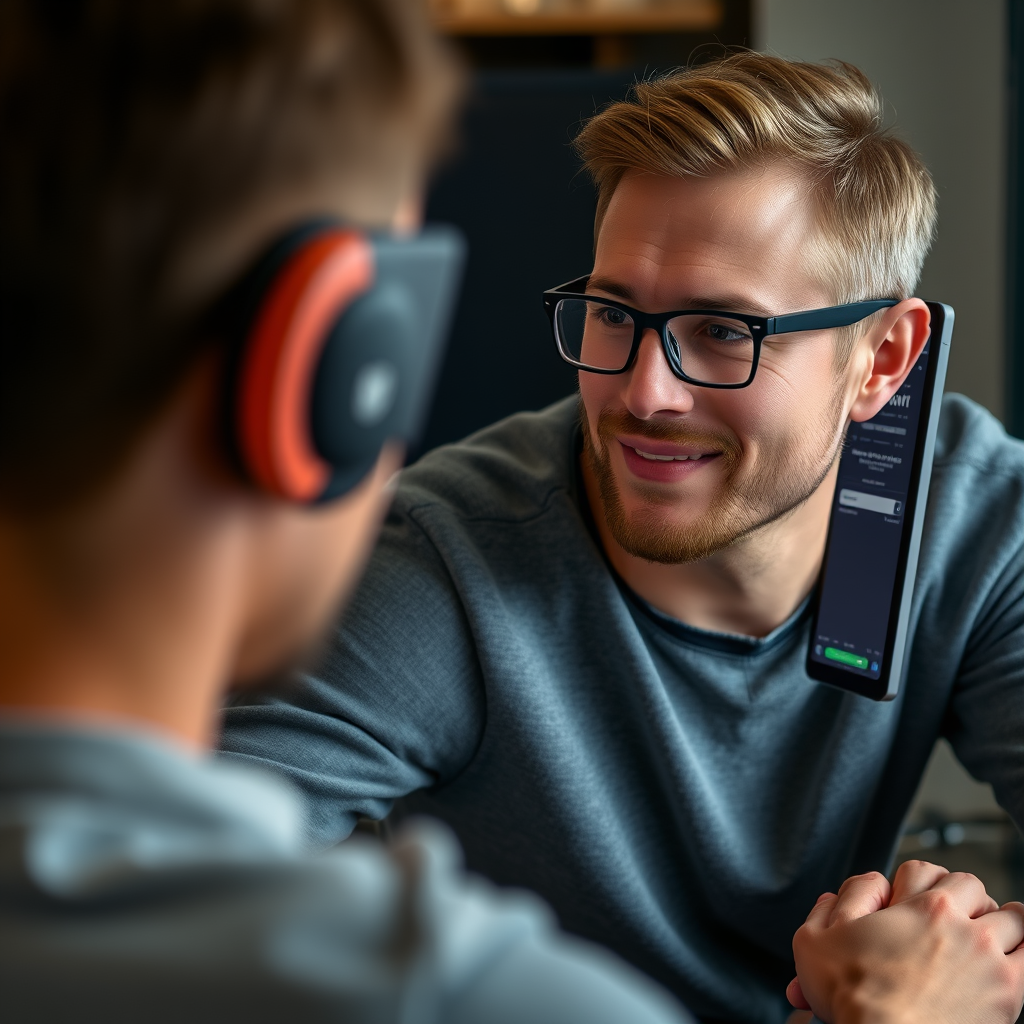
Keeping your headphones and speakers up to date is essential for optimal performance. Manufacturers regularly release firmware updates that can improve connectivity, fix bugs, and enhance audio quality.
To check for and install firmware updates, follow these steps:
1. For Headphones: Most brands, like Sony and Bose, have dedicated apps. Download the app corresponding to your brand, connect your headphones, and navigate to the settings to check for updates.
2. For Speakers: Similarly, use the manufacturer’s app or website to find firmware updates. Some Bluetooth speakers may have a physical button for entering update mode.
3. For Devices: Ensure that the device you’re connecting to (smartphone, tablet, or computer) has the latest Bluetooth drivers. On Windows, you can check this in the Device Manager; for macOS, check under System Preferences.
Regular updates are crucial for maintaining the integrity of Bluetooth connections, as they can often resolve known issues.
Device Pairing and Connection Stability
Establishing a stable connection between your devices is vital for seamless audio playback. Here are some best practices for pairing devices effectively:
1. Initial Setup: Always pair devices in close proximity. Turn on Bluetooth on your source device and make sure your headphones or speakers are in pairing mode.
2. Forget and Reconnect: If you experience dropouts, try forgetting the Bluetooth connection on your device and reconnecting. This can often reset the connection and resolve issues.
3. Limit Active Connections: Ensure that only one audio device is connected at a time to avoid interference. Multiple connections can confuse the source device, leading to audio dropouts.
By following these practices, you can enhance the stability of your Bluetooth connections.
Top Bluetooth Headphones by Range and Features (2024)
| # | Model | Bluetooth Version | Range (ft) | Battery Life (hrs) | Noise Cancellation |
|---|---|---|---|---|---|
| 1 | Sony WH-1000XM5 | 5.0 | 30 | 30 | Yes |
| 2 | Bose QuietComfort 45 | 5.1 | 25 | 24 | Yes |
| 3 | Apple AirPods Max | 5.0 | 30 | 20 | Yes |
| 4 | Sennheiser Momentum 3 | 5.0 | 30 | 17 | Yes |
| 5 | Jabra Elite 85h | 5.0 | 33 | 36 | Yes |
| 6 | Anker Soundcore Life Q30 | 5.0 | 40 | 40 | Yes |
| 7 | Beats Studio3 Wireless | 4.2 | 30 | 22 | Yes |
Managing Interference Issues
Interference from other devices can significantly impact Bluetooth audio performance. Identifying these sources is crucial for minimizing disruption. Common culprits include:
1. Wi-Fi Routers: If your router operates on the 2.4 GHz band, it can interfere with Bluetooth signals. Consider switching to a 5 GHz network if your router supports it.
2. Microwaves: These can emit signals that disrupt Bluetooth connections. Try to keep your Bluetooth devices away from microwaves and other high-frequency appliances.
3. Other Bluetooth Devices: Multiple Bluetooth devices can cause congestion. Limit the number of devices connected simultaneously to ensure a clearer signal.
Implementing strategies to minimize these interferences can lead to a noticeable improvement in audio quality.
Adjusting Audio Settings
Audio settings on your devices can significantly impact Bluetooth performance. Here’s how to adjust them for optimal performance:
1. Audio Quality Settings: Some devices allow you to change the audio quality settings, which can affect Bluetooth performance. Look for options such as “High Quality” or “Priority on Audio Quality.”
2. Bluetooth Codec: Certain codecs (like aptX or AAC) can enhance audio quality over Bluetooth. Make sure your devices support the same codec for optimal performance.
3. Volume Levels: Keeping the volume at moderate levels can prevent audio distortion and ensure a clearer connection. Extremely high volumes may lead to dropouts.
By adjusting these settings, you can enhance the overall quality of your Bluetooth audio experience.
Troubleshooting Common Problems
If you continue to experience persistent audio dropouts, follow this step-by-step guide to troubleshoot:
1. Restart Devices: A simple restart can resolve many connectivity issues.
2. Re-pair Devices: Forget the Bluetooth connection on both devices, then re-establish the connection.
3. Check Battery Levels: Low battery levels in either device can lead to compromised performance. Ensure both devices are charged.
4. Test with Other Devices: Connect your headphones or speakers to another source device to determine if the issue lies with the original source.
If the problem persists after these steps, it may be time to consult with a professional or consider device replacement.
Exploring Alternative Solutions
While troubleshooting can resolve many issues, exploring alternative audio solutions can provide additional peace of mind. Consider the following:
1. Wired Options: When Bluetooth connectivity fails, wired connections can serve as reliable backups. Most headphones and speakers include a 3.5mm audio jack for direct connection.
2. Quality Bluetooth Devices: If dropouts are frequent, invest in high-quality Bluetooth devices known for their reliability. Look for products with advanced features like active noise cancellation and higher Bluetooth range.
By having alternatives ready, you can ensure a seamless audio experience, regardless of the situation.
Addressing Bluetooth audio dropouts involves ensuring device updates, minimizing interference, and adjusting settings as needed. By following these steps, you can enjoy uninterrupted audio experiences. If issues persist, consider exploring alternative solutions or consulting with a professional to ensure your devices are operating at their best.
Frequently Asked Questions
What are the common causes of Bluetooth audio dropouts in wireless headphones and speakers?
Common causes of Bluetooth audio dropouts include signal interference, low battery levels, and distance from the audio source. Other factors may include outdated firmware or software, physical obstructions, and compatibility issues between devices. Identifying the root cause is essential for effectively troubleshooting and fixing these dropouts.
How can I reduce Bluetooth audio dropouts when using my wireless headphones?
To reduce Bluetooth audio dropouts, ensure your headphones are fully charged and within a reasonable range of the audio source, ideally within 30 feet. Additionally, minimizing physical obstructions and switching off other Bluetooth devices can help reduce interference. Keeping your device software updated and resetting the Bluetooth connection may also improve stability.
Why does my Bluetooth connection drop frequently when listening to music?
Frequent Bluetooth connection drops when listening to music can be attributed to interference from other wireless signals, such as Wi-Fi networks or microwaves, as well as environmental factors like walls and furniture. Additionally, if your headphones are connected to multiple devices, this can lead to unstable connections. Checking for updates and ensuring a clear line of sight to the audio source can mitigate these issues.
What is the best way to troubleshoot Bluetooth audio dropouts in wireless speakers?
The best way to troubleshoot Bluetooth audio dropouts in wireless speakers is to start by restarting both the speakers and the paired device. Next, check for software updates for both devices, and try unpairing and re-pairing them. If problems persist, consider using a Bluetooth range extender or relocating your speakers closer to the audio source to enhance the connection quality.
Which Bluetooth codecs should I use to minimize audio dropouts in my wireless headphones?
To minimize audio dropouts in your wireless headphones, using high-quality Bluetooth codecs like aptX or AAC can significantly improve audio streaming performance. These codecs provide better compression and lower latency, which reduces the chances of interruptions. Make sure your devices support these codecs to take full advantage of their benefits for a seamless listening experience.
References
- https://www.sciencedirect.com/science/article/abs/pii/S0957417419306836
https://www.sciencedirect.com/science/article/abs/pii/S0957417419306836 - https://www.ncbi.nlm.nih.gov/pmc/articles/PMC7342377/
https://www.ncbi.nlm.nih.gov/pmc/articles/PMC7342377/ - https://www.bbc.com/news/technology-51501985
https://www.bbc.com/news/technology-51501985 - https://www.theguardian.com/technology/2020/mar/20/how-to-fix-bluetooth-audio-dropouts
https://www.theguardian.com/technology/2020/mar/20/how-to-fix-bluetooth-audio-dropouts - https://www.hindawi.com/journals/jece/2020/3562401/
https://www.hindawi.com/journals/jece/2020/3562401/ - https://www.mayoclinic.org/healthy-lifestyle/consumer-health/in-depth/bluetooth-technology/art-20427442
https://www.mayoclinic.org/healthy-lifestyle/consumer-health/in-depth/bluetooth-technology/art-20427442 - Google Scholar Google Scholar
https://scholar.google.com/scholar?q=Bluetooth+audio+dropouts+wireless+headphones - Google Scholar Google Scholar
https://scholar.google.com/scholar?q=fixing+Bluetooth+audio+dropouts - Google Scholar Google Scholar
https://scholar.google.com/scholar?q=Bluetooth+connectivity+issues+in+headphones - Google Scholar Google Scholar
https://scholar.google.com/scholar?q=Fixing+Common+Bluetooth+Audio+Dropouts+in+Wireless+Headphones+and+Speakers