
To fix muffled audio in your home theater speakers, start by checking the speaker connections and adjusting the audio settings on your receiver. Ensuring that audio is clear and rich is essential for an immersive viewing experience. This article will guide you through common issues and solutions to guarantee you enjoy high-quality sound from your home theater system.
Check Speaker Placement
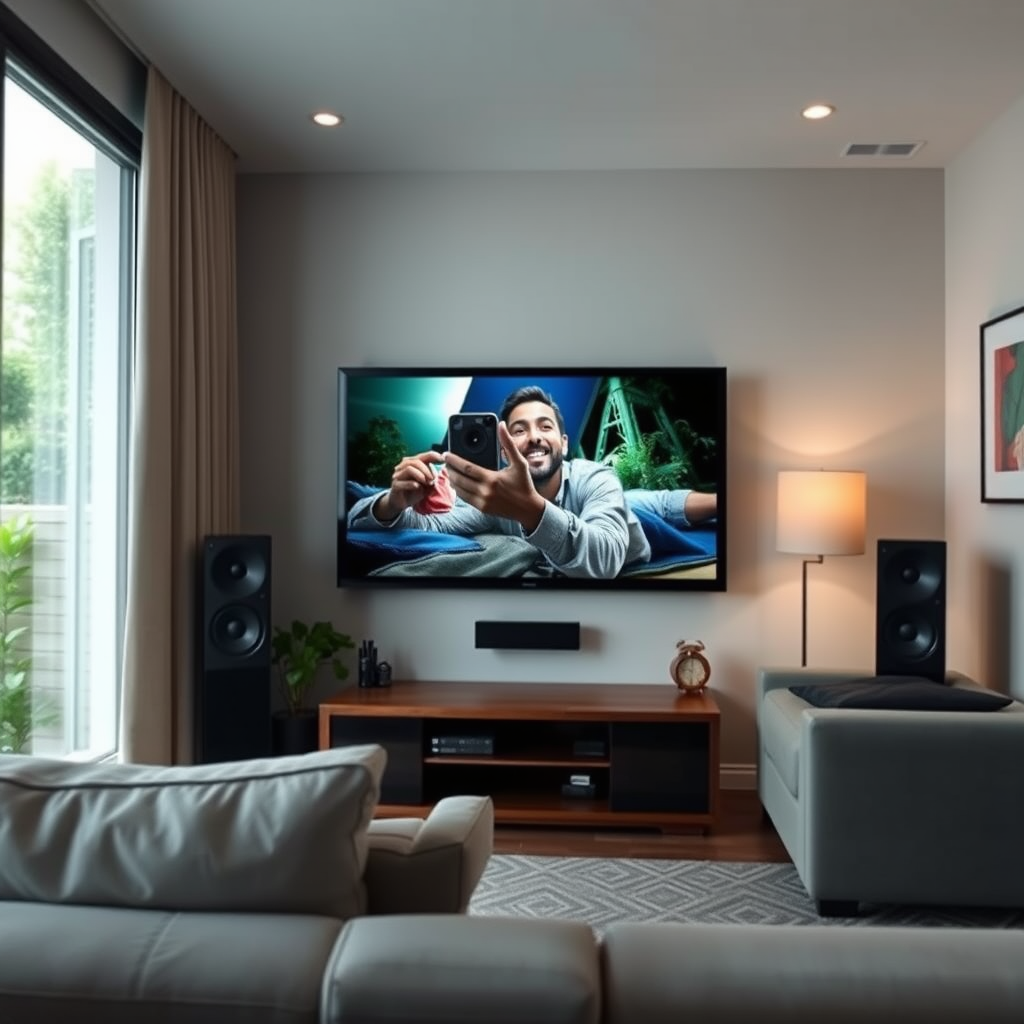
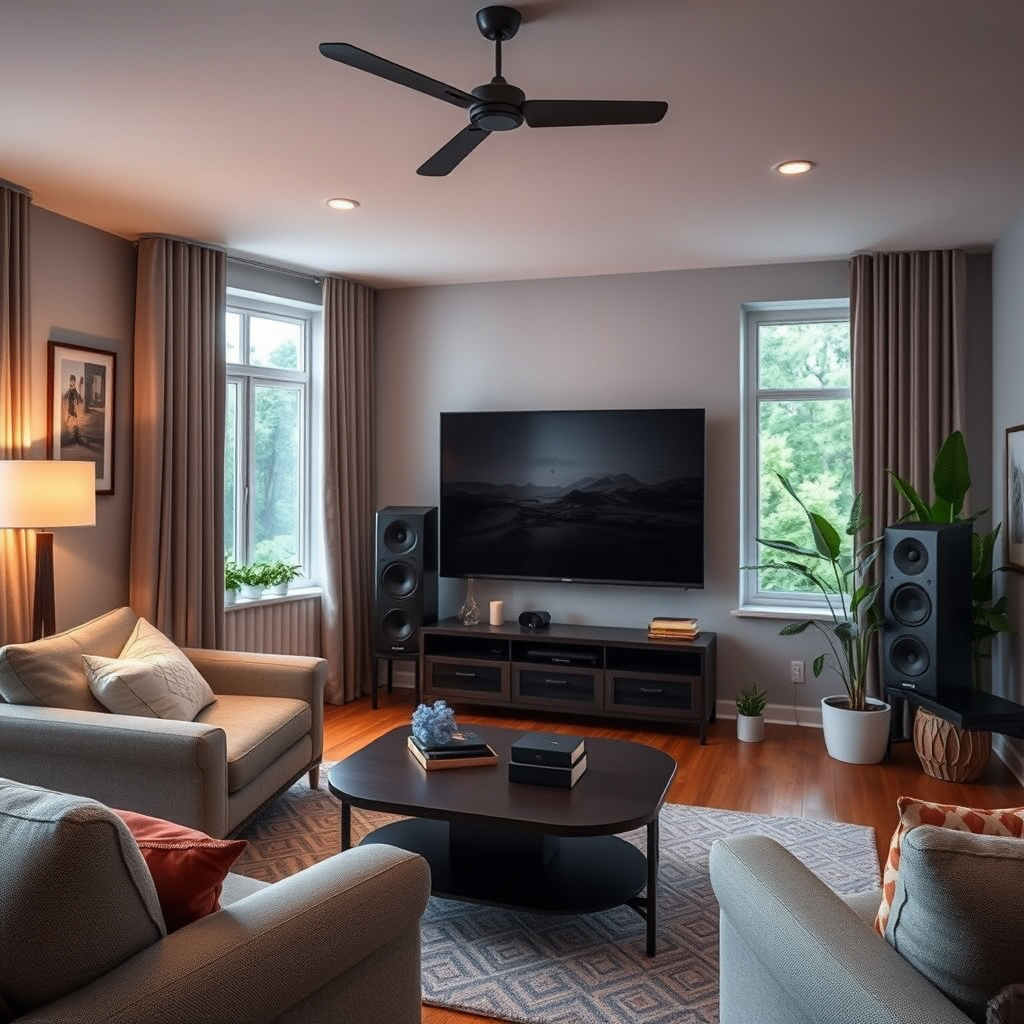
The placement of your speakers plays a crucial role in the overall sound quality of your home theater system. Ideally, speakers should be positioned at ear level when seated to optimize sound clarity. If your speakers are too high or too low, it can distort the audio and create a muffled effect.
Additionally, avoid placing speakers in corners or behind furniture, as these locations can block sound waves and negatively affect audio quality. Instead, position the front speakers to the left and right of the television, with the center speaker directly above or below the screen for optimal dialogue clarity. Surround speakers should ideally be placed slightly above ear level and positioned to the sides or behind the listening area for a proper surround sound experience.
Inspect Speaker Connections
Loose or damaged connections can significantly impact audio quality, leading to muffled sound. Start by checking that all cables are securely connected to both the speakers and the receiver. Ensure that the positive and negative terminals are properly aligned; incorrect connections can cause sound issues.
Next, examine the cables for any signs of damage, such as fraying or bending, which could compromise the audio signal. If any cables appear worn or damaged, replace them with high-quality alternatives. Remember that investing in good quality speaker wire can enhance audio performance and ensure clearer sound transmission.
Adjust Audio Settings
Your receiver’s audio settings can be adjusted to improve sound clarity. Most modern receivers come equipped with an equalizer (EQ) feature that allows you to modify frequency levels to suit your listening environment. For instance, boosting the mid-range frequencies can enhance vocal clarity, making dialogue more intelligible.
Additionally, explore any audio enhancement features that may be available on your receiver. Options such as “night mode” or “dialogue enhancement” can help to clarify speech during quieter moments in movies or shows. Regularly adjusting these settings based on the type of content you are watching can optimize your listening experience.
Common Causes of Muffled Audio in Home Theater Systems
| # | Issue | Impact on Audio | Resolution |
|---|---|---|---|
| 1 | Poor Speaker Placement | Blockage of sound waves | Reposition speakers at ear level |
| 2 | Loose Connections | Interruption in audio signal | Secure all cable connections |
| 3 | Incorrect Settings | Unbalanced audio output | Adjust EQ settings |
| 4 | Audio Source Quality | Compression artifacts | Use high-quality audio files |
| 5 | Room Acoustics | Sound absorption | Add sound panels or rearrange |
| 6 | Firmware Issues | Software conflicts | Update firmware |
| 7 | Equipment Malfunction | Complete audio failure | Consult a professional |
Test Different Audio Sources
If you’re still experiencing muffled audio after checking placement and connections, it’s worth testing different audio sources. Sometimes, the issue may be specific to the media you are playing. For example, certain streaming platforms may compress audio, leading to reduced sound quality.
Play various media types, including movies, music, and video games, to determine if the muffled sound persists across all sources. Furthermore, using high-quality audio files can help rule out compression-related issues. When testing, ensure you are using formats such as FLAC or WAV, which provide uncompressed audio for a more accurate evaluation of your speaker’s performance.
Evaluate Room Acoustics
Room acoustics can significantly impact audio clarity. Factors such as hard surfaces—like tile or hardwood floors—and minimal furnishings can lead to excessive sound reflections, while carpets, heavy curtains, and soft furnishings can absorb sound and potentially muffle it.
Assess your room for sound-absorbing materials and consider adding acoustic panels to break up sound waves and minimize echoes. Rearranging furniture can also help optimize sound distribution. For instance, moving large furniture pieces away from speaker paths can improve audio clarity, allowing sound waves to flow more freely.
Impact of Room Acoustics on Audio Clarity
Update Firmware and Software
Keeping your audio equipment up-to-date is crucial for optimal performance. Manufacturers often release firmware updates for receivers and sound systems that can fix bugs and improve overall audio quality. Check the manufacturer’s website or the device’s settings to see if any updates are available.
This also applies to any streaming devices or applications you are using. Outdated software can lead to compatibility issues or reduced audio quality. Regularly updating these systems not only enhances performance but can also provide new features that improve your listening experience.
Seek Professional Help
If you’ve tried the above steps and continue to experience muffled audio, it may be time to consult a professional audio technician. An expert can conduct a thorough analysis of your system, evaluate room acoustics, and troubleshoot complex issues that may not be apparent to the average user.
Additionally, if your equipment is still under warranty, consider contacting the manufacturer for support or repair options. They can guide you through troubleshooting steps specific to your device, and if necessary, arrange for service or replacement.
In summary, fixing muffled audio in your home theater speakers involves a systematic approach to troubleshooting common issues. By checking speaker placement, inspecting connections, adjusting audio settings, testing various audio sources, evaluating room acoustics, updating software, and seeking professional assistance when needed, you can significantly enhance your audio experience. Enjoying clear, rich sound should be a priority in your home theater setup, and by following these steps, you can ensure that your system performs at its best.
Frequently Asked Questions
What causes muffled audio in home theater speakers?
Muffled audio in home theater speakers can be caused by several factors, including poor speaker placement, settings on your audio receiver, or damaged speaker components. Additionally, obstruction from furniture or walls can hinder sound clarity. It’s essential to identify the root cause to effectively resolve the issue.
How can I improve the sound quality of my home theater speakers?
To improve the sound quality of your home theater speakers, start by adjusting the speaker placement for optimal acoustics, ensuring they are at ear level and away from walls. You can also experiment with the audio settings on your receiver, such as adjusting the equalizer settings or enabling surround sound modes. Finally, consider using higher-quality speaker cables to enhance audio transmission.
Why does my home theater system sound muffled with certain media?
If your home theater system sounds muffled with certain media, it may be due to the audio format or compression used in the media files. Some formats, particularly those that are heavily compressed, can lose clarity and detail. Check the audio settings on your streaming device or player to ensure you are using the highest quality audio output available.
What is the best way to troubleshoot muffled sound in home theater speakers?
The best way to troubleshoot muffled sound in home theater speakers is to systematically test each component of your audio setup. Start by checking the speaker connections and cables for damage, then move on to adjusting the audio settings on your receiver. Lastly, test the speakers with different media sources to see if the issue persists across all inputs.
Which speaker placement tips can help reduce muffled audio?
To reduce muffled audio, place your speakers at ear level and ensure they are angled towards the listening area. Avoid placing them too close to walls or corners, as this can create sound reflections that muddy the audio. Using speaker stands or wall mounts can also help optimize placement for better sound clarity in your home theater setup.
References
- Home cinema
https://en.wikipedia.org/wiki/Home_theater - https://www.sciencedirect.com/topics/engineering/home-theater
https://www.sciencedirect.com/topics/engineering/home-theater - https://www.bbc.com/future/article/20200922-how-to-create-the-perfect-home-theater
https://www.bbc.com/future/article/20200922-how-to-create-the-perfect-home-theater - https://www.nytimes.com/2021/03/05/technology/personaltech/home-theater-sound.html
https://www.nytimes.com/2021/03/05/technology/personaltech/home-theater-sound.html - https://www.theguardian.com/technology/2020/oct/07/home-theatre-audio-explained
https://www.theguardian.com/technology/2020/oct/07/home-theatre-audio-explained - Google Scholar Google Scholar
https://scholar.google.com/scholar?q=How+to+Fix+Muffled+Audio+in+Your+Home+Theater+Speakers - Google Scholar Google Scholar
https://scholar.google.com/scholar?q=Home+Theater+Audio+Problems - Google Scholar Google Scholar
https://scholar.google.com/scholar?q=Improving+Home+Theater+Sound+Quality - https://www.audioholics.com/home-theater-setup/home-theater-audio-guide
https://www.audioholics.com/home-theater-setup/home-theater-audio-guide - How to Fix Muffled Audio in Your Home Theater Speakers – Search results
https://en.wikipedia.org/wiki/Special:Search?search=How+to+Fix+Muffled+Audio+in+Your+Home+Theater+Speakers