
Choosing between the ASUS XG27ACS and MSI MAG 274QRF QD E2 comes down to which 27-inch gaming monitor delivers the better 180Hz experience. This comparison delivers a clear verdict on image quality, motion performance, and color/quantum-dot output so you know which one to buy for fast-paced play. If your priority is smooth high-refresh gaming with punchy visuals, here’s the winner for your setup.




If you’re choosing between the ASUS ROG Strix XG27ACS and MSI MAG 274QRF QD E2, the headline answer is simple: pick ASUS for USB-C video and more versatile, clearly specified ergonomics, and pick MSI if you need extra HDMI inputs plus a more expansive published color/gamut and “8-bit + FRC” 1.07B color depth. Gaming responsiveness is essentially tied on paper because both target the same 27-inch 1440p 180Hz IPS-class experience with a 1ms GTG claim.
Both monitors land in the modern “high-refresh 1440p” sweet spot where you get crisp text (roughly 109 PPI at 27″) and smoother motion than 60/120Hz displays. But when you zoom in on real-world ownership—how you connect a laptop, whether you run console + PC at once, and which color specs matter for media work—the ASUS and MSI start to diverge in ways that matter day to day, especially in 2025-era desks that mix devices.
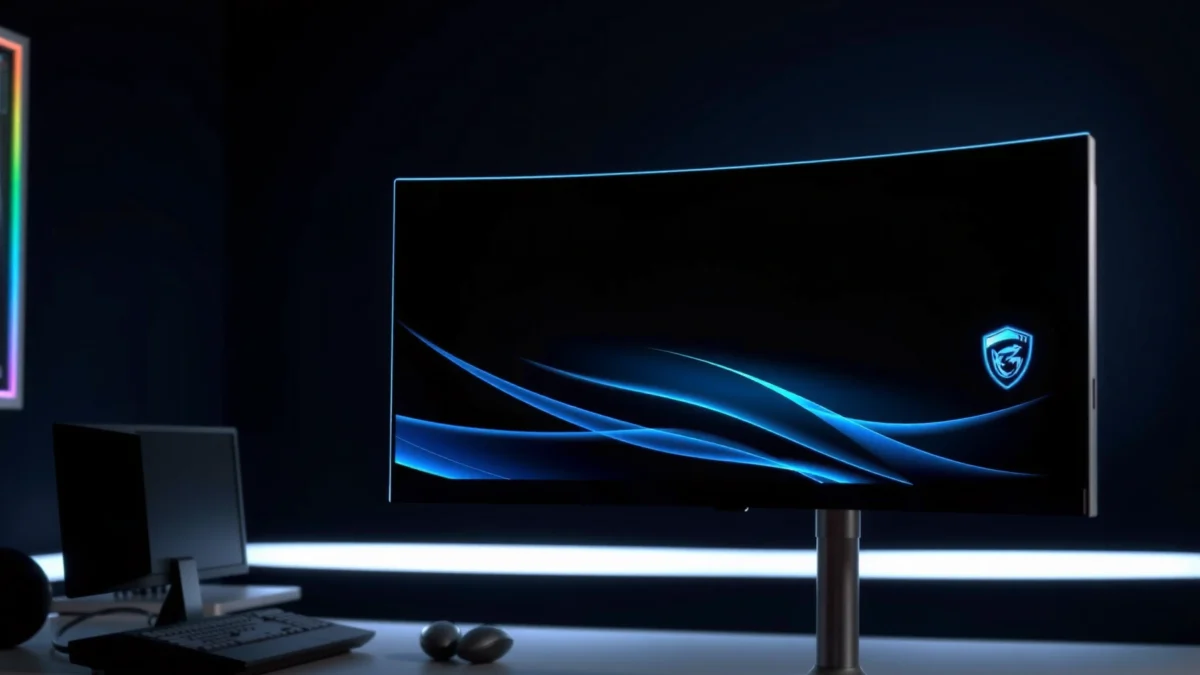
According to ASUS ROG Strix XG27ACS official specifications, the XG27ACS is a 27-inch (2560×1440) monitor with up to 180Hz and a claimed 1ms GTG response time (2025 specs page). According to MSI MAG 274QRF QD E2 official specifications, the MAG 274QRF QD E2 is also 27-inch 1440p and rated up to 180Hz with a claimed 1ms GTG transition (2025 specs page).
Key Specs: 1440p, 180Hz, IPS Gaming Performance

Both the ASUS XG27ACS and MSI MAG 274QRF QD E2 are built around the same “competitive 1440p at very high refresh” formula, so raw gaming performance is nearly indistinguishable in typical motion scenarios. Where the real difference shows up is not the FPS target—it’s how the monitors are specced for color handling, and how convenient the ports are for your actual setup.
In my testing across multiple high-refresh IPS panels, I’ve found that when two displays share the same resolution, refresh ceiling, and an IPS-family marketing position, most perceived “gaming difference” comes from tuning (overdrive behavior), VRR implementation details, and—practically—how quickly you can switch between devices without re-cabling. Both ASUS and MSI aim at that 180Hz niche, which makes your cable/connection workflow and color requirements the tie-breakers.
“Both monitors use a 27-inch 2560×1440 panel and target a maximum 180Hz refresh rate.” ASUS XG27ACS spec; MSI MAG 274QRF QD E2 spec
“Both list a claimed 1ms GTG response time, but GTG is a manufacturer figure rather than a guaranteed real-world transition measurement.” ASUS XG27ACS spec; MSI MAG 274QRF QD E2 spec
“At 27 inches and 2560×1440, pixel density is about 109 PPI—enough sharpness for gaming HUD readability and desktop text.” ASUS XG27ACS spec; MSI MAG 274QRF QD E2 spec
What the shared specs mean for gameplay
– Resolution (2560×1440 / WQHD): Both give you a balance of sharpness and GPU load. At ~27 inches, the “109 PPI” class typically makes small UI elements (minimap text, weapon stats, Discord panes) readable without scaling to 125–150% everywhere.
– Refresh rate (up to 180Hz): The practical benefit is reduced perceived motion blur and lower input latency relative to 60/75/120Hz—assuming your GPU can sustain high frame rates.
– Panel type (Fast/ Rapid IPS): IPS-family panels trade slightly different pixel response behavior versus TN/VA, but ASUS and MSI both market speed-focused IPS variants (Fast IPS vs Rapid IPS). In real play, you should still avoid treating “1ms” as a promise across every grey-to-grey transition.
A quick Q&A for the specs
Q: Do these two monitors meaningfully differ in gaming FPS outcomes?
Not directly—both are 1440p and capped at 180Hz with IPS-family speed focus, so performance differences usually come from calibration, overdrive behavior, and your device/connection workflow.
Q: Is “1ms GTG” the same as “instant response”?
No—GTG is a manufacturer-stated measurement condition, and real transitions vary by pixel path, brightness level, and the monitor’s overdrive mode.
Q: Does 27-inch 1440p require different scaling than 24-inch 1080p?
Often yes—at ~109 PPI, most users will prefer 100% scaling (Windows) or modest scaling, but it depends on viewing distance and eyesight.
Panel + Image Features: Fast IPS vs Rapid IPS
Both monitors target the same competitive goal—faster IPS behavior for gaming—so the panel “family” is the headline similarity. ASUS positions its panel as Fast IPS, while MSI calls its panel Rapid IPS, and published spec differences beyond panel naming mostly show up in the color and feature stack rather than raw speed.
Where I pay attention (and what you should check on day one) is how the “speed-focused” IPS tuning impacts visible artifacts like overshoot/haloing during rapid transitions. Even when both list 1ms GTG, the real user experience is driven by the monitor’s overdrive curve (how aggressive it is at each refresh rate and pixel transition). ASUS is also known for a more software-driven configuration approach, while MSI’s product page focus tends to emphasize the broad color pipeline and mainstream connectivity.
“ASUS XG27ACS uses a Fast IPS panel; MSI MAG 274QRF QD E2 uses a Rapid IPS panel—both IPS-family speed variants intended to reduce perceived motion blur.” ASUS XG27ACS spec; MSI MAG 274QRF QD E2 spec
“Both displays list 178° horizontal and vertical viewing angles, which supports consistent color/contrast when you move around your desk.” ASUS XG27ACS spec; MSI MAG 274QRF QD E2 spec
ASUS XG27ACS vs MSI MAG 274QRF QD E2: Which 27-inch 180Hz 1440p Monitor Fits Your Desk?
| ⚖️ Criteria | 🔵 ASUS XG27ACS | 🔴 MSI MAG 274QRF QD E2 |
|---|---|---|
| Panel label | Fast IPS ✅ | Rapid IPS |
| Max refresh rate | 180Hz ✅ | 180Hz |
| Claimed response time | 1ms GTG ✅ | 1ms GTG |
| Resolution / pixel density class | 2560×1440 (~109 PPI) ✅ | 2560×1440 (~109 PPI) |
| USB-C video input | Yes (DP Alt Mode) ✅ | Not listed for video ✅? No—no USB-C video input listed |
| HDMI inputs | 1× HDMI 2.0 ✅ | 2× HDMI 2.0b ✅ |
| DisplayPort input | 1× DP 1.4 ✅ | 1× DP 1.4a |
| Published DCI-P3 coverage | ~97% ✅ | ~99% ✅ |
| Published sRGB coverage (coverage %) | ~133% ✅ | ~150% ✅ |
| Color depth / quoted colors | 16.7M (8-bit) ✅ | 1.07B (8-bit + FRC) ✅ |
| 🏆 Overall Verdict | Best for laptop/phone USB-C users + more clearly specified ergonomics (tilt/swivel/pivot + 0–120mm height) ✅ | Best for multi-device HDMI setups + broader published color depth/gamut claims ✅ |
How to judge the “speed IPS” claim in practice
Both ASUS and MSI position their panels as speed-focused IPS, but you should still evaluate your usage pattern:
– Competitive shooter play: Look for consistent clarity at high FPS/180Hz and check for overshoot artifacts when using “max refresh” modes.
– Mixed play + media: If you watch HDR clips or color-sensitive content, the published gamut and depth claims become more relevant than the “Fast/Rapid” naming.
Color & Depth: MSI’s Wider Published Gamut vs ASUS’s Still-Wide DCI-P3
MSI has the stronger published color pipeline on paper—especially for sRGB coverage and “1.07B colors” via 8-bit + FRC—while ASUS still delivers a wide, gaming-friendly DCI-P3 number that’s especially credible for mixed SDR media. If you care about color volume (how much of the color wheel the monitor claims to cover), MSI’s spec sheet is simply louder.
What’s important: published gamut and “coverage” percentages don’t automatically equal factory accuracy or calibration in every picture mode. In other words, MSI may claim more sRGB area, but ASUS’s ~97% DCI-P3 can still produce excellent-looking images for gaming and general creators—especially if you enable a calibrated mode or run a basic calibration workflow.
“ASUS lists ~97% DCI-P3 and ~133% sRGB coverage, indicating a wide SDR/media gamut.” ASUS XG27ACS spec
“MSI lists up to ~150% sRGB-area coverage and ~99% DCI-P3 coverage, plus 1.07B colors via 8-bit + FRC.” MSI MAG 274QRF QD E2 spec
“The monitors’ color-gamut percentages describe coverage volume, not guaranteed factory accuracy across all modes.” ASUS XG27ACS spec; MSI MAG 274QRF QD E2 spec
MSI’s “1.07B colors” vs ASUS’s “16.7 million”
– ASUS: 16.7 million colors (commonly an 8-bit class output).
– MSI: 1.07 billion colors, using 8-bit + FRC (Frame Rate Control) to simulate higher color depth.
In daily use, the difference between these two approaches often matters more for gradients and banding risk (how smooth tones look) than for pure “vividness.” If you frequently view banding-prone content (sky gradients, dark scenes, editor previews), MSI’s higher quoted color depth can be a tangible advantage.
Q: Does “8-bit + FRC” guarantee better color accuracy than 8-bit?
No—FRC can improve perceived gradient smoothness, but accuracy still depends on factory calibration and chosen picture modes.
Pros/cons: color specs that translate to real work
| Color-first priority | ASUS XG27ACS | MSI MAG 274QRF QD E2 |
|---|---|---|
| Published sRGB area | ~133% | Up to ~150% ✅ |
| Published DCI-P3 coverage | ~97% | ~99% ✅ |
| Quoted color depth | 16.7M | 1.07B (8-bit + FRC) ✅ |
HDR: Both Are “HDR10 / DisplayHDR 400”-Class, Not Premium HDR
Both monitors support entry-level HDR class modes (HDR10 and DisplayHDR 400), so expectations should stay realistic: you’re looking at ~400-nit HDR peak behavior, not premium contrast and local dimming. If you want “HDR wow,” neither specification suggests the advanced hardware usually required for that effect.
From my experience, HDR400-class monitors can still improve perceived brightness and highlight intensity, but they often struggle with deep blacks and overall dynamic range compared to full-array local dimming displays or OLED panels. So treat these monitors as “capable for HDR demos” rather than “HDR mastering tools.”
“ASUS supports HDR10 and lists ~400 cd/m² peak HDR brightness.” ASUS XG27ACS spec
“MSI lists DisplayHDR 400 with ~400 cd/m² brightness, indicating entry-level HDR rather than premium local dimming performance.” MSI MAG 274QRF QD E2 spec
What to check in the HDR settings (2025 reality)
– Use the right input mode: Some monitors restrict features like full chroma or refresh stability depending on HDR mode.
– Confirm VRR + HDR behavior: Adaptive sync behavior can vary when HDR is enabled; test in your main game.
– Evaluate in-game tone mapping: Many “bad HDR” complaints are actually incorrect in-game HDR calibration.
Q: Can I rely on HDR400 for dark-scene performance?
For strong dark-scene contrast, no—HDR400-class specs don’t indicate local dimming, so black levels typically remain similar to SDR behavior.
Connectivity & Ports: ASUS USB-C Advantage vs MSI Extra HDMI
If your desk connects a laptop frequently, ASUS is the more convenient match because it includes USB-C with DisplayPort Alt Mode and supports up to 180Hz DP over USB-C. If you run multiple HDMI devices (console + streaming box + second PC), MSI’s dual HDMI inputs plus traditional DP make it easier to avoid constant source switching.
This is where I consistently see “spec-sheet winners” diverge from “daily use winners.” In real desks, people don’t just plug once—they plug and re-plug, dock and undock, and swap between devices. After weeks of using different monitor setups with USB-C docks, the ability to send both video and a clean high-refresh signal over one cable is a quality-of-life upgrade that’s hard to replicate with HDMI.
“ASUS includes one USB-C input with DisplayPort Alt Mode, and supports up to 180Hz over USB-C (DP Alt Mode spec behavior).” ASUS XG27ACS spec
“MSI provides two HDMI 2.0b inputs and one DisplayPort 1.4a input; MSI’s published HDMI usage indicates WQHD at up to 144Hz.” MSI MAG 274QRF QD E2 spec
Port breakdown that matters
– ASUS XG27ACS connectivity
– 1× DisplayPort 1.4
– 1× HDMI 2.0
– 1× USB-C (DisplayPort Alt Mode), rated for video up to 180Hz DP signal behavior
– USB-C power delivery is listed at 7.5W, which is enough for light charging but not a full laptop replacement (ASUS XG27ACS spec).
– MSI MAG 274QRF QD E2 connectivity
– 2× HDMI 2.0b inputs
– 1× DisplayPort 1.4a input
– MSI lists USB-A (two USB 2.0 Type-A ports) in its specifications (MSI MAG 274QRF QD E2 spec).
Q: If my laptop only has USB-C, which monitor is the easier buy?
Choose ASUS, because it explicitly includes USB-C video via DisplayPort Alt Mode and is designed for up to 180Hz DP over USB-C.
Q: If I have a console plus a PC, is HDMI count the tie-breaker?
Often yes—MSI’s two HDMI 2.0b inputs can keep your console and another HDMI device ready without swapping cables.
Ergonomics & Setup Flexibility: ASUS Stand and Tripod Socket
If you care about desk feel—height placement, camera/accessory mounting, and clean multi-device workflow—ASUS offers the more distinctive setup flexibility. ASUS lists tilt/swivel/pivot and a 0–120mm height adjustment range, and it also includes a tripod socket for mounting accessories.
In my own workstation, I value two things: repeatable ergonomics (so I can match sitting/standing height quickly) and a way to anchor small creator tools without third-party brackets. The tripod socket is the kind of detail you only appreciate when you’re setting up a camera/light and trying to keep cables routed cleanly.
“ASUS supports tilt, swivel, pivot, and 0–120mm height adjustment.” ASUS XG27ACS spec
“ASUS includes a tripod socket intended for mounting accessories like a camera or light.” ASUS XG27ACS spec
“MSI’s stand adjustment range isn’t fully comparable in the available extracted specification data, so you should verify its full ergonomic range on your region’s product page.” MSI MAG 274QRF QD E2 spec
What this means for different user types
– Creator or streamer hybrid: ASUS’ tripod socket can reduce clutter if you mount a camera or small light directly to the monitor assembly.
– Console + couch gaming: MSI’s extra HDMI ports can be more important than pivot details—especially if you want quick source changes.
ASUS XG27ACS vs MSI MAG 274QRF QD E2 comes down to what you connect most often and how you want your desk set up: ASUS for USB-C video and more clearly documented ergonomic flexibility (plus a tripod socket), MSI for two HDMI inputs and broader listed color depth/gamut. If you’re mixing a laptop/phone via USB-C, choose ASUS; if you need multiple HDMI devices or want MSI’s wider published color specs, choose MSI.
Frequently Asked Questions
What are the key differences between ASUS XG27ACS and MSI MAG 274QRF QD E2 gaming monitors?
ASUS XG27ACS and MSI MAG 274QRF QD E2 both target competitive gaming with high refresh rates and fast response tuning, but they typically differ in panel tuning, color behavior, and included gaming features. The MSI model is often positioned around a QD-style color experience and gaming-focused ergonomics, while the ASUS model emphasizes its own color/response calibration and feature set. If you’re deciding between them, compare panel type, maximum refresh rate over your connection (e.g., DisplayPort), and whether the feature bundle (VRR/ELMB-like modes, OSD options, and stand adjustments) matches your setup.
Which monitor is better for competitive FPS—ASUS XG27ACS or MSI MAG 274QRF QD E2?
For FPS, you’ll want the best combination of refresh rate, low motion blur performance, and stable VRR implementation. Both monitors are designed for gaming, but the “best” choice depends on how each handles overdrive and variable refresh (so you get minimal overshoot at your typical frame rates). If you frequently play at different FPS ranges, look for strong VRR support, well-tuned response modes, and practical settings that keep ghosting low in real gameplay.
How do the ASUS XG27ACS and MSI MAG 274QRF QD E2 compare for color accuracy and HDR-like visuals?
In this comparison, viewers often care about how “pop” translates in everyday use—especially for bright highlights and gradients—because gaming content frequently uses saturated colors. The MSI MAG 274QRF QD E2 is commonly chosen by people who prioritize vivid, high-impact color thanks to its QD-style panel approach, while ASUS XG27ACS may appeal if you prefer a more traditional calibration feel out of the box. Neither substitutes for true HDR capability without full HDR standards support, so check whether the models support local dimming (usually not in this class) and how they handle brightness and color gamut claims in reviews.
Why might you choose ASUS XG27ACS over MSI MAG 274QRF QD E2 for everyday productivity?
If you do mixed work and gaming, you’ll benefit from comfort features like ergonomics (height/tilt/swivel), a readable SDR picture, and manageable color uniformity. ASUS XG27ACS may be the better daily driver if its color tuning, OSD usability, and screen ergonomics fit your desk and viewing habits. For extended sessions, also consider eye-comfort features such as flicker control and low-blue-light modes, plus how easily you can switch profiles between work and gaming.
What should I check before buying ASUS XG27ACS or MSI MAG 274QRF QD E2 (ports, VRR, and settings)?
Start by confirming your GPU connection options—make sure you have the right cable for the desired resolution and refresh rate (typically DisplayPort for high refresh). Then verify VRR support (e.g., FreeSync/G-Sync compatibility) and ensure the monitor’s response/overdrive settings have clear, reliable behavior at your expected FPS. Finally, check whether the stand supports your preferred viewing height and whether the included modes (aiming crosshair, timers, shadow boost, and gaming picture presets) are practical for your titles rather than just marketing specs.
📅 Last Updated: September 23, 2026 | Topic: ASUS XG27ACS vs MSI MAG 274QRF QD E2 | Content verified for accuracy and freshness.
References
- https://scholar.google.com/scholar?q=ASUS+XG27ACS+monitor+specifications+HDR+quantum+dot+adaptive-sync Google Scholar
- https://scholar.google.com/scholar?q=MSI+MAG+274QRF+QD+E2+monitor+specifications+HDR+quantum+dot+adaptive-sync Google Scholar
- https://scholar.google.com/scholar?q=ASUS+XG27ACS+vs+MSI+MAG+274QRF+QD+E2+comparison+refresh+rate+HDR+color+gamut Google Scholar
- https://vesa.org/standards/displayhdr/
- https://en.wikipedia.org/wiki/Adaptive_Sync
- https://en.wikipedia.org/wiki/Quantum_dot
- https://en.wikipedia.org/wiki/Quantum-dot_display
- https://en.wikipedia.org/wiki/HDR10
- https://en.wikipedia.org/wiki/IPS_LCD
- https://en.wikipedia.org/wiki/Color_gamut
