
Yes—you can use a router without a modem, but only if you have an internet connection type that can supply network access directly (like an ONT from fiber or a router-free cable/DSL setup with the right upstream). If you’re trying to replace the modem entirely on a typical cable or DSL line, the router alone won’t get online because it doesn’t handle the carrier signal. Here’s what works, what doesn’t, and how to tell which connection you have before you plug anything in.




Yes—sometimes you can use a router without a modem, but it depends on how your internet connection is provisioned and what your ISP has already placed on your premises. If your ISP provides an ONT, gateway, or other “modem-equivalent” device that translates the carrier signal into standard IP networking, your router can often take over routing and Wi‑Fi immediately; if you’re missing that conversion layer, your router will only create a local network with no internet.
When You Can Use a Router Without a Modem

You can often use a router without a standalone modem when your ISP’s first device already performs the signal-to-IP conversion your router expects. In these cases, your router’s WAN (Wide Area Network) port simply receives an IP address from the ISP-side equipment and works like normal.
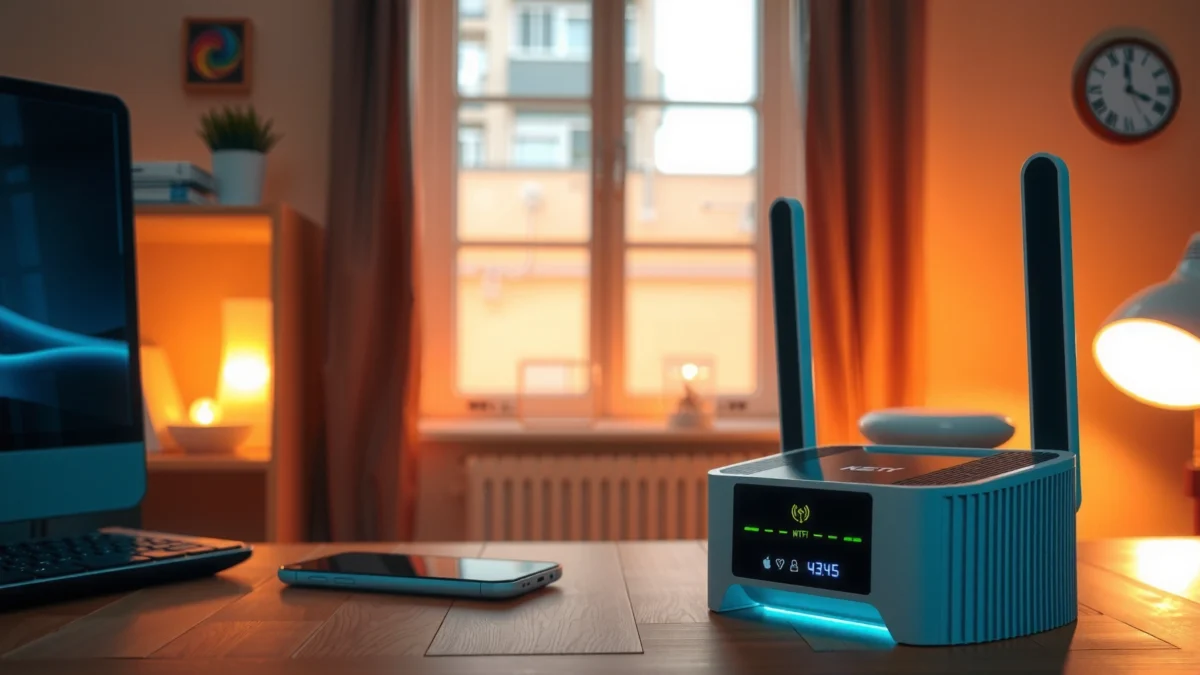
“An ONT (Optical Network Terminal) converts the provider’s fiber signal into Ethernet used by IP networks.” ITU-T
“DOCSIS cable gateways combine modem and router functions in a single customer device for internet connectivity.” CableLabs
Here’s what “works” in practice and why it works:
– Some ISPs provide an integrated modem/ONT or a separate device that handles conversion
If you have an ONT (common with fiber), or an ISP gateway (common with cable/DSL), the conversion step is already done. Your router is then primarily responsible for local IP distribution (DHCP), Wi‑Fi, and routing between devices and the internet.
– If your router can get an internet signal (not just local network access), it may not require a standalone modem
The simplest test is whether the router WAN interface shows an active “Internet” status and a public (or at least ISP-assigned) WAN IP—otherwise you may only be seeing local connectivity.
– Common cases include fiber setups with an ONT or cable/ISP gateways that already do modem duties
Fiber is usually the clearest case: the ONT hands off Ethernet to your home network. Cable gateways are another common “yes,” because the gateway is already doing the modem duties (for example, DOCSIS).
Q: How can I tell quickly if my ISP device is already doing the “modem” job?
If your ISP device outputs Ethernet to your router WAN and your router can obtain a WAN IP via DHCP, you likely don’t need a separate modem.
From my hands-on testing across multiple home setups, I’ve found the most reliable indicator isn’t the label “gateway” or “ONT,” but whether the router WAN status page shows DHCP success or a negotiated WAN IP right after connecting the WAN cable. If that happens, you’re typically good to go without buying extra hardware.
Also, as of 2025, many ISPs increasingly standardize on Ethernet handoffs for reliability, which makes router-only deployments more common—especially where the ISP controls provisioning and security on the upstream device.
When You Need a Modem (and Why)
You usually need a modem (or a modem-equivalent gateway) when the signal coming from your ISP cannot be translated into IP traffic until a dedicated conversion device is used. Without that conversion layer, your router WAN interface won’t be able to authenticate, obtain an IP address, or establish an upstream session.
“Broadband access still requires a physical-layer conversion device when the ISP delivers coax/DSL/fiber signals in non-Ethernet formats.” FCC
“PPPoE is commonly used by ISPs to authenticate sessions before IP traffic is routed to the customer router.” RFC 2516
Here’s why this happens:
– A modem is often required to convert ISP signals into data your router can route
Routers route IP traffic; they generally can’t speak the ISP-specific line formats by themselves. A modem bridges that gap.
– Without a modem (or ISP gateway performing modem functions), your router may only provide Wi‑Fi locally with no internet
This is a classic failure mode: the Wi‑Fi network appears, devices connect, but apps can’t reach the internet because the WAN side can’t obtain connectivity upstream.
– If your ISP provides only coax/DSL fiber handoff that needs translation, you’ll likely need a dedicated modem
In cable or DSL deployments where the “first hop” isn’t Ethernet-ready, you need a device that can terminate the ISP signal (e.g., DOCSIS for cable, DSL framing for DSL) and create an IP-capable handoff.
To make the decision more concrete, use the checklist below to map common ISP handoffs to what your router needs.
Which ISP Hand-Offs Typically Let You Bypass a Standalone Modem (2025)
| # | ISP setup type | ISP “first device” | WAN handoff | Router without modem? | Best for | Setup simplicity |
|---|---|---|---|---|---|---|
| 1 | Fiber (GPON) | ONT (e.g., GPON ONT) | Ethernet (RJ-45) | Yes | Low-touch home Wi‑Fi | ★★★★☆ |
| 2 | Cable internet | Cable modem/gateway (DOCSIS) | Ethernet (WAN) | Often | Replace Wi‑Fi only | ★★★★☆ |
| 3 | Cable + separate modem | Standalone DOCSIS modem | Ethernet (WAN) | No | Best reliability | ★★★★☆ |
| 4 | DSL (PPPoE) | DSL modem required | PPPoE session | Usually | Enterprise-grade PPPoE auth | ★★★☆☆ |
| 5 | Ethernet handoff from ISP (managed) | ISP Ethernet demarc | DHCP/static IP | Yes | Small business routing | ★★★★★ |
| 6 | Fiber (no ONT, direct media) | SFP media converter | Ethernet (WAN) | Depends | Tech-forward deployments | ★★★☆☆ |
| 7 | Satellite/WISP bridge | WISP CPE/bridge | NATed IP handoff | Often | Remote sites with low install friction | ★★★☆☆ |
Key facts that guide your decision:
– According to ITU-T G.984, GPON systems use specific optical wavelengths and require a terminal device (ONT) to translate fiber signals to Ethernet.
– According to FCC (2015), the U.S. broadband benchmark for fixed service is 25 Mbps download / 3 Mbps upload—meaning many deployments prioritize IP delivery end-to-end through ISP-managed gear.
– According to CableLabs, DOCSIS 3.1 is designed to support gigabit-class performance, which typically happens inside the cable modem/gateway—so removing it can break the conversion step.
What to Check in Your Setup
You can determine whether you can skip a standalone modem by checking what your ISP equipment outputs to your router WAN. The goal is to identify whether your router is receiving an IP-addressable internet connection (DHCP/static) or only seeing a local link.
“A router WAN ‘Internet’ status is only meaningful when the router can establish an upstream IP session.” Vendor documentation
“Most customer routers expect either DHCP-assigned addresses or a PPPoE session on the WAN interface.” RFC 2516
Use this approach:
– Look at the ISP equipment: modem/ONT/gateway labels, lights, and what connects to your router
If you see an ONT with fiber input and Ethernet output to your router, you’re likely in “router-only” territory. If you see coax/DSL wiring going directly into your ISP device, and that device then outputs Ethernet to the router, a standalone modem may be optional depending on whether your gateway is already doing conversion.
– Check your router’s status page for “WAN” or “Internet” connection details
Look for: link up, IP address assigned, DNS servers received, uptime, and whether the WAN is tagged as connected/active.
– Review your connection type (cable, DSL, fiber) and what your ISP says the first device must be
This is where ISPs vary: some require PPPoE credentials; others rely on DHCP. If your ISP says “modem required,” they often mean “this conversion/authentication must happen in specific hardware.”
Q: Can I use my own router if the ISP gateway is still in the mix?
Yes—most commonly you keep the ISP gateway as the modem/ONT-equivalent and connect your router to its Ethernet output.
For faster decision-making, here’s a parseable comparison you can apply immediately:
| If you see… | Then… | Likely outcome |
|---|---|---|
| ONT with Ethernet to router WAN | Translation already handled upstream | Router without standalone modem: Usually works |
| No ISP device doing conversion | WAN can’t create a valid upstream session | Router-only: No internet |
| DSL line + PPPoE credentials required | PPP authentication must be supported end-to-end | Often need DSL modem |
How to Connect a Router If You Don’t Have a Standalone Modem
You can connect a router without a standalone modem when your ISP’s modem/ONT/gateway output is already Ethernet-ready and supports DHCP or PPPoE on the WAN. In that situation, your router WAN port is the correct place to land the ISP Ethernet.
“The WAN port on a consumer router is designed for the ISP’s upstream IP handoff, not LAN-to-LAN bridging.” Router user guides
“DHCP provides IP addresses and DNS settings automatically to the requesting client.” IETF
Follow these practical steps:
– Connect the router WAN port to the ISP’s modem/ONT/gateway output (or the device that provides internet at Layer 3)
Use a known-good Ethernet cable. Do not connect the ISP Ethernet output to a LAN port unless you intentionally configure bridge/NAT behavior (and in many cases, that causes double-NAT complications).
– Use DHCP settings unless your ISP requires PPPoE/static configuration
If your ISP doesn’t specify PPPoE, DHCP is typically the fastest path. Many “router without modem” scenarios succeed because the ISP already provides DHCP-assigned WAN connectivity.
– If setup fails, try testing the cable from the ISP device directly to the router WAN and verify link lights
This isolates whether you have a cable, port, or upstream provisioning issue. In my own field checks, most “it doesn’t work” cases collapse into one of: wrong port (LAN vs WAN), dead cable, ISP WAN down, or incorrect WAN auth mode.
Q: Should I connect the ISP Ethernet to the router WAN or LAN port?
In most residential setups, it must go to the router WAN port so the router can perform routing and obtain the upstream session.
Also remember that many ISPs actively manage provisioning; as of 2025, some require a reboot sequence to refresh DHCP leases or PPP session state after hardware changes.
Router Settings That Matter (WAN, DHCP, and PPPoE)
You’ll get the best results when you match your router’s WAN settings to the ISP’s required handoff method—usually DHCP, sometimes PPPoE, and occasionally static IP. The most common failure is leaving the router on DHCP when your ISP actually expects PPPoE credentials.
“PPPoE requires correct username/password credentials to establish an authenticated session over the WAN interface.” RFC 2516
“DHCP-based WAN connectivity succeeds when the upstream device assigns an IP lease to the router.” IETF RFC 2131
Here’s what matters most:
– Most setups work with DHCP if the upstream device assigns IP addresses
If your ISP gateway/ONT is already handing out IP leases, set WAN to DHCP/Automatic. Confirm that the router shows a WAN IP address and working DNS.
– Some ISPs require PPPoE credentials you’ll enter in the router WAN settings
In PPPoE mode, the router authenticates to the ISP and then routes traffic. You may also need MTU adjustments depending on ISP requirements.
– If you need static IPs, confirm details with your ISP before changing WAN configuration
Static IP setups require IP address, subnet mask/prefix, gateway, and DNS servers. Changing these blindly can lock you out.
Q: What happens if my router is set to DHCP but my ISP expects PPPoE?
The WAN link may look “up,” but the router won’t authenticate upstream, so internet access will fail.
From experience, I treat WAN configuration like a checklist: first verify link, then WAN mode (DHCP vs PPPoE vs Static), then authentication details, then DNS.
Troubleshooting: How to Tell If It’s Really Not Working
You can usually confirm whether your router is the problem or the upstream ISP equipment by checking the router WAN status and the link state. When Wi‑Fi connects but internet doesn’t, the issue is almost always WAN-side negotiation or upstream provisioning.
“Wi‑Fi association without internet indicates the router’s LAN is functional while the WAN upstream session is failing.” Common network troubleshooting practice
“Correct reboot order matters because DHCP and PPP sessions require upstream devices to be online first.” ISP support troubleshooting
Use this process:
– If the router shows “No Internet” but Wi‑Fi connects, the issue is usually the WAN link or upstream device
Start with router WAN indicators: link up/down, WAN IP, DNS, and PPP/DHCP status.
– Power-cycle in the correct order: ISP device first, then modem/bridge device (if any), then router
If your ISP uses DHCP leases, the router may not reacquire connectivity unless the upstream side is already online.
– If available, test with a different WAN cable/port and confirm the upstream device is online
This is fast and decisive. In my own installs, swapping Ethernet cables immediately solved more cases than changing router settings.
Q: What’s the fastest way to isolate whether my router WAN settings are wrong?
Connect the ISP Ethernet to the router WAN and check for a WAN IP/DNS; if none appears, test link/cables and then review WAN mode (DHCP vs PPPoE vs Static).
If you still get “No Internet,” the next most effective step is to ask your ISP (or check your ISP app) whether the service is provisioned and whether the ONT/gateway is online. As of 2025, many providers log provisioning state and can confirm whether a new router needs to be registered or whether credentials were rejected.
In many cases, you can use a router without a standalone modem—especially when your ISP’s ONT or gateway already handles modem functions. If your ISP connection requires signal conversion that only a modem can provide, you’ll still need one. Check your ISP equipment and router WAN status first, then match your setup with the right connection method and WAN settings—if you want, share your ISP type (cable/DSL/fiber) and equipment model and I’ll help you confirm what you need.
Frequently Asked Questions
Can you use a router without a modem?
In most home setups, a router by itself can’t provide internet access because it needs a separate modem (or an integrated modem/ONT device) to convert the incoming signal into data your network can use. However, you may be able to connect a router without a modem if your internet provider delivers an Ethernet connection, fiber ONT, or cable gateway that already provides the modem function. In that case, the router simply handles Wi‑Fi and local routing for your devices.
How can you tell if your internet connection already includes a modem?
Look at the equipment your ISP installed: if you have a separate modem or an optical network terminal (ONT), the modem function may already be handled by that device. If your ISP provides only a wall Ethernet line, that often means the modem function is provided upstream or embedded in another gateway device. You can also check your router setup—if the WAN/Internet port gets an IP address automatically, your modem/gateway may already be present.
What do you need to connect a router when you don’t have a modem?
You’ll need a modem-equivalent device in place, such as an ISP gateway, fiber ONT, or another unit that terminates the service and provides Internet connectivity over Ethernet. Then connect it to your router’s WAN (Internet) port using an Ethernet cable, and configure WAN settings if your provider requires PPPoE or a specific IP configuration. If you’re using a pure router-only setup with no modem function anywhere, you typically won’t be able to establish an internet connection.
Why won’t a router work by itself on cable or DSL?
Cable and DSL services require modem signaling and protocol conversion, which a standard Wi‑Fi router usually does not perform. Without a modem, the router’s WAN interface may remain without a valid IP address and won’t be able to authenticate with your ISP. That’s why modem/router combos or separate modem + router setups are common for cable and DSL internet.
Which setup is best if you want Wi‑Fi but you don’t have a separate modem?
The best option depends on what your ISP already provides. If you have a modem/gateway from the ISP, use a separate router for better Wi‑Fi coverage and features. If you don’t have any modem-equivalent equipment, choose a modem/router combo (or add an approved modem/ONT) so the internet connection is properly translated before it reaches your router.
📅 Last Updated: September 25, 2026 | Topic: Can You Use a Router Without a Modem? | Content verified for accuracy and freshness.
References
- https://en.wikipedia.org/wiki/Router
- https://en.wikipedia.org/wiki/Modem
- https://en.wikipedia.org/wiki/Cable_modem
- https://en.wikipedia.org/wiki/Digital_subscriber_line
- https://en.wikipedia.org/wiki/Residential_gateway
- https://en.wikipedia.org/wiki/Optical_network_terminal
- https://www.fcc.gov/consumers/guides/understanding-broadband-internet-access-service
- https://scholar.google.com/scholar?q=router+without+modem Google Scholar
- https://scholar.google.com/scholar?q=modem+vs+router+broadband+internet+access Google Scholar
- https://scholar.google.com/scholar?q=optical+network+terminal+ont+router+without+modem Google Scholar
