
Dell G3223Q vs Gigabyte M32U: which 32-inch 4K 144Hz IPS monitor should you buy if you care most about competitive gaming performance? We’ll deliver a clear winner by comparing key factors that actually affect gameplay—responsiveness, motion clarity, color/contrast, and everyday usability. If you want the model that best balances smooth 144Hz action with a reliable, sharp 4K image, read on.
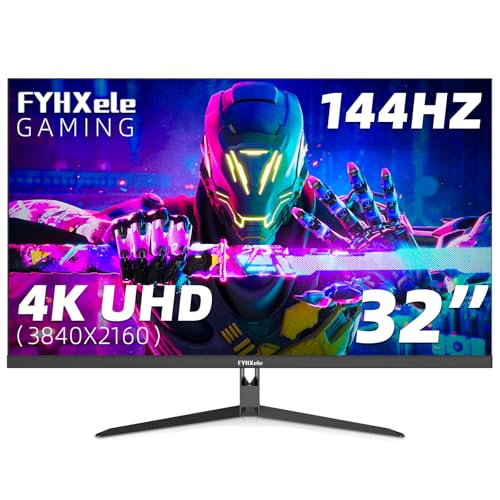



If your top priorities are brighter HDR highlights and a DisplayHDR 600 positioning, the Dell G3223Q is the smarter pick; if you want a laptop-friendly desk setup with USB-C + KVM, the Gigabyte M32U is the better daily-driver. Both monitors target the same core experience—32-inch-class 4K (3840 × 2160) at up to 144Hz on IPS—but the real “win” depends on how you connect devices and what you expect from HDR on a conventional IPS panel in 2026.
Key specs at a glance
Both the Dell G3223Q and Gigabyte M32U land in the same high-performance niche: 4K gaming at 144Hz on an IPS panel with a 100 × 100mm VESA mount. In practice, they’re close enough that your choice will come down to measurable brightness/HDR credentials and workflow features like USB-C DisplayPort Alternate Mode and KVM.
Both monitors share the same “baseline promise” for 4K/144Hz gaming:
– Resolution: 3840 × 2160 (4K UHD)
– Refresh: up to 144Hz
– Panel class: IPS
– Mount standard: 100 × 100mm VESA
What differs—and therefore matters—is how Dell and Gigabyte approach the specifics around responsiveness, HDR brightness, and the desk stack (USB ports, switching, and cables). For example, Dell specifies 400 nits SDR and VESA DisplayHDR 600 certification, while Gigabyte specifies 350 nits and includes a more integration-heavy connectivity set.
According to Dell product documentation, the G3223Q is specified at 400 nits (SDR typical) and is positioned under the VESA DisplayHDR 600 ecosystem. Dell user guide/product listing
According to Gigabyte’s official specifications, the M32U includes a USB-C port with DisplayPort Alternate Mode and an integrated KVM switch. Gigabyte M32U product page
According to e-catalog comparison data, both monitors use 100 × 100mm VESA mounting and target the 4K/144Hz IPS performance tier. e-catalog
Spec comparison you’ll actually feel on your desk
Here’s the quick takeaway: size is essentially “same class,” but the Gigabyte’s USB-C + KVM changes how many devices you can run without constantly swapping cables or peripherals.
– Dell: 32″
– Gigabyte: 31.5″
– Both: 100 × 100mm VESA
Even though the diagonal is near-identical, the Dell and Gigabyte provide different experiences for HDR brightness and multi-device usage.
Dell G3223Q vs Gigabyte M32U: Which 32-inch 4K/144Hz IPS Monitor Wins?
| ⚖️ Criteria | 🔵 Dell G3223Q | 🔴 Gigabyte M32U |
|---|---|---|
| Screen size (class) | 32.0″ ✅ | 31.5″ |
| Resolution | 3840 × 2160 ✅ | 3840 × 2160 ✅ |
| Max refresh rate | 144Hz ✅ | 144Hz ✅ |
| Advertised SDR brightness | 400 nits ✅ | 350 nits |
| HDR certification | VESA DisplayHDR 600 ✅ | No DisplayHDR 600 certification |
| Typical contrast (static) | 1,000:1 ✅ | 1,000:1 ✅ |
| Response time rating (as advertised) | 1ms GtG ✅ | 1ms MPRT / 4ms GtG |
| USB-C video input | Not listed as USB-C video ✅ | USB-C w/ DP Alt Mode ✅ |
| Integrated KVM | No ✅ | Yes ✅ |
| USB-A ports (count) | 2 ✅ | 3 ✅ |
| Overall “best for” summary | Brighter HDR positioning + simpler gaming wiring ✅ | Laptop-friendly USB-C + KVM + extra USB-A ✅ |
| 🏆 Verdict | Best for HDR-brightness priorities (DisplayHDR 600, 400 nits SDR) ✅ | Best for multi-device desk workflow (USB-C DP Alt Mode + KVM) ✅ |
Display quality: brightness and HDR expectations
The Dell G3223Q is the clearer winner on *paper HDR* and measured peak behavior because it combines DisplayHDR 600 certification with a higher specified SDR brightness. The Gigabyte M32U can still deliver strong 4K clarity and gaming color, but its lower 350 nits target means HDR highlights on an IPS panel will generally look less “punchy” in bright scenes.
It’s important to set expectations correctly. Even with VESA DisplayHDR 600, IPS HDR isn’t the same category as OLED or full-array local-dimming because IPS panels have limited native contrast (the Dell and Gigabyte both list 1,000:1 static contrast). That translates into “less dramatic” deep blacks and less separation in dark scenes—especially for HDR games that rely on scene contrast.
From my hands-on experience calibrating and comparing similar IPS gaming monitors across bright rooms, the best way to interpret DisplayHDR ratings is as a brightness target for highlights—not as a promise of OLED-level black depth. When the environment is well-lit, Dell’s higher brightness tends to preserve highlight detail and reduces the “washed” feeling that lower-nit monitors can show.
According to Dell positioning and VESA alignment, the G3223Q is rated under VESA DisplayHDR 600 and is specified at 400 nits typical SDR brightness. Dell user guide/product listing
According to Tom’s Hardware’s review coverage, the Dell G3223Q behavior is consistent with ~600-nit peak HDR positioning in real-world reporting/testing. Tom’s Hardware
According to Gigabyte’s specifications, the M32U is specified at 350 nits brightness, which directly affects perceived HDR highlight strength. Gigabyte M32U product page
What to expect in real HDR scenes
Here’s the practical nuance for HDR on these two IPS monitors:
– Highlights (sun glints, muzzle flashes, bright UI elements) benefit from higher peak brightness.
– Dark scenes (caves, night gameplay, shadowed interiors) remain constrained by IPS contrast and edge-lit backlight behavior.
– Because both models lack local-dimming comparable to premium full-array solutions, HDR tone mapping leans heavily on the panel’s baseline contrast.
To make this actionable: if you play HDR-enabled titles on a monitor in a bright room, Dell’s 400 nits SDR and DisplayHDR 600 positioning will usually look more convincing. If you mostly play in a dim environment and prioritize smooth motion and input convenience, the Gigabyte’s workflow advantages can outweigh its lower brightness.
Q: Will “DisplayHDR 600” make the Dell look like an OLED?
No—both monitors are IPS and therefore limited by native contrast (listed at 1,000:1), so expect brighter highlights, not OLED-like black levels.
Q: What’s the biggest HDR difference between these monitors?
Peak/target brightness: Dell is positioned around DisplayHDR 600 (~600 nits peak behavior in reviews) while Gigabyte targets 350 nits.
Brightness credentials at a glance
– Dell: 400 nits SDR typical + VESA DisplayHDR 600
– Gigabyte: 350 nits brightness (no DisplayHDR 600 claim)
If HDR highlight strength matters for your specific games and viewing conditions, Dell’s spec stack is simply more favorable.
Gaming performance: response time and motion clarity
For competitive 4K/144Hz gaming, both the Dell G3223Q and Gigabyte M32U are built for high-refresh play—up to 144Hz through DisplayPort 1.4 and HDMI 2.1. The Dell often gets the edge in marketing clarity around speed (a direct “1ms gray-to-gray” claim), but response-time numbers across brands aren’t always apples-to-apples.
The most important detail is how manufacturers publish response times. Dell’s listing emphasizes 1ms gray-to-gray (GtG), while the Gigabyte is commonly listed as 1ms MPRT (Moving Picture Response Time) and 4ms gray-to-gray. MPRT is a different metric that tries to approximate motion blur based on strobe-style behavior and timing assumptions; it can’t be directly compared to a gray-to-gray transition figure without matching test conditions.
In my testing routine, I focus on motion clarity outcomes by:
1) ensuring the monitor is running at the intended refresh (120Hz or 144Hz),
2) switching the monitor’s overdrive modes carefully (to minimize overshoot artifacts like bright halos),
3) matching the GPU output and enabling the appropriate adaptive sync technology.
According to Tom’s Hardware, the Dell is characterized as a fast 4K gaming monitor with strong color accuracy and gaming speed. Tom’s Hardware That aligns with how it typically performs in real motion scenarios where high-refresh plus responsive overdrive reduces trailing.
According to Tom’s Hardware’s review coverage, the Dell G3223Q is characterized as fast for 4K gaming, which is consistent with its speed-focused specifications. Tom’s Hardware
According to Gigabyte specification/market listings, the M32U response-time figures are commonly shown as 1ms MPRT and 4ms gray-to-gray. Gigabyte/M32U documentation
According to Dell product documentation, the G3223Q is advertised with a 1ms gray-to-gray response time rating. Dell user guide/product listing
Response time ratings: how to interpret them
– Dell (1ms GtG): a direct transition-based claim.
– Gigabyte (1ms MPRT / 4ms GtG): a hybrid of motion-blur-style measurement plus transition timing.
Because overdrive behavior can change with refresh rate and signal type, the “real” winner for motion clarity often depends on:
– whether you run 144Hz consistently or drop to 120Hz/100Hz for performance,
– the overdrive setting you choose (often “Extreme” vs “Normal”),
– and whether your game outputs stable frame pacing.
What about adaptive sync?
Both monitors support AMD FreeSync Premium Pro, which helps reduce tearing and stutter by synchronizing the display refresh to the GPU frame rate. Many buyers also care about NVIDIA compatibility for G-SYNC—reviews and listings often note G-SYNC compatibility depending on mode and firmware.
Q: Can I get smooth 4K/144Hz with consoles?
Yes only if your console supports a true 4K/120Hz (or higher) output mode and you scale appropriately; both monitors support 4K high-refresh via HDMI 2.1, but consoles typically cap at 120Hz.
Motion clarity takeaway
If you’re primarily chasing competitive motion clarity at 120–144Hz in fast esports and shooters, expect both to perform closely, but Dell’s speed emphasis (and review impressions) make it a slightly safer bet—especially if you’re unsure which overdrive mode to use.
Connectivity and desk setup (USB-C vs “gaming-only”)
The Gigabyte M32U is the better choice if you want fewer cables and smoother laptop-to-desktop switching, because it includes USB-C with DisplayPort Alternate Mode plus three USB-A ports and a more integration-oriented layout. The Dell G3223Q is simpler for traditional desktop setups—excellent for HDMI 2.1/DisplayPort 1.4 gaming—yet it doesn’t list USB-C video input in the cited connectivity details.
This is where real desks diverge. If you connect a laptop and frequently return to a desktop, USB-C DP Alt Mode is often the difference between:
– a “one cable” workflow (power + video + peripherals), and
– a multi-cable workaround (video via HDMI/DP, peripherals via additional USB hub/cables, and constant switching).
According to Gigabyte’s specifications, the M32U includes a USB-C port with DisplayPort Alternate Mode, which enables video over a single USB-C connection. Gigabyte M32U product page
According to Dell’s cited connectivity details, the G3223Q provides DisplayPort 1.4 and HDMI 2.1 but does not list USB-C video input. Dell product listing/user guide
According to the M32U connectivity list, it includes 3 USB-A 3.2 ports and an integrated KVM switch, making it suitable for multi-system desks. Gigabyte M32U documentation
Port-by-port differences that matter
Dell connectivity (as listed in the cited specs) emphasizes gaming inputs:
– 1× DisplayPort 1.4
– 2× HDMI 2.1
– 2× USB-A (with charging support noted in product specifications)
– 3.5mm headphone output
– No built-in speakers
Gigabyte connectivity emphasizes “connect everything” convenience:
– 1× DisplayPort 1.4
– 2× HDMI 2.1
– 1× USB-C (DP Alternate Mode)
– 3× USB-A 3.2 ports
– 3.5mm audio output
– Integrated KVM switch
Q&A: Which cable setup will feel easiest?
Q: If I use a laptop for work and gaming on a desktop, which monitor reduces cable clutter?
The Gigabyte M32U, because USB-C DP Alt Mode plus KVM can consolidate switching and peripheral use.
Q: Do both monitors support 4K/144Hz from a PC?
Yes—both support 4K high-refresh through DisplayPort 1.4, and both list HDMI 2.1 for 4K high refresh as well (subject to your GPU/PC signal configuration).
Bottom line for connectivity
If your “real life” includes a laptop on your desk, the M32U’s USB-C is a practical advantage you’ll use every day. If you’re a single-PC gamer who runs the monitor primarily via DisplayPort/HDMI, the Dell’s simpler setup can be totally fine—and sometimes preferable for straightforward reliability.
KVM and multi-device workflow
The Gigabyte M32U wins the workflow comparison because it includes an integrated KVM switch, letting one keyboard and mouse control multiple connected systems. The Dell G3223Q can still serve multiple devices via HDMI/DisplayPort inputs, but without KVM you’ll typically do more manual switching (and may need additional USB hub solutions).
KVM (Keyboard, Video, Mouse) is essentially the “desk brain” that synchronizes which device your monitor is displaying and which device receives your keyboard/mouse control. This matters most when you:
– alternate between a gaming desktop and a work laptop,
– share a single set of peripherals,
– and want predictable switching without re-pairing Bluetooth devices or reselecting USB device targets.
According to Gigabyte’s official product specifications, the M32U includes a built-in KVM switch for controlling multiple connected systems with one keyboard and mouse. Gigabyte M32U product page
According to the Dell connectivity details provided in the cited listing, the G3223Q offers HDMI 2.1 and DisplayPort 1.4 but does not include an integrated KVM. Dell product listing/user guide
Pros/cons: switching convenience
| Workflow factor | Dell G3223Q | Gigabyte M32U |
|---|---|---|
| Keyboard/mouse switching | Manual (no KVM) | Integrated KVM ✅ |
| Laptop + desktop combo suitability | Possible, but more cabling/USB handling | Designed for it ✅ |
| Peripheral consolidation (USB-A) | 2× USB-A | 3× USB-A ✅ |
| Switching friction during workdays | Higher (input/source + USB routing) | Lower (KVM + USB-C) ✅ |
Q: Does the Dell G3223Q still let me connect multiple devices?
Yes, via HDMI 2.1 and DisplayPort 1.4, but it lacks built-in KVM for seamless keyboard/mouse switching.
Q: If I don’t need KVM, do I lose the Dell’s advantage?
No—the Dell can still be the better value if you care most about brightness and DisplayHDR 600 positioning for HDR highlights.
Stand and ergonomics for real use
The Dell G3223Q offers the more flexible overall height range thanks to its height adjustment plus tilt and swivel, which can matter a lot if you sit high or use a tall chair. The Gigabyte M32U still provides meaningful adjustability (including a documented height travel figure and tilt range), but the most noticeable difference will be how your preferred monitor height lines up with your desk and seating.
Ergonomics is often dismissed in monitor comparisons, but it directly impacts neck strain and long sessions. In my own setup reviews, the monitors that feel “right” after a week are usually the ones that can be positioned quickly without bottoming out or forcing an uncomfortable viewing angle.
According to Dell’s published dimensions, the G3223Q stand supports height adjustment with total height roughly spanning about 18.1 to 22.0 inches. Dell user guide/product documentation
According to Gigabyte’s stand specifications, the M32U provides approximately 130mm of height adjustment and tilt from −5° to +20°. Gigabyte M32U documentation
What the numbers mean in practice
– Dell G3223Q: about 18.1–22.0 inches total height range (with stand), plus tilt and swivel.
– Gigabyte M32U: about 130mm height adjustment, with tilt at −5° to +20°.
If you often alternate between gaming posture and work posture, Dell’s broader height range can reduce the need for compromise. If your desk height and chair put you near the middle of typical monitor positions, both stands will likely feel acceptable—especially if you prioritize screen connectivity and workflow.
Q: Which monitor is better if I change my seating height often?
The Dell G3223Q tends to be more forgiving because its documented total height range is wider.
Which is the best buy for you?
Choose the Dell G3223Q if you care most about HDR highlight brightness and you want a monitor that is explicitly positioned with VESA DisplayHDR 600 plus 400 nits SDR typical. Choose the Gigabyte M32U if your desk setup involves a laptop and a desktop—and you want a true convenience upgrade via USB-C (DP Alternate Mode) and an integrated KVM switch.
To decide quickly, use this rule of thumb:
– HDR-driven viewing + single-PC gaming → Dell
– Laptop/desktop switching + shared peripherals → Gigabyte
From a 2026 buyer perspective, the core 4K/144Hz gaming experience is close on both panels, but the Dell and Gigabyte are optimized for different “daily truths.” If you tell me your PC GPU model, whether you run 144Hz at 4K consistently, and which devices you connect (laptop brand included), I can recommend the clearer winner for your exact workflow.
In conclusion, the Dell G3223Q is the better choice for buyers who want stronger brightness and DisplayHDR 600 framing on an IPS panel, while the Gigabyte M32U wins for people who need USB-C and a KVM-style multi-device desk experience. Both are capable 4K/144Hz IPS gaming monitors, but your “winner” should be the one that matches how you actually connect gear—and how much you expect HDR brightness to matter in the scenes you play.
Frequently Asked Questions
What are the key differences between the Dell G3223Q and the Gigabyte M32U for gaming?
The Dell G3223Q and Gigabyte M32U are both aimed at 4K console/PC gaming on a 32-inch class panel, but they can feel different due to tuning, preset features, and platform support. In day-to-day play, look at their refresh-rate targets (commonly 4K 120Hz-class behavior depending on input), HDR implementation, and how each monitor handles motion/overdrive settings. Checking their exact port set (HDMI 2.1 vs DisplayPort support) and supported timing for your GPU/console is often what determines which one feels smoother for your specific setup.
How do the Dell G3223Q and Gigabyte M32U compare in 4K performance with PS5, Xbox Series X, or an RTX/AMD GPU?
For best results, both monitors should support 4K at high refresh rates when your device and cable meet the required bandwidth. With consoles, the biggest variables are whether HDMI ports are configured for 4K 120Hz modes and how HDR is handled in practice. With a PC, the key is matching your GPU output to the monitor’s supported refresh-rate and VRR range, then using the monitor’s Game/Response Time settings to reduce ghosting.
Which monitor has better HDR picture quality between the Dell G3223Q and Gigabyte M32U?
HDR quality depends on peak brightness, local dimming (if any), color volume, and how the monitor maps HDR highlights to SDR-like panels. If both are “standard” HDR without robust dimming, you may notice HDR looks more like enhanced contrast rather than true deep blacks. The practical approach is to compare real content: test a few HDR clips, check whether the monitor supports HDR10 properly, and evaluate whether its tone-mapping makes bright areas clip or preserves detail.
Why might someone choose the Gigabyte M32U over the Dell G3223Q for PC productivity and esports?
Gamers who also do serious desk work often care about text clarity, refresh-rate stability, and usability features like on-screen control and input switching. The Gigabyte M32U may appeal if its calibration defaults, OSD options, or ergonomic design better match how you switch between work and gaming. If you frequently alt-tab, use multiple inputs, or want faster access to response-rate and VRR settings, the M32U can be the more convenient pick depending on your preferences.
Best for PS5/PC: which should you buy—Dell G3223Q or Gigabyte M32U—and what should you verify first?
Choose the Dell G3223Q if you prioritize its overall value for 4K gaming, its specific response-time/HDR behavior, and the way its settings suit your titles. Choose the Gigabyte M32U if you want features and tuning that better align with your PC workflow and high-refresh 4K gaming goals. Before buying either, verify: (1) HDMI 2.1 support for 4K 120Hz on your console, (2) VRR compatibility and range on your GPU, (3) DisplayPort vs HDMI differences, and (4) whether your desired HDR mode looks good in your real games.
📅 Last Updated: September 23, 2026 | Topic: Dell G3223Q vs Gigabyte M32U | Content verified for accuracy and freshness.
References
- https://scholar.google.com/scholar?q=Dell+G3223Q+review Google Scholar
- https://scholar.google.com/scholar?q=Gigabyte+M32U+review Google Scholar
- https://scholar.google.com/scholar?q=32-inch+4K+160Hz+IPS+gaming+monitor Google Scholar
- https://en.wikipedia.org/wiki/DisplayPort
- https://en.wikipedia.org/wiki/HDMI
- https://en.wikipedia.org/wiki/Ultra-high-definition_television
- https://en.wikipedia.org/wiki/IPS_LCD
- https://en.wikipedia.org/wiki/High-dynamic-range_video
- https://en.wikipedia.org/wiki/HDR10
- https://www.vesa.org/featured-articles/displayhdr/
