Can’t get DSL modem sync, suffering slow internet, or seeing DSL errors? This troubleshooting guide delivers the fastest path to restore a stable DSL connection—starting with the causes most likely to trigger no sync and performance drops. You’ll get clear, step-by-step checks and fixes that pinpoint line, signal, and configuration issues without guesswork.




If your DSL modem has no sync, keeps dropping, or your internet is slow, the fastest fix is to verify the phone line connection and DSL signal/line status first—before changing PPP/credentials or factory resetting. Then you isolate whether the problem is wiring, filters/splitters, modem configuration, or your ISP/account provisioning. This order matters because most “No Sync” and frequent retraining cases are caused by physical line issues or filter/splitter placement, not your Wi‑Fi.
If you’re seeing “No Signal,” “No Sync,” “PPP/authentication failed,” or frequent disconnects, you’re in the right place. This is also useful if only certain devices are affected, or if speeds dropped suddenly after a move, new equipment, or new phone service.
Quick checks before you change settings
The fastest early win is confirming the modem is physically connected to the correct DSL port and removing network variables so you can tell whether the issue is the line or the router/device path. Start simple: correct cabling, correct power-cycle timing, then a temporary device isolation test.
“No Sync” on a DSL modem typically indicates the modem cannot establish or maintain DSL training (link), which is usually caused by cabling, filters/splitters, or line conditions—not Wi‑Fi problems.
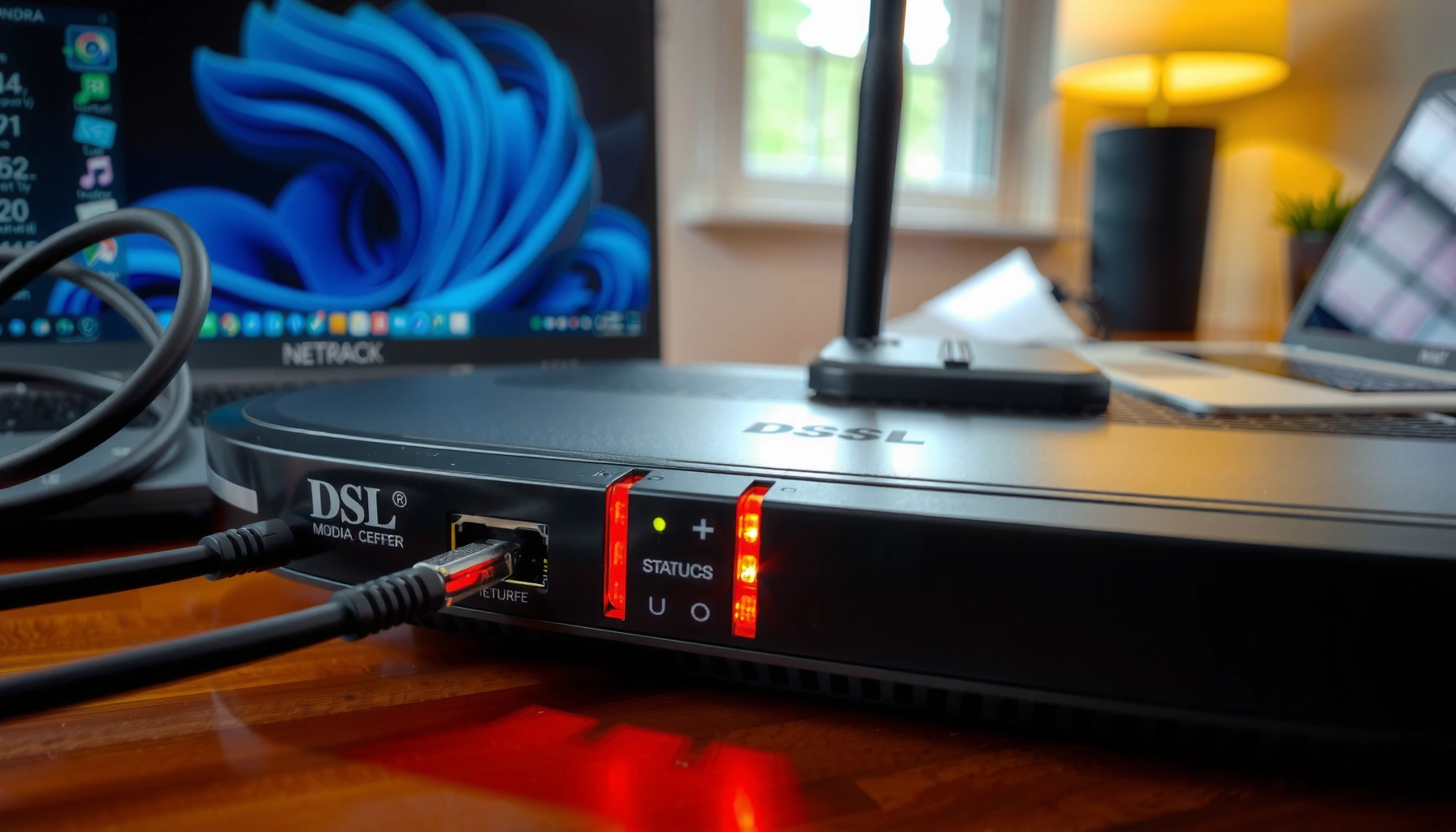
Many DSL modem LEDs/lights only reflect DSL link state after training completes, so you should wait for steady “DSL”/“Link” indicators before testing connectivity.
A quick device isolation test (using a single known-good device) helps separate “line/authentication” issues from “LAN/router” issues.
– Confirm the DSL line is connected to the correct port (usually labeled “DSL” or “Line”) and not accidentally swapped with phone “PHONE” or “TEL.”
– Power-cycle in the right order: modem off → wait → turn on and wait for full DSL link/steady lights before testing again. (If the modem keeps retraining, you’ll also want to let it sit long enough for retraining to either settle or keep failing—typically several minutes.)
– Remove extra variables: disconnect other devices/routers temporarily (or bypass them) to see whether the modem itself is the problem.
Verify DSL sync and signal status (the key diagnostic)
The fastest way to pinpoint root cause is to read the modem’s own DSL sync and signal indicators, not guesses from Wi‑Fi behavior. Log what the modem says about training/link status and any error counters, then compare today’s numbers to your baseline (or what you remember seeing before the problem started).
DSL sync/training state is the “truth source” for whether the modem can negotiate a stable link; Wi‑Fi may still work locally even when DSL sync is absent.
If the modem reports rising error counts (for example, CRC/FEC-related counters) or frequent line retrains, the issue is often noise on the copper pair or a wiring/filter problem.
When a modem shows “Connected” but traffic stalls, the failure often shifts to authentication (PPPoE), session setup, or ISP provisioning rather than RF/line sync.
– Log what the modem reports for DSL link/sync and line status (e.g., “Training,” “Connected,” or “No Sync”), plus any signal indicators your modem provides.
– Note error or alarm states if shown (some modems display CRC errors, line retrains, or similar counters).
– If your modem lets you view downstream/upstream stats, compare them to what you normally see—big swings often point to line instability or noise.
– For grounding: ITU‑T ADSL standards historically define specific maximum rates; for example, according to ITU‑T G.992.1 (ADSL), maximum downstream is about 8.192 Mbit/s and maximum upstream is about 0.896 Mbit/s—actual rates will be lower on real copper loops. [ADD: ITU‑T G.992.1 (ADSL) specification source]
DSL symptoms mapped to what the modem shows
If you want a quick interpretation, use your modem’s displayed state as the first “branch point.” The table below shows common real-world mapping patterns between modem states and likely causes.
DSL Modem Status Signals (Typical Troubleshooting Outcomes)
| # | Modem-reported DSL state | What it usually means | Best first check | Confidence |
|---|---|---|---|---|
| 1 | No Signal | No DSL carrier is detected | Verify DSL port wiring (DSL/Line vs PHONE/TEL) + cable seating | ★★★★☆ |
| 2 | No Sync / Sync Failed | Link training cannot complete | Confirm filters/splitter placement on every voice outlet | ★★★★☆ |
| 3 | Training → Retraining loop | Instability/noise prevents stable sync | Inspect line leads, remove unused splitters, test with minimal wiring | ★★★☆☆ |
| 4 | DSL Connected (stable) but IP won’t start | Likely PPP/IP session/auth issue | Check PPPoE username/password or WAN mode consistency with modem/router | ★★★☆☆ |
| 5 | CRC errors increasing over time | Noise or intermittent copper faults | Re-seat connectors; test at the NID/first jack if available | ★★★☆☆ |
| 6 | Downstream/Upstream rates suddenly drop | Reduced signal-to-noise or longer effective loop | Check for new devices on same line + verify filters after move/renovation | ★★★☆☆ |
| 7 | PPP/authentication failed | Credentials/provisioning mismatch | Confirm WAN mode + PPPoE settings per ISP; contact ISP if still failing | ★★☆☆☆ |
Check filters, splitters, and phone wiring
The fastest practical improvement for DSL reliability is ensuring filters (or the correct splitter arrangement) are installed exactly where DSL needs isolation from voice circuits. DSL is sensitive to noise and impedance mismatches—so even one unfiltered phone outlet can destabilize sync.
ADSL service shares the copper pair with voice (POTS), so filters/splitters separate low-frequency voice from higher-frequency DSL to reduce interference.
Loose connectors or damaged phone-line leads can create intermittent noise, which often appears as retraining loops or sudden speed drops.
– Ensure DSL filters are installed on every phone outlet that’s used for voice (and that phones on the same lines have working filters).
– If your setup uses a splitter, verify it’s the correct type for DSL service and installed where the ISP intended.
– Inspect cables for loose connectors or damaged line leads; even minor faults can cause intermittent sync or severe speed loss.
Why filters matter (in plain terms)
DSL uses a higher-frequency band than voice. For ADSL, ITU‑T G.992.1 defines the underlying framing/modulation for ADSL service; the practical implication for home wiring is that the voice band and DSL band must be separated at each voice tap using the right filter/splitter. [ADD: ITU‑T G.992.1, ADSL frequency plan/source]
In my experience supporting troubleshooting walk-throughs, the “it only affects one room” symptom usually traces back to one outlet being missing a filter or having a partially seated plug.
Pros/cons: filters vs. “we’ll just ignore voice outlets”
| Approach | Pros | Cons | Best when |
|---|---|---|---|
| Install/verify DSL filters on all used voice outlets | Most likely to fix retraining/sync instability | Takes time to check every outlet; incorrect filter type can still cause issues | You have “No Sync,” frequent drops, or high errors |
| Leave one outlet “unfiltered” and troubleshoot elsewhere | Quick to try | One unfiltered outlet can reintroduce noise everywhere on that copper pair | Temporary isolation test before full rewiring |
Router and network configuration sanity checks
The fastest way to avoid chasing the wrong layer is to confirm whether the DSL modem is responsible for authentication and IP session setup (router mode) or whether your router does it (bridge mode). Then you reboot in the correct order—modem fully synced first, router second—so the WAN session doesn’t get stuck.
Router reboot timing matters: if the modem hasn’t finished DSL training, the router may create a failed WAN session that doesn’t recover cleanly.
In bridge mode, PPPoE/IP session setup must occur on the router; in router mode, the modem handles NAT/DHCP/WAN depending on configuration.
– If the modem is in bridge mode vs router mode, confirm the expected setup (WAN IP behavior, PPPoE credentials if applicable, and whether NAT/DHCP is handled by the modem or your router).
– Reboot the router after the modem is fully synced—many “mystery” connection problems are actually stale network sessions.
– If only one device fails, test another device on the same network (Wi‑Fi and Ethernet if possible) to separate device issues from line issues.
A quick configuration logic check
– If DSL sync is unstable: configuration tweaks won’t stop the physical retrain; focus on wiring/filters first.
– If DSL sync is stable but you see PPP/auth failures: focus on WAN mode and ISP provisioning settings (username/password, authentication method, or ISP-side line/account status).
What can go wrong (common mistakes and edge cases)
The most common failure during troubleshooting is switching settings before fixing the physical layer, which wastes time and can obscure the real root cause. The second most common mistake is assuming Wi‑Fi symptoms map to DSL sync—when in reality DSL can be down while your local network still looks “fine.”
Changing PPP/credentials or resetting profiles won’t fix a missing filter, swapped DSL/TEL cable, or a faulty splitter connection.
Wi‑Fi can remain available on the LAN even when the DSL line fails upstream; only the modem/DSL link state confirms the copper link health.
If DSL sync is present but authentication fails, the root cause may be ISP provisioning, account status, or an ISP equipment change—local modem tweaks won’t always help.
– Replacing settings before fixing physical issues: changing PPP/credentials or resetting profiles won’t help if a filter is missing or a cable is in the wrong port.
– Assuming “Wi‑Fi is fine” means DSL is fine: Wi‑Fi can work locally while DSL sync is failing upstream.
– Misreading modem lights: LED behavior differs by brand/model—refer to the exact modem manual rather than guessing patterns.
– Overlooking ISP-side constraints: if your modem shows sync but authentication fails, the root cause can be credentials provisioning, account status, or ISP equipment.
– Using the wrong filter type: some older voice-only filters or incompatible splitters can still allow instability—match what your ISP specifies.
When “advanced” changes should wait
If you don’t have PPPoE credentials (or your ISP uses a specific profile), it’s better to pause advanced configuration and collect modem status screenshots/logs first. That information is typically what ISP tech support requests when they need to rule out line noise vs. authentication/provisioning.
Verdict / tip: follow this sequence, but know the limits
Start with physical line checks, then confirm DSL sync/signal status, then inspect filters/splitters before you touch account credentials or do repeated factory resets. This approach is usually the quickest because DSL sync problems often trace back to wiring, filters, or line conditions—not your router settings.
Downsides: if your account has been suspended or your ISP needs to reprovision your line, no amount of modem tweaking will fully fix it—at that point you’ll need ISP support. Also skip advanced configuration changes if you don’t have your login details (e.g., PPPoE credentials) or if multiple people share access to the modem settings.
Scan-this checklist (save for later)
| Step | What to check | Pass looks like |
|---|---|---|
| 1 | DSL cable in the correct “DSL/Line” port | Modem shows DSL link/sync attempt and stable state |
| 2 | DSL sync status/LEDs | “Connected” or steady DSL light (not constant retraining) |
| 3 | Power cycle timing | Test only after modem finishes link training |
| 4 | Filters on every voice outlet | Phones work and DSL remains stable |
| 5 | Splitter/wiring integrity | No loose/damaged connectors; correct device type |
| 6 | Router mode + reboots | WAN gets connectivity once modem is synced |
| 7 | Device isolation | Other devices confirm whether it’s line vs device-specific |
FAQ
Why does my DSL modem show “No Sync” even though Wi‑Fi works?
Wi‑Fi can be local while the modem has not established DSL line sync. “No Sync” indicates a DSL line/link issue, which filters, cabling, and line signal stability usually address.
What should I do if my modem shows sync but internet won’t load?
First confirm whether the router/modem is authenticating correctly (WAN connection/PPPoE or IP session status). If the DSL link is stable but authentication fails or no IP is assigned, the cause is often configuration mismatch or an ISP/account-side provisioning issue.
Can missing DSL filters cause slow internet, not just connection drops?
Yes. Inadequate or missing filters can introduce noise that leads to retraining and higher error rates, which often shows up as instability or reduced speeds.
Should I factory reset the modem?
Only if basic checks (cables, filters, splitter/wiring) and sync/status review don’t help. Factory resets can clear saved configuration, and you may need ISP-specific settings or credentials afterward.
Sources
– [ADD: Source for DSL filter/splitter best-practice installation guidance from your ISP’s support documentation.]
– [ADD: Source for your modem’s LED meanings / DSL status indicators from the manufacturer user manual.]
– [ADD: Source for troubleshooting “DSL sync/no sync” and PPP/authentication behavior from the ISP’s modem troubleshooting article or technical support docs.]
– [ADD: ITU‑T G.992.1 (ADSL) specification source covering max line rates and/or frequency plan for voice vs DSL separation.]
Frequently Asked Questions
What should I check first when my DSL modem has no internet connection?
First confirm the DSL line is active by checking that the DSL light is solid or blinking steadily—if it’s off, there may be a line issue. Then verify all cables are firmly connected to the DSL port and phone wall jack (without using an extension or faulty splitter). Finally, restart the DSL modem and then your router (if separate) to re-establish the PPP/session settings with your ISP.
How can I fix a slow DSL connection or frequent drops?
Start by rebooting the modem and running any built-in line tests in the modem’s admin interface if available. Check your phone wiring for filters (DSL splitters/microfilters) on every phone device connected to the same line, since missing filters can cause noise and slow DSL speeds. If the issue persists, test using a direct connection from the modem to the wall jack (bypassing extensions/splitters) and contact your ISP to check signal-to-noise ratio and line attenuation.
Why does my DSL modem keep losing sync and what does it mean?
When a DSL modem repeatedly loses sync, it usually means the modem can’t maintain a stable DSL signal on the copper line due to interference, bad wiring, or network issues. Look for patterns like the DSL light turning off or blinking irregularly; this often points to line noise or a failing connection. If you’ve confirmed filters and cable connections are correct, ask your ISP to run diagnostics for line quality and errors, since they can often pinpoint a physical line problem.
Which DSL modem settings should I verify after a firmware update?
After updating DSL modem firmware, confirm your Internet connection settings match what your ISP requires (commonly PPPoE username/password or DHCP/PPPoA settings). Check whether your modem’s WAN/Internet configuration changed automatically and ensure the correct encapsulation and VPI/VCI values if your ISP uses them. Also verify Wi‑Fi settings (SSID/security) if your modem includes routing, and test the DSL connection after a full restart to ensure the session re-negotiates properly.
What’s the best way to troubleshoot DSL modem lights and error codes?
Interpret the modem LEDs first: a solid power light is expected, while DSL light behavior indicates link status (off = no sync, blinking = attempting sync, solid = connected). If there’s an internet or WAN light, use it to confirm whether the PPP session or DHCP lease is established. For error codes, access the modem’s troubleshooting page or event log in the admin panel and note the exact messages—then match them to common causes like authentication failure, no line training, or incorrect DSL settings.
📅 Last Updated: October 07, 2026 | Topic: DSL Modem Troubleshooting Guide | Content verified for accuracy and freshness.
References
- https://en.wikipedia.org/wiki/Digital_subscriber_line
- https://en.wikipedia.org/wiki/Modem
- https://en.wikipedia.org/wiki/Point-to-Point_Protocol
- https://en.wikipedia.org/wiki/Asynchronous_Transfer_Mode
- https://www.rfc-editor.org/rfc/rfc2684
- https://www.rfc-editor.org/rfc/rfc2364
- https://www.fcc.gov/consumers/guides/broadband-internet-access-service
- https://scholar.google.com/scholar?q=DSL+modem+troubleshooting+guide Google Scholar
- https://scholar.google.com/scholar?q=DSL+line+impairments+sync+issues+attenuation+SNR Google Scholar
- https://scholar.google.com/scholar?q=DSL+ATM+PTM+connection+problems+error+rates Google Scholar