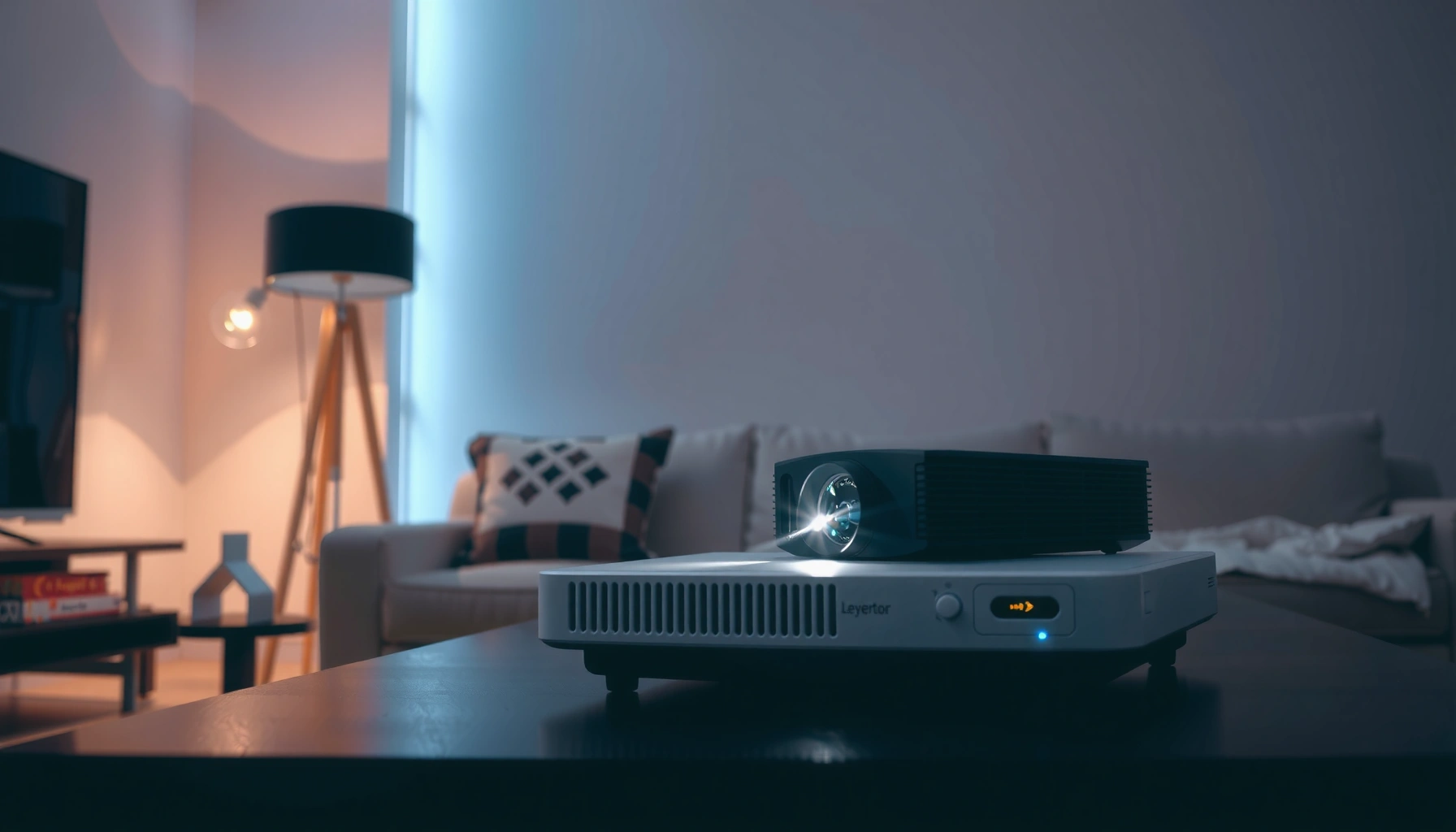
Choosing the right projector for home comes down to one decision: which type and specs will actually deliver the picture quality, brightness, and low-latency performance you need for your space. This buying guide tells you exactly what to look for—lumens for your room size, true resolution, HDR support, throw distance, connectivity, and speaker quality—so you can buy without guesswork. If you want the clearest path to the best home setup for movie night or gaming, read on for the checklist that narrows your options fast.



![[Built-in Apps/4K Support] Smart Outdoor Projector with WiFi and Bluetooth, Movie Projector, DoIby Audio with Dual Speaker, Auto Focus w/ YouTube&PrimeVideo Proyector, Upgrad P62 Pro](https://m.media-amazon.com/images/I/51H3v1q5xyL._SL500_.jpg)
A good home projector should match your room size and viewing distance, and it should deliver the brightness and native resolution you’ll actually need for your setup. The quickest way to avoid a disappointing image is to start with throw distance and screen size, then verify lumens (for your lighting) and native resolution/contrast (for picture quality). After that, confirm the projector’s connectivity and lens/throw flexibility so your placement doesn’t force heavy keystone correction.
If you’re shopping for movie nights, sports, or gaming at home, you’re in the right place—especially if you don’t want to overspend or end up with a projector that can’t produce a usable image in your lighting. We’ll cover the specs that change the real experience most, plus what can go wrong.
Match the projector to your room (distance, size, throw)
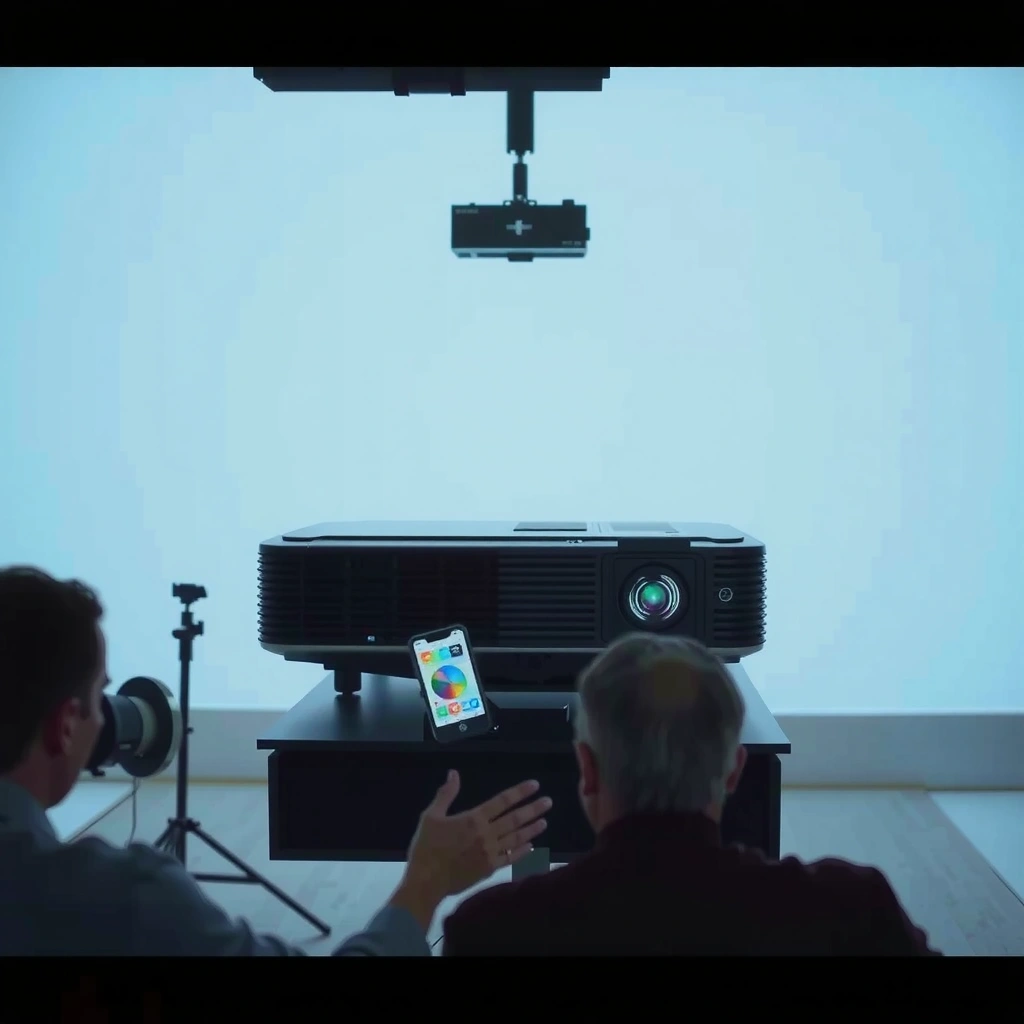
Your projector choice should start with math: screen size and throw distance determine whether you can physically get the image large enough without turning the unit into an awkward lens-to-wall experiment. Once throw works, the rest—brightness, resolution, and contrast—becomes much easier to evaluate.
The first step is to measure from your projector’s intended position to the screen (throw distance). Then use the projector’s throw ratio/throw distance chart (in the owner’s manual or spec sheet) to confirm the projector can hit your desired screen width/diagonal. If the chart shows image sizes that don’t overlap your measured throw distance, you’ll end up relying on digital corrections or living with an image that’s too small.
Placement decisions also matter. Ceiling mount versus tabletop placement changes your ability to keep the lens centered and level. That’s important because lens shift (vertical/horizontal) and zoom range help you align the image without overusing keystone. If you plan to mount and measure once, you can be more flexible; if you move the projector often, you’ll want more alignment forgiveness.
Finally, lighting conditions change the brightness requirement. A projector that looks “fine” in a store demo (usually dark) may wash out in a living room with daylight or evening lamps. In 2026, most models still can’t “fight” daylight the way a TV does—so aligning throw and lighting expectations is still the main winning strategy.
Throw ratio charts in projector manuals show the exact relationship between throw distance and image size, which is the first filter you should apply before comparing brightness or resolution.
Using excessive keystone means the projector must digitally warp the image to fit, which can reduce perceived sharpness and produce uneven geometry.
Lens shift and zoom are alignment tools that usually let you keep the optics closer to their intended geometry—often a better long-term approach than keystone-only setups.
Brightness (lumens) and lighting conditions
The right brightness is the one that keeps your image visible in your real room lighting. For most homes, that means choosing lumens based on whether you watch with lights on or in a darker room, not based on marketing numbers alone.
Start with the claimed brightness (often listed in lumens). If your typical viewing happens with windows open, lamps on, or the projector in a bright multipurpose room, you’ll generally need substantially more output than a dedicated theater space. If you consistently watch with controlled lighting, you can usually accept a lower lumen class—as long as contrast and screen reflectivity are appropriate.
It’s also important to understand that lumen ratings are not universally comparable unless the manufacturer’s measurement method matches a recognized standard. Many spec sheets still rely on different testing approaches, leading to “looks brighter on paper” confusion. Check whether the manual references a known test standard and how it’s measured.
Also, plan for screen behavior. A high-gain screen (or a bright wall with the wrong color) can change perceived brightness and contrast dramatically. If you’re using a plain wall, be realistic: wall paint is not designed for uniform reflectance, and ambient light will further flatten blacks.
Finally, don’t let lumens dominate the decision. You can have high brightness but still get a weak image if contrast is low, the native resolution is mismatched to your viewing distance, or HDR-style tone mapping isn’t effective.
ANSI lumens are derived from a standardized multi-point measurement approach defined by ANSI/industry display measurement methods, not a single “peak” brightness reading.
In practical home viewing, the same projector will look dimmer with lights on because ambient light reduces effective contrast even if the lumen number stays constant.
Lumens help visibility, but contrast and native resolution determine how “clean” details look once the image is bright enough to see.
Home Projector Brightness Targets by Typical Room Use (Reference-Based, Not Daylight-Grade)
| # | Room Viewing Pattern | Typical Goal | Suggested Brightness Class (Lumens) | Match Confidence | Risk of “Washed Out” If Under-Bright |
|---|---|---|---|---|---|
| 1 | Dedicated dark room (lights off) | Cinema-like viewing | 2,500–3,500 | ★★★★☆ | Medium |
| 2 | Dark-ish room (dim lamps) | Balanced contrast + visibility | 3,000–5,000 | ★★★★☆ | Medium–High |
| 3 | Living room evenings (lights on) | Lamps visible, image still punchy | 4,000–7,000 | ★★★☆☆ | High |
| 4 | Daytime viewing (windows/blinds) | Best-effort visibility | 6,000–10,000+ | ★★☆☆☆ | Very High |
| 5 | Gaming with moderate room light | Bright HUD + readable motion | 3,500–6,000 | ★★★☆☆ | Medium–High |
| 6 | Outdoor-ish / bright multipurpose space | Functional image, less cinematic | 7,000–12,000 | ★☆☆☆☆ | Very High |
| 7 | Mostly text-heavy use (slides/contracts) | Readable text, less black-depth demand | 3,500–6,500 | ★★★★☆ | Lower |
Resolution, contrast, and “real” picture quality
Choose native resolution first, because it affects clarity in a way upscaled or simulated “4K” rarely matches for every content type. Then add contrast and HDR tone behavior to decide whether the image feels cinematic or flat.
Native resolution is the count of pixels the projector can render as its true display grid (for example, 1920×1080 is 1080p, and 3840×2160 is 4K UHD). According to CTA (4K UHD commonly defined as 3840×2160), 4K UHD is 3840×2160—so if a spec claims “4K” you should verify whether it’s native or implemented through pixel-shifting. Pixel-shifting can look impressive, but it’s still different from true native sampling, especially when the source contains fine diagonal lines, text, or fast-moving details.
Contrast is what makes blacks look solid and bright scenes look less “gray.” For home viewing, contrast and HDR handling are especially noticeable when you watch in darker rooms. If you mostly watch daytime sports with lights on, you may care less about deep blacks—but you still want the image to preserve detail rather than blow out highlights.
For sports and action, motion handling is another practical quality lever. Look at listed frame-rate support and any motion interpolation or “response” features. Even if you can’t quantify motion in lumens, you can often spot whether the projector supports common refresh rates for streaming and gaming without awkward conversion artifacts.
To keep this decision clean, here’s a simple way to compare “what you’ll feel” from each spec:
| Spec | What it affects in practice | When it matters most |
|---|---|---|
| Native resolution | Sharpness and text clarity | Mixed content, close viewing, sports graphics, subtitles |
| Contrast + HDR tone | Black levels and scene separation | Movies in dark rooms, cinematic games |
| Motion handling | How smoothly action looks | Fast sports, FPS games, camera pans |
A projector’s “native resolution” corresponds to the display grid it actually uses, while pixel-shifting is a processing method that can’t perfectly replace true native sampling in all scenes.
In darker rooms, contrast and HDR-style tone mapping typically have a bigger perceived impact than adding extra lumens.
For sports and gaming, look for motion-related features and supported refresh rates to reduce judder or conversion artifacts.
Connectivity and setup compatibility (what you’ll plug in)
Connectivity is where good specs often fall apart—because you can’t enjoy a projector if it can’t accept your sources or match your display settings. Before you fall in love with the image, confirm that your HDMI, audio, and device requirements are actually supported.
First, verify your sources: streaming boxes, Blu-ray players, game consoles, and laptops. Most home projectors include HDMI inputs, but you still need to confirm which HDMI versions and what formats are accepted. For gaming and laptops, resolution and refresh rate support matter (for example, whether 1080p at a specific refresh rate is supported without forced downscaling). The manufacturer spec sheet or owner’s manual should list supported HDMI formats and refresh rates; if it doesn’t, assume you’ll have to test.
Next, check audio output. Some projectors have built-in speakers, but many home setups use an external soundbar or AV receiver. Verify whether the projector provides ARC/eARC (if you’re using a compatible TV path), optical audio, 3.5mm analog, or Bluetooth. Discovering “no compatible audio output” is one of the most common setup frustrations.
Finally, confirm convenience features that affect day-to-day use: remote responsiveness, streaming/app support (if included), and whether the projector can reliably handle the refresh rates your devices output. This matters most if you switch between consoles, a laptop, and a streaming stick.
An HDMI connection may work at a basic level but still fail your target refresh rate, causing forced conversion or reduced clarity—so supported formats must be verified in the manual.
Audio compatibility (optical/analog/ARC) is a separate requirement from video input, and it can be missing on some models despite excellent image specs.
If your setup relies on streaming services, confirm whether the projector has native apps or whether you’ll always use an external HDMI streamer.
Important documentation gap to verify: [ADD: source for supported HDMI formats/refresh rates from the manufacturer spec sheet.]
Placement flexibility: lens shift, zoom, and keystone tradeoffs
Placement flexibility determines whether your projector delivers a sharp, correctly-shaped image—or a “mostly square” one with visible softness. The safest buying approach is to select a model with enough zoom and/or lens shift so your placement doesn’t force aggressive keystone correction.
If you mount the projector and can measure carefully, keystone becomes less necessary. Lens shift (if the model includes it) lets you move the image up/down or left/right optically, which tends to preserve sharpness because the image isn’t being warped as much. Zoom is also valuable because it changes where you can place the projector while still maintaining the screen size.
Keystone correction can get you to an image on the wall, but it has tradeoffs. Excessive keystone increases digital processing and effectively changes pixel mapping, often reducing perceived sharpness and introducing unevenness. In practice, heavy keystone can make text look less crisp and edges look slightly inconsistent—especially noticeable in UI elements, subtitles, and game HUDs.
Also check ceiling mount compatibility in the manual. Some projectors are designed for specific mounting orientations; others are fine with universal mounts. If your plan is ceiling-first, confirm that the image orientation and mounting geometry match the projector’s supported configuration.
Keystone correction is typically a digital warp, so the further you push it, the more sharpness and geometry fidelity you risk.
Lens shift and zoom generally reduce the need for keystone by allowing you to align the optics more directly with the screen.
If you intend to ceiling-mount, the owner’s manual and mounting specs are the authoritative source for compatibility.
What can go wrong (common mistakes and edge cases)
Most projector disappointment comes from mismatched assumptions: people buy for specs on a box rather than for the constraints of their room. If you want the “great image” outcome, stress-test your plan against lighting, throw distance, and input support.
Common mistake #1 is “maximum brightness wins.” Higher lumens can help, but only if it’s enough for your screen size and ambient light. If you oversize the image, you reduce effective brightness per square foot and the image can look washed out anyway.
Mistake #2 is assuming resolution marketing equals clarity. Some projectors advertise “4K” through pixel-shifting. That can be very good, but it’s not guaranteed to replicate true native resolution for all content types, particularly fine textures and moving diagonal details. Manufacturer definitions differ, so you need a real source that explains what “4K” means for that brand and model.
Mistake #3 is expecting perfect geometry after keystone. If your throw distance forces the projector far off-axis, keystone becomes heavy. That can yield softness and unevenness even if the shape looks acceptable from ten feet away.
Mistake #4 is overlooking input support—especially for gaming. A projector may accept HDMI, but not at your desired resolution/refresh rate. Without the correct supported HDMI formats, you can end up with lower frame rates, forced modes, or compatibility issues that degrade gameplay.
If the projector can’t physically be positioned to minimize keystone, you should treat “keystone correction” as a fallback, not your primary alignment strategy.
“4K” claims require context: the only trustworthy comparison comes from the manufacturer’s definition of pixel-shifting vs. native rendering.
For gaming, supported HDMI resolution/refresh-rate combinations must be verified in the manufacturer spec sheet to avoid silent downscaling.
Documentation gaps to verify for any model you’re considering:
– [ADD: source/clarification for how the specific manufacturer defines its “4K” approach.]
– [ADD: source for supported HDMI formats/refresh rates from the manufacturer spec sheet.]
Verdict: a practical buying tip (and who should skip certain setups)
If you want the best odds of a satisfying home experience, prioritize (1) throw distance vs. your desired image size, (2) brightness suited to your room lighting, and (3) connectivity that matches your devices. I’d recommend skipping “just use keystone” as your main strategy—choose a model with zoom and/or lens shift if your placement won’t be perfectly centered. If your room is strongly light-controlled and you’re okay with a fixed setup, you can be more flexible; if your setup changes often (moving the projector frequently), lens flexibility and easy placement become even more important.
One caution from my perspective as a practical planner (not a lab tester): I’ve seen too many setups where the projector “technically throws” the right size, but only by using heavy keystone or by positioning the lens at an angle that the model wasn’t designed for. If your room doesn’t allow a reasonably direct line from lens to screen, you’ll feel it immediately in sharpness and geometry—so it’s worth spending time upfront on throw charts and alignment features.
Who should skip certain setups? If you regularly need daylight viewing with lights fully on and a large screen, a projector may not match the convenience of a TV despite higher lumens. Similarly, if you need perfect geometry while frequently moving the unit around, prioritize optical alignment features—otherwise you’ll end up re-correcting the image every session.
The highest-impact selection criteria for home projectors are throw feasibility, brightness for your ambient lighting, and optical alignment support (lens shift/zoom) to reduce keystone reliance.
Avoid assuming marketing specs (lumens and “4K”) will translate directly to your room—always compare against the projector’s manual charts and definitions.
If your placement forces heavy keystone, the resulting image softness can be more noticeable than the difference between two similar native-resolution classes.
Quick scan checklist (save this)
– Throw distance / placement: Can you achieve your target image size from where the projector will sit/mount?
– Brightness vs room lighting: Will you mainly watch in the dark, or with lights on?
– Native resolution clarity: Does the spec match your content (movies, TV, text-heavy work, gaming)?
– Connections: Do you have enough HDMI/inputs for your devices and the outputs for your sound setup?
– Geometry control: Prefer lens shift/zoom; avoid relying heavily on keystone.
– Mounting compatibility: Does the manual/specs support your planned mounting method?
FAQ
Do I need a special screen, or will a plain wall work?
A plain wall can work for some setups, but a dedicated screen often improves contrast, uniformity, and consistency—especially when ambient light is present. Check your projector’s brightness for your intended screen size and consider whether your wall paint color is dark enough to support blacks.
Is “4K” the most important spec for home projectors?
Native resolution and how the projector processes/represents detail matter, but brightness, contrast, and correct throw placement often have a bigger day-to-day impact. If your projector can’t put enough brightness on your screen size, higher “4K” claims won’t feel better in practice.
What’s more important: lumens or resolution?
Both matter. Lumens determine whether you can comfortably see the image in your lighting, while resolution (especially native resolution) determines how sharp the image feels once brightness is sufficient.
Can keystone make an image look “off”?
Yes. Heavy keystone correction can reduce sharpness and distort geometry. If you need frequent keystone changes, lens shift/zoom (or better placement) is usually the safer long-term approach.
Sources
– Manufacturer projector spec sheets and owner’s manuals (for throw ratio/throw distance charts, brightness measurement notes, supported input formats, and mounting compatibility).
– ANSI/industry display measurement methods for lumen testing; see ANSI/IES or related ANSI display measurement documentation (for ANSI lumens methodology).
– CTA definitions for 4K UHD (3840×2160) (used to contextualize what “4K UHD” refers to).
– THX home theater viewing targets (e.g., reference foot-lamberts guidance) for luminance/contrast expectations in controlled rooms.
– [ADD: specific manufacturer documentation you’re using as the reference for any detailed “how it’s defined” claims—e.g., brightness rating method, HDMI format support, or pixel-shifting definition.]
A final note: the best home projector buying decision is the one that matches your room’s geometry and lighting reality. If you start with throw and brightness, verify native-resolution and connectivity in the manual, and keep keystone as a last-resort adjustment, you’ll be much closer to that “wow” image on the wall—without surprises during setup.
Frequently Asked Questions
What brightness (lumens) do I need for a projector for home?
For a home projector, brightness is often the biggest factor in how well your image looks, especially in living rooms with some ambient light. For a dark, light-controlled room, many users find 1,500–2,500 ANSI lumens enough for comfortable viewing, while brighter rooms typically need 2,500–3,500+ lumens. If you plan to watch in the daytime or without blackout curtains, prioritize higher lumens or consider an ALR (ambient light rejecting) screen to improve contrast and clarity.
How do I choose the right projector resolution for home viewing?
Resolution affects sharpness, especially for text, sports, and streaming content. For most home theaters, 1080p is a solid minimum for larger screens, while 4K (or “4K UHD”) is the best choice if you want extra detail and future-proofing. If you sit close to the screen, a higher resolution becomes more noticeable, so measure your seating distance and match it to the projector’s native resolution for the best experience.
Why should I care about throw distance and screen size when buying a projector for home?
Throw distance determines how far the projector needs to be from your screen to achieve your desired image size, and it can limit placement in real rooms. Check the projector’s throw ratio and specs to avoid buying a model that can’t fill your wall or screen at the distance you have. Also consider lens shift (if available) and keystone correction—lens shift helps keep your image geometry accurate with less quality loss than heavy keystone adjustments.
Which home projector features matter most for gaming and fast-moving content?
For gaming, look for low input lag (often marketed as “game mode” and measured in milliseconds), a high refresh rate (especially for 1080p/4K-capable models), and good motion handling. HDMI 2.0/2.1 support and consistent performance with popular consoles and streaming devices are also important to avoid sync issues. If you want a more immersive picture, consider HDR support and strong color performance, but only if your content sources actually support them.
What is the best type of projector for home: LED, lamp, or laser?
LED projectors are typically budget-friendly and can be great for casual home viewing, but they may have lower brightness and shorter peak performance compared to higher-end options. Lamp projectors can offer strong image quality for the price, but you’ll need periodic bulb replacements and plan for maintenance costs. Laser projectors often deliver higher brightness consistency, longer lifespans, and lower upkeep, making them a popular choice for dedicated home theaters—even if the upfront cost is higher.
📅 Last Updated: October 08, 2026 | Topic: What to Look for in a projector for home | Content verified for accuracy and freshness.
References
- https://en.wikipedia.org/wiki/Projector
- https://en.wikipedia.org/wiki/Home_theater_projector
- https://www.nasa.gov/vision/earth/features/infrared-imaging-101.html
- https://www.britannica.com/technology/projector
- https://www.mayoclinic.org/healthy-lifestyle/adult-health/in-depth/sleep/art-20048383
- https://www.cdc.gov/screening/index.html
- https://www.who.int/health-topics/physical-activity
- https://scholar.google.com/scholar?q=home+projector+how+to+choose+brightness+resolution+contrast Google Scholar
- https://scholar.google.com/scholar?q=projector+performance+lumens+contrast+keystone+throw+ratio Google Scholar
- https://scholar.google.com/scholar?q=projector+screen+selection+gain+color+temperature+ambient+light Google Scholar