If your Bose home theater system‘s HDMI ARC feature isn’t working, don’t worry—there are several fixes you can try. By checking connections, adjusting settings, and ensuring compatibility, you can typically resolve most issues. This article will guide you through the essential troubleshooting steps to restore your audio experience, ensuring that you can maximize your home theater’s capabilities.


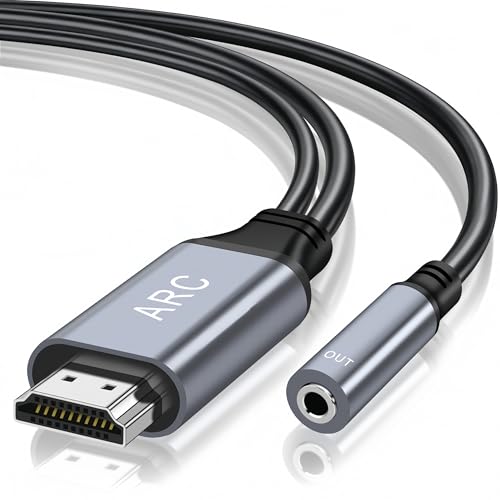
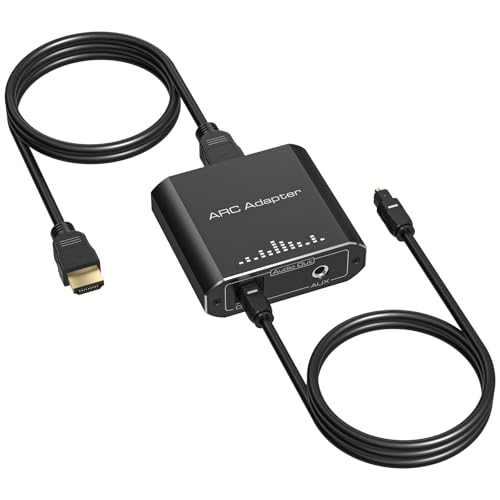
HDMI ARC (Audio Return Channel) is a convenient feature that allows audio from your television to be sent back to your Bose home theater system using a single HDMI cable. This setup simplifies your entertainment experience, but when it encounters problems, it can be frustrating. The good news is that troubleshooting HDMI ARC issues is often straightforward. By systematically checking physical connections, verifying TV settings, updating firmware, enabling CEC features, restarting devices, testing with different devices, and consulting support resources, you can usually restore functionality. Let’s delve into each step in detail.
Check Physical Connections

One of the most common causes of HDMI ARC issues is a problem with the physical connections. Begin by ensuring that HDMI cables are securely connected to the HDMI ARC ports on both your TV and the Bose system. Look for the HDMI port labeled “ARC” on your TV; this is the port that needs to connect to the HDMI ARC input on your Bose device.
It’s also vital to inspect the HDMI cable itself for any visible damage or wear. Cables can become frayed, kinked, or otherwise compromised, leading to connectivity issues. If you notice any damage, consider replacing the cable with a high-speed HDMI cable that supports ARC. Additionally, ensure that you are using a cable that meets the HDMI standards required for ARC, as not all HDMI cables are created equal.
Verify TV Settings

Once you have confirmed that all physical connections are secure, the next step is to verify your TV settings. Access your TV’s audio settings to ensure that HDMI ARC is enabled. This option is typically found in the audio or sound settings menu. Depending on your TV model, you may see an option labeled “HDMI ARC” that needs to be activated.
Next, check the TV’s audio output format. The output should be set to the correct format, often labeled as “Bitstream” or “Auto.” In some cases, certain audio formats may not be compatible with ARC, so selecting the right option is crucial for seamless audio transmission.
Update Firmware
Outdated firmware can lead to compatibility issues between your TV and Bose home theater system. To ensure both devices are functioning optimally, check for firmware updates for both your TV and your Bose device. Manufacturers regularly release updates to fix bugs and enhance functionality, so staying current is key.
To check for updates, navigate to the settings menu on both devices. Follow the manufacturer’s instructions to install any available updates. This may involve connecting your devices to the internet and following prompts on the screen. By keeping your firmware updated, you can minimize the chances of encountering HDMI ARC issues.
Enable CEC Features
Another important aspect to check is the Consumer Electronics Control (CEC) settings. CEC allows devices connected via HDMI to communicate with each other, which is essential for HDMI ARC functionality. Confirm that CEC is enabled on your TV, as this often impacts HDMI ARC performance.
Look for settings labeled as “Anynet+,” “Bravia Sync,” or similar, depending on your TV brand. Enabling CEC might require you to navigate through a few menus, but once activated, it can significantly improve the interaction between your devices, making your home theater experience much more enjoyable.
Restart Devices
Sometimes, a simple power cycle can resolve HDMI ARC issues. To do this, unplug both the TV and the Bose system from the power source for a few minutes. This process can help reset the connection and eliminate temporary glitches that may be causing the problem.
After a few minutes, plug both devices back in and turn them on. This step can clear any software hiccups and refresh the connection, potentially restoring the HDMI ARC functionality.
Test with Different Devices
If the problem persists, it’s important to isolate the issue. Try connecting another HDMI ARC-compatible device to your Bose system. This test will help you determine if the issue lies with the TV or the Bose unit itself. For instance, you might connect a Blu-ray player or a game console to see if sound is transmitted properly.
If the second device works seamlessly with the Bose system, the original device may need further troubleshooting, such as checking its settings or updating its firmware. Conversely, if the new device also fails to transmit audio, the issue likely lies within the Bose system or its configuration.
Consult Support Resources
If you’ve followed all these troubleshooting steps and still encounter issues, it’s time to consult support resources. The Bose support website offers a wealth of specific troubleshooting tips tailored to your model. You can also refer to your user manual for guidance on common issues.
If you continue to struggle with HDMI ARC functionality, don’t hesitate to contact customer support. They can provide expert assistance and may help you resolve complex issues that are not easily identifiable through basic troubleshooting.
Common HDMI ARC Issues and Solutions
| # | Issue | Possible Cause | Solution |
|---|---|---|---|
| 1 | No Sound | Incorrect TV Audio Settings | Check audio output settings |
| 2 | Intermittent Sound | Loose Connections | Re-seat HDMI cables |
| 3 | Audio Delay | Settings Mismatch | Adjust audio sync settings |
| 4 | Device Not Recognized | Firmware Issues | Update firmware for both devices |
| 5 | No ARC Functionality | ARC Not Enabled | Enable HDMI ARC in TV settings |
| 6 | Screen Flickering | HDMI Cable Issues | Replace HDMI cable |
| 7 | Static Sound | Interference | Check for nearby devices causing interference |
HDMI ARC Compatibility by Device Type
By systematically going through these troubleshooting steps, you should be able to resolve the HDMI ARC issues with your Bose home theater system. Remember to check connections, settings, and updates to ensure everything is functioning properly. If problems persist, don’t hesitate to reach out to customer support for assistance. Restoring your audio experience can significantly enhance your home entertainment, allowing you to enjoy your favorite movies, shows, and music without interruptions.
Frequently Asked Questions
What should I check if my Bose home theater system is not detecting HDMI ARC?
If your Bose home theater system is not detecting HDMI ARC, start by ensuring that the HDMI cable is securely connected to both the TV and the Bose receiver. Additionally, verify that the HDMI ARC port is being used on both devices, as not all HDMI ports support ARC functionality. Checking for any firmware updates for your Bose system and TV can also resolve compatibility issues.
How do I enable HDMI ARC on my Bose home theater system?
To enable HDMI ARC on your Bose home theater system, go to the settings menu on your Bose receiver and look for the HDMI settings. Ensure that the HDMI ARC option is turned on, and confirm that the input you are using corresponds to the HDMI ARC port on your TV. Lastly, make sure your TV’s audio output settings are set to ARC as well.
Why is there no sound coming from my Bose home theater via HDMI ARC?
If there is no sound coming from your Bose home theater system via HDMI ARC, first check that the volume is turned up on both the TV and the Bose system. Additionally, ensure that the TV’s audio output is set to the correct settings for HDMI ARC, which may include disabling TV speakers. If the issue persists, try using a different HDMI cable to rule out any cable faults.
What is the best way to troubleshoot HDMI ARC issues with my Bose home theater?
The best way to troubleshoot HDMI ARC issues with your Bose home theater is to start with the basics: verify connections, check settings, and restart both devices. Unplugging the HDMI cable and reconnecting it can sometimes reset the connection. If the problem continues, consider resetting your Bose system to factory settings, ensuring that it is fully updated.
Which HDMI cables are compatible with Bose home theater systems for ARC functionality?
For optimal performance and compatibility with Bose home theater systems for ARC functionality, it’s recommended to use high-speed HDMI cables that support audio return channel (ARC). Look for cables labeled as High-Speed HDMI with Ethernet or Premium High-Speed HDMI cables to ensure they meet the necessary bandwidth for ARC. Avoid using older or lower-quality cables, as they may not support the required features.
References
- https://www.bbc.com/news/technology-55790499
https://www.bbc.com/news/technology-55790499 - HDMI Licensing Administrator, Inc.
https://www.hdmi.org/spec/ - Google Scholar Google Scholar
https://scholar.google.com/scholar?q=Bose+Home+Theater+HDMI+ARC+Not+Working - Google Scholar Google Scholar
https://scholar.google.com/scholar?q=HDMI+ARC+fixes+for+Bose+Home+Theater - https://pubmed.ncbi.nlm.nih.gov/31553934/
https://pubmed.ncbi.nlm.nih.gov/31553934/ - https://www.sciencedirect.com/topics/engineering/hdmi
https://www.sciencedirect.com/topics/engineering/hdmi - https://www.nytimes.com/2020/01/13/technology/personaltech/hdmi-arc.html
https://www.nytimes.com/2020/01/13/technology/personaltech/hdmi-arc.html - Customer Support
https://www.bose.com/en_us/support/article/hdmi_arc_not_working.html - Google Scholar Google Scholar
https://scholar.google.com/scholar?q=Bose+Home+Theater+HDMI+ARC+Not+Working?+Try+These+Fixes - Bose Home Theater HDMI ARC Not Working? Try These Fixes – Search results
https://en.wikipedia.org/wiki/Special:Search?search=Bose+Home+Theater+HDMI+ARC+Not+Working?+Try+These+Fixes