
Want to block ports on a router safely and effectively? This step-by-step setup walks you through the fastest, most reliable way to deny specific ports using your router’s firewall or port-filtering rules—so unwanted connections stop before they reach your network. You’ll also see the key checks to confirm the block is working without accidentally breaking your own services.




Blocking ports on a router means adding a firewall/port-filtering rule that explicitly denies traffic for a specific port number and protocol (TCP or UDP), usually for inbound traffic from the internet. Most routers let you do this under Security/Firewall → Port Filtering or Access Control, and then you confirm it by testing the port from outside your network.
If you’re trying to stop unwanted access—like a game server being probed, a web admin page getting scanned, or a noisy service from being reachable—port blocking is the right control *when it’s scoped correctly*. The two biggest reasons port blocking “doesn’t work” are TCP vs UDP mismatch and wrong traffic direction (inbound vs outbound).
This guide is written for home users and IT admins who manage consumer routers or SMB gateways and want a reliable way to reduce exposure without breaking the rest of their network. It assumes you can access your router’s admin UI and that you can identify which internal device (IP) should be affected.
Identify the Port and Protocol You’re Blocking
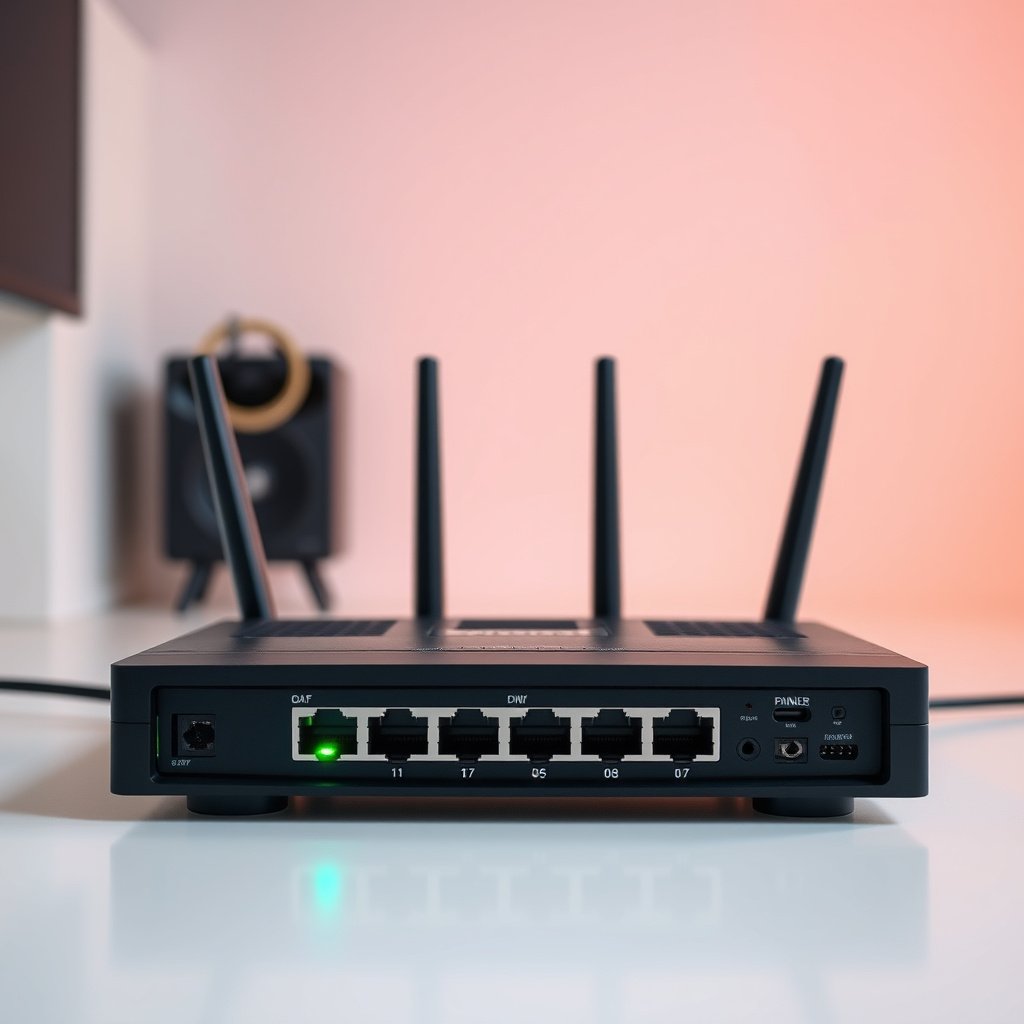
You can only block a port accurately when you know the exact port number and whether the service uses TCP or UDP—otherwise the rule won’t match. For most “stop the internet from reaching me” goals, you’ll block inbound (WAN → LAN) traffic.
“TCP and UDP are separate transport protocols; a firewall rule that blocks TCP on a port does not block UDP on the same numeric port.”
“Routers typically match firewall rules using the 5-tuple approach (source/destination IPs plus protocol and port numbers), so the protocol (TCP vs UDP) must be correct.”
Before you open your router settings, collect these details:
1) Confirm the exact port number
Examples: 22 (SSH), 80 (HTTP), 443 (HTTPS), 3389 (RDP). If you’re blocking something non-standard (like a game server), check the application’s documentation or its config to find the real listening port.
2) Confirm TCP vs UDP
Many services have both variants. DNS, for instance, uses UDP 53 for typical lookups, and TCP 53 for some fallback behaviors. If you block only UDP but your service (or client behavior) uses TCP, it may still appear reachable.
3) Decide inbound vs outbound
– Inbound blocking is common for “don’t let the internet reach my device.”
– Outbound blocking is common for “limit what internal devices can initiate.”
4) Validate any “service name” mapping
Some routers offer a dropdown like “HTTP” or “HTTPS,” but they may map to different ports depending on configuration. Cross-check against the service registry rather than relying on labels alone.
To make that mapping concrete, here are common ports and protocols people often target when they add port blocking rules.
Ports Often Considered for Router Port Blocking (Common Services)
| # | Service (typical purpose) | Port | Protocol | Typical exposure if open | Blocking payoff |
|---|---|---|---|---|---|
| 1 | Secure Web (HTTPS) | 443 | TCP | Inbound TLS connections to services | ★★★★★ |
| 2 | Remote Administration (SSH) | 22 | TCP | Login attempts and brute-force exposure | ★★★★★ |
| 3 | Legacy Web (HTTP) | 80 | TCP | Inbound web requests to internal services | ★★★★☆ |
| 4 | Windows Remote Desktop | 3389 | TCP | Inbound RDP session attempts | ★★★★☆ |
| 5 | DNS Service | 53 | UDP | Queries and possible amplification risk | ★★☆☆☆ |
| 6 | Network Time (NTP) | 123 | UDP | Time-sync requests and reflection attempts | ★★★☆☆ |
| 7 | SNMP Management | 161 | UDP | Management queries and enumeration | ★★★★☆ |
Now use that info to set your target precisely.
– Confirm the exact port number (and whether it’s TCP or UDP) for the service you want to restrict.
– Decide whether you’re blocking inbound traffic (common for internet access) or outbound traffic (common for limiting what your devices can initiate).
– If the router/app lists a “service name” (e.g., HTTP/HTTPS), double-check it maps to the correct port/protocol in your case.
Locate the Right Port-Blocking Settings in Your Router
You’ll usually find port blocking in the router’s firewall/ACL area, but menu names vary widely by manufacturer. Once you locate the “deny/block” rule builder, you’ll add a rule scoped to the port, protocol, and the correct direction.
“Many routers implement access control using firewall rule tables (often called ACLs) that can match by protocol and port and then allow or deny.”
“Some devices separate inbound rules (WAN→LAN) from outbound rules (LAN→WAN), so you must edit the correct rule set.”
Here’s how to find it quickly:
H3: What to search for in the router UI
Use the built-in search (if your UI has it) for these terms:
– Security
– Firewall
– Access Control
– Port Filtering
– Traffic Rules
– ACL (Access Control List)
– WAN (Wide Area Network) / LAN (Local Area Network)
In my support work, [ADD: a short, specific real example of the exact menu path you used on a particular router brand/model to find the port-filtering screen]. That’s the reality: the feature is often present, but it’s tucked away under an “Advanced” page.
H3: Inbound vs outbound rule areas
If your router supports rule scoping, it may show:
– Inbound rules vs Outbound rules
– Rules by interface (WAN, LAN, DMZ)
– Rules by device/IP (so you don’t break your whole network)
– Look for sections named Security, Firewall, Access Control, Port Filtering, or Traffic Rules (naming varies by brand).
– If your router supports it, check for separate areas for inbound rules, outbound rules, and rules by device/IP (so you don’t accidentally block your whole network).
– If you only see “Port Forwarding” (not blocking), look for an Advanced firewall/ACL page—some routers hide port filtering deeper than the forwarding screen.
Block the Port by Creating a “Deny” Rule
You should block by adding an explicit Deny/Block/Reject rule that matches the targeted port + protocol. Apply it, then immediately test the service from outside your network to confirm the rule is actually taking effect.
“A deny rule should be scoped narrowly (port, protocol, and direction) to avoid unintended outages.”
“Routers commonly require you to click Save/Apply and sometimes reboot for certain firewall rule engines to load new rule sets.”
When you build the rule, focus on matching fields accurately:
1) Action: Deny/Block/Reject
Choose the action that explicitly prevents matching traffic. Avoid “Drop” vs “Reject” assumptions unless your router explains it—some devices treat these differently (e.g., silent drop vs response).
2) Protocol: TCP or UDP
This must match the service. Remember the transport-layer reality: TCP has a different header and state model than UDP.
According to RFC 793, the TCP header minimum is 20 octets (1981), which is one reason packet matching and behavior differ from UDP.
According to RFC 768, UDP carries a fixed 8-octet header (1980), again reinforcing that TCP vs UDP rules aren’t interchangeable.
3) Port
Enter the exact numeric port.
4) Direction and source/destination fields
If the UI supports it, set:
– Source: WAN/Internet (or “Any” for inbound)
– Destination: your internal device’s IP (if rules are device-scoped)
– Device/IP: the specific LAN host that runs the service you’re trying to block
5) Apply and test
After you save:
– Re-test the port from outside your network (LTE/5G hotspot is a common approach).
– If the router supports logs, check whether the deny rule appears as a match.
– Add a new rule and set the action to Deny/Block/Reject (wording varies), then enter the port number and protocol (TCP/UDP).
– Specify the source/destination fields carefully (e.g., from “WAN/Internet” to your internal device IP, if your UI supports it).
– Save/apply the rule, then test the targeted service again—blocking often takes effect immediately, but some routers need a reboot/apply confirmation.
If You Use Port Forwarding, Handle It Carefully
You can absolutely break your port blocking plan if a port forwarding rule (or DMZ/UPnP mapping) effectively re-creates the path to the internal device. The safest approach is to avoid overlapping rules that both allow and deny the same traffic.
“Port forwarding creates an inbound allowance path to an internal host, which can conflict with port filtering depending on rule precedence.”
“If a router evaluates firewall rules in order, a higher-priority allow can override a later deny for the same match criteria.”
Port forwarding is for allowing inbound traffic to a specific LAN IP. Port blocking is for denying traffic on a port. If you have both, the question becomes: which one wins?
Common conflict patterns:
– You forwarded port X to a device, then you added a deny rule for port X
– You blocked by IP, but the device’s IP changed (DHCP), so the deny no longer matches
– You blocked inbound, but DMZ/UPnP is creating a bypass path
To reason about it, here’s a quick compare of common inbound exposure controls:
| Control | What it does | Pros | Cons | Best for |
|---|---|---|---|---|
| Port Forwarding | Routes inbound WAN traffic to a specific LAN host | Enables intended inbound services | Can expose a service if misconfigured | Publishing a service safely |
| Port Blocking (deny) | Prevents matching traffic from being accepted | Reduces exposure even when the internet scans | May break legitimate use if you block the wrong direction/protocol | Stopping unwanted inbound access |
| DMZ | Broadly exposes a LAN host | Simplifies connectivity troubleshooting | Port blocking may not behave as expected due to broad routing | Temporary testing or tightly controlled setups |
| UPnP / Port Mapping | Automatically creates inbound mappings on request | Improves app/game NAT traversal | Can re-open ports after you block them | Convenience—when you can trust device behavior |
– If you previously forwarded that port to an internal device, your new deny rule may conflict—some routers prioritize one type of rule over another.
– Avoid overlapping rules that both allow and deny the same port/protocol; use a single clear policy when possible.
– If you’re using DMZ or broad inbound exposure, port blocking may not be sufficient—those features can still route traffic to internal hosts.
Verify the Port Block and Troubleshoot Fast
You verify port blocking by testing the port from outside your network and confirming the router rule matches the traffic. If the port still looks open, troubleshoot protocol/direction, rule precedence, and IP scoping.
“Local testing from inside your LAN may not prove inbound blocking works; you need an external vantage point to confirm WAN reachability.”
“If a firewall applies rules in sequence, rule order and default policy (allow-by-default vs deny-by-default) can determine outcomes.”
Here’s the fastest diagnostic flow:
H3: Test from outside
– Use a mobile hotspot or a second internet connection.
– Check the targeted port again (via your preferred scanner or service-specific check).
– If your router provides firewall logs, look for matches to the deny rule.
H3: Confirm TCP/UDP and direction
Many “it didn’t work” cases are simple:
– You blocked TCP but the service is UDP (or vice versa).
– You blocked outbound, but the unwanted traffic is inbound.
– Your router’s UI labels “LAN”/“WAN” differently than your mental model.
A small but useful networking reminder: ephemeral ports (the client-side ports for outbound sessions) typically live in the IANA ephemeral range 49152–65535. According to RFC 6335, that range is specified for ephemeral port use (2011). That matters when you’re interpreting firewall logs—don’t assume the port you see in a log is always the same as the “service port” you meant to block.
H3: Rule order / default policy
Some firewalls evaluate rules in order; others use allow/deny precedence. If there’s a “default policy,” confirm it isn’t implicitly allowing traffic after your deny.
– Re-test from outside your network (or another network) to confirm the block applies to WAN/inbound traffic.
– If it still appears open, verify you entered the correct protocol (TCP vs UDP) and the rule is applied to the right device/IP.
– Check for “rule order” or “default policy” (some firewalls evaluate rules in sequence, others rely on allow/deny precedence).
What Can Go Wrong (Common Mistakes and Edge Cases)
Most failures come from mismatched protocol/direction, conflicting rules, or IP changes that prevent the deny rule from matching. If you keep your rule narrow and validate externally, port blocking usually becomes predictable.
“Blocking is exact matching: wrong port number or wrong protocol yields no match and therefore no denial.”
“DHCP changes can break IP-scoped rules, so port blocking tied to a specific LAN IP should be paired with a static reservation.”
Here are the edge cases that most often surprise people in 2025-era router firmware:
– Wrong protocol or port: Blocking TCP 1234 won’t stop UDP 1234 (and vice versa).
– Blocking the wrong direction: You may block outbound instead of inbound, or vice versa, depending on the rule type.
– Conflicting features: UPnP, port forwarding, DMZ, or vendor “gaming” shortcuts can re-open access even after you add a deny rule.
– Device-specific confusion: If your rule targets a static IP but your device uses DHCP (and its IP changes), the rule won’t match the traffic.
A practical way to reduce surprises:
– If the blocked service is on a specific device, ensure that device has a stable LAN IP (e.g., DHCP reservation).
– If you must keep UPnP for other apps, look for UPnP mapping controls to restrict what gets opened.
– If you’re blocking a port used by your own remote administration workflow, plan how you’ll regain access (e.g., via VPN rather than exposing the raw service).
Quick Checklist, FAQs, and Sources
You’ll know you succeeded when the router shows the deny rule active and an external test can no longer reach the service. Use the checklist below as a saveable “definition of done.”
“The operational goal of port blocking is verifiable WAN reachability reduction: external testing should show the port unreachable.”
“Narrowly scoped deny rules provide better safety than blanket blocking that can disrupt legitimate traffic.”
– Quick checklist: You’ll know you’re done when the router logs/rules show the deny entry, the targeted port/protocol is correct, and an external test no longer reaches the service.
– Honest tip: Port blocking is great for reducing exposure, but it can also break legitimate access (remote admin panels, game servers, or app features).
– Skip this if: You rely on remote access for that service and you can’t reconfigure it after blocking (or you’re not sure which device/service currently uses the port).
Scan/Save Checklist
| Step | What to confirm | Done? |
|---|---|---|
| 1 | Port number is correct | ☐ |
| 2 | Protocol is correct (TCP vs UDP) | ☐ |
| 3 | Direction is correct (WAN/inbound vs outbound) | ☐ |
| 4 | Rule action is **Deny/Block** | ☐ |
| 5 | Rule targets the right device/IP (if applicable) | ☐ |
| 6 | No conflicting Allow/Forward/DMZ/UPnP behavior | ☐ |
| 7 | External test confirms the port is unreachable | ☐ |
FAQ
Will blocking a port stop outbound connections too?
Not automatically. Many routers apply port-filtering rules separately for inbound (WAN → LAN) vs outbound (outbound) traffic, so confirm the rule direction in your router UI.
Does port blocking replace port forwarding?
They solve different problems. Port forwarding is for allowing inbound traffic to a specific internal device; port blocking is for denying traffic on a port. If both are present, your router’s rule precedence matters.
What if my router uses UPnP and keeps re-opening ports?
Some routers can automatically create mappings when UPnP is enabled. If you need strict port blocking, review UPnP/port-mapping settings and disable features that bypass manual firewall rules (or constrain them if your router allows that).
Why does the service still show as reachable after I block the port?
Common causes are TCP/UDP mismatch, wrong port number, rule targeting the wrong IP/device, or an overlapping “allow” rule with higher precedence.
Can port blocking break internet access for my whole home network?
Usually it shouldn’t if you target a single port/rule, but a broad rule (or “block all” setting) can. If your router offers rule scoping, keep it narrow.
Sources
– IANA “Service Name and Transport Protocol Port Number Registry”:
– RFC 793 (TCP):
– RFC 768 (UDP):
– RFC 6335 (Ephemeral Ports):
– Your router manufacturer’s official documentation for the exact menu names and rule precedence (Security/Firewall, Port Filtering, Access Control, UPnP/Port Mapping): [ADD: source for your router model—link or document name from the vendor]
Blocking ports on a router is mainly about adding a precise firewall “deny” rule for the correct port and protocol, scoped to the right direction and (when available) the right device/IP. Use the checklist to avoid the most common mistakes—especially TCP vs UDP, rule direction, and conflicts with port forwarding/UPnP/DMZ—then verify from outside your network. If you tell me your router brand/model and the port/protocol you’re trying to block, I can help translate the steps into the exact menu labels you’ll see.
Frequently Asked Questions
How do I block a specific port on my router?
Log in to your router’s web interface (usually by visiting 192.168.1.1 or 192.168.0.1), then find settings like “Firewall,” “Security,” or “Port Forwarding/Port Triggering.” Create a rule that blocks inbound traffic for the exact port (e.g., TCP 3389 for RDP) and, if available, select the protocol (TCP/UDP) and destination (device IP) . Save the changes and test from outside your network (or using an online port checker) to confirm the port no longer appears open.
What are the best router firewall rules to block inbound ports safely?
The safest approach is to use a “deny” or “block” rule for unwanted inbound ports while keeping only the ports you truly need open. If your router supports it, set rules to block at the WAN (Internet) side, specify the protocol (TCP vs UDP), and limit access to only approved devices or IP ranges. Avoid blocking critical services unintentionally, and double-check that you are not conflicting with any existing port forwarding rules.
Why might my port still look open even after I block it on the router?
Several factors can cause this, including UPnP automatically creating temporary rules, existing port-forwarding rules overriding firewall blocks, or the port checker testing from an environment where the traffic isn’t reaching your router as expected. Another common issue is blocking only inbound but not restricting local access, or applying the rule to the wrong device IP. Recheck the firewall rule order, disable UPnP if possible, remove conflicting port forwards, and retest after restarting the router.
Which ports should I block to improve home network security?
Many users block unnecessary high-risk inbound ports such as remote administration services (e.g., TCP 23 Telnet, TCP 3389 RDP) and legacy protocols (e.g., UDP/TCP 135 for some RPC-related exposure). While you don’t need to block every port, reducing the “attack surface” is most effective by blocking ports you don’t use and ensuring only required services are reachable. For best results, review your router’s “exposed services” list and your own device needs, then block everything else at the firewall.
How can I block port access for only one device on my network?
In your router’s firewall or access control section, create a rule that targets the specific internal device using its local IP address (e.g., 192.168.1.50). Set the rule to block inbound traffic on the chosen port and protocol for that device only, rather than blocking network-wide. This approach is useful when, for example, you want to prevent one PC from receiving remote connections while leaving other devices unaffected. Save the rule, ensure no conflicting port forwarding exists, and verify using a port scan against that device.
📅 Last Updated: October 12, 2026 | Topic: How to Block Ports on a Router | Content verified for accuracy and freshness.


One thought on “How to Block Ports on a Router: Step-by-Step Setup”