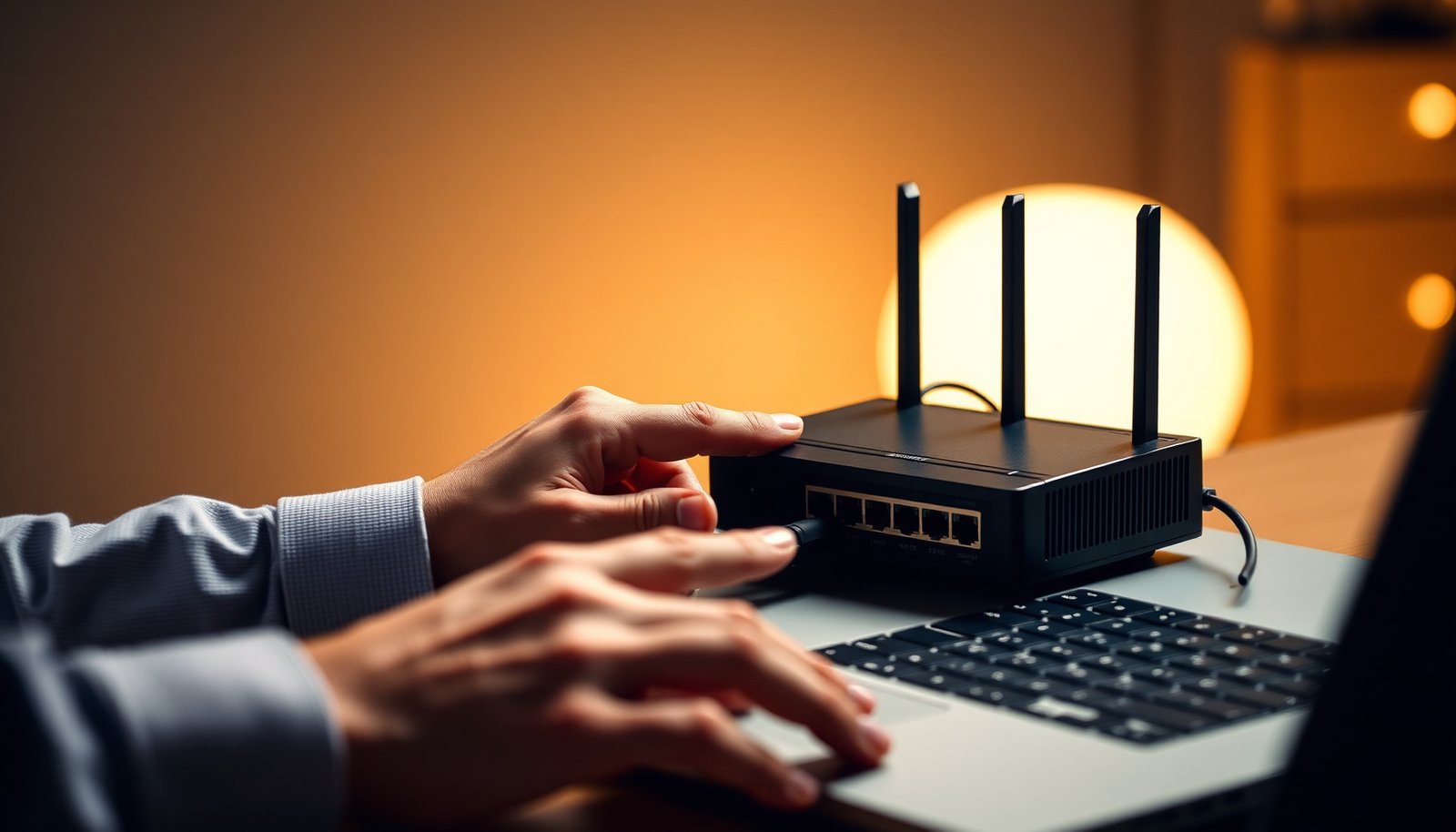
You log into your router and notice the bandwidth limit section, but the numbers feel unclear and you are worried about slowing everything down. With a few carefully chosen limits, you can cap heavy downloads, reserve bandwidth for streaming or work, and reduce congestion across the network. Plan on about 20 to 30 minutes, have your ISP speed figures ready, and be prepared to select the right devices or traffic classes before saving the configuration.




Enforce bandwidth limits at the right control point, set separate download/upload caps per device, and then confirm behavior using live monitoring and a controlled test. You can configure bandwidth limits by choosing where traffic control is applied (router/QoS, firewall, or device-level shaping), then setting download/upload caps per user or device, and finally verifying usage with live monitoring. This guide walks you through the setup logic and the most common gotchas.
If you’re seeing one device hog the connection, you want fair sharing across family/work devices, or you need to prevent a backup/updates from saturating the network, this is for you. It applies to home routers with QoS/rate limiting, small-office firewalls, and operating systems that support traffic shaping.
Choose where bandwidth limits should be enforced

Choosing the enforcement point determines whether your limits apply reliably or get bypassed. Pick the simplest control point that still gives you the granularity you need—typically your router first, then a firewall rule set, and only then device-level shaping if you must.
This is especially important in 2026, because modern networks increasingly use features like guest SSIDs, VPN tunnels, smart offload, and “bridge mode” setups that can route traffic outside the limiter. Bandwidth limits should be applied where you can see and control the traffic you care about (and ideally per-device identifiers).
– Pick the “control point”: router/QoS is usually best for whole-network control; firewall/traffic shaping works for more specific rules.
– Decide whether you’re limiting per device (MAC/IP) or the entire network (global cap), based on your goal.
– Be aware that some features are labeled differently (e.g., QoS, traffic shaping, rate limiting, bandwidth control), depending on the vendor— to match the exact menu names.
What “control point” means in practice
A bandwidth limiter is effective when it queues (buffers) traffic and enforces scheduling decisions before packets leave the control device. On many routers, QoS/traffic shaping is built around a queueing discipline like WFQ (Weighted Fair Queuing) or token bucket rate control. On firewalls, traffic shaping often happens as part of a rule pipeline (e.g., per-source traffic shaping rules). Device-level shaping works too, but it can’t help if the “hog” traffic originates on a different device than you think.
If your goal is fairness—“each device gets a share”—start at the router or gateway, because it’s the natural choke point for LAN-to-WAN traffic. If your goal is policy—“block updates on accounting PCs during business hours”—a firewall rule set is usually better than global QoS.
Quick pros/cons: router vs firewall vs device shaping
| # | Enforcement point | Pros for bandwidth limits | Cons / failure modes |
|---|---|---|---|
| 1 | Router QoS / traffic shaping | Best visibility for multiple LAN devices; easier per-IP/MAC rules; less chance of bypass than device-only shaping. | Some routers apply QoS only to WAN egress (upload) or only to certain traffic classes. |
| 2 | Firewall traffic shaping | Great for business policies (IP groups, schedules, direction-specific caps); more explicit rule control. | More complex; misordered rules can cause bandwidth limits to “not apply” to some flows. |
| 3 | Device-level shaping | Fine-grained control per application/device; useful when you can’t change router settings. | Hard to manage fairness network-wide; traffic from other hosts can still saturate if you only shape one device. |
Set your bandwidth limits (a practical baseline)
Set initial caps using a conservative baseline, then refine after you observe real traffic. For bandwidth limits, two numbers matter most: download cap (WAN ingress to your LAN) and upload cap (WAN egress from your LAN), entered in the correct direction.
In 2026, many “bandwidth control” UIs also add burst (temporary extra allowance) and priority (queue scheduling). Bandwidth limits can fail “randomly” when burst is too aggressive or when priorities are inverted (bulk traffic gets expedited, and interactive traffic gets queued behind it).
– Configure the units correctly (commonly Mbps for limits) and enter caps for download and upload separately—most “it doesn’t work” issues come from swapped directions or wrong totals.
– Start with conservative values and include a “burst”/“peak” option if your firmware has one, so short transfers don’t feel broken.
– If your system supports priorities, set essentials (e.g., VoIP/video calls, gaming sessions, or interactive traffic) higher than bulk traffic—then keep the bulk capped.
Translate real usage into caps
A strong baseline comes from understanding which services are most sensitive to queueing delay. For example, streaming can tolerate some variation, but interactive calls typically can’t. Netflix’s guidance is a useful anchor: according to Netflix, Recommended speeds for streaming, 4K Ultra HD typically requires 25 Mbps (year: 2024), and HD streaming typically requires 5 Mbps (year: 2024). For voice, the codec bitrate is fixed: according to ITU-T G.711, G.711 uses 64 kbps per audio stream (year: 1988, standard).
When you set bandwidth limits, you’re not just capping throughput—you’re shaping how traffic is queued. If you cap too hard without priority rules, you may reduce “hogging” while still increasing latency for gaming, video calls, or VPN sessions.
Practical baseline logic (what I recommend)
Start with a rule like this for bandwidth limits: cap a little below what your WAN link can handle so the limiter can manage queues rather than being bypassed by line-rate saturation. If you’re unsure, set per-device caps first (safer), verify stability, then consider a global cap. If your firmware includes burst, keep it modest—just enough to prevent small downloads from feeling stuck.
7 Practical Baseline Rules for Bandwidth Limits (Home + Small Office, 2026)
| # | Bandwidth-limit rule | Baseline value | When to use it | QoE stability |
|---|---|---|---|---|
| 1 | Downstream hard cap | 90% of measured WAN down | Multiple devices competing | ★★★★☆ |
| 2 | Upstream hard cap | 85% of measured WAN up | Backups/syncs cause lag | ★★★★☆ |
| 3 | Burst/peak allowance | 10–20% over cap | Short bursts (web/app traffic) | ★★★☆☆ |
| 4 | Burst duration | 3–10 seconds | Prevents “hard cap stutter” | ★★★☆☆ |
| 5 | Interactive priority | Expedite (highest queue) | Calls, gaming, remote work | ★★★★★ |
| 6 | Bulk traffic cap | 50% of remaining capacity | Downloads, updates, backups | ★★★★☆ |
| 7 | Peak-hour scheduling | Tighten caps during known peaks | Evenings/weekdays bottlenecks | ★★☆☆☆ |
Map limits to devices or users
Bandwidth limits work best when they map to stable identities—otherwise your “fair sharing” becomes inconsistent across reboots and DHCP changes. Use MAC binding or IP reservations so the same laptop/console/NAS always gets the same cap.
This section is where many networks accidentally create unfair outcomes. In 2026, it’s common to have device churn (new phones, new laptops) and randomized MAC features on some clients. If your router only matches by IP address, you can still succeed, but you must ensure leases are stable. If you can match by MAC, do that; it tends to be more robust for bandwidth limits.
– Use static identifiers when possible (IP reservation or MAC binding) so devices don’t change addresses after a reboot.
– Create separate rules/profiles for “heavy hitters” (backup machines, NAS, game consoles) versus normal daily devices.
– If you can only do one level (global cap), still consider time-based limits during peak hours——instead of enforcing strict caps 24/7.
Build device profiles that match real behavior
Think in terms of two classes for bandwidth limits:
1) Interactive devices: laptops on video calls, gaming consoles, phones used for remote work.
2) Background devices: NAS backups, OS update machines, cloud sync clients.
Interactive traffic benefits from priority queues (or at minimum, from larger minimum guaranteed rates). Background traffic benefits from hard caps or tighter queue limits, so bandwidth limits don’t turn into “everyone waits behind a downloader.”
For “heavy hitters,” consider giving the NAS or backup server a cap that prevents it from saturating the link—then rely on priority rules to protect calls and gameplay.
Avoid identity mismatches
When a limiter uses IP addresses, DHCP renewals can break the mapping after a router reboot. When a limiter uses MAC addresses, some devices randomize MACs on Wi‑Fi. If your router provides a UI showing “unknown devices” vs “known devices,” use it to confirm the identifier before you finalize bandwidth limits.
If you have a guest network, remember: bandwidth limits are often applied only to the primary LAN or only to specific VLANs/subnets. Verify which network your devices actually belong to.
Apply the settings and verify they actually work
Bandwidth limits must be validated immediately; otherwise you don’t know whether you fixed “hogging” or merely added new latency. Save/apply changes, reconnect affected devices if needed, then observe live per-device rates and queue behavior.
In 2026, UIs vary: some routers rebuild QoS rules on the fly, while others require a reboot/reload of services. If you change bandwidth limits and don’t see the per-device “current rate” graph move as expected, the safest move is to re-verify the enforcement point and the device identity.
– Save/apply changes, then reconnect affected devices if the UI requires a reboot/reload of the traffic rules.
– Check live stats (sessions, per-device usage, queues, or “current rate” graphs) immediately after generating traffic.
– Run a controlled test (e.g., one device downloading while another streams) and confirm the limiter reduces “hogging” rather than stalling everything—.
Controlled tests that reveal limiter issues
Use a test pattern that stresses both directions and both types of traffic:
– Start one background flow (e.g., large download/update).
– Start one interactive flow (streaming, a call, or gaming session).
– Observe whether interactive traffic remains responsive while the background flow slows to its cap.
A bandwidth limiter that’s “working” but not “useful” often shows one of these signs:
– Background traffic still peaks above your cap (you may have the wrong direction or the wrong units).
– Interactive traffic gets queued behind bulk traffic (priority order is wrong).
– Only some devices are limited (identity mapping or VLAN mismatch).
A note on verification metrics
Your monitoring view should show at least one of:
– Per-device throughput (current Mbps by source IP/MAC).
– Queue utilization or “QoS queue length.”
– Active sessions matched to limiter rules.
If your monitoring doesn’t break traffic down per device, bandwidth limits may still be enforcing, but you’ll be guessing.
What can go wrong (and why limits feel “random”)
Bandwidth limits can feel random when the limiter doesn’t actually see the traffic you think it sees. Most issues fall into a few repeatable categories: wrong assumptions, bypass paths (VPN/guest/bridge), or overlapping QoS features that fight each other.
This is common in 2026 because networks frequently combine router QoS with firewall rules and sometimes OS-level throttling. Each layer can reinterpret bandwidth limits differently, especially when they use different queue mechanisms.
– Wrong bandwidth assumption: if your ISP speed is lower than the limit you set, your cap won’t behave as expected; if it’s higher, you may still see spikes due to burst settings.
– Devices bypassing the rule: VPNs, guest networks, or “bridge mode” setups may route traffic outside the expected control point.
– QoS/rate limiting conflicts: enabling multiple overlapping features (QoS + traffic shaping + download manager throttles) can produce uneven results.
Common failure modes to check in order
1) Direction swapped: upload cap entered in download field (or vice versa). Your graphs usually reveal it because the limiter reacts when you upload vs download.
2) Unit mismatch: Mbps vs Kbps vs “raw rate.” Even if the UI looks right, vendor implementations vary.
3) Double shaping: for example, router QoS plus a download manager throttle. The result may be “why does it sometimes throttle and sometimes not?”
4) BYPASS traffic: VPN tunnels, device-to-device bypass, or traffic bridged past the shaping point.
If you must diagnose quickly
Revert to a minimal configuration: one bandwidth limit rule, one device, one direction. Then expand slowly. Bandwidth limits should be tuned incrementally so you can attribute changes to specific settings rather than interacting features.
Verdict: a good idea—if you set it carefully
Bandwidth limits are worth using when fairness and stability matter (multiple users, heavy background downloads, predictable throughput). The downside is added complexity: you may need to fine-tune priorities and adjust caps as your real usage changes, especially in 2026 where traffic patterns shift quickly.
Skip this approach (or keep it minimal) if you rely on latency-sensitive workloads you can’t prioritize properly, or if your gear has limited control options——since poor QoS can make interactive traffic feel worse. If your device/firmware can’t do per-device shaping reliably, a global cap can still help, but expect less consistent “fair sharing.”
If you’re careful with the enforcement point and you validate using live monitoring, bandwidth limits become a practical network governance tool rather than a frustrating black box.
Quick checklist / scan-and-save
| Step | What to set/check | Quick pass condition |
|---|---|---|
| 1 | Choose enforcement point (router/firewall/device) | You can see per-device traffic stats |
| 2 | Enter download + upload limits in correct direction (Mbps) | Rates change when you start/stop downloads |
| 3 | Use IP/MAC binding or reservations | Device rules stick after reboot |
| 4 | Pick priorities/burst (if available) | Streaming/calls stay responsive under load |
| 5 | Verify with a simple test | The “hog” slows; other devices keep working |
Frequently Asked Questions
How do I configure bandwidth limits on my router?
Log in to your router’s admin page, then look for settings like “Bandwidth Control,” “QoS,” “Traffic Control,” or “Rate Limiting.” Create a rule for the device or IP address you want to manage and set separate upload and download limits (often in Kbps or Mbps). Save the configuration, reboot if required, and verify the results by checking active bandwidth usage or running a speed test on the affected devices.
Which devices should I set bandwidth limits for first?
Start with devices or users that consume the most data—streaming boxes, gaming consoles, smart TVs, and any work-from-home laptops running backups. If you have multiple heavy users, apply limits to the top offenders first so you quickly stabilize performance for everyone else. For households or small offices, targeting bandwidth limits by device MAC address or IP address helps prevent accidental changes and makes the rules easier to manage.
What are the best bandwidth limit settings to prevent streaming from buffering?
Use higher download limits than upload limits because most buffering issues come from insufficient download speed for video bitrate. A practical approach is to set streaming devices to a steady minimum (for example, 5–20 Mbps depending on video quality) while limiting non-essential traffic. If your router supports QoS, prioritize “Video/Streaming” or “Real-time traffic” so bandwidth limits don’t throttle playback during peak usage.
Why do bandwidth limits still feel slow even after configuring them?
This usually happens when the configured limits are too low, the router can’t accurately classify traffic, or the rule doesn’t match the correct IP/MAC or interface. Overhead from VPNs, encrypted traffic, or misconfigured QoS can also reduce the effectiveness of bandwidth control. Check whether the router is applying the rules to the right devices and confirm available line speed versus your target limits, then adjust based on observed throughput.
How can I configure bandwidth limits using QoS or traffic shaping?
Enable QoS (Quality of Service) or traffic shaping in the router settings, then create traffic classes such as “Streaming,” “Gaming,” and “Browsing,” each with priority and bandwidth caps. Add rules to limit specific devices by MAC/IP and specify maximum rates to enforce bandwidth limits consistently. After saving, monitor the QoS counters or traffic graphs to confirm rule hits and fine-tune priorities so latency-sensitive apps (gaming, video calls) remain smooth.
📅 Last Updated: November 17, 2026 | Topic: How to Configure Bandwidth Limits | Content verified for accuracy and freshness.
References
- Traffic shaping
- RFC 2475 – An Architecture for Differentiated Services
- tc-htb(8) – Linux manual page
- Making sure you're not a bot!
- dummynet(4) – FreeBSD 15.1-RELEASE and Ports.quarterly Manual Pages
- tc-tbf(8) – Linux manual page
- tc-netem(8) – Linux manual page
- https://scholar.google.com/scholar?q=bandwidth+limits+traffic+shaping+configuration Google Scholar
- https://scholar.google.com/scholar?q=linux+tc+htb+rate+limit+configuration Google Scholar
- https://scholar.google.com/scholar?q=diffserv+qos+bandwidth+policing+shaping+configuration Google Scholar



