
If your wired speakers are producing a crackling sound, the most common fixes involve checking the connections, inspecting the cables, and adjusting the audio settings. These annoying crackles can detract from your audio experience, whether you’re listening to your favorite music, watching a movie, or playing games. Fortunately, troubleshooting this issue is often straightforward, and this guide will walk you through the essential steps to eliminate that crackling noise and restore your audio enjoyment.




Check Speaker Connections
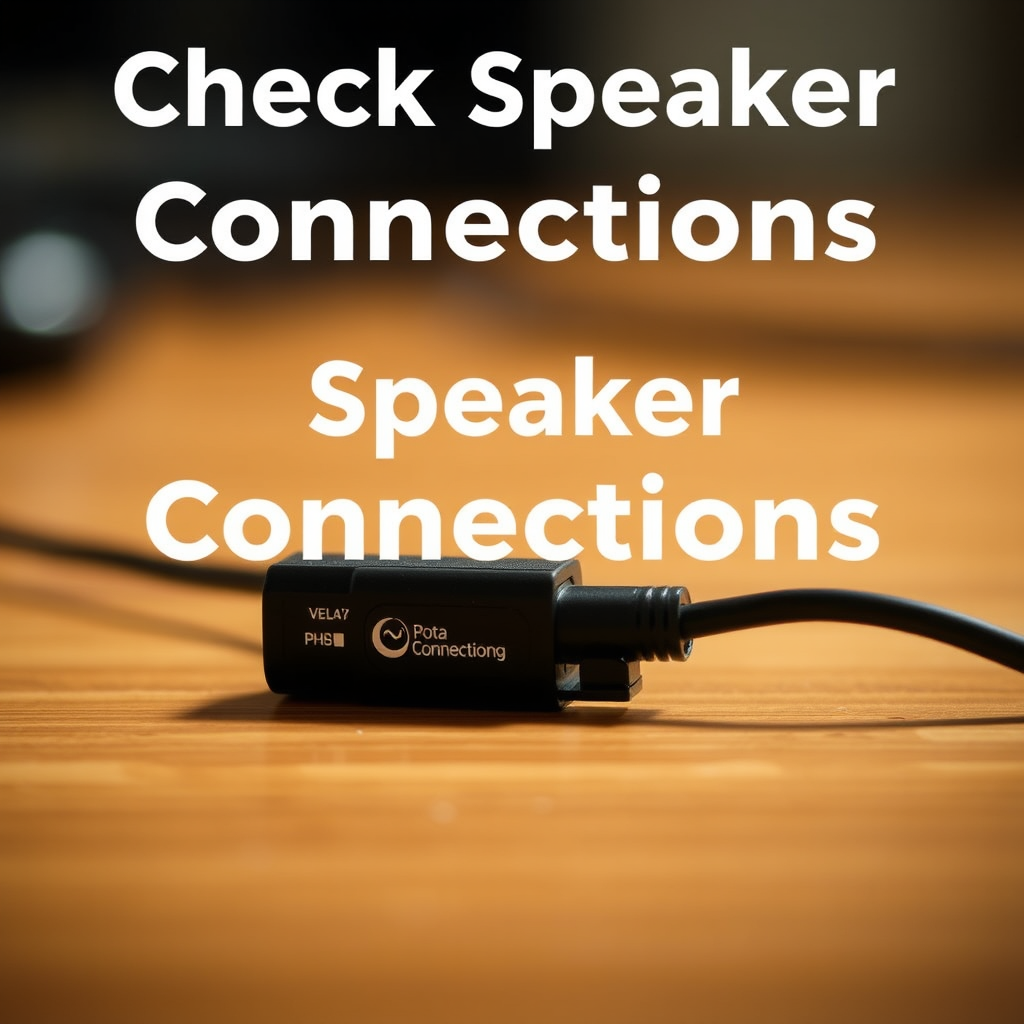
The first step in diagnosing a crackling sound in your wired speakers is to check all the connections. Start by ensuring that all cables are securely plugged into the correct ports. Loose connections can cause intermittent signals, leading to that pesky crackling sound. It’s a good idea to unplug and replug each connection to confirm a firm fit.
Next, inspect the connectors themselves. Look for any visible damage or corrosion that might affect performance. Dirty or corroded connectors can interfere with the audio signal, so if you see any buildup, consider cleaning the connectors with a soft cloth or rubbing alcohol. If the connectors are severely corroded, it may be time to replace them altogether.
Inspect Audio Cables
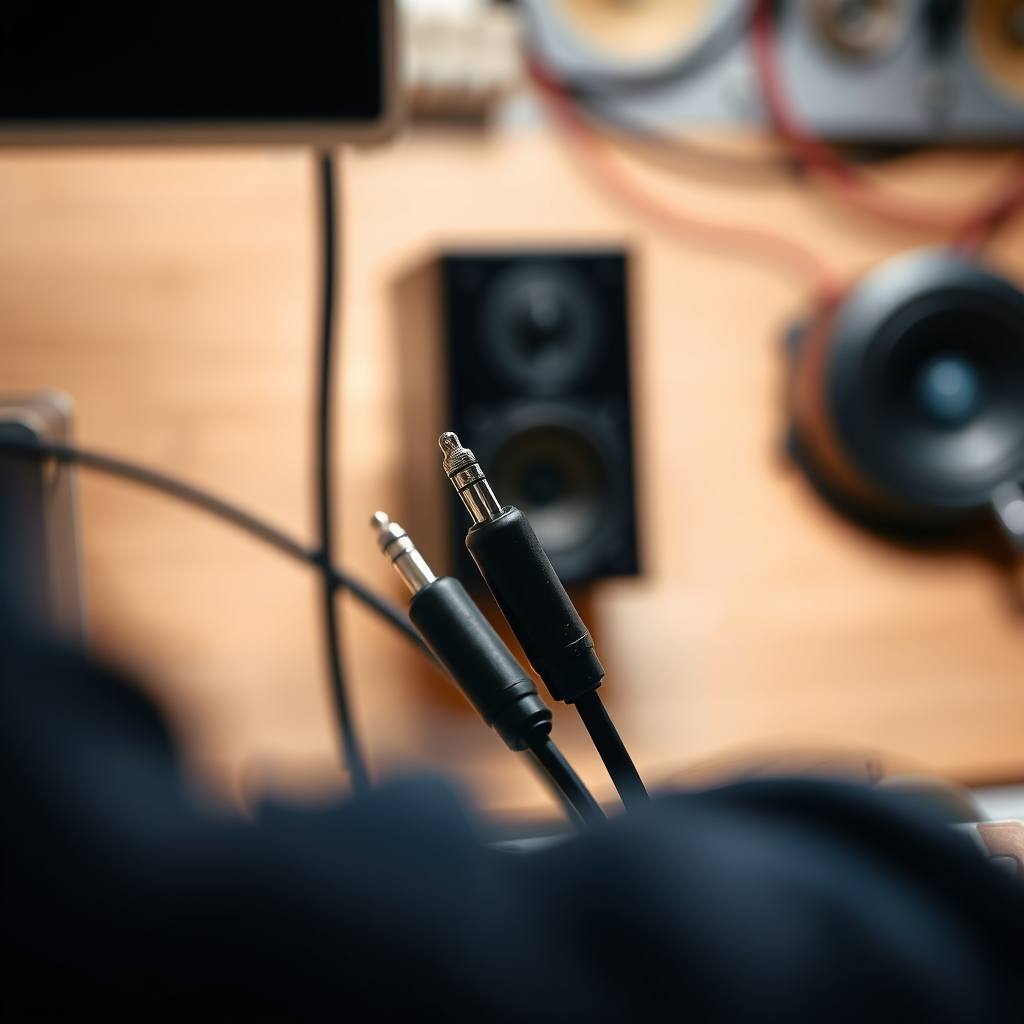
After checking the connections, turn your attention to the audio cables. Look for signs of wear and tear, such as frayed wires, bends, or breaks. Damaged cables can introduce noise and distortion into your audio, resulting in that annoying crackling sound. If you notice anything unusual, replacing old or low-quality cables with higher-quality options can make a significant difference.
For instance, if you’re using standard RCA cables, consider upgrading to shielded cables designed to minimize interference. High-quality cables often come with better insulation and shielding, which helps maintain the integrity of the audio signal. Remember, investing in good cables can often lead to a more reliable audio experience and reduce issues like crackling.
Examine the Audio Source
Another potential culprit for crackling sounds could be the audio source itself. To determine if this is the case, test your speakers with different devices. For example, if you primarily use your speakers with a computer, try connecting them to a smartphone or tablet. If the crackling persists across different devices, the issue is likely with the speakers or connections. However, if the crackling only occurs with one particular device, the audio source may be the problem.
If you’re using a computer, make sure your audio drivers are up to date. Outdated or corrupted drivers can lead to various audio issues, including crackling sounds. You can usually update drivers through your computer’s Device Manager or by visiting the manufacturer’s website for the latest versions. If issues continue, consider reinstalling the audio drivers entirely to ensure a clean slate.
Adjust Audio Settings
Sometimes, the solution to crackling sounds can be found within your device’s audio settings. Check the audio output settings on your device to ensure everything is configured correctly. Look for any potential errors, such as incorrect sample rates or bit depths that may not be compatible with your speakers.
Additionally, disable any audio enhancements or sound effects that might be enabled. Features like bass boost or virtual surround sound can sometimes cause distortion, especially if the speakers are not designed to handle them. By reverting to standard audio settings, you can often eliminate unwanted crackling and enjoy clearer sound.
Eliminate Interference
Electromagnetic interference is another common cause of crackling sounds in wired speakers. Devices like routers, microwaves, and even fluorescent lights can emit signals that interfere with your audio equipment. To minimize interference, try moving your speakers away from potential sources.
Ensure that your speakers are not placed too close to other electronic devices, as this proximity can exacerbate interference. If possible, keep audio cables away from power cords and other cables that carry electrical signals. This simple adjustment can sometimes make a world of difference in audio clarity.
Perform a System Reset
If you’ve gone through all the above steps and are still facing crackling issues, it might be time to perform a system reset. Restarting your audio device and speakers can clear any temporary glitches that may have developed during use. Simply unplug your speakers and turn off the audio device for a few moments before powering them back on.
Additionally, consider resetting any settings that may have been inadvertently altered. Sometimes, even the most minute changes in settings can lead to audio issues, so starting fresh can help you regain a clear sound.
Seek Professional Help
If all else fails and the crackling sound persists, it may be necessary to consult a professional technician. They can provide a thorough diagnosis and offer solutions that you may not have considered. Before you take this step, check your warranty options if your speakers are still under guarantee. Many manufacturers offer support and may even replace or repair faulty equipment at no additional cost.
Don’t hesitate to reach out to customer service or technical support for assistance. Often, they have encountered similar issues and can guide you through more advanced troubleshooting steps.
In conclusion, troubleshooting a crackling sound in wired speakers is often a straightforward process that involves checking connections, inspecting cables, examining the audio source, adjusting settings, and eliminating interference. If these steps fail to resolve the issue, seeking professional assistance may be necessary. Remember, you don’t have to let crackling sounds ruin your listening experience—take action today and reclaim your audio enjoyment!
Frequently Asked Questions
What causes a crackling sound in wired speakers?
A crackling sound in wired speakers can be caused by various factors, including loose connections, damaged cables, or interference from other electronic devices. Additionally, issues with the audio source, such as a faulty sound card or corrupt audio files, can also contribute to this problem. Identifying the root cause is crucial for effectively resolving the issue.
How can I troubleshoot crackling noises from my wired speakers?
To troubleshoot crackling noises from your wired speakers, start by checking all cable connections to ensure they are secure and undamaged. Next, test the speakers with a different audio source to determine if the issue lies within the speakers or the original device. Additionally, try moving the speakers away from other electronic devices to minimize interference, and inspect the speaker cables for any visible signs of wear or damage.
Why do my wired speakers crackle when I move the cables?
If your wired speakers crackle when you move the cables, it typically indicates a loose connection or damaged wire within the cable itself. This can happen due to wear and tear over time or from improper handling. To resolve this, inspect the cables for frays or breaks, and consider replacing them if necessary to restore clear sound quality.
What is the best way to fix crackling sounds in wired speakers?
The best way to fix crackling sounds in wired speakers is to start with a systematic approach: check all connections, replace faulty cables, and ensure that the audio source is functioning properly. If the issue persists, consider using a different audio output device or updating the audio drivers on your computer. In some cases, cleaning the speaker terminals and connectors with a specialized electronic cleaner can also help eliminate crackling sounds.
Which types of cables are most prone to causing crackling sounds in wired speakers?
Cables that are poorly insulated or of low quality are most prone to causing crackling sounds in wired speakers. For instance, unshielded cables can pick up interference from other electronic devices, while damaged or frayed cables may create interruptions in the audio signal. To minimize these issues, invest in high-quality, well-shielded cables designed for audio applications, as they are less likely to contribute to sound distortion.
References
- https://en.wikipedia.org/wiki/Speaker_(audio
- https://www.pcmag.com/how-to/how-to-fix-speaker-sound-problems
- https://www.lifewire.com/how-to-fix-crackling-speakers-1846765
- https://www.techwalla.com/articles/how-to-fix-crackling-speakers
- https://www.soundonsound.com/techniques/loudspeaker-faults-and-repair
- https://www.audioholics.com/how-to-fix-bad-speaker-sound
- https://www.cnet.com/tech/home-entertainment/how-to-fix-crackling-speakers/