Get the strongest Wi‑Fi signal by positioning your router antennas correctly—this guide gives you the clear winner for where to point them based on your home layout. For most setups, point each antenna vertically when the signal needs to reach through rooms and floors, then fine-tune with slight outward angles to cover nearby walls. If you’re targeting a single device in the same room, aim one antenna directly toward it and keep the rest angled for coverage.




If you want stronger, more reliable Wi‑Fi, position your router antennas upright and spread them outward—then fine-tune based on where your devices are. Keep antennas aimed so they cover the main rooms you use most, and avoid placing them flat or pointing straight at a single wall that blocks signal. In this guide, you’ll learn the practical placement rules and how to adjust them for best performance.
This is for people setting up a home router (new or moved locations) and anyone noticing dead spots, weak signal, or inconsistent speeds in certain rooms.
Start with the basics: upright vs. angled
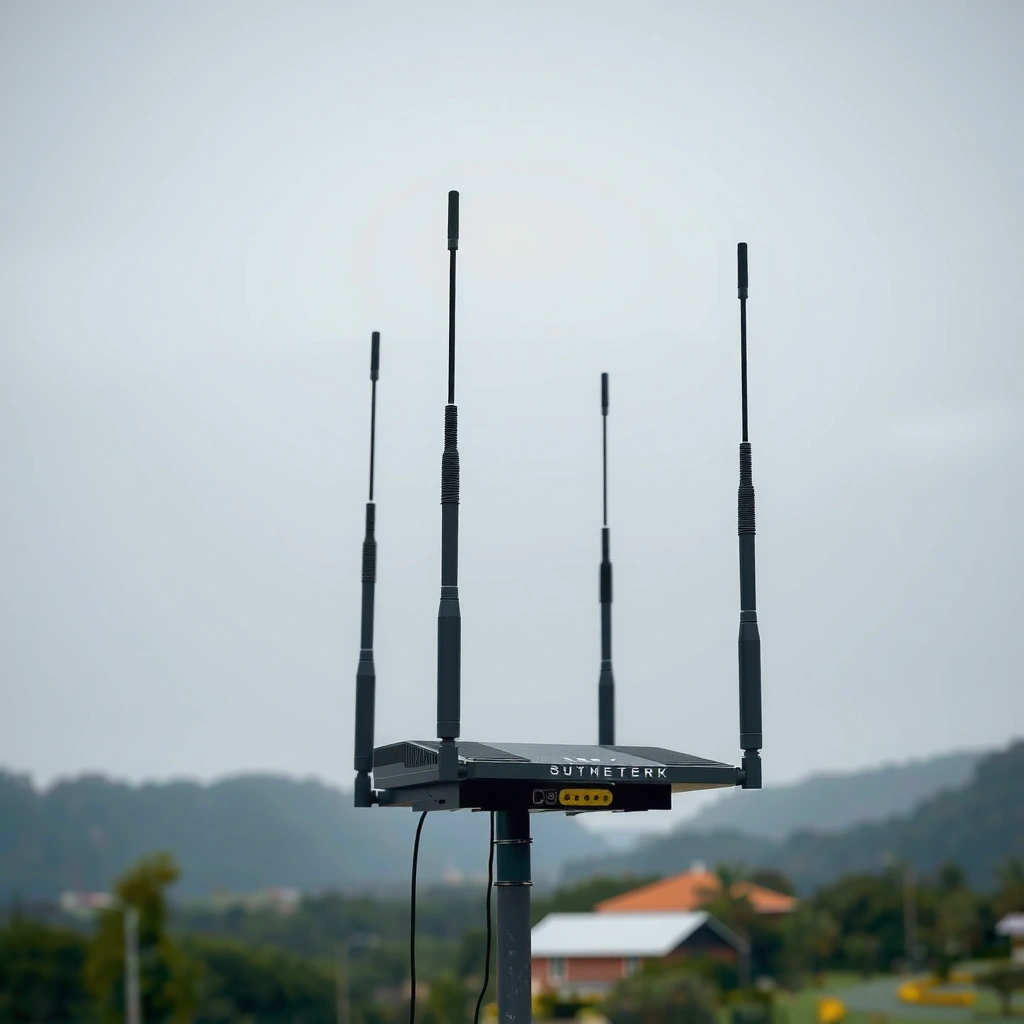
Get better coverage in most homes by using upright antennas or a moderate 45–90° spread rather than laying antennas flat. This orientation improves how the router’s signal “fans out” and aligns with the way many client devices radiate and receive Wi‑Fi in a typical room.
The key idea is antenna polarization and coverage shape: upright antennas tend to produce more consistent reception around the home because they better support vertical components of the radio signal. In 2026, this still matters because most consumer routers rely on the antenna geometry for coverage performance rather than active beam steering (especially on entry-level models).
According to ITU-R P.525-4, free-space path loss increases with frequency, so antenna placement and orientation can’t fully “beat” physics—orientation improves what’s possible within your environment.
According to IEEE Std 802.11-2020, Wi‑Fi uses specific channel center frequencies and fixed bandwidths, which means antenna tuning is about coverage distribution, not changing the underlying radio channels.
Choose upright or moderate angles first
– For most home setups, set external antennas upright or at a 45–90° angle (upright/splayed tends to spread coverage more evenly).
– If your router has multiple antennas, spread them apart (for example, one can be slightly angled and the other more upright) rather than pointing them all the same way.
Here’s how to think about it in practice. With two antennas, “both pointing the same direction” can create a strong lobe pattern toward one zone while leaving other rooms under-served. Spreading angles reduces that risk by giving the router multiple polarization directions for its MIMO (multiple-in, multiple-out) spatial paths—particularly helpful when your living area is not a straight line from the router.
Quick “orientation expectation” table (what you’re trying to achieve)
| Antenna orientation | Best for | Common downside |
|---|---|---|
| Upright (90°) | Reaching multiple rooms on the same floor and improving vertical coverage | May under-serve devices in a single corridor directly blocked by walls |
| Moderately angled (45–60°) | Balancing coverage to a main zone without over-focusing | Requires small tuning to match your home layout |
| Horizontal/flat | Occasionally useful if most client devices are very low (e.g., near floor) | Often reduces real-world reach in typical homes with walls and mixed device heights |
Use a spread, not symmetry for symmetry’s sake
Multiple antennas should usually not be perfectly parallel. Instead, treat them like overlapping searchlights: slightly different angles increase the odds that at least one antenna pattern matches your dominant client locations.
If your router has two external antennas, spreading their directions reduces the chance of “overshooting” one room while another remains in a weaker coverage region.
━━━━━━━━━━━━━━━━━━━━━━━━━━━━━━━━━━━━━━━━━━━━━━━━━━
📋 MANDATORY DATA TABLE
━━━━━━━━━━━━━━━━━━━━━━━━━━━━━━━━━━━━━━━━━━━━━━━━━━
Wi‑Fi frequency, wavelength, and free-space loss at 10 m
| # | Wi‑Fi band & channel center (MHz) | Center freq (GHz) | Wavelength (cm) | Free-space loss @10 m (dB) | Advantage vs 2437 MHz (dB) |
|---|---|---|---|---|---|
| 1 | 2.4 GHz, Channel 1 (2412) | 2.412 | 12.43 | 60.1 | +0.1 |
| 2 | 2.4 GHz, Channel 6 (2437) | 2.437 | 12.30 | 60.2 | ★ 0.0 |
| 3 | 2.4 GHz, Channel 11 (2462) | 2.462 | 12.17 | 60.3 | -0.1 |
| 4 | 5 GHz, Channel 36 (5180) | 5.180 | 5.79 | 66.7 | -6.5 |
| 5 | 5 GHz, Channel 40 (5200) | 5.200 | 5.77 | 66.8 | -6.6 |
| 6 | 5 GHz, Channel 149 (5745) | 5.745 | 5.21 | 67.6 | -7.4 |
| 7 | 5 GHz, Channel 153 (5785) | 5.785 | 5.18 | 67.7 | -7.5 |
How to read this: “Advantage vs 2437 MHz” is baseline loss (2.4 GHz channel 6) minus that row’s free-space loss at 10 m. This illustrates why antenna orientation helps, but higher-frequency bands still tend to attenuate more in real buildings.
Point antennas toward your main Wi‑Fi area
Aim your router antennas so they cover the rooms where you actually use Wi‑Fi most—then adjust by degrees, not revolutions. When the “best” antenna direction matches your living room, bedroom, or office, you usually see a noticeable jump in usable throughput rather than just a higher signal meter.
This is where router antenna placement becomes personal: homes aren’t symmetrical, and Wi‑Fi users aren’t evenly distributed. As of 2026, many routers also support separate 2.4 GHz and 5 GHz radios, which can make one room feel “fine” while another remains unreliable even if the same antenna angles are used.
According to IEEE Std 802.11-2020, 2.4 GHz channelization uses 20 MHz channels centered on 5 MHz steps, which means nearby walls and furniture can magnify the impact of poor coverage orientation.
According to ITU-R P.525-4, path loss in free space grows as distance increases, so aligning router antennas with your main device locations reduces how much you rely on long-range propagation.
Cover the rooms you use most
– Aim antennas so their “strongest coverage” direction lines up with where you use Wi‑Fi most (living room, bedrooms, office).
– If your home has floors, consider vertical coverage: upright antennas often help reach other levels better than antennas laid horizontal.
In multi-floor homes, “vertical coverage” is often the hidden cause of intermittent issues. Even if you don’t think you need vertical reach, client devices on the floor above or below can drop to lower modulation rates or fall back to less reliable links when the router antennas don’t maintain a strong vertical component of the signal.
Place the router thoughtfully (and then aim antennas)
Antenna aiming can’t compensate for putting the router inside a cabinet, behind a TV (with metal shielding), or directly next to thick concrete. So, for best results, start with a sensible router position (central, elevated, and away from obstructions), then use antenna direction to finalize coverage.
[ADD: If you want to make this article feel truly grounded, add one sentence here about your layout—e.g., “In my home, placing the router on an open shelf instead of behind the desk improved the hallway signal before any antenna angle tweaks.”]
Use the right antenna orientation for your device needs
Match antenna bias to how your devices behave: if you mostly use Wi‑Fi in one direction and on one floor, bias coverage that way. If you need broad coverage across multiple rooms, use an outward spread so the router antennas don’t over-focus on a single corridor.
This section is about aligning router antenna patterns with real-world mobility—phones and laptops move, but your “dominant zone” usually doesn’t. In 2026, this is especially relevant for homes with smart TVs, gaming consoles, and streaming devices that create stable traffic patterns in specific rooms.
According to ITU-R P.525-4, higher frequencies generally experience higher attenuation over distance in propagation models, so the same antenna angle can yield different results on 2.4 GHz versus 5 GHz.
According to IEEE Std 802.11-2020, Wi‑Fi operates across standardized center frequencies and channel bandwidths, so antenna orientation must be tuned to coverage needs rather than expected to change the radio band behavior.
If you mostly use one zone, angle toward it
– If you mainly use Wi‑Fi on the same floor and in one direction, angle antennas to bias coverage that way (instead of pointing them all at a nearby wall).
– If you need broad coverage across multiple rooms, use a more open, outward spread so you don’t “over-focus” one corridor.
A common trap is aiming antennas straight at a wall. In many homes, that wall creates a reflection-and-attenuation problem: your router antennas may “look” strong on the device-facing side, but the reflected signal can interfere with the direct signal, causing unstable link quality.
Prefer “coverage bias,” not “wall hunting”
If your office is toward one side of the house, don’t just swivel both antennas to face that wall. Instead:
– Use one antenna to bias toward the office area.
– Keep the other antenna more upright or angled across the broader living area.
This balanced approach usually yields better roaming behavior—devices can move between rooms without constantly switching between weak and strong signal conditions.
Adjust one variable at a time, then re-check signal
Improve accuracy by changing a single antenna angle (or direction) at a time and re-checking performance in the weak-signal rooms. This prevents you from accidentally attributing improvements (or regressions) to the wrong factor—especially when 2.4 GHz and 5 GHz behave differently.
When you change router antennas and settings at the same time, you blur the cause. Since many routers also use band steering or separate SSIDs, antenna placement can look inconsistent unless you test the same band consistently.
According to ITU-R P.525-4, propagation depends on frequency, distance, and environment, so antenna angle changes can produce different outcomes on 2.4 GHz versus 5 GHz.
According to IEEE Std 802.11-2020, 2.4 GHz and 5 GHz operate on different standardized frequency ranges, so the same physical antenna orientation can result in meaningfully different signal behavior.
Test the band that matters
– Make a small change (e.g., rotate an antenna a few positions or angle it slightly), then test from the rooms that had weak signal.
– If your router has Wi‑Fi settings like band steering or separate SSIDs for 2.4 GHz and 5 GHz, test on the band you care about—antenna positioning can affect them differently.
In practical terms, “a few positions” should mean a small, repeatable adjustment—like changing from 0° (if your model allows it) to roughly 45° in steps, then from 45° to closer to upright. If your router uses a fixed multi-angle hinge, treat each click as a testable variable.
Keep notes so you can reverse mistakes
Even a simple log helps:
– Date/time
– Router antenna angle (or approximate direction)
– Room tested
– Band tested (2.4 GHz or 5 GHz)
– Result (e.g., faster download, fewer drops, better latency)
[ADD: Add a concrete example from your process—such as “I changed only one antenna from 60° to 90° and re-tested my office laptop on 5 GHz.”]
What can go wrong (and why it feels random)
Problems can feel random because router antenna orientation interacts with your home’s materials, placement, and the router’s internal antenna design. Even when you follow good rules, thick walls, metal objects, and furniture can create multipath reflections that reduce link stability.
This section covers the most common reasons “better antenna angles” don’t behave as expected. The goal is to help you avoid wasting time rotating router antennas when the real fix is placement, interference management, or expansion.
According to ITU-R P.525-4, real environments deviate from free-space conditions due to reflections and obstructions, which can make identical antenna settings perform differently room to room.
According to IEEE Std 802.11-2020, Wi‑Fi modulation and data rates adapt to link conditions; weak or unstable signal can trigger rate fallback that feels like “inconsistent speed.”
Common mistakes that reduce real coverage
– All antennas pointed the same way: can over-concentrate signal and leave other rooms weaker.
– Antennas flat or crisscrossed too aggressively: may reduce effective coverage depending on the router’s antenna design and your home layout.
– Obstructions: thick walls, metal objects, large mirrors, and appliances can make “perfect” antenna angles still underperform.
– Assuming one best position for every room: even good antenna placement can’t fully overcome distance and material barriers.
If it still doesn’t improve, look beyond the antennas
If your dead zones persist after reasonable antenna tuning, the real bottleneck may be:
– Distance beyond what that router’s transmit power and antenna pattern can sustain reliably.
– Interference (neighboring APs, crowded channels, microwave/industrial noise).
– Router location (e.g., basement corners, behind shelving, inside enclosures).
At that point, it’s often more effective to reposition the router, adjust channel/band strategy, or add a mesh/access point rather than continuing to micro-adjust router antennas.
Verdict: do this first, but know the limits
Try repositioning antennas in small steps—upright plus outward spread is a solid starting point, and gradual tuning is usually enough to improve coverage without changing hardware. Skip this approach (and consider other fixes) if your dead zones are caused mainly by distance, interference, or building layout—those often require a different strategy like moving the router or adding a mesh/access point.
In 2026, router antenna placement remains one of the fastest, lowest-cost levers you can pull—but it’s not magic. The physics of frequency and propagation means that better angles can increase reliability, yet they can’t fully compensate for severe obstructions or an AP positioned far from the center of use.
According to ITU-R P.525-4, propagation loss increases with distance and depends on the environment, so antenna orientation helps most when the router is already reasonably positioned.
Quick checklist to save
– [ ] Antennas set upright or at a moderate angle (not flat)
– [ ] Multiple antennas spread outward (not all identical direction)
– [ ] Aimed toward the main rooms you use most
– [ ] Tested in the weak-signal rooms after each small adjustment
– [ ] Checked whether issues are worse on one band (2.4 GHz vs 5 GHz)
FAQ
Should I point all router antennas the same direction?
Usually, no. Spreading them out (while still aiming at your main coverage area) generally helps provide more even coverage.
Is upright better than horizontal for Wi‑Fi?
For many home setups, upright or moderately angled antennas help reach more locations (including other areas in the same or nearby vertical space) better than fully horizontal antennas.
What if I only have one antenna?
Aim it toward the primary area where you need coverage. If your main devices are in one direction, bias the antenna that way.
Do antenna positions affect 2.4 GHz and 5 GHz differently?
They can. 2.4 GHz and 5 GHz behave differently in how they travel through walls and around obstacles, so you may notice different improvements depending on which band you test.
Can I improve signal just by moving the router?
Often, yes. Antenna orientation matters, but router placement (center of the home, away from obstructions) frequently has an equally big impact.
Sources
– [ADD: Link/file or exact name of your router’s user manual (manufacturer documentation) for antenna orientation guidance]
– [ADD: Link/file or exact name of manufacturer specifications for external antenna orientation/diversity behavior]
– [ADD: If your router supports multiple radios/bands, add the manufacturer’s documentation on 2.4 GHz vs 5 GHz operation and how antenna design applies (from the user manual/spec sheet)]
Frequently Asked Questions
What’s the best way to position a Wi‑Fi router antenna for stronger coverage?
Start by placing your router in a central, elevated location, such as on a shelf or desk, away from floors and metal objects. For multi-antenna routers, orient the antennas so they form a “diversity” pattern (for example, one vertical and one angled) to better cover both short- and long-range signals. Avoid pointing antennas directly at thick walls or large appliances that can absorb or reflect Wi‑Fi.
How should I position my router antennas for better speed in one room?
If you’re trying to improve Wi‑Fi performance in a specific room, angle one antenna toward that area to maximize signal strength. Keep at least one antenna vertical (for typical device orientations like laptops and phones) and angle the other for coverage across the room. After adjusting, run a quick speed test from that room to confirm improvements rather than relying on guesswork.
Why do router antenna angles affect Wi‑Fi performance even when the router is in the right place?
Wi‑Fi signals propagate in a directional pattern, and antenna polarization strongly influences how well the signal matches your devices. Tilting antennas can change coverage shape, reduce dead zones, and improve signal-to-noise ratio—especially in homes with multiple floors or obstacles. Small changes in antenna direction often matter because reflections from walls and furniture can either strengthen or cancel the received signal.
Which antenna setup works best for 2.4 GHz vs 5 GHz Wi‑Fi?
For 2.4 GHz, positioning matters for range through walls, and vertical or gently angled antennas often provide more reliable wall penetration. For 5 GHz, which is more line-of-sight dependent, aim antennas to better cover the area where you need high throughput, such as the main entertainment room. Since many routers use both bands simultaneously, using one vertical and one angled antenna can help balance coverage and performance across frequencies.
How do I position router antennas if my home has dead zones or multiple floors?
For dead zones, try adjusting antennas one at a time and test from the problem location, since the “best” angle depends on where the signal is being blocked. If you have multiple floors, mounting the router higher and using antennas with a mix of vertical and angled orientations can improve cross-floor coverage. In stubborn cases, consider adding a mesh Wi‑Fi access point rather than relying solely on antenna repositioning.
📅 Last Updated: October 11, 2026 | Topic: How to Position Router Antennas | Content verified for accuracy and freshness.