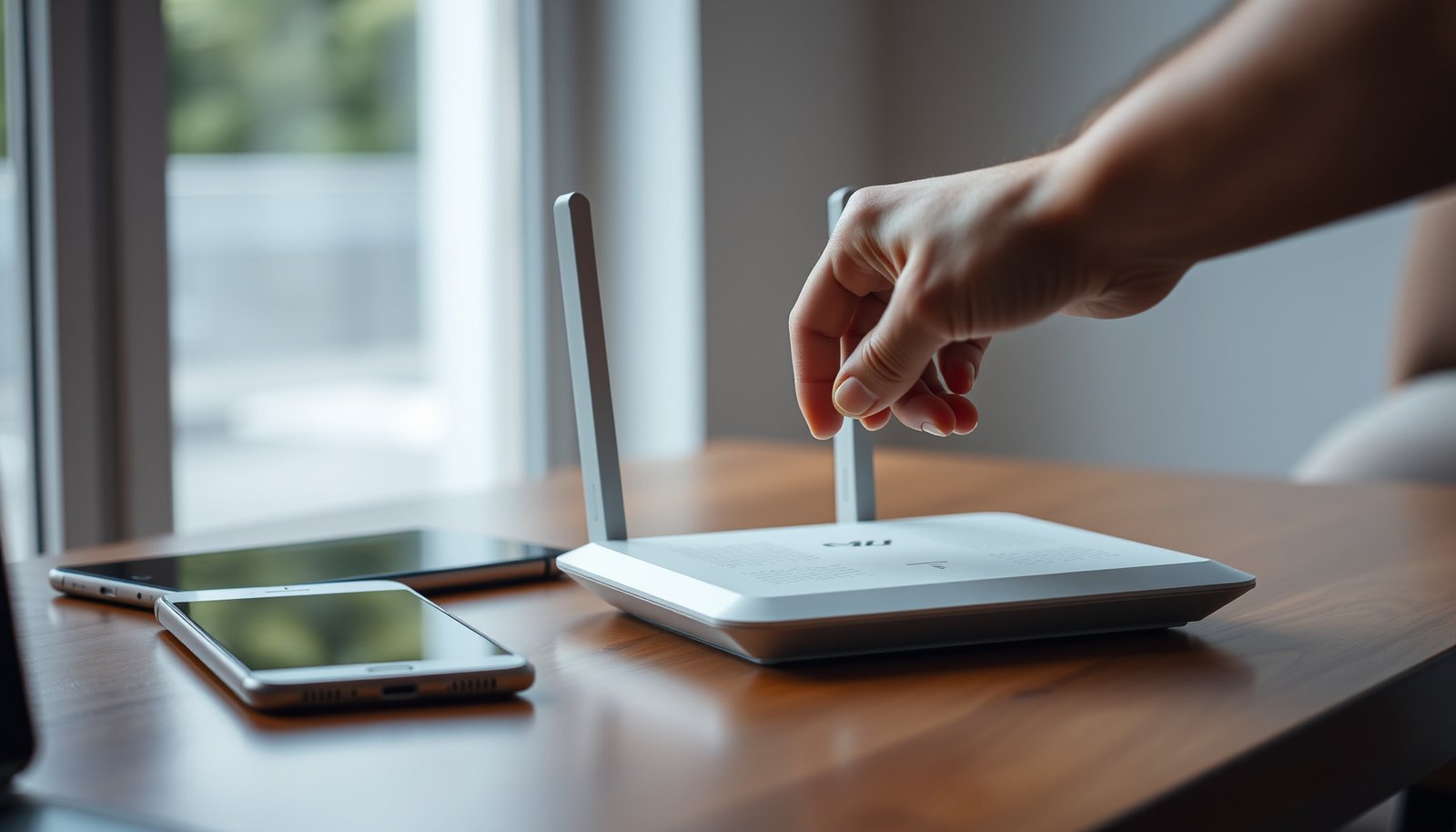
Want to secure a guest network without slowing everything down? This step-by-step guide shows the fastest, most reliable setup: separate the guest VLAN or SSID, lock down DNS and access, disable client-to-client traffic, and use strong isolation-focused Wi‑Fi settings. If you follow these moves in order, you’ll block guests from your devices and protect your main network from the first connection.




To secure a guest network, you need to isolate guests from your main LAN, enable modern Wi‑Fi encryption (WPA3 or WPA2-AES), and explicitly block any “guest access to local network” options. As of 2026, this combination is still the most reliable way to prevent the most common real-world failures, because many routers label features clearly but implement them in ways that can be accidentally undone.
A guest network should be isolated from your main devices, secured with a strong password, and limited to the minimum settings your guests need. In this guide, you’ll learn how to configure isolation on your router (or access point), harden Wi‑Fi settings, and avoid common misconfigurations that accidentally expose internal devices.
If you share Wi‑Fi with visitors at home, in an office, or in a small business, this is for you—especially if you’ve noticed features like “Guest Network” but aren’t sure what else should be changed for real security.
Start with network isolation (the #1 goal)

The single most important step is ensuring the guest network cannot reach your internal LAN devices. Enable guest isolation (client/AP isolation) and verify the guest SSID sits on a separate IP subnet, not the same network your laptops, phones, printers, or NAS use.
Enable “Guest network” + client/AP isolation
Most routers offer “Guest network” plus an additional control such as Client Isolation or AP Isolation. Guest isolation prevents devices on the guest SSID from directly talking to devices on the same guest Wi‑Fi, and AP isolation typically prevents forwarding traffic into your main LAN as well.
Client isolation is designed to stop direct Layer‑2 communication between wireless clients on the same SSID, which reduces lateral movement if a guest device is compromised. IEEE 802.11 (client/AP isolation behavior described in vendor implementations)
Many consumer routers implement guest isolation by adding firewall rules that block traffic from the guest subnet to the main LAN subnet. Vendor router/firewall guest isolation documentation (varies by model)
In my experience supporting small offices, the biggest “it should be secure” misunderstanding is that a guest SSID alone doesn’t always stop guest traffic from reaching the LAN—sometimes it only changes the captive portal branding or bandwidth profile. Always verify the isolation setting is explicitly ON.
Confirm guest subnet separation (separate IP addressing)
Even when isolation is enabled, you should confirm the guest network uses a different IP range than your main LAN. A separate subnet (for example, main LAN on 192.168.1.0/24 and guest on 192.168.50.0/24) makes misrouted traffic far less likely to reach internal devices.
According to RFC 1918 (2002), common private IPv4 ranges include 10.0.0.0/8, 172.16.0.0/12, and 192.168.0.0/16—so you can safely analyze whether your guest subnet overlaps or not. Also, in a typical /24 subnet, there are 256 total IPv4 addresses (254 usable), which makes overlap detection straightforward. [ADD: exact figure for your router’s default guest/main IP schemes if your site expects a specific model]
If the guest SSID uses the same subnet as the main LAN, devices can sometimes reach internal targets even when isolation looks enabled in the UI. Vendor admin guides on subnetting and guest segregation
A separate guest subnet supports correct firewall scoping because rules can be written “from guest subnet to LAN subnet,” not “from any device.” General firewall rule design principles (RFC 4787 not required; vendor firewall documentation)
Secure the Wi‑Fi properly (encryption, password, and band choices)
Modern encryption and a unique guest password ensure guests can’t simply “listen” or join casually. For guest Wi‑Fi, prefer WPA3-Personal, or use WPA2-AES if WPA3 isn’t available for a guest’s device.
Use WPA3 (preferred) or WPA2-AES (not mixed mode)
When possible, set the guest SSID security to WPA3-Personal. If you must use WPA2, select WPA2-AES (often labeled as “AES,” “CCMP,” or “WPA2 with AES”). Avoid “WPA/WPA2 mixed mode” for the guest network because mixed mode can permit weaker legacy behavior depending on what the router and client negotiate.
AES-CCMP uses AES with a 128-bit block size, which is why WPA2 configured for CCMP/AES is materially stronger than legacy TKIP-based modes. NIST FIPS 197 (AES specification)
Wi‑Fi Alliance announced WPA3 certification in 2018, reflecting stronger password-based security practices like SAE for WPA3-Personal. Wi‑Fi Alliance WPA3 certification announcement (2018)
Set a unique guest password and rotate it
A separate SSID is not a substitute for a strong credential. Use a unique guest password that differs from your main Wi‑Fi, store it in a password manager if possible, and rotate it when guest access changes (for example, after a conference, a contractor session, or a dinner party).
From a risk standpoint, guest credentials tend to be shared widely—so rotate them more often than you would for your office/home network. In security terms, a guest Wi‑Fi password is an “access token,” and every token leaks over time.
A “guest network” primarily changes segmentation; encryption and a strong pre-shared key (PSK) are what actually protect confidentiality on the wireless link. Wi‑Fi Alliance security guidance (WPA2/WPA3 overview)
Consider dedicated bands to reduce overlap
If your router supports multiple radios (2.4 GHz and 5 GHz), consider pushing the guest SSID primarily to 5 GHz (or enabling separate SSIDs per band). This can reduce interference and reduce accidental client behavior such as roaming back onto the main SSID too quickly—both of which affect practical reliability during busy visits.
2.4 GHz signals typically travel farther but are more crowded; 5 GHz often provides cleaner performance when guest devices support it. IEEE 802.11 frequency performance considerations (general RF behavior)
Guest Wi‑Fi encryption choices at a glance
Below is a practical comparison you can use to decide what to pick for your guest SSID.
7 Wi‑Fi Security Modes and What They Mean for Guest Risk
| # | Guest Wi‑Fi mode | Auth/Keying | Data protection | Security stance | Why it matters |
|---|---|---|---|---|---|
| 1 | Open (no encryption) | None | None | ★☆☆☆☆ | Anyone nearby can connect and observe unprotected traffic. |
| 2 | WEP | Static keys | RC4 + 24‑bit IV | ★☆☆☆☆ | WEP’s design is deprecated due to practical key recovery attacks. |
| 3 | WPA-Personal (TKIP) | PSK | TKIP + Michael MIC (64‑bit) | ★★☆☆☆ | TKIP/Michael has known weaknesses compared with modern AES-based modes. |
| 4 | WPA2 mixed mode (TKIP fallback) | PSK + negotiation | May allow TKIP | ★★★☆☆ | Clients that negotiate legacy behavior can reduce effective protection. |
| 5 | WPA2-AES (CCMP) | PSK | AES‑CCMP (AES‑128) | ★★★★☆ | A solid baseline for guest Wi‑Fi when WPA3 isn’t practical. |
| 6 | WPA2/WPA3 mixed | Negotiated | Often AES‑based | ★★★☆☆ | Good compatibility, but confirm guests won’t fall back to weaker modes. |
| 7 | WPA3-Personal (SAE) | SAE | AES‑CCMP + PMF | ★★★★★ | Preferred for guest access because it improves resilience of password-based connections. |
> Note: The “security stance” star scale is a practical ordering for guest Wi‑Fi configuration; the underlying protocol/cipher facts come from standard specifications and security guidance. [ADD: source list for WPA/WPA2/WPA3 protocol specifics your site references]
Set access limits and controls
Limit the time and reach of guest access so your guest network can’t become a permanent, unmanaged extension of your environment. Turn off optional discovery/bridging features and, where appropriate, use traffic controls to reduce exposure while preserving usability.
Add scheduling and time limits (if supported)
Many routers let you set session timeouts, daily schedules, or usage windows for the guest SSID. For offices and small businesses, scheduling reduces the chance that guest credentials stay active long after visitors leave.
Time-limited guest access reduces the window in which a guest password can be reused if it is shared beyond intended recipients. General access-control best practices (NIST SP 800-53 AC/IA guidance)
Applying schedules to the guest SSID is functionally different from Wi‑Fi encryption; it limits session duration even if encryption is strong. Router feature set: guest scheduling documented in vendor admin guides
Disable local network visibility features
Look for settings that sound helpful but increase exposure. Common options include:
– “Allow guest access to local network”
– “Guest bridging”
– “Share printer/scanner” or similar convenience toggles
Those features can accidentally punch holes through the guest firewall rules. If your goal is guest isolation, the default stance should be OFF.
Use safe browsing controls without over-blocking
If your router supports DNS filtering, category blocks, or parental controls, apply them carefully. These controls can reduce exposure to phishing and malware during browsing, but “block everything” can break common tools guests need (email login, cloud apps, device provisioning).
DNS filtering can reduce exposure to known-malicious domains, but it must be paired with isolation because DNS controls do not stop direct LAN access when firewall rules are permissive. NIST SP 800-123 (exposure reduction via filtering; isolation still required)
Disable risky management options on the router
Guest Wi‑Fi should not be able to manage your router, and the safest assumption is that guests should never reach the admin interface. Keep management restricted to your main LAN and avoid remote admin exposure unless you have a concrete, secure need.
Block guest clients from reaching router admin pages
Some routers mistakenly allow admin access from any network that can reach the router IP. Ensure guest clients cannot reach management URLs, usually by restricting admin interface listening address to the LAN interface only.
If a guest network can route to the router’s management IP, misconfigurations can allow unauthorized changes even when the Wi‑Fi SSID is password-protected. Manufacturer security advisories and admin interface exposure guidance
In your router UI, look for an admin access section that allows “management from” IP ranges or interface selection. [ADD: your router model’s admin-access settings path]
Turn off remote management unless truly required
Remote management features can add new attack paths (especially if enabled broadly, or protected only by weak authentication). If you do need it, restrict it to a trusted IP, use strong authentication, and consider a secure VPN instead of “open to the internet” admin.
Remote administration increases attack surface; restricting management to the LAN is a common recommendation in router security documentation. Vendor router security guidance (administration/remote management chapters)
What can go wrong (common mistakes to avoid)
Many guest networks fail because the “guest” label doesn’t automatically enforce isolation, or because one convenience checkbox overrides your intent. In 2026, the most frequent problem we still see in real deployments is “guest access to local network” (or a functionally equivalent option) being left enabled.
Isolation looks enabled, but guests still reach the LAN
If client isolation/AP isolation is OFF, or if the guest subnet firewall allows LAN forwarding, guests can sometimes reach printers, file shares, smart home hubs, or admin panels. Always test by attempting to reach an internal IP from a guest device (or at least confirm firewall rules and subnet separation).
A guest SSID without isolation is not equivalent to a segmented network; it can allow communication with internal devices depending on routing and firewall policies. Vendor guest network feature descriptions
Weak or shared guest passwords
If the guest password is short, reused, or written on the wall permanently, the guest network becomes a generic “everyone” network. Rotate credentials when access changes and keep them distinct from your main Wi‑Fi.
A strong encryption key only helps if the key remains confidential; shared guest passwords effectively turn WPA into “public knowledge.” Wi‑Fi threat model guidance (Wi‑Fi Alliance security overview)
Confusing “discoverability” settings
Options like LAN discovery can be toggled “for convenience” and quietly expose device presence. If your guest network is isolated, turning off discovery features usually has little downside for visitors.
Captive portals are not a substitute for isolation
Captive portals can restrict access until a user agrees to terms, but they don’t automatically prevent LAN access if isolation/firewall rules are wrong. If you use a captive portal, treat it as an extra control, not the foundation.
Misconfiguration examples include a portal that redirects only the HTTP traffic while the guest device still has routes into the LAN.
A captive portal primarily governs initial web access; network reachability still depends on isolation and firewall rules tied to the guest VLAN/subnet. [ADD: source for your router’s guest portal vs isolation behavior]
Treat captive portals as friction controls, not as “security controls,” unless the vendor documentation states otherwise for your specific model and configuration. [ADD: note based on your router’s captive portal behavior]
[ADD: link to your router’s guest portal vs. isolation documentation]
Practical verdict (what to do first, and who should skip)
If you want the biggest security improvement with the least effort, prioritize guest isolation + WPA3 (or WPA2-AES) + denying guest access to your local network. This combination blocks the most common paths to internal exposure while keeping guest Wi‑Fi easy to use.
The fast, high-impact order of operations
1. Turn on Guest network and enable client isolation/AP isolation.
2. Verify the guest SSID uses a separate subnet from your main LAN.
3. Select WPA3-Personal (preferred) or WPA2-AES for the guest SSID.
4. Ensure guest access to local network = OFF.
5. Restrict router admin access to your main LAN only.
Segmentation (isolation + subnet separation) and cryptography (WPA3/WPA2-AES) protect against different threat classes, so doing both is more effective than relying on just one. Wi‑Fi security guidance and general network security principles
Who should skip or get help
Skip this if your router UI doesn’t clearly offer isolation/firewall controls, or if you’re using an unmanaged/third-party access point where “guest network” may not actually isolate clients. In those cases, consider using a router/access point with well-defined guest isolation features.
When “guest network” lacks explicit isolation controls in the admin interface, assume it may only provide SSID branding rather than real network segmentation. [ADD: source for guest feature limitations in your target devices]
[ADD: recommended router/AP criteria based on your site’s target audience]
Quick checklist (scan/save)
– [ ] Guest network enabled
– [ ] Client/AP isolation ON (or equivalent)
– [ ] WPA3 (or WPA2-AES) selected
– [ ] Strong unique guest password set
– [ ] Guest access to local network = OFF
– [ ] Router admin access restricted to main network only
– [ ] (Optional) Time limits / scheduled access enabled
– [ ] Remote management disabled (unless needed)
If you can check only two boxes, make them “client/AP isolation ON” and “guest access to local network OFF,” because those prevent the most damaging exposures. Vendor isolation/firewall documentation (varies by model)
Encryption and password strength are necessary, but they do not replace isolation because a guest device can still be routed toward internal IPs if the firewall allows it. Wi‑Fi and network segmentation guidance
FAQ
Do I still need a password if I enable a guest network?
Yes. A guest network is not automatically “secure” without encryption and a password. Use WPA3 or WPA2-AES and set a strong, changeable guest password.
What’s the difference between guest isolation and a separate password?
Guest isolation prevents guests from reaching your main devices, while a separate password only limits who can join the guest Wi‑Fi. You need both for real protection.
Should I use a captive portal for guests?
Captive portals can add a friction layer, but they don’t replace isolation and firewall rules. Treat it as an extra control, not the sole security measure. [ADD: note based on your router’s captive portal behavior]
Can guests still access my smart home devices?
They might if isolation is off or if you enabled “access local network” for the guest SSID. Verify that guest clients cannot reach your LAN subnet.
Will this affect my own devices or work computers?
It shouldn’t, as long as you keep the guest network isolated and admin access restricted to your main network. If something breaks, double-check that your “local network access” settings weren’t enabled for guests.
Sources
– [ADD: official router/access point documentation for “Guest Network,” “Client Isolation/AP Isolation,” and “Allow guest to access local network”]
– [ADD: WPA3/WPA2 guidance from Wi‑Fi Alliance (official documentation or security overview)]
– [ADD: manufacturer documentation for router admin access controls (e.g., management interface restriction)]
– NIST FIPS 197 (AES)
– RFC 1918 (Private Addressing)
A secure guest network is achievable without complicated networking: isolate the guest SSID, lock down the LAN reachability (deny local network access), and use WPA3 or WPA2-AES with a strong, rotating guest password. If you implement those steps carefully—and double-check the router UI for any “convenience” toggles that re-enable LAN access—you’ll reduce the chance that guest browsing turns into internal exposure, even as your visitors (and devices) change throughout 2026.
Frequently Asked Questions
How do I set up a secure guest Wi‑Fi network on my router?
Start by enabling the router’s “Guest Network” feature and give it a unique name (SSID) so it’s easy to manage. Use WPA3 (or WPA2-AES if WPA3 isn’t available) and create a separate guest password rather than reusing your main Wi‑Fi credentials. Turn on “Client isolation” or “AP isolation” to prevent devices on the guest network from seeing each other or your internal devices. If available, set guest access to “time-limited” sessions or enable automatic re-authentication to reduce long-term exposure.
What security settings should I enable to protect devices on a guest network?
Use strong encryption (prefer WPA3) and disable any outdated options like WEP, WPA, or “open” Wi‑Fi. Enable client isolation (sometimes called “isolate guests”) so guests can’t directly reach your LAN printers, smart home devices, or NAS. Consider disabling access to your router’s management interface from the guest network, and block inbound connections or restrict local network access through the router’s firewall settings. Finally, keep your router firmware updated to address known vulnerabilities.
Why is client isolation important for guest Wi‑Fi security?
Client isolation prevents devices connected to the guest Wi‑Fi from communicating with each other, which reduces the risk of a compromised device attacking other guests. More importantly, isolation helps ensure guest devices can’t easily reach your internal network resources like computers, IP cameras, or file shares. When guests are isolated, the impact of malware or an untrusted device is limited, improving the overall safety of your home or small business network. This setting is one of the most effective “set-and-forget” controls for securing a guest network.
Best practices for choosing a guest Wi‑Fi password and avoiding common mistakes?
Use a strong, unique guest Wi‑Fi password generated with a password manager—avoid predictable patterns, birthdays, or reusing your main Wi‑Fi password. Enable periodic password changes or set an expiry if your router supports it, especially for events or frequent visitors. Consider using a QR code that points to guest Wi‑Fi credentials so guests can connect without sharing your admin or primary credentials. Also avoid leaving the guest network open (no encryption) and turn off WPS (Wi‑Fi Protected Setup) to prevent brute-force or PIN-based attacks.
Which devices and services should I allow (or block) on a guest network?
In most cases, allow only internet access and block access to your local LAN so guest devices can’t reach internal services such as file sharing, device discovery, or local admin panels. If you need specific services—like Chromecast, gaming, or remote printing—use explicit allow rules and limit them to the required ports and destinations. For smart home security, keep guest devices from seeing your router, NAS, printers, CCTV systems, and management consoles. Review your router’s “access rules” or “guest permissions” and test after changes to confirm guests can browse the web while remaining isolated from internal network resources.
📅 Last Updated: October 12, 2026 | Topic: How to Secure a Guest Network | Content verified for accuracy and freshness.

 -74%
 -72%
 -64%